Desktop Commander MCP:为 Claude 提供终端控制、文件搜索与差异编辑的 MCP 服务器
英文标题:🔥 wonderwhy-er/DesktopCommanderMCP
该项目是一个 MCP 服务器,允许 Claude 等 AI 直接控制终端、管理文件系统并执行代码。它提供包括 Docker 在内的多种安装方式,支持自动更新、文件预览、进程交互以及 Excel/PDF/DOCX 操作,同时内置安全防护与审计日志。开发者无需 API 额度即可将 AI 深度集成到本地工作流,大幅提升自动化与编辑效率。
 1.3 KB
 1012 B
 1.6 KB
 2.4 KB
 1.3 KB
 2.3 KB
 20.4 KB
 22.3 KB
 200.9 KB
 43.8 KB
 27.4 KB
 584.3 KB
 21.3 KB
 38.1 KB
 34.3 KB
 11.3 KB
 38.0 KB
 450 B
450 B
 1.2 KB
中文
用 AI 搜索、更新、管理文件并运行终端命令
处理代码、文本,运行进程并自动化任务,远超其他 AI 编辑器——同时使用宿主客户端订阅,无需 API 令牌费用。
🖥️ 试用桌面指挥官 App(Beta)
想要更好的体验? 桌面指挥官 App 提供了 MCP 服务器的一切,外加:
- 使用任何 AI 模型 — Claude、GPT-4.5、Gemini 2.5 或任何你偏好的模型
- 实时查看文件更改 — AI 编辑文件时的可视化预览
- 添加自定义 MCP 和上下文 — 用自己的工具扩展,无需配置文件
- 即将推出 — 技能系统、听写、后台定时任务等
👉下载 App (macOS 和 Windows)
下面的 MCP 服务器仍然可以在 Claude Desktop 和其他 MCP 客户端中完美运行——App 是为那些想要专门、精致体验的用户准备的。
你的所有 AI 开发工具集中一处。桌面指挥官将全部开发工具集成到一个聊天中。通过模型上下文协议(MCP),在你的计算机上执行长时间运行的终端命令并管理进程。基于 MCP 文件系统服务器 构建,提供了额外的搜索和替换文件编辑能力。
- 远程 AI 控制 - 通过 Remote MCP 从 ChatGPT、Claude Web 和其他 AI 服务使用桌面指挥官
- 文件预览 UI - Claude Desktop 中的可视化文件预览,支持渲染 Markdown、内联图片、可展开内容、内置 Markdown 编辑器以及快速的“在文件夹中打开”功能
- 增强的终端命令与交互式进程控制
- 在内存中执行代码(Python、Node.js、R)而无需保存文件
- 即时数据分析 - 只需要求分析 CSV/JSON/Excel 文件
- 原生 Excel 文件支持 - 无需外部工具即可读取、写入、编辑和搜索 Excel 文件 (.xlsx、.xls、.xlsm)
- PDF 支持 - 读取 PDF 并提取文本,从 Markdown 创建新的 PDF,修改现有 PDF
- DOCX 支持 - 读取、创建、编辑和搜索 Word 文档 (.docx),支持精细的 XML 编辑和 Markdown 到 DOCX 转换
- 与正在运行的进程交互(SSH、数据库、开发服务器)
- 执行终端命令并支持输出流
- 命令超时和后台执行支持
- 进程管理(列出和终止进程)
- 长时间运行命令的会话管理
- 进程输出分页 - 使用偏移量/长度控制读取终端输出,防止上下文溢出
- 服务器配置管理:
- 获取/设置配置值
- 一次性更新多个设置
- 动态配置更改,无需重启服务器
- 完整的文件系统操作:
- 读取/写入文件(文本、Excel、PDF、DOCX)
- 创建/列出目录
- 递归目录列表,可配置深度,并对大文件夹提供上下文溢出保护
- 移动文件/目录
- 搜索文件和内容(包括 Excel 内容)
- 获取文件元数据
- 负偏移文件读取 :使用负偏移值从文件末尾读取(类似 Unix tail)
- 代码编辑能力:
- 针对小改动的手术式文本替换
- 针对大改动的完整文件重写
- 多文件支持
- 基于模式的替换
- 基于 vscode-ripgrep 的递归代码或文本搜索
- 全面的审计日志:
- 所有工具调用自动记录
- 日志轮转,大小限制 10MB
- 详细的时间戳和参数
- 安全加固:
- 文件操作时防止符号链接穿越
- 命令阻止列表加旁路保护
- Docker 隔离以实现完整沙箱
- 详见 SECURITY.md
在 Claude Desktop 中安装
桌面指挥官为 Claude Desktop 提供了多种安装方式。
📋 更新与卸载信息: 选项 1、2、3、4 和 6 有自动更新。选项 5 需要手动更新。详见下文。
选项 1:通过 npx 安装 ⭐ 自动更新(需 Node.js)
只需在终端中运行:
npx @wonderwhy-er/desktop-commander@latest setup
调试模式(允许连接 Node.js 检查器):
npx @wonderwhy-er/desktop-commander@latest setup --debug
安装时的命令行选项:
--debug:为 Node.js 检查器启用调试模式--no-onboarding:对新用户禁用引导提示
如果 Claude 正在运行,请重启。
✅ 自动更新: 是 - 重启 Claude 时自动更新
🔄 手动更新: 再次运行 setup 命令
🗑️ 卸载: 运行 npx @wonderwhy-er/desktop-commander@latest remove
选项 2:使用 bash 脚本安装器(macOS)⭐ 自动更新(如需要会安装 Node.js)
curl -fsSL https://raw.githubusercontent.com/wonderwhy-er/DesktopCommanderMCP/refs/heads/main/install.sh | bash
此脚本自动处理所有依赖和配置。
✅ 自动更新: 是
🔄 手动更新: 重新运行上面的 bash 安装器命令
🗑️ 卸载: 运行 npx @wonderwhy-er/desktop-commander@latest remove
选项 3:通过 Smithery 安装 ⭐ 自动更新(需 Node.js)
- 访问: https://smithery.ai/server/@wonderwhy-er/desktop-commander
- 登录 Smithery(如果尚未登录)
- 在右侧选择你的客户端(Claude Desktop)
- 使用选择客户端后出现的密钥进行安装
- 重启 Claude Desktop
✅ 自动更新: 是 - 重启 Claude 时自动更新
🔄 手动更新: 访问 Smithery 页面并重新安装
选项 4:手动添加到 claude_desktop_config ⭐ 自动更新(需 Node.js)
将此条目添加到你的 claude_desktop_config.json 中:
-
Mac:
~/Library/Application Support/Claude/claude_desktop_config.json -
Windows:
%APPDATA%\Claude\claude_desktop_config.json -
Linux:
~/.config/Claude/claude_desktop_config.json{ "mcpServers": { "desktop-commander": { "command": "npx", "args": [ "-y", "@wonderwhy-er/desktop-commander@latest" ] } } }
如果 Claude 正在运行,请重启。
✅ 自动更新: 是 - 重启 Claude 时自动更新
🔄 手动更新: 再次运行 setup 命令
🗑️ 卸载: 运行 npx @wonderwhy-er/desktop-commander@latest remove 或从 claude_desktop_config.json 中删除该条目
选项 5:本地检出 ❌ 手动更新(需 Node.js)
git clone https://github.com/wonderwhy-er/DesktopCommanderMCP.git
cd DesktopCommanderMCP
npm run setup
如果 Claude 正在运行,请重启。
setup 命令会安装依赖、构建服务器并配置 Claude 桌面应用。
❌ 自动更新: 否 - 需要手动 git 更新
🔄 手动更新: cd DesktopCommanderMCP && git pull && npm run setup
🗑️ 卸载: 运行 npx @wonderwhy-er/desktop-commander@latest remove 或删除克隆的目录和 Claude 配置中的 MCP 服务器条目
选项 6:Docker 安装 🐳 ⭐ 自动更新(无需 Node.js)
适合想要隔离或未安装 Node.js 的用户。在沙盒 Docker 容器中运行,并带有持久化工作环境。
前提条件: 已安装 并运行 Docker Desktop,已安装 Claude Desktop 应用。
macOS/Linux:
bash <(curl -fsSL https://raw.githubusercontent.com/wonderwhy-er/DesktopCommanderMCP/refs/heads/main/install-docker.sh)
Windows PowerShell:
iex ((New-Object System.Net.WebClient).DownloadString('https://raw.githubusercontent.com/wonderwhy-er/DesktopCommanderMCP/refs/heads/main/install-docker.ps1'))
安装器会检查 Docker、拉取镜像、提示文件夹挂载并配置 Claude Desktop。
Docker 持久化: 你的工具、配置、工作文件和包缓存均可在重启后保留。
手动 Docker 配置
基础设置(无文件访问):
{
  "mcpServers": {
    "desktop-commander-in-docker": {
      "command": "docker",
      "args": ["run", "-i", "--rm", "mcp/desktop-commander:latest"]
    }
  }
}
带文件夹挂载:
{
  "mcpServers": {
    "desktop-commander-in-docker": {
      "command": "docker",
      "args": [
        "run", "-i", "--rm",
        "-v", "/Users/username/Desktop:/mnt/desktop",
        "-v", "/Users/username/Documents:/mnt/documents",
        "mcp/desktop-commander:latest"
      ]
    }
  }
}
高级文件夹挂载:
{
  "mcpServers": {
    "desktop-commander-in-docker": {
      "command": "docker",
      "args": [
        "run", "-i", "--rm",
        "-v", "dc-system:/usr",
        "-v", "dc-home:/root",
        "-v", "dc-workspace:/workspace",
        "-v", "dc-packages:/var",
        "-v", "/Users/username/Projects:/mnt/Projects",
        "-v", "/Users/username/Downloads:/mnt/Downloads",
        "mcp/desktop-commander:latest"
      ]
    }
  }
}
Docker 管理命令
macOS/Linux:
# 查看状态
bash <(curl -fsSL https://raw.githubusercontent.com/wonderwhy-er/DesktopCommanderMCP/refs/heads/main/install-docker.sh) --status

# 重置所有持久化数据
bash <(curl -fsSL https://raw.githubusercontent.com/wonderwhy-er/DesktopCommanderMCP/refs/heads/main/install-docker.sh) --reset
Windows PowerShell:
# 查看状态
$script = (New-Object System.Net.WebClient).DownloadString('https://raw.githubusercontent.com/wonderwhy-er/DesktopCommanderMCP/refs/heads/main/install-docker.ps1'); & ([ScriptBlock]::Create("$script")) -Status

# 重置所有数据
$script = (New-Object System.Net.WebClient).DownloadString('https://raw.githubusercontent.com/wonderwhy-er/DesktopCommanderMCP/refs/heads/main/install-docker.ps1'); & ([ScriptBlock]::Create("$script")) -Reset

# 显示帮助
$script = (New-Object System.Net.WebClient).DownloadString('https://raw.githubusercontent.com/wonderwhy-er/DesktopCommanderMCP/refs/heads/main/install-docker.ps1'); & ([ScriptBlock]::Create("$script")) -Help
故障排除: 重置并从头重新安装:
bash <(curl -fsSL https://raw.githubusercontent.com/wonderwhy-er/DesktopCommanderMCP/refs/heads/main/install-docker.sh) --reset && bash <(curl -fsSL https://raw.githubusercontent.com/wonderwhy-er/DesktopCommanderMCP/refs/heads/main/install-docker.sh)
✅ 自动更新: 是 - latest 标签会自动获取更新版本
🔄 手动更新: docker pull mcp/desktop-commander:latest 然后重启 Claude
桌面指挥官可与任何兼容 MCP 的客户端配合使用。标准 JSON 配置为:
{
  "mcpServers": {
    "desktop-commander": {
      "command": "npx",
      "args": ["-y", "@wonderwhy-er/desktop-commander@latest"]
    }
  }
}
将其添加到以下位置中客户端的 MCP 配置文件中:
Cursor
[在目录中查看 MCP 服务器](https://cursor.directory/mcp/de
English / 原文
Search, update, manage files and run terminal commands with AI
Work with code and text, run processes, and automate tasks, going far beyond other AI editors - while using host client subscriptions instead of API token costs.
🖥️ Try the Desktop Commander App (Beta)
Want a better experience? The Desktop Commander App gives you everything the MCP server does, plus:
- Use any AI model — Claude, GPT-4.5, Gemini 2.5, or any model you prefer
- See file changes live — visual file previews as AI edits your files
- Add custom MCPs and context — extend with your own tools, no config files
- Coming soon — skills system, dictation, background scheduled tasks, and more
👉Download the App (macOS & Windows)
The MCP server below still works great with Claude Desktop and other MCP clients — the app is for those who want a dedicated, polished experience.
All of your AI development tools in one place. Desktop Commander puts all dev tools in one chat. Execute long-running terminal commands on your computer and manage processes through Model Context Protocol (MCP). Built on top of MCP Filesystem Server to provide additional search and replace file editing capabilities.
- Remote AI Control - Use Desktop Commander from ChatGPT, Claude web, and other AI services via Remote MCP
- File Preview UI - Visual file previews in Claude Desktop with rendered markdown, inline images, expandable content, built-in markdown editor, and quick "Open in folder" access
- Enhanced terminal commands with interactive process control
- Execute code in memory (Python, Node.js, R) without saving files
- Instant data analysis - just ask to analyze CSV/JSON/Excel files
- Native Excel file support - Read, write, edit, and search Excel files (.xlsx, .xls, .xlsm) without external tools
- PDF support - Read PDFs with text extraction, create new PDFs from markdown, modify existing PDFs
- DOCX support - Read, create, edit, and search Word documents (.docx) with surgical XML editing and markdown-to-DOCX conversion
- Interact with running processes (SSH, databases, development servers)
- Execute terminal commands with output streaming
- Command timeout and background execution support
- Process management (list and kill processes)
- Session management for long-running commands
- Process output pagination - Read terminal output with offset/length controls to prevent context overflow
- Server configuration management:
- Get/set configuration values
- Update multiple settings at once
- Dynamic configuration changes without server restart
- Full filesystem operations:
- Read/write files (text, Excel, PDF, DOCX)
- Create/list directories
- Recursive directory listing with configurable depth and context overflow protection for large folders
- Move files/directories
- Search files and content (including Excel content)
- Get file metadata
- Negative offset file reading : Read from end of files using negative offset values (like Unix tail)
- Code editing capabilities:
- Surgical text replacements for small changes
- Full file rewrites for major changes
- Multiple file support
- Pattern-based replacements
- vscode-ripgrep based recursive code or text search in folders
- Comprehensive audit logging:
- All tool calls are automatically logged
- Log rotation with 10MB size limit
- Detailed timestamps and arguments
- Security hardening:
- Symlink traversal prevention on file operations
- Command blocklist with bypass protection
- Docker isolation for full sandboxing
- See SECURITY.md for details
Install in Claude Desktop
Desktop Commander offers multiple installation methods for Claude Desktop.
📋 Update & Uninstall Information: Options 1, 2, 3, 4, and 6 have automatic updates. Option 5 requires manual updates. See below for details.
Option 1: Install through npx ⭐ Auto-Updates (Requires Node.js)
Just run this in terminal:
npx @wonderwhy-er/desktop-commander@latest setup
For debugging mode (allows Node.js inspector connection):
npx @wonderwhy-er/desktop-commander@latest setup --debug
Command line options during setup:
--debug: Enable debugging mode for Node.js inspector--no-onboarding: Disable onboarding prompts for new users
Restart Claude if running.
✅ Auto-Updates: Yes - automatically updates when you restart Claude
🔄 Manual Update: Run the setup command again
🗑️ Uninstall: Run npx @wonderwhy-er/desktop-commander@latest remove
Option 2: Using bash script installer (macOS) ⭐ Auto-Updates (Installs Node.js if needed)
curl -fsSL https://raw.githubusercontent.com/wonderwhy-er/DesktopCommanderMCP/refs/heads/main/install.sh | bash
This script handles all dependencies and configuration automatically.
✅ Auto-Updates: Yes
🔄 Manual Update: Re-run the bash installer command above
🗑️ Uninstall: Run npx @wonderwhy-er/desktop-commander@latest remove
Option 3: Installing via Smithery ⭐ Auto-Updates (Requires Node.js)
- Visit: https://smithery.ai/server/@wonderwhy-er/desktop-commander
- Login to Smithery if you haven't already
- Select your client (Claude Desktop) on the right side
- Install with the provided key that appears after selecting your client
- Restart Claude Desktop
✅ Auto-Updates: Yes - automatically updates when you restart Claude
🔄 Manual Update: Visit the Smithery page and reinstall
Option 4: Add to claude_desktop_config manually ⭐ Auto-Updates (Requires Node.js)
Add this entry to your claude_desktop_config.json:
-
On Mac:
~/Library/Application Support/Claude/claude_desktop_config.json -
On Windows:
%APPDATA%\Claude\claude_desktop_config.json -
On Linux:
~/.config/Claude/claude_desktop_config.json{ "mcpServers": { "desktop-commander": { "command": "npx", "args": [ "-y", "@wonderwhy-er/desktop-commander@latest" ] } } }
Restart Claude if running.
✅ Auto-Updates: Yes - automatically updates when you restart Claude
🔄 Manual Update: Run the setup command again
🗑️ Uninstall: Run npx @wonderwhy-er/desktop-commander@latest remove or remove the entry from your claude_desktop_config.json
Option 5: Checkout locally ❌ Manual Updates (Requires Node.js)
git clone https://github.com/wonderwhy-er/DesktopCommanderMCP.git
cd DesktopCommanderMCP
npm run setup
Restart Claude if running.
The setup command will install dependencies, build the server, and configure Claude's desktop app.
❌ Auto-Updates: No - requires manual git updates
🔄 Manual Update: cd DesktopCommanderMCP && git pull && npm run setup
🗑️ Uninstall: Run npx @wonderwhy-er/desktop-commander@latest remove or remove the cloned directory and MCP server entry from Claude config
Option 6: Docker Installation 🐳 ⭐ Auto-Updates (No Node.js Required)
Perfect for users who want isolation or don't have Node.js installed. Runs in a sandboxed Docker container with a persistent work environment.
Prerequisites: Docker Desktop installed and running , Claude Desktop app installed.
macOS/Linux:
bash <(curl -fsSL https://raw.githubusercontent.com/wonderwhy-er/DesktopCommanderMCP/refs/heads/main/install-docker.sh)
Windows PowerShell:
iex ((New-Object System.Net.WebClient).DownloadString('https://raw.githubusercontent.com/wonderwhy-er/DesktopCommanderMCP/refs/heads/main/install-docker.ps1'))
The installer will check Docker, pull the image, prompt for folder mounting, and configure Claude Desktop.
Docker persistence: Your tools, configs, work files, and package caches all survive restarts.
Manual Docker Configuration
Basic setup (no file access):
{
  "mcpServers": {
    "desktop-commander-in-docker": {
      "command": "docker",
      "args": ["run", "-i", "--rm", "mcp/desktop-commander:latest"]
    }
  }
}
With folder mounting:
{
  "mcpServers": {
    "desktop-commander-in-docker": {
      "command": "docker",
      "args": [
        "run", "-i", "--rm",
        "-v", "/Users/username/Desktop:/mnt/desktop",
        "-v", "/Users/username/Documents:/mnt/documents",
        "mcp/desktop-commander:latest"
      ]
    }
  }
}
Advanced folder mounting:
{
  "mcpServers": {
    "desktop-commander-in-docker": {
      "command": "docker",
      "args": [
        "run", "-i", "--rm",
        "-v", "dc-system:/usr",
        "-v", "dc-home:/root",
        "-v", "dc-workspace:/workspace",
        "-v", "dc-packages:/var",
        "-v", "/Users/username/Projects:/mnt/Projects",
        "-v", "/Users/username/Downloads:/mnt/Downloads",
        "mcp/desktop-commander:latest"
      ]
    }
  }
}
Docker Management Commands
macOS/Linux:
# Check status
bash <(curl -fsSL https://raw.githubusercontent.com/wonderwhy-er/DesktopCommanderMCP/refs/heads/main/install-docker.sh) --status

# Reset all persistent data
bash <(curl -fsSL https://raw.githubusercontent.com/wonderwhy-er/DesktopCommanderMCP/refs/heads/main/install-docker.sh) --reset
Windows PowerShell:
# Check status
$script = (New-Object System.Net.WebClient).DownloadString('https://raw.githubusercontent.com/wonderwhy-er/DesktopCommanderMCP/refs/heads/main/install-docker.ps1'); & ([ScriptBlock]::Create("$script")) -Status

# Reset all data
$script = (New-Object System.Net.WebClient).DownloadString('https://raw.githubusercontent.com/wonderwhy-er/DesktopCommanderMCP/refs/heads/main/install-docker.ps1'); & ([ScriptBlock]::Create("$script")) -Reset

# Show help
$script = (New-Object System.Net.WebClient).DownloadString('https://raw.githubusercontent.com/wonderwhy-er/DesktopCommanderMCP/refs/heads/main/install-docker.ps1'); & ([ScriptBlock]::Create("$script")) -Help
Troubleshooting: Reset and reinstall from scratch:
bash <(curl -fsSL https://raw.githubusercontent.com/wonderwhy-er/DesktopCommanderMCP/refs/heads/main/install-docker.sh) --reset && bash <(curl -fsSL https://raw.githubusercontent.com/wonderwhy-er/DesktopCommanderMCP/refs/heads/main/install-docker.sh)
✅ Auto-Updates: Yes - latest tag automatically gets newer versions
🔄 Manual Update: docker pull mcp/desktop-commander:latest then restart Claude
Desktop Commander works with any MCP-compatible client. The standard JSON configuration is:
{
  "mcpServers": {
    "desktop-commander": {
      "command": "npx",
      "args": ["-y", "@wonderwhy-er/desktop-commander@latest"]
    }
  }
}
Add this to your client's MCP configuration file at the locations below:
Cursor
Or add manually to ~/.cursor/mcp.json (global) or .cursor/mcp.json in your project folder (project-specific).
See Cursor MCP docs for more info.
Windsurf
Add to ~/.codeium/windsurf/mcp_config.json. See Windsurf MCP docs for more info.
VS Code / GitHub Copilot
Add to .vscode/mcp.json in your project or VS Code User Settings (JSON). Make sure MCP is enabled under Chat > MCP. Works in Agent mode.
See VS Code MCP docs for more info.
Cline
Configure through the Cline extension settings in VS Code. Open the Cline sidebar, click the MCP Servers icon, and add the JSON configuration above. See Cline MCP docs for more info.
Roo Code
Add to your Roo Code MCP configuration file. See Roo Code MCP docs for more info.
Claude Code
claude mcp add --scope user desktop-commander -- npx -y @wonderwhy-er/desktop-commander@latest
Remove --scope user to install for the current project only. See Claude Code MCP docs for more info.
Trae
Use the "Add manually" feature and paste the JSON configuration above. See Trae MCP docs for more info.
Kiro
Navigate to Kiro > MCP Servers, click + Add, and paste the JSON configuration above. See Kiro MCP docs for more info.
Codex (OpenAI)
Codex uses TOML configuration. Run this command to add Desktop Commander:
codex mcp add desktop-commander -- npx -y @wonderwhy-er/desktop-commander@latest
Or manually add to ~/.codex/config.toml:
[mcp_servers.desktop-commander]
command = "npx"
args = ["-y", "@wonderwhy-er/desktop-commander@latest"]
See Codex MCP docs for more info.
JetBrains (AI Assistant)
In JetBrains IDEs, go to Settings → Tools → AI Assistant → Model Context Protocol (MCP) , click + Add, select As JSON , and paste the JSON configuration above. See JetBrains MCP docs for more info.
Gemini CLI
Add to ~/.gemini/settings.json:
{
  "mcpServers": {
    "desktop-commander": {
      "command": "npx",
      "args": ["-y", "@wonderwhy-er/desktop-commander@latest"]
    }
  }
}
See Gemini CLI docs for more info.
Augment Code
Press Cmd/Ctrl+Shift+P, open the Augment panel, and add a new MCP server named desktop-commander with the JSON configuration above. See Augment Code MCP docs for more info.
Qwen Code
Run this command to add Desktop Commander:
qwen mcp add desktop-commander -- npx -y @wonderwhy-er/desktop-commander@latest
Or add to .qwen/settings.json (project) or ~/.qwen/settings.json (global). See Qwen Code MCP docs for more info.
ChatGPT / Claude Web (Remote MCP)
Use Desktop Commander from ChatGPT , Claude web , and other AI services via Remote MCP — no desktop app required.
👉Get started at mcp.desktopcommander.app
How it works:
- You run a lightweight Remote Device on your computer
- It connects securely to the cloud Remote MCP service
- Your AI sends commands through the cloud to your device
- Commands execute locally, results return to your AI
- You stay in control — stop anytime with
Ctrl+C
- ✅ Device only runs when you start it
- ✅ Commands execute under your user permissions
- ✅ Secure OAuth authentication and encrypted communication channel
Updating & Uninstalling Desktop Commander
Automatic Updates (Options 1, 2, 3, 4 & 6)
Options 1 (npx), Option 2 (bash installer), 3 (Smithery), 4 (manual config), and 6 (Docker) automatically update to the latest version whenever you restart Claude. No manual intervention needed.
Manual Updates (Option 5)
- Option 5 (local checkout):
cd DesktopCommanderMCP && git pull && npm run setup
Uninstalling Desktop Commander
🤖 Automatic Uninstallation (Recommended)
The easiest way to completely remove Desktop Commander:
npx @wonderwhy-er/desktop-commander@latest remove
This automatic uninstaller will:
- ✅ Remove Desktop Commander from Claude's MCP server configuration
- ✅ Create a backup of your Claude config before making changes
- ✅ Provide guidance for complete package removal
- ✅ Restore from backup if anything goes wrong
If the automatic uninstaller doesn't work or you prefer manual removal:
Remove from Claude Configuration
- Locate your Claude Desktop config file:
- macOS:
~/Library/Application Support/Claude/claude_desktop_config.json - Windows:
%APPDATA%\Claude\claude_desktop_config.json - Linux:
~/.config/Claude/claude_desktop_config.json
- Edit the config file:
- Open the file in a text editor
- Find and remove the
"desktop-commander"entry from the"mcpServers"section - Save the file
Example - Remove this section:
{
    "desktop-commander": {
      "command": "npx",
      "args": ["@wonderwhy-er/desktop-commander@latest"]
    }
}
Close and restart Claude Desktop to complete the removal.
If automatic uninstallation fails:
- Use manual uninstallation as a fallback
If Claude won't start after uninstalling:
- Restore the backup config file created by the uninstaller
- Or manually fix the JSON syntax in your claude_desktop_config.json
Need help?
Once Desktop Commander is installed and Claude Desktop is restarted, you're ready to supercharge your Claude experience!
Desktop Commander includes intelligent onboarding to help you discover what's possible:
For New Users: When you're just getting started (fewer than 10 successful commands), Claude will automatically offer helpful getting-started guidance and practical tutorials after you use Desktop Commander successfully.
Request Help Anytime: You can ask for onboarding assistance at any time by simply saying:
- "Help me get started with Desktop Commander"
- "Show me Desktop Commander examples"
- "What can I do with Desktop Commander?"
Claude will then show you beginner-friendly tutorials and examples, including:
- 📁 Organizing your Downloads folder automatically
- 📊 Analyzing CSV/Excel files with Python
- ⚙️ Setting up GitHub Actions CI/CD
- 🔍 Exploring and understanding codebases
- 🤖 Running interactive development environments
The server provides a comprehensive set of tools organized into several categories:
| Category | Tool | Description |
|---|---|---|
| Configuration | get_config |
Get the complete server configuration as JSON (includes blockedCommands, defaultShell, allowedDirectories, fileReadLineLimit, fileWriteLineLimit, telemetryEnabled) |
set_config_value |
Set a specific configuration value by key. Available settings: | |
• blockedCommands: Array of shell commands that cannot be executed |
||
• defaultShell: Shell to use for commands (e.g., bash, zsh, powershell) |
||
• allowedDirectories: Array of filesystem paths the server can access for file operations (⚠️ terminal commands can still access files outside these directories) |
||
• fileReadLineLimit: Maximum lines to read at once (default: 1000) |
||
• fileWriteLineLimit: Maximum lines to write at once (default: 50) |
||
• telemetryEnabled: Enable/disable telemetry (boolean) |
||
| Terminal | start_process |
Start programs with smart detection of when they're ready for input |
interact_with_process |
Send commands to running programs and get responses | |
read_process_output |
Read output from running processes | |
force_terminate |
Force terminate a running terminal session | |
list_sessions |
List all active terminal sessions | |
list_processes |
List all running processes with detailed information | |
kill_process |
Terminate a running process by PID | |
| Filesystem | read_file |
Read contents from local filesystem, URLs, Excel files (.xlsx, .xls, .xlsm), and PDFs with line/page-based pagination |
read_multiple_files |
Read multiple files simultaneously | |
write_file |
Write file contents with options for rewrite or append mode. Supports Excel files (JSON 2D array format). For PDFs, use write_pdf |
|
write_pdf |
Create new PDF files from markdown or modify existing PDFs (insert/delete pages). Supports HTML/CSS styling and SVG graphics | |
create_directory |
Create a new directory or ensure it exists | |
list_directory |
Get detailed recursive listing of files and directories (supports depth parameter, default depth=2) | |
move_file |
Move or rename files and directories | |
start_search |
Start streaming search for files by name or content patterns (searches text files and Excel content) | |
get_more_search_results |
Get paginated results from active search with offset support | |
stop_search |
Stop an active search gracefully | |
list_searches |
List all active search sessions | |
get_file_info |
Retrieve detailed metadata about a file or directory (includes sheet info for Excel files) | |
| Text Editing | edit_block |
Apply targeted text replacements for text files, or range-based cell updates for Excel files |
| Analytics | get_usage_stats |
Get usage statistics for your own insight |
get_recent_tool_calls |
Get recent tool call history with arguments and outputs for debugging and context recovery | |
give_feedback_to_desktop_commander |
Open feedback form in browser to provide feedback to Desktop Commander Team |
Data Analysis:
"Analyze sales.csv and show top customers" → Claude runs Python code in memory
Remote Access:
"SSH to my server and check disk space" → Claude maintains SSH session
Development:
"Start Node.js and test this API" → Claude runs interactive Node session
Search/Replace Block Format:
filepath.ext
<<<<<<< SEARCH
content to find
=======
new content
>>>>>>> REPLACE
Example:
src/main.js
<<<<<<< SEARCH
console.log("old message");
=======
console.log("new message");
>>>>>>> REPLACE
Enhanced Edit Block Features
The edit_block tool includes several enhancements for better reliability:
- Improved Prompting : Tool descriptions now emphasize making multiple small, focused edits rather than one large change
- Fuzzy Search Fallback : When exact matches fail, it performs fuzzy search and provides detailed feedback
- Character-level Diffs : Shows exactly what's different using
{-removed-}{+added+}format - Multiple Occurrence Support : Can replace multiple instances with
expected_replacementsparameter - Comprehensive Logging : All fuzzy searches are logged for analysis and debugging
When a search fails, you'll see detailed information about the closest match found, including similarity percentage, execution time, and character differences. All these details are automatically logged for later analysis using the fuzzy search log tools.
🐳 Isolated Environment Usage
Desktop Commander can be run in Docker containers for complete isolation from your host system , providing zero risk to your computer. This is perfect for testing, development, or when you want complete sandboxing.
Installation Instructions
-
Install Docker for Windows/Mac
- Download and install Docker Desktop from docker.com
-
Get Desktop Commander Docker Configuration
-
Mount Your Machine Folders (Coming Soon)
- Instructions on how to mount your local directories into the Docker container will be provided soon
- This will allow you to work with your files while maintaining complete isolation
-
Complete isolation from your host system
-
Consistent environment across different machines
-
Easy cleanup - just remove the container when done
-
Perfect for testing new features or configurations
-
read_filecan now fetch content from both local files and URLs -
Example:
read_filewithisUrl: trueparameter to read from web resources -
Handles both text and image content from remote sources
-
Images (local or from URLs) are displayed visually in Claude's interface, not as text
-
Claude can see and analyze the actual image content
-
Default 30-second timeout for URL requests
File Preview UI & Markdown Editor
Desktop Commander includes a rich file preview widget in Claude Desktop that renders files visually as AI works with them.
- Markdown — rendered preview with a built-in editor
- Images — inline display (PNG, JPEG, GIF, WebP, etc.)
- Code files — syntax-highlighted source view
- HTML — rendered preview with toggle to source view
- Directories — interactive tree with expand/collapse and lazy loading
- PDF, Excel, DOCX — native content extraction and display
When viewing a .md file in Claude Desktop, you can edit it directly inside the preview panel — no need to open a separate app.
How to use:
- Ask Claude to read or create a markdown file
- Expand the file preview to fullscreen using the ⤢ Expand button
- The editor activates automatically in fullscreen mode
- Edit your content with a live preview toggle, copy, undo, and save controls
- Changes are saved back to disk; collapse to return to inline view
Editor features:
- Live edit / preview toggle — switch between raw markdown and rendered output
- Auto-save to disk with save status indicator
- Undo support to revert unsaved changes
- Copy button to grab the full markdown source
- Open in editor — launch your default markdown app directly from the panel
- Partial-file awareness — loads and merges surrounding lines when the file was only partially read
- Text selection context — select text in preview mode and the AI can reference your selection
When Claude runs list_directory, the result opens as an interactive file tree inside the preview panel — not just raw text output.
Features:
-
Expandable tree — folders expand and collapse on click; top-level contents shown immediately
-
Lazy loading — subfolders load on demand to keep the initial view fast
-
Large directory handling — directories with many items show a
⚠ click to load allbutton instead of overwhelming the view -
Open in Finder/Explorer — each folder has a quick-open button to reveal it in your file manager
-
Click to preview — clicking any file in the tree opens it in the file preview panel directly
-
Back navigation — after opening a file from the tree, a ← Back button returns you to the directory view
-
Expand / collapse — toggle between compact summary row and full panel
-
Open in folder — reveal the file in Finder/Explorer with one click
-
Load more lines — incrementally load content above or below a partial read window
-
Text selection — highlight text in any preview; the AI can see and reference your selection
Fuzzy Search Log Analysis (npm scripts)
The fuzzy search logging system includes convenient npm scripts for analyzing logs outside of the MCP environment:
# View recent fuzzy search logs
npm run logs:view -- --count 20

# Analyze patterns and performance
npm run logs:analyze -- --threshold 0.8

# Export logs to CSV or JSON
npm run logs:export -- --format json --output analysis.json

# Clear all logs (with confirmation)
npm run logs:clear
For detailed documentation on these scripts, see scripts/README.md.
Desktop Commander includes comprehensive logging for fuzzy search operations in the edit_block tool. When an exact match isn't found, the system performs a fuzzy search and logs detailed information for analysis.
Every fuzzy search operation logs:
- Search and found text : The text you're looking for vs. what was found
- Similarity score : How close the match is (0-100%)
- Execution time : How long the search took
- Character differences : Detailed diff showing exactly what's different
- File metadata : Extension, search/found text lengths
- Character codes : Specific character codes causing differences
Logs are automatically saved to:
- macOS/Linux :
~/.claude-server-commander-logs/fuzzy-search.log - Windows :
%USERPROFILE%\.claude-server-commander-logs\fuzzy-search.log
The fuzzy search logs help you understand:
- Why exact matches fail : Common issues like whitespace differences, line endings, or character encoding
- Performance patterns : How search complexity affects execution time
- File type issues : Which file extensions commonly have matching problems
- Character encoding problems : Specific character codes that cause diffs
Desktop Commander now includes comprehensive logging for all tool calls:
- Every tool call is logged with timestamp, tool name, and arguments (sanitized for privacy)
- Logs are rotated automatically when they reach 10MB in size
Logs are saved to:
- macOS/Linux :
~/.claude-server-commander/claude_tool_call.log - Windows :
%USERPROFILE%\.claude-server-commander\claude_tool_call.log
This audit trail helps with debugging, security monitoring, and understanding how Claude is interacting with your system.
Handling Long-Running Commands
For commands that may take a while:
⚠️ Important Security Warnings
For comprehensive security information and vulnerability reporting : See SECURITY.md
-
Known security limitations : Directory restrictions and command blocking can be bypassed through various methods including symlinks, command substitution, and absolute paths or code execution
-
Always change configuration in a separate chat window from where you're doing your actual work. Claude may sometimes attempt to modify configuration settings (like
allowedDirectories) if it encounters filesystem access restrictions. -
The
allowedDirectoriessetting currently only restricts filesystem operations, not terminal commands. Terminal commands can still access files outside allowed directories. -
For production security : Use the Docker installation which provides complete isolation from your host system.
You can manage server configuration using the provided tools:
// Get the entire config
get_config({})

// Set a specific config value
set_config_value({ "key": "defaultShell", "value": "/bin/zsh" })

// Set multiple config values using separate calls
set_config_value({ "key": "defaultShell", "value": "/bin/bash" })
set_config_value({ "key": "allowedDirectories", "value": ["/Users/username/projects"] })
The configuration is saved to config.json in the server's working directory and persists between server restarts.
Understanding fileWriteLineLimit
The fileWriteLineLimit setting controls how many lines can be written in a single write_file operation (default: 50 lines). This limit exists for several important reasons:
Why the limit exists:
- AIs are wasteful with tokens : Instead of doing two small edits in a file, AIs may decide to rewrite the whole thing. We're trying to force AIs to do things in smaller changes as it saves time and tokens
- Claude UX message limits : There are limits within one message and hitting "Continue" does not really work. What we're trying here is to make AI work in smaller chunks so when you hit that limit, multiple chunks have succeeded and that work is not lost - it just needs to restart from the last chunk
Setting the limit:
// You can set it to thousands if you want
set_config_value({ "key": "fileWriteLineLimit", "value": 1000 })

// Or keep it smaller to force more efficient behavior
set_config_value({ "key": "fileWriteLineLimit", "value": 25 })
Maximum value : You can set it to thousands if you want - there's no technical restriction.
Best practices :
- Keep the default (50) to encourage efficient AI behavior and avoid token waste
- The system automatically suggests chunking when limits are exceeded
- Smaller chunks mean less work lost when Claude hits message limits
-
Create a dedicated chat for configuration changes : Make all your config changes in one chat, then start a new chat for your actual work.
-
Be careful with empty
allowedDirectories: Setting this to an empty array ([]) grants access to your entire filesystem for file operations. -
Use specific paths : Instead of using broad paths like
/, specify exact directories you want to access. -
Always verify configuration after changes : Use
get_config({})to confirm your changes were applied correctly.
Desktop Commander supports several command line options for customizing behavior:
By default, Desktop Commander shows helpful onboarding prompts to new users (those with fewer than 10 tool calls). You can disable this behavior:
# Disable onboarding for this session
node dist/index.js --no-onboarding

# Or if using npm scripts
npm run start:no-onboarding

# For npx installations, modify your claude_desktop_config.json:
{
  "mcpServers": {
    "desktop-commander": {
      "command": "npx",
      "args": [
        "-y",
        "@wonderwhy-er/desktop-commander@latest",
        "--no-onboarding"
      ]
    }
  }
}
When onboarding is automatically disabled:
- When the MCP client name is set to "desktop-commander"
- When using the
--no-onboardingflag - After users have used onboarding prompts or made 10+ tool calls
Debug information: The server will log when onboarding is disabled: "Onboarding disabled via --no-onboarding flag"
You can specify which shell to use for command execution:
// Using default shell (bash or system default)
execute_command({ "command": "echo $SHELL" })

// Using zsh specifically
execute_command({ "command": "echo $SHELL", "shell": "/bin/zsh" })

// Using bash specifically
execute_command({ "command": "echo $SHELL", "shell": "/bin/bash" })
This allows you to use shell-specific features or maintain consistent environments across commands.
execute_commandreturns after timeout with initial output- Command continues in background
- Use
read_outputwith PID to get new output - Use
force_terminateto stop if needed
If you need to debug the server, you can install it in debug mode:
# Using npx
npx @wonderwhy-er/desktop-commander@latest setup --debug

# Or if installed locally
npm run setup:debug
This will:
- Configure Claude to use a separate "desktop-commander" server
- Enable Node.js inspector protocol with
--inspect-brk=9229flag - Pause execution at the start until a debugger connects
- Enable additional debugging environment variables
To connect a debugger:
- In Chrome, visit
chrome://inspectand look for the Node.js instance - In VS Code, use the "Attach to Node Process" debug configuration
- Other IDEs/tools may have similar "attach" options for Node.js debugging
Important debugging notes:
- The server will pause on startup until a debugger connects (due to the
--inspect-brkflag) - If you don't see activity during debugging, ensure you're connected to the correct Node.js process
- Multiple Node processes may be running; connect to the one on port 9229
- The debug server is identified as "desktop-commander-debug" in Claude's MCP server list
Troubleshooting:
- If Claude times out while trying to use the debug server, your debugger might not be properly connected
- When properly connected, the process will continue execution after hitting the first breakpoint
- You can add additional breakpoints in your IDE once connected
Model Context Protocol Integration
This project extends the MCP Filesystem Server to enable:
- Local server support in Claude Desktop
- Full system command execution
- Process management
- File operations
- Code editing with search/replace blocks
Created as part of exploring Claude MCPs: https://youtube.com/live/TlbjFDbl5Us
Support Desktop Commander
Desktop Commander MCP is free and open source, but needs your support to thrive!
Our philosophy is simple: we don't want you to pay for it if you're not successful. But if Desktop Commander contributes to your success, please consider contributing to ours.
Ways to support:
❤️ Supporters Hall of Fame
Generous supporters are featured here. Thank you for helping make this project possible!
Why your support matters
Your support allows us to:
- Continue active development and maintenance
- Add new features and integrations
- Improve compatibility across platforms
- Provide better documentation and examples
- Build a stronger community around the project
Visit our official website at https://desktopcommander.app/ for the latest information, documentation, and updates.
Learn more about this project through these resources:
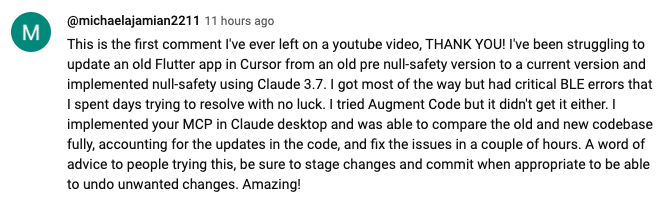
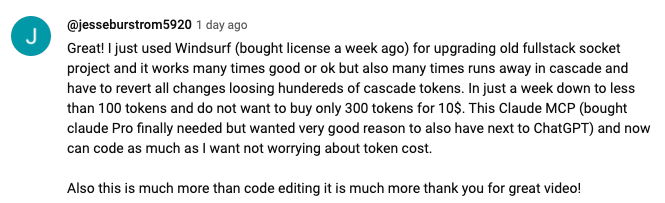
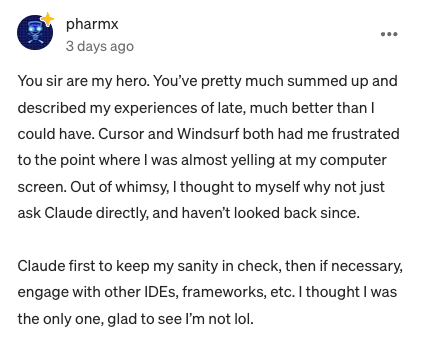
Claude with MCPs replaced Cursor & Windsurf. How did that happen? - A detailed exploration of how Claude with Model Context Protocol capabilities is changing developer workflows.
Claude Desktop Commander Video Tutorial - Watch how to set up and use the Commander effectively.
Publication at AnalyticsIndiaMag
 This Developer Ditched Windsurf, Cursor Using Claude with MCPs
Community
Join our Discord server to get help, share feedback, and connect with other users.
 https://www.youtube.com/watch?v=ly3bed99Dy8&lc=UgyyBt6_ShdDX_rIOad4AaABAg

If you find this project useful, please consider giving it a ⭐ star on GitHub! This helps others discover the project and encourages further development.
We welcome contributions from the community! Whether you've found a bug, have a feature request, or want to contribute code, here's how you can help:
- Found a bug? Open an issue at github.com/wonderwhy-er/DesktopCommanderMCP/issues
- Have a feature idea? Submit a feature request in the issues section
- Want to contribute code? Fork the repository, create a branch, and submit a pull request
- Questions or discussions? Start a discussion in the GitHub Discussions tab
All contributions, big or small, are greatly appreciated!
If you find this tool valuable for your workflow, please consider supporting the project.
Frequently Asked Questions
Here are answers to some common questions. For a more comprehensive FAQ, see our detailed FAQ document.
What is Desktop Commander?
It's an MCP tool that enables Claude Desktop to access your file system and terminal, turning Claude into a versatile assistant for coding, automation, codebase exploration, and more.
How is this different from Cursor/Windsurf?
Unlike IDE-focused tools, Claude Desktop Commander provides a solution-centric approach that works with your entire OS, not just within a coding environment. Claude reads files in full rather than chunking them, can work across multiple projects simultaneously, and executes changes in one go rather than requiring constant review.
Do I need to pay for API credits?
No. This tool works with Claude Desktop's standard Pro subscription ($20/month), not with API calls, so you won't incur additional costs beyond the subscription fee.
Does Desktop Commander automatically update?
Yes, when installed through npx or Smithery, Desktop Commander automatically updates to the latest version when you restart Claude. No manual update process is needed.
What are the most common use cases?
- Exploring and understanding complex codebases
- Generating diagrams and documentation
- Automating tasks across your system
- Working with multiple projects simultaneously
- Making surgical code changes with precise control
I'm having trouble installing or using the tool. Where can I get help?
Join our Discord server for community support, check the GitHub issues for known problems, or review the full FAQ for troubleshooting tips. You can also visit our website FAQ section for a more user-friendly experience. If you encounter a new issue, please consider opening a GitHub issue with details about your problem.
How do I report security vulnerabilities?
Please create a GitHub Issue with detailed information about any security vulnerabilities you discover. See our Security Policy for complete guidelines on responsible disclosure.
Data Collection & Privacy
Desktop Commander collects limited, pseudonymous telemetry to improve the tool. We do not collect file contents, file paths, or command arguments.
Opt-out: Ask Claude to "disable Desktop Commander telemetry" or set "telemetryEnabled": false in your config.
For complete details, see our Privacy Policy.
MIT