Mobile Next 发布移动端 MCP Server:以统一 API 自动化 iOS、Android、模拟器与真机
英文标题:🔥 mobile-next/mobile-mcp
Mobile Next 推出 mobile-mcp,一款面向移动开发与自动化的 Model Context Protocol(MCP)Server,可通过统一、跨平台接口控制 iOS、Android、模拟器、仿真器及真实设备。该项目采用“无障碍优先”策略,优先读取原生 accessibility tree,仅在必要时回退至截图和坐标操作,以降低视觉模型与图像 token 成本。它兼容 Claude Code、Codex、Gemini、GitHub Copilot、Antigravity 等 MCP 客户端,并提供应用管理、UI 操作、日志与崩溃分析、录屏及云端真机调度能力。对开发者而言,这意味着可将移动端测试、数据录入和多步骤用户流程直接接入 AI Agent 与 CI/CD 工作流,而无需分别掌握 XCUITest、Espresso 等平台专用工具。
 2.7 KB
 1.8 KB
 1.3 KB
 588 B
588 B
 1.3 KB
 1.2 KB
 950.9 KB
 1.3 MB
 22.3 KB
 8.1 KB
 118.8 KB
 67.9 KB
中文
Mobile Next:面向移动开发与自动化的 MCP Server|iOS、Android、Simulator、Emulator 与真实设备
这是一个 MCP Server,通过平台无关的接口实现可扩展的移动自动化与开发,无需分别具备 iOS 或 Android 专业知识。它可运行在仿真器、模拟器和真实设备上(iOS 与 Android)。
该服务器允许 Agent 和 LLM 通过结构化无障碍快照,或基于截图的坐标点击,与原生 iOS/Android 应用及设备交互。
兼容 Claude Code、Codex、Gemini、GitHub Copilot、Antigravity,以及任何兼容 MCP 的客户端。
你可以在本机设备上运行,也可以通过 Mobile Next Cloud 在云端真实 iOS 和 Android 设备上运行——使用同一套工具,无需本地配置。
我们如何帮助扩展移动自动化:
-
📲 用于测试或数据录入场景的原生应用自动化(iOS 和 Android)。
-
📝 无需手动控制模拟器、仿真器或真实设备(iPhone、Samsung、Google Pixel 等),即可执行脚本化流程和表单交互。
-
🧭 由 LLM 驱动的多步骤用户旅程自动化。
-
👆 面向基于 Agent 框架的通用移动应用交互。
-
🤖 支持面向移动自动化用例和数据提取的 Agent-to-Agent 通信。
-
🚀 无障碍优先——快速且低成本:通过原生无障碍树驱动应用(无需视觉模型、无需图像 token),仅在必要时回退到截图 + 坐标操作。
-
📱 一套 API,覆盖所有目标:相同工具可跨 iOS 和 Android 使用——支持模拟器、仿真器和真实设备。
-
🧠 无需平台专业知识:不需要 XCUITest、Espresso 或每个平台专用的胶水代码——描述目标即可由 Agent 完成。
-
🧰 完整设备控制能力:点击、滑动和手势;安装、启动和终止应用;屏幕录制;硬件按键;深度链接;屏幕方向。
-
📊 结构化、确定性输出:读取真实 UI 元素并提取结构化数据,减少仅依赖截图方案的歧义。
| 目标 | 支持情况 | 配置要求 |
|---|---|---|
| iOS Simulator | ✅ | Xcode + 已启动的模拟器(xcrun simctl) |
| iOS 真实设备 | ✅ | 设备通过 USB 连接且已授信 |
| Android Emulator | ✅ | Android SDK + 正在运行的仿真器(adb) |
| Android 真实设备 | ✅ | 已启用并授权 adb + USB 调试 |
mobile_list_available_devices- 列出所有可用设备(模拟器、仿真器和真实设备)mobile_get_screen_size- 获取移动设备以像素计的屏幕尺寸mobile_get_orientation- 获取设备当前屏幕方向mobile_set_orientation- 更改屏幕方向(竖屏/横屏)mobile_set_location- 覆盖设备上报的 GPS 位置,或清除覆盖设置mobile_clipboard- 读取或替换设备剪贴板内容
远程设备(Mobile Next Cloud)
-
mobile_login_to_cloud_provider- 使用云设备提供商对本机进行身份验证(基于浏览器的设备代码登录) -
mobile_list_remote_devices- 列出可从云端设备池预订的设备型号 -
mobile_allocate_remote_device- 预订一台物理云设备供独占使用 -
mobile_release_remote_device- 将已预订的云设备释放回设备池 -
mobile_list_apps- 列出设备上所有已安装应用 -
mobile_get_foreground_app- 获取当前位于前台的应用 -
mobile_launch_app- 使用应用包名启动应用 -
mobile_terminate_app- 停止并终止正在运行的应用 -
mobile_install_app- 从文件安装应用(.apk、.ipa、.app、.zip) -
mobile_uninstall_app- 使用 bundle ID 或包名卸载应用 -
mobile_take_screenshot- 截图以了解屏幕上显示的内容 -
mobile_save_screenshot- 将截图保存到文件 -
mobile_list_elements_on_screen- 列出 UI 元素及其坐标和属性 -
mobile_click_on_screen_at_coordinates- 在指定 x,y 坐标点击 -
mobile_double_tap_on_screen- 在指定坐标双击 -
mobile_long_press_on_screen_at_coordinates- 在指定坐标长按 -
mobile_swipe_on_screen- 向任意方向滑动(上、下、左、右) -
mobile_start_screen_recording- 开始将设备屏幕录制为视频文件 -
mobile_stop_screen_recording- 停止当前屏幕录制并保存视频 -
mobile_type_keys- 向已聚焦元素输入文本,并可选择提交 -
mobile_press_button- 按下设备按键(HOME、BACK、VOLUME_UP/DOWN、ENTER 等) -
mobile_open_url- 在设备浏览器中打开 URL -
mobile_get_device_logs- 收集实时设备日志(Android 上的 logcat、iOS 上的 unified log),可选择保存至文件 -
mobile_list_crashes- 列出设备上可用的崩溃报告 -
mobile_get_crash- 根据 ID 获取崩溃报告完整内容 -
mobile_batch_commands- 在一次调用中按顺序运行多个工具(例如点击、输入、点击),并可选择在最后列出屏幕元素
🏗️ Mobile MCP 架构
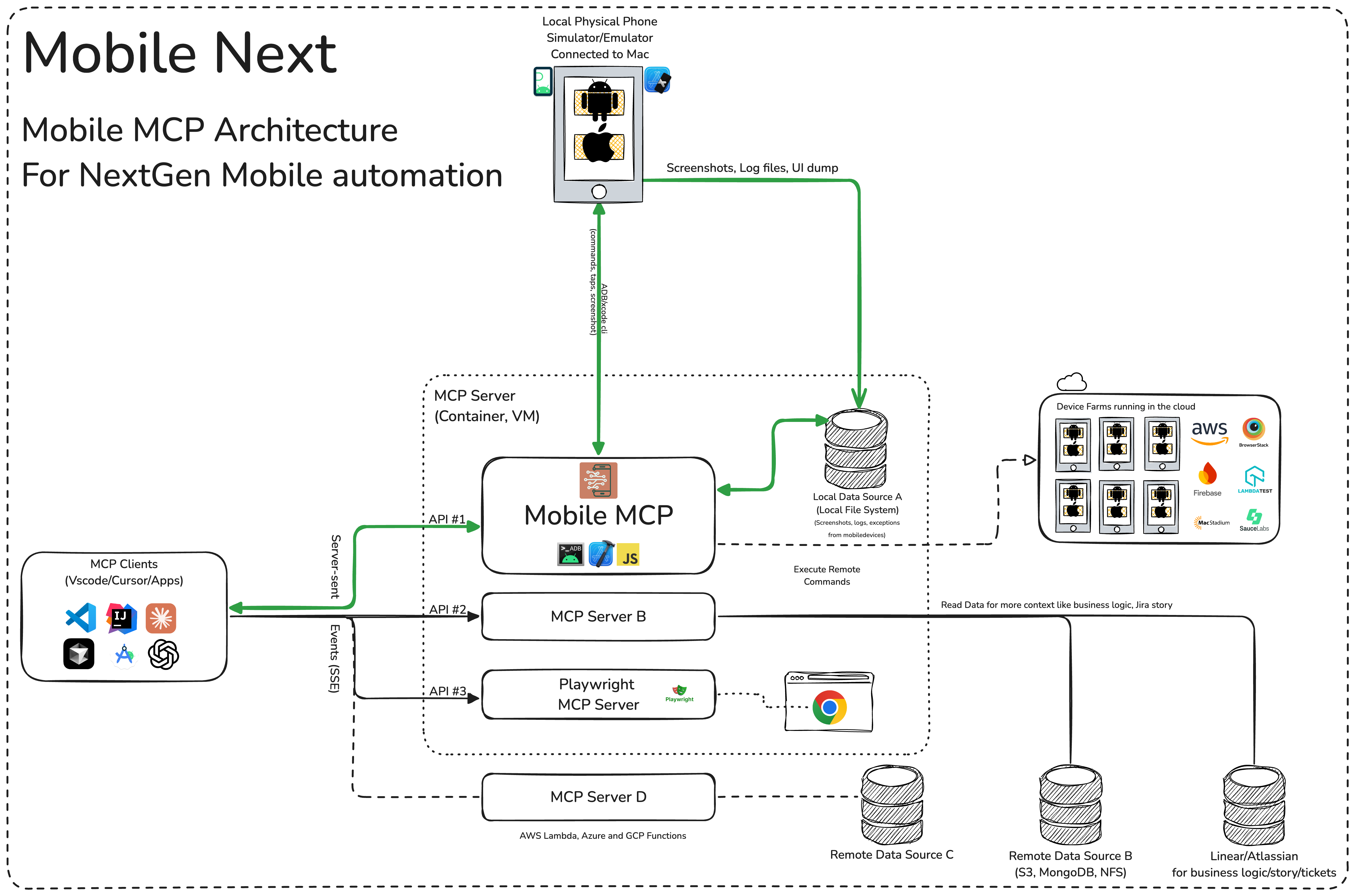
有关安装、配置和调试问题的更多细节,请参阅我们的 wiki 页面。
将 MCP 连接至你的 Agent 和移动设备时,需要以下内容:
安装与配置
标准配置适用于大多数工具:
{
  "mcpServers": {
    "mobile-mcp": {
      "command": "npx",
      "args": ["-y", "@mobilenext/mobile-mcp@latest"]
    }
  }
}
Amp
通过 Amp VS Code 扩展设置页面添加,或更新你的 settings.json 文件:
"amp.mcpServers": {
  "mobile-mcp": {
    "command": "npx",
    "args": [
      "@mobilenext/mobile-mcp@latest"
    ]
  }
}
Amp CLI:
在终端中运行以下命令:
amp mcp add mobile-mcp -- npx @mobilenext/mobile-mcp@latest
Antigravity 2
Antigravity 没有用于添加 MCP Server 的 CLI 命令,因此请手动添加。编辑 ~/.gemini/config/mcp_config.json 并加入:
{
  "mcpServers": {
    "mobile-mcp": {
      "command": "npx",
      "args": ["-y", "@mobilenext/mobile-mcp@latest"]
    }
  }
}
Cline
如需配置 Cline,只需将上方 JSON 添加到 MCP 设置文件中。
Claude Code
使用 Claude Code CLI 添加 Mobile MCP Server:
claude mcp add mobile-mcp -- npx -y @mobilenext/mobile-mcp@latest
Claude Desktop
请遵循 MCP 安装指南,使用上方 JSON 配置。
Codex
使用 Codex CLI 添加 Mobile MCP Server:
codex mcp add mobile-mcp npx "@mobilenext/mobile-mcp@latest"
或者,创建或编辑配置文件 ~/.codex/config.toml,并添加:
[mcp_servers.mobile-mcp]
command = "npx"
args = ["@mobilenext/mobile-mcp@latest"]
更多信息请参阅 Codex MCP 文档。
Copilot
使用 Copilot CLI 以交互方式添加 Mobile MCP Server:
你可以编辑配置文件 ~/.copilot/mcp-config.json 并添加:
{
  "mcpServers": {
    "mobile-mcp": {
      "type": "local",
      "command": "npx",
      "tools": [
        "*"
      ],
      "args": [
        "@mobilenext/mobile-mcp@latest"
      ]
    }
  }
}
更多信息请参阅 Copilot CLI 文档。
Cursor
点击按钮安装:
前往 Cursor Settings -> MCP -> Add new MCP Server。名称可自行设定,使用 command 类型,并填写命令 npx -y @mobilenext/mobile-mcp@latest。你也可以点击 Edit 验证配置,或添加类似命令的参数。
Gemini CLI
使用 Gemini CLI 添加 Mobile MCP Server:
gemini mcp add mobile-mcp npx -y @mobilenext/mobile-mcp@latest
Goose
点击按钮安装:
前往 Advanced settings -> Extensions -> Add custom extension。名称可自行设定,类型选择 STDIO,并将 command 设置为 npx -y @mobilenext/mobile-mcp@latest。点击“Add Extension”。
Kiro
请遵循 MCP Servers 文档。例如,在 .kiro/settings/mcp.json 中:
{
  "mcpServers": {
    "mobile-mcp": {
      "command": "npx",
      "args": [
        "@mobilenext/mobile-mcp@latest"
      ]
    }
  }
}
opencode
请遵循 MCP Servers 文档。例如,在 ~/.config/opencode/opencode.json 中:
{
  "$schema": "https://opencode.ai/config.json",
  "mcp": {
    "mobile-mcp": {
      "type": "local",
      "command": [
        "npx",
        "@mobilenext/mobile-mcp@latest"
      ],
      "enabled": true
    }
  }
}
Windsurf
打开 Windsurf 设置,进入 MCP servers,并使用 command 类型添加一个新服务器:
npx @mobilenext/mobile-mcp@latest
或者,按照上文所示,在设置中 mcpServers 下添加标准配置。
配置好服务器后,让你的 Agent 列出设备:
列出可用设备
你应该会看到正在运行的模拟器、仿真器和已连接设备。如果能看到,说明 Mobile MCP 已正确连接。如果列表为空,请确保模拟器或仿真器正在运行(参见 Prerequisites)——如需更多帮助,请查阅 wiki。
☁️ 扩展规模,使用云端设备
想要扩展到数百台设备?想在 CI/CD 流水线中使用 Mobile MCP?
在你的 Agent 中输入提示:
log in to mobile next cloud and then show me which remote devices are available to me
Streamable HTTP Server 模式
默认情况下,Mobile MCP 通过 stdio 运行。如需改为启动 Streamable HTTP Server,请使用 --listen 标志:
npx @mobilenext/mobile-mcp@latest --listen 3000
这会绑定到 localhost:3000。如需绑定到特定网络接口:
npx @mobilenext/mobile-mcp@latest --listen 0.0.0.0:3000
然后,将 MCP 客户端配置为连接到 http://<host>:3000/mcp(或在 TLS 后方使用 https://…/mcp)。该端点接受 Streamable HTTP(在 /mcp 上执行 POST);远程模式是无状态的(不需要会话亲和性),适用于 Smithery 和其他水平扩展托管环境。
迁移说明:
--listen此前在/mcp上提供已弃用的 HTTP+SSE 传输。客户端必须针对http(s)://host:port/mcp使用 Streamable HTTP。原有在/mcp上的纯 SSE 流程不再可用。
绑定到 localhost 时,系统会自动启用 Host-header DNS 重绑定防护。
如需在 HTTP Server 上启用 Bearer token 授权,请设置 MOBILEMCP_AUTH 环境变量:
MOBILEMCP_AUTH=my-secret-token npx @mobilenext/mobile-mcp@latest --listen 3000
设置后,所有请求都必须包含请求头 Authorization: Bearer my-secret-token。未设置时,服务器会接受未经身份验证的连接,并记录一条警告。
将 MCP Server 添加到 IDE/Client 后,你可以指示 AI 助手使用可用工具。例如,在 Cursor 的 Agent 模式中,你可以使用下面的提示快速验证、测试和迭代 UI 交互,读取屏幕信息,并完成复杂工作流。请尽可能描述清晰、直接。
你可以在单条提示中指定详细工作流、验证业务逻辑、设置自动化。可以尽情尝试:
搜索视频、评论、点赞并分享。
Find the video called " Beginner Recipe for Tonkotsu Ramen" by Way of
Ramen, click on like video, after liking write a comment " this was
delicious, will make it next Friday", share the video with the first
contact in your whatsapp list.
下载一款高评分计步应用,注册、设置锻炼计划并为应用打 5 星。
Find and Download a free "Pomodoro" app that has more than 1k stars.
Launch the app, register with my email, after registration find how to
start a pomodoro
English / 原文
Mobile Next - MCP server for Mobile Development and Automation | iOS, Android, Simulator, Emulator, and Real Devices
This is an MCP Server that enables scalable mobile automation, development through a platform-agnostic interface, eliminating the need for distinct iOS or Android knowledge. You can run it on emulators, simulators, and real devices (iOS and Android).
This server allows Agents and LLMs to interact with native iOS/Android applications and devices through structured accessibility snapshots or coordinate-based taps based on screenshots.
Works with Claude Code, Codex, Gemini, GitHub Copilot, Antigravity — or any MCP-compatible client.
Run it against devices on your own machine, or against real iOS and Android devices in the cloud with Mobile Next Cloud — same tools, no local setup.
mobile-next-mcp-video.mp4
How we help to scale mobile automation:
-
📲 Native app automation (iOS and Android) for testing or data-entry scenarios.
-
📝 Scripted flows and form interactions without manually controlling simulators/emulators or real devices (iPhone, Samsung, Google Pixel etc)
-
🧭 Automating multi-step user journeys driven by an LLM
-
👆 General-purpose mobile application interaction for agent-based frameworks
-
🤖 Enables agent-to-agent communication for mobile automation usecases, data extraction
-
🚀 Accessibility-first — fast and cheap : drives apps from the native accessibility tree (no vision model, no image tokens), falling back to screenshots + coordinates only when needed.
-
📱 One API, every target : the same tools work across iOS and Android — simulators, emulators, and real devices.
-
🧠 No platform expertise required : no XCUITest, no Espresso, no per-platform glue — describe the goal and the agent does it.
-
🧰 Full device control : taps, swipes, and gestures; app install/launch/terminate; screen recording; hardware buttons; deep links; orientation.
-
📊 Structured, deterministic output : reads real UI elements and extracts structured data, cutting the ambiguity of screenshot-only approaches.
| Target | Supported | Setup |
|---|---|---|
| iOS Simulator | ✅ | Xcode + a booted simulator (xcrun simctl) |
| iOS Real Device | ✅ | Device connected over USB and trusted |
| Android Emulator | ✅ | Android SDK + running emulator (adb) |
| Android Real Device | ✅ | adb + USB debugging enabled & authorized |
mobile_list_available_devices- List all available devices (simulators, emulators, and real devices)mobile_get_screen_size- Get the screen size of the mobile device in pixelsmobile_get_orientation- Get the current screen orientation of the devicemobile_set_orientation- Change the screen orientation (portrait/landscape)mobile_set_location- Override the GPS location reported by the device, or clear the overridemobile_clipboard- Read or replace the device clipboard
Remote Devices (Mobile Next Cloud)
-
mobile_login_to_cloud_provider- Authenticate this machine with the cloud device provider (browser-based device-code login) -
mobile_list_remote_devices- List device models available to reserve from the cloud fleet -
mobile_allocate_remote_device- Reserve a physical cloud device for exclusive use -
mobile_release_remote_device- Release a reserved cloud device back to the fleet -
mobile_list_apps- List all installed apps on the device -
mobile_get_foreground_app- Get the app currently in the foreground -
mobile_launch_app- Launch an app using its package name -
mobile_terminate_app- Stop and terminate a running app -
mobile_install_app- Install an app from file (.apk, .ipa, .app, .zip) -
mobile_uninstall_app- Uninstall an app using bundle ID or package name -
mobile_take_screenshot- Take a screenshot to understand what's on screen -
mobile_save_screenshot- Save a screenshot to a file -
mobile_list_elements_on_screen- List UI elements with their coordinates and properties -
mobile_click_on_screen_at_coordinates- Click at specific x,y coordinates -
mobile_double_tap_on_screen- Double-tap at specific coordinates -
mobile_long_press_on_screen_at_coordinates- Long press at specific coordinates -
mobile_swipe_on_screen- Swipe in any direction (up, down, left, right) -
mobile_start_screen_recording- Start recording the device screen to a video file -
mobile_stop_screen_recording- Stop the active screen recording and save the video -
mobile_type_keys- Type text into focused elements with optional submit -
mobile_press_button- Press device buttons (HOME, BACK, VOLUME_UP/DOWN, ENTER, etc.) -
mobile_open_url- Open URLs in the device browser -
mobile_get_device_logs- Collect live device logs (logcat on Android, unified log on iOS), optionally saved to a file -
mobile_list_crashes- List crash reports available on the device -
mobile_get_crash- Get the full content of a crash report by its ID -
mobile_batch_commands- Run multiple tools in sequence in a single call (e.g. click, type, click), optionally listing screen elements at the end
🏗️ Mobile MCP Architecture
More details in our wiki page for setup, configuration and debugging related questions.
What you will need to connect MCP with your agent and mobile devices:
Installation and configuration
Standard config works in most of the tools:
{
  "mcpServers": {
    "mobile-mcp": {
      "command": "npx",
      "args": ["-y", "@mobilenext/mobile-mcp@latest"]
    }
  }
}
Amp
Add via the Amp VS Code extension settings screen or by updating your settings.json file:
"amp.mcpServers": {
  "mobile-mcp": {
    "command": "npx",
    "args": [
      "@mobilenext/mobile-mcp@latest"
    ]
  }
}
Amp CLI:
Run the following command in your terminal:
amp mcp add mobile-mcp -- npx @mobilenext/mobile-mcp@latest
Antigravity 2
Antigravity doesn't have a CLI command to add MCP servers, so add it manually. Edit ~/.gemini/config/mcp_config.json and add:
{
  "mcpServers": {
    "mobile-mcp": {
      "command": "npx",
      "args": ["-y", "@mobilenext/mobile-mcp@latest"]
    }
  }
}
Cline
To setup Cline, just add the json above to your MCP settings file.
Claude Code
Use the Claude Code CLI to add the Mobile MCP server:
claude mcp add mobile-mcp -- npx -y @mobilenext/mobile-mcp@latest
Claude Desktop
Follow the MCP install guide, use json configuration above.
Codex
Use the Codex CLI to add the Mobile MCP server:
codex mcp add mobile-mcp npx "@mobilenext/mobile-mcp@latest"
Alternatively, create or edit the configuration file ~/.codex/config.toml and add:
[mcp_servers.mobile-mcp]
command = "npx"
args = ["@mobilenext/mobile-mcp@latest"]
For more information, see the Codex MCP documentation.
Copilot
Use the Copilot CLI to interactively add the Mobile MCP server:
You can edit the configuration file ~/.copilot/mcp-config.json and add:
{
  "mcpServers": {
    "mobile-mcp": {
      "type": "local",
      "command": "npx",
      "tools": [
        "*"
      ],
      "args": [
        "@mobilenext/mobile-mcp@latest"
      ]
    }
  }
}
For more information, see the Copilot CLI documentation.
Cursor
Click the button to install:
Go to Cursor Settings -> MCP -> Add new MCP Server. Name to your liking, use command type with the command npx -y @mobilenext/mobile-mcp@latest. You can also verify config or add command like arguments via clicking Edit.
Gemini CLI
Use the Gemini CLI to add the Mobile MCP server:
gemini mcp add mobile-mcp npx -y @mobilenext/mobile-mcp@latest
Goose
Click the button to install:
Go to Advanced settings -> Extensions -> Add custom extension. Name to your liking, use type STDIO, and set the command to npx -y @mobilenext/mobile-mcp@latest. Click "Add Extension".
Kiro
Follow the MCP Servers documentation. For example in .kiro/settings/mcp.json:
{
  "mcpServers": {
    "mobile-mcp": {
      "command": "npx",
      "args": [
        "@mobilenext/mobile-mcp@latest"
      ]
    }
  }
}
opencode
Follow the MCP Servers documentation. For example in ~/.config/opencode/opencode.json:
{
  "$schema": "https://opencode.ai/config.json",
  "mcp": {
    "mobile-mcp": {
      "type": "local",
      "command": [
        "npx",
        "@mobilenext/mobile-mcp@latest"
      ],
      "enabled": true
    }
  }
}
Windsurf
Open Windsurf settings, navigate to MCP servers, and add a new server using the command type with:
npx @mobilenext/mobile-mcp@latest
Or add the standard config under mcpServers in your settings as shown above.
Once the server is configured, ask your agent to list devices:
list available devices
You should get back your running simulators, emulators, and connected devices. If you do, Mobile MCP is wired up correctly. If the list is empty, make sure a simulator or emulator is running (see Prerequisites) — for more help, check the wiki.
☁️ Scale up, use a cloud device
Want to scale to hundreds of devices? Use Mobile MCP in your CI/CD pipeline?
In your Agent, prompt:
log in to mobile next cloud and then show me which remote devices are available to me
Streamable HTTP Server Mode
By default, Mobile MCP runs over stdio. To start a Streamable HTTP server instead, use the --listen flag:
npx @mobilenext/mobile-mcp@latest --listen 3000
This binds to localhost:3000. To bind to a specific interface:
npx @mobilenext/mobile-mcp@latest --listen 0.0.0.0:3000
Then configure your MCP client to connect to http://<host>:3000/mcp (or https://…/mcp behind TLS). The endpoint accepts Streamable HTTP (POST on /mcp); remote mode is stateless (no session affinity required), which works well with Smithery and other horizontal hosts.
Migration note:
--listenpreviously served the deprecated HTTP+SSE transport on/mcp. Clients must use Streamable HTTP againsthttp(s)://host:port/mcp. The old pure-SSE flow on/mcpis no longer available.
When binding to localhost, Host-header DNS rebinding protection is enabled automatically.
To require Bearer token authorization on the HTTP server, set the MOBILEMCP_AUTH environment variable:
MOBILEMCP_AUTH=my-secret-token npx @mobilenext/mobile-mcp@latest --listen 3000
When set, all requests must include the header Authorization: Bearer my-secret-token. When unset, the server accepts unauthenticated connections and logs a warning.
After adding the MCP server to your IDE/Client, you can instruct your AI assistant to use the available tools. For example, in Cursor's agent mode, you could use the prompts below to quickly validate, test and iterate on UI interactions, read information from screen, go through complex workflows. Be descriptive, straight to the point.
You can specify detailed workflows in a single prompt, verify business logic, setup automations. You can go crazy:
Search for a video, comment, like and share it.
Find the video called " Beginner Recipe for Tonkotsu Ramen" by Way of
Ramen, click on like video, after liking write a comment " this was
delicious, will make it next Friday", share the video with the first
contact in your whatsapp list.
Download a successful step counter app, register, setup workout and 5-star the app
Find and Download a free "Pomodoro" app that has more than 1k stars.
Launch the app, register with my email, after registration find how to
start a pomodoro timer. When the pomodoro timer started, go back to the
app store and rate the app 5 stars, and leave a comment how useful the
app is.
Search in Substack, read, highlight, comment and save an article
Open Substack website, search for "Latest trends in AI automation 2025",
open the first article, highlight the section titled "Emerging AI trends",
and save article to reading list for later review, comment a random
paragraph summary.
Reserve a workout class, set timer
Open ClassPass, search for yoga classes tomorrow morning within 2 miles,
book the highest-rated class at 7 AM, confirm reservation,
setup a timer for the booked slot in the phone
Find a local event, setup calendar event
Open Eventbrite, search for AI startup meetup events happening this
weekend in "Austin, TX", select the most popular one, register and RSVP
yes to the event, setup a calendar event as a reminder.
Check weather forecast and send a Whatsapp/Telegram/Slack message
Open Weather app, check tomorrow's weather forecast for "Berlin", and
send the summary via Whatsapp/Telegram/Slack to contact "Lauren Trown",
thumbs up their response.
-
Schedule a meeting in Zoom and share invite via email
Open Zoom app, schedule a meeting titled "AI Hackathon" for tomorrow at 10AM with a duration of 1 hour, copy the invitation link, and send it via Gmail to contacts "team@example.com".
| Variable | Description | Example |
|---|---|---|
MOBILEMCP_AUTH |
Require a Bearer token on the Streamable HTTP server (--listen) — every request must then send Authorization: Bearer <token>. |
MOBILEMCP_AUTH=my-secret-token |
MOBILEMCP_DISABLE_TELEMETRY |
Disable anonymous usage telemetry. | MOBILEMCP_DISABLE_TELEMETRY=1 |
MOBILEMCP_ALLOW_UNSAFE_URLS |
Allow mobile_open_url to open non-standard URL schemes (blocked by default). |
MOBILEMCP_ALLOW_UNSAFE_URLS=1 |
MOBILEMCP_LEGACY_ROBOT |
Use the legacy platform-specific robots for Android devices and physical iOS devices. iOS simulators continue to use mobilecli. |
MOBILEMCP_LEGACY_ROBOT=1 |
Simulators, Emulators, and Real Devices
When launched, Mobile MCP can connect to:
- iOS Simulators on macOS/Linux
- Android Emulators on Linux/Windows/macOS
- iOS or Android real devices (requires proper platform tools and drivers)
Make sure you have your mobile platform SDKs (Xcode, Android SDK) installed and configured properly before running Mobile Next Mobile MCP.
Mobile MCP collects anonymous usage telemetry via PostHog and Scarf. To disable it, set the MOBILEMCP_DISABLE_TELEMETRY environment variable:
MOBILEMCP_DISABLE_TELEMETRY=1 npx @mobilenext/mobile-mcp@latest
For json configurations:
{
  "mcpServers": {
    "mobile-mcp": {
      "command": "npx",
      "args": ["-y", "@mobilenext/mobile-mcp@latest"],
      "env": {
        "MOBILEMCP_DISABLE_TELEMETRY": "1"
      }
    }
  }
}
Running in "headless" mode on Simulators/Emulators
When you do not have a real device connected to your machine, you can run Mobile MCP with an emulator or simulator in the background.
For example, on Android:
- Start an emulator (avdmanager / emulator command).
- Run Mobile MCP with the desired flags
On iOS, you'll need Xcode and to run the Simulator before using Mobile MCP with that simulator instance.
xcrun simctl listxcrun simctl boot "iPhone 16"
Mobile MCP is one piece of a toolkit for driving real mobile devices:
- mobilewright — "Playwright for mobile." When you're ready to turn agent-driven exploration into repeatable, deterministic tests for iOS and Android, graduate to mobilewright.
- mobilecli — the universal device CLI that Mobile MCP is built on: control devices, simulators, and emulators from the command line or a JSON-RPC API.
- Mobile Next Cloud — the same stack, rented: real iOS and Android devices on demand. Just prompt your agent:
log in to mobile next cloud and then show me which remote devices are available to meto get started.
We're continuously improving Mobile MCP. See what we're building next in ROADMAP.md — priorities are shaped heavily by community feedback, so tell us what you'd like to see.
Contributions are welcome — code, docs, bug reports, and ideas.
Please also review our Code of Conduct.
Thanks to all contributors ❤️
We appreciate everyone who has helped improve this project.
Mobile MCP runs locally and communicates only with the devices you connect. See the Mobile Next privacy policy at https://mobilenext.ai/privacy for data collection, usage, retention, and contact information.