在 AWS 上为 Claude Platform 实现多环境访问
英文标题:Implementing Multi-Environment Access for Claude Platform on AWS
本文介绍如何在单一订阅下,为 Claude Platform on AWS(CPonAWS)配置安全的多环境访问,并通过工作区隔离生产与开发流量。方案包括:AWS 工作负载通过跨账户 SigV4 调用、开发者笔记本通过工作区范围 API key 调用,以及外部环境通过 OIDC 联邦和短期凭证调用。文章采用专用 AI Services 账户承载订阅、工作区、API key 和跨账户角色,工作负载账户无需直接接触订阅。该架构可帮助开发团队减少长期密钥管理,并将不同团队或工作负载的权限精确限制在各自工作区内。
 1.3 MB
 1.3 MB
 2.4 KB
 345.0 KB
 141.2 KB
 346.5 KB
 1000.4 KB
 114.2 KB
 244.2 KB
 193.7 KB
 18.5 KB
 20.7 KB
 44.5 KB
中文
你需要从三类环境调用 Claude Platform on AWS(CPonAWS)进行推理:AWS 上的生产工作负载、供本地迭代的开发者笔记本电脑,以及位于其他云服务商或本地持续集成和持续交付(CI/CD)流水线中的外部服务。每种环境都有不同的身份验证要求,但所有环境都应共享同一个订阅,同时在生产和开发流量之间实现工作区级别的隔离。对于拥有更多环境的组织,可以为每个团队或工作负载创建一个工作区,并针对每个工作区重复跨账户角色模式。
本文将带你完成全部设置。你将部署组织内的专用 AI Services 账户,并为 AWS 工作负载配置跨账户 SigV4。你还将为开发者生成工作区范围的 API key,并为外部环境接入 OIDC 联邦。每个步骤均包含 CLI 命令、控制台操作说明或代码片段。如果你正在评估哪种账户结构适合你的组织,或哪种身份验证路径适合你的工作负载,请参阅相关的 架构模式 和 身份验证路径 文章。本文从这些决策完成后开始,提供完整的分步实施流程。
架构
专用 AI Services 账户模式会将 CPonAWS 订阅放置在组织内一个专用的 AI Services 关联账户中。该账户拥有订阅、工作区、API key 和跨账户角色。工作负载账户不会直接接触订阅:它们通过承担 AI Services 账户中的角色来发起推理调用。最终形成三账户结构:负责计费和治理的付款方(管理)账户、承载 CPonAWS 订阅和工作区的 AI Services 账户,以及一个或多个通过跨账户角色使用推理能力的工作负载账户,如下图所示。
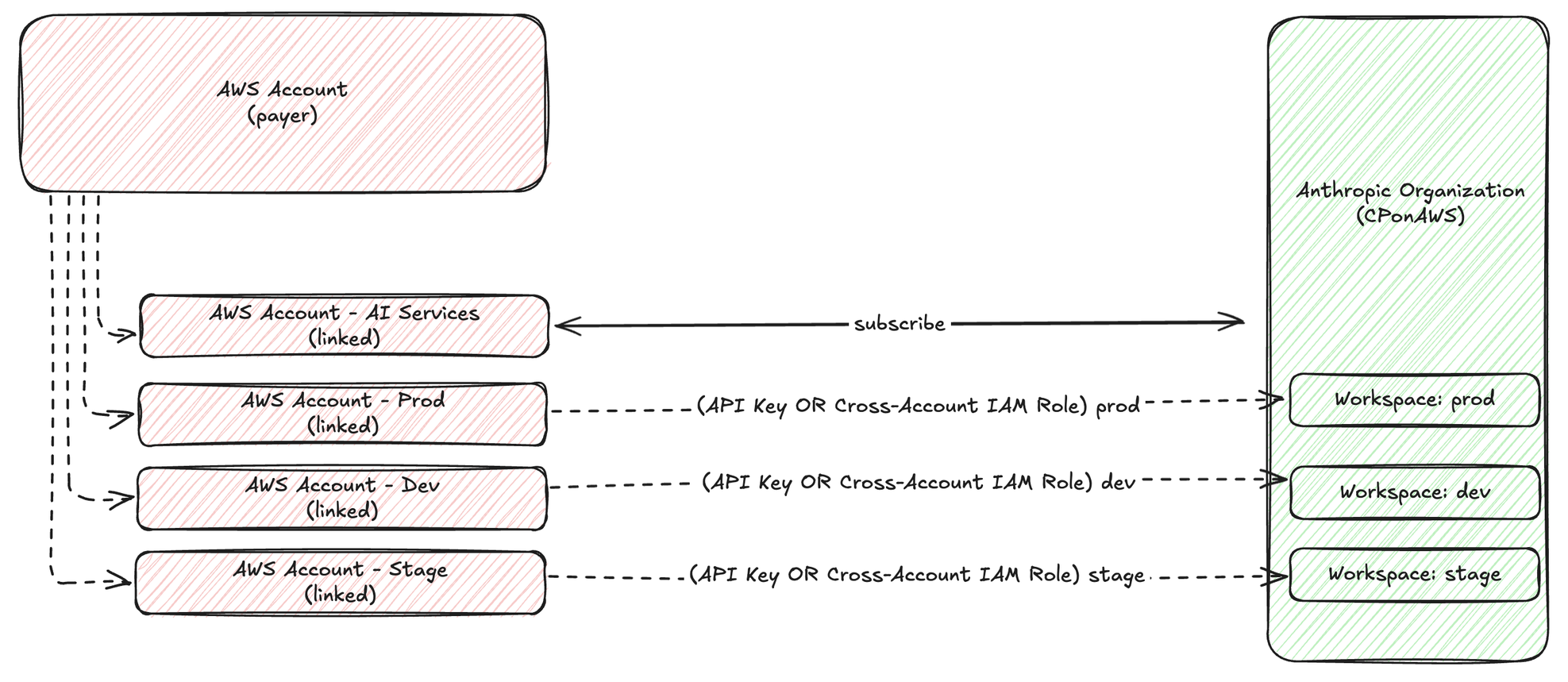
图 1:使用专用 AI Services 账户的 Claude Platform on AWS 多账户拓扑
上图展示了高层级的账户拓扑。下图展示了我们将构建的具体实现,包括 AWS Identity and Access Management(IAM)角色、访问路径和工作区映射:
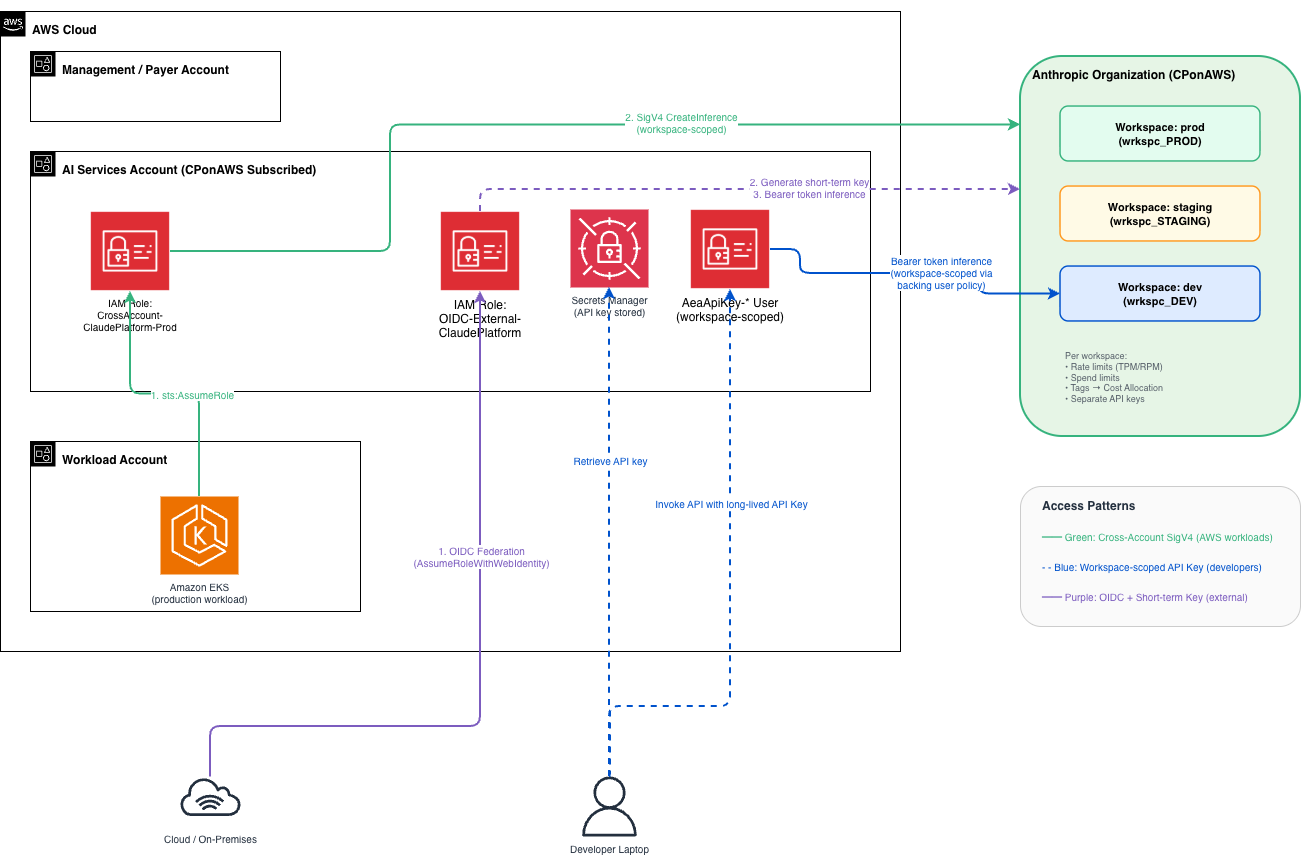
图 2:本指南实施的三种访问模式
我们将配置三种访问模式:
- AWS 工作负载账户通过跨账户 SigV4 访问:托管在工作负载账户中 Amazon Elastic Kubernetes Service(Amazon EKS)上的 Pod,会承担 AI Services 账户中的角色,随后发起经 SigV4 签名的推理调用。无需存储 API key,也没有需要轮换的密钥。
- 开发者笔记本电脑通过工作区范围 API key 访问:一个锁定到开发工作区的长期 API key。开发者使用标准 Anthropic SDK 在本地使用该密钥。
- 外部工作负载通过 OpenID Connect(OIDC)联邦和短期密钥访问:托管在 AWS 外部的工作负载通过 OIDC 进行身份验证并获取临时 AWS 凭证。它会生成短期令牌并发起推理调用,无需持久化凭证。
前提条件
开始前,请确认你具备以下条件:
- AWS Organizations 中的一个组织,其中包含:
- 一个付款方(管理)账户。
- 一个用于 AI Services 订阅的 AWS 关联账户(将承载 CPonAWS 订阅)。
- 一个用于托管工作负载的 AWS 关联账户(例如“Prod”)。
- 已安装并配置 AWS Command Line Interface(AWS CLI)v2,且已为两个账户配置命名配置文件。
- Python 3.12+,并安装以下包:anthropic[aws]、boto3、token-generator-for-aws-external-anthropic。
分步指南
本演练分为四个部分。每部分配置架构的一层:CPonAWS 订阅和工作区结构、面向 AWS 工作负载的跨账户 SigV4 访问、面向开发者的工作区范围 API key,以及面向外部环境的 OIDC 联邦。请按顺序完成这些部分,每个部分都基于前一部分创建的资源。
占位符参考
在本指南中,请将以下占位符替换为你的实际值:
| 占位符 | 说明 | 示例 |
|---|---|---|
YOUR_ORG_ID |
AWS Organizations ID | o-abc123def4 |
YOUR_REGION |
创建工作区的 AWS Region | us-east-1 |
AI_SERVICES_ACCOUNT_ID |
AI Services 账户的 AWS 账户 ID | 123456789012 |
WORKLOAD_ACCOUNT_ID |
工作负载账户的 AWS 账户 ID | 987654321098 |
WORKSPACE_PROD_ID |
Anthropic 生产工作区 ARN | wrkspc_01abc... |
WORKSPACE_DEV_ID |
Anthropic 开发工作区 ARN | wrkspc_02def... |
YOUR_OIDC_ISSUER |
OIDC 身份提供商 URL | accounts.google.com |
YOUR_WORKLOAD_IDENTITY_FILTER |
用于 OIDC 信任的 Subject 声明筛选器 | system:serviceaccount:ns:sa |
第 1 部分:设置 AI Services 账户
按照 Claude Platform on AWS 简介 指南,为你的 AI Services 账户订阅 CPonAWS。完成订阅后,创建两个工作区,以隔离生产和开发流量:
- 在 AI Services 账户中访问 AWS Management Console,然后导航到 Claude Platform on AWS。
- 导航至 Access,并以 Admin 身份登录。
- 在 Claude Console 中,选择左上角的下拉菜单,然后选择 Create Workspace。输入名称 production,然后选择 Create。
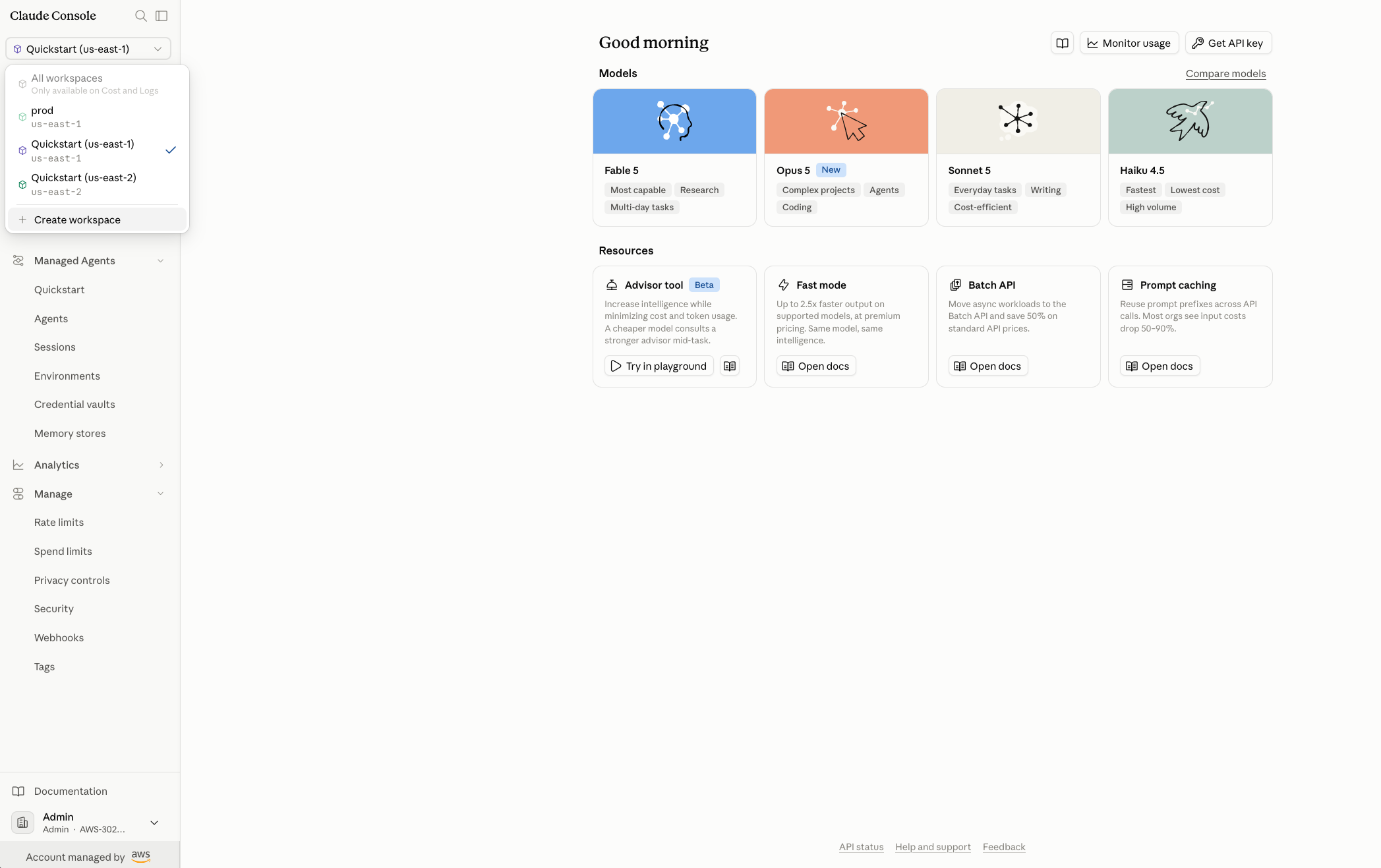
图 3:展示如何创建工作区的 Claude Console 控制面板
- 记录工作区 ARN(例如
wrkspc_PROD)。 - 重复上述操作,创建名为 development 的第二个工作区(例如
wrkspc_DEV)。
提示:现在就记录两个工作区 ARN。你将在本指南后续的 IAM 策略和代码中引用它们。工作区在特定 AWS Region 中创建,你的 API 调用必须指向相匹配的区域端点(例如 aws-external-anthropic.us-east-1.api.aws)。请注意,工作区所在 Region 决定 API 端点,而不是推理运行的位置。推理地理位置由 Claude Console 中工作区的 Security 设置单独控制。当前选项为“US”和“Global routing”。对于短期密钥,这会在生成和使用阶段同时强制执行:令牌只能用于生成它时所在 Region 的同一端点。长期 API key 不受 Region 限制。有关受支持的 Region 和可用模型,请参阅 Claude Platform on AWS 用户指南中的受支持的 Region 和模型。
第 2 部分:面向 AWS 工作负载的跨账户 SigV4
本节将配置工作负载账户中的 EKS Pod(或其他工作负载),使其能够通过 SigV4 签名发起推理调用。该工作负载将承担 AI Services 账户中的一个角色,该角色仅授予对生产工作区的访问权限。
2.1 创建跨账户角色(AI Services 账户)
首先,在 AI Services 账户中创建信任策略文件。该策略允许工作负载账户中的特定角色承担跨账户角色。
- 在 AI Services 账户中访问 AWS Management Console,然后打开 AWS CloudShell。
- 将此文件保存为
trust-policy.json。
{
    "Version": "2012-10-17",
    "Statement": [
        {
            "Effect": "Allow",
            "Principal": {
                "AWS": "arn:aws:iam::WORKLOAD_ACCOUNT_ID:role/EKS-Pod-Role"
            },
            "Action": "sts:AssumeRole",
            "Condition": {
                "StringEquals": {
                    "aws:PrincipalOrgID": "YOUR_ORG_ID"
                }
            }
        }
    ]
}
- 运行以下命令创建角色。
# From the AI Services account profile
aws iam create-role \
    --role-name CrossAccount-ClaudePlatform-Prod \
    --assume-role-policy-document file://trust-policy.json \
    --description "Allows workload account to invoke CPonAWS production workspace" \
    --profile ai-services
2.2 附加权限策略(AI Services 账户)
- 将此文件保存为
permission-policy.json。
{
    "Version": "2012-10-17",
    "Statement": [
        {
            "Sid": "CPonAWSInference",
            "Effect": "Allow",
            "Action": [
                "aws-external-anthropic:CreateInference",
                "aws-external-anthropic:CountTokens",
                "aws-external-anthropic:GetModel",
                "aws-external-anthropic:ListModels"
            ],
            "Resource": "arn:aws:aws-external-anthropic:YOUR_REGION:AI_SERVICES_ACCOUNT_ID:workspace/WORKSPACE_PROD_ID"
        },
        {
            "Sid": "CPonAWSResourceless",
            "Effect": "Allow",
            "Action": "aws-external-anthropic:GetAccountStatus",
            "Resource": "*"
        },
        {
            "Sid": "STSWebIdentity",
            "Effect": "Allow",
            "Action": ["sts:GetWebIdentityToken", "sts:TagGetWebIdentityToken"],
            "Resource": "*"
        }
    ]
}
- 将策略附加到角色:
aws iam put-role-policy \
    --role-name CrossAccount-ClaudePlatform-Prod \
    --policy-name CPonAWS-Inference-Prod \
    --policy-document file://permission-policy.json \
    --profile ai-services
注意:CreateInference 的作用域限定为 WORKSPACE_PROD_ID 工作区 ARN。该角色无法访问 development 工作区或账户中的其他工作区。
2.3 授予 AssumeRole 权限(工作负载账户)
工作负载账户中的 EKS Pod 角色需要具备承担跨账户角色的权限。首先,创建策略。
- 在工作负载账户中访问 AWS Management Console,然后打开 AWS CloudShell。
- 将此文件保存为
allow-assume-cponaws.json。
{
    "Version": "2012-10-17",
    "Statement": [
        {
            "Effect": "Allow",
            "Action": "sts:AssumeRole",
            "Resource": "arn:aws:iam::AI_SERVICES_ACCOUNT_ID:role/CrossAccount-ClaudePlatform-Prod"
        }
    ]
}
- 创建并附加策略。
aws iam create-policy \
    --policy-name AllowAssumeCPonAWSRole \
    --policy-document file://allow-assume-cponaws.json \
    --profile workload-prod

aws iam attach-role-policy \
    --role-name EKS-Pod-Role \
    --policy-arn arn:aws:iam::WORKLOAD_ACCOUNT_ID:policy/AllowAssumeCPonAWSRole \
    --profile workload-prod
2.4 测试(从工作负载账户)
- 从拥有
EKS-Pod-Role凭证的机器(或 Pod)运行以下 Python 脚本。
import boto3, os
from anthropic import AnthropicAWS

# Assume the cross-account role in the AI Services account
sts = boto3.client("sts")
assumed = sts.assume_role(
    RoleArn="arn:aws:iam::AI_SERVICES_ACCOUNT_ID:role/CrossAccount-ClaudePlatform-Prod",
    RoleSessionName="prod-workload"
)
creds = assumed["Credentials"]
os.environ["AWS_ACCESS_KEY_ID"] = creds["AccessKeyId"]
os.environ["AWS_SECRET_ACCESS_KEY"] = creds["SecretAccessKey"]
os.environ["AWS_SESSION_TOKEN"] = creds["SessionToken"]

# Make an inference call
client = AnthropicAWS(aws_region="YOUR_REGION", workspace_id="WORKSPACE_PROD_ID")
resp = client.messages.create(
    model="claude-sonnet-4-6",
    max_tokens=128,
    messages=[{"role": "user", "content": "Hello from the workload account!"}]
)
print(resp.content[0].text)
第 3 部分:供开发者访问的工作区范围 API key
开发者可以使用 API key 从笔记本电脑调用 Claude,而无需配置跨账户角色链。在以下部分中,你将生成一个密钥,将其限定到开发工作区,并验证隔离效果。
3.1 生成 API key(AI Services 账户)
- 在 AWS Management Console 中登录 AI Services 账户。
- 导航至 Claude Platform on AWS,然后选择 API keys。
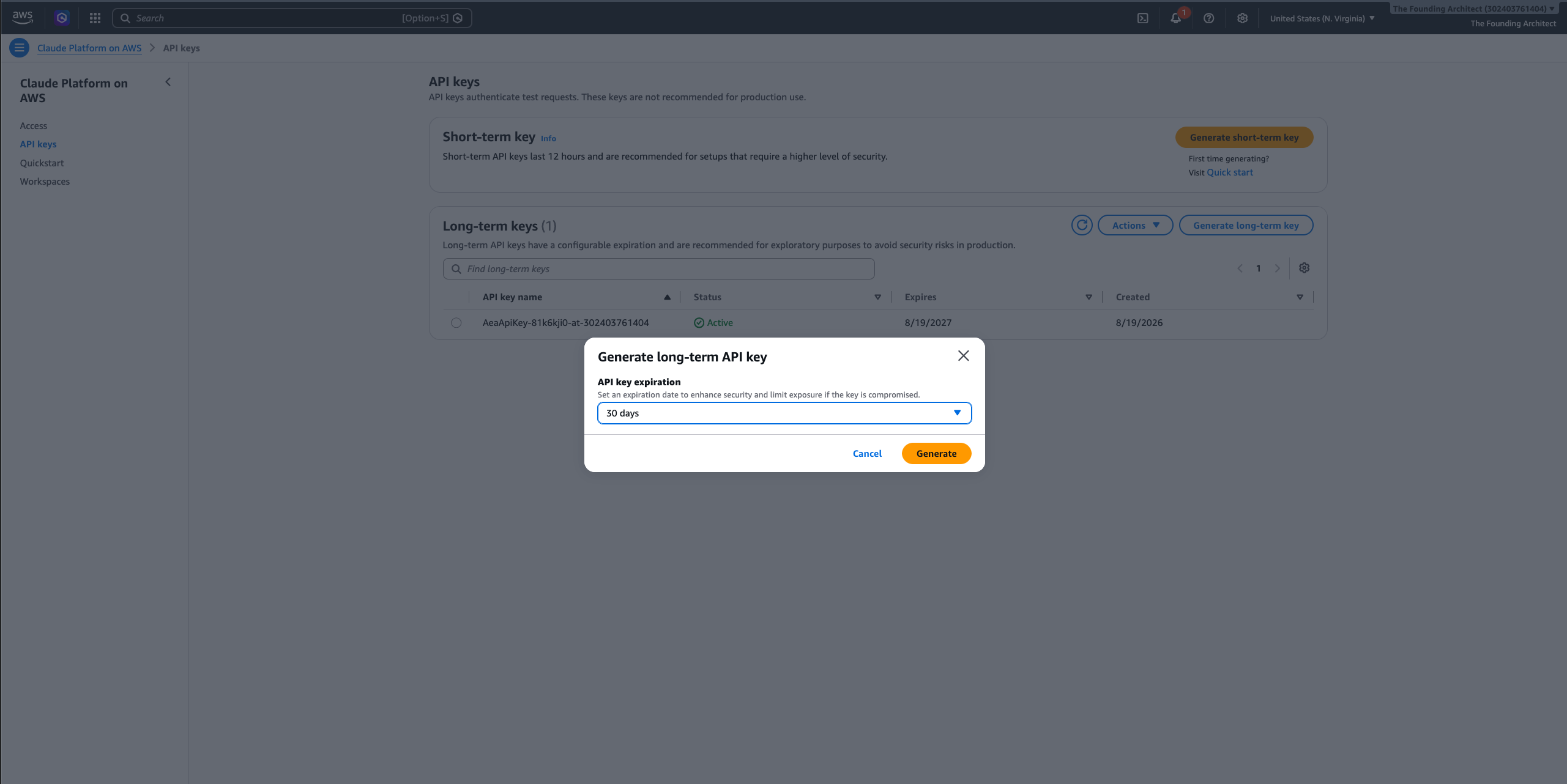
- 选择 Generate long-term key,选择 API key 的过期时间,然后选择 Generate。
- 立即复制密钥值(请安全存储:之后将无法再次查看)。
[ ](https://d2908q01vomqb2.cloudfront.net/f1f836cb4ea6efb2a0b1b99f41ad8b103eff4b5
English / 原文
You need Claude Platform on AWS (CPonAWS) inference from three environments: production workloads on AWS, developer laptops for local iteration, and external services on other cloud providers or on-premises continuous integration and continuous delivery (CI/CD) pipelines. Each environment has different authentication requirements, but all should share a single subscription with workspace-level isolation between production and development traffic. For organizations with additional environments, create a workspace per team or workload and repeat the cross-account role pattern for each.
This post walks you through the complete setup. You will deploy a dedicated AI Services account within your organization and configure cross-account SigV4 for AWS workloads. You will also generate workspace-scoped API keys for developers and wire up OIDC federation for external environments. Every step includes a CLI command, console instruction, or code snippet. If you’re evaluating which account structure is right for your organization, or which authentication path fits your workloads, see the related Architecture Patterns and Authentication Paths posts. This post picks up where those decisions end: a complete, step-by-step implementation.
The architecture
The dedicated AI Services account pattern places the CPonAWS subscription in a dedicated AI Services linked account within your organization. This account owns the subscription, workspaces, API keys, and cross-account roles. Workload accounts don’t touch the subscription directly: they assume roles into the AI Services account to make inference calls. The result is a three-account structure: a payer (management) account for billing and governance, an AI Services account that hosts the CPonAWS subscription and workspaces, and one or more workload accounts that consume inference through cross-account roles, as shown in the following diagram.
Figure 1: Multi-account topology for Claude Platform on AWS with a dedicated AI Services account
The preceding diagram shows the high-level account topology. The following diagram shows the specific implementation we will build, including AWS Identity and Access Management (IAM) roles, access paths, and workspace mappings:
Figure 2: The three access patterns implemented in this guide
We will configure three access patterns:
- AWS workload accounts through cross-account SigV4: A pod hosted on Amazon Elastic Kubernetes Service (Amazon EKS) in a workload account assumes a role in the AI Services account. It then makes SigV4-signed inference calls. No API keys stored, no secrets to rotate.
- Developer laptops through a workspace-scoped API key: A long-lived API key locked to a development workspace. Developers use it locally with the standard Anthropic SDK.
- External workloads through OpenID Connect (OIDC) federation and short-term keys: A workload hosted outside AWS authenticates through OIDC, obtains temporary AWS credentials. It generates a short-lived token and makes inference calls with zero persistent credentials.
Prerequisites
Before starting, verify you have:
- An organization in AWS Organizations with:
- A payer (management) account.
- An AWS linked account for AI Services subscriptions (will host the CPonAWS subscription).
- An AWS linked account for hosting workload (for example, “Prod”).
- AWS Command Line Interface (AWS CLI) v2 installed and configured with named profiles for both accounts.
- Python 3.12+ with the following packages: anthropic[aws], boto3, token-generator-for-aws-external-anthropic.
Step-by-step guide
This walkthrough is divided into four parts. Each part configures one layer of the architecture: the CPonAWS subscription and workspace structure, cross-account SigV4 access for AWS workloads, workspace-scoped API keys for developers, and OIDC federation for external environments. Complete them in order. Each part builds on the resources created in the previous one.
Placeholder reference
Throughout this guide, replace these placeholders with your actual values:
| Placeholder | Description | Example |
|---|---|---|
YOUR_ORG_ID |
AWS Organizations ID | o-abc123def4 |
YOUR_REGION |
AWS Region where the workspace was created | us-east-1 |
AI_SERVICES_ACCOUNT_ID |
AWS account ID of the AI Services account | 123456789012 |
WORKLOAD_ACCOUNT_ID |
AWS account ID of the Workload account | 987654321098 |
WORKSPACE_PROD_ID |
Anthropic production workspace ARN | wrkspc_01abc... |
WORKSPACE_DEV_ID |
Anthropic development workspace ARN | wrkspc_02def... |
YOUR_OIDC_ISSUER |
OIDC identity provider URL | accounts.google.com |
YOUR_WORKLOAD_IDENTITY_FILTER |
Subject claim filter for OIDC trust | system:serviceaccount:ns:sa |
Part 1: Set up the AI Services account
Follow the Introducing Claude Platform on AWS guide to subscribe your AI Services account to CPonAWS. After you’re subscribed, create two workspaces to isolate production and development traffic:
- Access the AWS Management Console on the AI Services account, and navigate to Claude Platform on AWS.
- Navigate to Access , and sign in as Admin.
- In the Claude Console, choose the drop-down menu in the top left corner and choose Create Workspace. Enter the name production, and choose Create.
Figure 3: Claude Console dashboard showing how to create a workspace
- Note the workspace ARN (for example,
wrkspc_PROD). - Repeat to create a second workspace named development (for example,
wrkspc_DEV).
Tip : Record both workspace ARNs now. You will reference them in IAM policies and code throughout this guide. Workspaces are created in a specific AWS Region, and your API calls must target the matching Regional endpoint (for example, aws-external-anthropic.us-east-1.api.aws). Note that the workspace Region determines the API endpoint, not where inference runs. Inference geography is controlled separately through the workspace’s Security settings in the Claude Console. Current options are “US” and “Global routing”. For short-term keys, this is enforced at both generation and use: the token only works against the same Regional endpoint where it was generated. Long-lived API keys are not Region-locked. For supported Regions and available models, see Supported Regions and models in the Claude Platform on AWS User Guide.
Part 2: Cross-account SigV4 for AWS workloads
This section configures an EKS pod (or another workload) in the Workload account to make inference calls through SigV4 signing. The workload assumes a role in the AI Services account that grants access only to the production workspace.
2.1 Create the cross-account role (AI Services account)
First, create the trust policy file in the AI Services account. This allows a specific role in the Workload account to assume the cross-account role.
- Access the AWS Management Console in the AI Services account, and open AWS CloudShell.
- Save this file as
trust-policy.json.
{
    "Version": "2012-10-17",
    "Statement": [
        {
            "Effect": "Allow",
            "Principal": {
                "AWS": "arn:aws:iam::WORKLOAD_ACCOUNT_ID:role/EKS-Pod-Role"
            },
            "Action": "sts:AssumeRole",
            "Condition": {
                "StringEquals": {
                    "aws:PrincipalOrgID": "YOUR_ORG_ID"
                }
            }
        }
    ]
}
- Create the role by running the following command.
# From the AI Services account profile
aws iam create-role \
    --role-name CrossAccount-ClaudePlatform-Prod \
    --assume-role-policy-document file://trust-policy.json \
    --description "Allows workload account to invoke CPonAWS production workspace" \
    --profile ai-services
2.2 Attach the permission policy (AI Services account)
- Save this file as
permission-policy.json.
{
    "Version": "2012-10-17",
    "Statement": [
        {
            "Sid": "CPonAWSInference",
            "Effect": "Allow",
            "Action": [
                "aws-external-anthropic:CreateInference",
                "aws-external-anthropic:CountTokens",
                "aws-external-anthropic:GetModel",
                "aws-external-anthropic:ListModels"
            ],
            "Resource": "arn:aws:aws-external-anthropic:YOUR_REGION:AI_SERVICES_ACCOUNT_ID:workspace/WORKSPACE_PROD_ID"
        },
        {
            "Sid": "CPonAWSResourceless",
            "Effect": "Allow",
            "Action": "aws-external-anthropic:GetAccountStatus",
            "Resource": "*"
        },
        {
            "Sid": "STSWebIdentity",
            "Effect": "Allow",
            "Action": ["sts:GetWebIdentityToken", "sts:TagGetWebIdentityToken"],
            "Resource": "*"
        }
    ]
}
- Attach the policy to the role:
aws iam put-role-policy \
    --role-name CrossAccount-ClaudePlatform-Prod \
    --policy-name CPonAWS-Inference-Prod \
    --policy-document file://permission-policy.json \
    --profile ai-services
Note: CreateInference is scoped to the WORKSPACE_PROD_ID workspace ARN. This role cannot access the development workspace or additional workspace in the account.
2.3 Grant AssumeRole (Workload account)
The EKS pod role in the Workload account needs permission to assume the cross-account role. First, create the policy.
- Access the AWS Management Console in the Workload account, and open AWS CloudShell.
- Save this file as
allow-assume-cponaws.json.
{
    "Version": "2012-10-17",
    "Statement": [
        {
            "Effect": "Allow",
            "Action": "sts:AssumeRole",
            "Resource": "arn:aws:iam::AI_SERVICES_ACCOUNT_ID:role/CrossAccount-ClaudePlatform-Prod"
        }
    ]
}
- Create and attach the policy.
aws iam create-policy \
    --policy-name AllowAssumeCPonAWSRole \
    --policy-document file://allow-assume-cponaws.json \
    --profile workload-prod

aws iam attach-role-policy \
    --role-name EKS-Pod-Role \
    --policy-arn arn:aws:iam::WORKLOAD_ACCOUNT_ID:policy/AllowAssumeCPonAWSRole \
    --profile workload-prod
2.4 Test (from the Workload account)
- Run the following Python script from a machine (or pod) with the
EKS-Pod-Rolecredentials.
import boto3, os
from anthropic import AnthropicAWS

# Assume the cross-account role in the AI Services account
sts = boto3.client("sts")
assumed = sts.assume_role(
    RoleArn="arn:aws:iam::AI_SERVICES_ACCOUNT_ID:role/CrossAccount-ClaudePlatform-Prod",
    RoleSessionName="prod-workload"
)
creds = assumed["Credentials"]
os.environ["AWS_ACCESS_KEY_ID"] = creds["AccessKeyId"]
os.environ["AWS_SECRET_ACCESS_KEY"] = creds["SecretAccessKey"]
os.environ["AWS_SESSION_TOKEN"] = creds["SessionToken"]

# Make an inference call
client = AnthropicAWS(aws_region="YOUR_REGION", workspace_id="WORKSPACE_PROD_ID")
resp = client.messages.create(
    model="claude-sonnet-4-6",
    max_tokens=128,
    messages=[{"role": "user", "content": "Hello from the workload account!"}]
)
print(resp.content[0].text)
Part 3: Workspace-scoped API key for developer access
Developers can use API keys to call Claude from their laptops without configuring cross-account role chains. In the following section, you will generate a key, scope it to the development workspace, and verify isolation.
3.1 Generate an API key (AI Services account)
- Sign in to the AI Services account on the AWS Management Console.
- Navigate to Claude Platform on AWS, then API keys.
- Choose Generate long-term key , select an API key expiration, and choose Generate.
- Copy the key value immediately (store it securely: you won’t see it again).
Figure 4: Generating a long-term API key from the Claude Console (API Keys page) with configurable expiration
3.2 Scope the key to the development workspace (AI Services account)
By default, the generated key’s backing IAM user (AeaApiKey-*) has the AnthropicLimitedAccess managed policy attached. This policy grants access to every workspace. To enforce workspace isolation:
- On the AWS Management Console (AI Services account), navigate to IAM , then Users.
- Search for users starting with
AeaApiKey-. - Find the most recently created user (the creation timestamp should match when you generated the key).
- Select the user, and then choose the Permissions tab.
- Select the
AnthropicLimitedAccesspolicy, and choose Remove to detach the managed policy. - Choose Add permissions , then Create inline policy.
- Switch to the JSON tab and paste the following.
{
    "Version": "2012-10-17",
    "Statement": [
        {
            "Sid": "InferenceDevWorkspaceOnly",
            "Effect": "Allow",
            "Action": [
                "aws-external-anthropic:CreateInference",
                "aws-external-anthropic:CountTokens"
            ],
            "Resource": "arn:aws:aws-external-anthropic:YOUR_REGION:AI_SERVICES_ACCOUNT_ID:workspace/wrkspc_DEV"
        },
        {
            "Sid": "BearerTokenAndStatus",
            "Effect": "Allow",
            "Action": [
                "aws-external-anthropic:CallWithBearerToken",
                "aws-external-anthropic:GetAccountStatus"
            ],
            "Resource": "*"
        },
        {
            "Sid": "STSWebIdentity",
            "Effect": "Allow",
            "Action": ["sts:GetWebIdentityToken", "sts:TagGetWebIdentityToken"],
            "Resource": "*"
        }
    ]
}
- Name the policy
CPonAWS-DevWorkspace-Onlyand choose Create policy.
3.3 Distribute the key to the development team (Workload account or developer environment)
The admin distributes the scoped API key to the development team. Store it in the team’s preferred secret management solution. For AWS based teams, store it in AWS Secrets Manager within the workload or developer AWS account:
aws secretsmanager create-secret \
    --name cponaws/dev-api-key \
    --secret-string "YOUR_API_KEY_VALUE" \
    --region YOUR_REGION \
    --profile workload-prod
Note: The API key is self-authenticating. It works regardless of which AWS account (or non-AWS environment) it’s called from. Store it wherever your developers can retrieve it securely.
3.4 Test (from developer laptop)
- Run the following code from your laptop configured with the profile of the same account where the secret was created in the previous step.
import boto3
from anthropic import Anthropic

# Retrieve the API key from Secrets Manager
secrets = boto3.client('secretsmanager', region_name='YOUR_REGION')
api_key = secrets.get_secret_value(SecretId='cponaws/dev-api-key')['SecretString']

# Create the client pointing to the CPonAWS endpoint
client = Anthropic(
    api_key=api_key,
    base_url='https://aws-external-anthropic.YOUR_REGION.api.aws'
)

# Make an inference call to the development workspace
resp = client.messages.create(
    model='claude-sonnet-4-6',
    max_tokens=128,
    messages=[{"role": "user", "content": "Hello from my laptop!"}],
    extra_headers={'anthropic-workspace-id': 'WORKSPACE_DEV_ID'}
)
print(resp.content[0].text)
Expected output: A response from Claude confirming the development workspace is accessible.
3.5 Verify workspace isolation (from developer laptop)
- Confirm the development key cannot access the production workspace.
# Attempt to call the production workspace with the dev key
try:
    resp = client.messages.create(
        model='claude-sonnet-4-6',
        max_tokens=32,
        messages=[{"role": "user", "content": "test"}],
        extra_headers={'anthropic-workspace-id': 'wrkspc_PROD'}
    )
    print("ERROR: Key accessed production workspace!")
except Exception as e:
    print(f"GOOD: Access denied as expected - {e}")
Expected output: GOOD: Access denied as expected followed by a permission error. If the key successfully accesses the production workspace, revisit step 3.2 and confirm the managed policy was detached.
Part 4: OIDC federation for external workloads
For workloads running on Google Cloud Platform (GCP), Kubernetes clusters outside AWS, or CI/CD pipelines (GitHub Actions, GitLab CI), OIDC federation authenticates them without storing AWS credentials. The flow: the external identity provider issues a token, and AWS Security Token Service (STS) exchanges it for temporary credentials. Those credentials then generate a short-lived CPonAWS bearer token.
4.1 Create an IAM OIDC identity provider (AI Services account)
Configure an IAM OIDC identity provider in your AI Services account for your external workload’s issuer. For example, for GCP workloads follow the Access AWS using a Google Cloud Platform native workload identity guide for the complete setup.
4.2 Create a role for external workloads (AI Services account)
- Access the AWS Management Console in the AI Services account, and open AWS CloudShell.
- Save as
oidc-trust-policy.json.
{
    "Version": "2012-10-17",
    "Statement": [
        {
            "Effect": "Allow",
            "Principal": {
                "Federated": "arn:aws:iam::AI_SERVICES_ACCOUNT_ID:oidc-provider/YOUR_OIDC_ISSUER"
            },
            "Action": "sts:AssumeRoleWithWebIdentity",
            "Condition": {
                "StringEquals": {
                    "YOUR_OIDC_ISSUER:aud": "sts.amazonaws.com"
                },
                "StringLike": {
                    "YOUR_OIDC_ISSUER:sub": "YOUR_WORKLOAD_IDENTITY_FILTER"
                }
            }
        }
    ]
}
- Create the role:
aws iam create-role \
    --role-name OIDC-ClaudePlatform-Prod \
    --assume-role-policy-document file://oidc-trust-policy.json \
    --description "Allows external OIDC workloads to invoke CPonAWS production workspace" \
    --profile ai-services
- Save the permission policy as
oidc-permission-policy.json.
{
    "Version": "2012-10-17",
    "Statement": [
        {
            "Sid": "CPonAWSInference",
            "Effect": "Allow",
            "Action": [
                "aws-external-anthropic:CreateInference",
                "aws-external-anthropic:CountTokens",
                "aws-external-anthropic:GetModel",
                "aws-external-anthropic:ListModels"
            ],
            "Resource": "arn:aws:aws-external-anthropic:YOUR_REGION:AI_SERVICES_ACCOUNT_ID:workspace/WORKSPACE_PROD_ID"
        },
        {
            "Sid": "CPonAWSResourceless",
            "Effect": "Allow",
            "Action": [
                "aws-external-anthropic:CallWithBearerToken",
                "aws-external-anthropic:GetAccountStatus"
            ],
            "Resource": "*"
        },
        {
            "Sid": "STSWebIdentity",
            "Effect": "Allow",
            "Action": ["sts:GetWebIdentityToken", "sts:TagGetWebIdentityToken"],
            "Resource": "*"
        }
    ]
}
- Attach the policy:
aws iam put-role-policy \
    --role-name OIDC-ClaudePlatform-Prod \
    --policy-name CPonAWS-OIDC-Inference-Prod \
    --policy-document file://oidc-permission-policy.json \
    --profile ai-services
Important: CallWithBearerToken must be granted on Resource: "*". Scoping it to a workspace ARN causes all token generation calls to fail. CreateInference remains scoped to the workspace ARN for isolation: the generated token inherits the workspace restriction.
4.3 Generate and use a short-term token (from external environment)
- After the external workload has obtained AWS credentials through OIDC (see Access AWS using a Google Cloud Platform native workload identity for the full credential exchange flow):
from token_generator_for_aws_external_anthropic import TokenGenerator
from anthropic import Anthropic
from datetime import timedelta

# Step 1: Generate a short-term token (requires the OIDC-assumed role's AWS credentials)
generator = TokenGenerator(region='YOUR_REGION')
token = generator.get_token(expiry=timedelta(hours=1))

# Step 2: Use the token (no AWS credentials needed from this point forward)
client = Anthropic(
    api_key=token,
    base_url='https://aws-external-anthropic.YOUR_REGION.api.aws'
)
resp = client.messages.create(
    model='claude-sonnet-4-6',
    max_tokens=128,
    messages=[{"role": "user", "content": "Hello from GCP via OIDC!"}],
    extra_headers={'anthropic-workspace-id': 'wrkspc_PROD'}
)
print(resp.content[0].text)
Key point: The generated token expires after 1 hour (configurable, maximum 12 hours). After generation, the token is a standalone bearer credential: the external workload no longer needs AWS credentials to make inference calls. For services that run continuously (for example, a GCP Cloud Run container), implement token renewal by refreshing the token before expiry.
Part 5: Cleanup
To avoid ongoing charges if you are evaluating:
- Revoke API keys: On the AWS Management Console, navigate to Claude Platform on AWS, API keys. Delete any generated keys.
- Delete backing IAM users: Navigate to IAM > Users, search for
AeaApiKey-*, and delete any users created by the key generation process. - Delete IAM roles:
# Remove inline policies first, then delete the roles
aws iam delete-role-policy \
    --role-name CrossAccount-ClaudePlatform-Prod \
    --policy-name CPonAWS-Inference-Prod \
    --profile ai-services

aws iam delete-role \
    --role-name CrossAccount-ClaudePlatform-Prod \
    --profile ai-services

aws iam delete-role-policy \
    --role-name OIDC-ClaudePlatform-Prod \
    --policy-name CPonAWS-OIDC-Inference-Prod \
    --profile ai-services

aws iam delete-role \
    --role-name OIDC-ClaudePlatform-Prod \
    --profile ai-services
- Delete the OIDC provider:
aws iam delete-open-id-connect-provider \
    --open-id-connect-provider-arn arn:aws:iam::AI_SERVICES_ACCOUNT_ID:oidc-provider/YOUR_OIDC_ISSUER \
    --profile ai-services
- Delete secrets.
aws secretsmanager delete-secret \
    --secret-id cponaws/dev-api-key \
    --force-delete-without-recovery \
    --region YOUR_REGION \
    --profile ai-services
- Unsubscribe from CPonAWS: Navigate to AWS Marketplace, Your Subscriptions, and cancel the Claude Platform subscription.
What’s next
With cross-account SigV4, workspace-scoped API keys, and OIDC federation configured, your CPonAWS deployment supports AWS workloads, developer access, and external environments with workspace-level isolation. To harden for production:
- Monitoring: Configure AWS CloudTrail data events for the
aws-external-anthropicservice to get per-call auditability with principal attribution. - Cost allocation: Tag each workspace (for example,
team:payments,environment:prod) and activate those tags in the Billing Console under Cost Allocation Tags. Once active (allow 24–48 hours), you can filter AWS Cost Explorer by workspace to attribute Claude spend to specific projects, teams, or environments.
To get started with Claude Platform on AWS, visit the Claude Platform on AWS service page, or go directly to the AWS Management Console. For full documentation, see the Claude Platform on AWS User Guide and the Anthropic documentation.
About the authors
Andrea Gallo
Andrea is a Solutions Architect at AWS. He holds a bachelor’s and master’s degree in computer engineering from the Polytechnic of Milan and brings 15 years of experience leading an IT Performance and Optimization tech services startup. He is dedicated to helping startups architect high-performance, scalable AI systems.
Ayan Ray
Ayan is a Principal Partner Solutions Architect and AI Tech Lead at AWS, serving as the Worldwide Tech Lead for Anthropic at AWS. He works at the intersection of cloud architecture and Artificial Intelligence, helping organizations adopt and scale Anthropic’s technologies on AWS.