使用 Amazon Nova Act 推进 Agent 化 QA 自动化,加速软件交付(第三篇)
英文标题:Accelerating software delivery with agentic QA automation using Amazon Nova Act – Part 3
随着自动化测试在组织内部扩展,测试用例的归属权管理与健康状况评估往往成为新的瓶颈。QA Studio 作为基于 Amazon Nova Act 构建的参考解决方案,在第三篇中推出了“应用程序”管理容器与基于 CloudWatch 的健康度指标视图,支持识别并惩罚不稳定测试(flaky tests)。同时,方案引入了涵盖五级角色的团队访问控制与跨团队共享机制,权限遵循上限规则。所有服务均基于无服务器架构并完全部署于用户自己的 AWS 账户中,为企业级 Agent 化 QA 测试的规模化落地提供了完整的治理方案。
 1.3 MB
 1.3 MB
 2.4 KB
 345.0 KB
 141.2 KB
 346.5 KB
 127.3 KB
 136.2 KB
 127.0 KB
 94.5 KB
 101.7 KB
 125.7 KB
 72.3 KB
 110.4 KB
 12.2 KB
 20.6 KB
 164.1 KB
中文
随着质量保证(QA)自动化在企业内部普及,一个与编写测试本身无关的新问题随之出现。一个平台团队搭建了测试自动化体系,接着第二个团队也想加入,随后又有十几个团队跟进。很快,属于不同产品与业务分队的数百个测试用例混杂在一起,所有人都能看到其他团队的测试。没有人能一眼回答一个基本问题:当前这个应用程序的测试覆盖是否健康?测试编写不再是瓶颈,组织管理测试以及控制修改权限成为了核心工作。
紧接着出现第二个相关问题:谁负责这个应用程序及其测试?当覆盖率下降时该向谁问责?如果没有明确的负责人,健康度问题就无人接手。
在第一篇文章中,我们介绍了 QA Studio——这是一个基于 Amazon Nova Act 构建的参考解决方案。各团队可以用它通过自然语言定义测试,并通过 AI 驱动的视觉导航运行这些测试。在第二篇文章中,我们添加了测试套件(test suites)以及用于在持续集成与持续交付(CI/CD)流水线中进行批量回归测试的 CLI。在本篇博文中,我们将介绍两项帮助 QA Studio 在组织范围内规模化推广的核心功能:第一项是应用程序(applications),用于组织测试并生成健康度指标;第二项是基于团队的用户管理(team-based user management),用于控制各类人员的查看与修改权限。
使用应用程序组织测试
QA Studio 中的应用程序代表被测系统:网站、Web 应用或服务前端。它是为一组测试赋予归属与负责人的容器。用例(第 1 篇中的单项测试)和测试套件(第 2 篇中的回归集合)归属于某一应用程序,并继承其归属权。每个团队都在自己拥有的应用程序内工作,而不是面对整个部署中所有测试混杂在一起的扁平列表。
创建应用程序需要提供名称、基础 URL 以及可选的环境集合(例如开发环境、预发环境和生产环境)。在应用程序页面中,团队可以直接在上下文中创建新用例、添加已有用例,并将它们归类到测试套件中。QA Studio 也是在此处汇报其运行测试的健康状况。
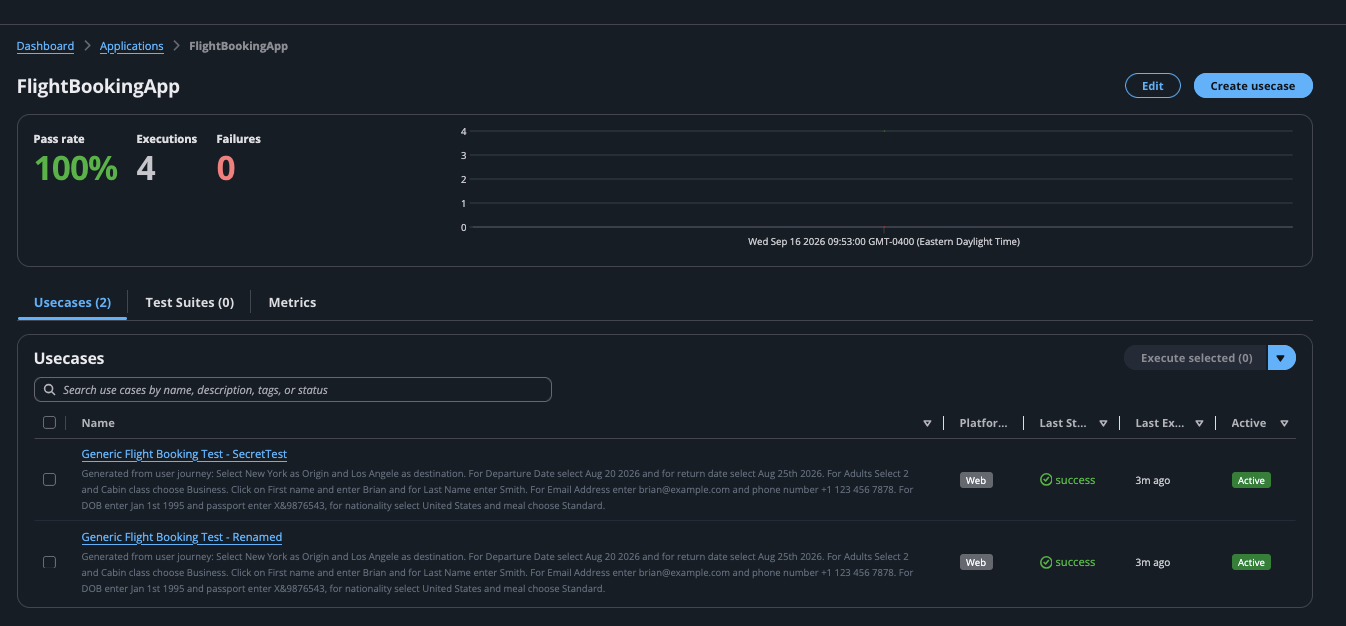
图 1:应用程序详情页,展示了通过率、执行次数、失败次数以及用例和测试套件标签页
通过指标洞察应用程序健康度
测试会产生结果。长期理解这些结果才能让团队了解应用程序的开发生命周期是否健康,而不仅仅是单次构建是否可以发布。QA Studio 将每次执行的结果记录为 Amazon CloudWatch 自定义指标,并按应用程序和环境划分维度。系统将这些指标转换为应用程序页面上的健康度视图。
页面顶部通过三个数据回答最直接的问题:选定时间窗口内的通过率、总执行次数以及当前失败次数。除这些之外,QA Studio 还会计算一个 0–100 的健康评分。该评分以通过率为基准,并扣除不稳定测试(flaky tests)的惩罚分。这样一来,即使某个应用程序的测试全部通过,但若在通过与失败之间反复摇摆,就不会呈现出虚假的完美状态。浏览应用组合的团队无需逐一打开测试结果,就能区分出哪些应用稳定、哪些需要关注。
指标标签页将焦点从当前快照转移到趋势分析。团队可以选择具有每小时粒度的 7 天时间窗口,或具有每日粒度的 30 天时间窗口,QA Studio 会绘制该时段内的执行次数、成功次数、失败次数和平均耗时图表。由于底层指标包含环境维度,团队可以将视图筛选至单个环境。例如,他们可以针对同一套测试比较预发环境与生产环境的表现差异。
有两个视图专门针对最耗费团队时间的测试。不稳定测试(flaky tests)视图按过去 7 天内用例在通过与失败之间切换的频率进行排名。这能在偶发性故障演变为生产事故之前,揭示破坏测试套件信任度的隐患。最近失败(recent failures)视图列出了最新的失败执行记录以便快速分诊(triage)。每条记录都会链接回第 1 篇中介绍的 Amazon Nova Act 轨迹日志与会话录像。这样,从“该测试失败了”跳转到“这是 Agent 看到的具体内容”只需一次点击。
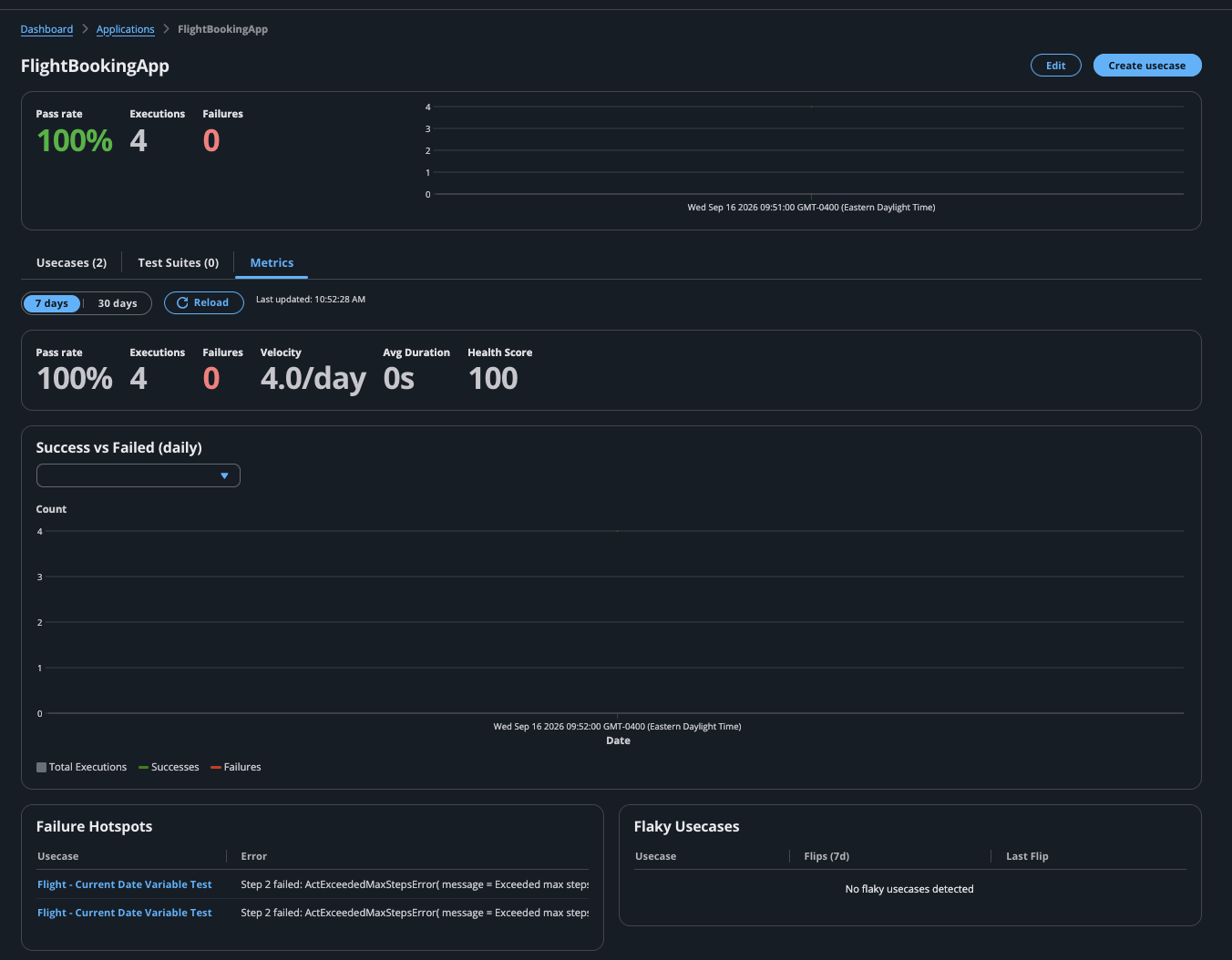
图 2:指标标签页:选定时段内的通过率、执行次数和平均耗时,配有每日成功与失败图表、失败热点及不稳定用例排名
通过团队与角色控制访问权限
指标能让团队了解应用程序的运行状况。而基于团队的用户管理,首先决定了哪些应用程序属于他们。QA Studio 围绕团队来组织访问权限,一个应用程序严格归属于一个团队。该团队的成员可以操作其拥有的应用程序,其他人则无法看到。
每位团队成员具备五个角色之一,且每个角色均包含其下一级角色的权限:
- Admin(管理员):对每个团队、应用程序和用户拥有全 Studio 范围的访问权限,包括创建团队和分配应用程序。Admin 属于全局角色,而非按团队分配。
- Team Lead(团队主管):管理本团队成员并为团队创建应用程序。
- Editor(编辑者):在团队的应用程序内创建和编辑用例与测试套件。
- Executor(执行者):运行用例与测试套件,但不能对其进行修改。
- Viewer(查看者):只读访问团队的应用程序及测试结果。
因为角色权限是累加的,Team Lead 拥有 Editor 的所有权限,依此类推直至 Viewer。对用例或测试套件的访问权限遵循其所属的应用程序。如果成员能够操作该应用程序,则受其角色约束,他们便能操作其中的测试。这样可以将权限管理保持在应用程序级别,而非分散在数以千计的单个测试上。
管理员可以看到整个 Studio。Users 页面将每个账号连同其团队和角色集中罗列。管理员可以辨别谁在哪个团队担任 Team Lead,谁拥有全 Studio 范围的 Administrator 权限。在此处展示的参考部署中,四位用户分布在两个团队中:两位 Team Lead、一位 Viewer 和一位 Studio 级 Administrator。Teams 页面按团队汇总相同数据,并列显示每个团队的成员数和应用程序数。管理员在打开任何团队详情之前,就能看出哪些团队正在扩张。
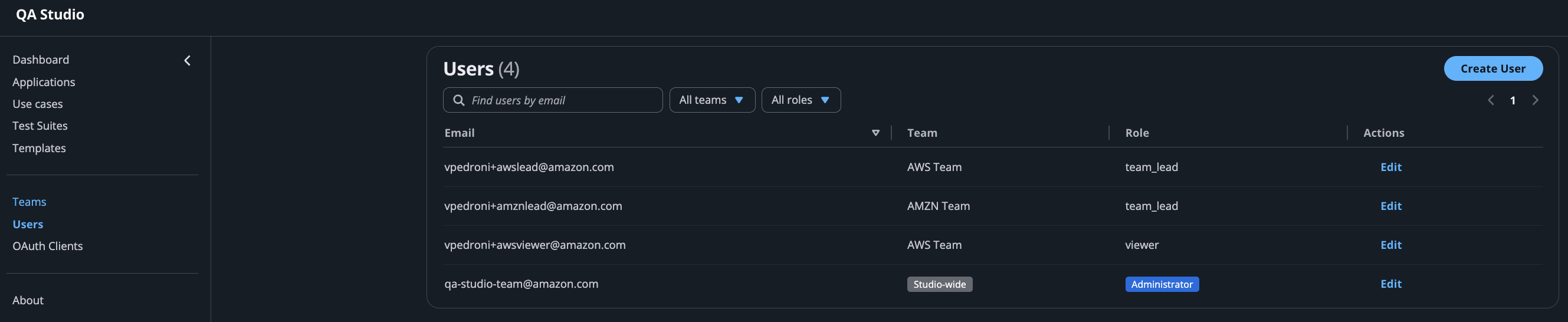
图 3:全 Studio 级别的 Users 页面:每个账号及其团队和角色,支持按团队和角色筛选
按团队汇总的相同成员数据会显示在 Teams 页面上。
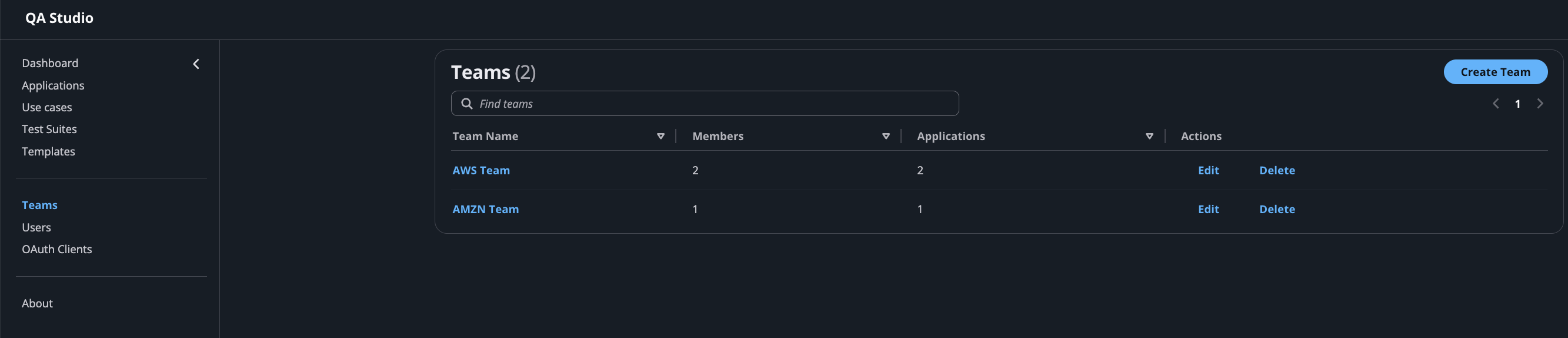
图 4:Teams 页面:各个团队及其成员数与应用程序数
从团队切换到应用程序,全 Studio 范围的 Applications 列表会显示跨所有团队的每个应用程序。
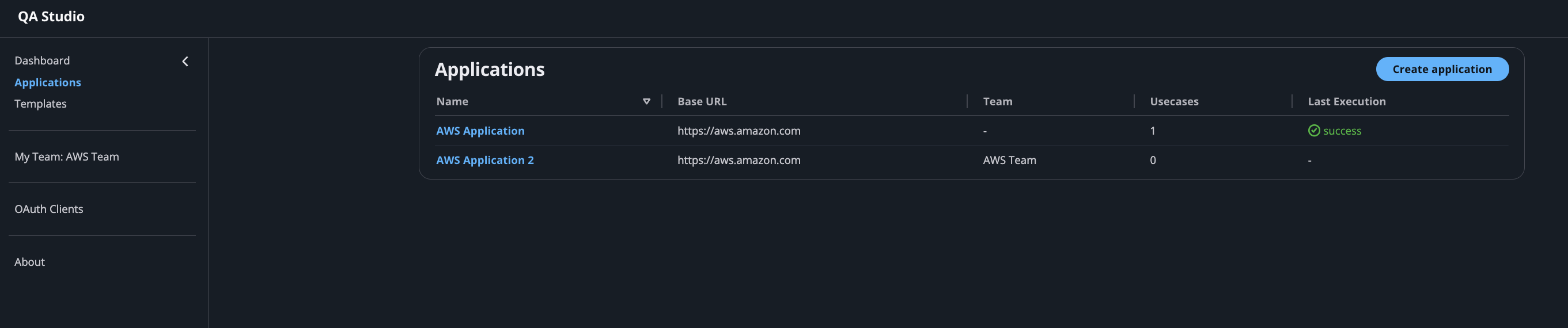
图 5:全 Studio 级别的 Applications 列表:所有应用程序及其基础 URL、所属团队、用例数以及最新执行状态
在团队之间共享应用程序
团队很少完全孤立地工作。平台团队可能拥有一款业务特性团队需要针对其执行测试的应用程序,但又不需要赋予对方修改该应用的权限。QA Studio 通过共享访问权限来支持这一点:所属团队可以向另一个团队授予对某个应用程序的 view(查看)、execute(执行)或 full(完全)访问级别。
共享访问遵循“上限规则”(ceiling rule)。用户在共享应用程序上的有效权限,取其自身角色与所授予权限级别之间的较低者。即使一个 Viewer(查看者)被授予对共享应用程序的 full(完全)访问权限,其权限依然为只读,因为其个人角色即是上限。这样一来,所属团队可以放心进行广泛共享,而不会超出被授予方角色所允许的权限边界。
团队主管(Team Lead)所见的视图
团队主管在单个团队内部开展工作,而非面向整个 Studio。打开 My Team(我的团队)会呈现四个标签页,涵盖团队主管控制的所有内容:Members(成员)、Applications(应用程序)、Use Cases(用例)和 Shared Access(共享访问)。Members 标签页列出了团队中的人员。主管可以内联更改任何成员的角色或添加新成员,因此日常的访问管理工作由最贴近实际工作的人员来承担。在如图所示的 AWS Team 中,主管管理两名成员:一名 Team Lead 和一名 Viewer。
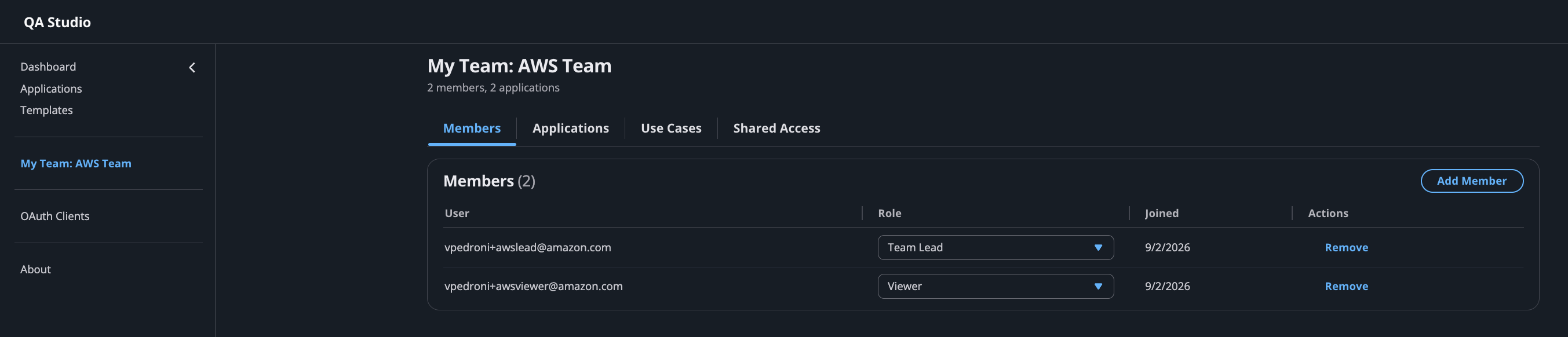
图 6:团队主管的 Members 标签页,支持对每个成员进行内联角色分配
Applications 标签页仅显示团队拥有的应用程序,每个应用程序均标有用例数和最近一次运行时间。这使主管能够专注于自己的工作范围,而无需面对整个 Studio 的资产清单。Shared Access 标签页则是跨团队共享落到实处的地方。在此处,AWS Team 已向 AMZN Team 授予了对某个应用程序的 view 访问权限,团队主管可以授予、撤销或更改该访问级别。由于授予的是 view 级别,因此 AMZN Team 的 Editor 查看该共享应用程序时仍为只读——这正是上一节中提到的上限规则在实践中的应用。
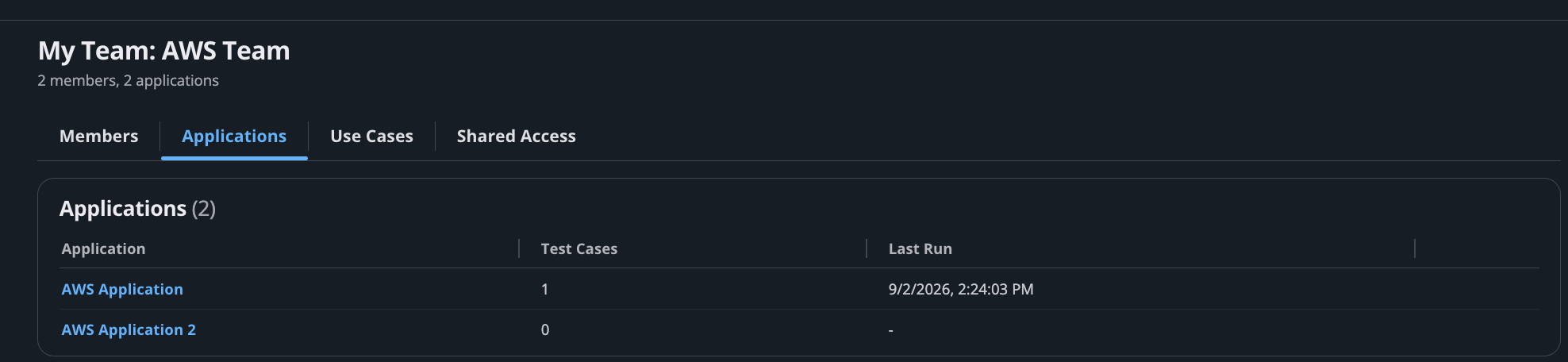
图 7:团队主管的 Applications 标签页,仅限定于团队自身的应用程序
同一个 Team Lead 的 Shared Access 标签页记录了其他团队可以访问本团队哪些应用程序以及访问级别。
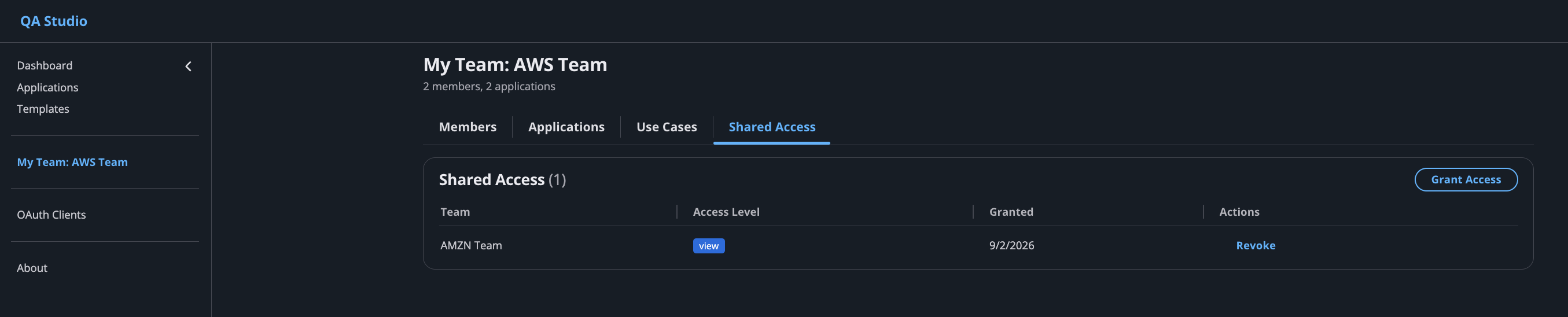
图 8:团队主管的 Shared Access 标签页,显示向另一团队授予的 view 级别访问权限
工作原理
QA Studio 将基于团队的访问控制和指标构建在早期博文中描述的无服务器(Serverless)基础架构之上,并引入了若干 AWS 服务:
- Amazon Cognito:每个团队映射到一组 Cognito 用户组,每个角色对应一个组。AWS Lambda 鉴权器在每次请求时将调用者的用户组解析为 API scope 和团队上下文。
- Amazon DynamoDB:团队、成员关系、应用程序归属以及跨团队共享授权均存储在现有的单表设计(single-table design)中。
- Amazon CloudWatch:每次执行都会在
QAStudio/Executions命名空间中发出自定义指标,并按应用程序和环境划分维度。指标 API 会读回这些数据以构建健康度视图和趋势图表。 - AWS Lambda 和 Amazon API Gateway:后端在两个层级强制执行访问控制:调用者角色所授予的 scope,以及确认调用者所在团队拥有或被共享了该应用程序的资源检查。
由于访问权限派生自 Cognito 用户组身份,第 2 篇中的 OAuth 客户端凭证(client credentials)流程也适用于同一模型。CI 流水线可以作为机器身份进行身份验证,仅获得所需范围的权限,绝无冗余。
开始使用
应用程序、指标与基于团队的访问控制是 QA Studio 参考解决方案的一部分,你可以使用 AWS Cloud Development Kit (AWS CDK) 将其部署在自己的 AWS 账户中。所有测试数据、结果与指标均保留在你的账户边界内。部署完成后,管理员可以创建团队、分配成员与角色,并将应用程序分配给团队。随着测试的运行,每个团队的健康度指标将开始逐步生成。
有关部署说明和配置详情,请参阅 QA Studio GitHub 代码仓库及其相关文档。
结语
在本篇博文中,我们展示了 QA Studio 如何将 Agent 化 QA 自动化从单项测试拓展至整个组织。应用程序为每个团队的用例和测试套件提供了归宿。它们通过通过率、趋势图表、基于不稳定测试调整的评分(flaky-adjusted score)等指标报告健康状况……
English / 原文
As quality assurance (QA) automation adoption grows inside an organization, a new problem appears that has nothing to do with writing tests. A platform team stands up test automation, then a second team wants to join, then a dozen more. Soon hundreds of test cases belong to different products and squads, and everyone can see everyone else’s tests. No one can answer a basic question at a glance: is this application’s test coverage healthy right now? Test authoring stops being the bottleneck. Organizing tests and controlling who can touch them becomes the work.
A second, related question follows close behind: who owns this application and its tests, and who is accountable when coverage slips? Without a clear owner, health problems have no one to land on.
In the first post, we introduced QA Studio, a reference solution built with Amazon Nova Act. Teams use it to define tests in natural language and run them through AI-powered visual navigation. In the second post, we added test suites and a CLI for batch regression testing in continuous integration and continuous delivery (CI/CD) pipelines. In this post, we cover two capabilities that help QA Studio scale across an organization. The first, applications , organizes tests and reports health metrics. The second, team-based user management , controls who can see and change what.
Organizing tests with applications
An application in QA Studio represents the system under test: a website, a web app, a service front end. It’s the container that gives a collection of tests, a home, and an owner. Use cases (the individual tests from Part 1) and test suites (the regression collections from Part 2) belong to an application, and they inherit its ownership. Instead of one flat list of every test in the deployment, each team works inside the applications they own.
Creating an application takes a name, a base URL, and an optional set of environments such as development, staging, and production. From the application page, teams create new use cases directly in context, add existing ones, and group them into test suites. This is also where QA Studio reports on the health of the tests it runs.
Figure 1: The application detail page, showing pass rate, executions, and failures with the use cases and test suites tabs
Understanding application health with metrics
Tests produce results. Understanding those results over time is what tells a team whether the development lifecycle for an application is healthy, not only whether a single build is ready for release. QA Studio records the outcome of every execution as Amazon CloudWatch custom metrics, dimensioned by application and by environment. It turns these metrics into a health view on the application page.
The top of the page answers the immediate question with three figures: the pass rate over the selected window, the total number of executions, and the current failure count. Alongside them, QA Studio computes a health score of 0–100. The score starts from the pass rate and subtracts a penalty for flaky tests. That way, an application whose tests pass but flip between pass and fail doesn’t present a falsely perfect picture. A team scanning a portfolio of applications can tell the stable ones from the ones that need attention without opening each result.
The metrics tab moves from the current snapshot to trends. Teams choose a 7-day window with hourly granularity or a 30-day window with daily granularity, and QA Studio charts executions, successes, failures, and average duration across that period. Because the underlying metrics carry an environment dimension, teams filter the view to a single environment. For example, they can compare how staging behaves against production for the same set of tests.
Two views target the tests that cost teams the most time. The flaky tests view ranks use cases by how often they flipped between passing and failing over the last seven days. This surfaces the intermittent failures that erode trust in a suite before they turn into a production miss. The recent failures view lists the latest failed executions for quick triage. Each one links back to the Amazon Nova Act trajectory logs and session recordings described in Part 1. That way, moving from “this test is failing” to “here is exactly what the agent saw” takes one click.
Figure 2: The metrics tab: pass rate, executions, and average duration over the selected window, with the daily success-and-failure chart, failure hotspots, and the flaky use case ranking
Controlling access with teams and roles
Metrics tell a team how their applications are doing. Team-based user management decides which applications are theirs in the first place. QA Studio organizes access around teams, and an application belongs to exactly one team. Members of that team work with its applications. Everyone else doesn’t see them.
Every team member holds one of five roles, and each role includes the permissions of the ones below it:
- Admin : Studio-wide access to every team, application, and user, including creating teams and assigning applications. Admin is a studio-wide role rather than a per-team assignment.
- Team Lead : Manages their own team members and creates applications for the team.
- Editor : Creates and edits use cases and test suites within the team’s applications.
- Executor : Runs use cases and suites but doesn’t modify them.
- Viewer : Read-only access to the team’s applications and results.
Because roles are cumulative, a Team Lead has everything an Editor has, and so on down to Viewer. Access to a use case or a test suite follows the application that contains it. If a member can work with the application, they can work with its tests, bounded by their role. This keeps permission management at the application level instead of on thousands of individual tests.
An administrator sees the whole studio. The Users page lists every account with its team and role in one place. An admin can tell who holds Team Lead on which team and who carries Studio-wide Administrator rights. In the reference deployment shown here, four users span two teams: two Team Leads, one Viewer, and one Studio-wide Administrator. The Teams page rolls the same data up by team, showing each team’s member count and application count side by side. An admin can see which teams are expanding before opening any one of them.
Figure 3: The studio-wide Users page: every account with its team and role, filterable by team and by role
The same membership data, rolled up by team, appears on the Teams page.
Figure 4: The Teams page: each team with its member and application counts
Switching from teams to applications, the studio-wide Applications list shows every application across all teams.
Figure 5: The studio-wide Applications list: every application with its base URL, owning team, use-case count, and last execution status
Sharing applications between teams
Teams rarely work in complete isolation. A platform team might own an application that a feature team needs to run against, without handing over the ability to change it. QA Studio supports this with shared access: the owning team grants another team access to an application at a view, execute, or full level.
Shared access follows a ceiling rule. A user’s effective permission on a shared application is the lower of their own role and the level of the grant. A Viewer who is given full access to a shared application remains view-only, because their role is the ceiling. This way, an owning team can share widely without granting more than a recipient’s role allows.
What a team lead sees
A team lead works inside a single team rather than the whole studio. Opening My Team presents four tabs that cover everything the lead controls: Members, Applications, Use Cases, and Shared Access. The Members tab lists the people on the team. The lead can change any member’s role inline or add a new one, so day-to-day access management stays with the person closest to the work. In the AWS Team shown here, the lead manages two members, one Team Lead and one Viewer.
Figure 6: The team lead’s Members tab, with inline role assignment for each member
The Applications tab shows only the applications the team owns, each with its test-case count and last-run time. This keeps the lead focused on their own surface rather than the full studio inventory. The Shared Access tab is where cross-team sharing becomes concrete. Here the AWS Team has granted the AMZN Team view access to an application, and the lead can grant, revoke, or change the level of that access. Because the grant was view level, an AMZN Team Editor still sees the shared application read-only: the ceiling rule from the previous section, applied in practice.
Figure 7: The team lead’s Applications tab, scoped to the team’s own applications
The same Team Lead’s Shared Access tab records which other teams can reach the team’s applications, and at what level.
Figure 8: The team lead’s Shared Access tab, showing a view-level grant to another team
How it works
QA Studio builds team-based access control and metrics on the same serverless foundation described in the earlier posts, adding a few AWS services to the mix:
- Amazon Cognito : Each team maps to a set of Cognito groups, one per role. An AWS Lambda authorizer resolves a caller’s groups into API scopes and team context on every request.
- Amazon DynamoDB : Teams, memberships, application ownership, and cross-team share grants are stored in the existing single-table design.
- Amazon CloudWatch : Every execution emits custom metrics in the QAStudio/Executions namespace, dimensioned by application and environment. The metrics API reads them back to build the health view and trend charts.
- AWS Lambda andAmazon API Gateway: The backend enforces access at two layers: the scope a caller’s role grants, and a resource check that confirms the caller’s team owns or has been shared with the application.
Because access is derived from Cognito group membership, the OAuth client credentials flow from Part 2 fits the same model. A CI pipeline authenticates as a machine identity with the scopes it needs and no more.
Getting started
Applications, metrics, and team-based access control are part of the QA Studio reference solution, which you deploy in your own AWS account with the AWS Cloud Development Kit (AWS CDK). All test data, results, and metrics stay within your account boundaries. After deploying, an administrator creates teams, assigns members and roles, and assigns applications to teams. Each team’s health metrics begin populating as their tests run.
For deployment instructions and configuration details, see the QA Studio GitHub repository and its documentation.
Conclusion
In this post, we showed how QA Studio scales agentic QA automation from individual tests to an organization. Applications give every team a home for their use cases and test suites. They report health through pass rate, trend charts, a flaky-adjusted health score, and failure triage built on Amazon CloudWatch metrics. Team-based user management, backed by Amazon Cognito, keeps each team working within the applications they own, with cross-team sharing bounded by a clear ceiling rule.
These capabilities build on the natural language test authoring from Part 1 and the suites and CI/CD integration from Part 2. Together, they help QA automation grow across many teams without losing visibility or control. To try it in your own environment, deploy the reference solution from the QA Studio GitHub repository, create your first team and application, and run a few use cases to watch the metrics take shape. To learn more about the agent behind it, see the Amazon Nova Act product page.
About the authors
Vinicius Pedroni
Vinicius is a Senior Solutions Architect at AWS for the Travel and Hospitality Industry, with focus on Edge Services and Generative AI. Vinicius is also passionate about assisting customers on their Cloud Journey, allowing them to adopt the right strategies at the right moment.
Jan Wiemers
Jan is a Senior Solutions Architect at AWS, working with customers in the Travel, Transportation & Logistics industry. With over 20 years of experience in the software industry, he focuses on the AI Product Development Lifecycle and Test Automation, helping customers accelerate how they build, test, and deploy AI-driven solutions.