在 AWS GovCloud (US) 中配置 ChatGPT 桌面端应用接入 Amazon Bedrock
英文标题:Configure the ChatGPT desktop app with Amazon Bedrock in AWS GovCloud (US)
ChatGPT 桌面端应用现已支持接入 AWS GovCloud (US) 区域的 Amazon Bedrock,允许政府及高合规机构在受控环境中调用 OpenAI 前沿模型与 Codex 编程 Agent。该方案通过 API 登录模式、托管设备策略、指定 AWS Profile 及严格的网络白名单,将推理流量锁定在 us-gov-west-1 区域并禁用外网连接。此外,服务支持零数据保留(ZDR)和按 Token 计费,无需席位许可。这为具备严苛数据驻留与合规安全要求的政企团队在本地合规引入 AI 辅助开发工具提供了可落地范式。
 1.3 MB
 1.3 MB
 2.4 KB
 345.0 KB
 141.2 KB
 346.5 KB
 32.0 KB
 66.1 KB
 19.6 KB
 21.1 KB
 203.5 KB
中文
ChatGPT 桌面端应用现已支持通过 AWS GovCloud (US) 中的 Amazon Bedrock 访问,为用户提供 OpenAI 前沿模型的两大核心功能:Work 组件用于完成复杂的多步骤任务并交付可直接供审查的结果;Codex 则是一款专为软件开发、测试与审查设计的编程 Agent。
本演练指南适用于因安全架构要求必须使用 AWS GovCloud (US) 身份、端点和区域控制来进行模型推理的组织。指南将指导如何配置 Codex,将其模型请求路由至 us-gov-west-1 区域的 Amazon Bedrock Mantle,在此环境下,访问权限可使用 AWS Identity and Access Management (IAM) 及现有的 AWS GovCloud (US) 网络控制策略进行统一治理。
Codex 是 OpenAI 针对 AI 驱动软件开发推出的编程 Agent。在 GPT 模型的推理支持下,Codex 带来了一种全新形态的智能体系,专门针对长周期、复杂的开发者工作流进行了深度优化。你可以使用 ChatGPT 桌面端应用、Codex CLI,以及面向 Visual Studio Code、JetBrains 和 Xcode 的 IDE 集成插件。模型推理均通过 Amazon Bedrock 上的 Responses API 路由。
对于有数据驻留要求的客户,所有处理流程都严格保留在你选择的 Amazon Bedrock AWS 区域内。计费采用按 Token 付费模式,无需席位许可(seat licenses),也没有单开发者承诺用量。该环境同样支持零数据保留(ZDR)。在这一可配置模式下,AWS 不会将 Prompt 与响应内容写入持久存储,亦不会与模型提供商共享。这有助于保护敏感信息,满足严苛的数据治理、隐私和安全合规要求。
本文将带你完成一次受控的 ChatGPT 桌面端应用本地部署,把模型推理流量引导至 AWS GovCloud (US-West) 中的 Amazon Bedrock。配置中使用了 API 模式登录、托管设备策略、指定的 AWS Profile 以及网络访问限制。这些限制只允许访问经批准的 Amazon Bedrock 端点,同时禁用所有其他外部连接和依赖网络的功能。最终实现的部署方案可供机构安全团队在批准更广泛的使用前进行全面测试与记录。
需要注意的是,仅使用 AWS GovCloud (US) 并遵循本指南,并不代表你的工作负载已自动获得合规授权。你的组织仍有责任根据自身的系统安全计划和授权流程,审查所选模型、AWS 服务、区域、端点、工作站控制、代码库、凭证及数据流。
解决方案概述
你可以通过两种方式使用 ChatGPT 桌面端应用:
- Work:处理需要规划、研究、文件处理并输出最终成果的大型任务。
- Codex:用于编写修改代码、运行测试套件和审查 Pull Request 等技术工作。
ChatGPT 桌面端应用通过桌面软件或 CLI 运行在组织托管的计算机上。它使用配置好的 AWS 凭证,安全地向 us-gov-west-1 中的 Amazon Bedrock Mantle 端点发送请求。由于该架构直接与 AWS 对接,ChatGPT 工作区规则和用户角色对其不起控制作用,主要的防护控制取决于本地计算机的策略以及所使用的 AWS 身份与权限。
配置演练
整个配置包含三个主要步骤:设置身份验证、设置 ChatGPT 桌面端配置文件,以及启动、初始化和验证部署。
前提条件
在将 ChatGPT 桌面端应用与 AWS GovCloud (US) 进行配置前,请确保你的版本支持 AWS GovCloud (US) 中的 Amazon Bedrock。你需要具备经批准的 AWS GovCloud (US) 账户、IAM 身份及批准的凭证、对经批准模型、AWS 区域和端点的访问权限及使用授权。此外,还需要配置 requirements.toml 和 config.toml 文件。
步骤 1:设置身份验证
选择经批准的 AWS GovCloud (US) 账户,以及具备 us-gov-west-1 中获批模型访问权限的 IAM 身份或角色。通过组织批准的机制获取凭证。本演练中使用名为 codex-il5 的 Profile。切勿将凭证、Bearer Token、会话 Token 和其他敏感机密写入 TOML 文件中。
请保护好 Profile 配置、凭证来源、SSO Token 缓存以及所有凭证辅助程序(Credential Helper),防止被 ChatGPT 桌面端应用的任务写入篡改,同时允许经批准的身份验证工具维护与刷新凭证。
ChatGPT 桌面端应用支持两种 Amazon Bedrock 身份验证路径:Amazon Bedrock API 密钥 或 AWS SDK 凭证链。通过 AWS IAM Identity Center 实现的 AWS SSO 在凭证链路径中受支持。
应用程序首先会检查其运行环境中的 AWS_BEARER_TOKEN_BEDROCK。在桌面端使用时,该变量可通过 Windows 上的 %USERPROFILE%\.codex\.env 或 Linux/macOS 上的 ~/.codex/.env 提供。如果存在 Bearer Token,其优先级高于基于 Profile 的身份验证。
如果没有可用的 Bearer Token,应用程序将回退至标准的 AWS SDK 凭证链。该链可以从 ~/.aws/credentials 读取 AWS 凭证,并从 ~/.aws/config 读取相关的 Profile 设置。在 Windows 上,对应的默认路径为 %USERPROFILE%\.aws\credentials 和 %USERPROFILE%\.aws\config。该链同样支持 SSO Profile。对于 SSO,它会利用 AWS config 文件中的 Profile 设置和缓存的 SSO 会话来获取临时角色凭证,这些凭证不需要手动保存在 AWS 凭证文件中。详情请参阅 OpenAI 的 Bedrock 身份验证文档 和 AWS IAM Identity Center 凭证提供程序文档。
步骤 2:设置 ChatGPT 桌面端配置文件
你必须创建两个 ChatGPT 桌面端配置文件:config.toml 和 requirements.toml。
重要提示:配置文件必须在应用程序启动前配置就绪。下表列出了文件存放路径:
| 操作系统 | 用户 config.toml |
管理员 requirements.toml |
|---|---|---|
| Windows | %USERPROFILE%\.codex\config.toml |
%ProgramData%\OpenAI\Codex\requirements.toml |
| Linux | ~/.codex/config.toml |
/etc/codex/requirements.toml |
| macOS | ~/.codex/config.toml |
/etc/codex/requirements.toml |
首先从 requirements.toml 文件着手。requirements.toml 是由管理员控制的规则文件,用于设置用户无法覆盖的安全上限,例如限制 ChatGPT 桌面端应用允许使用的权限级别、工具或配置。
针对受支持的 AWS GovCloud (US) Amazon Bedrock 部署,请使用以下基线配置。其中 [windows] 部分仅适用于 Windows 系统,且 sandbox_private_desktop 必须受到批准运行时的支持。
toml allowed_login_methods = ["api"] allowed_sandbox_modes = ["read-only", "workspace-write"] allowed_approvals_reviewers = ["user"] allowed_approval_policies = [ { granular = { sandbox_approval = false, rules = true, mcp_elicitations = false, request_permissions = false, skill_approval = true } }, ] allowed_web_search_modes = ["disabled", "cached"] allow_browser_and_computer_use = false allow_appshots = false allow_remote_control = false allow_login_shell = false allow_managed_hooks_only = true check_for_update_on_startup = false mcp_servers = {}
[feedback] enabled = false
[features] network_proxy = true in_app_chat = false in_app_dictation = false in_app_browser = false browser_use = false browser_use_external = false browser_use_full_cdp_access = false computer_use = false in_app_updates = false image_generation = false memories = false chronicle = false external_agent_memory_import = false guardian_approval = false guardianv2 = false guardian_ext = false apps = false enable_mcp_apps = false plugins = false remote_plugin = false plugin_sharing = false recommended_plugins = false skill_mcp_dependency_install = false skill_search = false workspace_dependencies = false hooks = false standalone_web_search = false
[experimental_network] enabled = true managed_allowed_domains_only = true domains = {} unix_sockets = {} allow_upstream_proxy = false dangerously_allow_non_loopback_proxy = false dangerously_allow_all_unix_sockets = false allow_local_binding = false
[application.network] enabled = true
[application.network.domains] "bedrock-mantle.us-gov-west-1.api.aws" = "allow" "api.openai.com" = "deny" "chat.openai.com" = "deny" "chatgpt.com" = "deny" "ab.chatgpt.com" = "deny" "platform.openai.com" = "deny" "auth.openai.com" = "deny" "gov.api.openai.com" = "deny" "gov.chatgpt.com" = "deny" "sdfedpreastus2.oaiusercontent.com" = "deny" "o33249.ingest.us.sentry.io" = "deny" "persistent.oaistatic.com" = "deny" "oaisidekickupdates.blob.core.windows.net" = "deny"
[windows] allowed_sandbox_implementations = ["elevated"] sandbox_private_desktop = true
接下来配置 config.toml 文件。config.toml 用于告知 ChatGPT 桌面端应用具体的运行方式,包括使用哪个模型提供商(amazon-bedrock)、选用哪个模型,以及权限和上下文限制等设置。
请将模型 ID 和指定的 Profile(例如 codex-il5)替换为经批准的实际值。
toml model = "REPLACE_WITH_APPROVED_MODEL_ID" model_provider = "amazon-bedrock" forced_login_method = "api" approval_policy = { granular = { sandbox_approval = false, rules = true, mcp_elicitations = false, request_permissions = false, skill_approval = true } } approvals_reviewer = "user" sandbox_mode = "workspace-write" web_search = "cached" allow_login_shell = false check_for_update_on_startup = false
[model_providers.amazon-bedrock] base_url = "https://bedrock-mantle.us-gov-west-1.api.aws/openai/v1" wire_api = "responses" requires_openai_auth = false supports_websockets = false supports_standalone_web_search = false
[model_providers.amazon-bedrock.aws] region = "us-gov-west-1" profile = "codex-il5"
[sandbox_workspace_write] network_access = false
[features] network_proxy = true
[analytics] enabled = false
[feedback] enabled = false
[otel] exporter = "none" trace_exporter = "none" metrics_exporter = "none" log_user_prompt = false
[memories] generate_memories = false use_memories = false
[skills.bundled] enabled = false
[apps._default] enabled = false
[windows] sandbox = "elevated"
步骤 3:启动、初始化与验证
从 ChatGPT 官网下载应用程序并完成安装。安装完成后先不要打开。如果它自动启动或之前已经运行过,请完全退出 ChatGPT,并终止所有残留的 ChatGPT 或 Codex 进程。
确保在应用程序首次启动前,requirements.toml 和 config.toml 均已放置在正确位置。
启动应用程序以加载 requirements.toml 和 config.toml 的配置。确认界面中显示的模型提供商为 amazon-bedrock。
在 Codex CLI 中,你可以看到类似如下的 /status 标签页:
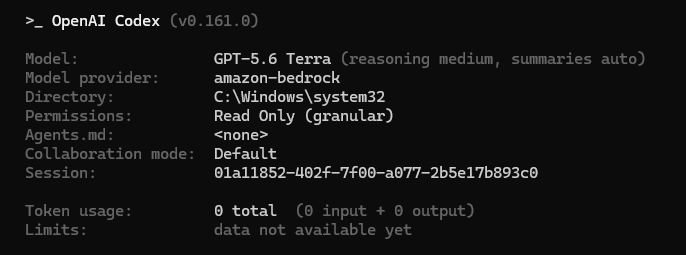
图 1:确认 amazon-bedrock 为模型提供商的 Codex CLI /status 标签页
在 ChatGPT 桌面端应用中,你同样可以在设置中确认 amazon-bedrock 已作为模型提供商。
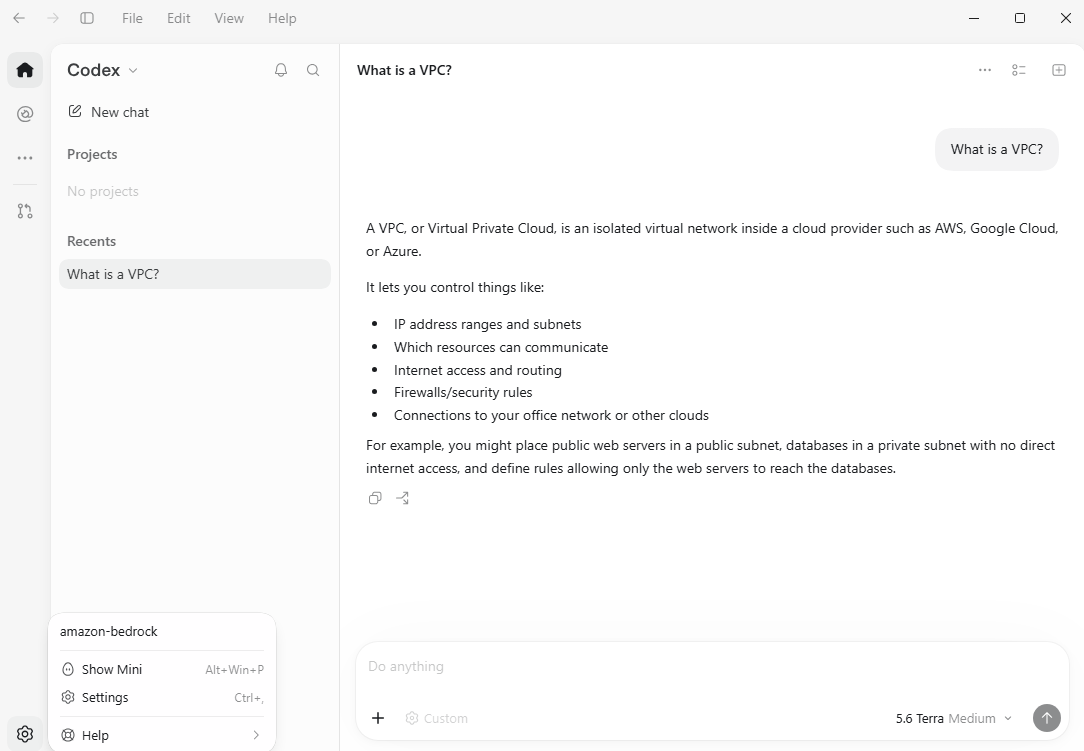
图 2:显示 amazon-bedrock 作为模型提供商的 ChatGPT 桌面端应用设置
故障排查
应用程序提示登录 OpenAI 账户。 检查 requirements.toml 与 config.toml 的存放路径和文件名是否与前表完全一致;终止所有 ChatGPT 和 Codex 进程后重新启动。这两个文件必须先于应用启动就绪。
提示 AWS GovCloud (US) 端点不受支持。 请向 OpenAI 确认你所使用的桌面端或应用服务端的具体版本、端点以及模型是否匹配。单纯修改 URL 并不能生效支持。
调用了错误的 AWS 身份。 检查当前生效的凭证来源及指定的 Profile。核对是否存在优先级高于 Profile 的 Amazon Bedrock API 密钥。
功能限制策略未生效。 重启后检查当前完整生效的 requirements 策略。仅设置“纯 API 登录”并不会自动应用具体的功能限制策略。
回滚与清理
若验证检查未通过,请立即中止推广上线。将受影响的设备恢复到此前已批准的策略与提供商配置,然后重启 ChatGPT 桌面端应用。撤销所有临时 AWS 凭证或 API 密钥,并确认这些设备已无法再连接至 Amazon Bedrock。在进行下一次尝试前,请保留测试记录并清晰记录失败的具体原因。
结语
通过 AWS GovCloud (US) 中的 Amazon Bedrock 运行 ChatGPT 桌面端应用,为你提供了一种安全可控的方式来使用 OpenAI 前沿模型与编程辅助能力。所有模型推理均严格保留在 AWS GovCloud (US) 区域内。通过对配置进行严格验证、确认获批的 AWS 身份与端点,并验证相应的控制策略,机构能够在满足最高安全标准的同时,安全赋能技术团队。
English / 原文
The ChatGPT desktop app is now available on Amazon Bedrock in AWS GovCloud (US), providing access to OpenAI’s frontier models through two components. Work completes complex, multi-step tasks and delivers review-ready results, and Codex is a coding agent for developing, testing, and reviewing software.
This walkthrough is intended for organizations whose security architecture requires model inference to use AWS GovCloud (US) identities, endpoints, and Regional controls. It configures Codex to route model requests through Amazon Bedrock Mantle in us-gov-west-1, where access can be governed using AWS Identity and Access Management (IAM) and existing AWS GovCloud (US) network controls.
Codex is the OpenAI coding agent for AI-powered software development. With GPT models powering inference, Codex introduces a new class of intelligence optimized for complex, long-horizon developer workflows. You can use the ChatGPT desktop app, the Codex CLI, and IDE integrations with Visual Studio Code, JetBrains, and Xcode. Model inference is routed through the Responses API on Amazon Bedrock.
For customers with data residency requirements, processing stays within the Amazon Bedrock AWS Region that you select. You pay per token with no seat licenses and no per-developer commitments. Zero data retention (ZDR) is also supported. In this configurable mode, prompts and responses are processed without being written to durable storage by AWS or shared with model providers. This helps you protect sensitive information and meet stringent data-governance, privacy, and security requirements.
This post walks through a controlled local deployment of the ChatGPT desktop app that sends model inference to Amazon Bedrock in AWS GovCloud (US-West). The configuration uses API-mode sign-in, a managed device policy, a named AWS profile, and network restrictions. These restrictions allow access only to the approved Amazon Bedrock endpoint while disabling other external connections and network-enabled capabilities. The result is a deployment that an agency security team can test and document before approving broader use.
Using AWS GovCloud (US) and following this guide do not, by themselves, authorize your workload. Your organization remains responsible for reviewing the selected model, AWS services, Region, endpoint, workstation controls, repositories, credentials, and data flows against its system security plan and authorization process.
Solution overview
You can use the ChatGPT desktop app in two ways:
- Work for larger tasks that need planning, research, files, and a finished result.
- Codex for technical work such as editing code, running tests, and reviewing pull requests.
The ChatGPT desktop app runs on an organization-managed computer through the desktop app or CLI. It uses the configured AWS credentials to securely send requests to the Amazon Bedrock Mantle endpoint in us-gov-west-1. Because this setup uses AWS directly, ChatGPT workspace rules and user roles don’t control it. The main security controls are the computer’s policies and the AWS identity and permissions being used.
Walkthrough
The configuration has three main steps: set up authentication, set up the ChatGPT desktop app configuration files, and then launch, initialize, and verify the deployment.
Prerequisites
Before setting up the ChatGPT desktop app with AWS GovCloud (US), make sure your version of the ChatGPT desktop app supports Amazon Bedrock in AWS GovCloud (US). You need an approved AWS GovCloud (US) account, an IAM identity and approved credentials, access to the approved model, AWS Region, and endpoint, and permission to use them. You also need to set up the requirements.toml and config.toml files.
Step 1: Set up authentication
Select the approved AWS GovCloud (US) account and IAM identity or role with access to the approved model in us-gov-west-1. Obtain credentials through your organization’s approved mechanism. This walkthrough uses the named profile codex-il5. Keep credentials, bearer tokens, session tokens, and other secrets out of TOML files.
Protect the profile configuration, credential source, SSO token cache, and any credential helper from ChatGPT desktop app task writes, while allowing approved authentication tools to maintain and refresh credentials.
The ChatGPT desktop app supports two Amazon Bedrock authentication pathways: an Amazon Bedrock API key or the AWS SDK credential chain. AWS SSO through AWS IAM Identity Center is supported within the credential-chain pathway.
The app first checks for AWS_BEARER_TOKEN_BEDROCK in its environment. For desktop use, this variable can be supplied through %USERPROFILE%\.codex\.env on Windows or ~/.codex/.env on Linux and macOS. When present, the bearer token takes precedence over profile-based authentication.
If no bearer token is available, the app falls back to the standard AWS SDK credential chain. The chain can read AWS credentials from ~/.aws/credentials and related profile settings from ~/.aws/config. On Windows, the corresponding default paths are %USERPROFILE%\.aws\credentials and %USERPROFILE%\.aws\config. The chain also supports SSO profiles. For SSO, it uses the profile settings in the AWS config file and the cached SSO session to obtain temporary role credentials. These credentials don’t need to be manually stored in the AWS credentials file. See OpenAI’s Bedrock authentication documentation and the AWS IAM Identity Center credential provider documentation.
Step 2: Set up ChatGPT desktop app configuration files
You must create two ChatGPT desktop app configuration files: config.toml and requirements.toml.
Important: the configuration files need to be set up before the application is launched. The following table shows the file locations.
| Operating system | Userconfig.toml |
Adminrequirements.toml |
|---|---|---|
| Windows | %USERPROFILE%\.codex\config.toml |
%ProgramData%\OpenAI\Codex\requirements.toml |
| Linux | ~/.codex/config.toml |
/etc/codex/requirements.toml |
| macOS | ~/.codex/config.toml |
/etc/codex/requirements.toml |
Start from the requirements.toml file. requirements.toml is an administrator-controlled rules file. It sets security limits that users can’t override, for example, restricting which permission levels, tools, or settings the ChatGPT desktop app is allowed to use.
Use the following baseline for the supported AWS GovCloud (US) Amazon Bedrock deployment. The [windows] section applies only to Windows, and sandbox_private_desktop must be supported by the approved runtime.
allowed_login_methods = ["api"]
allowed_sandbox_modes = ["read-only", "workspace-write"]
allowed_approvals_reviewers = ["user"]
allowed_approval_policies = [
{ granular = { sandbox_approval = false, rules = true,
mcp_elicitations = false, request_permissions = false,
skill_approval = true } },
]
allowed_web_search_modes = ["disabled", "cached"]
allow_browser_and_computer_use = false
allow_appshots = false
allow_remote_control = false
allow_login_shell = false
allow_managed_hooks_only = true
check_for_update_on_startup = false
mcp_servers = {}

[feedback]
enabled = false

[features]
network_proxy = true
in_app_chat = false
in_app_dictation = false
in_app_browser = false
browser_use = false
browser_use_external = false
browser_use_full_cdp_access = false
computer_use = false
in_app_updates = false
image_generation = false
memories = false
chronicle = false
external_agent_memory_import = false
guardian_approval = false
guardianv2 = false
guardian_ext = false
apps = false
enable_mcp_apps = false
plugins = false
remote_plugin = false
plugin_sharing = false
recommended_plugins = false
skill_mcp_dependency_install = false
skill_search = false
workspace_dependencies = false
hooks = false
standalone_web_search = false

[experimental_network]
enabled = true
managed_allowed_domains_only = true
domains = {}
unix_sockets = {}
allow_upstream_proxy = false
dangerously_allow_non_loopback_proxy = false
dangerously_allow_all_unix_sockets = false
allow_local_binding = false

[application.network]
enabled = true

[application.network.domains]
"bedrock-mantle.us-gov-west-1.api.aws" = "allow"
"api.openai.com" = "deny"
"chat.openai.com" = "deny"
"chatgpt.com" = "deny"
"ab.chatgpt.com" = "deny"
"platform.openai.com" = "deny"
"auth.openai.com" = "deny"
"gov.api.openai.com" = "deny"
"gov.chatgpt.com" = "deny"
"sdfedpreastus2.oaiusercontent.com" = "deny"
"o33249.ingest.us.sentry.io" = "deny"
"persistent.oaistatic.com" = "deny"
"oaisidekickupdates.blob.core.windows.net" = "deny"

[windows]
allowed_sandbox_implementations = ["elevated"]
sandbox_private_desktop = true
Next, configure the config.toml file. config.toml tells the ChatGPT desktop app how to operate, including which model provider to use (amazon-bedrock), which model to select, and settings such as permissions or context limits.
Replace the model ID and named profile (for example, codex-il5) with approved values.
model = "REPLACE_WITH_APPROVED_MODEL_ID"
model_provider = "amazon-bedrock"
forced_login_method = "api"
approval_policy = { granular = { sandbox_approval = false,
rules = true, mcp_elicitations = false,
request_permissions = false, skill_approval = true } }
approvals_reviewer = "user"
sandbox_mode = "workspace-write"
web_search = "cached"
allow_login_shell = false
check_for_update_on_startup = false

[model_providers.amazon-bedrock]
base_url = "https://bedrock-mantle.us-gov-west-1.api.aws/openai/v1"
wire_api = "responses"
requires_openai_auth = false
supports_websockets = false
supports_standalone_web_search = false

[model_providers.amazon-bedrock.aws]
region = "us-gov-west-1"
profile = "codex-il5"

[sandbox_workspace_write]
network_access = false

[features]
network_proxy = true

[analytics]
enabled = false

[feedback]
enabled = false

[otel]
exporter = "none"
trace_exporter = "none"
metrics_exporter = "none"
log_user_prompt = false

[memories]
generate_memories = false
use_memories = false

[skills.bundled]
enabled = false

[apps._default]
enabled = false

[windows]
sandbox = "elevated"
Step 3: Launch, initialize, and verify
Download the app from the ChatGPT site and install it. Leave the app closed after installation. If it opens automatically or if the app has been launched previously, fully exit ChatGPT and end any lingering ChatGPT or Codex processes.
Make sure requirements.toml and config.toml are in place before the first app launch.
Start the app to load the requirements.toml and config.toml settings. Make sure it shows amazon-bedrock as the model provider.
In the Codex CLI, you should see a /status tab that looks like this:
Figure 1: The Codex CLI /status tab confirming amazon-bedrock as the model provider
In the ChatGPT desktop app, you can also confirm amazon-bedrock as the model provider.
Figure 2: The ChatGPT desktop app settings showing amazon-bedrock as the model provider
Troubleshooting
The application prompts for an OpenAI account. Verify that requirements.toml and config.toml use the exact locations and file names shown in the preceding table, terminate all ChatGPT and Codex processes, and relaunch. The files must precede app launch.
AWS GovCloud (US) endpoint is reported as unsupported. Confirm the exact desktop or app-server release, endpoint, and model with OpenAI. Changing the URL alone does not establish support.
The wrong AWS identity is used. Inspect the effective credential source and named profile. Check whether an Amazon Bedrock API key takes precedence over the profile.
Capability restrictions are missing. Inspect the full effective requirements after restart. The API-only sign-in setting doesn’t apply the capability policy.
Rollback and cleanup
If a validation check fails, stop the rollout. Return the affected devices to the previously approved policy and provider settings, then restart the ChatGPT desktop app. Revoke any temporary AWS credentials or API keys, and confirm that those devices can no longer connect to Amazon Bedrock. Keep a record of the test and clearly document what failed before trying again.
Conclusion
The ChatGPT desktop app on Amazon Bedrock in AWS GovCloud (US) gives you a controlled way to use OpenAI frontier models and coding assistance. Inference stays in the AWS GovCloud (US) Regions. By validating the configuration, confirming the approved AWS identity and endpoint, and verifying security controls, you can confidently prepare the deployment for broader use. This approach supports innovation while aligning deployment decisions with each organization’s security, authorization, and data-handling requirements.
Ready to explore the ChatGPT desktop app with Codex on Amazon Bedrock in AWS GovCloud (US)? Start with a controlled deployment, validate your security controls, and work with your security team to prepare for broader adoption.
About the authors
Virgil Ennes
Virgil is a Senior Partner Solutions Architect at AWS and a GenAI and AI/ML specialist. He helps partners and customers integrate OpenAI technologies with AWS services, transforming innovative ideas into scalable, real-world business solutions.
Sean Phuphanich
Sean is a Principal Technologist of Applied AI and segment lead for ISVs. Sean is focused on solving major challenges for industry with frontier AI and optimizing the pareto curve. Sean is also a development and cyber security SME, and program manager for AWS Zero Trust Accelerator for Government (ZTAG).