你所需要的只是 Harness(大多数情况下)
英文标题:The harness is all you need (mostly)
本文提出了一套以 GitHub Copilot 为核心的实用工作流:在不追逐各类新 AI 工具、MCP 或复杂提示词的情况下,通过理解和使用 Agent harness 提升开发效率。流程包括在隔离环境中开启 YOLO 模式、先制作原型、系统化规划、使用 Autopilot 实施,以及由人类进行审查和迭代。文章强调,原型和计划阶段能够提前暴露需求细节与边界条件,而 Copilot 的内置子 Agent、多模型编排等能力无需额外配置即可使用。对开发者而言,关键不在于安装更多工具,而在于建立稳定的 AI 协作流程,并在最终审查中运用自身的专业判断与设计品味。
 75.6 KB
 33.6 KB
 84.8 KB
 40.0 KB
 58.0 KB
 27.6 KB
 124.7 KB
 50.1 KB
 75.4 KB
 34.5 KB
 67.7 KB
 32.0 KB
 84.0 KB
 40.3 KB
 240.4 KB
 33.4 KB
 38.3 KB
 67.7 KB
 34.4 KB
 60.8 KB
中文
如果你现在正被 AI 搞得不知所措,你并不孤单。
每天似乎都会出现一种新工具、新 MCP、新模型、新技能、新工作流、新功能,以及一条新的社交媒体帖子,其核心都像是在说:“嘿,快看!我用这一条奇怪的提示词彻底搞懂 AI 了。”
我……不相信你。
我每天都在使用 AI,而我发现,少反而更多。真正带来显著差异的,不是我安装或配置了什么,也不是我设法诱导 Agent 去做什么。这些东西很有意思,但归根结底,它们更像是噱头。
我在生产力上的最大提升,来自于我如何使用 harness,以及我对它的理解有多深入。
因此,在这篇文章中,我将分享一套简单工作流:只使用 GitHub Copilot 的既有功能,就能大幅提高你使用 AI 的效率。不需要奇怪的提示词,也不需要什么似乎人人都知道、但你不知道的技能。只需要 harness。你所需要的只是 harness——大多数情况下如此。
免责声明
我会交替使用“harness”和“GitHub Copilot”这两个词。本文的重点是保持简单,所以你只需知道:GitHub Copilot 就是一个 Agent harness。
我并不是想暗示你永远不需要任何技能、MCP、指令、自定义 Agent 等。事实上,当你的工作逐步深入,需要为团队定义复杂工作流并实现自动化时,这些东西会变得相当重要。实际上,我在这篇博客文章中也使用了其中几种!
我想指出的是:即使没有这些东西,你也能在使用 AI 时取得非常成功的结果。
此外,外面还有很多低质量内容。如果你不相信,可以让 Agent 为任何事情创建一个技能。它会很乐意照办。至于生成的技能是否真的能运行,它都可以很轻易地被发布到各种技能或 MCP 注册表中。
这显然是个简单的问题,对吧?选一个工具就好!太容易了!
但即使只看 GitHub Copilot 产品家族,选项也很多,包括 CLI、新的 GitHub Copilot app、VS Code、Visual Studio 和 JetBrains,这里只是列举几个。
好消息是,这些体验正越来越多地集中在同一套 harness 上。不同工具的细节可能有所不同,但核心工作流是一致的。学习一次 harness,处处都能使用。
话虽如此,我确实认为学习 harness 是关键,而学习它的最佳方式,就是尽可能贴近它。因此,如果你刚开始使用,我建议从 GitHub Copilot CLI 入门。它是一个终端界面,这意味着它就是纯文本。没有太多 UI 需要学习。你输入一个提示词,Agent 去执行操作。但这种交互更加直接、即时,而且坦率说,非常令人满足。
本演示中,我会使用新的 GitHub Copilot app。但该应用使用的 harness,与使用 GitHub Copilot CLI、Visual Studio Code 以及许多其他 GitHub Copilot 使用场景时所用的完全相同。
2. 开启 YOLO 模式
YOLO 模式也被称为“Allow All”。它允许 Agent 在无需请求许可的情况下执行任何命令。具体方式会因你所使用的工具而异,但对于大多数工具,只需在聊天中输入 /allow-all 命令。否则,Agent 每次需要执行工作时都会停下来,等待你的批准。
如果想看到生产力提升,Agent 就需要自主性。如果你必须批准 Agent 所做的每一件事,那你还不如自己动手。而且,这种用户体验非常糟糕。没有人愿意整天坐在桌前不停点击“批准”按钮。反复点击“批准”只会训练你不再阅读自己正在批准的内容,这也就违背了批准机制的目的。
不过,你确实需要安全地使用 Agent。好人也会遇到坏事。使用 YOLO 模式时,你不应该在本地机器上运行 Agent。特别是在工作中使用它们时更是如此——组织系统中的数据是私密的,失误可能代价高昂。
幸运的是,有许多在沙盒中运行 Agent 的选择。一个易于上手的方案是 GitHub Codespaces 或开发容器。
3. 从原型开始
AI 最神奇的地方之一在于,你可以轻松地在前期为任何事物创建原型。过去并非如此。原型制作曾是项目中的一个完整阶段,而且往往是一种奢侈。现在,你只需一个提示词就能做出来。
让我们看几个例子。
假设我们想构建一个日期选择器 Web Component。这看起来很直接,但实际上相当复杂。想想你可能希望它具备的各种功能。
- 如何在组件内部导航?
- 被选中的日期应该是什么样子?
- 被选中的日期范围应该是什么样子?
- 用户如何在日期、月份和年份之间导航?
从一个简单原型开始,并获得多个变体。我通常会从类似下面的提示开始:
Give me 20 mocks for a date picker web component. Put them all in an HTML file so I can compare.
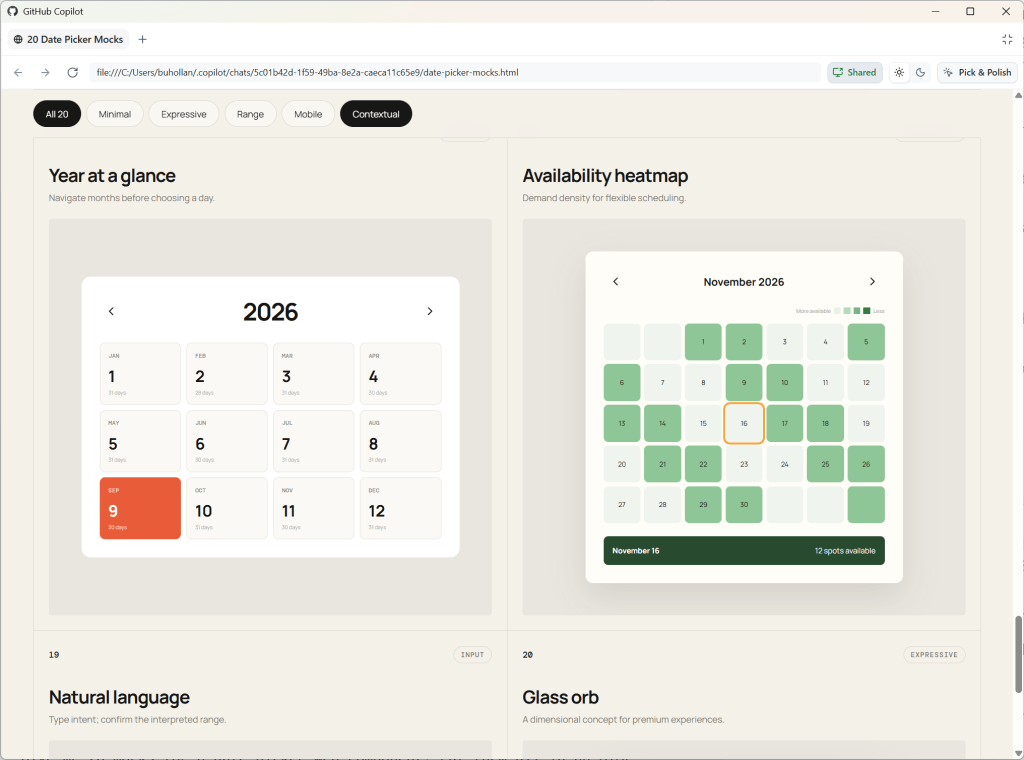
在这个例子中,AI 生成了一系列不同布局,其中有一个原型从年份视图开始。这很有意思。我希望我的日期选择器能让用户先缩小到年份,再进入月份,最后进入日期。只有看到这些设计后,你才会想到这类问题。
作为人类,我们处理图像、形状和可感知布局等感官信息丰富的模型,比处理密集文本快得多。尽早创建低成本原型,能够让复杂概念立即变得直观。
这同样适用于非视觉类任务。
例如,如果我想新增一个 API 端点,在深入实施之前,我仍然会先创建一个视觉原型,以了解需求和约束。
Create a visual mockup of the API for this project. Add five options for how we could handle a new API endpoint that allows the user to download their analytics data.
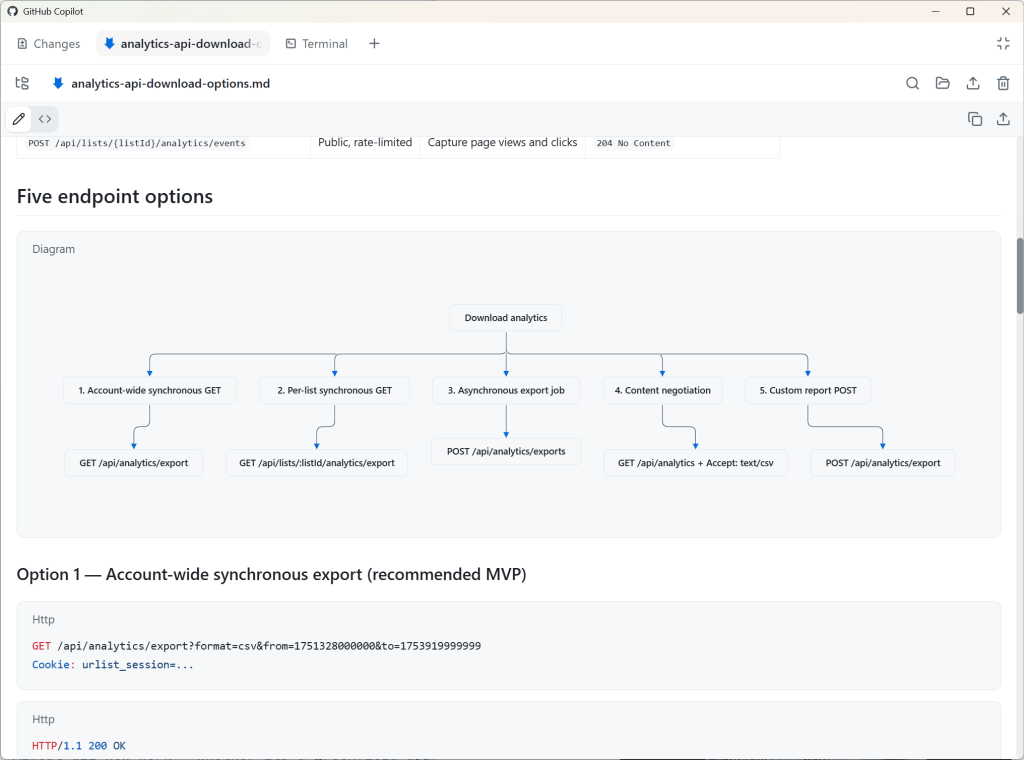
由于 GitHub Copilot app 支持 Mermaid 图表,Agent 会将其渲染为 Markdown,展示我们实现该 API 端点的五种不同方式。
与 Agent 协作时,很容易忘记所有事情都存在细微差别。原型能帮助你在前期发现这些细微之处,从而避免将宝贵的时间和 token 花费在返工上。
对于大多数工作,我建议使用中等规模的模型,例如将 GPT 5.6 Terra 或 Claude Sonnet 设置为中等推理级别。我也建议在某一项功能、Bug 修复或增强工作的整个周期内,坚持使用你在这里选定的模型。提示词缓存可以节省你的 token。只要不切换到不同模型或不同推理级别,你此前与模型的聊天内容就会保持缓存,使后续请求获得折扣。
4. 系统化地规划
现在,你已经知道自己真正想要什么,而不是最初以为自己想要什么,接下来就该规划实施方案了。
在不启动新会话的情况下,切换到 GitHub Copilot 的计划模式。
“/plan Build a date picker web component. I want the user to be able to zoom in and out of years, months, and days.”
这是一个相当模糊的提示词,而且你可能会比我在这里提供给模型更多上下文,但这只是一个演示。如果你没有更多上下文,也没关系。这恰恰是这个步骤存在的意义。
理论上,只要你以完美的顺序组合完美的提示词和完美的上下文,就能让模型一次性完成任何事情。理论上是这样。
但我们谁也做不到。规划可以帮助你更接近这一理想状态,因为它会提出那些如果你亲手构建,就必须在过程中自己回答的问题:
- 开始日期和结束日期可以相同吗?
- 部分选择是否有效?
- 用户是否应该能够清除日期?
- “今天”是否应该始终是可见选项?
- 是否允许手动输入?
- 日期以什么格式存储?
- 是否应该允许粘贴日期?
这样的问题还有很多。你不可能想到所有这些边界情况,但模型可以帮助你识别其中许多。
你还可以通过安装 Matt Pocock 的 “grill-me” 技能,让计划模式在提问数量和边界情况覆盖上变得更加激进。
/plan /grill-me Build a date picker web component. I want the user to be able to zoom in and out of years, months, and days.
这个规划步骤至关重要。目的不是让你照单全收 AI 的每一条建议。如果你这样做,就抵消了规划流程的价值。重点在于,你要深入参与问题本身,并引导模型。这正是你的专业知识发挥作用的地方。
你也可以反过来向模型提问。在下面的截图中,它问我有关“非连续日期”的问题。我很确定自己知道模型在这里的意思,但我会要求它澄清,以确保我们理解一致。
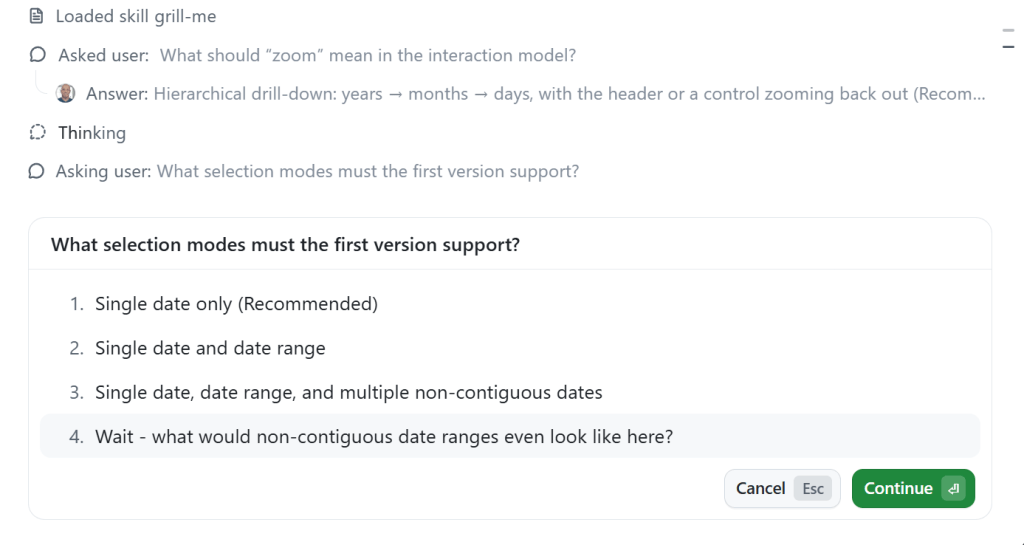
即使你中途打断以提出澄清问题等,规划过程仍会继续。
5. 使用 Autopilot 实施
计划完成后,GitHub Copilot 很可能会提示你切换到 Autopilot,并开始实施计划。
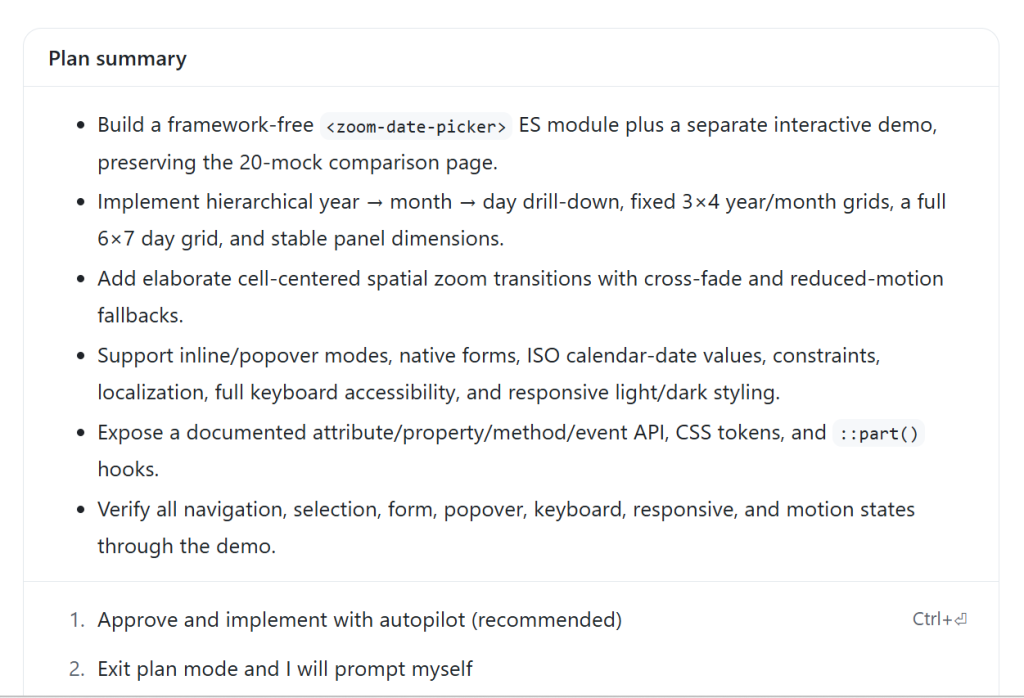
Autopilot 是一个内置循环。它会确保模型确实完成了它声称要做的工作,从而强制模型持续执行——在本例中,就是完成计划中的每一项。
在这一阶段,GitHub Copilot 会自动充当编排器。如果需要读取代码库中的文件,它会使用搭载小型模型的“Explore”子 Agent。如果它认定某项操作相对复杂,则可能会选择搭载较大模型的“General Purpose”子 Agent。尽管你可以借助自定义 Agent和指令,在 GitHub Copilot 中精细控制编排过程,但你不需要做任何特殊设置,就能获得子 Agent 和多模型工作流的优势。即使你不知道这些功能的存在,它也能开箱即用。
6. 人类审查与迭代
这就是你获得多巴胺奖励的时刻。你终于可以看到 AI 创造出了什么。
但你很可能无法立刻得到自己想要的确切结果。这很正常,也是意料之中的。模型无法读懂你的想法,而且它容易出错。与模型持续迭代,直到得到你真正想要的结果。无论是代码本身还是改进后的 UI,最终产品的质量都将由你的品味决定。
例如,下面是 GitHub Copilot 给我的日期选择器。
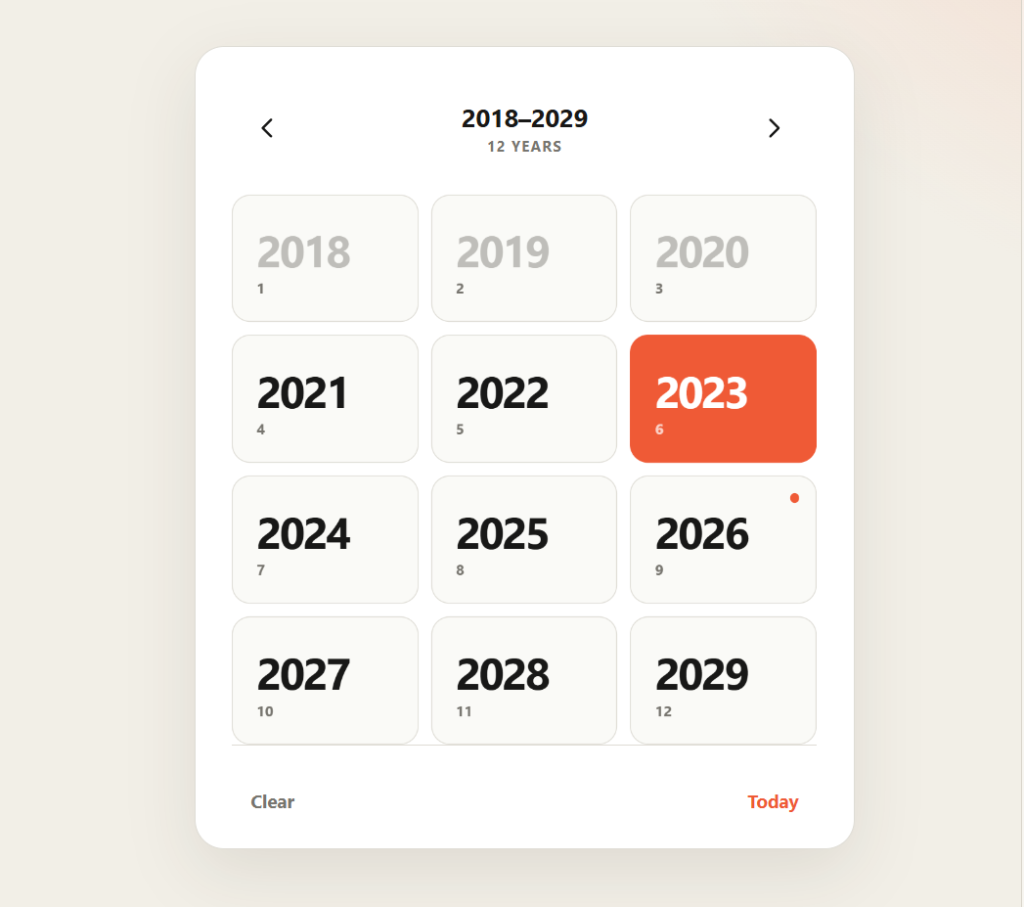
我已经能看出它存在一些问题:
- 动画效果不一致。
- 悬停在已选日期上时,由于颜色对比度问题,文字不可读。
- 顶部不需要写“12 YEARS”。
- 当我点击“Today”时,如果当前处于月份或年份视图,它不会带我进入日期视图。
另外,我并不 喜欢 这个设计。它看起来有点太像 AI 生成的——因为它确实是!
所以,我们现在只是在后续跟进模式中。我将使用一个自己创建的 CSS 框架,名为 Postrboard。我把它添加为一个技能,其中只指向 CSS,并告诉 Agent 如何使用它。如果你想使用它,也可以自行安装;或者,你可以选择任何其他你喜欢的 CSS 框架。给模型提供一些设计指导很有帮助,而 CSS 框架往往就是你所需要的全部。
ok - we don't need a landing page here - just the component, output and settings panel in a minimal setting. Use the /postboard skill for the design and colors.
对于这个日期选择器,当我点击日期时,它会尝试放大,但由于没有更深层级可放大,因此无法完成。这里不应该有缩放操作。
顶部不需要写“Zoom Out”。
当我将鼠标悬停在某个月份或年份上时
English / 原文
If you’re feeling overwhelmed by AI right now, you’re not alone.
Every day it seems there is a new tool, new MCP, new model, new skill, new workflow, new feature, new social post that is some form of “Hey look! I have completely figured out AI with this one weird prompt.”
I…don’t believe you.
I work with AI every single day, and what I’m finding is that less is way more. It’s not about what I install or configure or trick the agent into doing that makes any real difference. That stuff is interesting, but at the end of the day it feels like gimmicks.
I see the biggest gains in my productivity from how I use the harness and how well I understand it.
So in this post, I’m sharing you a simple workflow that you can use to drastically improve your effectiveness with AI just by using existing features of GitHub Copilot. No weird prompts. No skill everyone else seems to know about. Just the harness. The harness is all you need—mostly.
Disclaimers
I’m using the term “harness” interchangeably with “GitHub Copilot.” The point of this post is to keep things simple, so just know that GitHub Copilot is an agent harness.
I don’t mean to insinuate that you won’t ever need any skills or MCPs or instructions or custom agents, etc. In fact, those things will become quite important as you progress and need to define complex workflows and automate things for your teams. In fact, I use a few throughout this blog post!
What I am pointing out here is that you do not need any of those things to be highly successful with AI.
Also, there is a lot of slop out there. If you don’t believe that, ask the agent to create a skill to do anything at all. It will happily oblige. Whether or not that generated skill actually works, it can be easily published to any number of skill or MCP registries.
This is an obvious one, right? Pick a tool! It’s so easy!
But even within the GitHub Copilot family, there are a lot of options. These include the CLI, the new GitHub Copilot app, VS Code, Visual Studio, and JetBrains, just to name a few.
The good news is that these experiences are increasingly being centralized on the same harness. The details can differ by tool, but the core workflow is consistent. Learn the harness once, use it everywhere.
That said, I do believe that learning the harness is key, and the best way to learn it is to be as close to it as possible. So if you are just starting out, I’d recommend beginning with the GitHub Copilot CLI. It’s a terminal interface, which means it’s just text. There isn’t much UI to learn. You enter a prompt. The agent does things. But the interaction is more direct, immediate, and, frankly, very satisfying.
For this demonstration, I’ll be using the new GitHub Copilot app. But the harness that app uses is the exact same thing you’ll be using if you are using the GitHub Copilot CLI, Visual Studio Code and many other places you can find GitHub Copilot.
2. Turn on YOLO mode
YOLO mode is also known as “Allow All.” This lets the agent execute any command without asking permission. This can vary depending on the tool you are using, but for most it is simply an /allow-all command in the chat. Otherwise, the agent is going to stop and wait for your approval every single time it needs to do some work.
Agents need autonomy for you to see an increase in productivity. If you have to approve everything the agent does, you might as well just do it yourself. Besides, that’s a miserable user experience. Nobody wants to be relegated to sitting at a desk pressing the “Approve” button all day. And pressing “Approve” over and over just trains you not to read what you are being asked to approve, which defeats the purpose.
You want to be safe with agents, though. Bad things happen to good people. When using YOLO mode, you don’t want to run the agent on your local machine. This is especially true when you are using them at work—data is private on your organization’s systems, and mistakes can be costly.
Fortunately there are a bunch of options for running agents in sandboxes. An easy one to get started with is GitHub Codespaces or development containers.
3. Start with a prototype
One of the most magical things about AI is that you can easily prototype anything and everything up front. Historically, this was not the case. Prototyping was a full phase of a project, and were often a luxury. Now, you can make one with a prompt.
Let’s look at a few examples.
Let’s say we want to build a date picker web component. That seems straighforward, but it’s actually quite complex. Think of all the different things you might want to do with it.
- How do you navigate within the component?
- What does the selected date look like?
- What does a selected range look like?
- How does the user navigate between days, months, and years?
Start with a simple prototype and get several variations. I usually start with something like this:
Give me 20 mocks for a date picker web component. Put them all in an HTML file so I can compare.
In this case, the AI generated a bunch of different layouts, but one of them is a mock where it starts with the year view. That’s interesting. I would like my date picker to enable the user to zoom out to the year, then into the month, and finally to the day. These are the kinds of things you don’t consider until you see them.
As humans, we process sensory-rich models like images, shapes, and tangible layouts much faster than dense text. Creating low-effort prototypes early on helps make complex concepts immediately intuitive.
And this applies to non-visual tasks as well.
For instance, if I want to add a new API endpoint, I’ll still create a visual prototype to understand the requirements and constraints before diving into the implementation.
Create a visual mockup of the API for this project. Add five options for how we could handle a new API endpoint that allows the user to download their analytics data.
Since the GitHub Copilot app supports Mermaid diagrams, the agent renders this as Markdown, mapping out five different ways we could implement this API endpoint.
When working with agents, it’s easy to forget that everything is nuanced. Prototyping helps uncover the nuances up front, so you avoid spending valuable time and tokens on rework.
I recommend using a medium-sized model, such as GPT 5.6 Terra or Claude Sonnet, on medium reasoning for most work. I also recommend you stick with whatever model you choose here for the duration of this particular feature, bug, or enhancement. Prompt caching will save you tokens. As long as you don’t switch to a different model or reasoning level, your previous chats remain cached with the model, giving you a discount on future requests.
4. Plan methodically
Now that you know what you actually want versus what you initially thought you wanted, it’s time to plan out the implementation.
Switch to plan mode in GitHub Copilot without starting a new session.
“/plan Build a date picker web component. I want the user to be able to zoom in and out of years, months, and days.”
That’s a pretty vague prompt, and you’ll likely have more context for the model than I do here, but this is just a demonstration. If you don’t have more context, it’s OK. That’s exactly what this step is for.
In theory, you can get a model to one-shot anything if you compose the perfect prompt with the perfect context in the perfect order. In theory.
But none of us can do that. Planning helps you get closer to that ideal, though, by asking all of the questions that you would need to answer yourself along the way if you were to build this out by hand:
- Can the start and end date be the same?
- Are partial selections valid?
- Should users be able to clear the date?
- Should “today” always be a visible option?
- Is manual entry allowed?
- What format is the date stored in?
- Should pasting in dates be allowed?
The list goes on and on. You cannot possibly think of all of these edge cases, but the model can help you identify many of them.
You can make plan mode even more aggressive in the sheer number of questions and edge cases it asks about by installing the “grill-me” skill from Matt Pocock.
/plan /grill-me Build a date picker web component. I want the user to be able to zoom in and out of years, months, and days.
This planning step is critical. The point is not for you to just accept every suggestion from the AI. If you do that, you are negating the value of this planning process. The point is for you to deeply engage with the problem and guide the model. This is where your expertise comes into play.
You can also ask the model questions back. In the screenshot below, it asks me about “non-contiguous dates.” I’m pretty sure I know what the model means here, but I’m going to ask for clarification so we’re on the same page.
The planning process will keep going even if you interrupt to ask clarifying questions, etc.
5. Implement with Autopilot
Once the plan is finished, GitHub Copilot will likely prompt you to switch to Autopilot and start implementing the plan.
Autopilot is a built-in loop. It forces the model to continue working by ensuring that it has actually done what it said it would do—which in this case is completing every item in the plan.
GitHub Copilot will automatically act as an orchestrator during this phase. If it needs to read files in the codebase, it will use the “Explore” subagent with a small model. If it deems an action relatively complex, it will likely choose the “General Purpose” subagent with a larger model. While you can get fine-grained control over orchestration in GitHub Copilot with custom agents and instructions, you don’t need to do anything special to get the advantages of subagents and multimodel workflows. This works out of the box, even if you did not know that any of these things existed.
6. Human review and iteration
This is where you get your dopamine hit. You get to see what the AI has created.
But it’s likely that you won’t get exactly what you wanted. That’s normal and expected. The model cannot read your mind, and it is error-prone. Iterate with the model until you get what you actually want. Whether that’s just code or an improved UI, this is the part where your taste will decide the quality of the final product.
For instance, here’s the date picker that GitHub Copilot gave me.
Already I can see it has some issues:
- Animations are inconsistent
- Text is unreadable when hovering over a selected date because of color contrast
- It doesn’t need to say “12 YEARS” at the top.
- When I click “Today”, it doesn’t take me to the day if I’m in the month or year view.
Also, I don’t love the design. It looks a little too much like it was created by AI—because it was!
So here we’re just in follow-up mode. I’m going to use a CSS framework I created called Postrboard. I add it as a skill that just points to the CSS and tells the agent how to use it. You can feel free to install it yourself if you’d like to use it, or you can pick any other CSS framework out there that you like. Giving the model some design guidance is quite helpful, and often a CSS framework is all you need.
ok - we don't need a landing page here - just the component, output and settings panel in a minimal setting. Use the /postboard skill for the design and colors.
For the date picker, when I click on the day, it tries to zoom in, but can’t because there is nothing to zoom to. There should be no zoom there.
It doesn’t need to say “Zoom Out” at the top
When I mouse over a month or year that contains the selected day, I cannot read the hover text.
When I click “Today” it should take me to that day view, even if I’m on the month or the year.
The months don’t need numbers under them and they don’t need to be in boxes
Same goes for years. And it doesn’t need to say “12 years” at the top.”
Notice how conversational this is. Don’t overthink it. When you’re fixing a bunch of small things like this, just give it to the model. If you’ve got the context, you’ve got the prompt.
The most important thing is not to settle for AI output that is “good enough.” Insist on quality. Be ruthless about it. That part is still your responsibility, and knowing what a quality result is from something that isn’t is the value that you bring. No AI will ever replace your human touch and creativity.
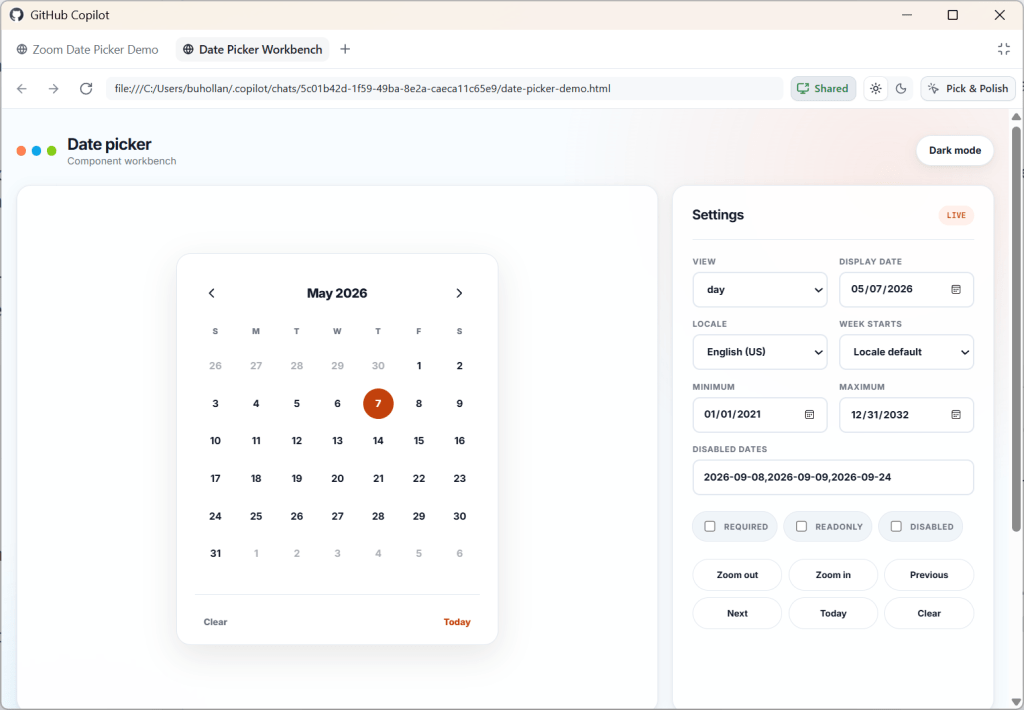
Here’s what my final date picker looks like. Scroll to the end of this post to see it in action.
7. Rubber duck the result
After you’ve iterated and are happy with what you’ve created, it’s time to do a final review.
Request a Rubber Duck review from GitHub Copilot. You can do this just by asking for it:
Perform a rubber duck review on this date picker component implementation
In a Rubber Duck review, GitHub Copilot will request a review from a model of a different AI family. For instance, since I was using GPT 5.6 Terra, it requested a review from Sonnet. Different models were trained on different data, so they have different blind spots. A Rubber Duck review helps identify potential issues that might be missed by a single model.
Note that you can use this at any point in this workflow. You can rubber duck prototypes. You can rubber duck plans. It all just depends on if you want a second AI review on something.
And if you want to take this a step further, you can combine rubber duck with Autopilot to get the models to work together in a loop to improve the final result.
“/autopilot rubber duck this date picker implementation. When you have the result, review it carefully and make any necessary adjustments. Repeat the rubber duck review until both you and the reviewing model agree that the only items that remain have diminishing returns.”
After this step, you will have an even more refined result than before and will have likely identified many extra edge cases. This step does cost more tokens, but you are really battle-hardening the code. Think of it as an investment in your future self who won’t have to deal with these issues because you caught them now.
8. Profit
At this point, you’re ready to stage and commit, or move on to the next feature you want to add along with this pull request.
I’d recommend starting a new chat session for anything you do next that doesn’t have to do with this date picker. You can think of chat sessions as being topical; if you start to diverge too much from the main topic, it’s probably time for a new session.
Here’s the final result from my workflow building the date picker for this post.
I realize that this is a bit of a contrived example, but can we all just pause for a moment and marvel at what we’re able to pull off with AI now? Building a date picker used to be one of the hardest things you could try to do. Just ask any of the heroes out there who have built them.
Things don’t have to be complicated
This simple workflow will be enough for most people. The simplicity also helps you multitask. It’s easier to reason about what agent is in what state and what you were doing last when you keep things simple. Your context window is limited too.
There is so much happening in the AI space right now. There is no upper limit on the things that you can build and experiment with. You can add MCP servers, skills, instructions, and custom agents. You can set up workflows and loops, create agents that prompt agents, and stand up entire virtual dev teams.
But keep in mind that nobody really knows what they are doing right now. We’re all figuring this out as we go. A lot of what is today’s magical incantation for AI will be tomorrow’s anti-pattern.
Just focus on getting a repeatable, high-quality result in the simplest way that you can. Learn the harness and you’ll be just fine.
Written by
Technologist, author, speaker, and creator. Working at GitHub where I focus on AI-powered development.