将基准测试和推荐结果流式传输到 MLflow(使用 Amazon SageMaker AI)
英文标题:Streaming benchmark and recommendation results to MLflow with Amazon SageMaker AI
本文介绍了 Amazon SageMaker AI 新增的 MLflow 集成,可自动将生成式 AI 推理的优化推荐任务和基准测试任务的实验数据(指标、参数、图表)实时流式传输到统一的 MLflow 跟踪界面。通过该集成,团队无需手动整合数据,即可在同一实验下并排比较不同实例类型、模型配置和优化策略的性能,从而加速迭代并实现完整的可复现性。文中提供了端到端的操作步骤和代码示例,展示了如何将 Qwen 模型的基准测试与推荐任务结果一起写入 SageMaker MLflow 应用,为推理优化工作流提供了统一的审计追踪和协作基础。
 139.5 KB
 144.3 KB
 109.2 KB
 138.0 KB
 72.0 KB
 49.1 KB
 25.8 KB
 36.2 KB
 29.5 KB
 21.5 KB
 26.8 KB
 37.0 KB
中文
对生成式 AI 模型进行基准测试的团队在部署到生产环境之前,通常会评估数十种 GPU 实例类型、服务容器、并行化策略以及推测解码等优化技术。实践者可能要花费数周时间在配置决策中不断试错,并手动拼凑出自己尝试过什么、什么有效以及为什么有效。正是这种复杂性促使我们推出了适用于 Amazon SageMaker AI 的优化生成式 AI 推理推荐:帮助团队从手动试错转向有引导的、数据驱动的优化和基准测试。
今天,我们新增了 MLflow 集成,让团队能够将 AI 基准测试和推荐结果流式传输到一个统一的位置,从而跟踪每一次实验。这一集成消除了数据孤岛,加快了迭代周期,并为你的推理优化工作流带来了完整的可复现性。
在本文中,你将学习如何使用新的 MLflow 集成配合 Amazon SageMaker AI 优化推理推荐任务和 Amazon SageMaker AI 基准测试任务,将实验数据自动流式传输到统一的跟踪界面。
该集成会将指标、参数和图表实时流式传输到你的无服务器 Amazon SageMaker MLflow 应用中,从而获得统一的实验跟踪体验。
解决方案概述
通过此版本,当你提交优化推理推荐任务或基准测试任务时,Amazon SageMaker AI 会自动将结果流式传输到你选择的 SageMaker MLflow 应用中。将多个任务提交到同一个 MLflow 实验后,你可以在 MLflow 实验视图中选择它们进行并排比较,无需任何手动数据整理。
下图展示了如何为基准测试和推荐任务设置 MLflow:
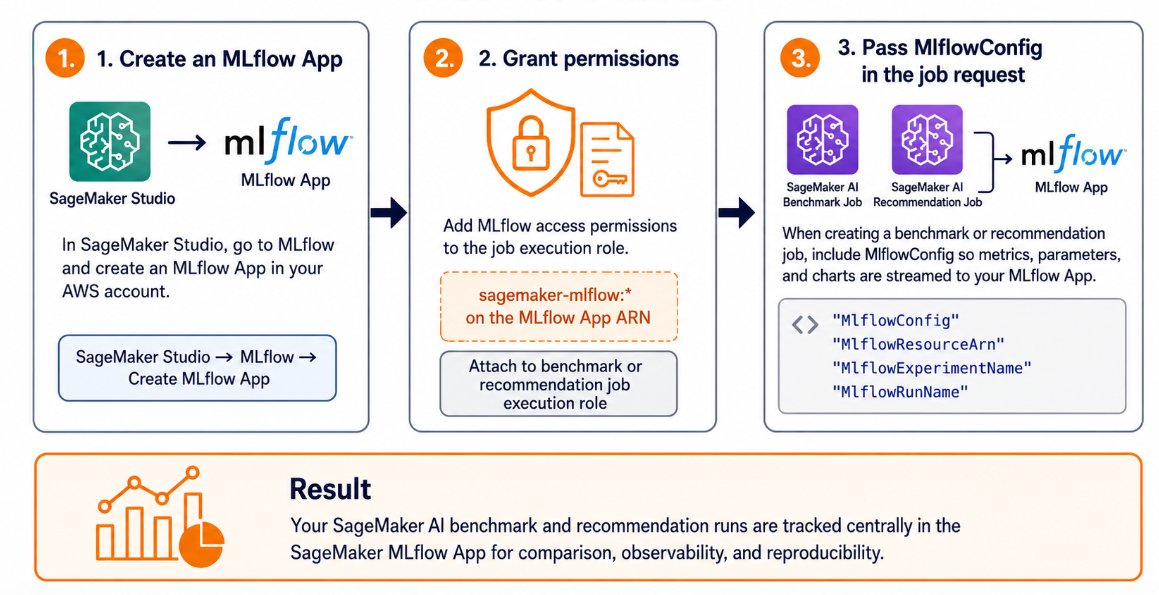
你需要完成以下步骤,为现有的推荐和基准测试任务设置 MLflow:
- 创建 MLflow 应用:在你的 AWS 账户中,打开 Amazon SageMaker Studio。然后转到 MLflow 并选择 Create MLflow App。
- 授予权限: 向任务的执行角色添加对 MLflow 应用 ARN 的
sagemaker-mlflow:*权限。 - 传递
MlflowConfig:在创建基准测试或推荐任务时传入MlflowConfig。
该实现的优势
此实现的一些优势包括:
消除手动数据整合: 通过原生 MLflow 集成,来自多个任务的基准测试和推荐结果会自动聚合到相同的实验名称下。这就不需要手动收集不同运行之间的指标、日志和配置。然后你可以并排比较各次运行,了解实例类型、模型配置、批处理大小或推测解码对性能有何影响。例如,你可以比较 qwen2-0.5b 在 ml.g4dn.12xlarge 和 ml.p4d.24xlarge 上的表现。
实时监控长时间运行的任务: 基准测试和推荐任务可能耗时数小时。现在你不必在不可见的情况下等待任务完成,而是可以实时观察指标流式传输到 MLflow 用户界面。延迟和吞吐量指标会随着每个配置的测试而更新,让你从开始到结束都能观察整个过程。我们会在指标区域发布实时指标,这些指标会随时间不断更新,而不是仅在任务结束时才发布。你可以利用这些指标来检查推荐任务中的吞吐量是否符合预期,如果不符合预期则可以提前停止任务。
维护完整的审计追踪: 实验运行会捕获完整的上下文:任务参数、时间戳、检查点指标和生成的工件。这一审计追踪可以保持数月内的可查询性和可复现性。你可以追溯哪些配置变更推动了改进,识别性能瓶颈,并借助完整上下文回顾过去的决策。
更好的协作与治理: 共享的 MLflow 实验将成为优化工作的唯一事实来源。团队成员可以审查已尝试的内容、哪些有效、哪些无效,从而减少重复工作,并支持轮班或团队成员之间的知情交接。
技术演练:在 MLflow 中跟踪 SageMaker AI 基准测试和推荐
在本示例中,某客户已将 Qwen/Qwen2-0.5B-Instruct 部署到 Amazon SageMaker AI 实时端点,使用兼容 OpenAI 的服务堆栈,运行在 ml.g6.12xlarge 上。该团队需要回答两个问题:现有的 Qwen 端点在轻量级聊天机器人工作负载下的表现如何,以及对于具有更长提示和响应的更大工作负载应使用何种配置。
为了使评估可复现,基准测试任务和推荐任务都会将指标、参数和图表写入同一个 SageMaker MLflow 实验。基准测试任务评估的是现有的 SageMaker 端点。推荐任务则评估存储在 Amazon Simple Storage Service (Amazon S3) 中的 Qwen 模型工件的部署选项,并返回排名靠前的配置。我们将使用一个演练 Notebook 向你展示如何为两个任务设置 MLflow,使用 Qwen/Qwen2-0.5B-Instruct 在 ml.g6.12xlarge 实例上进行延迟优化。
端到端的演练通常需要 45–120 分钟,具体时间取决于端点就绪状态、模型大小、工作负载配置、实例可用性以及推荐任务的搜索空间。
先决条件
这个 Notebook 将引导你完成如何为基准测试和推荐任务的实验跟踪设置 MLflow 应用。在运行此 Notebook 之前,你需要完成以下步骤。
- 设置 Amazon SageMaker Studio 作为你在 Amazon SageMaker AI 上的开发环境。
- 通过 SageMaker Unified Studio 创建 SageMaker MLflow 应用(SageMaker Unified Studio → MLflow → Create MLflow App)。
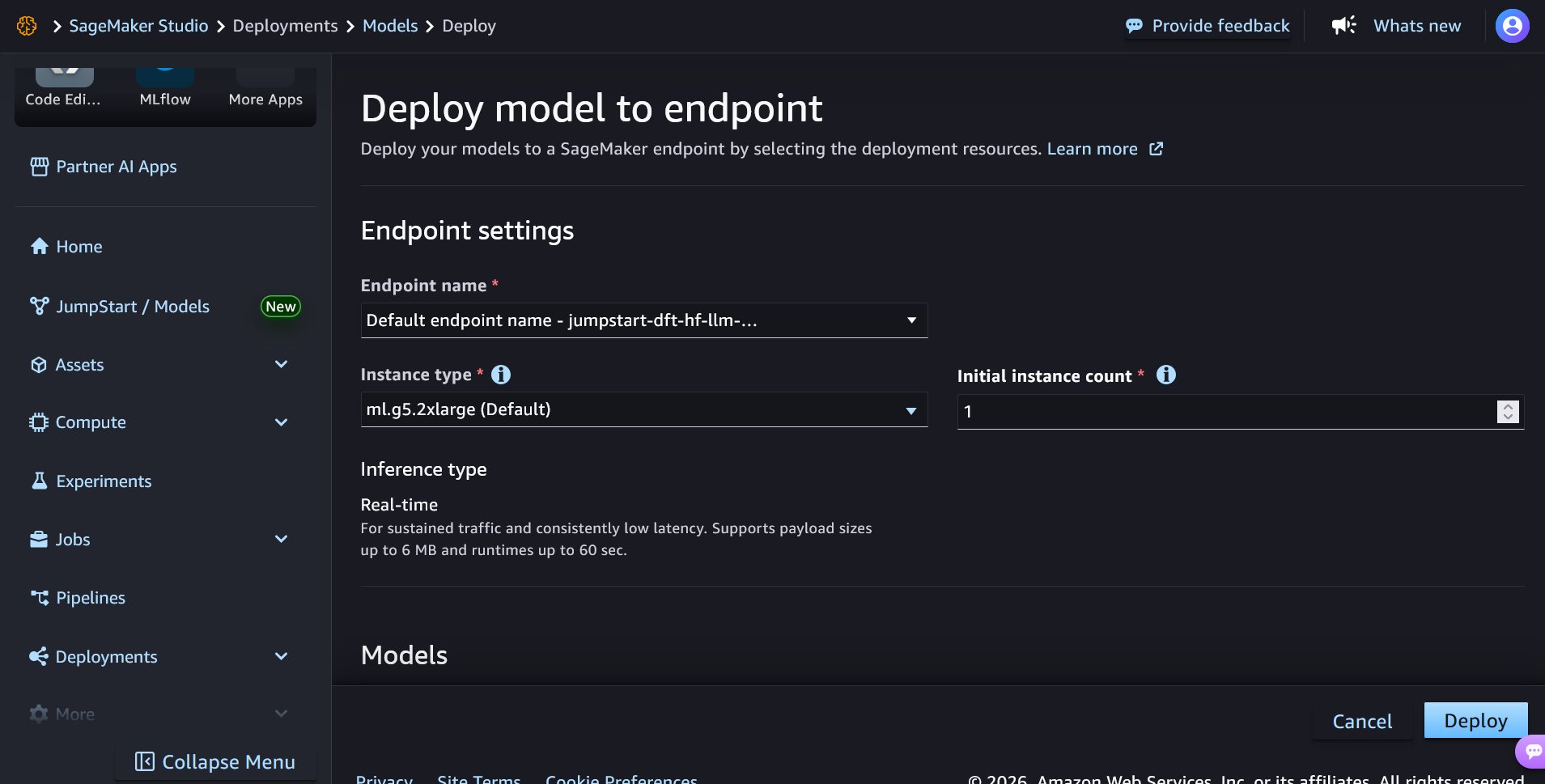
- 一个运行兼容 OpenAI 模型的 SageMaker 端点(已处于 InService 状态)用于基准测试任务。你可以从 Amazon SageMaker JumpStart Studio UI 部署 Qwen 2 0.5B 模型来快速开始,如下图所示:
- 用于推荐任务的位于 Amazon S3 中的模型工件。
- 一个 AWS Identity and Access Management (IAM) 执行角色,具有
AmazonSageMakerFullAccess以及用于 MLflow 和端点调用访问的内联策略。有关 IAM 角色创建步骤,请参阅随附的 Notebook。
重要注意事项
- 此集成仅支持 SageMaker MLflow 应用,不会将结果流式传输到自托管 MLflow 跟踪服务器。
- 将
tooling.version设为 0.8.0 或更高版本以使用 MLflow 嵌套运行支持。 - 推荐任务会在内部预置自己的端点,因此除非你有特定原因需要约束搜索空间,否则不要传递
ComputeSpec.InstanceTypes。执行角色必须包含所需的 SageMaker、MLflow、Amazon S3 和端点调用权限。S3 输出存储桶必须与任务位于同一区域。
要查看完整的端到端 Notebook(包括 AIRecommendationJob 的其他示例),请参阅分步教程。
步骤 1:设置环境
首先设置环境变量并初始化 SageMaker 客户端。
import json import time import uuid
import boto3 import botocore.config
Update these values for your environment
REGION = "us-west-2" ACCOUNT_ID = "" MLFLOW_APP_ARN = "arn:aws:sagemaker:us-west-2::mlflow-app/" ENDPOINT_NAME = "my-model-endpoint"
sm = boto3.client( "sagemaker", region_name=REGION, config=botocore.config.Config( retries={"mode": "standard", "max_attempts": 15} ), )
The S3 output bucket must be in the same Region as the job
S3_OUTPUT_BUCKET = f"mlflow-sagemaker-{REGION}-{ACCOUNT_ID}"
步骤 2:解析执行角色
Amazon SageMaker AI 使用执行角色来运行基准测试和推荐任务。该角色必须拥有访问 SageMaker、调用端点、将任务输出写入 Amazon S3 以及向 SageMaker MLflow 应用发布跟踪信息的权限。请按照 Notebook 创建 IAM 角色。
该角色应包含以下权限:
| 权限区域 | 所需访问权限 |
|---|---|
| SageMaker 任务执行 | AmazonSageMakerFullAccess,或作用域等同的策略 |
| MLflow 集成 | sagemaker-mlflow:*,sagemaker:CallMlflowAppApi,sagemaker:DescribeMlflowApp |
| 端点调用 | sagemaker:InvokeEndpoint,sagemaker:InvokeEndpointWithResponseStream |
| S3 输出 | 对所配置输出存储桶的读写访问权限 |
ROLE_NAME = "tutorial-exec-role"
i am = boto3.client("iam") role = iam.get_role(RoleName=ROLE_NAME)["Role"] ROLE_ARN = role["Arn"]
print(f"Role ARN: {ROLE_ARN}")
配置执行角色信任策略,允许 SageMaker 代入该角色。在某些环境中,根据角色的创建和传递方式,你可能还需要包含账户根主体。
步骤 3:验证 MLflow 应用并定义实验名称
接下来,验证 SageMaker MLflow 应用是否可用。然后定义一个共享的实验名称,并为基准测试和推荐任务定义唯一的运行名称。
为两个任务使用相同的 MlflowExperimentName 可以更容易地在同一位置比较结果。
Verify that the MLflow App is available
app = sm.describe_mlflow_app(Arn=MLFLOW_APP_ARN) MLFLOW_APP_URL = app["Url"]
assert app["Status"] in ("Created", "Updated")
print(f"MLflow URL: {MLFLOW_APP_URL}")
Define a shared experiment and unique run names
MLFLOW_EXPERIMENT = "gemma-experiments" SESSION_UID = uuid.uuid4().hex[:6]
BENCH_RUN_NAME = f"benchmark-{SESSION_UID}" REC_RUN_NAME = f"recommendation-{SESSION_UID}"
步骤 4:提交基准测试任务
SageMaker AI 基准测试任务使用工作负载规范评估现有端点。在本示例中,工作负载使用具有 OpenAI 兼容 API 架构的 NVIDIA AIPerf。
关键字段是 OutputConfig 中的 MlflowConfig。这告诉 SageMaker 将基准测试指标、参数和图表直接流式传输到你的 SageMaker MLflow 应用中。
Tokenizer MUST match the deployed model.
tooling.version=0.8.0 is the minimum for MLflow nested run support.
TOKENIZER = "Qwen/Qwen2-0.5B-Instruct" bench_workload = { "benchmark": {"type": "aiperf"}, "parameters": { "model": TOKENIZER, "concurrency": 1, "request_count": 3, "streaming": True, "prompt_input_tokens_mean": 32, "prompt_input_tokens_stddev": 8, "output_tokens_mean": 16, "output_tokens_stddev": 4, "random_seed": 42, }, "tooling": { "api_standard": "openai", "version": "0.8.0", }, }
BENCH_CONFIG = f"mlflow-bench-cfg-{SESSION_UID}" BENCH_JOB = f"mlflow-bench-job-{SESSION_UID}"
sm.create_ai_workload_config( AIWorkloadConfigName=BENCH_CONFIG, AIWorkloadConfigs={ "WorkloadSpec": { "Inline": json.dumps(bench_workload) } }, )
sm.create_ai_benchmark_job( AIBenchmarkJobName=BENCH_JOB, AIWorkloadConfigIdentifier=BENCH_CONFIG, RoleArn=ROLE_ARN, BenchmarkTarget={ "Endpoint": { "Identifier": ENDPOINT_NAME } }, OutputConfig={ "S3OutputLocation": f"s3://{S3_OUTPUT_BUCKET}/mlflow-tutorial/{BENCH_JOB}/", "MlflowConfig": { "MlflowResourceArn": MLFLOW_APP_ARN, "MlflowExperimentName": MLFLOW_EXPERIMENT, "MlflowRunName": BENCH_RUN_NAME, }, }, )
print(f"Benchmark job submitted: {BENCH_JOB}")
步骤 5:提交推荐任务
SageMaker AI 推荐任务会评估部署配置,并根据你的工作负载和性能目标推荐选项。与基准测试任务不同,推荐任务在评估过程中会在内部预置自己的端点。
以下示例使用与基准测试任务相同的 MLflow 实验名称,因此两次运行会一起出现在 SageMaker MLflow 应用中。
rec_workload = { "benchmark": {"type": "aiperf"}, "parameters": { "prompt_input_tokens_mean": 1600, "prompt_input_tokens_stddev": 200, "output_tokens_mean": 600, "output_tokens_stddev": 100, "request_count": 100, }, "tooling": { "api_standard": "openai", "version": "0.8.0", }, }
REC_
English / 原文
Teams benchmarking generative AI models often evaluate dozens of GPU instance types, serving containers, parallelism strategies, and optimization techniques such as speculative decoding before deploying to production. Practitioners can spend weeks navigating configuration decisions and manually piecing together what they tried, what worked, and why. That complexity is exactly why we introduced optimized generative AI inference recommendations for Amazon SageMaker AI: to help teams move from manual trial-and-error to guided, data-driven optimization and benchmarking.
Today, we are adding MLflow integration so teams can stream AI benchmark and recommendation results into a single place to track every experiment. This integration reduces data silos, accelerates iteration cycles, and brings full reproducibility to your inference optimization workflows.
In this post, you learn how to use the new MLflow integration with Amazon SageMaker AI optimized inference recommendation jobs and Amazon SageMaker AI benchmark jobs to automatically stream experiment data into a unified tracking interface.
This integration streams metrics, parameters, and charts into your serverless Amazon SageMaker MLflow App in real time and you get a unified experiment tracking experience.
Solution overview
With this release, when you submit an optimized inference recommendation job or a benchmarking job, Amazon SageMaker AI automatically streams results into a SageMaker MLflow app of your choice. Submit multiple jobs to the same MLflow experiment, and you can select them in the MLflow experiment view to compare side by side, with no manual data wrangling required.
The following diagram shows how you can set up MLflow with your benchmarking and recommendation jobs:
You follow these steps to set up MLflow with your existing recommendations and benchmarking jobs:
- Create an MLflow App : In your AWS account, open Amazon SageMaker Studio. Then go to MLflow and choose Create MLflow App.
- Grant permissions: Add
sagemaker-mlflow:*on the MLflow App ARN to your job’s execution role. - Pass
MlflowConfigwhen creating your benchmark or recommendation job.
Benefits of this implementation
Some of the benefits of this implementation are:
Eliminate manual data consolidation: With native MLflow integration, benchmark and recommendation results from multiple jobs are consolidated under the same experiment name automatically. This removes the need to manually collect metrics, logs, and configurations across separate runs. You can then compare runs side by side to understand how instance type, model configuration, batch size, or speculative decoding affects performance. For example, you can compare qwen2-0.5b on ml.g4dn.12xlarge versus ml.p4d.24xlarge.
Monitor long-running jobs in real time: Benchmark and recommendation jobs can take hours. Rather than waiting for completion without visibility, you can now watch metrics stream live into the MLflow UI. Latency and throughput metrics update as each configuration is tested, giving you an observable process from start to finish. We publish live metrics in the metrics section, and they update over time instead of being published only at the end of the job. You can use these metrics to check whether throughput is as expected in the recommendation job and stop it early if it is not.
Maintain a complete audit trail: Experiment runs capture the full context: job parameters, timestamps, metrics at checkpoints, and emitted artifacts. This audit trail stays queryable and reproducible for months. You can trace which configuration changes drove improvements, identify performance plateaus, and revisit past decisions with full context.
Better collaboration and governance: A shared MLflow experiment becomes the single source of truth for an optimization effort. Team members can review what’s been tried, what worked, and what didn’t, which reduces duplicated effort and supports informed handoffs between shifts or team members.
Technical walkthrough: Track SageMaker AI benchmarking and recommendations in MLflow
In this example, a customer has deployed Qwen/Qwen2-0.5B-Instruct to an Amazon SageMaker AI real-time endpoint using an OpenAI-compatible serving stack on ml.g6.12xlarge. The team has two questions to answer: how the existing Qwen endpoint performs for a lightweight chatbot workload, and what configuration to use for a larger workload with longer prompts and responses.
To make the evaluation reproducible, both the benchmark job and recommendation job write metrics, parameters, and charts to the same SageMaker MLflow experiment. The benchmark job evaluates an existing SageMaker endpoint. The recommendation job evaluates deployment options for the Qwen model artifact stored in Amazon Simple Storage Service (Amazon S3) and returns ranked configurations. We will use a walkthrough notebook to show you how you can set up MLflow with both recommendations using Qwen/Qwen2-0.5B-Instruct on ml.g6.12xlarge instance for latency optimization
The end-to-end walkthrough typically takes 45–120 minutes , depending on endpoint readiness, model size, workload configuration, instance availability, and recommendation job search space.
Prerequisites
This notebook walks you through how you can set up your MLflow app for benchmark and recommendations jobs experiment tracking. You need to complete the following steps to get started with running this notebook.
-
Set up Amazon SageMaker Studio for your development environment on Amazon SageMaker AI.
-
Create a SageMaker MLflow App from SageMaker Unified Studio (SageMaker Unified Studio → MLflow → Create MLflow App).
-
A SageMaker endpoint running an OpenAI-compatible model (already InService) for the benchmark job. You can deploy the Qwen 2 0.5B model from the Amazon SageMaker JumpStart Studio UI to get started as shown in the following diagram:
-
A model artifact in Amazon S3 for the recommendation job.
-
An AWS Identity and Access Management (IAM) execution role with
AmazonSageMakerFullAccessplus inline policies for MLflow and endpoint invoke access. See the accompanying notebook for IAM role creation steps.
Key considerations
- This integration supports SageMaker MLflow Apps and does not stream results to self-hosted MLflow tracking servers.
- Set
tooling.versionto 0.8.0 or later to use MLflow nested run support. - Recommendation jobs provision their own endpoints internally, so do not pass
ComputeSpec.InstanceTypesunless you have a specific reason to constrain the search space. The execution role must include the required SageMaker, MLflow, Amazon S3, and endpoint invocation permissions. The S3 output bucket must be in the same Region as the job.
For the complete end-to-end notebook, including additional examples with AIRecommendationJob, see the step-by-step tutorial.
Step 1: Set up your environment
Start by setting your environment variables and initializing the SageMaker client.
import json
import time
import uuid

import boto3
import botocore.config

# Update these values for your environment
REGION = "us-west-2"
ACCOUNT_ID = "<your-account-id>"
MLFLOW_APP_ARN = "arn:aws:sagemaker:us-west-2:<account-id>:mlflow-app/<app-id>"
ENDPOINT_NAME = "my-model-endpoint"

sm = boto3.client(
    "sagemaker",
    region_name=REGION,
    config=botocore.config.Config(
        retries={"mode": "standard", "max_attempts": 15}
    ),
)

# The S3 output bucket must be in the same Region as the job
S3_OUTPUT_BUCKET = f"mlflow-sagemaker-{REGION}-{ACCOUNT_ID}"
Step 2: Resolve the execution role
Amazon SageMaker AI uses the execution role to run the benchmark and recommendation jobs. It must have permissions to access SageMaker, invoke endpoints, write job output to Amazon S3, and publish tracking information to the SageMaker MLflow App. Follow the notebook to create the IAM roles.
The role should include the following permissions:
| Permission area | Required access |
|---|---|
| SageMaker job execution | AmazonSageMakerFullAccess, or a scoped equivalent |
| MLflow integration | sagemaker-mlflow:*, sagemaker:CallMlflowAppApi, sagemaker:DescribeMlflowApp |
| Endpoint invocation | sagemaker:InvokeEndpoint, sagemaker:InvokeEndpointWithResponseStream |
| S3 output | Read/write access to the configured output bucket |
ROLE_NAME = "tutorial-exec-role"

iam = boto3.client("iam")
role = iam.get_role(RoleName=ROLE_NAME)["Role"]
ROLE_ARN = role["Arn"]

print(f"Role ARN: {ROLE_ARN}")
Configure the execution role trust policy to allow SageMaker to assume the role. In some environments, you may also need to include the account root principal depending on how the role is created and passed.
Step 3: Verify the MLflow App and define experiment names
Next, verify that the SageMaker MLflow App is available. Then define a shared experiment name and unique run names for the benchmark and recommendation jobs.
Using the same MlflowExperimentName for both jobs makes it easier to compare results in one place.
# Verify that the MLflow App is available
app = sm.describe_mlflow_app(Arn=MLFLOW_APP_ARN)
MLFLOW_APP_URL = app["Url"]

assert app["Status"] in ("Created", "Updated")

print(f"MLflow URL: {MLFLOW_APP_URL}")

# Define a shared experiment and unique run names
MLFLOW_EXPERIMENT = "gemma-experiments"
SESSION_UID = uuid.uuid4().hex[:6]

BENCH_RUN_NAME = f"benchmark-{SESSION_UID}"
REC_RUN_NAME = f"recommendation-{SESSION_UID}"
Step 4: Submit the benchmark job
A SageMaker AI benchmark job evaluates an existing endpoint using a workload specification. In this example, the workload uses NVIDIA AIPerf with an OpenAI-compatible API schema.
The key field is MlflowConfig in OutputConfig. This tells SageMaker to stream benchmark metrics, parameters, and charts directly into your SageMaker MLflow App.
# Tokenizer MUST match the deployed model.
# tooling.version=0.8.0 is the minimum for MLflow nested run support.
TOKENIZER = "Qwen/Qwen2-0.5B-Instruct"
bench_workload = {
    "benchmark": {"type": "aiperf"},
    "parameters": {
        "model": TOKENIZER,
        "concurrency": 1,
        "request_count": 3,
        "streaming": True,
        "prompt_input_tokens_mean": 32,
        "prompt_input_tokens_stddev": 8,
        "output_tokens_mean": 16,
        "output_tokens_stddev": 4,
        "random_seed": 42,
    },
    "tooling": {
        "api_standard": "openai",
        "version": "0.8.0",
    },
}

BENCH_CONFIG = f"mlflow-bench-cfg-{SESSION_UID}"
BENCH_JOB = f"mlflow-bench-job-{SESSION_UID}"

sm.create_ai_workload_config(
    AIWorkloadConfigName=BENCH_CONFIG,
    AIWorkloadConfigs={
        "WorkloadSpec": {
            "Inline": json.dumps(bench_workload)
        }
    },
)

sm.create_ai_benchmark_job(
    AIBenchmarkJobName=BENCH_JOB,
    AIWorkloadConfigIdentifier=BENCH_CONFIG,
    RoleArn=ROLE_ARN,
    BenchmarkTarget={
        "Endpoint": {
            "Identifier": ENDPOINT_NAME
        }
    },
    OutputConfig={
        "S3OutputLocation": f"s3://{S3_OUTPUT_BUCKET}/mlflow-tutorial/{BENCH_JOB}/",
        "MlflowConfig": {
            "MlflowResourceArn": MLFLOW_APP_ARN,
            "MlflowExperimentName": MLFLOW_EXPERIMENT,
            "MlflowRunName": BENCH_RUN_NAME,
        },
    },
)

print(f"Benchmark job submitted: {BENCH_JOB}")
Step 5: Submit the recommendation job
SageMaker AI recommendation jobs evaluate deployment configurations and recommend options based on your workload and performance target. Unlike benchmark jobs, recommendation jobs provision their own endpoints internally during the evaluation process.
The following example uses the same MLflow experiment name as the benchmark job, so both runs appear together in the SageMaker MLflow App.
rec_workload = {
    "benchmark": {"type": "aiperf"},
    "parameters": {
        "prompt_input_tokens_mean": 1600,
        "prompt_input_tokens_stddev": 200,
        "output_tokens_mean": 600,
        "output_tokens_stddev": 100,
        "request_count": 100,
    },
    "tooling": {
        "api_standard": "openai",
        "version": "0.8.0",
    },
}

REC_CONFIG = f"mlflow-rec-cfg-{SESSION_UID}"
REC_JOB = f"mlflow-rec-job-{SESSION_UID}"

sm.create_ai_workload_config(
    AIWorkloadConfigName=REC_CONFIG,
    AIWorkloadConfigs={
        "WorkloadSpec": {
            "Inline": json.dumps(rec_workload)
        }
    },
)

sm.create_ai_recommendation_job(
    AIRecommendationJobName=REC_JOB,
    ModelSource={
        "S3": {
            "S3Uri": MODEL_S3_URI
        }
    },
    OutputConfig={
        "S3OutputLocation": f"s3://{S3_OUTPUT_BUCKET}/mlflow-tutorial/{REC_JOB}/",
        "MlflowConfig": {
            "MlflowResourceArn": MLFLOW_APP_ARN,
            "MlflowExperimentName": MLFLOW_EXPERIMENT,
            "MlflowRunName": REC_RUN_NAME,
        },
    },
    RoleArn=ROLE_ARN,
    AIWorkloadConfigIdentifier=REC_CONFIG,
    PerformanceTarget={
        "Constraints": [
            {
                "Metric": "ttft-ms"
            }
        ]
    },
    OptimizeModel=False,
)

print(f"Recommendation job submitted: {REC_JOB}")
Step 6: Compare results in MLflow
After the jobs complete, open the SageMaker MLflow App and navigate to the experiment you configured. The following code gives you the URL to your MLflow app in the notebook.
print(f"Open: {MLFLOW_APP_URL}")
In the experiment view, the parent runs are empty placeholders that exist to show relationships between child runs. You need to expand each parent run to view the nested metrics.
benchmark-<uid>        -> Single run with AIPerf benchmark metrics
recommendation-<uid>   -> Nested run tree with ranked recommendation configurations
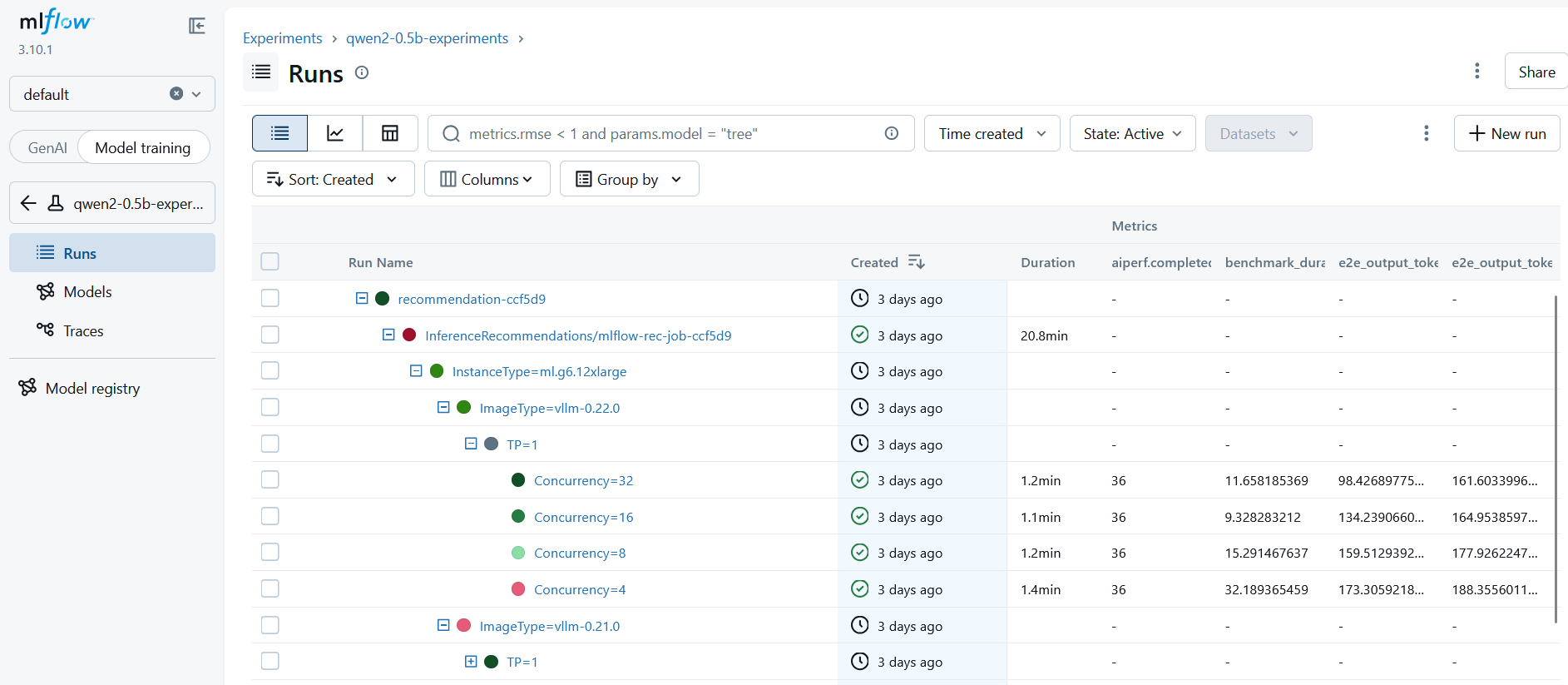
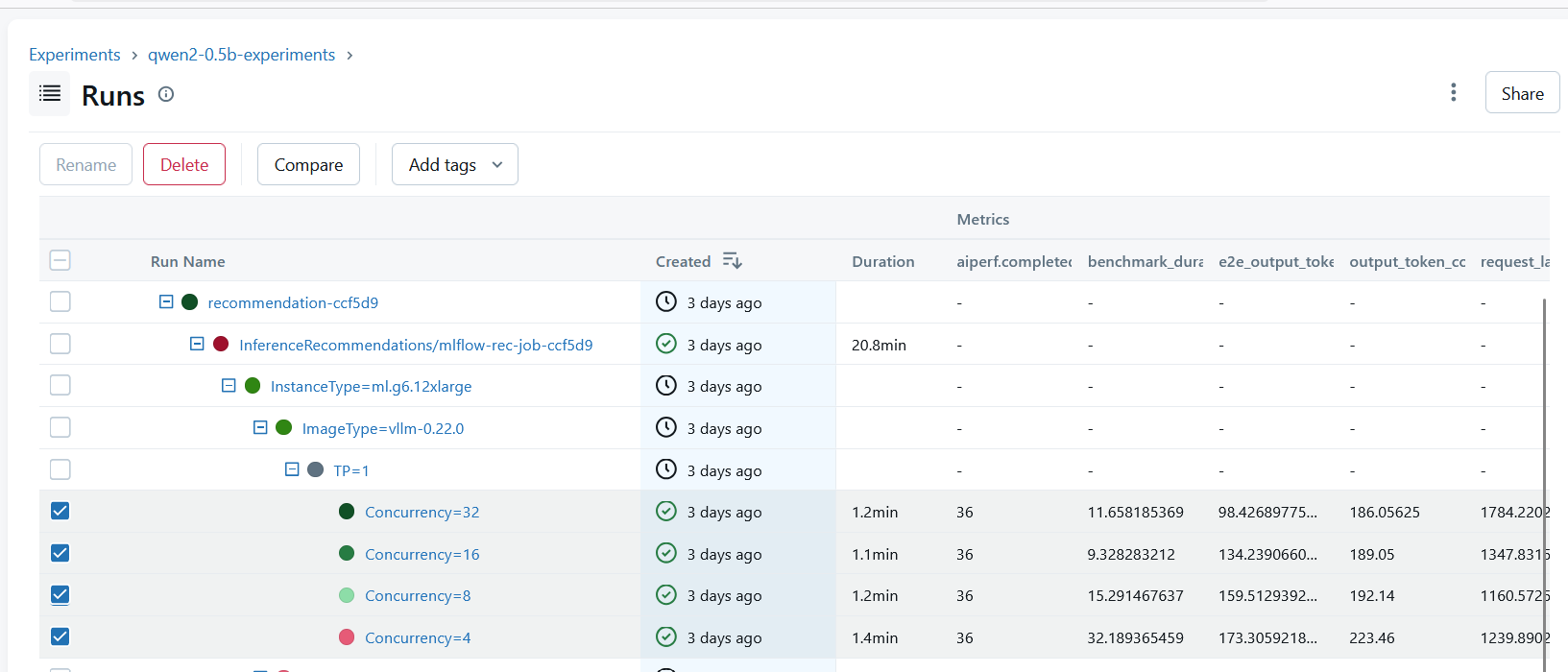
The child runs contain the model metrics. To review recommendation job metrics, go to the MLflow Runs page, expand the recommendation job parent run, and then expand the nested child runs until the concurrency rows are visible. The benchmark metrics appear in the Metrics columns for each concurrency run as shown in the following diagram:
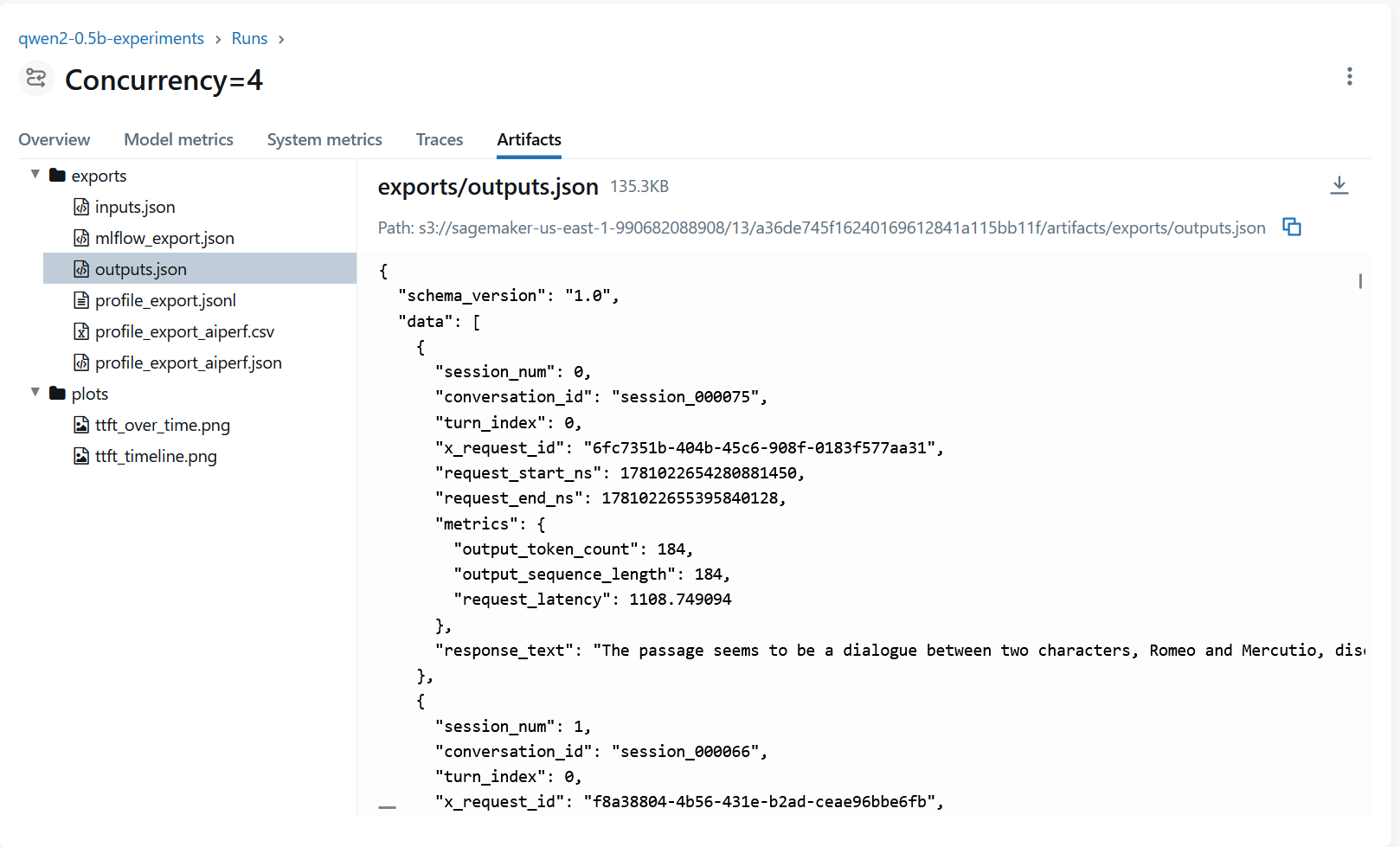
To inspect recommendations artifacts, open the Concurrency=4 run and choose the Artifacts tab. In the artifact file tree, expand exports and select outputs.json. The preview panel shows the artifact file path and JSON output, including request-level fields such as session ID, request timing, output token count, request latency, and response text as shown in the following diagram:
On the Runs page, select the benchmark runs you want to compare, such as the Concurrency=32, Concurrency=16, Concurrency=8, and Concurrency=4 rows. Choose Compare to view metric differences across duration, throughput, output token count, and request latency as shown in the following diagram:
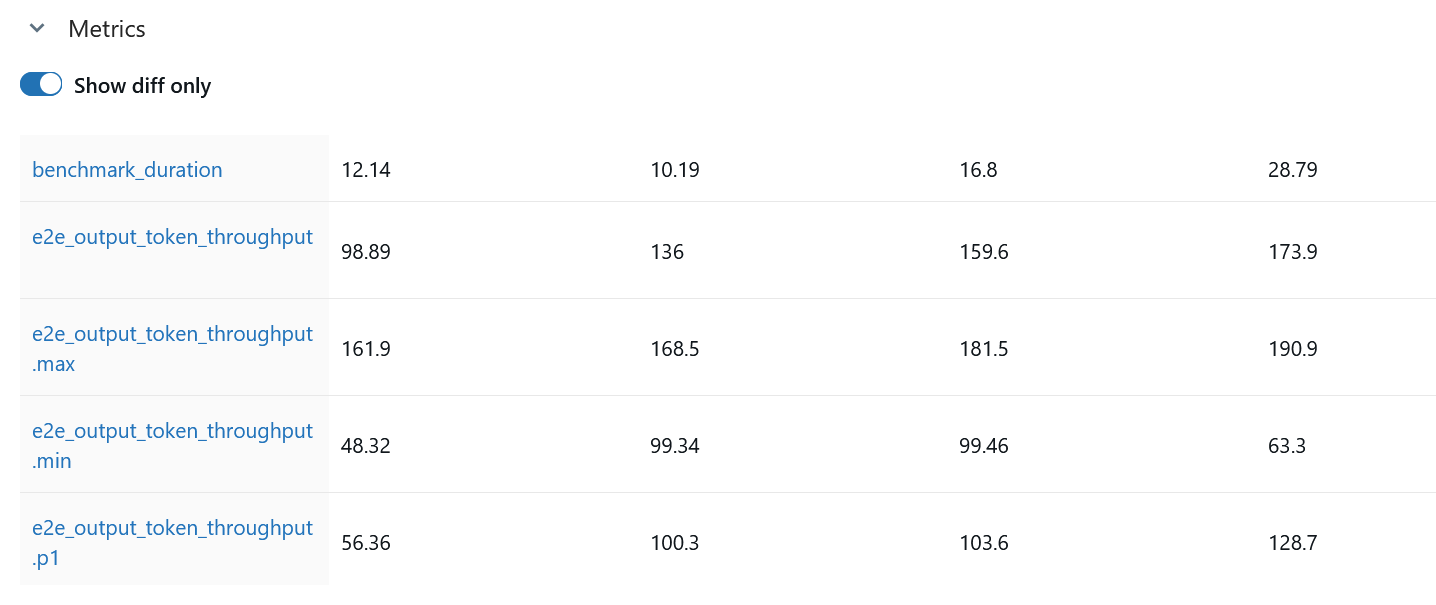
In the Metrics section, use the Show diff only toggle to view only changed metrics. The table compares benchmark metrics such as benchmark duration and end-to-end output token throughput across the selected benchmark or recommendation job results as shown in the following diagram:
Clean up resources
To avoid ongoing charges, delete the resources you created during this walkthrough. Remove the SageMaker MLflow App from SageMaker Unified Studio and delete the benchmark and recommendation jobs. Terminate any SageMaker endpoints you deployed for testing and remove the S3 output objects if they are no longer needed. If you created a dedicated IAM role for this tutorial, delete it along with its inline policies.
Conclusion
The MLflow integration for SageMaker AI BenchmarkJob and AIRecommendationJob makes experiment results easier to track and understand. By streaming results directly into a familiar tracking interface, this integration removes the manual overhead that slows you down and provides real-time monitoring that saves compute costs. It also provides the reproducibility that production machine learning (ML) workflows demand.
Start comparing experiments in seconds. Add MlflowConfig to your next benchmark job, open the generated runs in MLflow, and compare metrics such as benchmark duration, throughput, output token count, and request latency across configurations.
To learn more about Amazon SageMaker AI optimization capabilities, visit theSageMaker documentation and the GitHub notebook to get started.
About the authors
Mona Mona
Mona currently works as Sr AI/ML specialist Solutions Architect at Amazon. She worked in Google previously as Lead generative AI specialist. She is a published author of three AI books. She has authored multiple blogs on AI/ML and cloud technology and a co-author on a research paper on CORD19 Neural Search which won an award for Best Research Paper at the prestigious AAAI (Association for the Advancement of Artificial Intelligence) conference.
Lokeshwaran Ravi
Lokeshwaran is a Senior Deep Learning Compiler Engineer at AWS, specializing in ML optimization, model acceleration, and AI security. He focuses on enhancing efficiency, reducing costs, and building secure ecosystems to democratize AI technologies, making cutting-edge ML accessible and impactful across industries.
Kareem Syed-Mohammed
Kareem is a Product Manager at AWS. He is focuses on enabling Gen AI model development and governance on SageMaker HyperPod. Prior to this, at Amazon Quick Sight, he led embedded analytics, and developer experience. In addition to Quick Sight, he has been with AWS Marketplace and Amazon retail as a Product Manager. Kareem started his career as a developer for call center technologies, Local Expert and Ads for Expedia, and management consultant at McKinsey.
Shen Teng
Shen is a Software Dev Engineer II at AWS.
Siddharth Shah
Siddharth is a Principal Engineer at AWS SageMaker, specializing in large-scale model hosting and optimization for Large Language Models. He previously worked on the launch of Amazon Textract, performance improvements in the model-hosting platform, and expedited retrieval systems for Amazon S3 Glacier. Outside of work, he enjoys hiking, video games, and hobby robotics.