使用 Amazon Bedrock AgentCore Identity 通过 Private Key JWT 进行身份验证
英文标题:Authenticate with Private Key JWT using Amazon Bedrock AgentCore Identity
Amazon Bedrock AgentCore Identity 现已支持 Private Key JWT 客户端认证,使 Agent 可使用由 AWS KMS 私钥签名的 JWT 断言,而非共享 OAuth 2.0 客户端密钥,向下游身份提供商获取令牌。该功能支持机器到机器(M2M)、代表用户(OBO)和用户委托访问三类 OAuth 授权流程,并兼容 RS256、PS256 与 ES256 等签名算法。开发者可在 AWS Management Console 中创建 KMS 非对称签名密钥、向身份提供商注册公钥,并配置 OAuth 凭证提供商。相关令牌访问操作会记录在 AWS CloudTrail 中,便于审计 Agent 的身份与资源访问行为。
 1.3 MB
 101.1 KB
 124.1 KB
 345.0 KB
 141.2 KB
 346.5 KB
 107.6 KB
 399.1 KB
 94.4 KB
 71.8 KB
 99.9 KB
 8.5 KB
 6.1 KB
 82.6 KB
中文
Amazon Bedrock AgentCore Identity 现已支持 Agent 使用 Private Key JWT 客户端认证。借助 Private Key JWT 客户端认证,Agent 可以使用已签名的 JSON Web Token(JWT)客户端断言,替代共享的 OAuth 2.0 客户端密钥,向下游身份提供商的令牌端点进行身份验证。您可以向身份提供商注册公钥,而对应的私钥则保留在 AWS Key Management Service(AWS KMS)中。进行身份验证时,AgentCore Identity 使用 AWS KMS 对断言签名,并将已签名断言发送给身份提供商;身份提供商则使用您注册的公钥进行验证。
本文介绍 Private Key JWT 客户端认证如何在 AgentCore Identity 中运作,并梳理支持的授权流程。随后,我们将演示如何创建 AWS KMS 签名密钥、向身份提供商注册其公钥、在 AWS Management Console 中配置凭证提供商,以及查看记录 Agent 访问行为的 AWS CloudTrail 事件示例。
它如何运作?
以下示例说明了请求流程。假设有一个客户支持 Agent,需要从受身份提供商保护的内部订单 API 中读取客户订单历史记录。
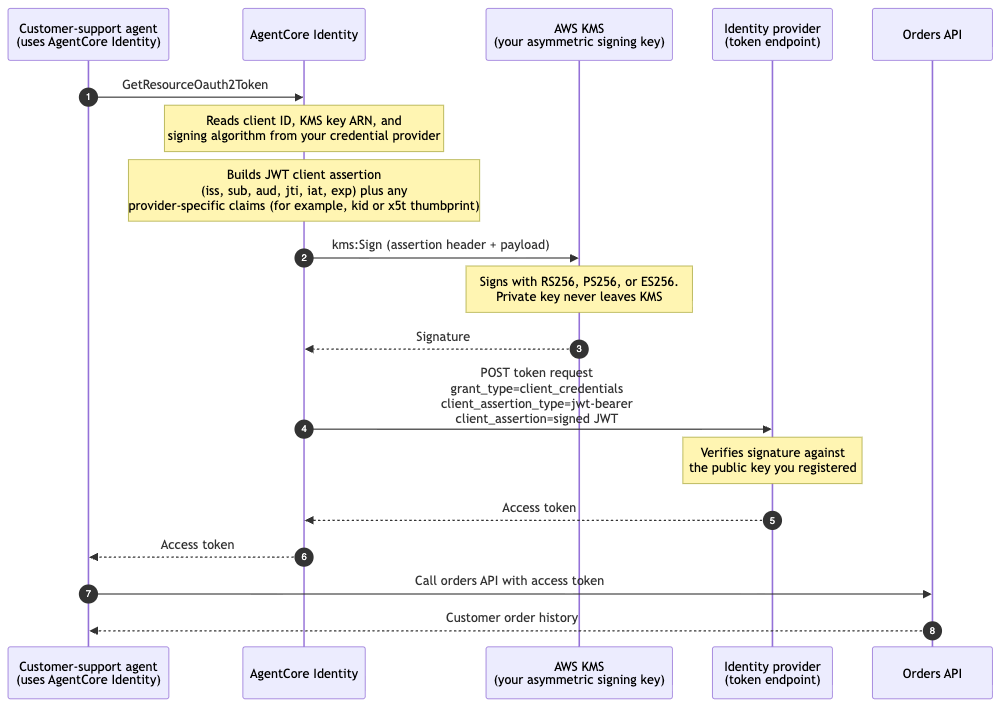
图 1 – 从 Agent 调用到下游 API 的机器到机器令牌请求示例流程
下图展示了请求流程:
- Agent 调用 AgentCore Identity 的
GetResourceOauth2Token,为订单 API 请求令牌。 - AgentCore Identity 从您的凭证提供商读取客户端 ID、KMS 密钥 ARN 和签名算法。它会构建一个短期 JWT 客户端断言,其中包含所需的载荷声明,以及您配置的其他标头或载荷声明,例如密钥标识符或证书指纹;随后,它使用您配置的签名算法(RS256、PS256 或 ES256),针对 KMS 非对称签名密钥调用
kms:Sign。 - AWS KMS 对断言签名,并将签名返回给 AgentCore Identity。私钥永远不会离开 KMS。
- AgentCore Identity 使用
grant_type=client_credentials和client_assertion_type=urn:ietf:params:oauth:client-assertion-type:jwt-bearer,将已签名断言发送到身份提供商的令牌端点。 - 身份提供商根据您注册的公钥验证签名,并向 AgentCore Identity 返回访问令牌。
- AgentCore Identity 将访问令牌返回给您的 Agent。
- Agent 使用该访问令牌调用订单 API。
- 订单 API 返回客户的订单历史记录。
支持的授权流程概览
Private Key JWT 身份验证适用于以下三种授权流程:
- 机器到机器(M2M):Agent 以自身身份行事,不涉及人工用户。Agent 需要访问某项资源,例如用于同步数据的后台任务,或无论由谁触发、任何客户支持 Agent 都可读取的服务。令牌代表应用程序/Agent 身份。使用 client_credentials 授权。令牌的主体是客户端本身。
- 代表用户(OBO):Agent 代表特定用户行事,并使用该用户现有的令牌。用户此前已在某处登录,因此存在传入的用户令牌。Agent 需要以该用户身份调用下游 API,使其权限和身份得以传递。AgentCore Identity 会将传入的用户令牌交换为代表该用户的下游令牌,同时仍通过客户端断言验证自身身份。根据身份提供商的不同,您可以使用 RFC 8693 令牌交换或 RFC 7523 JWT 授权。
- 用户委托访问:Agent 代表用户行事,但用户首先需要以交互方式授予同意。此时没有可供交换的预先存在令牌,而是由用户完成交互式登录/授权同意流程(授权码/三方 OAuth 流程),批准 Agent 可以执行的操作。获得同意后,Agent 将取得代表该用户的令牌。使用授权码授权。
前提条件
本文假设您已具备以下条件:
- 一个 AWS 账户,并拥有 AWS Management Console 访问权限,可访问 KMS、AgentCore 和 AWS CloudTrail。
- 您的身份提供商中的一个租户,可在其中为应用程序注册公钥。
- 供客户端发现和集成您的身份提供商时使用的 Discovery URL 和客户端 ID。
- 确认身份提供商为 Private Key JWT 客户端认证要求的签名算法。确认同一算法和密钥规范受到 AWS KMS 和 AgentCore Identity 的支持。
- 流程各个环节所需的权限:
- 创建和配置 KMS 密钥:
kms:CreateKey和kms:PutKeyPolicy。 - 导出公钥以向身份提供商注册:
kms:GetPublicKey。(如果身份提供商生成密钥对并向您提供私钥材料,则还需要kms:GetParametersForImport和kms:ImportKeyMaterial权限,以便将其导入 KMS。) - 创建凭证提供商:
bedrock-agentcore-control:CreateOauth2CredentialProvider。
- 创建和配置 KMS 密钥:
开始使用
以下部分展示如何使用 AWS Management Console 将 Private Key JWT 配置为客户端身份验证方法。
步骤 1:创建 KMS 签名密钥并注册公钥
首先,创建一个非对称 KMS 密钥,供 AgentCore Identity 用于对 JWT 客户端断言签名。在此示例中,我们在 KMS 中创建密钥,并将相应的公钥导出到身份提供商。不过,如果您的身份提供商生成密钥对并向您提供私钥材料,您也可以将其导入 KMS。
-
在与您的凭证提供商位于同一 AWS 区域的环境中,打开 AWS KMS 控制台。
-
选择 Customer managed keys,然后选择 Create key。
-
对于 Key type,选择 Asymmetric。
-
对于 Key usage,选择 Sign and verify。
-
对于 Key spec,选择与您的签名算法兼容的规范。此示例使用
ECC_NIST_P256和 ES256 签名算法。 -
选择 Next,输入 Alias,然后依次完成密钥管理员和密钥使用权限步骤。
-
在 Edit key policy 步骤中,将以下语句添加到密钥策略,以授予 AgentCore Identity 使用该密钥的权限。请将
111122223333替换为您的 AWS 账户 ID,并将<region>替换为所使用的 AgentCore 区域。kms:ViaService条件用于验证密钥只能在请求通过 AgentCore Identity 发起时使用:{ "Id": "BedrockAgentCoreIdentityPrivateKeyJwtAccess", "Version": "2012-10-17", "Statement": [ { "Effect": "Allow", "Principal": { "AWS": "arn:aws:iam::111122223333:root" }, "Action": [ "kms:Sign", "kms:DescribeKey" ], "Resource": "*", "Condition": { "StringEquals": { "aws:ResourceAccount": "${aws:PrincipalAccount}" }, "StringLike": { "kms:ViaService": "bedrock-agentcore-identity.<region>.amazonaws.com" } } } ] } -
选择 Finish。在密钥详细信息页面中,记下密钥 ARN。创建凭证提供商时需要提供该 ARN。
-
接下来,导出公钥并向身份提供商注册:
- 在密钥详细信息页面中,选择 Public key 选项卡并下载公钥。KMS 提供 DER 编码的公钥。
- 将公钥转换为身份提供商要求的格式(例如,Microsoft Entra ID 所需的 X.509 证书,或 Okta 所需的 JSON Web Key),并在您的应用程序中注册该公钥。
步骤 2:添加 OAuth 客户端
- 打开 Amazon Bedrock AgentCore 控制台。
- 在左侧导航窗格的 Build 下,选择 Identity。
- 在 Outbound Auth 部分,选择 Add Outbound Auth,然后选择 Add OAuth client。
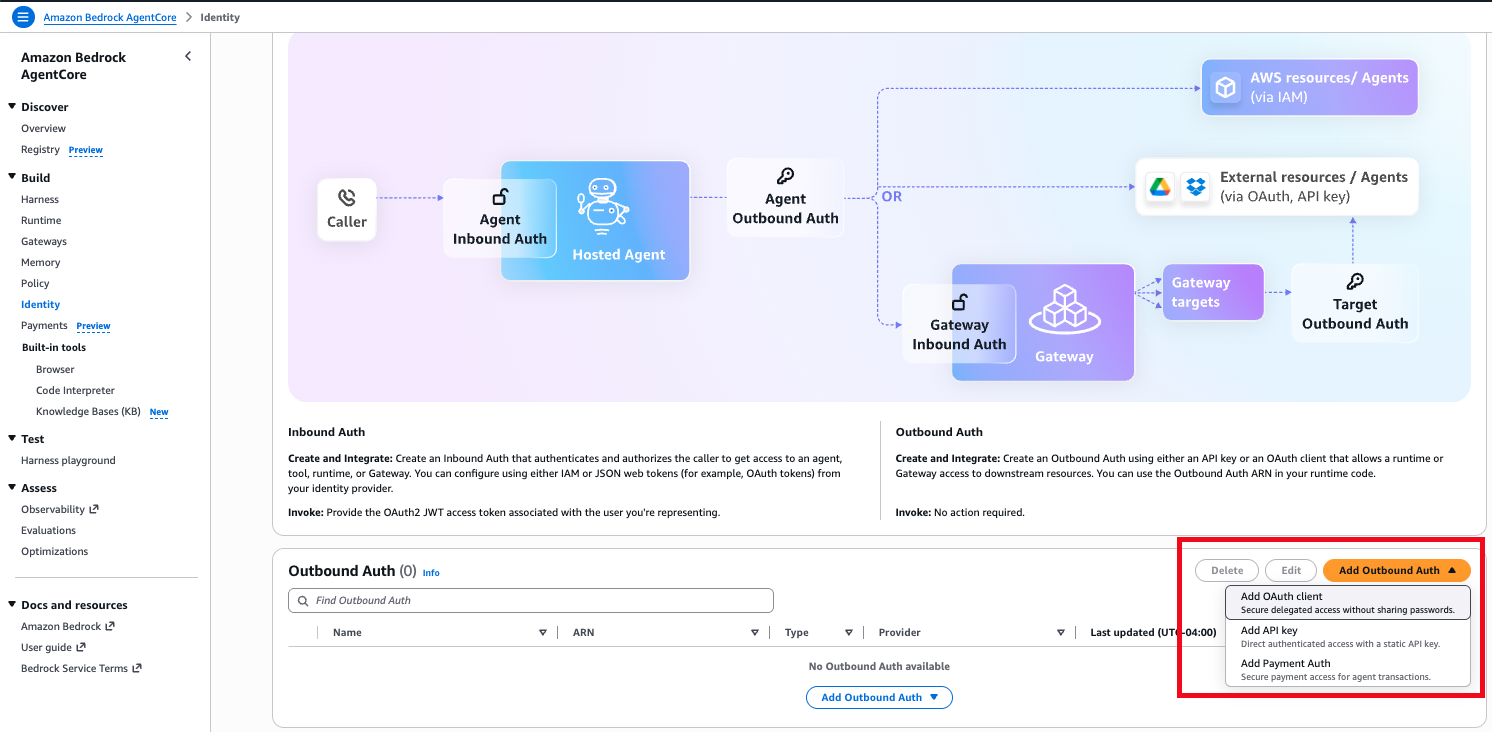
图 2 – 从 AgentCore Identity 控制台添加 OAuth 客户端
步骤 3:选择 Private key JWT 作为客户端身份验证方法
在 Add OAuth Client 页面中的 Provider configurations 部分:
- 对于 Configuration type,选择 Discovery URL,以便 AgentCore Identity 自动检索身份提供商的配置。(如果身份提供商未发布发现端点,请选择 Manual config。)
- 对于 Client authentication method,选择 Private key JWT。
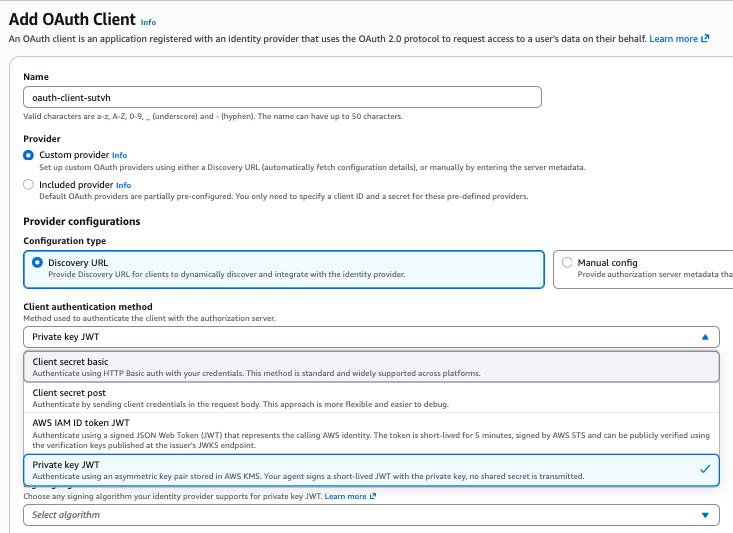
图 3 – 选择 Private key JWT 作为客户端身份验证方法
步骤 4:提供 Discovery URL、客户端 ID、KMS 密钥和签名算法
- 对于 Discovery URL,输入身份提供商发布其 OpenID Connect 配置的 URL(以
.well-known/openid-configuration结尾)。 - 对于 Client ID,输入在身份提供商处注册的客户端标识符。
- 对于 KMS key,选择非对称 KMS 签名密钥的 ARN。该密钥必须以
SIGN_VERIFY作为用途创建,并且必须位于同一 Region,才会显示在列表中。
注意:您也可以通过输入同一区域内其他账户密钥的 ARN,使用该密钥。跨账户访问需要两个账户中都具备额外权限。请参阅允许其他账户中的用户使用 KMS 密钥。
- 对于 Signing algorithm,选择身份提供商为 Private Key JWT 要求的算法。该算法必须与您的 KMS 密钥规范兼容:
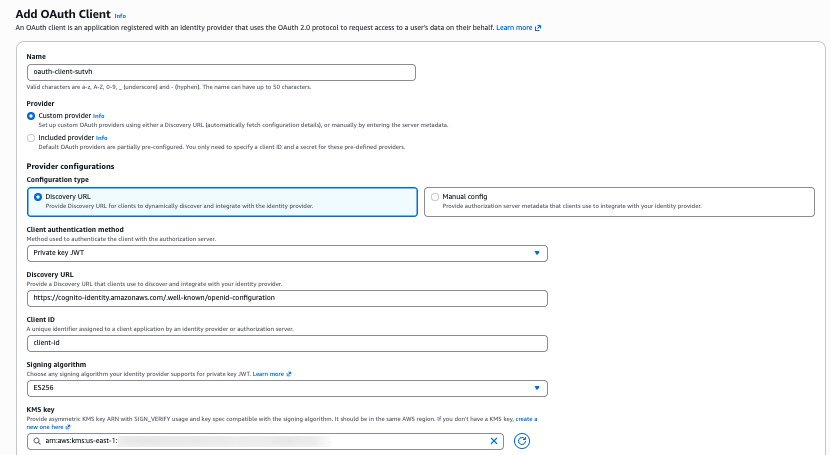
图 4 – 提供 Discovery URL、客户端 ID、非对称 KMS 密钥和签名算法
步骤 5:(可选)添加声明,然后创建客户端
如果身份提供商要求在 JWT 客户端断言中包含其他声明,请在此处添加:
- 在 Header claims – optional 下,选择 Add header claim,以添加身份提供商特定的标头声明,例如密钥标识符。不能设置保留键
alg和typ。 - 在 Payload claims – optional 下,选择 Add payload claim,以添加身份提供商特定的载荷声明。不能设置保留键
iss、sub、jti、exp、iat和nbf。 - 选择 Add OAuth Client。
- 通过确认凭证提供商出现在 Outbound Auth 列表中,验证其是否已创建。
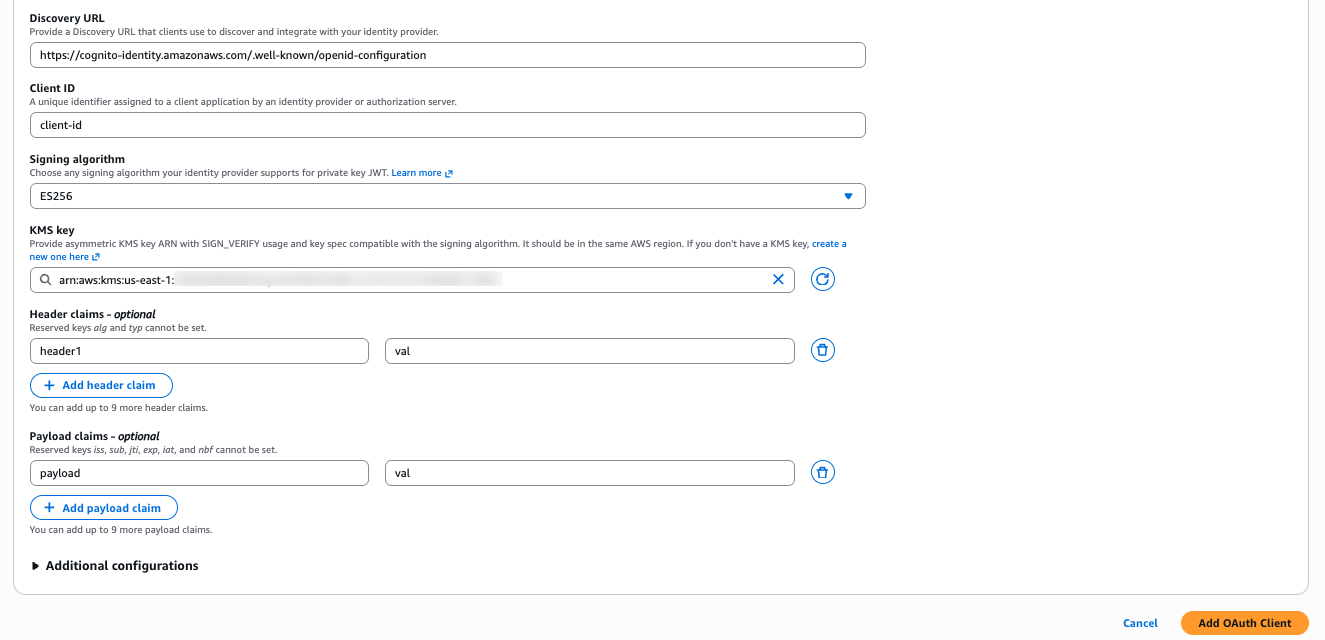
图 5 – 创建客户端前添加可选标头和载荷声明
Agent 访问的 CloudTrail 日志示例
当 Agent 使用凭证提供商获取令牌时,相关操作会记录在 AWS CloudTrail 中,因此您可以审计每次访问。您将看到如下事件名称:
-
GetWorkloadAccessToken(事件源为
bedrock-agentcore.amazonaws.com)– Agent 获取其工作负载身份令牌。requestParameters会记录workloadName,resources区块标识工作负载身份,而返回的令牌会被脱敏:{ "eventSource":"bedrock-agentcore.amazonaws.com", "eventName":"GetWorkloadAccessToken", "requestParameters":{ "workloadName":"my-agent-workload" }, "responseElements":{ "workloadAccessToken":"HIDDEN_DUE_TO_SECURITY_REASONS" }, "resources":[ { "accountId":"111122223333", "type":"AWS::BedrockAgentCore::WorkloadIdentity", "ARN":"arn:aws:bedrock-agentcore:us-east-1:111122223333:workload-identity-directory/default/workload-identity/my-agent-workload" } ] } -
GetResourceOauth2Token(事件源为
bedrock-agentcore.amazonaws.com)– Agent 为下游资源请求访问令牌。requestParameters显示所使用的凭证提供商、作用域和授权流程,传入令牌会被脱敏。{ "eventSource":"bedrock-agentcore.amazonaws.com", "eventName":"GetResourceOauth2Token", "requestParameters":{ "workloadIdentityToken":"HIDDEN_DUE_TO_SECURITY_REASONS", "resourc
English / 原文
Amazon Bedrock AgentCore Identity now supports Private Key JWT client authentication for agents. With Private Key JWT client authentication, your agents can authenticate to a downstream identity provider’s token endpoint using a signed JSON Web Token (JWT) client assertion instead of a shared OAuth 2.0 client secret. You can register a public key with your identity provider, while the corresponding private key stays in an AWS Key Management Service (AWS KMS). To authenticate, AgentCore Identity uses AWS KMS to sign the assertion and sends the signed assertion to the identity provider, which verifies it using the public key you registered.
This post explains how Private Key JWT client authentication works in AgentCore Identity and reviews the supported grant flows. We then walk through creating an AWS KMS signing key, registering its public key with your identity provider, configuring a credential provider on the AWS Management Console, and reviewing example AWS CloudTrail events that record your agent’s access.
How does it work?
The following example illustrates the request flow. Consider a customer-support agent that needs to read a customer’s order history from an internal orders API protected by your identity provider.
Figure 1 – Example request flow for a machine-to-machine token request, from the agent’s call through to the downstream API
The following diagram illustrates the request flow:
- The agent calls
GetResourceOauth2Tokenon AgentCore Identity to request a token for the orders API. - AgentCore Identity reads the client ID, KMS key ARN, and signing algorithm from your credential provider. It builds a short-lived JWT client assertion with the required payload claims (plus any additional header or payload claims you configured, such as a key identifier or a certificate thumbprint), and calls
kms:Signagainst your KMS asymmetric signing key using the signing algorithm you configured (RS256, PS256, or ES256). - AWS KMS signs the assertion and returns the signature to AgentCore Identity. The private key never leaves KMS.
- AgentCore Identity posts the signed assertion to your identity provider’s token endpoint with
grant_type=client_credentialsandclient_assertion_type=urn:ietf:params:oauth:client-assertion-type:jwt-bearer. - The identity provider verifies the signature against the public key you registered and returns an access token to AgentCore Identity.
- AgentCore Identity returns the access token to your agent.
- The agent calls the orders API with the access token.
- The orders API returns the customer’s order history.
Overview of supported grant flows
Private Key JWT authentication works for the three grant flows:
- Machine-to-machine (M2M) : the agent acts as itself. There is no human user in the picture. The agent needs to access a resource, for example a background job syncing data, or a service that any customer-support agent can read regardless of who triggered it. The token represents the application/agent identity. Uses the client_credentials grant. The token’s subject is the client itself.
- On-behalf-of (OBO) : the agent acts for a specific user, using that user’s existing token. A user has already signed in somewhere and there is an inbound user token. The agent needs to call a downstream API as that user, so their permissions and identity carry through. AgentCore Identity exchanges the inbound user token for a downstream token that represents the user, while still authenticating itself with the client assertion. You can use RFC 8693 token exchange or the RFC 7523 JWT authorization grant, depending on the identity provider.
- User-delegated access : the agent acts for a user, but the user grants consent interactively first. There is no pre-existing token to exchange. Instead, the user goes through an interactive login/consent (the authorization code / three-legged OAuth flow), approving what the agent can do. After consent, the agent gets a token representing the user. Uses the authorization code grant.
Prerequisites
This post assumes that you have
- An AWS account with AWS Management Console access to KMS, AgentCore and AWS CloudTrail.
- A tenant on your identity provider, where you can register a public key for an application.
- Discovery URL and Client ID that clients use to discover and integrate with your identity provider.
- Confirm the signing algorithm your identity provider requires for Private Key JWT client authentication. Confirm the same algorithm and key spec is supported by both AWS KMS and AgentCore Identity.
- Permissions for each part of the flow:
- Create and configure the KMS key –
kms:CreateKeyandkms:PutKeyPolicy. - Export the public key to register with your identity provider –
kms:GetPublicKey. (If your identity provider generates the key pair and gives you the private key material instead, you also needkms:GetParametersForImportandkms:ImportKeyMaterialto import it into KMS.) - Create the credential provider –
bedrock-agentcore-control:CreateOauth2CredentialProvider.
- Create and configure the KMS key –
Getting started
The following sections show how to configure Private Key JWT as the client authentication method using the AWS Management Console.
Step 1: Create the KMS signing key and register the public key
Start by creating an asymmetric KMS key that AgentCore Identity will use to sign the JWT client assertion. In this example, we create the key in KMS and export the corresponding public key to the Identity provider. However, if your identity provider generates the key pair and gives you the private key material instead, you can import it to KMS.
-
Open the AWS KMS console in the same AWS Region as your credential provider.
-
Choose Customer managed keys, then choose Create key.
-
For Key type, choose Asymmetric.
-
For Key usage, choose Sign and verify.
-
For Key spec, choose a spec compatible with your signing algorithm. This example uses ECC_NIST_P256 with the ES256 signing algorithm.
-
Choose Next, enter an Alias, and proceed through the key administrator and key usage permission steps.
-
On the Edit key policy step, add the following statement to the key policy to grant AgentCore Identity permission to use the key, replacing
111122223333with your AWS account ID and<region>with AgentCore region in use. Thekms:ViaServicecondition verifies the key can only be used when the request originates through AgentCore Identity:{ "Id": "BedrockAgentCoreIdentityPrivateKeyJwtAccess", "Version": "2012-10-17", "Statement": [ { "Effect": "Allow", "Principal": { "AWS": "arn:aws:iam::111122223333:root" }, "Action": [ "kms:Sign", "kms:DescribeKey" ], "Resource": "*", "Condition": { "StringEquals": { "aws:ResourceAccount": "${aws:PrincipalAccount}" }, "StringLike": { "kms:ViaService": "bedrock-agentcore-identity.<region>.amazonaws.com" } } } ] } -
Choose Finish. On the key’s detail page, note the key ARN. You provide it when you create the credential provider.
-
Next, export the public key and register it with your identity provider:
- On the key’s detail page, choose the Public key tab and download the public key. KMS provides a DER-encoded public key.
- Convert the public key into the format your provider requires (for example, an X.509 certificate for Microsoft Entra ID or a JSON Web Key for Okta) and register it on your application.
Step 2: Add an OAuth client
- Open the Amazon Bedrock AgentCore console.
- In the left navigation pane, under Build, choose Identity.
- In the Outbound Auth section, choose Add Outbound Auth, and then choose Add OAuth client.
Figure 2 – Adding an OAuth client from the AgentCore Identity console
Step 3: Choose Private key JWT as the client authentication method
On the Add OAuth Client page, in the Provider configurations section:
- For Configuration type, choose Discovery URL so AgentCore Identity can retrieve your provider’s configuration automatically. (Choose Manual config if your provider does not publish a discovery endpoint.)
- For Client authentication method, choose Private key JWT.
Figure 3 – Selecting Private key JWT as the client authentication method
Step 4: Provide the discovery URL, client ID, KMS key and signing algorithm
- For Discovery URL, enter the URL where your provider publishes its OpenID Connect configuration (ending in
.well-known/openid-configuration). - For Client ID, enter the client identifier registered at your identity provider.
- For KMS key, choose the ARN of your asymmetric KMS signing key. The key must have been created with
SIGN_VERIFYas usage and be in the same Region for it to show up in the list.
Note: You can also use a key from another account in the same Region by entering that key’s ARN. Cross-account access requires extra permissions in both accounts. See Allowing users in other accounts to use a KMS key.
- For Signing algorithm, choose the algorithm your identity provider requires for Private Key JWT. It must be compatible with your KMS key spec:
Figure 4 – Providing the discovery URL, client ID, asymmetric KMS key and signing algorithm
Step 5: (Optional) Add claims, then create the client
If your identity provider requires additional claims in the JWT client assertion, add them here:
- Under Header claims – optional, choose Add header claim to add provider-specific header claims, such as a key identifier. The reserved keys
algandtypcannot be set. - Under Payload claims – optional, choose Add payload claim to add provider-specific payload claims. The reserved keys
iss,sub,jti,exp,iat, andnbfcannot be set. - Choose Add OAuth Client.
- Verify that the credential provider was created by checking that it appears in the Outbound Auth list.
Figure 5 – Adding optional header and payload claims before creating the client
Example CloudTrail logs for the agent access
When an agent uses the credential provider to fetch a token, the operations are recorded on AWS CloudTrail so you can audit each access. You will see event names such as:
-
GetWorkloadAccessToken (event source
bedrock-agentcore.amazonaws.com) – the agent obtains its workload identity token. TherequestParametersrecord theworkloadName, theresourcesblock identifies the workload identity, and the returned token is redacted:{ "eventSource":"bedrock-agentcore.amazonaws.com", "eventName":"GetWorkloadAccessToken", "requestParameters":{ "workloadName":"my-agent-workload" }, "responseElements":{ "workloadAccessToken":"HIDDEN_DUE_TO_SECURITY_REASONS" }, "resources":[ { "accountId":"111122223333", "type":"AWS::BedrockAgentCore::WorkloadIdentity", "ARN":"arn:aws:bedrock-agentcore:us-east-1:111122223333:workload-identity-directory/default/workload-identity/my-agent-workload" } ] } -
GetResourceOauth2Token (event source
bedrock-agentcore.amazonaws.com) – the agent requests an access token for the downstream resource. TherequestParametersshow which credential provider, scopes, and grant flow were used, and the inbound token is redacted.{ "eventSource":"bedrock-agentcore.amazonaws.com", "eventName":"GetResourceOauth2Token", "requestParameters":{ "workloadIdentityToken":"HIDDEN_DUE_TO_SECURITY_REASONS", "resourceCredentialProviderName":"my-private-key-jwt-provider", "scopes":[ "https://graph.microsoft.com/.default" ], "oauth2Flow":"M2M" }, "resources":[ { "accountId":"111122223333", "type":"AWS::BedrockAgentCore::OAuth2CredentialProvider", "ARN":"arn:aws:bedrock-agentcore:us-east-1:111122223333:token-vault/default/oauth2credentialprovider/my-private-key-jwt-provider" } ] } -
Sign (event source
kms.amazonaws.com) – AgentCore Identity signs the JWT client assertion with your KMS key. This is the event that shows Private Key JWT working:userIdentity.invokedBy,sourceIPAddress, anduserAgentare allbedrock-agentcore.amazonaws.com, confirming that AgentCore Identity calledkms:Signon your behalf. Note that theSignevent records the KMS signing algorithm name, not the JWT algorithm name you configured.{ "eventSource":"kms.amazonaws.com", "eventName":"Sign", "userIdentity":{ "invokedBy":"bedrock-agentcore.amazonaws.com" }, "sourceIPAddress":"bedrock-agentcore.amazonaws.com", "userAgent":"bedrock-agentcore.amazonaws.com", "requestParameters":{ "signingAlgorithm":"RSASSA_PKCS1_V1_5_SHA_256", "keyId":"arn:aws:kms:us-east-1:111122223333:key/1234abcd-12ab-34cd-56ef-1234567890ab", "messageType":"DIGEST" }, "responseElements":null, "readOnly":true, "managementEvent":true, "resources":[ { "accountId":"111122223333", "type":"AWS::KMS::Key", "ARN":"arn:aws:kms:us-east-1:111122223333:key/1234abcd-12ab-34cd-56ef-1234567890ab" } ] }
Clean up
To avoid incurring ongoing charges and to remove resources you no longer need, clean up the credential provider and the KMS signing key you created in this walkthrough.
Remove the OAuth credential provider
- Open the Amazon Bedrock AgentCore console.
- In the left navigation pane, under Build, choose Identity.
- In the Outbound Auth section, locate the credential provider you created.
- Select the provider, choose Delete, and confirm the deletion.
Schedule deletion of the KMS key
Deleting a KMS key is irreversible and permanent. Once the key is deleted, any data or signatures that depend on it can no longer be produced, so KMS requires you to schedule deletion with a waiting period rather than deleting immediately. Before you schedule deletion, confirm the key is no longer referenced by any credential provider or identity provider registration. If you are unsure whether the key is still in use, consider disabling the key instead, which stops it from being used while keeping it recoverable.
- Open the AWS KMS console in the Region where you created the key.
- Choose Customer managed keys, then select the asymmetric signing key you created.
- Choose Key actions, then choose Schedule key deletion.
- Enter a waiting period between 7 and 30 days. During this window the key is disabled but can still be recovered by canceling the scheduled deletion.
- Confirm that you want to schedule the key for deletion.
After the waiting period elapses, KMS permanently deletes the key. Remember to also remove or rotate the corresponding public key you registered with your identity provider, so it no longer trusts the retired key.
Conclusion
By using Private Key JWT client authentication in AgentCore Identity, you can give your agents a secret-less, auditable way to authenticate to identity providers. The signing key stays on AWS KMS, every signing operation is recorded on AWS CloudTrail, and the same credential provider extends across M2M, on-behalf-of, and user-delegated flows. For end-to-end samples, including Entra and Okta identity-provider registration and both M2M and OBO flows, see the Amazon Bedrock AgentCore samples on GitHub.
About the authors
Swara Gandhi
Swara is a Senior Solutions Architect on the AWS Identity Solutions team. She works on building secure and scalable end-to-end identity solutions. She is passionate about everything identity, security, and cloud.
Satveer Khurpa
Satveer is a Sr. WW Specialist Solutions Architect, Amazon Bedrock AgentCore at Amazon Web Services, specializing in agentic AI security with a focus on AgentCore Identity and Security. In this role, he uses his expertise in cloud-based architectures to help clients design and deploy secure agentic AI systems across diverse industries. Satveer applies his deep understanding of agentic AI patterns, identity and access management, and defense-in-depth security principles to architect scalable, secure, and responsible agent-based applications, enabling organizations to unlock new business opportunities while maintaining robust security postures for autonomous AI workloads.