在 Amazon Quick 中自动化客户留存工作流
英文标题:Automating customer retention workflows in Amazon Quick
Amazon Quick 可将传统上需要五天的客户流失响应周期缩短至几分钟,帮助团队更快识别并触达不满意客户。该方案结合联系人中心的 CSAT、FCR、AHT 等结构化 KPI 与通话转录文本中的情感信号,识别高流失风险客户及其具体问题。通过自定义 MCP Action,工作流可按 CSAT 和问题发生时间为客户计算留存优先级,并自动生成个性化补偿信。该实践展示了开发者如何将 Amazon Quick Dashboard、Chat、Flows、Automate、AWS Lambda、API Gateway 和 Amazon S3 组合为可审计的端到端留存自动化流程。
 1.3 MB
 101.1 KB
 124.1 KB
 345.0 KB
 141.2 KB
 346.5 KB
 345.8 KB
 314.8 KB
 167.8 KB
 200.9 KB
 167.8 KB
 192.5 KB
 344.3 KB
 225.8 KB
 63.4 KB
 76.1 KB
 99.0 KB
 182.9 KB
 403.0 KB
 247.5 KB
中文
在 Amazon Quick 中自动化客户留存工作流,可将原本长达五天的流失响应周期缩短至几分钟。上一季度,一家中型 SaaS 公司因留存团队需要五天才能识别并联系不满意客户,失去了 12% 的高风险账户。等到人工审核完 CSAT 电子表格和通话转录文本时,这些客户早已流失。Amazon Quick 将这一响应窗口从数天缩短至数分钟。
本文将介绍如何在 Amazon Quick 中构建自动化客户留存管道。该管道从结构化数据中检测不满意客户,分析通话转录文本中的情感,并按客户留存优先级进行评分。随后,它会针对每种具体情况生成定制化留存方案。本文将学习如何:
- 配置包含联系人中心数据集和通话转录文本的 Quick Space。
- 创建并注册用于客户评分的自定义 MCP Action。
- 构建一个结合定量关键绩效指标(KPI)与定性转录文本分析的 Chat Agent。
- 将分析转换为可复用的 Quick Flow。
- 使用 Amazon Quick Automate 编排完整管道。
解决方案概述
该留存管道按顺序连接四个 Amazon Quick 组件。Quick Dashboard 监控联系人中心 KPI,包括 CSAT(Customer Satisfaction Score,客户在每次通话后给出的 1–5 分满意度评分)、FCR(First Call Resolution,即团队是否在一次通话中解决问题)和 AHT(Average Handle Time,平均处理时长)。它识别 CSAT 分数不高于 2 的客户。
Quick Chat Agent 使用自然语言查询结构化数据和非结构化通话转录文本。它将定量评分与定性情感信号相结合,从而揭示客户为何处于风险中,而不仅是确认其存在风险。
Amazon Quick Flows 将可重复的基于 Chat 的分析转化为定时或按需运行的自动化流程,无需人工干预。其最后一步将结果格式化为结构化的高风险客户列表,供下游自动化直接使用。
Quick Automate 执行多步骤管道。它接收 Flow 生成的结构化高风险客户列表,并通过自定义 MCP Action 为这些客户评分。MCP Action 是一种无服务器端点,可通过自定义业务逻辑扩展 Quick Automate。有关详细信息,请参阅 Quick Automate MCP 开发者指南。随后,管道会按优先级对客户进行排序,生成留存信件,并将其上传到 Amazon Simple Storage Service(Amazon S3)以便分发。
该工作流运行在 AWS 基础设施上,并可使用审计追踪、断点和基于角色的访问控制。
Automate 管道架构
该管道依次执行五个步骤。它从 Amazon Simple Storage Service(Amazon S3)下载高风险客户列表和联系人中心数据。评分步骤根据 CSAT 以及每位客户最近一次出现问题的时间,按留存优先级为这些客户排序,并选出优先级最高的两个案例。随后,管道会起草奖励额度信件,引用每位客户的具体问题,将信件保存为 PDF,并将完成的信件上传至 Amazon S3,以供投递和归档。
下表汇总了各步骤:
| 步骤 | 操作 | 详细信息 |
|---|---|---|
| 1 | 下载高风险客户和联系人中心数据集 | 从 Amazon S3 下载高风险客户文件(Negative Sentiment.doc)以及结构化数据集 contact_center_data.csv。 |
| 2 | 留存评分 | 通过自定义 MCP Action,按照 CSAT 和问题发生时间为每位客户评分,并选出优先级最高的两个案例。 |
| 3 | 生成留存信件 | 起草引用每位客户具体问题的奖励额度信件。 |
| 4 | 创建 PDF | 将生成的信件保存为 PDF 文档。 |
| 5 | 上传至 Amazon S3 | 将生成的信件存储在 Amazon S3 中,以便投递和归档。 |
该解决方案使用 Amazon S3、Amazon Quick(Dashboard、Chat、Flows、Automate)和自定义 MCP Actions。
前提条件
要完成本演练,你需要:
- 一个已启用 Amazon Quick(Dashboard、Chat、Flows 和 Automate)的 AWS 账户
- 一个名为 contact_center_data.csv 的 CSV 格式结构化联系人中心数据集(列包括:customer_id、csat_score、call_date、call_reason、team_id)。本文提供了示例数据集。
- 名为 Call_transcripts.docx 的通话转录文本文件,格式为 PDF 或 TXT。
- 一个用于管道输入和输出的 Amazon S3 存储桶(例如:amzn-s3-demo-bucket)
解决方案演练
以下各节将端到端介绍构建过程:从准备 Quick Space、注册 MCP Action 连接器,到组装 Chat Agent、Flow 和 Automate 工作流。请按顺序完成这些步骤,因为每一步都依赖于此前创建的组件。
准备 Quick Space
Quick Space 是数据层,使 Chat Agent 能够同时访问结构化数据集(用于筛选和聚合)以及非结构化文档(用于情感分析)。首先创建 Space 有助于验证所有下游组件均使用同一真实数据源。
- 在 Quick 控制台中,选择 Spaces。
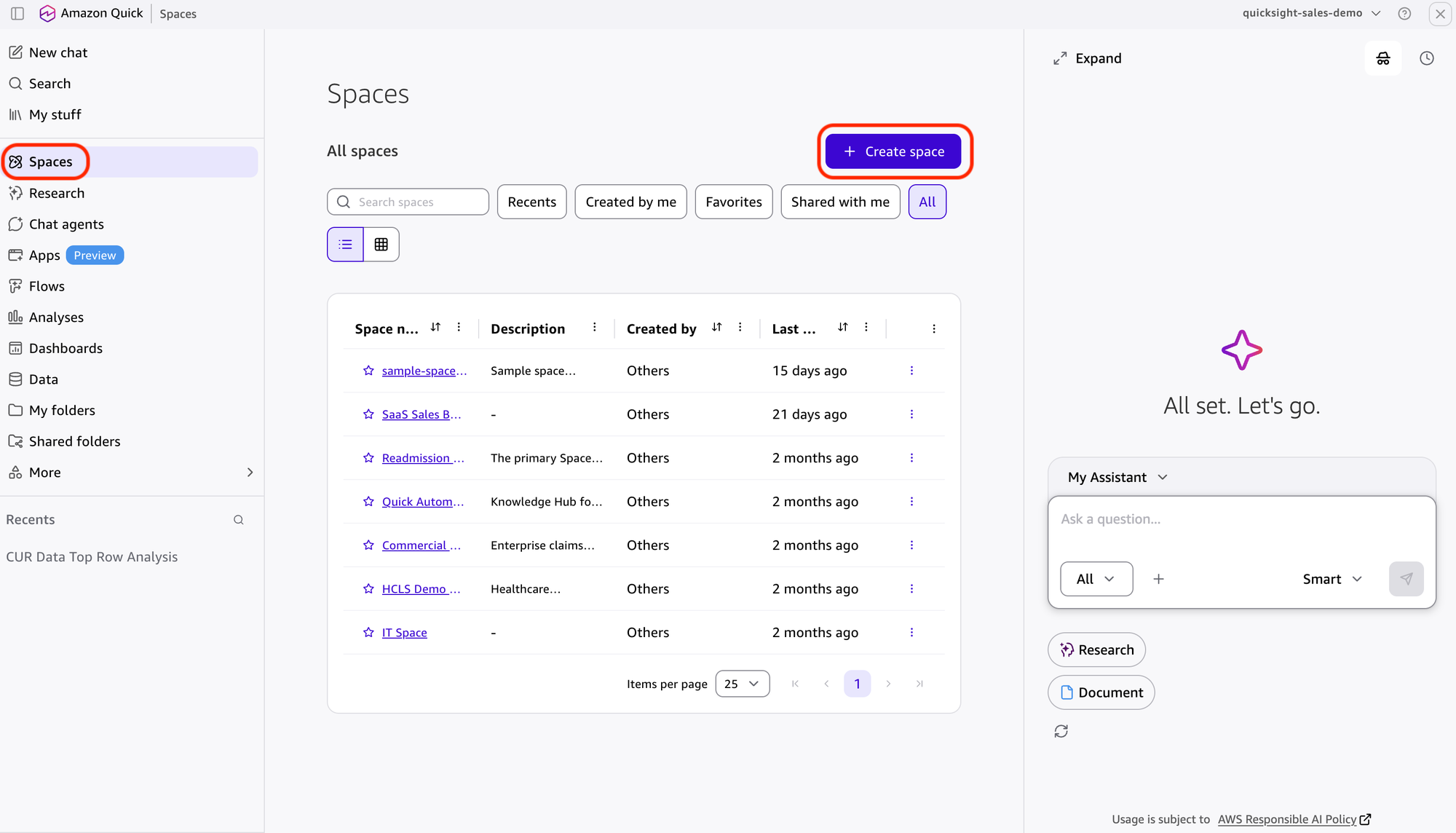
- 选择“Create space”。
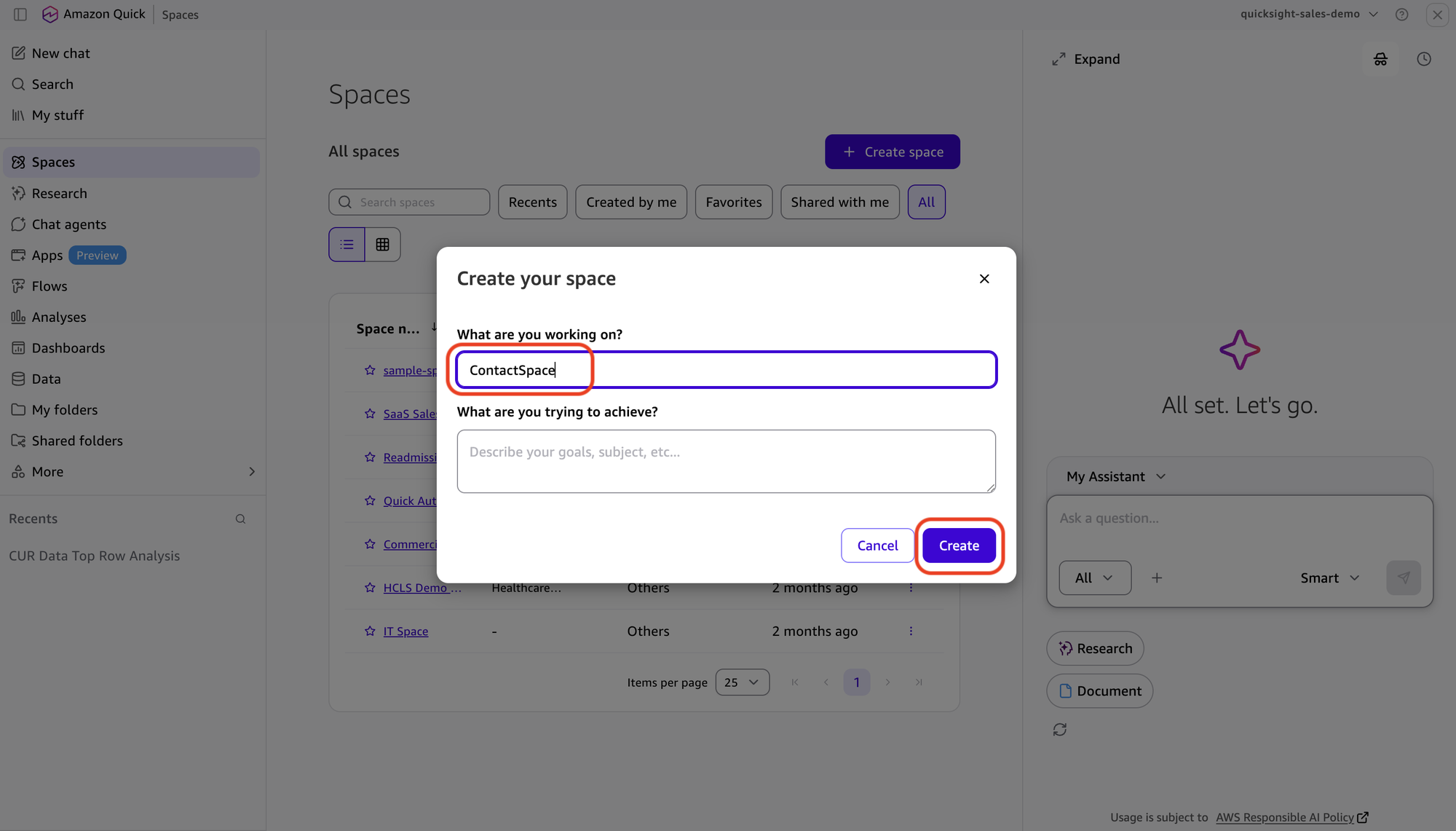
- 在 Space name 中输入 ContactSpace。
- 在接下来的页面中,选择 Datasets。
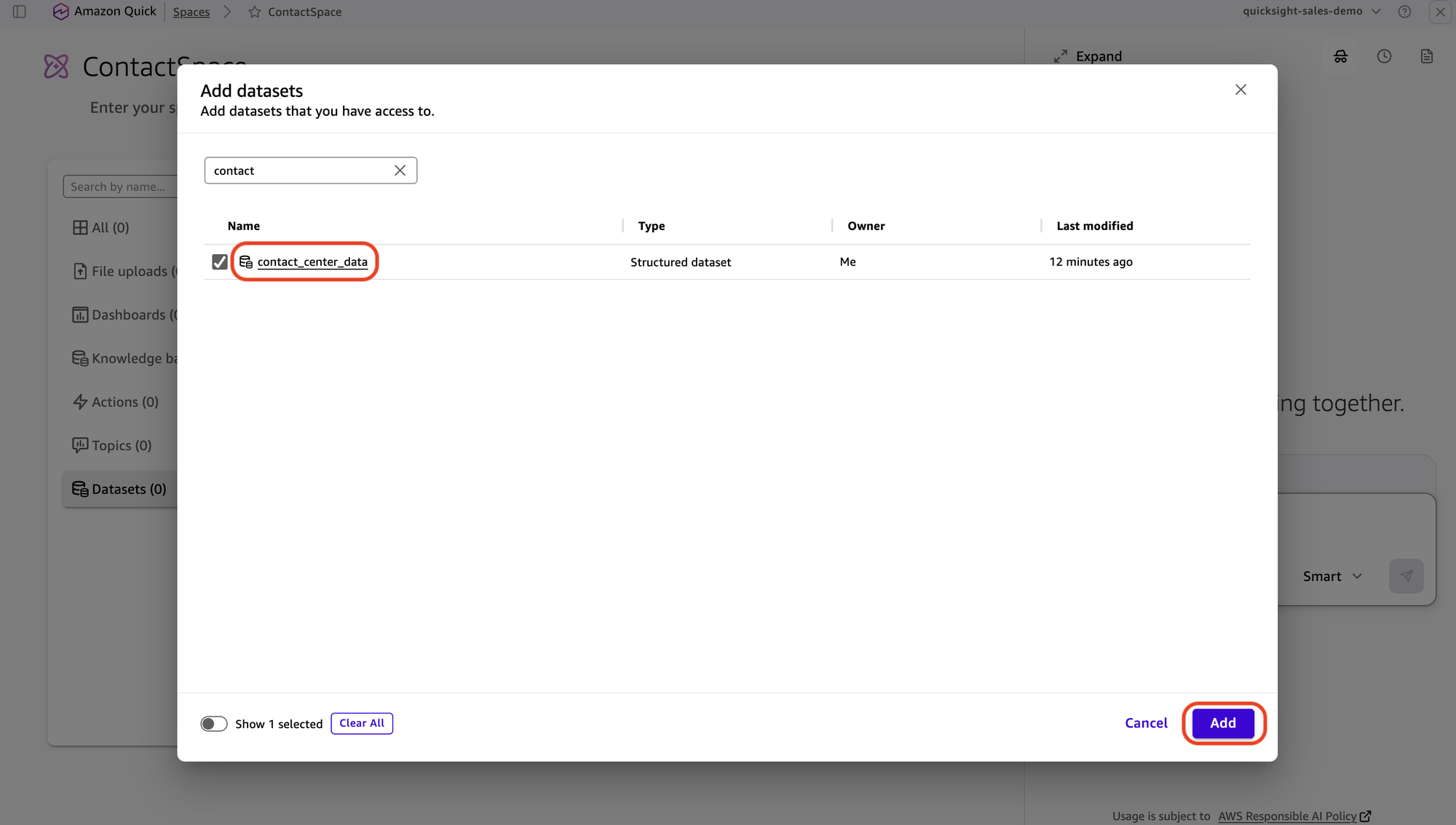
- 然后选择 Add datasets。搜索并选中联系人中心数据集 contact_center_data 旁的复选框,然后选择 Add。
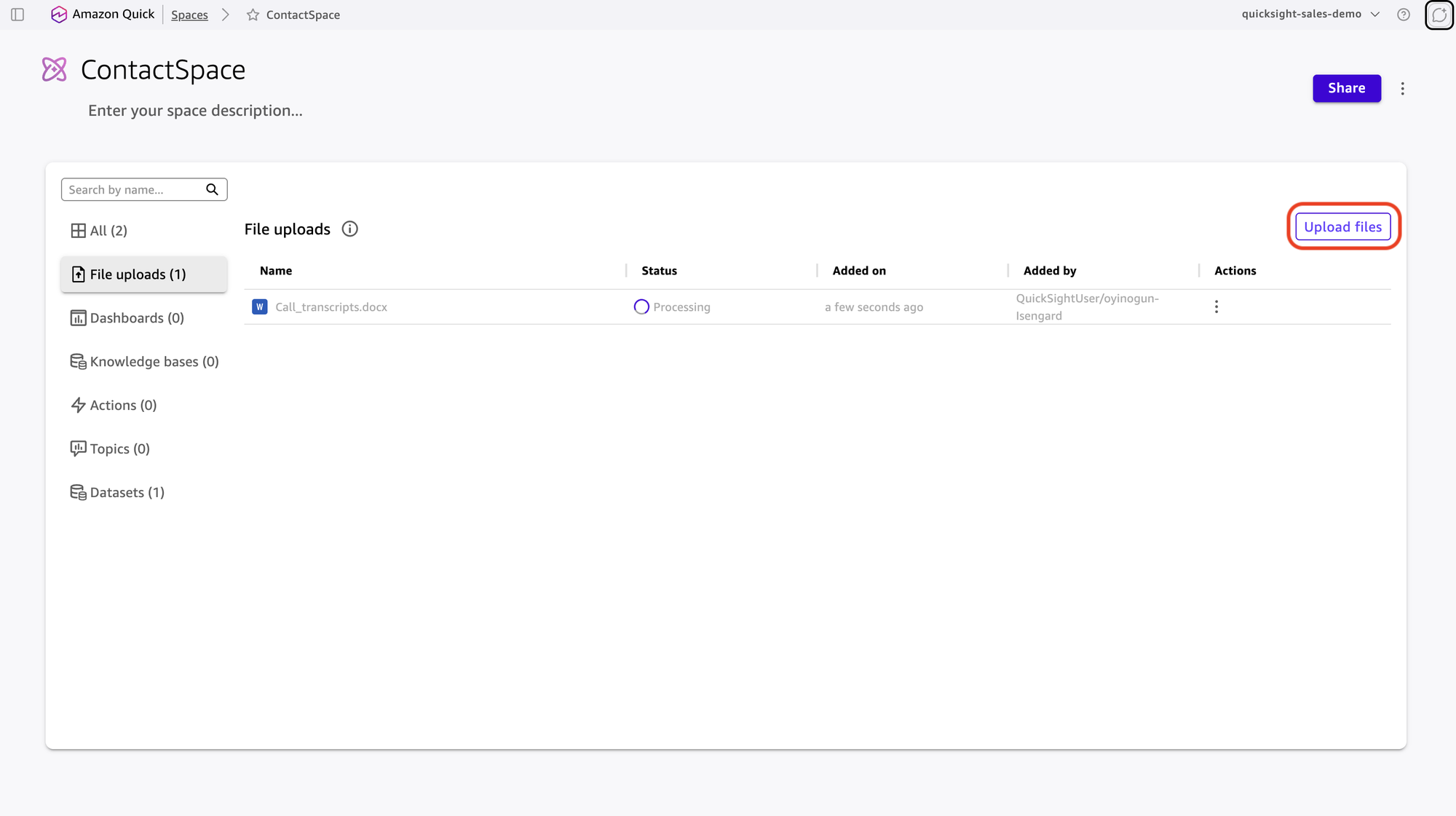
- 选择 File Uploads,然后选择 Upload Files,上传通话转录文本文件 Call_transcripts.docx,再选择 Open。
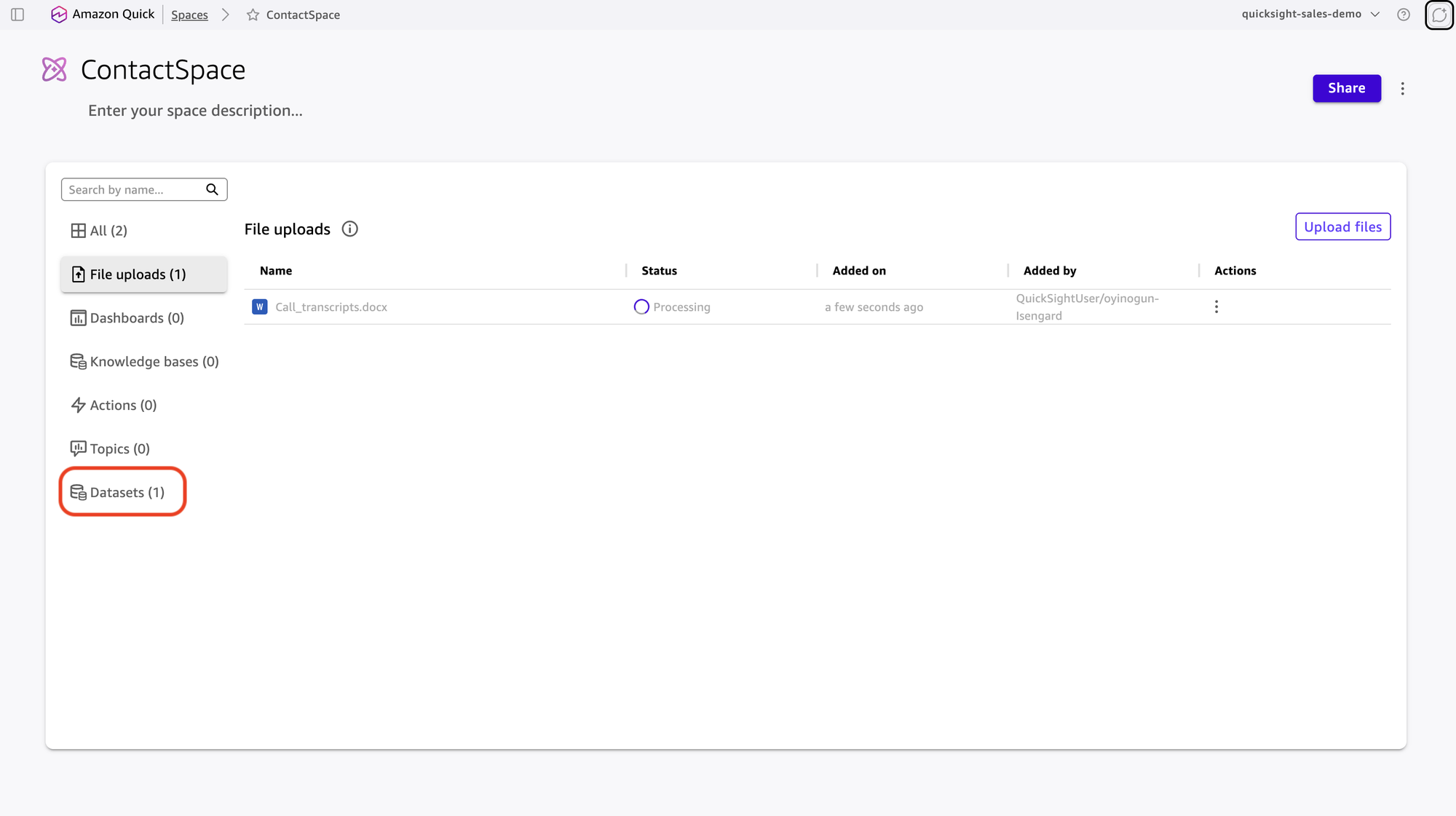
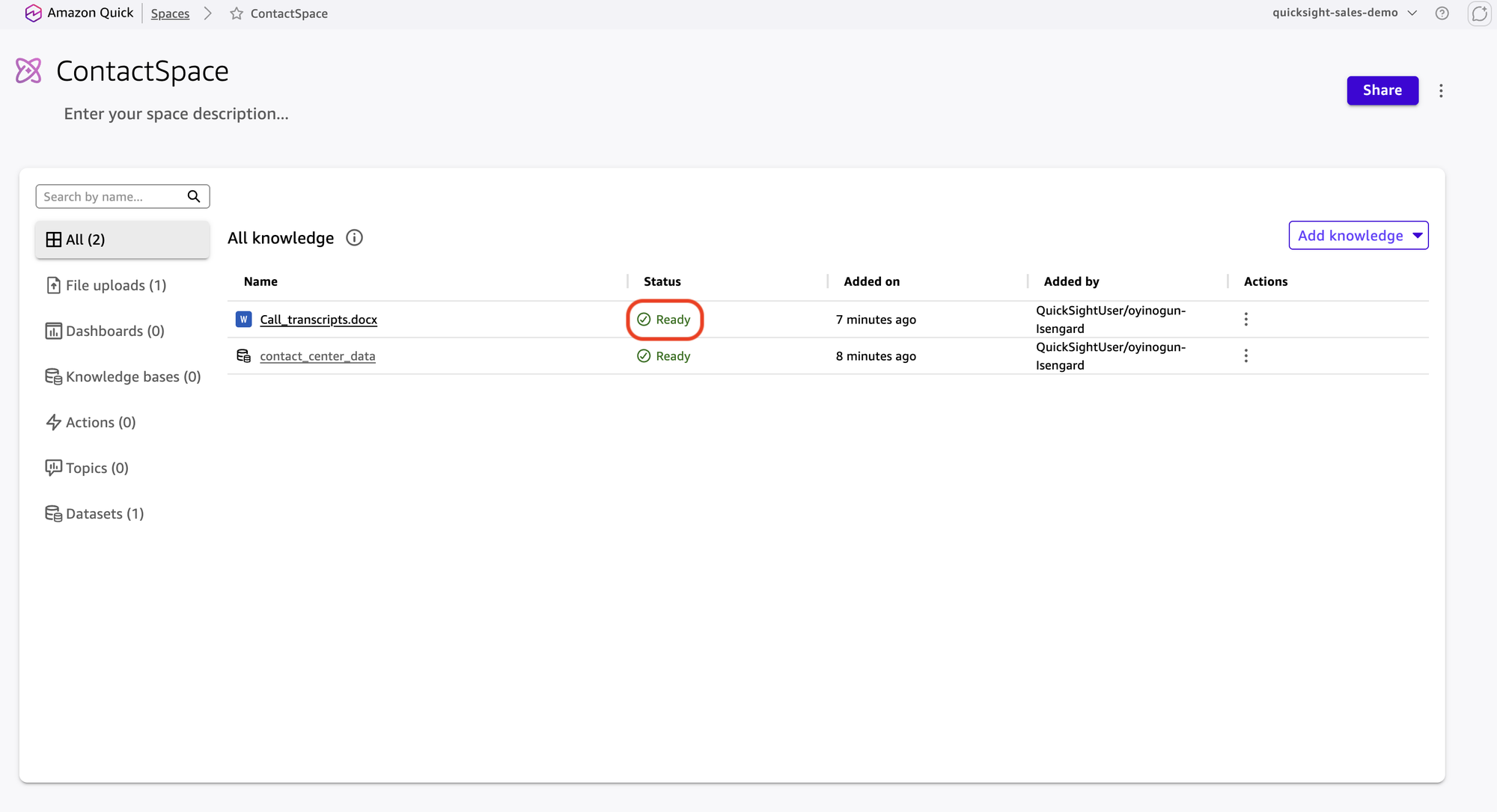
- 等待索引完成。数据集和文档的 Status 列均会显示 Ready。
创建 MCP Action 连接器
MCP Action 连接器连接 Amazon Quick 与自定义业务逻辑。它定义连接器并将其作为 HTTP 端点提供。你需要编写一个 AWS Lambda 函数,其中包含由 MCP 协议封装的评分算法;通过 Amazon API Gateway 将其提供为服务;然后在 Amazon Quick 中注册该端点。
Model Context Protocol(MCP)是一项开放标准,使 Amazon Quick 等 AI 助手能够以一致的请求和响应格式调用外部工具。如果你刚接触这些服务,AWS Lambda 可让你无需预置服务器即可运行代码,而 Amazon API Gateway 会将该代码公开为一个 Amazon Quick 可以调用的网址(HTTP 端点)。你首先创建 Lambda 函数,然后在其前面部署 API Gateway 端点,最后在 Amazon Quick 中注册该端点。
以下 Lambda 函数实现了一个最小化 MCP 服务器。它处理 Amazon Quick 在连接过程中调用的三种 JSON-RPC 方法:initialize(握手)、tools/list(公布 score_customers 工具,以便 Amazon Quick 发现该工具)和 tools/call(工具被调用时执行评分)。该工具的 inputSchema 遵循 JSON Schema Draft 7,这是 Amazon Quick 在发布时的要求:
import json

# Tool catalog advertised to Amazon Quick during discovery (tools/list).
# inputSchema uses JSON Schema Draft 7 (required is an array at the root).
TOOLS = [
    {
        "name": "score_customers",
        "description": "Scores contact center customers by retention priority.",
        "inputSchema": {
            "type": "object",
            "properties": {
                "customers": {
                    "type": "array",
                    "description": "Customer records to score.",
                    "items": {
                        "type": "object",
                        "properties": {
                            "customer_id": {"type": "string"},
                            "csat_score": {"type": "number"},
                            "days_since_last_issue": {"type": "number"}
                        },
                        "required": ["customer_id"]
                    }
                }
            },
            "required": ["customers"]
        }
    }
]


def score_customers(customers):
    scored = []
    for c in customers:
        score = 0
        # Weight factors: low CSAT = high churn risk
        score += (5 - c.get("csat_score", 3)) * 20
        # Recency: issues in last 7 days score higher
        score += 30 if c.get("days_since_last_issue", 30) < 7 else 0
        scored.append({
            "customer_id": c["customer_id"],
            "retention_score": round(score, 1),
            "explanation": f"CSAT:{c.get('csat_score')}, days_since_last_issue:{c.get('days_since_last_issue')}"
        })
    scored.sort(key=lambda x: x["retention_score"], reverse=True)
    return scored


def lambda_handler(event, context):
    """MCP-compliant JSON-RPC handler for customer retention scoring."""
    req = json.loads(event.get("body", "{}"))
    method = req.get("method")
    req_id = req.get("id")

    def rpc(result):
        return {"statusCode": 200,
                "headers": {"Content-Type": "application/json"},
                "body": json.dumps({"jsonrpc": "2.0", "id": req_id, "result": result})}

    if method == "initialize":
        return rpc({
            "protocolVersion": "2024-11-05",
            "capabilities": {"tools": {}},
            "serverInfo": {"name": "customer-scoring", "version": "1.0.0"}
        })

    if method == "tools/list":
        return rpc({"tools": TOOLS})

    if method == "tools/call":
        params = req.get("params", {})
        if params.get("name") == "score_customers":
            args = params.get("arguments", {})
            scored = score_customers(args.get("customers", []))
            return rpc({"content": [{"type": "text", "text": json.dumps(scored)}]})

    return {"statusCode": 200,
            "headers": {"Content-Type": "application/json"},
            "body": json.dumps({"jsonrpc": "2.0", "id": req_id,
                                "error": {"code": -32601, "message": "Method not found"}})}
将此函数部署到 AWS Lambda:
- 打开 AWS Lambda 控制台并选择 Create function。选择 Author from scratch。
- 在 Function name 中输入 customer-scoring。在 Runtime 中选择一个较新的受支持 Python 版本(例如 Python 3.13)。选择 Create function。
- 在 Code 选项卡中,将默认代码替换为前文所示函数,然后选择 Deploy。
部署函数后,使用以下 AWS Command Line Interface(AWS CLI)命令在其前方创建 API Gateway 端点。你也可以选择在 API Gateway 控制台中完成相同步骤。请依次运行这些命令。每条命令都会产生一个值(例如 API ID),供下一条命令使用。
将占位符值(<API_ID>、<ROOT_RESOURCE_ID>、<REGION>、<ACCOUNT_ID>)替换为你自己的值:
# 1. Create REST API
aws apigateway create-rest-api
--name customer-scoring-api
--endpoint-configuration types=REGIONAL

# Note the "id" value from the response -> <API_ID>

# 2. Get root resource ID
aws apigateway get-resources --rest-api-id <API_ID>

# Note the "id" value -> <ROOT_RESOURCE_ID>

# 3. Create POST method
aws apigateway put-method
--rest-api-id <API_ID>
--resource-id <ROOT_RESOURCE_ID>
--http-method POST
--authorization-type NONE

# 4. Integrate with Lambda
aws apigateway put-integration
--rest-api-id <API_ID>
--resource-id <ROOT_RESOURCE_ID>
--http-method POST
--type AWS_PROXY
--integration-http-method POST
--uri "arn:aws:apigateway:<REGION>:lambda:path/2015-03-31/functions/arn:aws:lambda:<REGION>:<ACCOUNT_ID>:function:<LAMBDA_FUNCTION_NAME>/invocations"

# 5. Allow API Gateway to invoke Lambda
aws lambda add-permission
--function-name <LAMBDA_FUNCTION_NAME>
--statement-id apigateway-invoke
--action lambda:InvokeFunction
--principal apigateway.amazonaws.com
--source-arn "arn:aws:execute-api:<REGION>:<ACCOUNT_ID>:<API_ID>/*/POST/"

# 6. Deploy
aws apigateway create-deployment
--rest-api-id <API_ID>
--stage-name prod

# Your endpoint URL:

# https://<API_ID>.execute-api.<REGION>.amazonaws.com/prod/mcp
create-deployment 命令会返回部署 ID 和时间戳。请使用你的 API ID 和 Region,按照以下格式自行构造端点 URL:https://<API_ID>.execute-api.<REGION>.amazonaws.com/prod/mcp。记下此 URL。你将在注册时使用它
English / 原文
Automating customer retention workflows in Amazon Quick can turn a five-day churn-response cycle into one that takes minutes. Last quarter, a mid-size SaaS company lost 12% of its at-risk accounts because the retention team took five days to identify and contact dissatisfied customers. By the time someone manually reviewed CSAT spreadsheets and call transcripts, those customers had already churned. Amazon Quick shortens that response window from days to minutes.
This post walks through building an automated retention pipeline in Amazon Quick. The pipeline detects dissatisfied customers from structured data. It analyzes sentiment from call transcripts and scores customers by retention priority. It then generates retention offers tailored to each situation. In this post, you learn how to:
- Configure a Quick Space with contact center datasets and call transcripts.
- Create and register a custom MCP Action for customer scoring.
- Build a Chat Agent that combines quantitative key performance indicators (KPIs) with qualitative transcript analysis.
- Convert the analysis into a reusable Quick Flow.
- Orchestrate the full pipeline with Amazon Quick Automate.
Solution overview
The retention pipeline connects four Amazon Quick components in sequence. Quick Dashboard monitors contact center KPIs, including CSAT (Customer Satisfaction Score, a 1–5 rating customers give after each call), FCR (First Call Resolution, whether the team resolved the issue in a single call), and AHT (Average Handle Time). It identifies customers with CSAT scores at or below 2.
Quick Chat Agent uses natural language to query structured data and unstructured call transcripts. It combines quantitative scores with qualitative sentiment signals. This surfaces why a customer is at risk, not just that they are.
Amazon Quick Flows turns the repeatable Chat-based analysis into a scheduled or on-demand automation that runs without manual intervention. Its final step formats the results as a structured list of at-risk customers that downstream automation can consume directly.
Quick Automate executes a multi-step pipeline. It ingests the structured at-risk customer list that the Flow produces and scores those customers through a custom MCP Action. An MCP Action is a serverless endpoint that extends Quick Automate with custom business logic. Refer to the Quick Automate MCP developer guide for details. The pipeline then ranks customers by priority, generates retention letters, and uploads them to Amazon Simple Storage Service (Amazon S3) for distribution.
You run the workflow on AWS infrastructure and can access audit trails, breakpoints, and role-based access controls.
Automate pipeline architecture
The pipeline executes five sequential steps. It downloads the list of at-risk customers and contact center data from Amazon Simple Storage Service (Amazon S3). A scoring step ranks those customers by retention priority (based on CSAT and how recently each customer had an issue) and picks the top two highest-priority cases. The pipeline then drafts bonus-credit letters that reference each customer’s specific issues, saves them as a PDF, and uploads the finished letters to Amazon S3 for delivery and archival.
The following table summarizes each step:
| Step | Action | Details |
|---|---|---|
| 1 | Download at-risk customers and contact center dataset | Download the at-risk customers file (Negative Sentiment.doc) as well as the structured dataset contact_center_data.csv from Amazon S3. |
| 2 | Retention scoring | Score each customer on CSAT and issue recency through the custom MCP Action, and pick the top two highest-priority cases. |
| 3 | Retention letter generation | Draft bonus-credit letters that reference each customer’s specific issues. |
| 4 | PDF creation | Save the generated letters as a PDF document. |
| 5 | Upload to Amazon S3 | Store the generated letters in Amazon S3 for delivery and archival. |
This solution uses Amazon S3, Amazon Quick (Dashboard, Chat, Flows, Automate), and custom MCP Actions.
Prerequisites
To follow this walkthrough, you need:
- An AWS account with Amazon Quick activated (Dashboard, Chat, Flows, and Automate)
- A structured contact center dataset in CSV format named contact_center_data.csv (columns: customer_id, csat_score, call_date, call_reason, team_id). A sample dataset is provided with this post.
- Call transcript documents named Call_transcripts.docx in PDF or TXT format.
- An Amazon S3 bucket for pipeline input and output (example: amzn-s3-demo-bucket)
Solution walkthrough
The following sections walk through the build end to end, from preparing your Quick Space and registering the MCP Action connector to assembling the Chat Agent, Flow, and Automate workflow. Complete them in order, because each step builds on the components created before it.
To prepare your Quick Space
A Quick Space is the data layer that gives the Chat Agent access to both structured datasets (for filtering and aggregation) and unstructured documents (for sentiment analysis). Creating the Space first helps verify that every downstream component draws from the same source of truth.
- From the Quick console, select Spaces.
- Select “Create space”.
- For Space name , enter ContactSpace.
- In the screen that follows, select Datasets.
- Then select Add datasets. Search for and select the checkbox next to your contact_center_data dataset, then choose Add.
- Select File Uploads, then select Upload Files, and upload your Call_transcripts.docx transcript file, then choose Open.
- Wait for indexing to complete. The Status column shows Ready for both the dataset and the document.
To create the MCP Action connector
An MCP Action connector bridges Amazon Quick and your custom business logic. It defines the connector and makes it available as an HTTP endpoint. You write an AWS Lambda function that contains your scoring algorithm wrapped in the MCP protocol, make it available through Amazon API Gateway, and register that endpoint in Amazon Quick.
The Model Context Protocol (MCP) is an open standard that lets AI assistants such as Amazon Quick call external tools in a consistent request-and-response format. If you are new to these services, AWS Lambda lets you run code without provisioning servers, and Amazon API Gateway exposes that code as a web address (an HTTP endpoint) that Amazon Quick can call. You first create the Lambda function, then put an API Gateway endpoint in front of it, and finally register that endpoint in Amazon Quick.
The following Lambda function implements a minimal MCP server. It handles the three JSON-RPC methods Amazon Quick calls during connection: initialize (the handshake), tools/list (which advertises the score_customers tool so Amazon Quick can discover it), and tools/call (which runs the scoring when the tool is invoked). The tool’s inputSchema follows JSON Schema Draft 7, which Amazon Quick requires at publish time:
import json

# Tool catalog advertised to Amazon Quick during discovery (tools/list).
# inputSchema uses JSON Schema Draft 7 (required is an array at the root).
TOOLS = [
    {
        "name": "score_customers",
        "description": "Scores contact center customers by retention priority.",
        "inputSchema": {
            "type": "object",
            "properties": {
                "customers": {
                    "type": "array",
                    "description": "Customer records to score.",
                    "items": {
                        "type": "object",
                        "properties": {
                            "customer_id": {"type": "string"},
                            "csat_score": {"type": "number"},
                            "days_since_last_issue": {"type": "number"}
                        },
                        "required": ["customer_id"]
                    }
                }
            },
            "required": ["customers"]
        }
    }
]


def score_customers(customers):
    scored = []
    for c in customers:
        score = 0
        # Weight factors: low CSAT = high churn risk
        score += (5 - c.get("csat_score", 3)) * 20
        # Recency: issues in last 7 days score higher
        score += 30 if c.get("days_since_last_issue", 30) < 7 else 0
        scored.append({
            "customer_id": c["customer_id"],
            "retention_score": round(score, 1),
            "explanation": f"CSAT:{c.get('csat_score')}, days_since_last_issue:{c.get('days_since_last_issue')}"
        })
    scored.sort(key=lambda x: x["retention_score"], reverse=True)
    return scored


def lambda_handler(event, context):
    """MCP-compliant JSON-RPC handler for customer retention scoring."""
    req = json.loads(event.get("body", "{}"))
    method = req.get("method")
    req_id = req.get("id")

    def rpc(result):
        return {"statusCode": 200,
                "headers": {"Content-Type": "application/json"},
                "body": json.dumps({"jsonrpc": "2.0", "id": req_id, "result": result})}

    if method == "initialize":
        return rpc({
            "protocolVersion": "2024-11-05",
            "capabilities": {"tools": {}},
            "serverInfo": {"name": "customer-scoring", "version": "1.0.0"}
        })

    if method == "tools/list":
        return rpc({"tools": TOOLS})

    if method == "tools/call":
        params = req.get("params", {})
        if params.get("name") == "score_customers":
            args = params.get("arguments", {})
            scored = score_customers(args.get("customers", []))
            return rpc({"content": [{"type": "text", "text": json.dumps(scored)}]})

    return {"statusCode": 200,
            "headers": {"Content-Type": "application/json"},
            "body": json.dumps({"jsonrpc": "2.0", "id": req_id,
                                "error": {"code": -32601, "message": "Method not found"}})}
Deploy this function to AWS Lambda:
- Open the AWS Lambda console and choose Create function. Select Author from scratch.
- For Function name, enter customer-scoring. For Runtime, choose a recent supported Python version (for example, Python 3.13). Choose Create function.
- In the Code tab, replace the default code with the function shown earlier, then choose Deploy.
With the function deployed, create an API Gateway endpoint in front of it using the following AWS Command Line Interface (AWS CLI) commands. If you prefer, you can perform these same steps in the API Gateway console. Run the commands in order. Each one produces a value (such as the API ID) that you use in the next.
Replace the placeholder values (, , , ) with your own:
# 1. Create REST API
aws apigateway create-rest-api
--name customer-scoring-api
--endpoint-configuration types=REGIONAL

# Note the "id" value from the response -> <API_ID>

# 2. Get root resource ID
aws apigateway get-resources --rest-api-id <API_ID>

# Note the "id" value -> <ROOT_RESOURCE_ID>

# 3. Create POST method
aws apigateway put-method
--rest-api-id <API_ID>
--resource-id <ROOT_RESOURCE_ID>
--http-method POST
--authorization-type NONE

# 4. Integrate with Lambda
aws apigateway put-integration
--rest-api-id <API_ID>
--resource-id <ROOT_RESOURCE_ID>
--http-method POST
--type AWS_PROXY
--integration-http-method POST
--uri "arn:aws:apigateway:<REGION>:lambda:path/2015-03-31/functions/arn:aws:lambda:<REGION>:<ACCOUNT_ID>:function:<LAMBDA_FUNCTION_NAME>/invocations"

# 5. Allow API Gateway to invoke Lambda
aws lambda add-permission
--function-name <LAMBDA_FUNCTION_NAME>
--statement-id apigateway-invoke
--action lambda:InvokeFunction
--principal apigateway.amazonaws.com
--source-arn "arn:aws:execute-api:<REGION>:<ACCOUNT_ID>:<API_ID>/*/POST/"

# 6. Deploy
aws apigateway create-deployment
--rest-api-id <API_ID>
--stage-name prod

# Your endpoint URL:

# https://<API_ID>.execute-api.<REGION>.amazonaws.com/prod/mcp
The create-deployment command returns a deployment id and timestamp. Construct the endpoint URL yourself using your API ID and Region in the following format: https://<API_ID>.execute-api.<REGION>.amazonaws.com/prod/mcp. Note this URL. You use it when registering the connector in Amazon Quick.
Production consideration: This walkthrough uses API Gateway directly in front of Lambda for simplicity. For production workloads, consider using Agentcore gateways in front of Lambda, which provide built-in, agent-level authentication, throttling, and observability out of the box.
To register the MCP Action connector in Amazon Quick
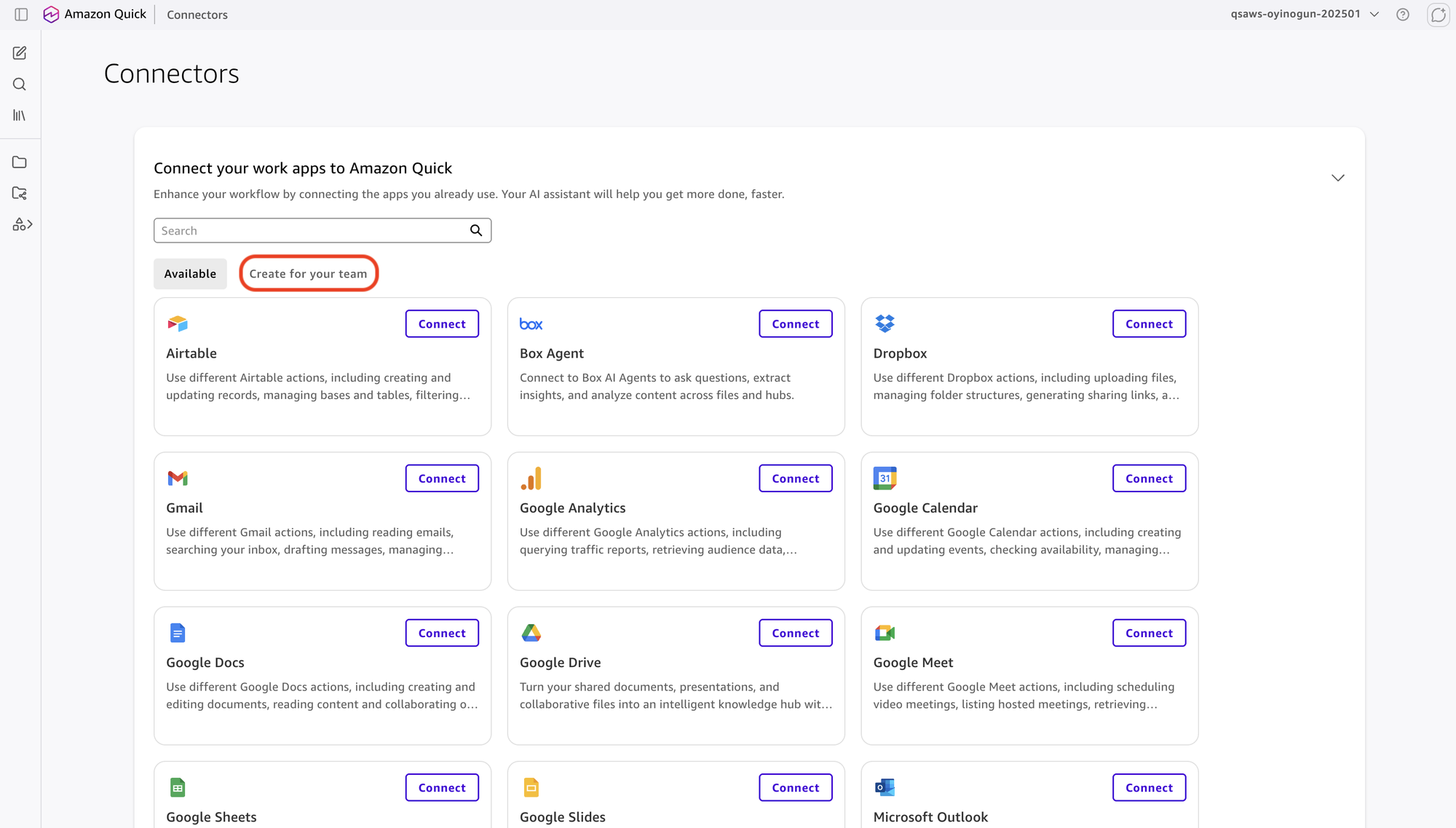
- From the Amazon Quick home page, select More , then select Connectors.
- In the right section, select Create for your team.
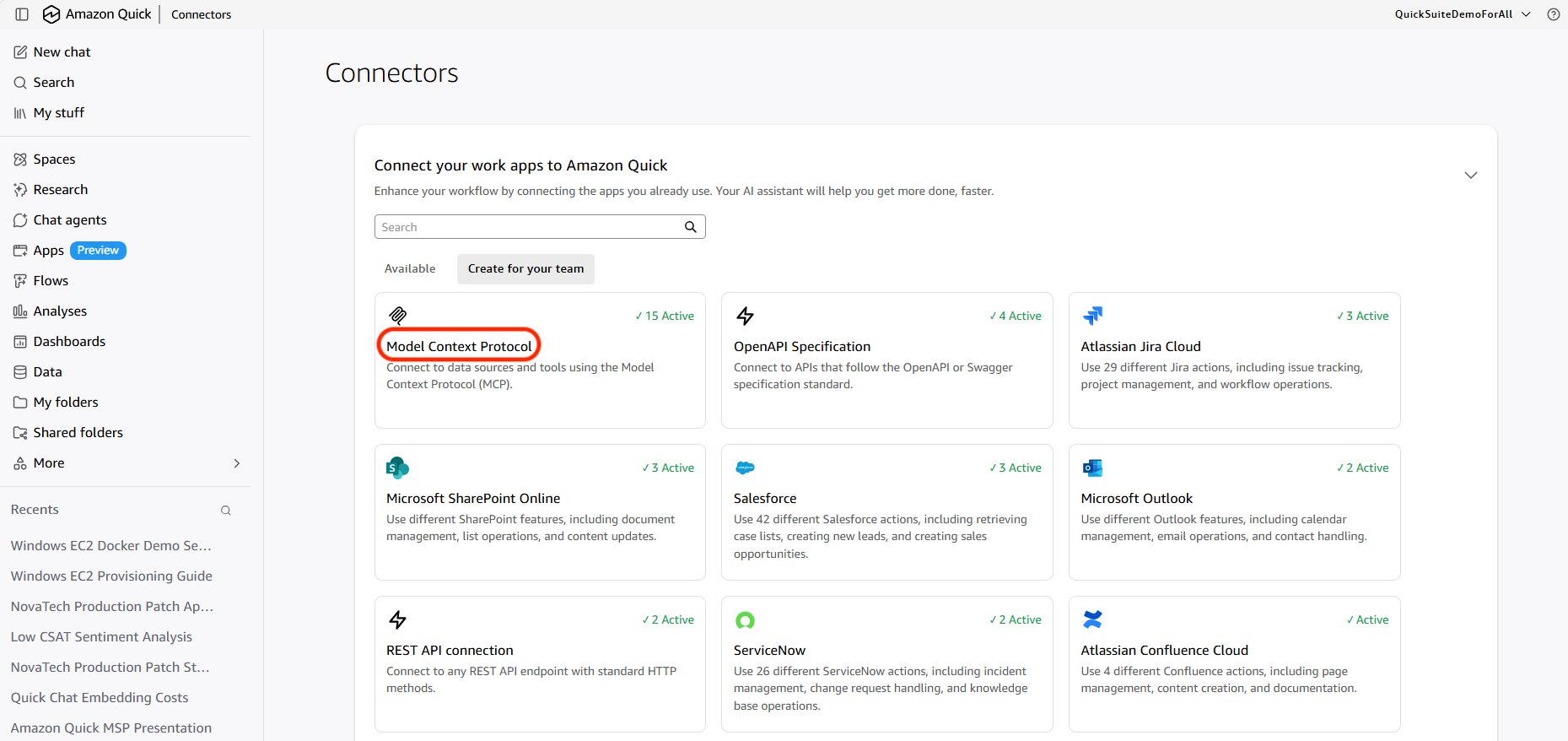
- Select Model Context Protocol.
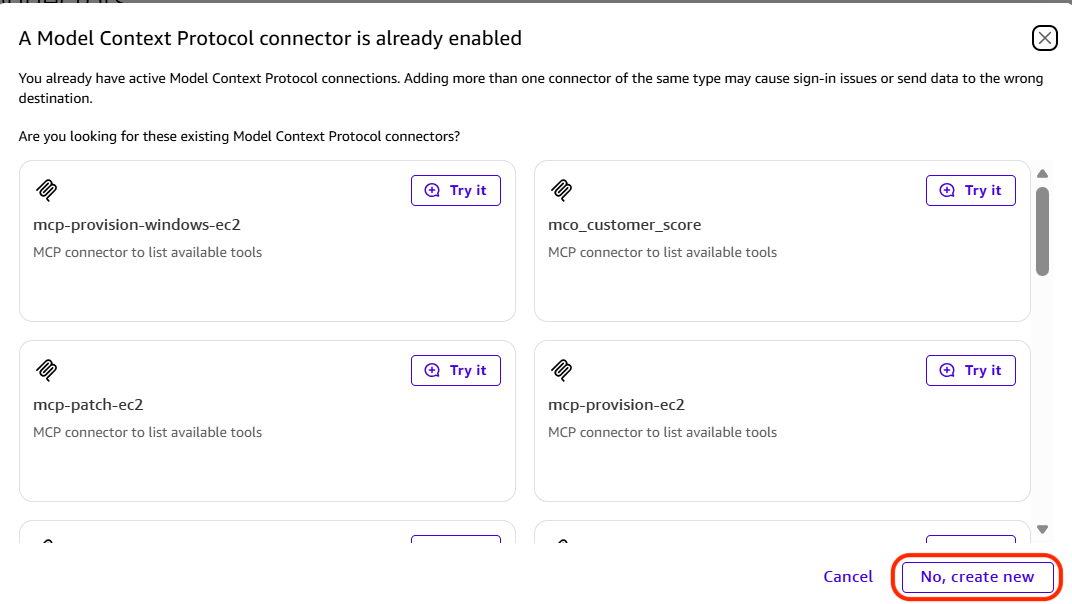
- In the screen that follows, Select No, create new.
- Enter the following values and choose Next :
- Name : mcp-customer-score.
- Description : Find score of customers based on aggregated KPIs.
- MCP server endpoint : paste the endpoint URL
https://<API_ID>.execute-api.<REGION>.amazonaws.com/prod/mcp. - Connection type : Public network.
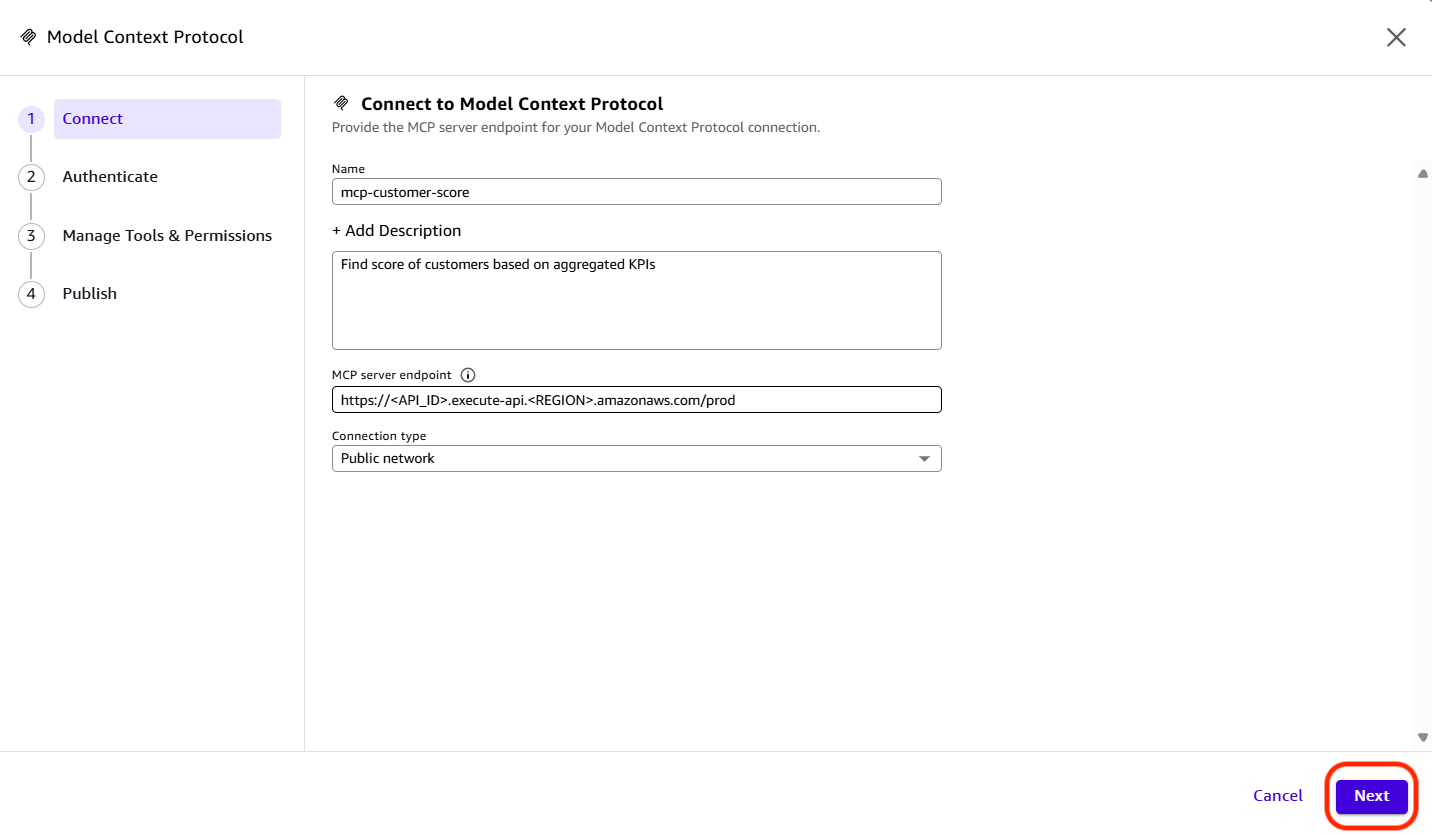
- Choose Next.
- On the Authenticate step, select Service authentication , then open the Auth configuration list and choose None. This endpoint is intentionally open for demonstration purposes. In a production environment, you would typically add an authentication layer, most commonly two-legged OAuth (2LO), to secure the endpoint. Because the scoring endpoint you deployed uses –authorization-type NONE, it accepts unauthenticated requests, so no client ID or secret is required. (Use an OAuth option only if your MCP server is protected by OAuth.)
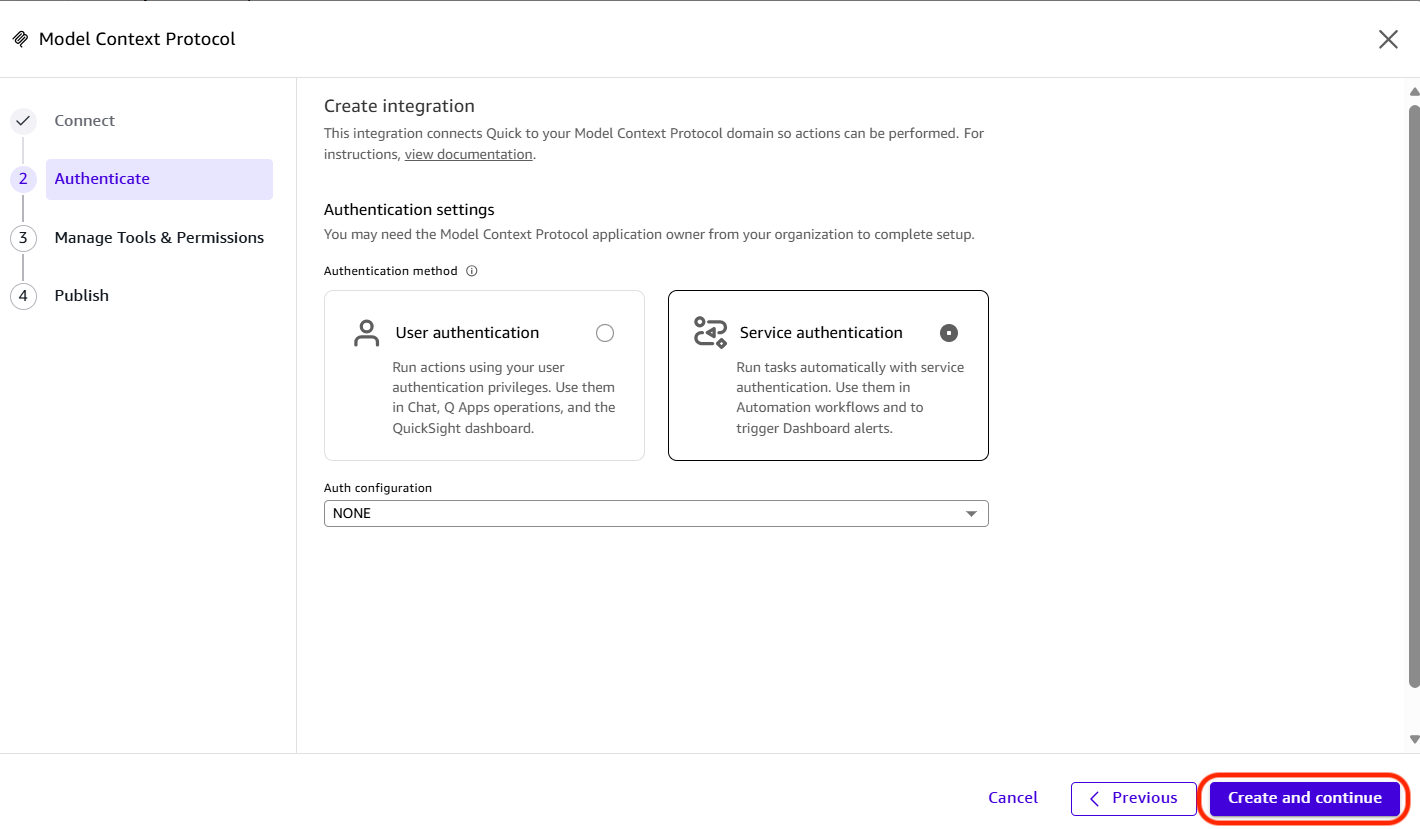
- Choose Create and continue.
- Choose Publish.
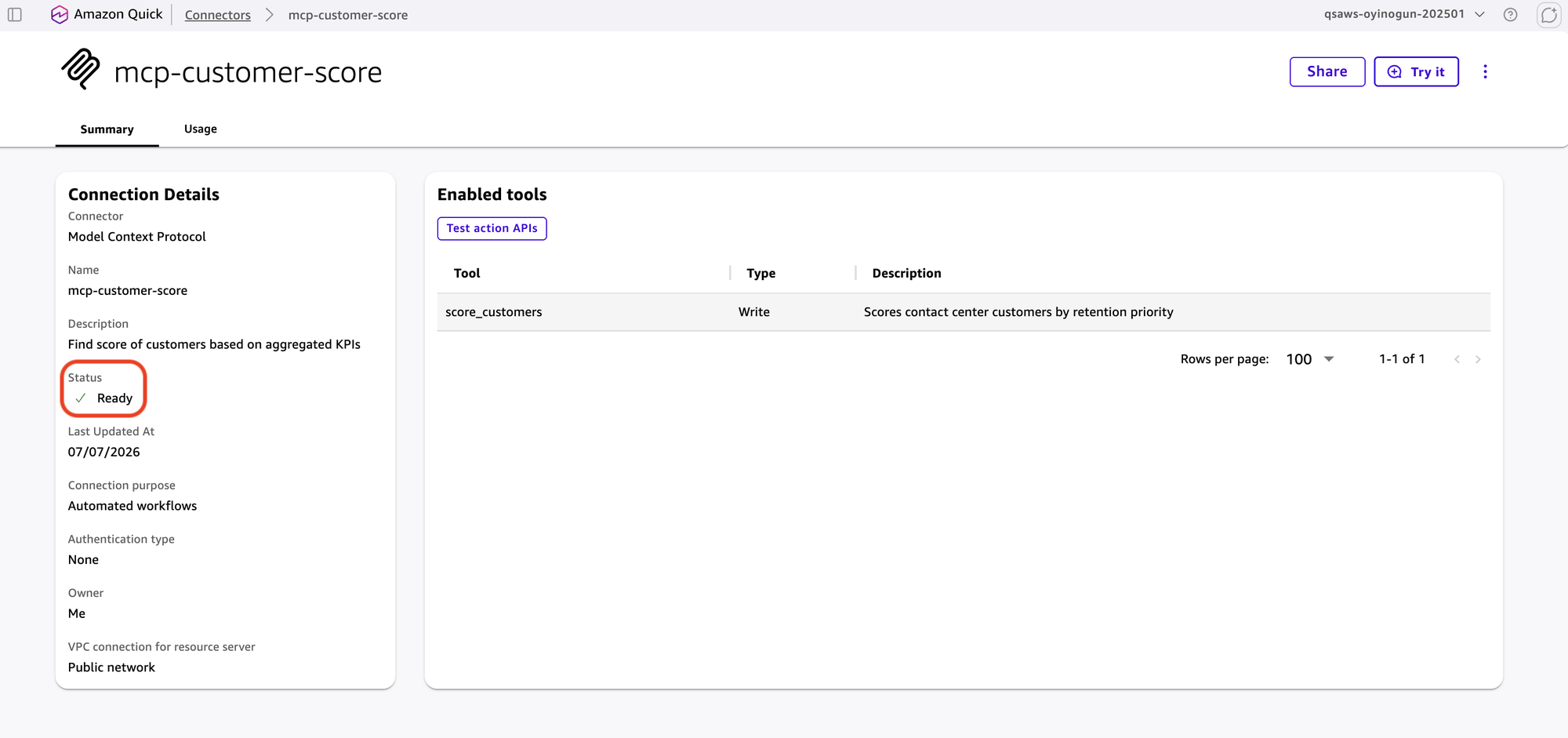
- Wait a few minutes, then choose the new connector in the Available section. Confirm the status shows Ready.
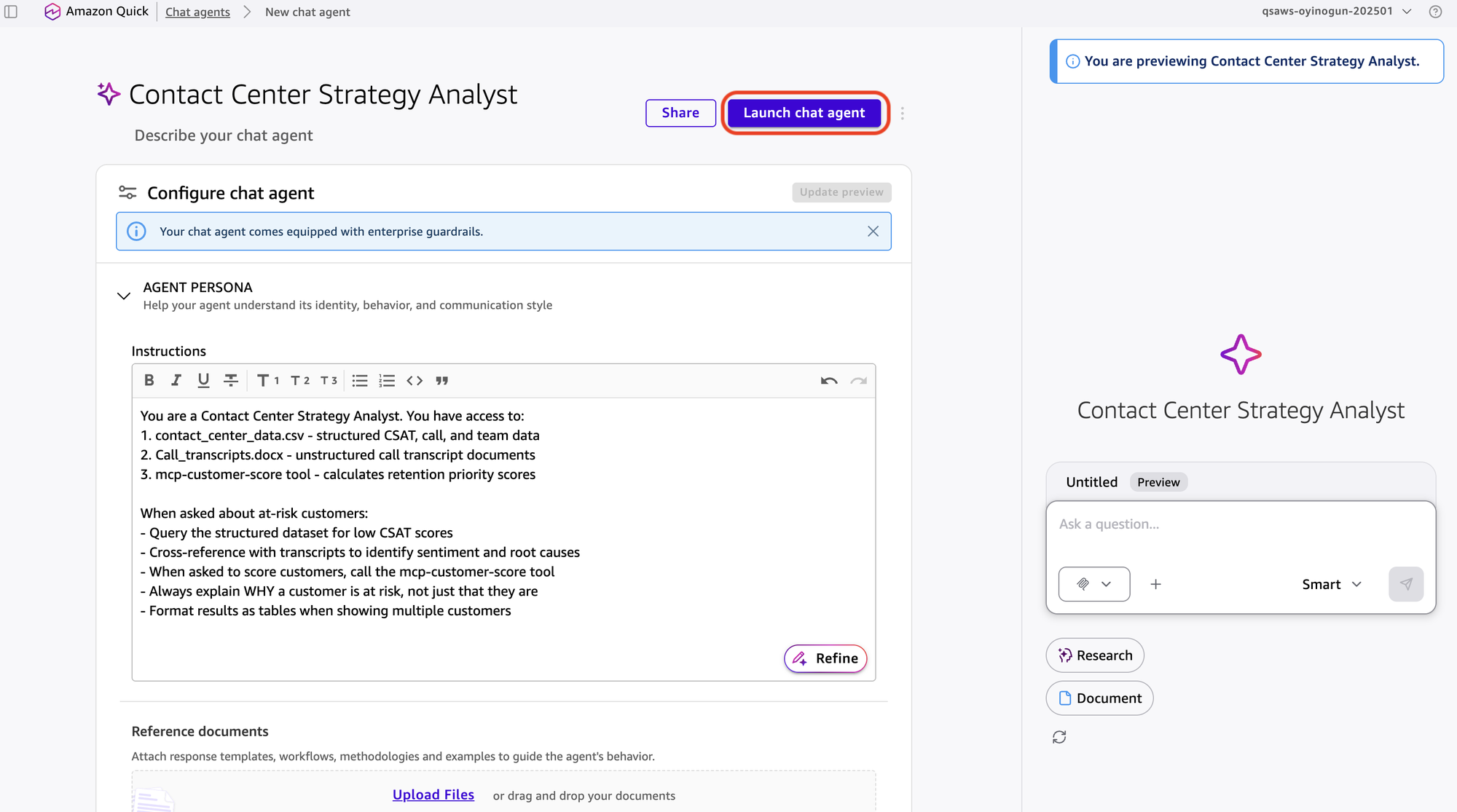
A custom Chat Agent connects to your ContactSpace and has access to the MCP Action connector you registered. The system prompt is the critical component. It tells the agent how to interpret the data, what questions to ask of the transcripts, and when to invoke the scoring tool versus answering from the dataset directly.
- From the Quick home page, select Chat agents, then choose Blank, followed by Skip to create a custom chat agent from scratch.
- For Agent name , enter Contact Center Strategy Analyst.
- Under Knowledge Sources , link the ContactSpace.
- Under Actions , add the mcp-customer-score connector.
- For the system prompt, enter text similar to the following:
You are a Contact Center Strategy Analyst. You have access to:
1. contact_center_data.csv - structured CSAT, call, and team data
2. Call_transcripts.docx - unstructured call transcript documents
3. mcp-customer-score tool - calculates retention priority scores
When asked about at-risk customers:
- Query the structured dataset for low CSAT scores
- Cross-reference with transcripts to identify sentiment and root causes
- When asked to score customers, call the mcp-customer-score tool
- Always explain WHY a customer is at risk, not just that they are
- Format results as tables when showing multiple customers
- Choose Launch chat agent.
To analyze at-risk customers with the Chat Agent
The Chat Agent accesses both the structured dataset and unstructured transcripts in your Space. Use it to identify at-risk customers and understand the reasons behind their low satisfaction scores.
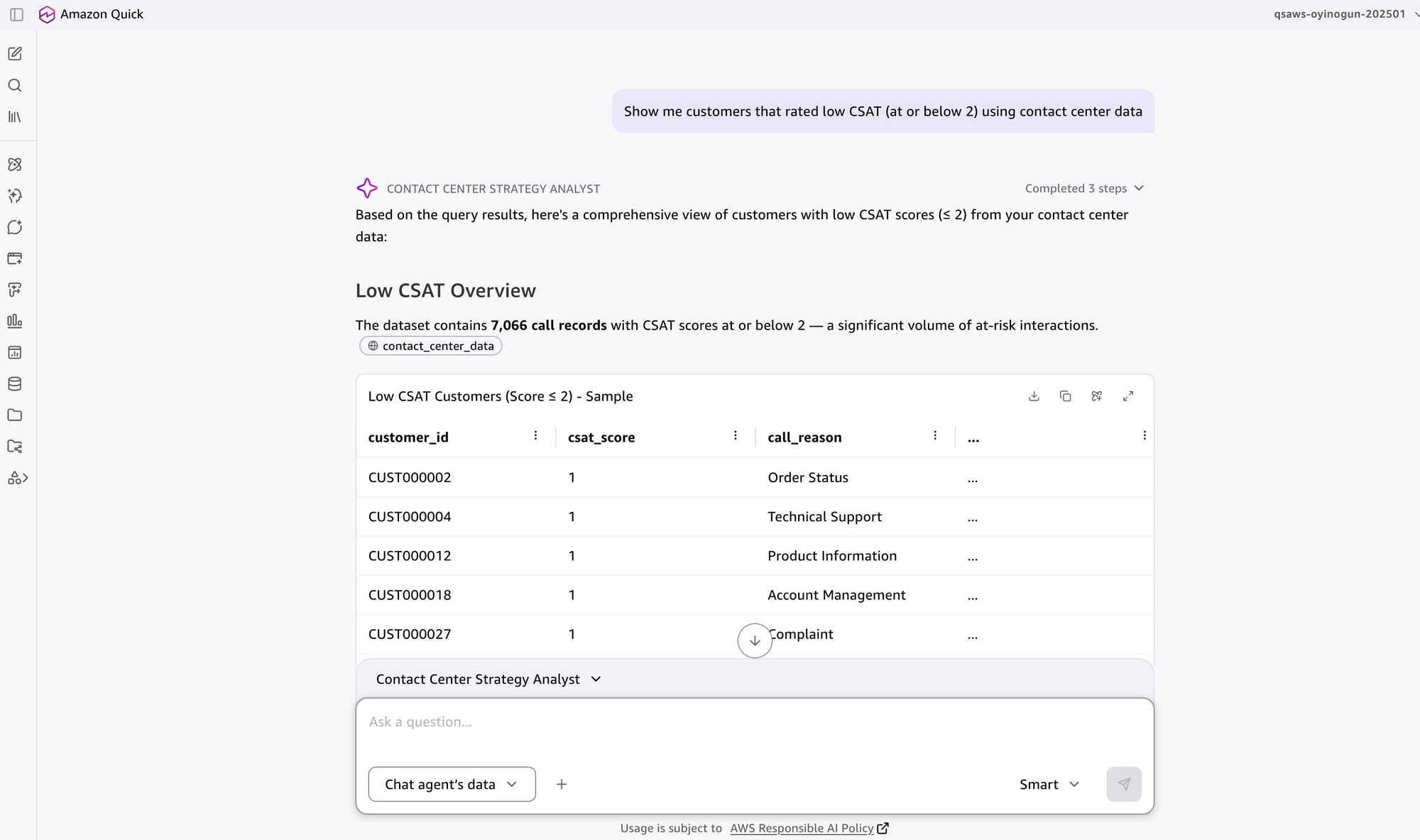
- From the Amazon Quick home page, chat with the new custom chat agent. First, choose the Contact Center Strategy Analyst agent from the list.
- Enter the following prompt:
Show me customers that rated low CSAT (at or below 2) using contact center data
The agent returns a table of customer IDs, call dates, CSAT scores, and related metrics. This identifies who is at risk but not why.
- Enter a follow-up prompt:
Using the call transcripts, summarize the main reasons these customers were dissatisfied
The agent reads the call transcripts and summarizes its findings. For example, it might identify that Customer 4471 expressed repeated frustration about billing errors across three calls. Customer 8832 had a single intense interaction about a service outage. This distinction matters. Repeated small frustrations require a different retention approach than one major incident.
- To produce a structured result that downstream automation can consume, enter a final prompt:
For the top 20 most at-risk customers, return only a JSON array where
each object has customer_id, csat_score, and days_since_last_issue
(calculated from the most recent call date). Do not include any other text.
The agent returns a structured JSON list of the at-risk customers. Copy this JSON output from the chat response and save it as a file named at_risk_customers.json, then upload it to your Amazon S3 bucket (for example, to the inputs/ prefix). The automation downloads this file from Amazon S3 in a later step.
To convert the analysis into a Quick Flow
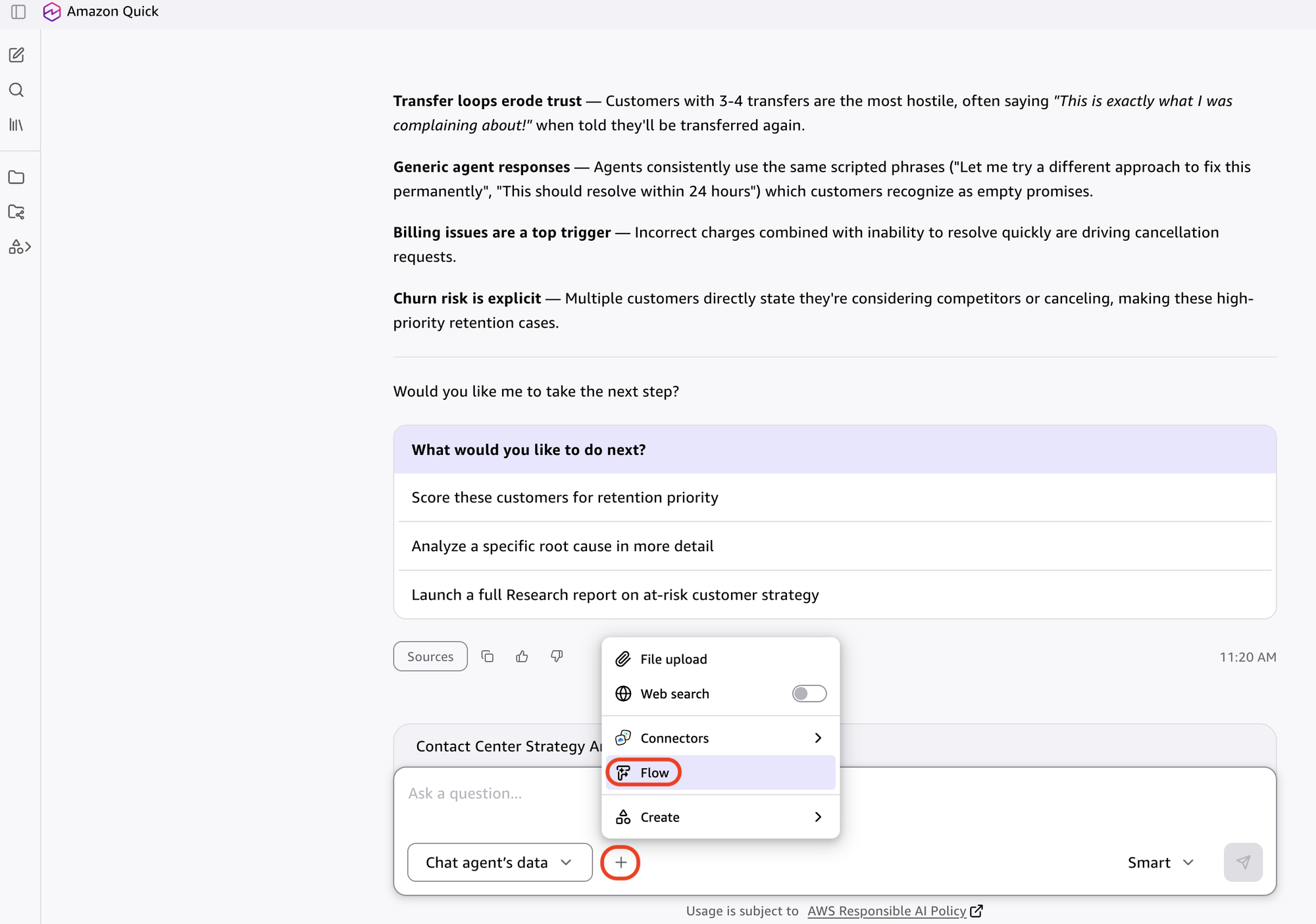
Beyond the one-time analysis, Quick Flows lets you turn a Chat conversation into a reusable automation with a single step, so the same analysis can be re-run on demand or on a schedule. The following steps demonstrate how to convert the conversation you just had into a Flow.
- In the Chat interface, choose the + on the toolbar, then select Flow.
- Select Generate new flow, keep the suggested prompt and select Generate.
- Review the flow then choose Publish.
- Select Run mode, if required enter any inputs then start the flow.
The Flow is now a reusable automation. Share it with your team or schedule it to run weekly to regenerate the analysis whenever you need it.
To create the Automate workflow
Connectors required: these connectors should be part of the Automation group that we create the Automate in.
- Amazon S3 (two connections: one for source data, one for output uploads)
- Custom Agent (with MCP scoring agent created in the MCP action connector step)
To create an Automation group
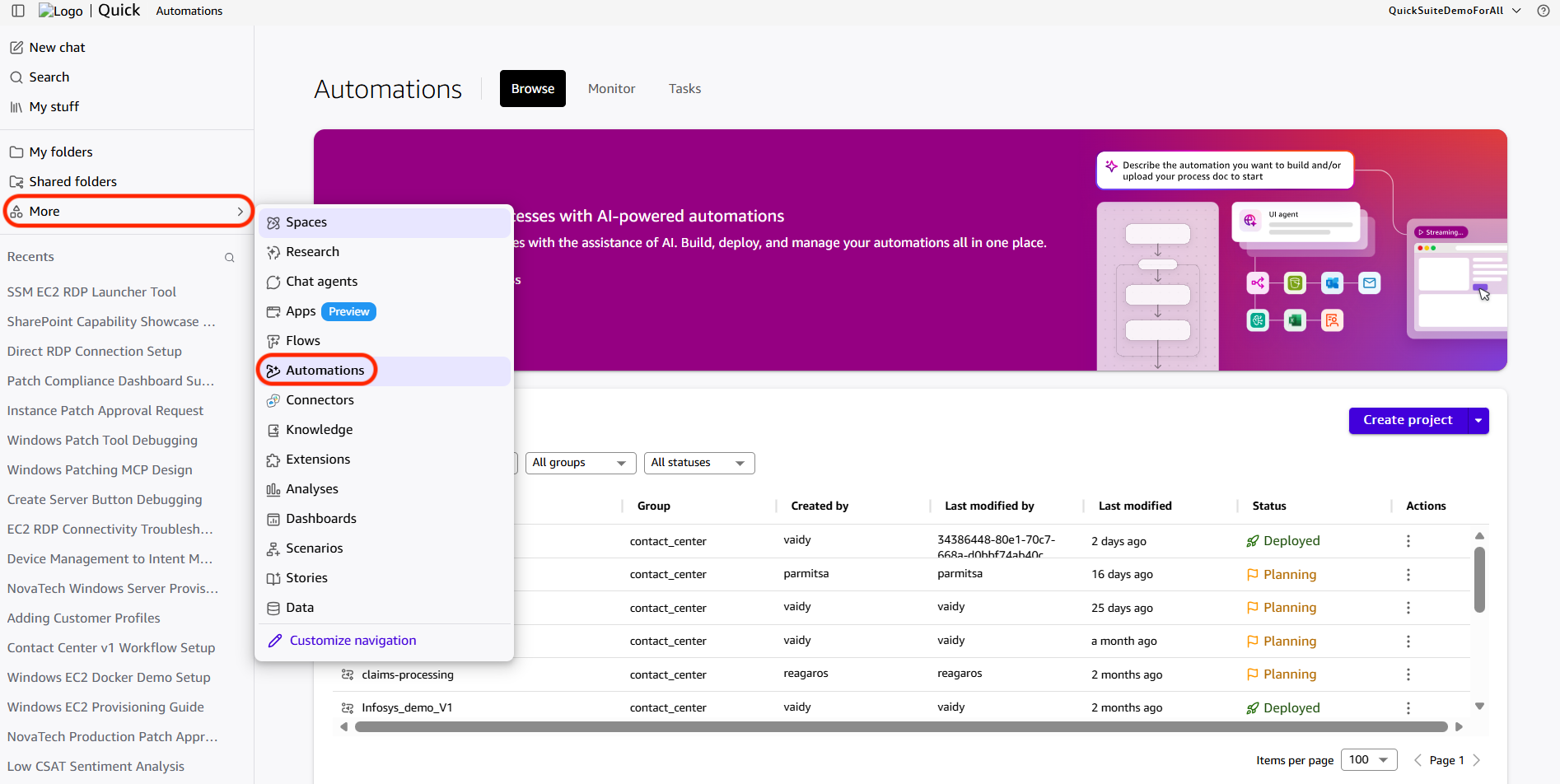
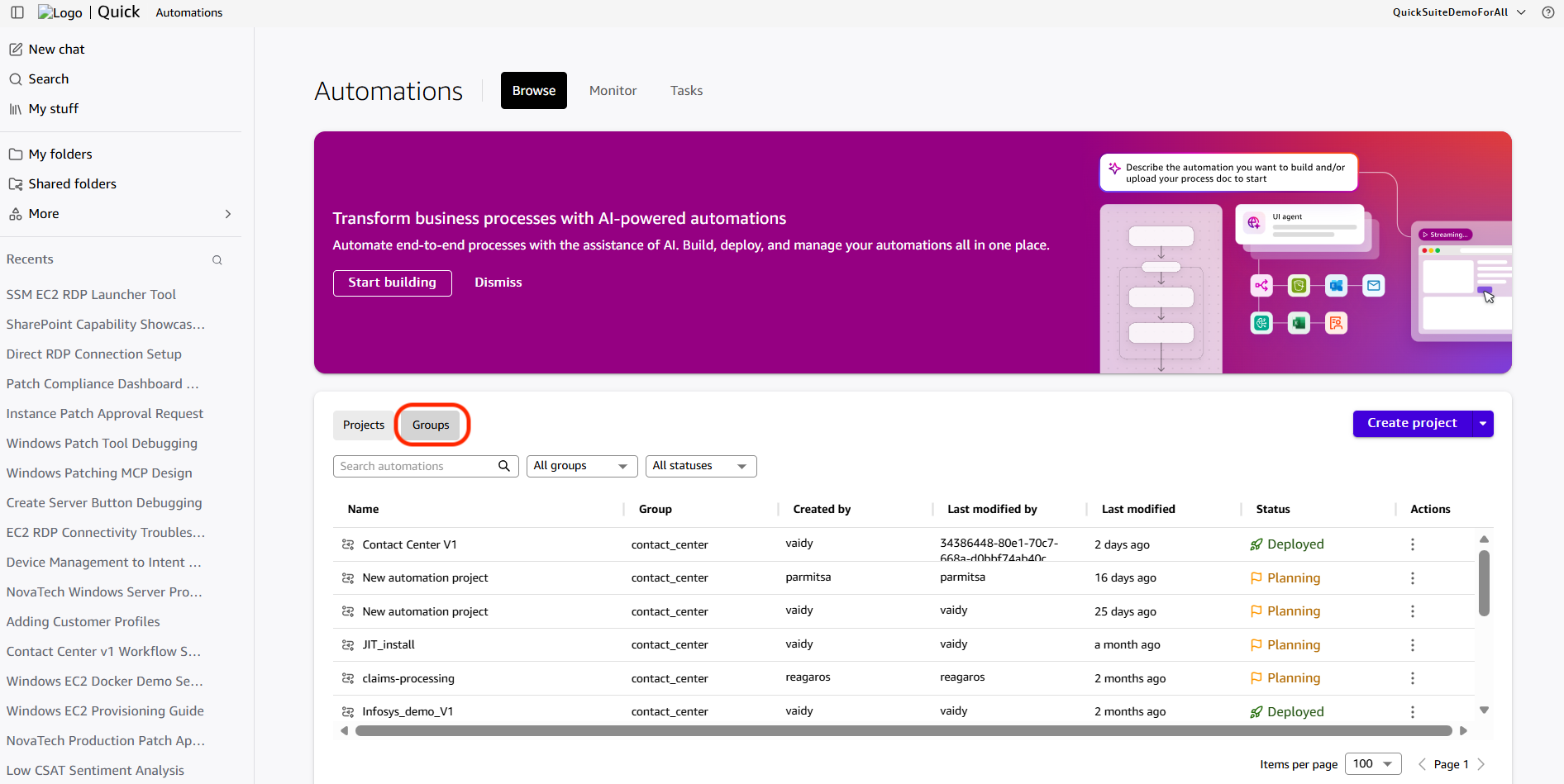
- On the Amazon Quick home page, choose More, then Automations.
- In the page that follows, choose the ‘Groups’ tab.
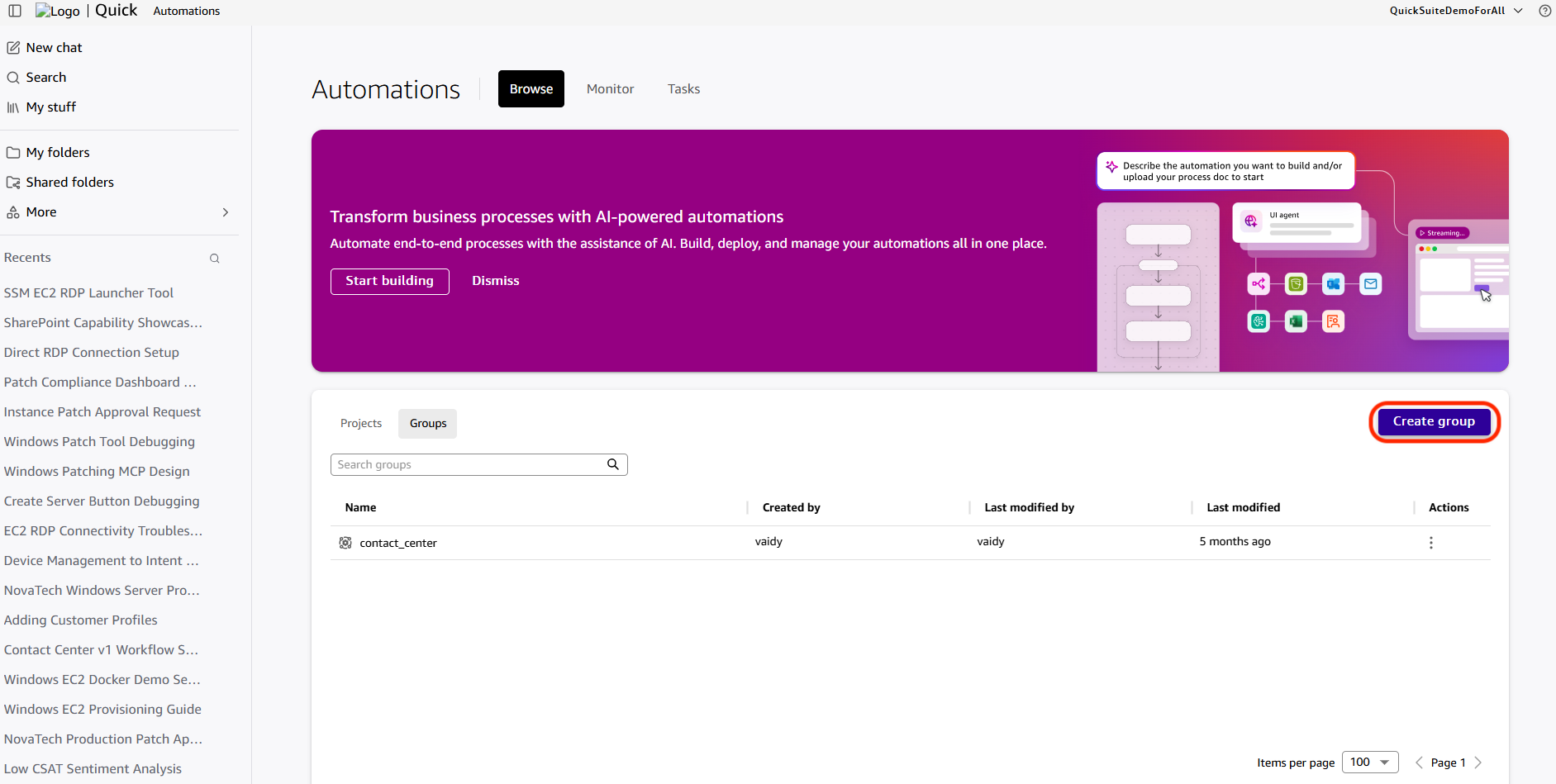
- Then choose Create Group
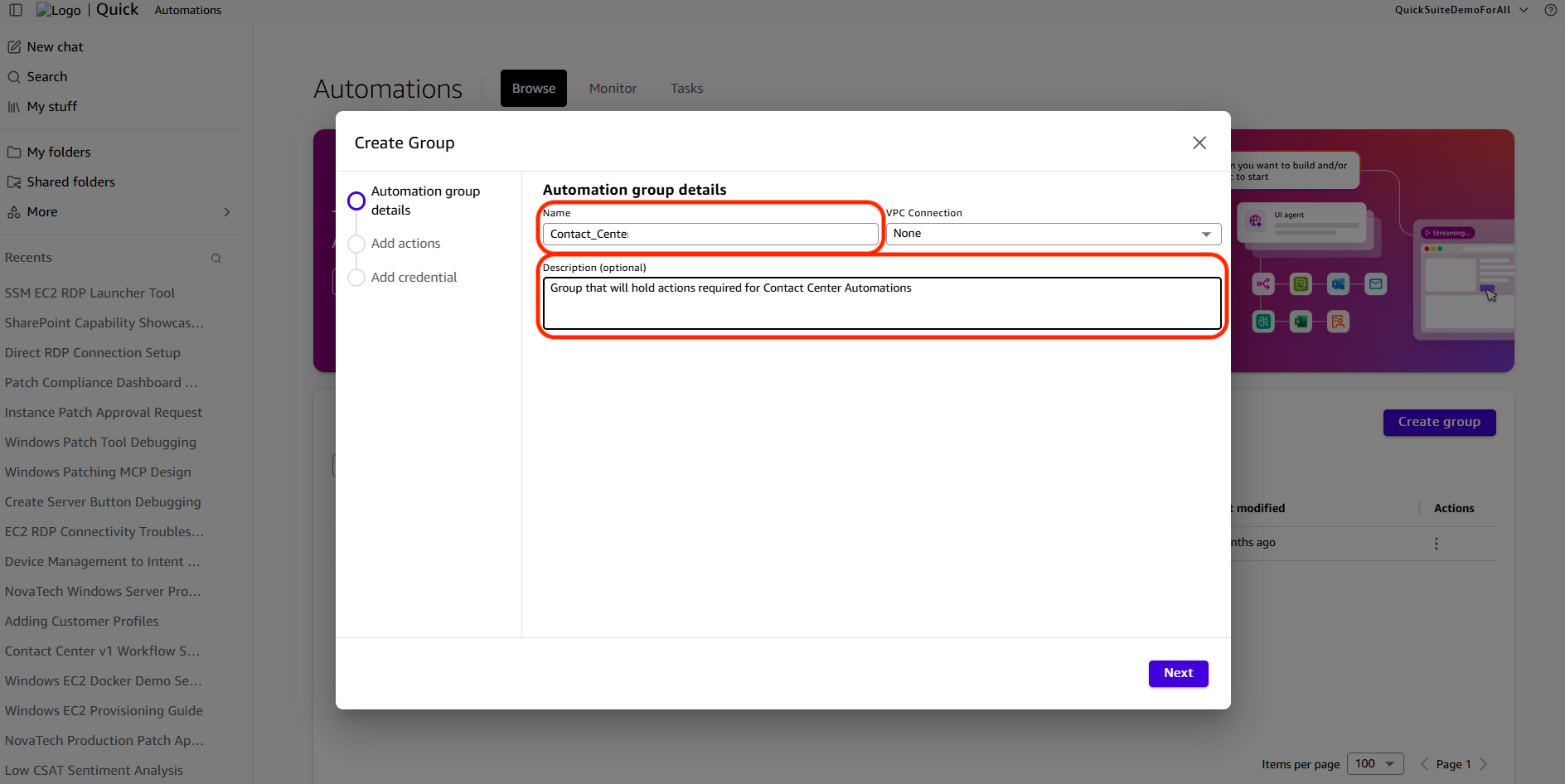
- Choose the required actions, the MCP action and the Amazon S3 action. Then choose Next.
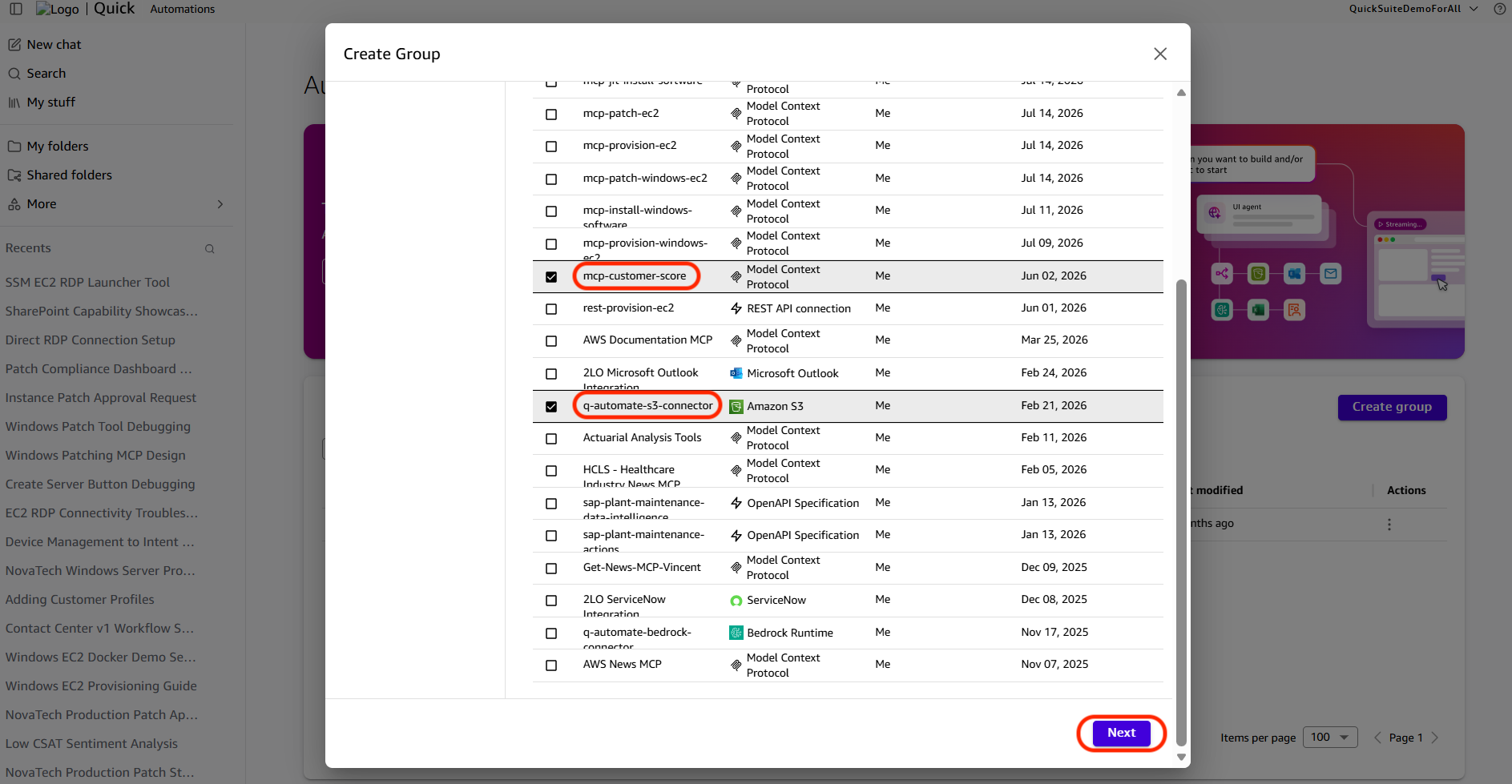
- On the following page, choose Done
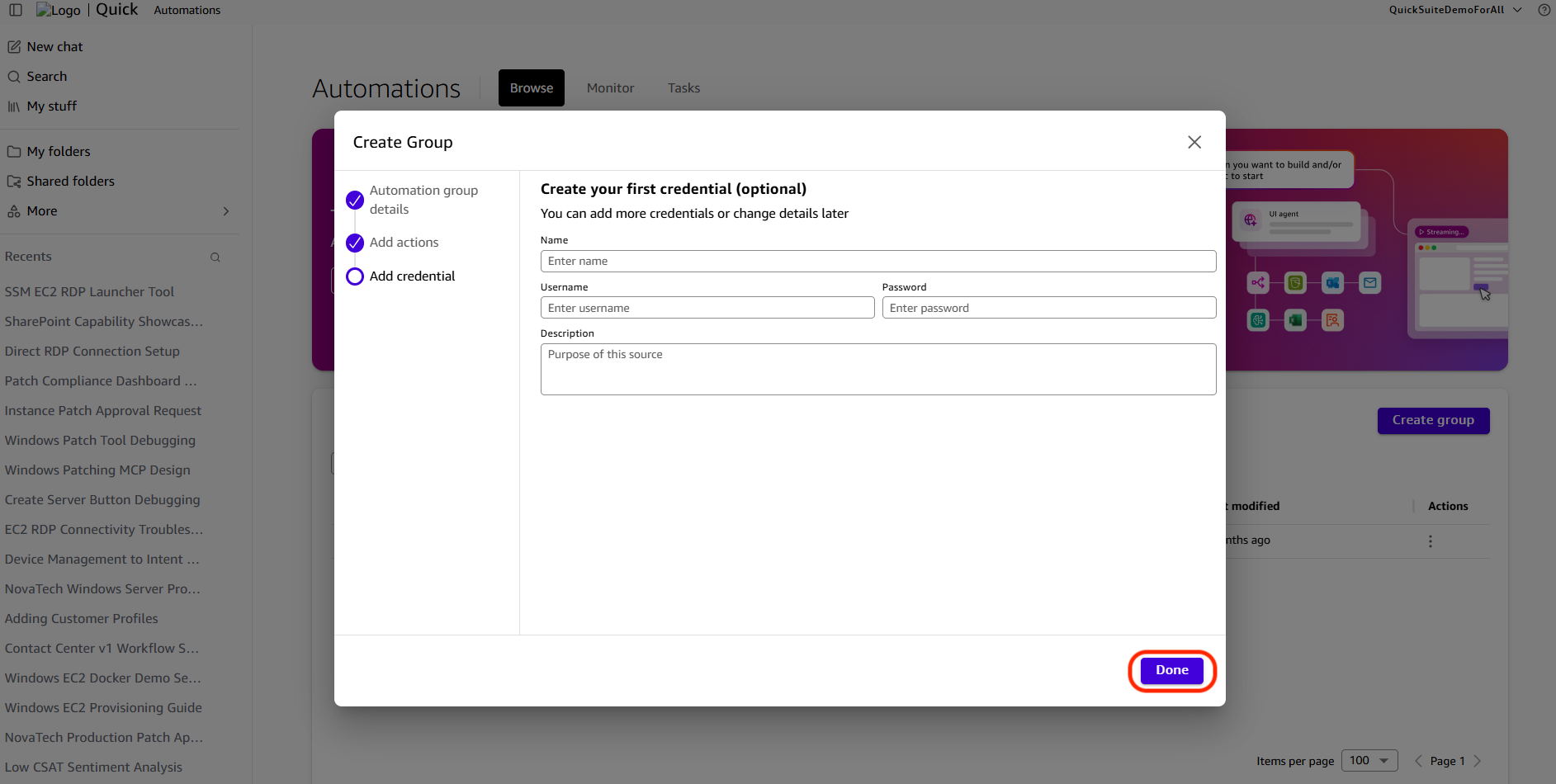
To create the Automation project
The above group will be used to create the Automation project. Follow the instructions to create the Automation project.
- On the Amazon Quick home page, choose More, then Automations.
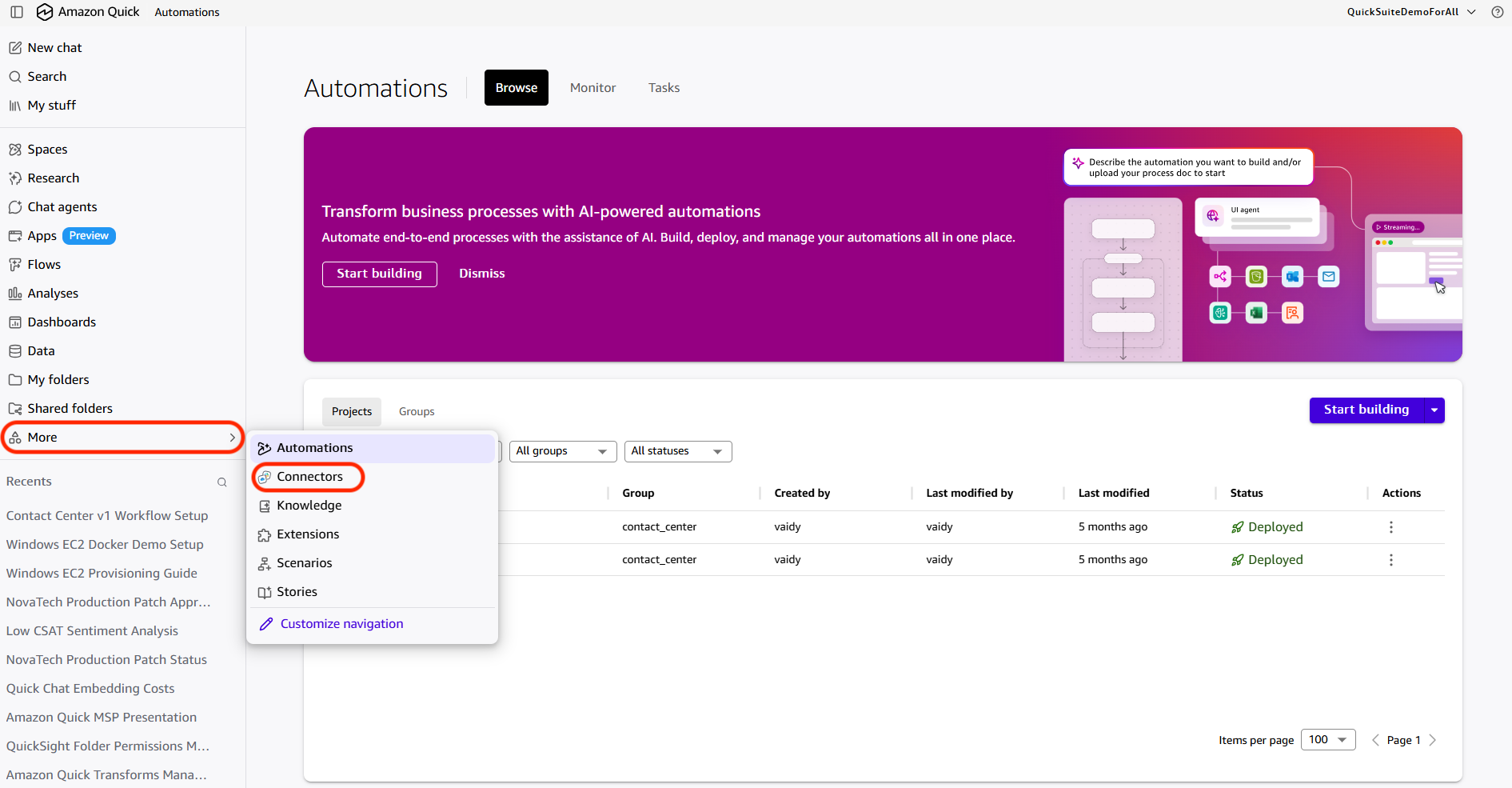
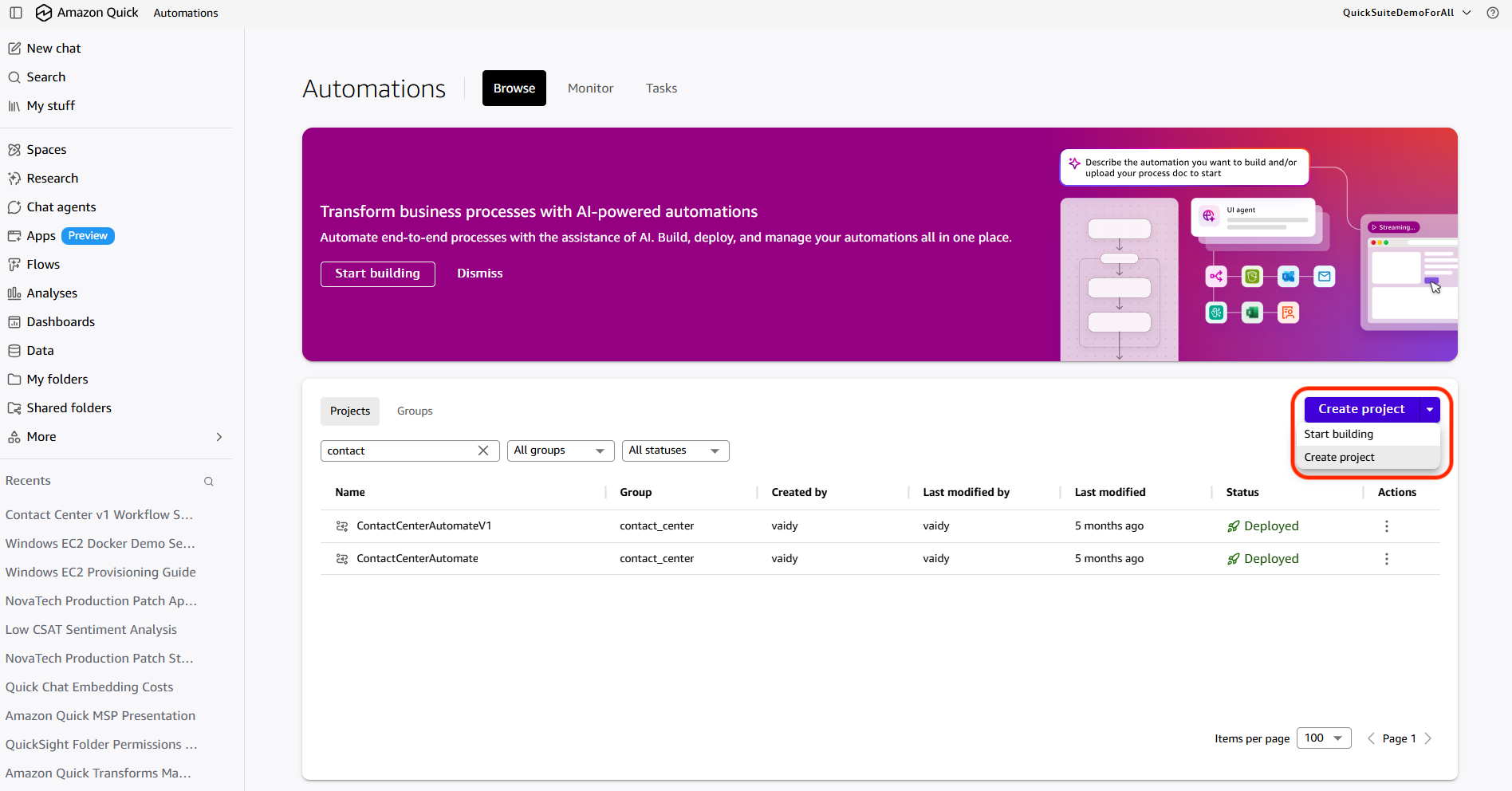
- On the screen that follows, choose Create Project, then Create Project.
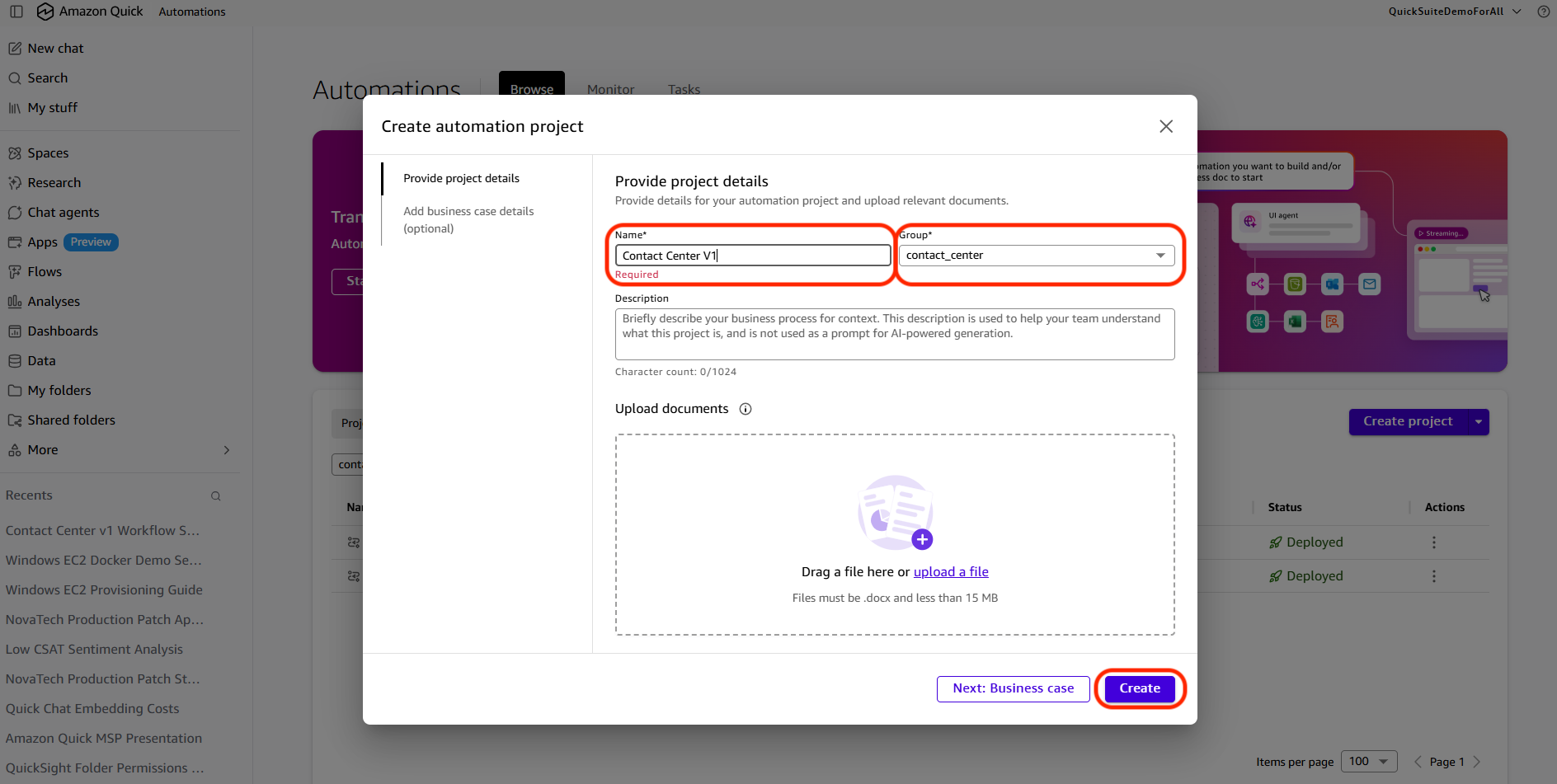
- Enter a name for the automation, choose the Automation group, then choose Create
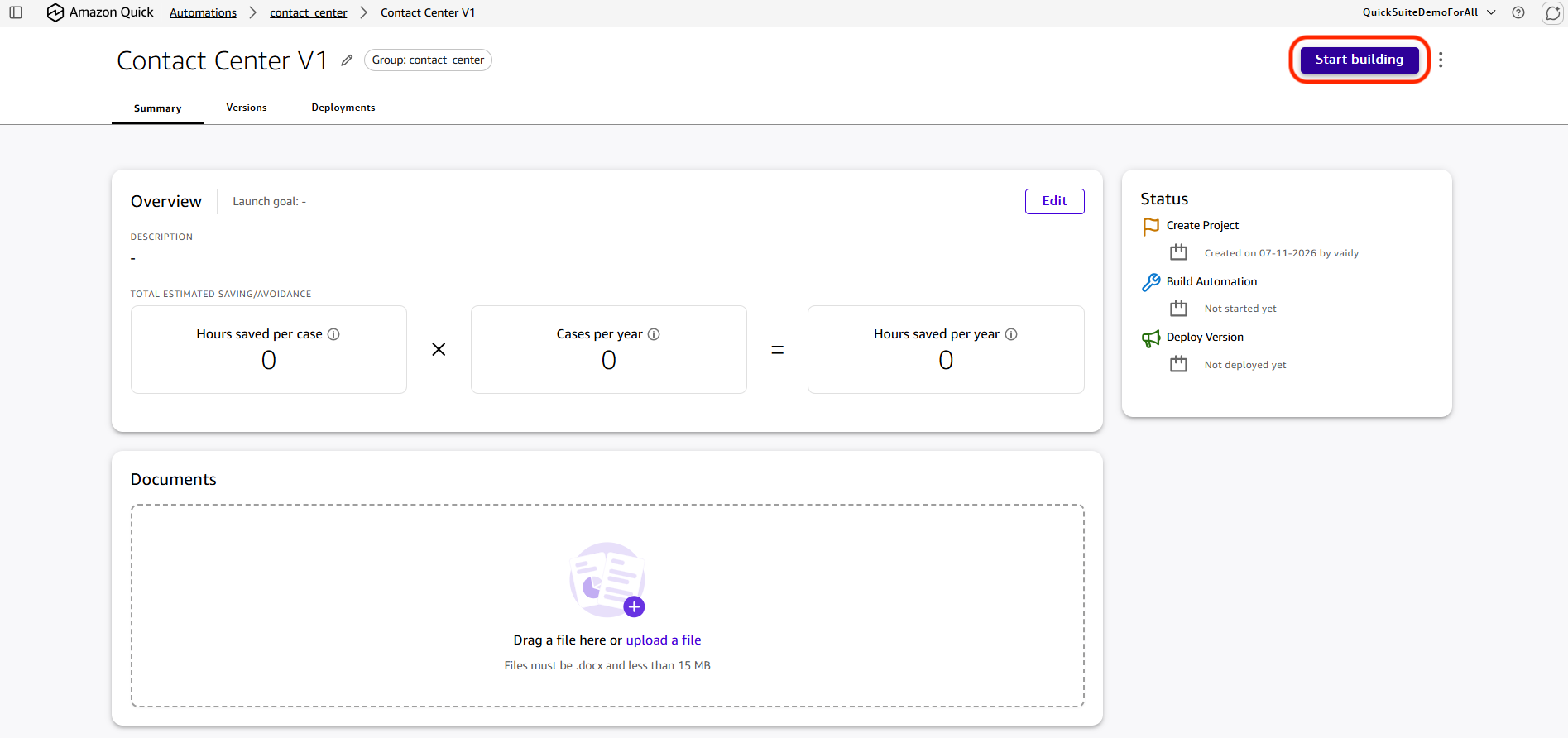
- On the following screen, choose Start building
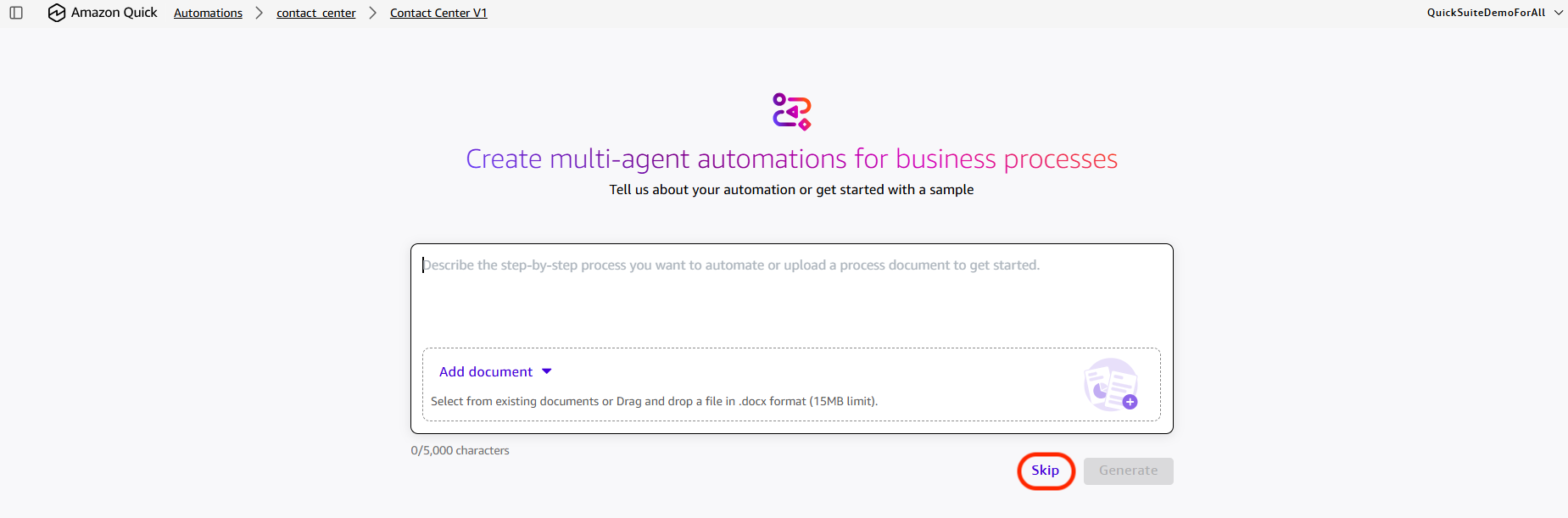
- Choose Skip
 The following screen appears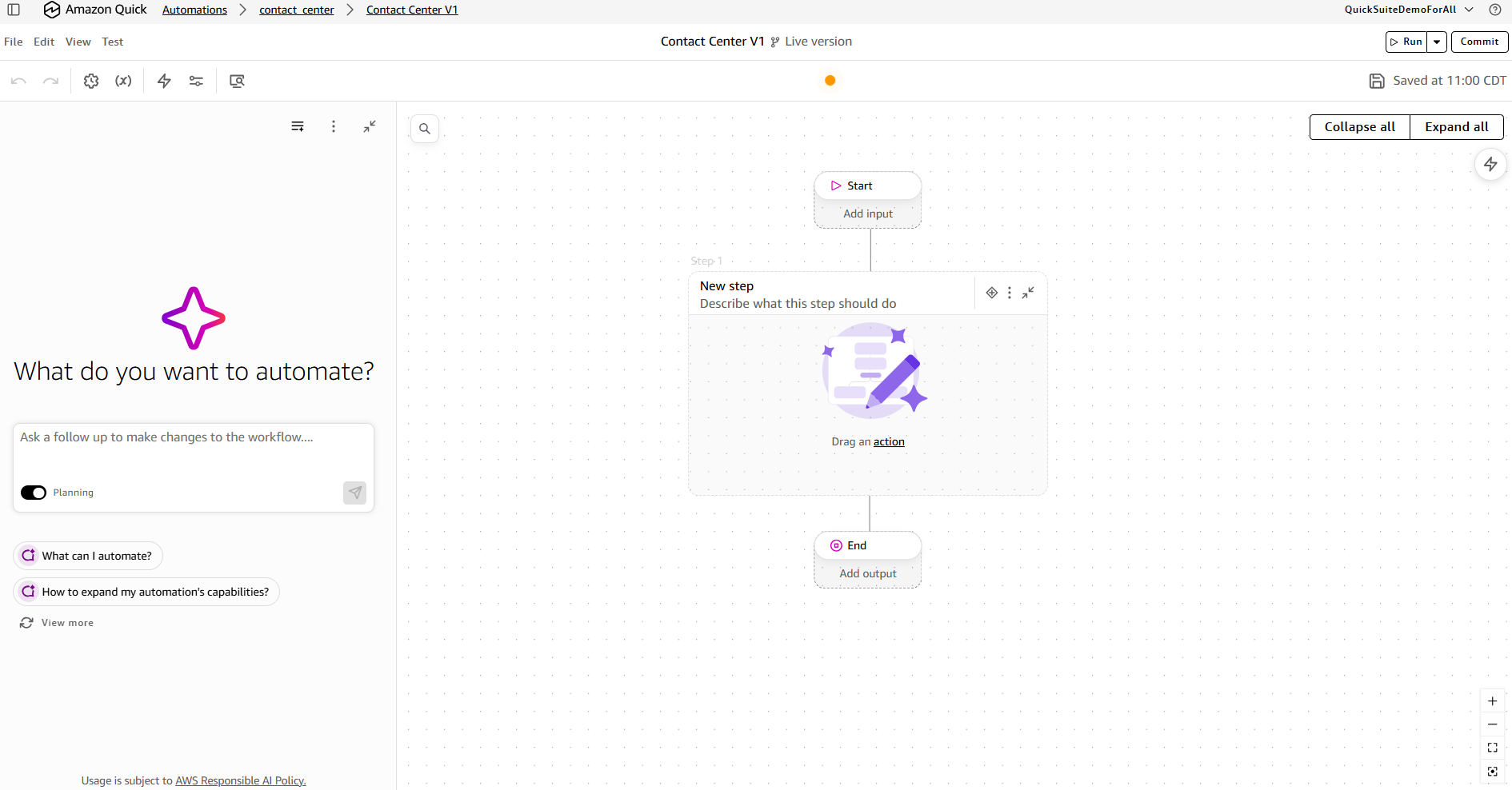
To build the Automation steps
For the subsequent steps, follow the instructions shown below and complete the Automation project.
Step 1: Load call data from Amazon S3
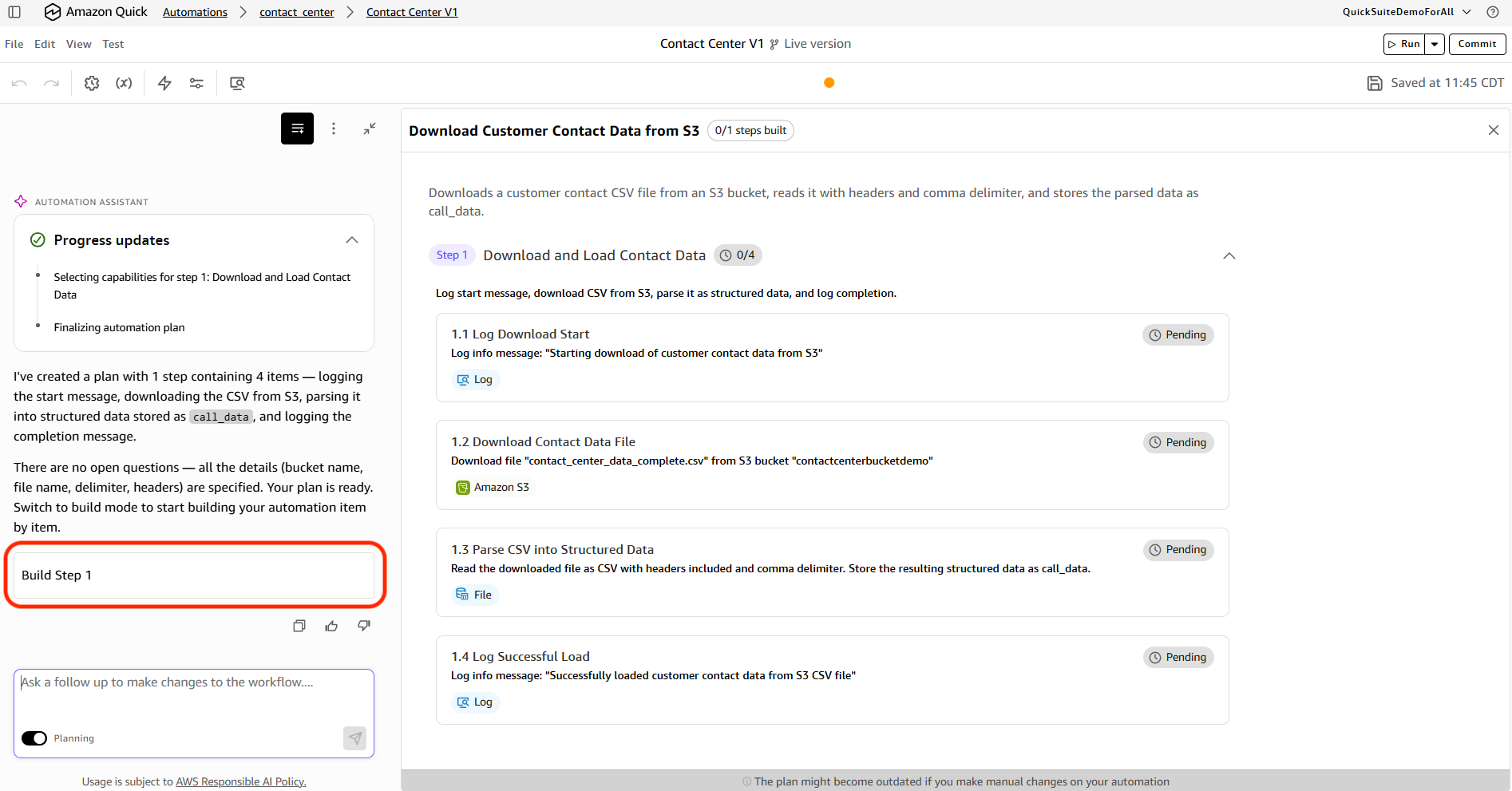
Choose New step and enter the following inside the chat assistant on the left that says ‘What do you want to automate’. This initial step loads call data from the raw contact center CSV in Amazon S3:
Log an info message: "Starting download of customer contact data from S3"
Download the file "contact_center_data_complete.csv" from the S3 bucket contactcenterbucketdemo".
Read the downloaded file as a CSV with headers included and comma delimiter. Store the result as call_data.
Log an info message: "Successfully loaded customer contact data from S3 CSV file"
Have all the above under one step
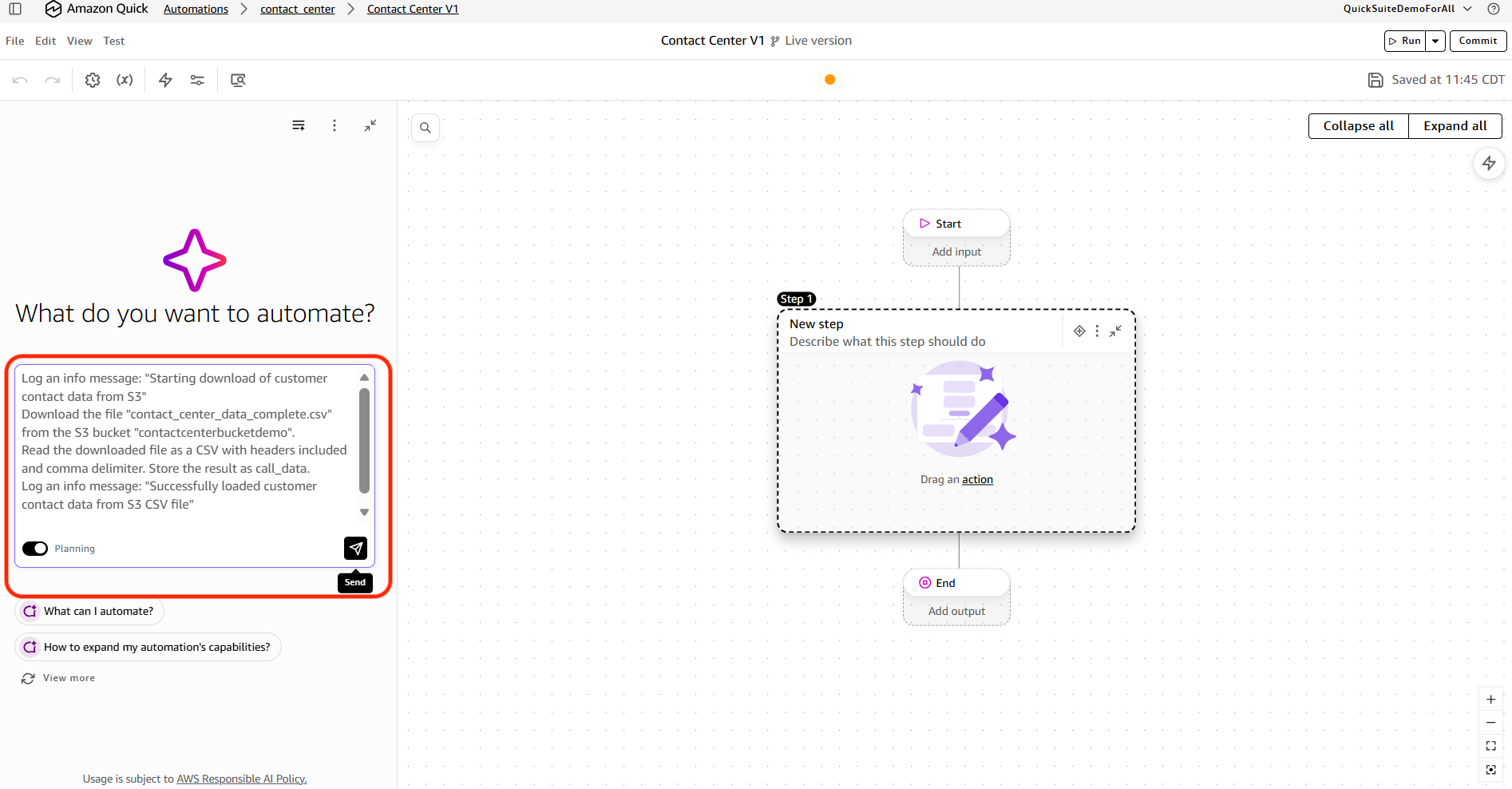
Choose Build Step 1.
Choose the close (x) symbol in the top right.
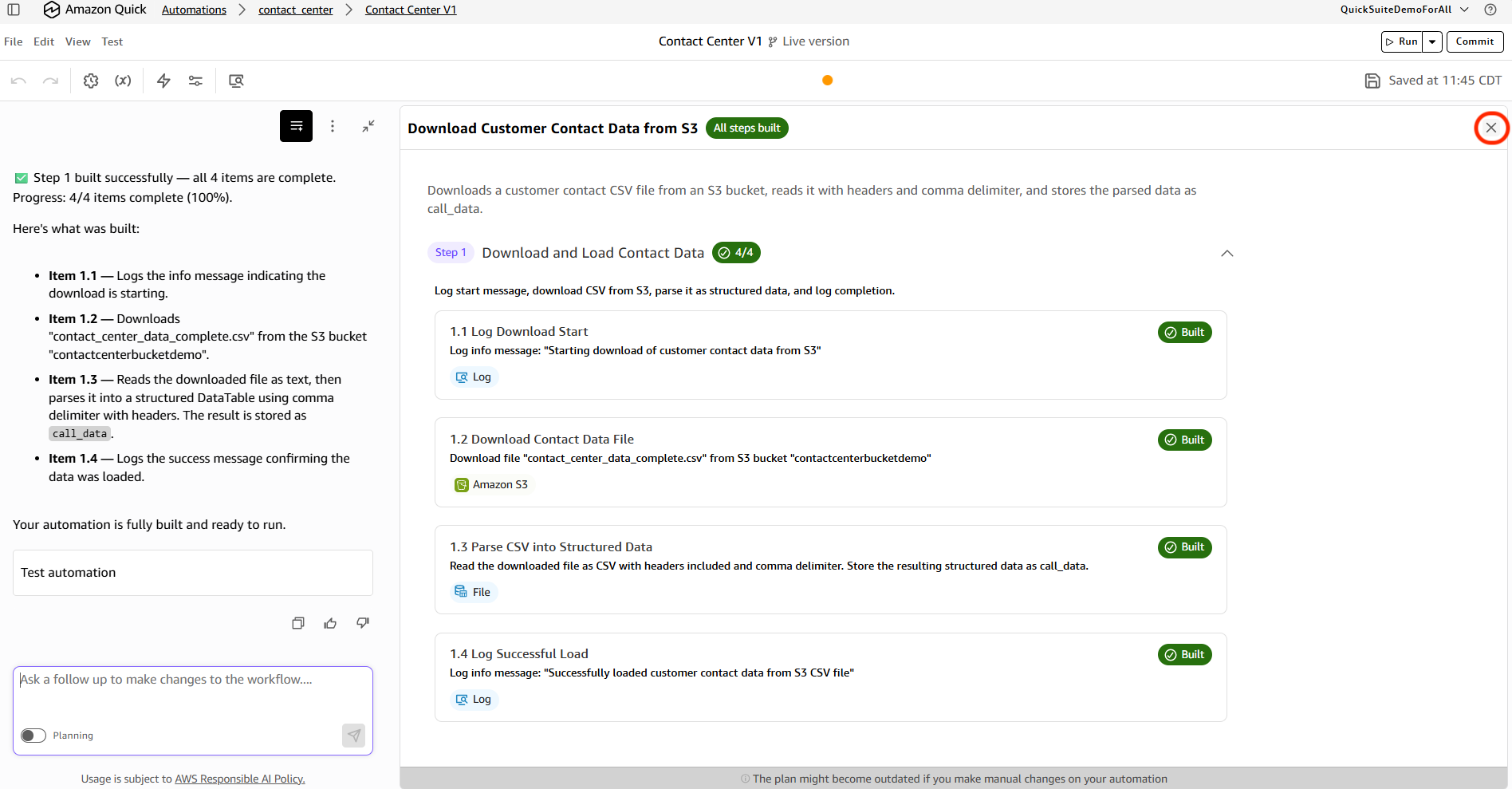
The step will be created as shown below.
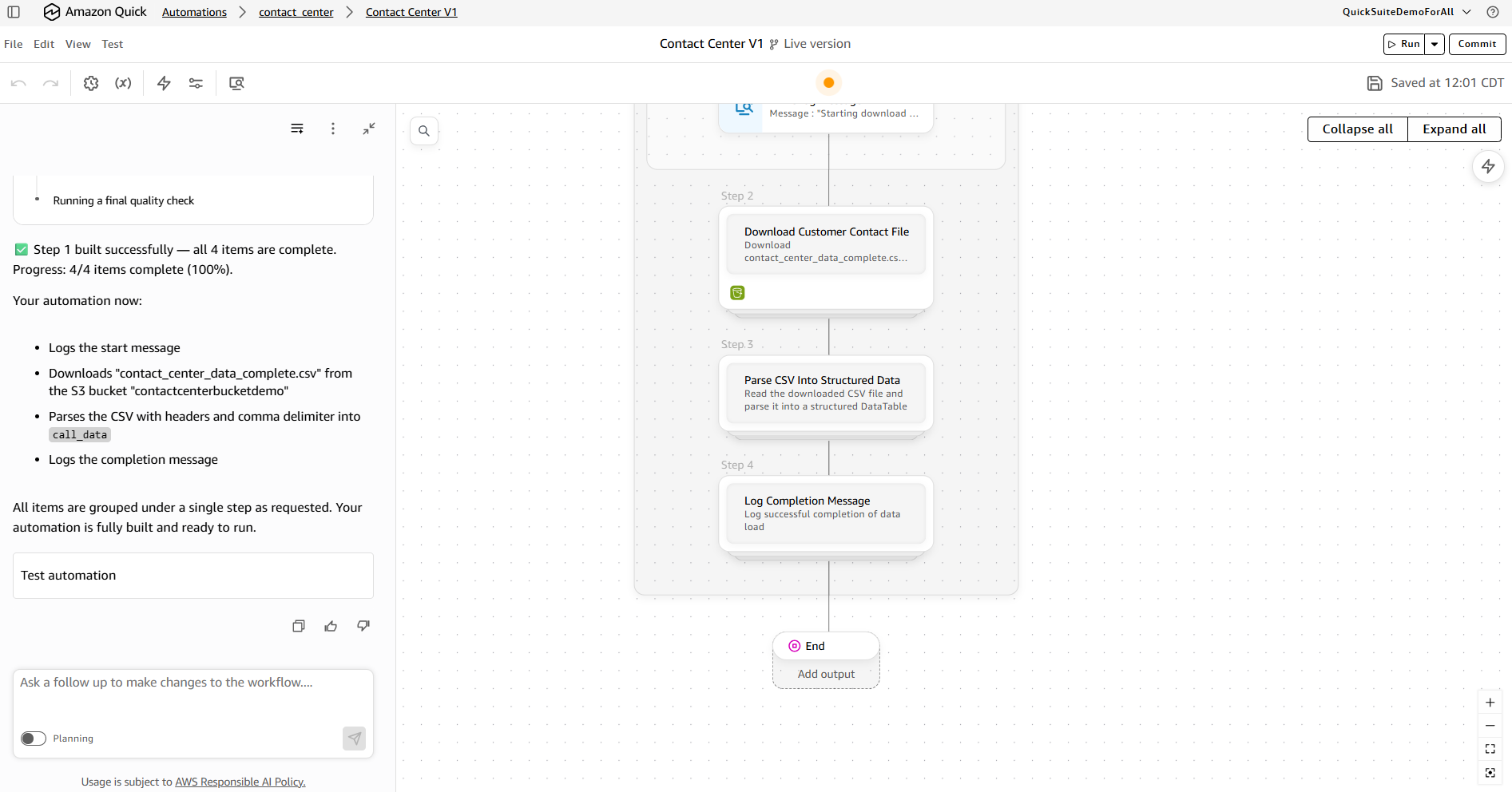
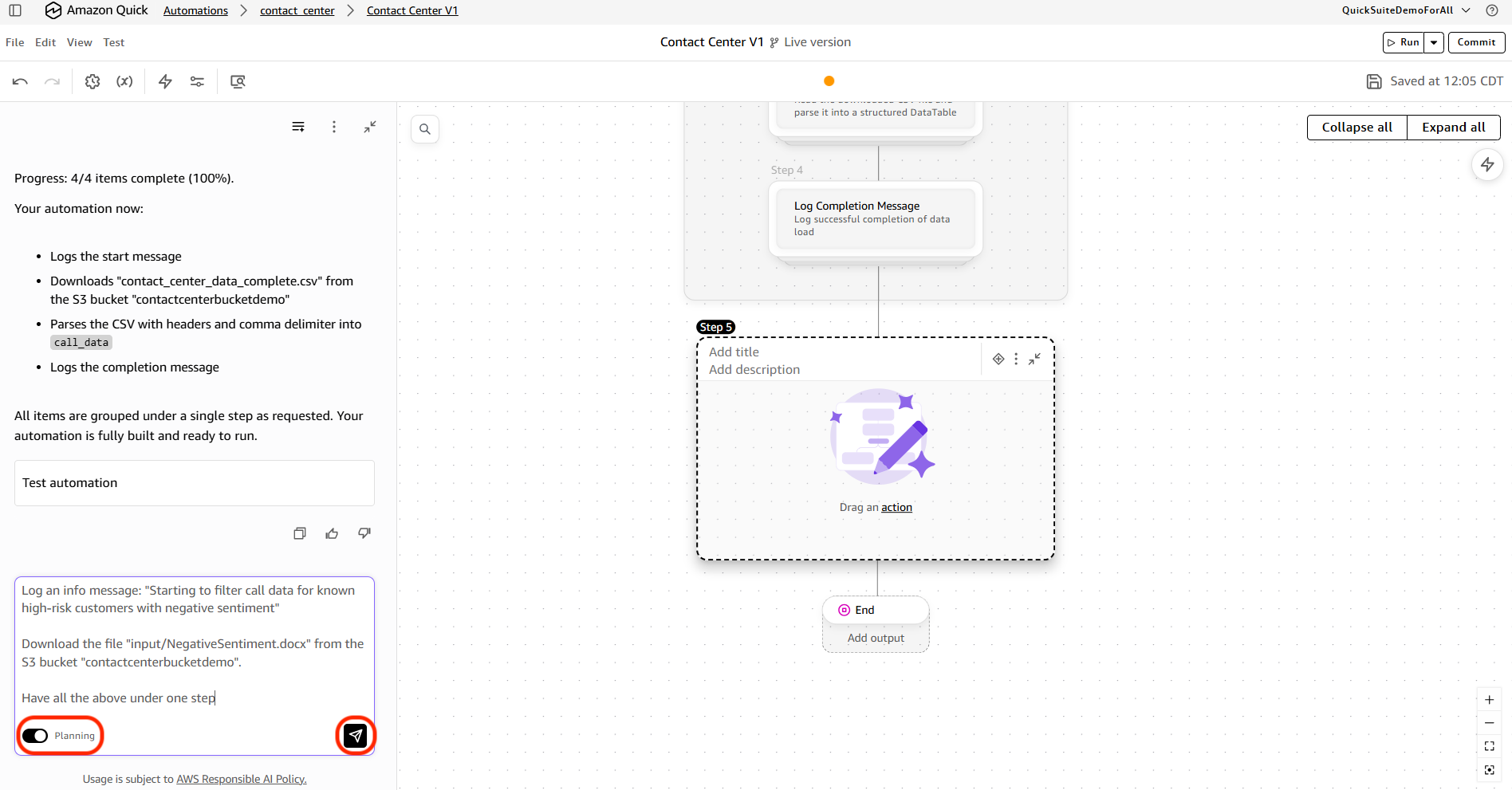
Step 2: Filter high-risk customers
Choose the add (+) symbol below the step, then choose Process step.
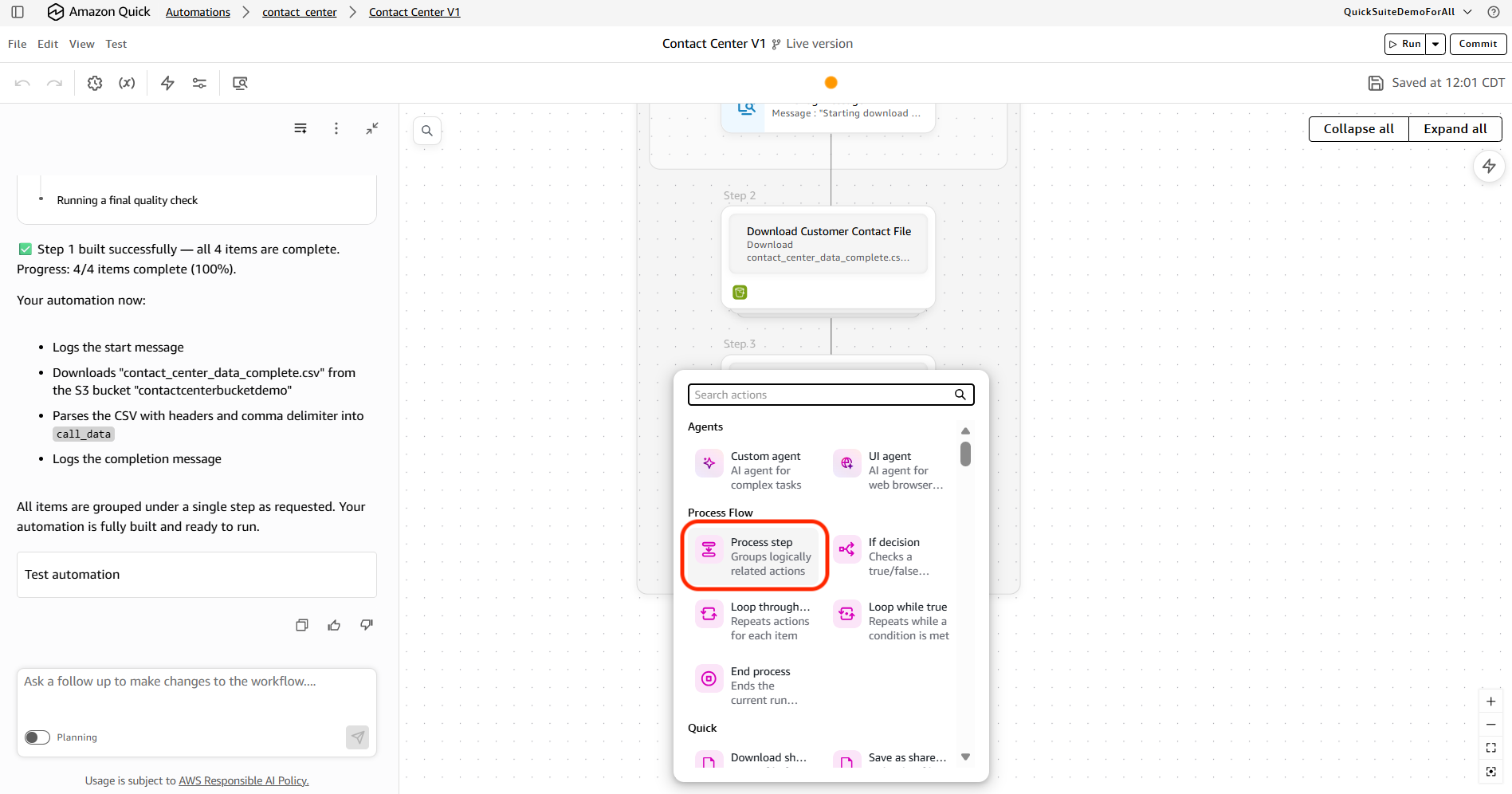
Toggle the mode back to planning. Enter the following in the chat window, then choose the talk symbol.
Log an info message: "Starting to filter call data for known high-risk customers with negative sentiment"
Download the file "input/NegativeSentiment.docx" from the S3 bucket "contactcenterbucketdemo".
Have all the above under one step
Step 3: Aggregate customer metrics
Repeat the above for step 3 (Aggregate Customer Metrics) with following instruction:
Loop through each item in the aggregated metrics result table.
For each item, log an info message with this exact format:
"Customer: {item['customer_id']}, Total Calls: {item['total_calls']}, Avg CSAT: {item['avg_csat_score']}, FCR Rate: {item['first_call_resolution_rate']}%, Resolved Rate: {item['resolved_rate']}%, Avg Transfers: {item['avg_transfer_count']}, Avg Hold Time: {item['avg_hold_time_seconds']}s, Complaint Ratio: {item['complaint_ratio']}"
Have all the above under one step
These two instructions together will recreate the full Step 3 including its nested sub-step for logging. The main step handles all the calculation logic, and the sub-step handles the per-customer logging output.
Step 4: Identify top customers and generate letters
Repeat the above for step 4 (Identify Top customers and generate letter) with following instruction:
Log an info message: "Starting customer bonus letter generation process"
Collect all rows from customer_aggregated_metrics into a list called customer_records by looping through the table and appending each row.
Use an inline agent in "pro" mode with this instruction:
"Analyze the provided customer aggregated metrics data: {customer_records}. This data contains real customer records with actual customer IDs and performance scores. Identify and return the top 2 performing customers based on their aggregated scores from this actual data. Do not generate fictional customer IDs - use only the real customer IDs present in the provided customer records data. Return the actual customer information including the real customer IDs and their corresponding scores from the data."
Set the output schema to an object with a required property "top_customers" which is an array (minContains 2, maxContains 2) of objects. Each object has "customer_id" (string, required) and "score" (number).
Give the agent these tools: python_repl (coding tool) and the configured MCP tools for customer lookup.
Log the result: "top_customers are:" followed by the top_customers value.
Store the top_customers list. Create a helper function called generate_timestamp that returns the current datetime formatted as "%Y%m%d_%H%M%S". Call it and store as timestamp.
Create an empty list called bonus_letters.
For each customer in top_customers:
1. Get the customer_id from the customer object.
2. Create a PDF using create_pdf with the following HTML content:
   - Style: body with font-family Arial, line-height 1.6, margin 40px, color #333
   - A "header" div centered with h2 "Customer Retention Department" and italic paragraph "Valued Customer Appreciation Program"
   - A "content" div containing:
   - Bold greeting: "Dear Valued Customer (ID: {customer_id}),"
   - Paragraph expressing appreciation for continued partnership
   - Paragraph acknowledging past service issues and offering heartfelt apologies, mentioning their feedback has been invaluable
   - A "highlight" div (background-color #f0f8ff, padding 15px, border-left 4px solid #007acc, margin 20px 0) containing bold text: "As a gesture of our commitment to your satisfaction and our appreciation for your loyalty, we are pleased to offer you a $100 bonus credit."
   - Paragraph about the bonus reflecting genuine desire to make things right and mutual success
   - Paragraph about enhanced service protocols and dedicated customer success team
   - Paragraph hoping for opportunity to demonstrate renewed commitment
   - A "signature" div with margin-top 40px containing:
   - "With sincere regards and appreciation,"
   - A line break
   - Bold "Customer Retention Team", then "Customer Success Department", then italic "Dedicated to Your Success"
3. Upload the PDF to S3 bucket "contactcenterbucketdemo" with Key = "output/" + customer_id + timestamp + ".pdf"
4. Append the PDF to the bonus_letters list.
After the loop completes, log: "Successfully generated bonus letters for top 2 customers"
Have all the above under one step
To test and deploy the automation
Validate the automation end to end, then commit and deploy it so it can run on a schedule.
- In the canvas, choose Debug (or Test) to run the automation. It runs on its own, downloading the at-risk customers file from Amazon S3 through the Download file step. Review each step’s output in the logs panel.
- Confirm the scoring step returns the top two customers, the letters reference the correct customer issues, and the S3 upload completes successfully.
- When the run is correct, choose Commit to create a version.
- Choose Deploy , select the committed version, and confirm the required credentials and connections (your Amazon S3 connection and the mcp-customer-score connector).
- To run the automation on a schedule, on the Deployment page choose Create Trigger , then set the frequency (or a cron expression), start time, and time zone.
For more details refer to the following links.
https://docs.aws.amazon.com/quick/latest/userguide/testing-automations.html
https://docs.aws.amazon.com/quick/latest/userguide/deploying-automations.html
Results
After deploying this pipeline in a test environment with historical contact center data, the team measured improvements across four dimensions: response time, retention rates, offer acceptance, and time to deploy. Internal testing with sample data produced these results. Your implementation may vary.
- Response time dropped from days of manual identification and drafting to minutes of automated execution.
- Retention rates improved among flagged customers compared to the previous reactive approach. Faster outreach, while the experience is still fresh, drove this improvement.
- Offer acceptance increased when letters referenced the customer’s specific issue rather than offering a generic discount.
- Time to deploy took less than one day. Business users built the full workflow through natural language and point-and-click screens.
Troubleshooting
The following table lists common issues and their resolutions.
| Symptom | Cause | Resolution |
|---|---|---|
| Chat Agent returns “No data found” | Space indexing incomplete | Verify ContactSpace status. Wait for the Ready indicator before running queries. |
| Sentiment analysis is generic | Transcripts not indexed | Verify call transcript documents are uploaded to the Space Documents section. |
| Automation scores no customers or the wrong ones | At-risk JSON not found, or the agent did not receive it | Confirm at_risk_customers.json exists at the Amazon S3 path the Download file step references, and that the scoring agent’s instructions reference the downloaded variable. |
| MCP Action returns timeout | Endpoint not responding | Increase the MCP Action timeout or reduce the dataset scope. |
| Letters are generic or missing customer details | Letter agent did not receive the scored results | Confirm the letter agent’s prompt references the scoring step’s output variable (inserted with @). |
Cleaning up
To avoid ongoing costs when you no longer need these resources:
- Delete the Automate workflow.
- Delete the Flow.
- Remove input datasets and generated letters from your S3 bucket:
aws s3 rm s3://amzn-s3-demo-bucket/inputs/ --recursive
aws s3 rm s3://amzn-s3-demo-bucket/output/letters/ --recursive
- Deregister the custom MCP Action endpoint if it was created specifically for this workflow.
- Remove uploaded data from ContactSpace if no longer needed.
Conclusion
This walkthrough demonstrated how to build a customer retention pipeline that goes from raw contact center data to targeted retention actions, without writing application code. The pipeline combines KPI monitoring through Quick Dashboard and AI-powered transcript analysis through the Chat Agent. It adds repeatable automation through Quick Flows and multi-step processing through Quick Automate.
After the initial developer setup (Lambda function and API Gateway), business users built and operated the remaining components through natural language and point-and-click interfaces. The MCP Action connector extended the pipeline with custom scoring logic that reflects your organization’s specific retention criteria.
Apply this same pattern to adjacent use cases: client account health monitoring, compliance risk escalation, or proactive service recovery. Start by connecting your data to a Quick Space and asking questions through the Chat Agent. Once you have the right analysis, convert it to a Flow and orchestrate the workflow with Automate.
For more information, refer to the Amazon Quick documentation. To explore the MCP Action framework, refer to the MCP action framework.
About the authors
Vaidy Janardhanam
Vaidy is a Specialist Solutions Architect for Amazon Quick Suite. He specializes in empowering customers to transform their analytics landscape, unifying traditional business intelligence dashboards with cutting-edge agentic AI workflows that turn insights into automated action.
Pegah Ojaghi
Pegah is a Generative AI Applied Architect at AWS with a PhD in Computer Science focused on large language models, generative AI, and reinforcement learning. Her expertise spans foundation model development, RLHF techniques, and novel optimization methods for LLMs. She is passionate about translating cutting-edge research into production systems across the healthcare, financial services, and insurance industries.
Oyin Oguntoye
Oyin is an AWS Solutions Architect in the Amazon Quick team. She is passionate about problem solving particularly in the data, analytics and AI space. Oyin has spent a number of years at Amazon helping implement solutions both internally for Amazon, and also externally for AWS customers.