使用 Amazon Bedrock AgentCore Observability 优化生产环境 Agent
英文标题:Optimizing production agents with Amazon Bedrock AgentCore Observability
当 AI Agent 从原型进入生产环境后,挑战将从“能否运行”转向如何保持快速、高效和稳定。本文介绍如何结合 Amazon Bedrock AgentCore Observability 与 Amazon CloudWatch,定位 Agent 执行路径中的性能瓶颈,并诊断长时间运行会话中的内存问题。文章提供了用于分析高延迟请求、工具调用、内存检索和内存提取失败的 CloudWatch 查询示例。对于开发者而言,核心实践包括并行化独立工具调用、优化提示词和内存命名空间、设置生命周期策略,以及通过告警和仪表板主动发现性能退化。
 1.3 MB
 101.1 KB
 124.1 KB
 345.0 KB
 141.2 KB
 346.5 KB
 192.9 KB
 91.9 KB
 172.7 KB
 450.7 KB
 8.6 KB
 416.5 KB
 68.8 KB
中文
随着 AI Agent 从原型走向生产环境,挑战也从让它们能够工作,转变为让它们始终保持快速和高效。本系列的第 1 部分介绍了如何调试两种常见的 Agent 故障:无限循环和工具调用错误。这些场景涉及的是已经发生故障的 Agent。本文将探讨另一项挑战:能够正常工作、但性能表现不佳的 Agent。在解决最初的调试问题后,响应速度缓慢和内存无边界增长,是最常见的运营问题。它们不会触发错误告警,却会逐渐侵蚀用户信任,并随着时间推高成本。
通过 Amazon Bedrock AgentCore 的功能 AgentCore Observability,以及 Amazon CloudWatch,您将学习如何识别 Agent 执行路径中的性能瓶颈,并诊断长时间运行会话中的内存问题。您还将实施监控实践,在用户察觉之前发现性能退化。有关更多信息和最佳实践,请参阅 Amazon Bedrock AgentCore 的功能 AgentCore Evaluations 和 AgentCore Insights。
前提条件
您需要拥有一个 AWS 账户,并具备 Amazon Bedrock AgentCore 访问权限、已启用 CloudWatch Transaction Search,以及一个已部署的 Agent。完整的设置详情请参阅第 1 部分。
场景 3:性能瓶颈
当 Agent 工作正常但响应过慢时,就会遇到性能瓶颈。您可能期望获得亚秒级响应,却实际遇到数秒延迟。Agent 能够成功完成任务,但其延迟使其不适用于交互式使用场景。该场景尤其具有挑战性,因为“慢”是一个主观概念。对于批处理 Agent 可以接受的性能,对于客户服务聊天机器人却无法接受。您必须为特定使用场景建立性能预算,然后系统性地确定哪些组件违反了这些预算。
需要关注的症状
性能退化通常是逐步显现的。Agent 最初可能拥有可接受的 2 秒响应时间,但随着功能增加、更多工具接入,或累积更多内存,延迟会逐渐升至 5 秒、10 秒,最终变得不可用。P95 响应时间超过阈值,用户放弃会话,但错误率依然较低。Agent 工作正确,但响应过慢。
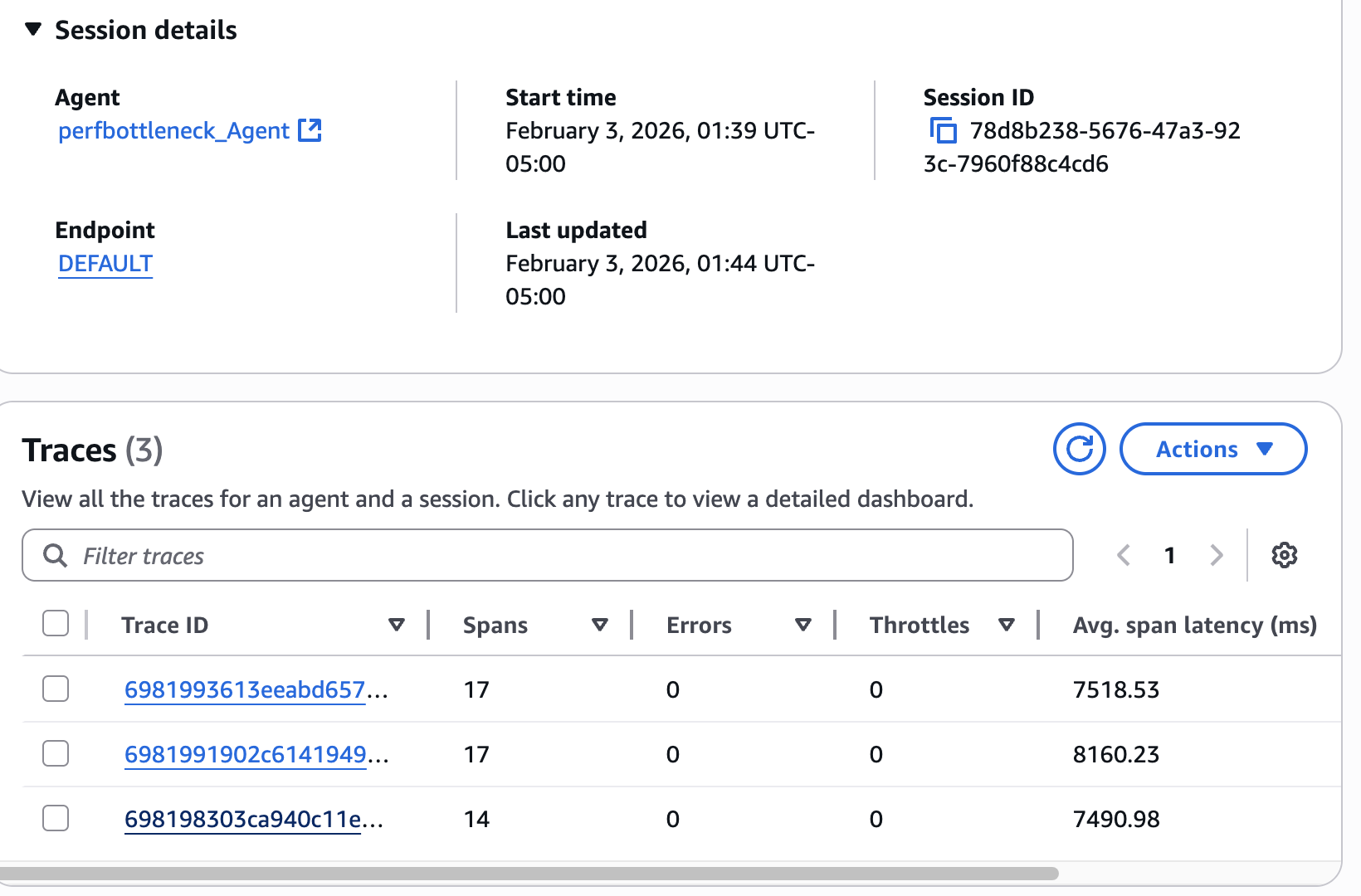
图 1 — 会话详情显示多个具有持续高延迟的追踪记录。这三次调用的平均 span 延迟为 7.5–8.2 秒,表明这是系统性的性能瓶颈,而非偶发性变慢。这种模式说明该 Agent 的架构需要优化。
要查找瓶颈,首先识别高延迟请求。查询 CloudWatch,找出超出性能预算的 Agent 调用:
fields @timestamp, RequestId, Latency
| filter Operation like /InvokeAgent/
| filter Latency > 3000
| sort Latency desc
| limit 50
此查询将返回耗时超过 3 秒的 Agent 调用(请根据您的要求调整阈值),并按延迟排序。选择一个具有代表性的高延迟请求,并记下其 RequestId。
接下来,分析请求时间线,以了解时间消耗在何处:
fields @timestamp, Operation, Duration, SpanName
| filter RequestId = "<RequestId>"
| sort @timestamp asc
该查询会显示请求中的操作顺序及每项操作耗时。请查找耗时占比不成比例的操作。常见原因包括内存检索操作、工具调用、Token 生成,以及本可并行运行却被顺序执行的操作。
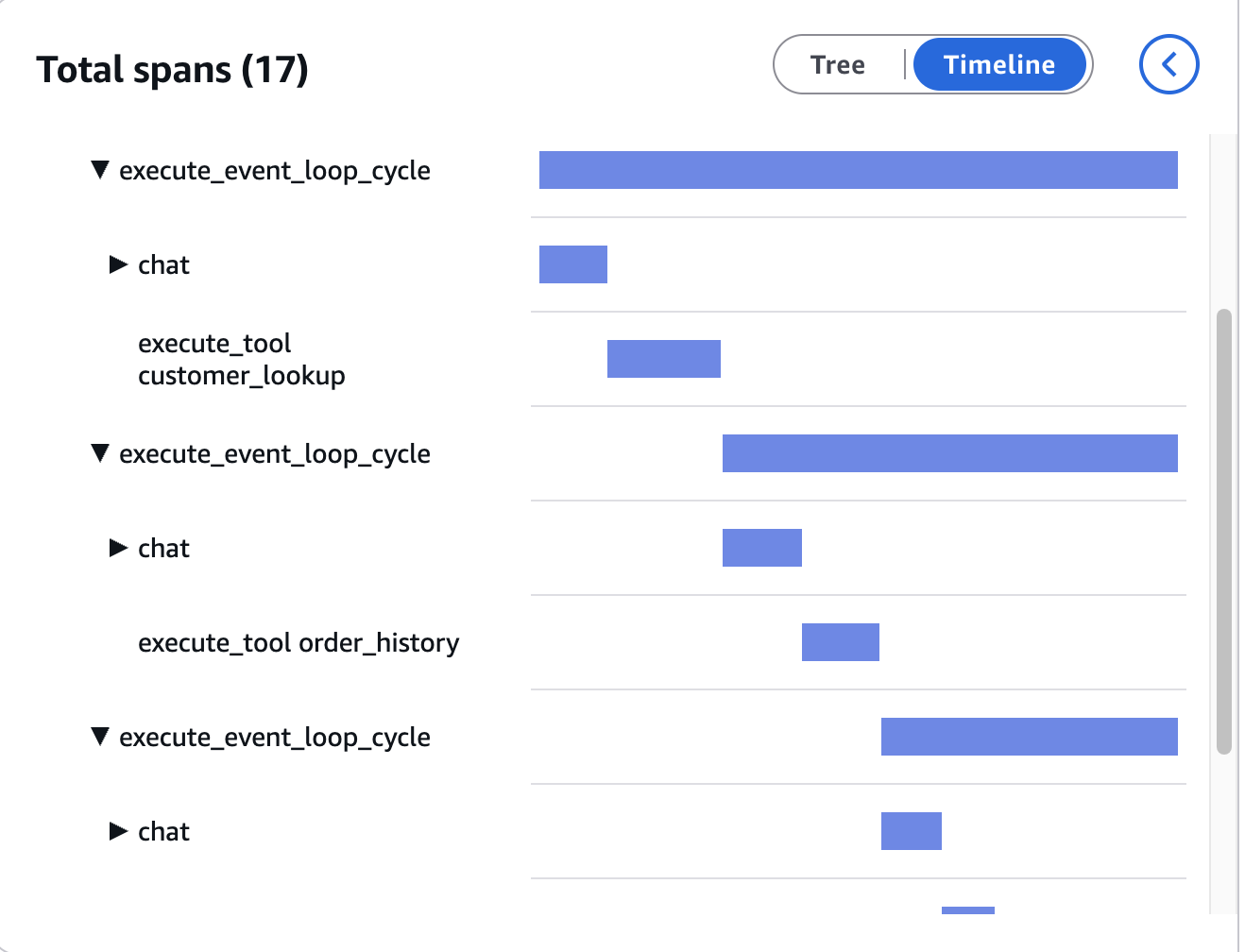
图 2 — OpenTelemetry 追踪时间线显示,17 个 span 分布在三个顺序执行的 execute_event_loop_cycle 操作中。工具(customer_lookup、order_history)是依次执行而非并行执行,每个周期都要等待前一个周期完成。该顺序模式会在每次工具调用中累积延迟。
专门检查内存检索延迟:
fields @timestamp, MemoryRetrievalLatency, MemoryNamespace
| filter RequestId = "<RequestId>"
| stats avg(MemoryRetrievalLatency), max(MemoryRetrievalLatency) by MemoryNamespace
内存检索应在 200 毫秒以内完成,这是用户开始在交互式应用中明显感知延迟的临界点。更高的延迟意味着内存组织效率不佳。
检查工具调用延迟,以识别较慢的集成:
fields @timestamp, ToolName, ToolLatency
| filter RequestId = "<RequestId>"
| sort ToolLatency desc
该查询可识别对整体延迟贡献最大的工具。单个缓慢工具就可能成为整个 Agent 工作流的瓶颈。
根因分析
性能瓶颈通常源于三类根因。工具执行缓慢,是指外部工具因优化不足、过载或网络问题而需要数秒才能响应。顺序调用会让延迟叠加,因此一个耗时 2 秒、被调用三次的工具会形成 6 秒的瓶颈。_Token 生成过多_也是一个因素,因为基础模型(FM)按顺序生成 Token,这意味着生成 500 Token 的响应比生成 100 Token 的响应耗时长 5 倍,同时影响延迟和成本。最后,顺序处理,即将相互独立的操作逐项执行而非并行执行,会增加成本和计算时间。
修复方法
对于工具执行缓慢的问题,应实施缓存、连接池和适当的数据库索引,以缩短响应时间。设置超时限制,并考虑采用更快的工具替代方案。如果某个工具持续滞后,应对其单独进行性能分析。问题可能出在网络延迟、冷启动或资源争用,而不在工具逻辑本身。
对于内存检索,应将单个大型命名空间替换为按主题划分的分区,例如偏好、历史记录和领域知识,以缩小搜索范围。将旧对话汇总为紧凑条目,而不是逐字存储;并为每个命名空间设置大小限制,例如 100 条偏好、50 条最近消息或 500 条领域事实。
对于 Token 生成,应优化提示词,鼓励生成简短、直接的 2–3 句回答,除非用户请求更多细节。添加明确的长度约束,并通过告警监控异常长响应的 Token 使用量。
对于顺序处理,应并行运行独立的工具调用。总计耗时 4.5 秒的顺序调用(2 秒 + 1.5 秒 + 1 秒),在并行化后仅需 2 秒,通常只需少量工作就可将延迟降低 50% 或更多。要验证优化效果,请重新运行“识别瓶颈”部分中的延迟查询。确认 P95 响应时间已落入性能预算范围,并确认追踪时间线在预期位置显示并行执行。
场景 4:长时间运行会话中的内存问题
当 Agent 维护内存使用量无边界增长的会话时,就会出现长时间运行会话中的内存问题。Agent 不断累积上下文,最终可能达到 Token 限制、丢失重要上下文,或耗尽可用内存。会话会意外失败,您将丢失对话状态。对于支持长流程的 Agent,例如客户服务会话、研究助手或监控 Agent,这一问题尤其严重。如果没有适当的内存管理,这些使用场景将变得不切实际。
需要关注的症状
如果存在异常长的 Agent 会话,Token 使用量会随会话时长线性增长。随着内存存储不断增大,内存检索延迟也会随时间上升。会话可能因内存不足错误或超出上下文窗口错误而意外终止。
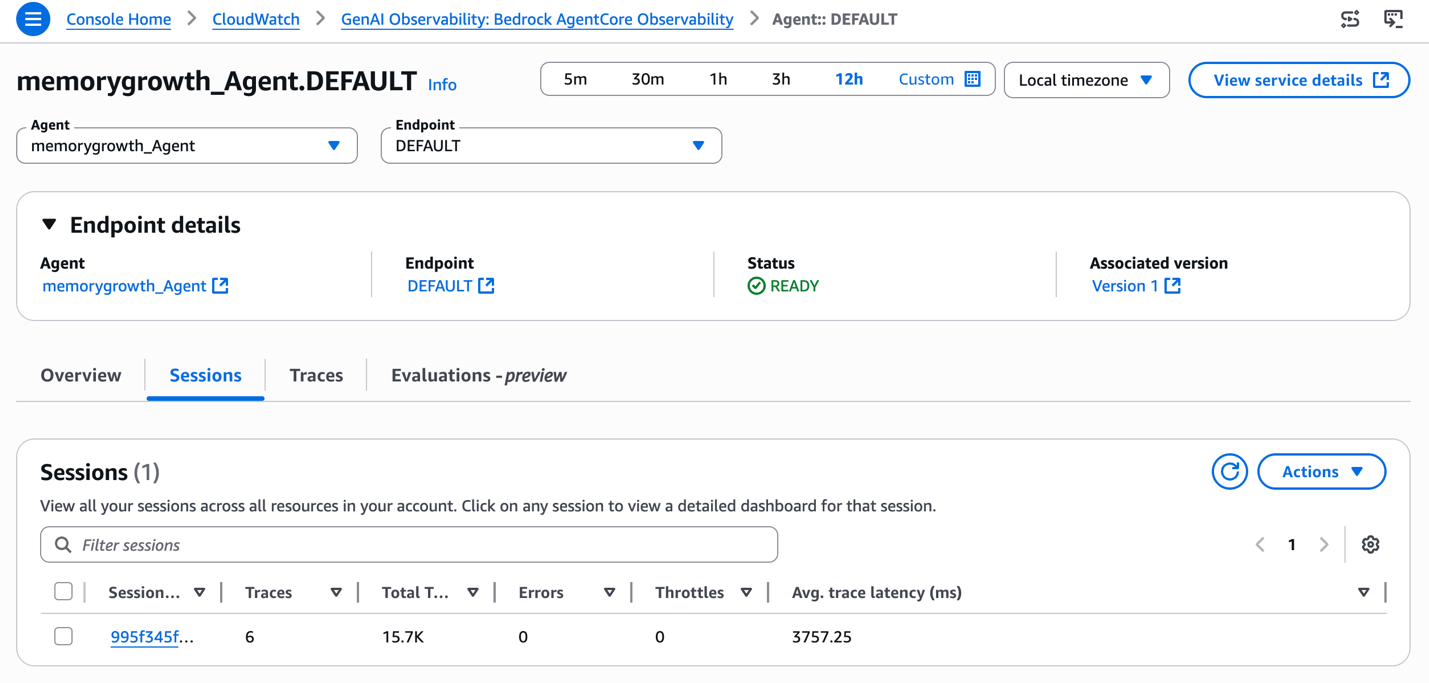
图 3 — memorygrowth_Agent 的会话详情显示:单次会话中有 6 条追踪记录、总计消耗 15.7K Token,平均追踪延迟为 3,757 毫秒。Token 使用量随着每次后续调用而增长,表明上下文正在无边界累积。在持续数小时的生产会话中,这种模式会导致上下文窗口耗尽和意外会话失败。
要识别内存使用量较高的长时间运行会话:
fields @timestamp, SessionId, SessionDuration, MemorySize, TokenUsage
| filter SessionDuration > 3600
| sort MemorySize desc
| limit 20
该查询将返回持续时间超过一小时(3,600 秒)的会话,并按内存大小排序。选择一个内存使用量异常高的会话,并记下其 SessionId。
检查内存提取模式,以确认是否正在进行整合:
fields @timestamp, MemoryExtractionStatus, MemoryExtractionLatency, MemoriesExtracted
| filter SessionId = "<SessionId>"
| sort @timestamp asc
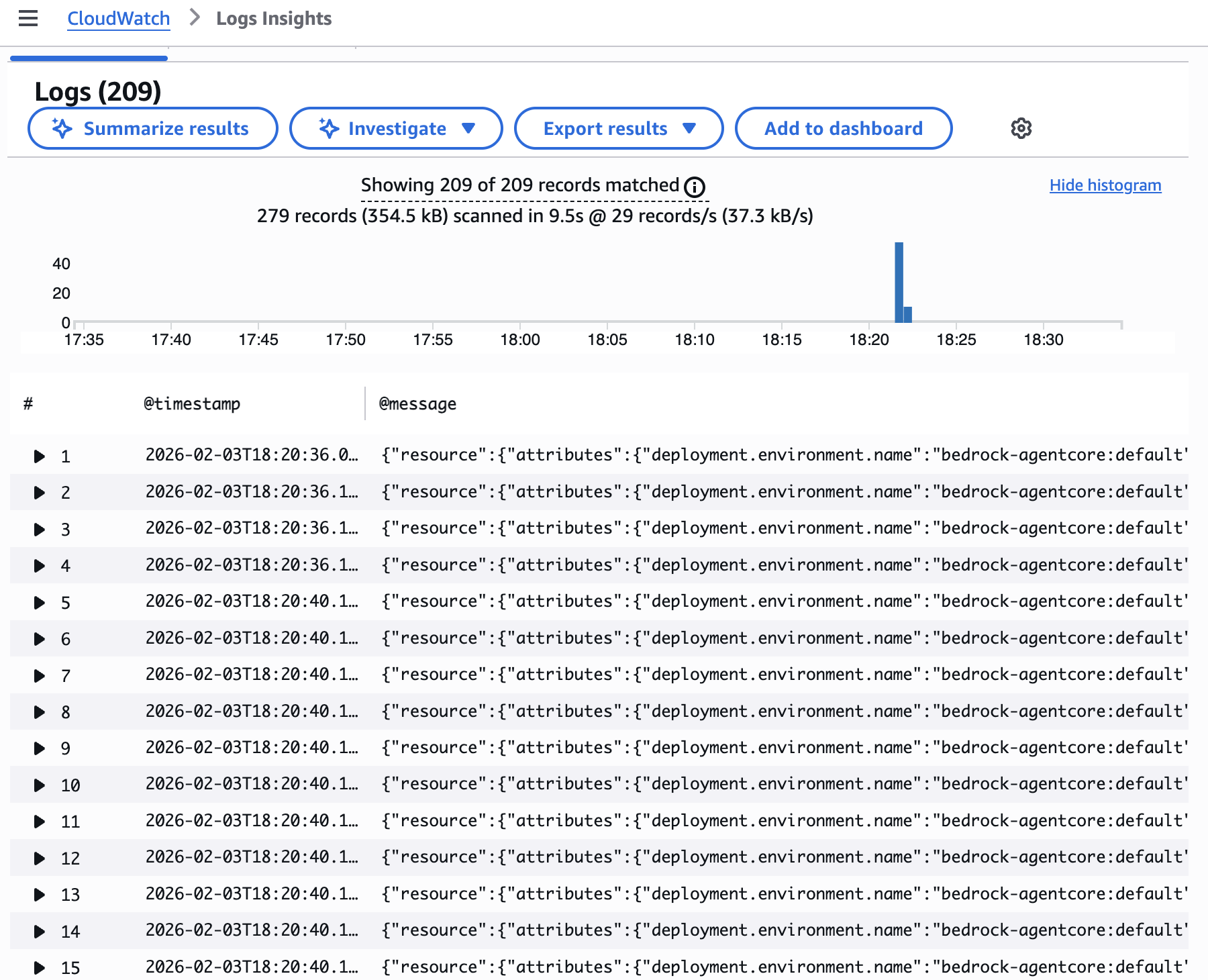
图 4 — CloudWatch Logs Insights 显示,209 条与内存相关的日志记录集中在约 18:20 时出现。内存操作激增表明 Agent 在存储信息时没有进行整合。每次调用都会通过 add_conversation_note 和 add_user_context 工具新增内存条目,却没有清理或汇总旧数据,体现了无边界增长模式。
内存提取应在整个会话中定期进行。如果您发现长时间没有发生提取操作,则说明 Agent 没有正确整合内存。
检查内存提取失败:
fields @timestamp, ErrorMessage, MemoryExtractionStatus
| filter SessionId = "<SessionId>"
| filter MemoryExtractionStatus = "Failed"
内存提取失败会阻止 Agent 整合上下文,造成无边界增长。常见失败原因包括:汇总期间超出 Token 限制、无法处理的无效内存格式、写入内存存储时发生网络超时,以及阻止内存更新的权限错误。
分析内存命名空间组织:
fields @timestamp, MemoryNamespace, MemoryCount, MemorySize
| filter SessionId = "<SessionId>"
| stats sum(MemoryCount) as TotalMemories, sum(MemorySize) as TotalSize by MemoryNamespace
| sort TotalSize desc
内存分布在不同的命名空间中。较差的命名空间组织会导致内存检索和整合效率低下。如果您看到单个命名空间包含数千条内存记录,这就是一个危险信号,表明您的 Agent 需要采用更好的内存组织方式。
根因分析
内存问题通常源于配置错误的设置,以及对记录内置日期时间元数据的筛选。若要深入了解 AgentCore memory 的工作方式,请参阅 AgentCore memory。
修复方法
要解决内存问题,请验证您的内存策略是否包含整合配置,以便 AgentCore memory 随时间合并和汇总记录,而不是无限累积记录。在策略定义中使用命名空间模板组织记录,确保检索范围限定在相关上下文中。设置 eventExpiryDuration 以控制原始事件的保留时长(7–365 天)。有关实施详情,请参阅 AgentCore memory 实施。
生产环境最佳实践
在两部分内容中介绍了全部四种故障场景后,现在我们转向可在问题发生前阻止它们的生产环境最佳实践。前文介绍的故障排查工作流可帮助您在出现问题时作出响应,而设计完善的可观测性策略则可帮助您主动发现问题。AgentCore 与 CloudWatch 的集成为这种主动式方法提供了基础,使您能够实时了解 Agent 的运行状况和性能。
为生产环境 Agent、内存系统和网关启用全面的埋点。配置 CloudWatch 日志、CloudWatch 指标和 OpenTelemetry 追踪。
为关键指标配置 CloudWatch 告警。为错误率(5%)、第 95 百分位数(P95)延迟(3 秒)和每个会话的 Token 使用量设置阈值。不要等待用户报告问题。当指标超过可接受阈值时,让 CloudWatch 主动向您发出告警。
创建运营仪表板。构建一个主仪表板,展示总调用量(过去 24 小时)、错误率(当前值与基线对比)、P50/P95/P99 延迟、Token 使用趋势和活跃会话数量。创建按 Agent 划分的仪表板,显示特定 Agent 的调用模式、工具使用明细、内存消耗趋势、错误类型分布和每会话成本。每天审查这些仪表板,以便在趋势演变为问题前及时发现。
在真正需要之前就投资建设可观测性基础设施。从以下方面开始,将监控纳入您的开发流程
English / 原文
As your AI agents move from prototype to production, the challenges shift from getting them to work to keeping them fast and efficient. In Part 1 of this series, we walked through debugging two common agent failures: infinite loops and tool invocation errors. Those scenarios dealt with agents that were broken. In this post, we tackle a different challenge: agents that work correctly but perform poorly. Slow response times and unbounded memory growth are the most common operational issues that surface after you resolve the initial debugging problems. They don’t trigger error alerts, but they erode user trust and increase costs over time.
Using AgentCore Observability, a capability of Amazon Bedrock AgentCore, and Amazon CloudWatch, you will learn how to identify performance bottlenecks across your agent’s execution path and diagnose memory issues in long-running sessions. You will also implement monitoring practices that catch degradation before users notice it. For additional information and best practices, review AgentCore Evaluations, a capability of Amazon Bedrock AgentCore, and AgentCore Insights.
Prerequisites
You need an AWS account with Amazon Bedrock AgentCore access, CloudWatch Transaction Search enabled, and a deployed agent. See Part 1 for full setup details.
Scenario 3: Performance bottlenecks
Agents experience performance bottlenecks when they work correctly but respond too slowly. You expect sub-second responses but experience multi-second delays. Agents complete tasks successfully, but the latency makes them impractical for interactive use cases. This scenario is particularly challenging because slow is subjective. What’s acceptable for a batch processing agent is unacceptable for a customer service chatbot. You must establish performance budgets for your specific use case, then systematically identify which components violate those budgets.
Symptoms to watch for
Performance degradation often manifests gradually. Agents might start with acceptable 2-second response times, but as you add features, integrate more tools, or accumulate more memory, latency creeps to 5 seconds, then 10, then becomes unusable. P95 response times exceed your thresholds, users abandon sessions, but error rates stay low. The agent works correctly but responds too slowly.
Figure 1 — Session details showing multiple traces with consistently high latency. The three invocations took 7.5-8.2 seconds (average span latency), demonstrating a systemic performance bottleneck rather than occasional slowness. This pattern indicates the agent’s architecture needs optimization.
To find bottlenecks, start by identifying high-latency requests. Query CloudWatch for agent invocations that exceed your performance budget:
fields @timestamp, RequestId, Latency
| filter Operation like /InvokeAgent/
| filter Latency > 3000
| sort Latency desc
| limit 50
This query returns agent invocations that took longer than 3 seconds (adjust the threshold based on your requirements), sorted by latency. Pick a representative high-latency request and note its RequestId.
Next, analyze the request timeline to understand where time is spent:
fields @timestamp, Operation, Duration, SpanName
| filter RequestId = "<RequestId>"
| sort @timestamp asc
The query shows you the sequence of operations within the request and how long each took. Look for operations that consume disproportionate time. Common culprits include memory retrieval operations, tool invocations, token generation, and sequential operations that could run in parallel.
Figure 2 — OpenTelemetry trace timeline showing 17 spans across three sequential execute_event_loop_cycle operations. The tools (customer_lookup, order_history) execute one after another rather than in parallel, with each cycle waiting for the previous one to complete. This sequential pattern compounds latency across each tool invocation.
Check memory retrieval latency specifically:
fields @timestamp, MemoryRetrievalLatency, MemoryNamespace
| filter RequestId = "<RequestId>"
| stats avg(MemoryRetrievalLatency), max(MemoryRetrievalLatency) by MemoryNamespace
Memory retrieval should complete in under 200 milliseconds, representing the point where users begin perceiving noticeable delays in interactive applications. Higher latency suggests inefficient memory organization.
Examine tool invocation latency to identify slow integrations:
fields @timestamp, ToolName, ToolLatency
| filter RequestId = "<RequestId>"
| sort ToolLatency desc
The query identifies which tools contribute most to overall latency. A single slow tool can bottleneck the entire agent workflow.
Root cause analysis
Performance bottlenecks typically stem from three root causes. Slow tool execution occurs when external tools take seconds to respond because of poor optimization, overload, or network issues. Latencies compound with sequential calls, so a 2-second tool called three times becomes a 6-second bottleneck. Excessive token generation is a factor because foundation models (FMs) produce tokens sequentially, meaning a 500-token response takes 5x longer than a 100-token one, impacting both latency and cost. Finally, sequential processing , performing independent operations one at a time instead of in parallel, increases both cost and compute times.
The fix
For slow tool execution, implement caching, connection pooling, and proper database indexing to reduce response times. Set timeout limits and consider faster tool alternatives. If a tool consistently lags, profile it independently. The issue might be network latency, cold starts, or resource contention rather than the tool’s logic itself.
For memory retrieval, replace single large namespaces with topic-specific partitions, such as preferences, history, and domain knowledge, to reduce search space. Summarize old conversations into compact entries rather than storing them verbatim, and set size limits per namespace, such as 100 preferences, 50 recent messages, or 500 domain facts.
For token generation, optimize prompts to encourage brief, direct answers of 2–3 sentences unless more detail is requested. Add explicit length constraints and monitor token usage with alerts for unexpectedly long responses.
For sequential processing, run independent tool calls in parallel. Sequential calls totaling 4.5s (2s + 1.5s + 1s) drop to only 2s when parallelized, often cutting latency by 50 percent or more with minimal effort. To verify your optimizations, re-run the latency query from the identifying bottlenecks section. Confirm that P95 response times now fall within your performance budget and that the trace timeline shows parallel execution where expected.
Scenario 4: Memory issues in long-running sessions
Agents experience memory issues in long-running sessions when they maintain sessions where memory usage grows unbounded. Agents accumulate context, and eventually, agents hit token limits, lose important context, or exhaust available memory. Sessions fail unexpectedly, and you lose conversation state. This scenario is particularly problematic for agents that support extended workflows, such as customer service sessions, research assistants, or monitoring agents. Without proper memory management, these use cases become impractical.
Symptoms to watch for
When abnormally long agent sessions exist, token usage grows linearly with session duration. Memory retrieval latency increases over time as memory stores grow. Sessions terminate unexpectedly with out-of-memory errors or context window exceeded errors.
Figure 3 — Session details for the memorygrowth_Agent showing 6 traces, 15.7K total tokens consumed, and an average trace latency of 3,757 ms within a single session. Token usage grows with each successive invocation, demonstrating unbounded context accumulation. In production sessions spanning hours, this pattern leads to context window exhaustion and unexpected session failures.
To identify long-running sessions with high memory usage:
fields @timestamp, SessionId, SessionDuration, MemorySize, TokenUsage
| filter SessionDuration > 3600
| sort MemorySize desc
| limit 20
The query returns sessions lasting longer than one hour (3600 seconds), sorted by memory size. Pick a session with unusually high memory usage and note its SessionId.
Examine memory extraction patterns to verify consolidation is occurring:
fields @timestamp, MemoryExtractionStatus, MemoryExtractionLatency, MemoriesExtracted
| filter SessionId = "<SessionId>"
| sort @timestamp asc
Figure 4 — CloudWatch Logs Insights showing 209 memory-related log entries concentrated around 18:20. The spike in memory operations indicates the agent storing information without consolidation. Each invocation adds new memory entries (through add_conversation_note and add_user_context tools) without pruning or summarizing old data, demonstrating the unbounded growth pattern.
Memory extraction should occur regularly throughout the session. If you see gaps where no extraction happens for extended periods, the agent isn’t consolidating memories properly.
Check for memory extraction failures:
fields @timestamp, ErrorMessage, MemoryExtractionStatus
| filter SessionId = "<SessionId>"
| filter MemoryExtractionStatus = "Failed"
Failed memory extraction stops agents from consolidating context, causing unbounded growth. Common failure reasons include token limits exceeded during summarization, invalid memory formats that can’t be processed, network timeouts when writing to memory storage, and permission errors that block memory updates.
Analyze memory namespace organization:
fields @timestamp, MemoryNamespace, MemoryCount, MemorySize
| filter SessionId = "<SessionId>"
| stats sum(MemoryCount) as TotalMemories, sum(MemorySize) as TotalSize by MemoryNamespace
| sort TotalSize desc
Memories are distributed across namespaces. Poor namespace organization can lead to inefficient memory retrieval and consolidation. If you see a single namespace containing thousands of memories, that’s a red flag indicating your agent needs better memory organization.
Root cause analysis
Memory issues typically stem from misconfigured settings, filter on inbuilt datetime metadata of the record. For a deeper understanding of how AgentCore memory works, see AgentCore memory.
The fix
To resolve memory issues, verify your memory strategies include a consolidation configuration so AgentCore memory merges and summarizes records over time rather than accumulating them indefinitely. Organize records using namespace templates in your strategy definitions to make sure retrieval stays scoped to relevant context. Set eventExpiryDuration to control how long raw events persist (between 7–365 days). For implementation details, see AgentCore memory implementation.
Production best practices
Having covered the four failure scenarios across both parts, we now turn to production best practices that stop these issues before they occur. The troubleshooting workflows we’ve covered help you respond when things go wrong, but a well-architected observability strategy helps you proactively catch issues. The integration of AgentCore with CloudWatch provides the foundation for this proactive approach, giving you real-time visibility into agent health and performance.
Turn on comprehensive instrumentation for production agents, memory systems, and gateways. Configure CloudWatch logs, CloudWatch metrics, and OpenTelemetry traces.
Configure CloudWatch alarms for critical metrics. Set thresholds for error rates (5 percent), 95th percentile (P95) latency (3 seconds), and token usage per session. Don’t wait for users to report problems. Let CloudWatch alert you when metrics exceed acceptable thresholds.
Create operational dashboards. Build a primary dashboard showing total invocations (last 24 hours), error rate (current compared to baseline), P50/P95/P99 latency, token usage trends, and active sessions count. Create per-agent dashboards showing agent-specific invocation patterns, tool usage breakdown, memory consumption trends, error types distribution, and cost per session. Review these dashboards daily to spot trends before they become problems.
Invest in observability infrastructure before you need it. Build monitoring into your development process from day one. Share dashboards with product managers and stakeholders so everyone understands agent performance. When someone diagnoses a tricky production issue, share the approach with the team to build institutional knowledge about common failure patterns.
To monitor tool accuracy at scale, you can use Amazon Bedrock AgentCore Evaluators to continuously and automatically assess agent behavior. Instead of manually reviewing traces after failures occur, Evaluators inspect agent sessions in real time, scoring them against predefined quality criteria. Amazon Bedrock AgentCore Insights (preview) builds off Evaluators and provides triage analysis. Insights can provide failure analysis, user intent extraction, and execution summary.
Cleaning up
After testing the optimization techniques in this post, clean up resources to avoid unnecessary charges.
For CloudWatch resources, delete test CloudWatch dashboards created during debugging, remove CloudWatch alarms set up for testing purposes, and consider archiving or deleting old CloudWatch log groups if no longer needed.
For AgentCore resources, if you created test agents specifically for this tutorial, delete them through the AgentCore console. Remove any test memory namespaces created during memory optimization testing. Delete any temporary tool integrations used for performance testing.
For cost optimization, review your Amazon CloudWatch Logs retention settings and adjust based on your compliance requirements. Consider using CloudWatch Logs data protection to cut storage costs for older logs.
To delete CloudWatch log groups:
aws logs delete-log-group --log-group-name /aws/bedrock-agentcore/your-agent-name
To remove CloudWatch alarms:
aws cloudwatch delete-alarms --alarm-names your-alarm-name
Conclusion
Performance bottlenecks and memory issues represent the most common operational challenges for production agents beyond the debugging scenarios covered in Part 1. With systematic diagnosis using CloudWatch traces and metrics, you can identify whether latency stems from slow tools, inefficient memory retrieval, excessive token generation, or sequential processing. For long-running sessions, monitoring memory growth patterns and implementing consolidation strategies keeps agents stable over extended interactions.
Next steps
Ready to put these techniques into practice? Start by turning on AgentCore Observability for your production agents if you haven’t already. This one-time setup provides the foundation for everything we’ve covered. Set up CloudWatch alarms for critical metrics. Create troubleshooting runbooks for your specific agents and workflows, documenting the queries you run, the thresholds that indicate problems, and the fixes you implement.
Practice debugging in non-production environments. Deliberately introduce failures and practice diagnosing them using the workflows we’ve covered. Build muscle memory for troubleshooting before you need it in production. Share this knowledge with your team to help confirm everyone who operates your agents understands these debugging techniques and knows how to use the observability features of AgentCore.
Production agents often fail for preventable reasons. With the right observability tools, systematic troubleshooting approaches, and a culture that treats every issue as a chance to improve, you can catch problems early, resolve them quickly, and build agents that earn lasting trust.
Learn more
For more information about AgentCore and observability features, visit the AgentCore documentation. To get started with AgentCore, visit the AgentCore console. For additional CloudWatch monitoring best practices, see the CloudWatch User Guide.
About the authors
Joshua Lacy
Joshua is a Solutions Architect at AWS in the Commercial Sector, supporting ISV customers. He has a passion for helping builders integrate AI into production applications and designing architectures that scale securely across multi-tenant environments. He specializes in agentic AI, Amazon Bedrock AgentCore, and generative AI application development.
Jenny Shen
Jenny is a Solutions Architect at AWS in the Telecom, Media and Entertainment space. She has a passion for helping customers build production-ready systems and finding ways to simplify how teams operate their cloud workloads. She specializes in CloudOps and AI/ML transformations.