我们如何构建 MCP 桥接,让托管在 AgentCore 上的 AI Agent 访问本地 MCP 工具
英文标题:How we built an MCP bridge to give our AgentCore-hosted AI agent access to local MCP tools
运行在 Amazon Bedrock AgentCore 云端的 AI Agent,往往需要访问用户笔记本上的 Excel 文件和本地工具。本文介绍了一套 MCP Bridge 架构:通过浏览器扩展、原生消息传递和 WebSocket,将云端 Agent 的 MCP 请求安全转发到本地 MCP Server。该方案使用本地 AWS 凭证生成 SigV4 预签名 WebSocket URL,凭证不会进入浏览器或离开用户设备。AWS 内部基于这一模式构建的财务 AI 助手上线一年内已产生超过 41,000 次对话,完整示例代码已开源。
 1.3 MB
 101.1 KB
 124.1 KB
 345.0 KB
 141.2 KB
 346.5 KB
 1.4 MB
 37.0 KB
 46.9 KB
 29.7 MB
 210.3 KB
 180.3 KB
中文
我们的 Agent 运行在云端,但用户的电子表格存放在他们的笔记本电脑上。该如何弥合这一鸿沟?
模型上下文协议(Model Context Protocol,MCP)是 Anthropic 于 2024 年 11 月推出的一项开源标准,旨在统一 AI 模型连接外部数据和工具的方式。MCP 采用客户端—服务器架构:MCP Host,即诸如 Amazon Quick 或 Claude Code 的 AI 应用程序,与一个或多个 MCP Server 建立连接。MCP 协议支持两种传输机制:stdio(用于同一台机器上本地进程之间通信的标准输入/输出)和流式 HTTP 传输(用于远程服务器与客户端之间通信的基于 HTTP 的机制)。缺失的一块拼图在于:当 MCP Server 存在于本地,而 MCP Client 位于远程时该如何处理。
这一模式对主要使用 Excel 和本地文件的财务经理及分析师至关重要。他们可以使用集中部署的 AI Agent 操作这些文件,同时从浏览器中获取上下文。这也是 Claude Cowork 等产品所采用的模式:云端 Agent 通过 MCP 调用本地工具;但本方案可以完全自托管在 AWS 上,并使用你自己的模型和自定义工具服务器。我们在内部构建了一款面向财务的生产级 AI 助手,自上线以来一年内已产生超过 41,000 次对话。
本文以简化形式复现我们在内部构建的方案。我们部署在 Amazon Bedrock AgentCore 上的 Agent 使用运行于用户本地机器的 MCP Server。我们通过 WebSocket 和原生消息传递(native messaging)隧道传输 MCP 消息,从而连接远程 MCP Client 与本地 MCP Server。我们将在“后续展望”部分讨论更多生产环境加固措施。完整源代码可在 GitHub 获取。
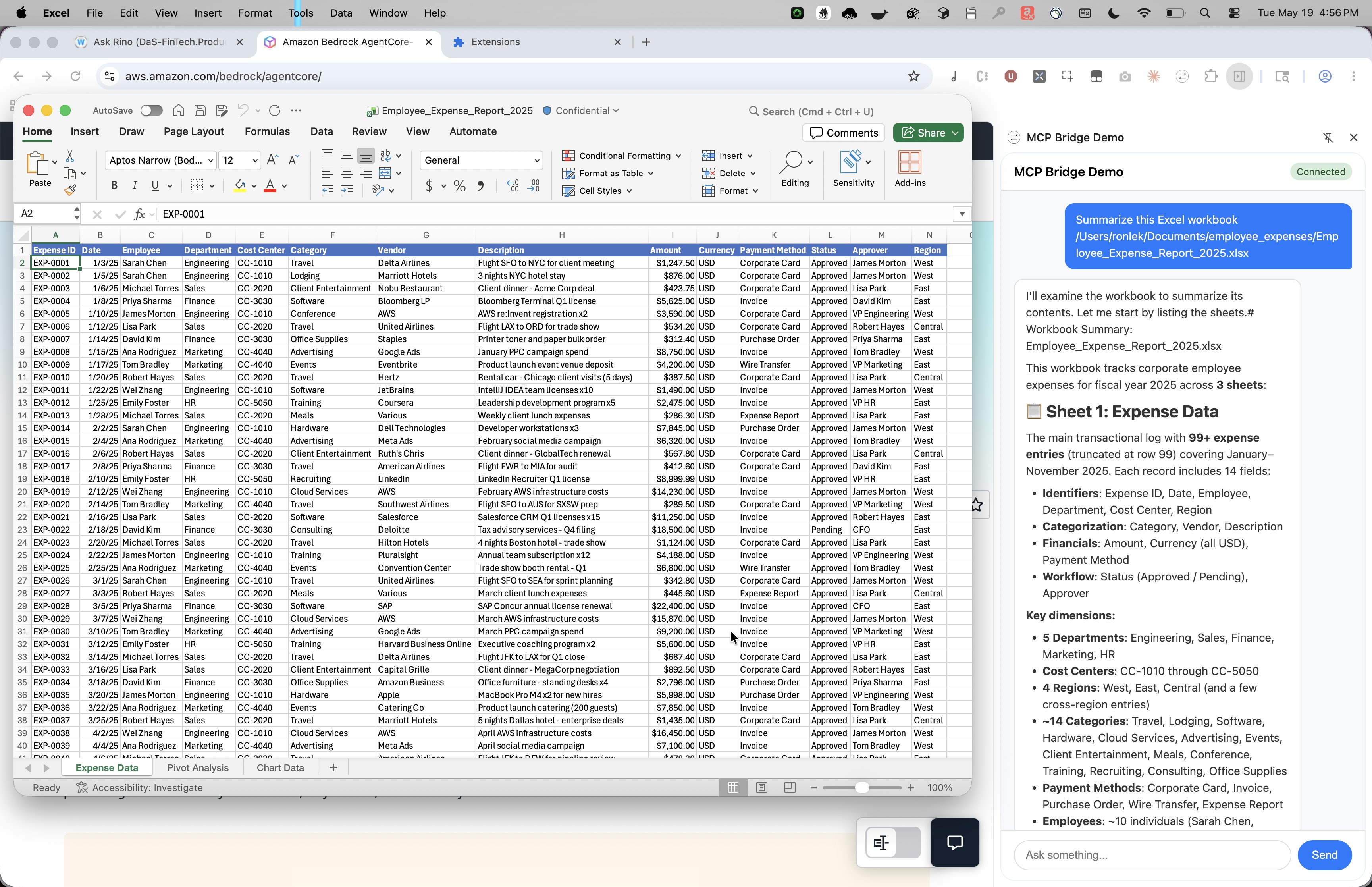
MCP Bridge Demo 扩展正在汇总本地 Excel 工作簿。云端托管的 Agent 通过 MCP Bridge 直接读取用户机器上的文件,并将结构化摘要流式返回到侧边栏。
架构概览
AgentCore runtime 是 Amazon Bedrock AgentCore 的一项能力,也是该架构的核心;整体由四个组件构成:
- AgentCore runtime: 在云端托管 Strands agent。该 Agent 充当 MCP Client,发起工具发现和工具调用请求。
- 浏览器扩展: 提供聊天界面,并作为双向中继器,在 AgentCore runtime(通过 WebSocket)与 MCP Bridge(通过原生消息传递)之间转发 MCP 消息。
- MCP Bridge: 一个运行在用户本地机器上的 FastMCP 代理,由浏览器通过原生消息主机注册机制启动。它负责在原生消息信封格式与原始 MCP JSON-RPC 之间进行转换。
- MCP Server: 一个在本地运行的标准 MCP Server。由于与桥接组件共置,通信使用 stdio 传输。
以下示意图展示了端到端消息流。用户通过扩展发送消息,扩展使用预签名 WebSocket 连接到 AgentCore runtime。当 Strands agent 需要调用工具时,它会将封装在 JSON 信封中的 MCP JSON-RPC 请求,经由 WebSocket 发送回扩展。扩展原样通过原生消息传递将消息中继给 Bridge。Bridge 解封装该信封,提取 JSON-RPC 内容,并通过 stdio 将其转发给 MCP Server。响应沿相反路径返回:Bridge 将未经修改的 MCP Server 响应重新封装进信封,再通过扩展中继至 AgentCore runtime;Agent 在那里使用工具结果并继续生成内容。
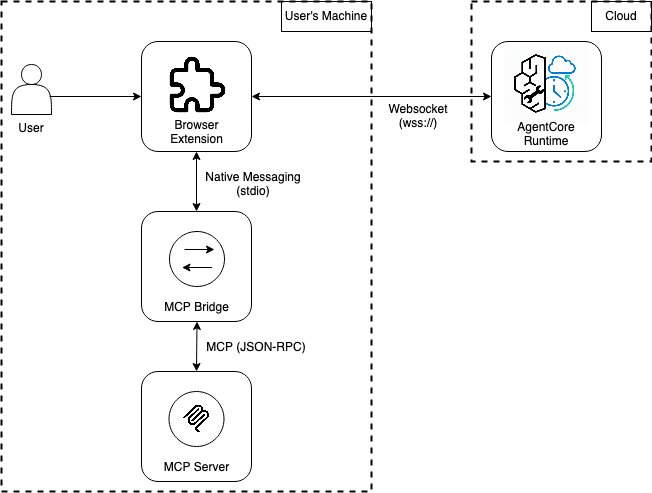
展示所有组件的高层架构图。浏览器扩展和 MCP Bridge 充当中继器,负责封装和解封装来自 AgentCore runtime 的 JSON 消息,以及来自 MCP Server 的 JSON-RPC 消息。
下表展示了一次工具调用从 Agent 传递到 MCP Server 的过程;每一跳都会剥离一层封装:
| 跳数 | 发送方 → 接收方 | 消息 |
|---|---|---|
| 1 | Agent -> Extension(WebSocket) | {“type”: “mcpbridge”, “content”: {“type”: “mcp”, “payload”: “”}, “session_id”: “session_123”} |
| 2 | Extension -> Bridge(原生消息传递) | {“type”: “mcp”, “payload”: “”} |
| 3 | Bridge → MCP Server(stdio) | {“jsonrpc”: “2.0”, “id”: 1, “method”: “tools/call”, “params”: {“name”: “read_sheet”, “arguments”: {“file_path”: “budget.xlsx”}}} |
Strands agent 如何在 AgentCore runtime 中运行
WebSocket 连接: 浏览器扩展通过预签名 WebSocket URL 连接到 AgentCore runtime。启动时,侧边栏会通过后台脚本向原生 Bridge 发送预签名请求;后者使用用户的本地 AWS 凭证及 bedrock-agentcore 软件开发工具包(SDK),生成一个限定于已部署 runtime ARN 的 SigV4 签名 wss:// URL(有效期为 5 分钟)。侧边栏随后打开到该 URL 的 WebSocket。凭证绝不会离开用户机器,也不会进入浏览器。如果连接因 URL 过期或网络中断而断开,侧边栏会在 2 秒后自动请求新的预签名 URL 并重新连接,因此在正常使用期间,用户不会感知到过期窗口的存在。
MCP 初始化: 在发现工具之前,Agent 会执行标准的 MCP 初始化握手。它发送包含协议版本的 initialize 请求,等待服务器返回能力响应,然后发送 notifications/initialized 通知。只有在此握手完成后,服务器才会接受 tools/list 和 tools/call 请求。
工具发现: 每条用户消息触发时,Agent 都会调用 tools/list 并接收一个工具 schema 数组。它将每个 schema 封装为一个 Strands AgentTool,其 stream() 方法会通过 Bridge 发送 tools/call 请求。添加到 MCP Server 的工具会在下一次请求时自动可用,无需修改 Agent 代码。
请求—响应关联: Agent 发出的每个 JSON-RPC 请求都会被分配唯一 ID,并注册到一个以 (session_id, jsonrpc_id) 为键的 asyncio.Future。当响应经由 WebSocket 返回时,系统会将其与等待中的 Future 匹配并完成解析。这使得多个工具调用能够同时进行,而不会产生歧义。
原生消息传递如何工作
我们需要让扩展与一个长时间运行的本地进程通信,同时不需要网络权限,也不需要针对每条消息请求用户授权。原生消息传递恰好满足这一需求。Chrome 和 Firefox 均为其扩展支持原生消息传递。浏览器会在用户机器上的已知位置查找一个清单文件,该文件指定要启动的二进制程序。以下是 macOS 上 Chrome 的原生消息传递清单文件:
# Stored at ~/Library/Application\ Support/Google/Chrome/NativeMessagingHosts/com.example.mcp_bridge.json
{
  "name": "com.example.mcp_bridge",
  "description": "MCP Bridge - Routes MCP messages to local servers",
  "path": "/path/to/mcp-bridge-demo/bridge/run_bridge.sh",
  "type": "stdio",
  "allowed_origins": [
    "chrome-extension://<extension_id>/"
  ]
}
扩展启动时,后台脚本调用 chrome.runtime.connectNative("com.example.mcp_bridge"),在本地启动原生应用。清单文件中引用的 run_bridge.sh 脚本会激活 Python 环境并启动 Bridge:
#!/bin/bash
cd "/path/to/mcp-bridge-demo/bridge"
source .venv/bin/activate
exec python3 bridge.py
原生消息主机进程会在连接生命周期内持续运行。每条消息均被序列化为 JSON、采用 UTF-8 编码,并在前面加上一个按小端字节序编码的 32 位消息长度。原生消息主机发出的单条消息最大为 1 MB(以保护浏览器免受行为异常的原生应用影响)。发送给原生消息主机的消息最大为 64 MiB。
MCP Bridge 如何工作
MCP Bridge 充当两个世界之间的协议转换器:一侧是 Chrome 的原生消息传递协议,另一侧是 MCP 标准(通过 stdio 传输的 JSON-RPC 2.0)。在入站路径中,它从 stdin 移除 4 字节长度头,解析 JSON 正文,并解封装信封以提取原始 JSON-RPC 消息。在出站路径中,它执行相反操作:将 JSON-RPC 响应封装进信封,并加上长度头后写回。JSON-RPC 内容本身在传递过程中不会被修改。
在内部,Bridge 通过 FastMCP 代理运行两个并发循环。主循环从浏览器读取消息,将其解封装后把 JSON-RPC 内容放入输入队列。FastMCP 代理只启动一次,并在 Bridge 的整个生命周期内保持运行;它从该队列取出消息,经由 stdin 转发至 MCP Server 子进程,并将从服务器 stdout 返回的响应放入输出队列。第二个后台循环从输出队列读取消息,将每个响应重新封装进信封,然后写入 stdout,以供浏览器接收。该双循环设计将浏览器的请求时机与 MCP Server 的处理速度解耦,因此 Bridge 无需在等待慢速工具完成时阻塞,也仍可接受下一个请求。
MCP Server 本身是由 Bridge 在启动时创建的子进程,通过 mcp.json 文件配置。它会在 Bridge 的生命周期内持续运行,不会产生每请求一次就启动进程的开销。添加新的 MCP Server 只需要修改一行配置,Bridge 会处理底层通信。
# mcp.json
{
  "mcpServers": {
    "excel": {
      "command": "python3",
      "args": ["excel_server.py"]
    }
  }
}
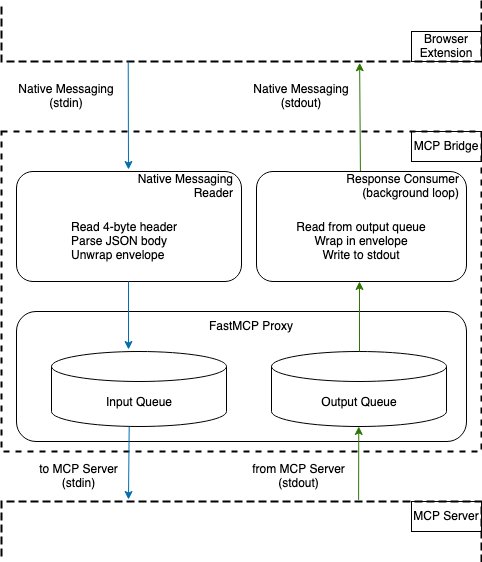
MCP Bridge 的内部架构。MCP Bridge 将来自浏览器扩展的消息转换为 MCP Server 所使用的 MCP 协议。I/O 队列与 FastMCP 代理服务器协同工作,将消息转发给本地运行的 MCP Server,并将消息中继回浏览器扩展。
前提条件
部署和测试 MCP Bridge 方案需要满足以下前提条件,涵盖浏览器扩展、部署在 AgentCore 上的 Agent、MCP Bridge 以及示例 Excel MCP Server。
AWS 账户与权限
-
已启用 Bedrock 模型访问权限的 AWS 账户(代码使用 Claude Opus 4.7)。模型可用性因区域而异。当前列表请参阅 Amazon Bedrock 模型可用性文档。
-
用于 Bedrock AgentCore(
bedrock-agentcore:*)、AWS CloudFormation、IAM 角色创建和 S3 的 AWS Identity and Access Management(IAM)权限。 -
已配置凭证的 AWS Command Line Interface(AWS CLI)(可使用
aws sts get-caller-identity验证)。 -
已在目标区域完成引导初始化的 AWS Cloud Development Kit(AWS CDK)(
cdk bootstrap)。 -
Python 3.10+。
-
Node.js 20+(用于 AgentCore 命令行界面(CLI))。
-
Google Chrome(支持 Manifest V3 侧边栏)。
-
Git。
安装
- AgentCore CLI:
npm install -g @aws/agentcore。 - AWS CDK:
npm install -g aws-cdk。
预计时间与成本
- 配置:约 15 分钟(部署、安装扩展和注册 Bridge)。
- AgentCore runtime:按调用付费(无闲置成本)。
- Bedrock 模型使用:Claude 的标准按 Token 定价。
- 其他组件在本地运行,无额外成本。
部署解决方案
-
克隆仓库。
git clone https://github.com/aws-samples/sample-mcp-bridge-agentcore.git cd mcp-bridge-demo -
安装 Python 依赖。
chmod +x scripts/setup.sh manifests/install.sh ./scripts/setup.sh -
创建 Agent 并将其部署至 AgentCore。
npm install -g @aws/agentcore
cd agent
agentcore create --name McpBridgeAgent --defaults
cd McpBridgeAgent
cp ../agent.py app/McpBridgeAgent/main.py
cp ../mcp_bridge_transport.py app/McpBridgeAgent/
agentcore deploy
请从输出中记录 runtime 的 Amazon Resource Name(ARN)(或者运行 agentcore status)。
-
配置 Bridge。 使用你的 runtime ARN 编辑
bridge/bridge_config.json:{ "runtime_arn": "arn:aws:bedrock-agentcore:<region>:<account-id>:runtime/<your-runtime>", "region": "us-east-1", "presign_expires": 300 }
Bridge 使用你的本地 AWS 凭证自动生成预签名 WebSocket URL,无需手动管理 Token。
- 加载 Chrome 扩展。
- 前往
chrome://extensions。 - 开启开发者模式。
- 选择**
- 前往
English / 原文
Our agent runs in the cloud, but our users’ spreadsheets live on their laptops. How do you bridge that gap?
The Model Context Protocol (MCP) is an open source standard introduced by Anthropic in November 2024 to standardize how AI models connect to external data and tools. MCP follows a client-server architecture where an MCP host, an AI application like Amazon Quick or Claude Code, establishes connections to one or more MCP servers. The MCP protocol supports two transport mechanisms: stdio (standard I/O for communication between local processes on the same machine) and streamable HTTP transport (HTTP-based communication between remote servers and clients). A missing piece is when the MCP server exists locally and the MCP client is remote.
This pattern matters for financial managers and analysts who primarily work with Excel and local files. They can use centrally deployed AI agents to act on those files while also drawing context from their browser. This is the same pattern that powers products like Claude Cowork, a cloud agent calling local tools through MCP, but fully self-hosted on AWS with your own model and custom tool servers. Internally, we built a production-grade AI assistant for finance that has seen over 41,000 conversations within a year since launch.
In this post, we recreate what we built internally in a simplified form. Our agent, deployed on Amazon Bedrock AgentCore, uses MCP servers that run on a user’s local machine. We bridge the gap between the remote MCP client and the local MCP server by tunneling MCP messages over WebSocket and native messaging. We discuss additional production hardening measures in the What’s Next section. The complete source code is available on GitHub.
The MCP Bridge Demo extension summarizing a local Excel workbook. The cloud-hosted agent reads the file directly from the user’s machine through the MCP bridge and streams a structured summary back to the side panel
Architecture overview
The AgentCore runtime, a capability of Amazon Bedrock AgentCore, anchors an architecture with four components:
- AgentCore runtime: Hosts the Strands agent in the cloud. The agent acts as the MCP client, issuing tool discovery and tool invocation requests.
- Browser extension: Provides the chat interface and acts as a bidirectional relay, forwarding MCP messages between the AgentCore runtime (over WebSocket) and the MCP Bridge (over native messaging).
- MCP Bridge: A FastMCP proxy running on the user’s local machine, spawned by the browser through the native messaging host registration. It translates between the native messaging envelope format and raw MCP JSON-RPC.
- MCP Server: A standard MCP server running locally. Because the bridge is co-located, communication uses the stdio transport.
The following diagram shows the end-to-end message flow. The user sends a message through the extension, which connects to the AgentCore runtime over a presigned WebSocket. When the Strands agent needs to call a tool, it sends an MCP JSON-RPC request wrapped in a JSON envelope back through the WebSocket to the extension. The extension relays the message as-is to the bridge through native messaging. The bridge unwraps the envelope, extracts the JSON-RPC content, and forwards it to the MCP server over stdio. The response travels the reverse path. The bridge wraps the unmodified MCP server response back into an envelope and relays it through the extension to the AgentCore runtime, where the agent consumes the tool result and continues generation.
High-level architecture diagram showing all components. The browser extension and MCP Bridge act as relays that wrap and unwrap JSON messages from the AgentCore runtime and JSON-RPC messages from the MCP server
The following table shows a single tool call as it travels from the agent to the MCP server, with each hop stripping one layer of wrapping:
| Hop | Sender → Receiver | Message |
|---|---|---|
| 1 | Agent -> Extension (WebSocket) | {“type”: “mcpbridge”, “content”: {“type”: “mcp”, “payload”: “”}, “session_id”: “session_123”} |
| 2 | Extension -> Bridge (Native Messaging) | {“type”: “mcp”, “payload”: “”} |
| 3 | Bridge → MCP Server (stdio) | {“jsonrpc”: “2.0”, “id”: 1, “method”: “tools/call”, “params”: {“name”: “read_sheet”, “arguments”: {“file_path”: “budget.xlsx”}}} |
How does the Strands agent work in AgentCore runtime
WebSocket connection: The browser extension connects to the AgentCore runtime over a presigned WebSocket URL. On startup, the side panel sends a presign request through the background script to the native bridge, which uses the user’s local AWS credentials and the bedrock-agentcore software development kit (SDK) to generate a SigV4-signed wss:// URL scoped to the deployed runtime ARN (valid for 5 minutes). The side panel opens a WebSocket to that URL. No credentials ever leave the user’s machine or enter the browser. If the connection drops because of URL expiry or network interruption, the side panel automatically requests a fresh presigned URL after 2 seconds and reconnects, making the expiry window invisible to the user during normal use.
MCP initialization: Before discovering tools, the agent performs the standard MCP initialization handshake. It sends an initialize request with the protocol version, waits for the server’s capabilities response, and then sends a notifications/initialized notification. Only after this handshake completes does the server accept tools/list and tools/call requests.
Tool discovery: On each user message, the agent calls tools/list and receives an array of tool schemas. It wraps each schema into a Strands AgentTool whose stream() method sends a tools/call request through the bridge. Tools added to the MCP server are automatically available on the next request with no agent code changes.
Request-response correlation: Each outbound JSON-RPC request from the agent is assigned a unique ID and registered against an asyncio.Future keyed by (session_id, jsonrpc_id). When the response arrives back over the WebSocket, it is matched to the waiting Future and resolved. This allows multiple tool calls to be in flight concurrently without ambiguity.
How does native messaging work
We need the extension to talk to a long-running local process without network permissions or per-message user prompts. Native messaging provides exactly this. Both Chrome and Firefox support native messaging for their extensions. The browser looks for a manifest file at a well-known location on the user’s machine that specifies which binary to launch. The native messaging manifest file for Chrome on macOS is as follows:
# Stored at ~/Library/Application\ Support/Google/Chrome/NativeMessagingHosts/com.example.mcp_bridge.json
{
  "name": "com.example.mcp_bridge",
  "description": "MCP Bridge - Routes MCP messages to local servers",
  "path": "/path/to/mcp-bridge-demo/bridge/run_bridge.sh",
  "type": "stdio",
  "allowed_origins": [
    "chrome-extension://<extension_id>/"
  ]
}
On extension startup, the background script calls chrome.runtime.connectNative("com.example.mcp_bridge") to launch the native app locally. The run_bridge.sh script referenced in the manifest activates the Python environment and starts the bridge:
#!/bin/bash
cd "/path/to/mcp-bridge-demo/bridge"
source .venv/bin/activate
exec python3 bridge.py
The native messaging host process stays alive for the lifetime of the connection. Each message is serialized as JSON, UTF-8 encoded, and preceded with a 32-bit message length in little-endian byte order. The maximum size of a single message from the native messaging host is 1 MB (to protect the browser from misbehaving native applications). The maximum size of a message sent to the native messaging host is 64 MiB.
How does the MCP Bridge work
The MCP Bridge acts as a protocol translator between two worlds: Chrome’s native messaging protocol on one side and the MCP standard (JSON-RPC 2.0 over stdio) on the other. On the inbound path, it strips the 4-byte length header from stdin, parses the JSON body, and unwraps the envelope to extract the raw JSON-RPC message. On the outbound path, it does the reverse: wraps the JSON-RPC response in an envelope and writes it back with the length header. The JSON-RPC content itself passes through untouched.
Internally, the bridge runs two concurrent loops connected through a FastMCP proxy. The main loop reads messages from the browser, unwraps them, and places the JSON-RPC content onto an input queue. The FastMCP proxy, started once and kept alive for the bridge’s lifetime, picks messages off this queue, forwards them to the MCP server subprocess over its stdin, and places responses from the server’s stdout onto an output queue. A second background loop reads from the output queue, wraps each response back into an envelope, and writes it to stdout for the browser to receive. This two-loop design decouples the browser’s request timing from the MCP server’s processing speed so the bridge does not block waiting for a slow tool to finish before accepting the next request.
The MCP server itself is a child process spawned by the bridge on startup, configured through a mcp.json file. It stays running for the bridge’s lifetime with no per-request process overhead. Adding a new MCP server is a one-line config change. The bridge handles the plumbing.
# mcp.json
{
  "mcpServers": {
    "excel": {
      "command": "python3",
      "args": ["excel_server.py"]
    }
  }
}
Internal architecture of the MCP Bridge. The MCP Bridge translates messages from the browser extension into the MCP protocol for the MCP server. I/O queues work with a FastMCP proxy server to forward messages to the locally running MCP server and relay messages back to the browser extension
Prerequisites
The following prerequisites are needed to deploy and test the MCP bridge solution. These cover the browser extension, the agent deployed on AgentCore, the MCP Bridge, and a sample Excel MCP server.
AWS account and permissions
-
AWS account with Bedrock model access enabled (the code uses Claude Opus 4.7). Model availability varies by Region. See the Amazon Bedrock model availability documentation for the current list.
-
AWS Identity and Access Management (IAM) permissions for Bedrock AgentCore (
bedrock-agentcore:*), AWS CloudFormation, IAM role creation, and S3. -
AWS Command Line Interface (AWS CLI) configured with credentials (
aws sts get-caller-identityto verify). -
AWS Cloud Development Kit (AWS CDK) bootstrapped in your target Region (
cdk bootstrap). -
Python 3.10+.
-
Node.js 20+ (for the AgentCore command line interface (CLI)).
-
Google Chrome (Manifest V3 side panel support).
-
Git.
Install
- AgentCore CLI:
npm install -g @aws/agentcore. - AWS CDK:
npm install -g aws-cdk.
Estimated time and cost
- Setup: ~15 minutes (deploy, install extension, and register bridge).
- AgentCore runtime: pay-per-invocation (no idle cost).
- Bedrock model usage: standard per-token pricing for Claude.
- Other components run locally at no additional cost.
Deploying the solution
-
Clone the repository.
git clone https://github.com/aws-samples/sample-mcp-bridge-agentcore.git cd mcp-bridge-demo -
Install Python dependencies.
chmod +x scripts/setup.sh manifests/install.sh ./scripts/setup.sh -
Create and deploy the agent to AgentCore.
npm install -g @aws/agentcore
cd agent
agentcore create --name McpBridgeAgent --defaults
cd McpBridgeAgent
cp ../agent.py app/McpBridgeAgent/main.py
cp ../mcp_bridge_transport.py app/McpBridgeAgent/
agentcore deploy
Note the runtime Amazon Resource Name (ARN) from the output (or run agentcore status).
-
Configure the bridge. Edit
bridge/bridge_config.jsonwith your runtime ARN:{ "runtime_arn": "arn:aws:bedrock-agentcore:<region>:<account-id>:runtime/<your-runtime>", "region": "us-east-1", "presign_expires": 300 }
The bridge uses your local AWS credentials to generate presigned WebSocket URLs automatically, with no manual token management needed.
-
Load the Chrome extension.
- Navigate to
chrome://extensions. - Turn on Developer mode.
- Choose Load unpacked , and then select the
extension/directory. - Note the extension ID displayed on the card.
- Navigate to
-
Register the native messaging bridge.
./manifests/install.sh <your-extension-id>
This creates a launcher script and registers it with Chrome so the browser can spawn the bridge process.
Testing the solution
Restart the browser and choose the extension icon to open the side panel. The extension automatically requests a presigned URL from the bridge, connects to AgentCore, and discovers available MCP tools.
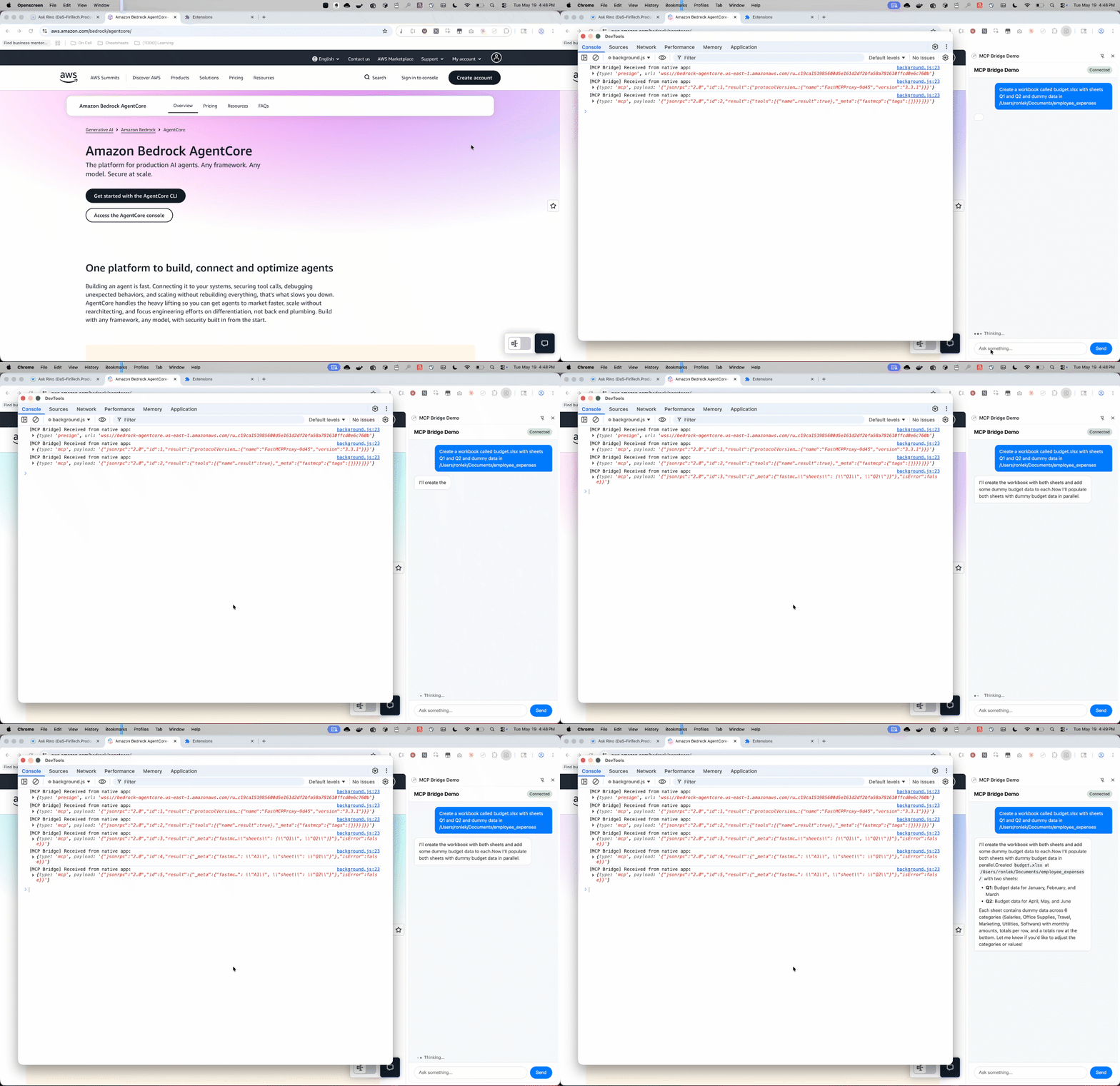
The browser extension connects to the MCP bridge over native messaging and relays MCP messages between the AgentCore-hosted agent and the side panel, as shown in the extension’s DevTools console
Additional queries to experiment with:
"Create a workbook called budget.xlsx with sheets Q1 and Q2"

"Write 'Revenue' in cell A1 of the Q1 sheet in budget.xlsx"

"Read the data from budget.xlsx"
Security considerations
This post prioritizes demonstrating the MCP bridge functionality and therefore limits security measures to the following:
- Native messaging origin restriction: Chrome checks the calling extension’s ID against the
allowed_originslist in the native messaging manifest and rejects connections from extensions not explicitly listed. - Presigned URL expiration: WebSocket URLs are SigV4-signed and expire after 5 minutes. Credentials remain on the user’s machine and are not sent to the browser.
- Process isolation: The extension, bridge, and MCP server each run in separate operating system processes with no shared memory.
The primary exposure surface unique to this architecture is the bridge itself. It accepts instructions from a cloud-hosted agent and runs them locally with the user’s file system permissions. The key principle is that the agent should not have more access than the user explicitly grants, and the user can always see what tools were invoked and with what arguments.
For a production system, in addition to implementing Amazon Bedrock Guardrails for content filtering, we recommend the following additional security measures:
| Layer | What to add | Why |
|---|---|---|
| Authentication | Require a JSON Web Token (JWT) handshake as the first WebSocket frame. Verify the token (for example, through Amazon Cognito and an HMAC secret in AWS Systems Manager) before accepting messages. | Helps prevent unauthorized use even if a presigned URL is leaked. |
| Payload signing | Sign every MCP message with Ed25519 (private key on the agent, public key on the bridge). Reject unsigned or tampered payloads. | Makes sure messages were not modified in transit between cloud and local machine. |
| File system scoping | Configure an explicit allowlist of directories the MCP server can access. Reject paths outside the boundary. | Helps prevent a prompt injection from tricking the agent into reading sensitive files (SSH keys, credentials). |
| Audit logging | Log every tool invocation (tool name, arguments, timestamp, result status) to a local file. | Provides traceability for what the agent did on the user’s machine. |
Clean up
When you’re done experimenting, remove the deployed resources to avoid ongoing charges.
-
Remove the AgentCore deployment. Tear down the CloudFormation stack, IAM roles, and runtime resources.
cd agent/McpBridgeAgent agentcore remove all agentcore deploy -
Unregister the native messaging bridge.
rm ~/Library/Application\ Support/Google/Chrome/NativeMessagingHosts/com.example.mcp_bridge.json -
Remove the Chrome extension.
- Navigate to
chrome://extensions. - Choose Remove on the MCP Bridge Demo card.
- Navigate to
-
Delete local files (optional).
What’s next
Our internal production solution includes the capabilities that follow. The MCP Bridge acts as the AgentCore-hosted agent’s window into the user’s local system. Combined with the browser extension, the current architecture can be extended to support more use cases.
Browser actions
The browser extension can implement its own browser tools modeled on Playwright MCP’s tool definitions and expose them to the agent to perform actions such as clicking elements, filling forms, navigating pages, and taking screenshots.
Because the extension sits as a message relay between the AgentCore agent and the MCP Bridge, it can intercept tools/list and tools/call MCP messages, inject the browser tools into the tool list, and handle their execution locally.
The bridge speaks standard MCP JSON-RPC over stdio, so MCP servers that use the stdio transport are compatible without modification. Add an entry to mcp.json. Examples: filesystem access for sandboxed file read/write, Git for repository operations, memory for persistent local knowledge graphs. See awesome-mcp-servers for a directory of available servers.
Packaging the bridge as a standalone binary
For production distribution, we use PyInstaller to package the bridge into a standalone binary that bundles the Python runtime, dependencies, and configuration into a single executable. The native messaging manifest points directly at this binary, so users do not need to install Python or manage virtual environments. The bridge works on first extension launch with no extra setup.
Conclusion
In this post, we built an MCP bridge that connects a cloud-hosted Strands agent on Amazon Bedrock AgentCore to local MCP tool servers running on a user’s machine. Using a browser extension as the relay layer and Chrome’s native messaging as the local transport, we tunneled standard MCP JSON-RPC messages between the cloud and the user’s file system without exposing credentials to the browser or modifying the MCP protocol itself.
With this pattern, you can keep your agent centrally deployed and managed while giving it access to tools that must run locally, such as Excel files, Git repositories, or other locally running MCP servers. The architecture is extensible. You can add new tools with a one-line config change, layer in browser actions through the extension, or package the bridge as a standalone binary for frictionless distribution.
To get started, deploy the sample repository and experiment with your own MCP servers. For more on the services used in this post, explore the Amazon Bedrock AgentCore documentation, the Strands Agents SDK, and the Model Context Protocol specification.
Thanks to Daniel Sheng Sun, Markus Hueck, Nishant Bisen, Shraddha Kabade, and Stacy Kim for their contributions to the internal production system that inspired this post.
About the author
Rohan Lekhwani
Rohan is a Software Engineer at Amazon Devices and Services Finance where he leads Ask Rino, an agentic AI assistant for finance, and built the first MCP server infrastructure within Amazon DaS Finance. He has experience building and scaling agentic AI systems, MCPs, and large-scale conversational AI apps, and previously led the UMass Amherst team to a top-10 finish in the Amazon Alexa Prize, deploying to all US Alexa devices. In his spare time, he likes to run and work on open source projects.