在 Amazon Quick 中使用多数据集主题构建跨数据集的统一语义层
英文标题:Build a unified semantic layer across datasets with multi-dataset Topics in Amazon Quick
多数据集主题(公开预览版)现已在 Amazon Quick 中推出,支持将最多12个数据集加入单个主题并定义关系,使 AI 聊天代理能够自动遍历关系回答跨数据集问题。该功能让数据保持规范化、治理集中化,业务用户无需理解底层模式即可获得统一答案,对自助分析与企业级语义层建设意义重大。本文介绍了多数据集主题的工作原理,详述代理如何利用定义关系生成跨数据集 SQL 查询,并展示了零售分析场景的端到端实现。
 77.6 KB
 163.8 KB
 49.7 KB
 6.5 KB
 52.9 KB
 69.5 KB
 88.0 KB
 72.1 KB
 130.1 KB
 132.8 KB
 60.8 KB
 86.9 KB
 3.1 KB
 2.5 KB
 6.7 KB
 2.9 KB
 156.1 KB
中文
Amazon Quick 是一项由人工智能驱动的统一智能服务,连接结构化数据和非结构化企业内容,使团队能够在一个平台上进行探索、分析和操作。Amazon Quick 中的商业智能(BI)功能 Amazon Quick Sight 提供交互式仪表板、自然语言查询、像素级报告、机器学习(ML)驱动的洞察以及嵌入式分析。Quick 中的主题充当语义层,业务用户可以使用自然语言提问并直接从数据中获取答案。
此前,组织通过创建丰富数据集并将其与主题一一关联来建模语义层。并且,当 Quick Sight 作者构建分析时,一个可视化只能来源于一个数据集。Quick Sight 将数据集表示为单个扁平表。如果客户的数据源包含多个表,Quick Sight 要求客户在数据准备中将源表连接成单个表来定义数据集。这种“一张大宽表”的方法最初是为了通过避免运行时连接来提供更好的性能。它适用于简单的数据集,这在 Quick Sight 早期阶段占了大多数用例。现在,我们正在演进这一模型。借助多数据集主题(公开预览版),您现在可以将最多12个数据集添加到单个主题中,并在它们之间定义关系。Quick 聊天代理在回答问题时会自动遍历这些关系。人工智能引擎解读用户意图,识别哪些数据集包含相关列,根据您定义的关系构建适当的 SQL 连接,并返回统一答案。您的数据保持规范化,治理保持集中化,您的业务用户无需了解底层模式即可获得更丰富的答案。同一个多数据集主题可用于构建分析或使用聊天代理回答问题。
本文将带您了解多数据集主题的工作原理,解释聊天代理如何使用定义的关系生成跨数据集查询,并演示在 Quick Sight 中使用零售分析场景的端到端实现。
多数据集主题如何工作
Quick 中的主题是原始数据和业务用户之间的语义层。它封装了元数据、业务规则、关系和上下文,人工智能驱动的自然语言查询(NLQ)引擎使用这些信息来解释自然语言问题并将其转换为精确的分析查询。
有了多数据集主题,这一语义层现在可以跨越通过显式定义的关系连接的多个数据集。下图展示了从数据源到消费的端到端流程。
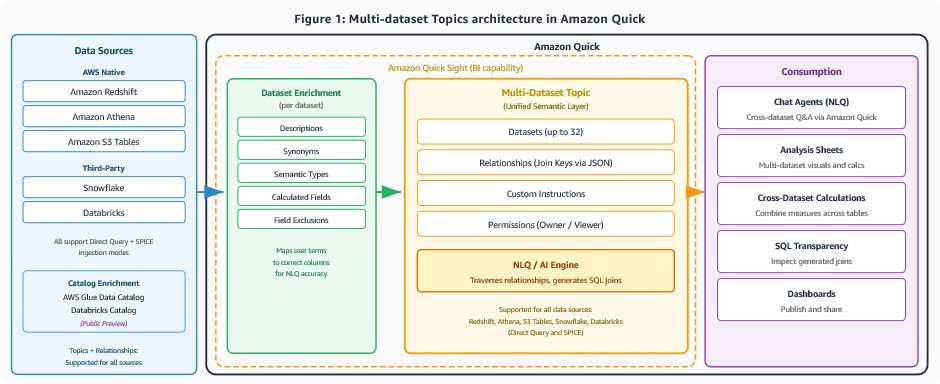
图1:多数据集主题架构流程,显示数据源如何输入到丰富数据集,这些数据集在带有关系和自定义指令的主题中组合,然后通过聊天和分析进行消费。
该架构包含四层:
**1. 数据源。**您的规范化数据集从受支持的来源连接到 Quick Sight。在私有预览期间,多数据集主题支持 SPICE(超快、并行、内存计算引擎)数据集。公开预览版将支持扩展至 Amazon Redshift、Amazon Athena、Amazon S3 Tables、Snowflake 和 Databricks 的直接查询。截至目前,您不能在单个主题中混用 SPICE 和直接查询数据集。
**2. 带或不带目录的数据集丰富。**每个数据集独立地通过语义元数据进行丰富,以提高 NLQ 准确性。丰富内容包括列描述(解释每个字段代表什么)、同义词(业务用户可能使用的替代术语)、语义类型(城市、州、货币、日期)、计算字段和字段排除。NLQ 引擎使用这些元数据将自然语言术语映射到正确的列。您现在可以在 Quick 中创建丰富数据集,或使用来自 AWS Glue(AWS Glue 数据目录)和 Databricks Unity Catalog 的目录引入它们。例如,当用户询问“headcount”时,引擎会将定义的同义词匹配到适当的列。
**3. 多数据集主题。**主题作为将数据集组合在一起的统一容器。它包含:
- **数据集(预览版中最多12个)。**每个数据集保持自己的丰富内容并连接到自己的数据源。
- **关系。**在数据集对之间定义的连接键告诉 NLQ 引擎表如何关联。您上传一个 JSON 文件,该文件映射数据集之间的列(例如,事实表的外键连接到维度表的主键)。
- **自定义指令。**持久的自然语言规则,指导人工智能解释特定领域的术语。这些规则处理消歧、自定义日期逻辑(如财年边界)和业务定义。
- **权限。**所有者可以修改主题。查看者可以提问并在分析中使用主题,但不能更改其配置。
**4. 消费。**业务用户通过多种界面与主题交互:
- **聊天。**用户在聊天界面提出自然语言问题。NLQ 引擎解析问题,识别跨数据集的相关列,构建带有适当连接的 SQL,并以表格或可视化的形式返回答案。
- **分析表。**作者使用主题中多个数据集的字段构建可视化。计算字段可以引用跨越不同数据集的列。
- **跨数据集计算。**您可以创建结合不同数据集中的度量和维度的计算字段,引擎处理底层的连接逻辑。
聊天代理如何处理跨数据集问题
当业务用户提出跨越多个数据集的自然语言问题时,NLQ 引擎会执行以下步骤:
**1. 意图解析。**引擎通过匹配列名、描述以及丰富元数据中的同义词,识别哪些列映射到用户的术语。它确定哪些数据集包含相关的度量和维度。
**2. 关系遍历。**使用定义的连接键,引擎确定已识别数据集之间的最短连接路径。它遵循关系图将事实表连接到所需的维度表。
**3. SQL 生成。**引擎构造一个带有适当 JOIN 子句、聚合(对“总计”使用 SUM)以及按请求维度 GROUP BY 的 SQL 查询。
**4. 结果呈现。**答案以可视化或表格的形式返回,生成的 SQL 可供检查。
此过程是透明的。用户可以查看生成的 SQL 以验证使用了正确的数据集和连接。您的丰富元数据和自定义指令越丰富,引擎就越能准确地解读模棱两可的问题。
工作示例:按客户分群和门店区域显示总销售额
考虑问题:“按客户分群和门店区域显示总销售额”。
**第1步 – 意图解析。**引擎映射:
- “总销售额” →
SUM(SALES_FACT.SALE_AMOUNT)。 - “客户分群” →
CUSTOMER_DIM.SEGMENT(通过同义词“segment”匹配)。 - “门店区域” →
STORE_DIM.REGION(通过同义词“region”匹配)。
**第2步 – 关系遍历。**引擎识别出回答该问题需要三个数据集:SALES_FACT、CUSTOMER_DIM 和 STORE_DIM。使用定义的关系:
SALES_FACT.CUSTOMER_ID→CUSTOMER_DIM.CUSTOMER_ID。SALES_FACT.STORE_ID→STORE_DIM.STORE_ID。
它构建了一个以 SALES_FACT 为枢纽的两跳连接路径。
**第3步 – SQL 生成。**引擎生成如下: sql SELECT c.SEGMENT AS customer_segment, s.REGION AS store_region, SUM(f.SALE_AMOUNT) AS total_sales FROM SALES_FACT f JOIN CUSTOMER_DIM c ON f.CUSTOMER_ID = c.CUSTOMER_ID JOIN STORE_DIM s ON f.STORE_ID = s.STORE_ID GROUP BY c.SEGMENT, s.REGION ORDER BY total_sales DESC
**第4步 – 结果呈现。**答案将渲染一个包含所有细节的可视化或表格。用户可以使用“解释”功能检查生成的 SQL。
功能可用性
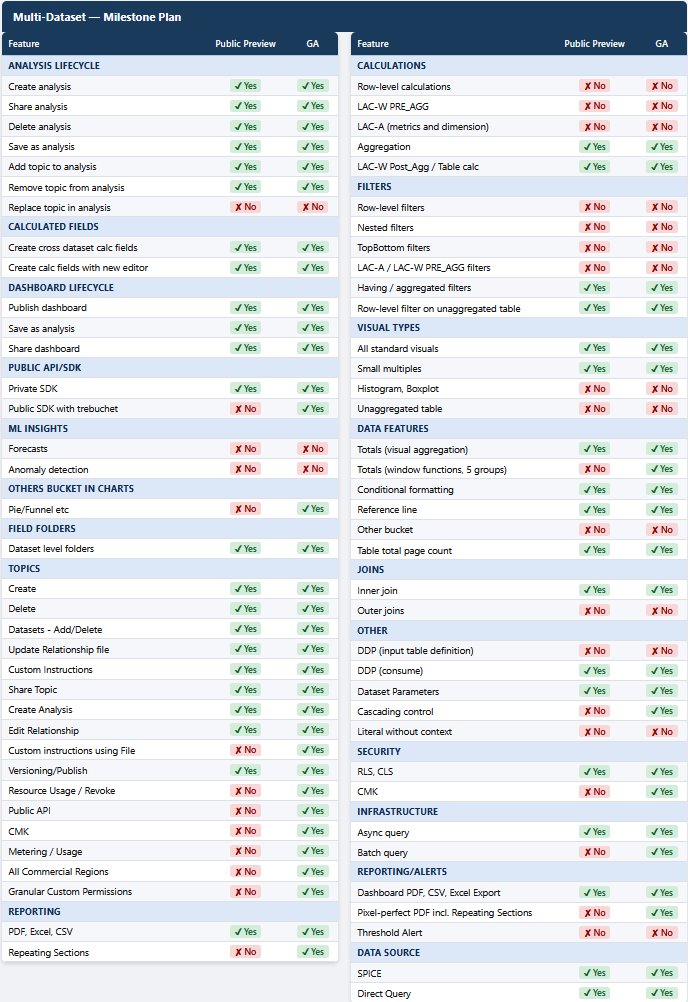
多数据集主题正在逐步推出。下表总结了 Quick Sight BI 可视化构建的功能可用性。在 Quick 聊天代理中使用主题则没有此类限制。
图例: 是 = 可用 | 否 = 不可用 | 计划中 = 计划在未来版本中发布
解决方案概述
在本演练中,我们将为 AnyCompany 的零售分析场景构建一个多数据集主题。该场景使用以星型模式建模的五个数据集。
下图展示了本次实现中使用的星型模式关系模式。
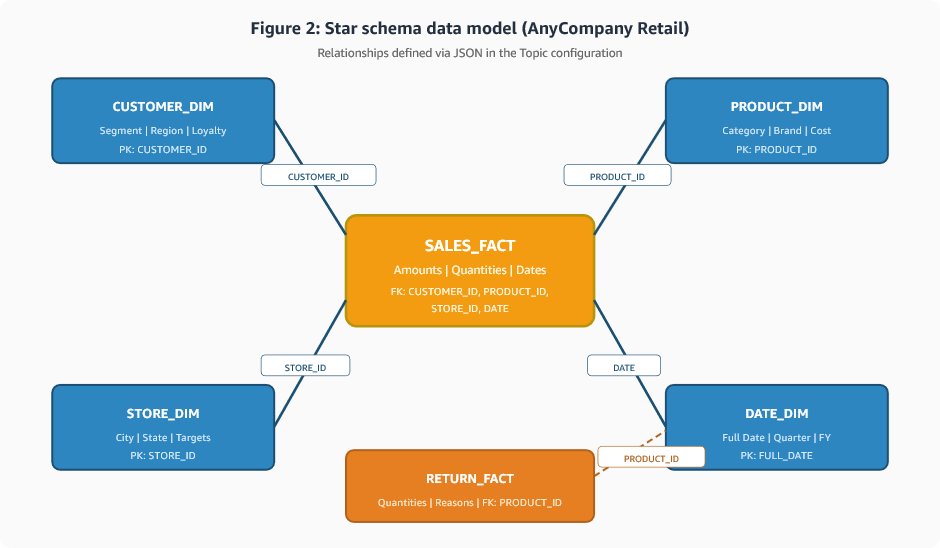
图2:星型模式数据模型,显示 SALES_FACT 为中心事实表,维度表 CUSTOMER_DIM、PRODUCT_DIM、STORE_DIM 和 DATE_DIM 通过连接键连接。
这些数据集包括:
- **SALES_FACT。**交易级销售数据,包括金额、数量、日期以及指向维度表的外键。
- **RETURN_FACT。**产品退货记录,包括数量、原因和日期。
- **CUSTOMER_DIM。**客户属性,包括姓名、分群、忠诚度等级和地理区域。
- **PRODUCT_DIM。**产品目录,包括类别、品牌、成本和供应商信息。
- **STORE_DIM。**门店位置信息,包括城市、州、面积、员工数和营收目标。
先决条件
要按照本文操作,请确认您具备以下条件:
- 已启用 Amazon Quick 企业版的 AWS 账户。
- 在 Amazon Quick 中拥有 Author 或 Admin 角色。
- 代表星型模式的数据集(事实表和维度表),已加载到 SPICE 中或可通过受支持的直接查询源访问。
- 创建主题和管理数据集的权限。
- 熟悉基本的数据建模概念(星型模式、事实/维度表、连接键)。
创建并丰富每个数据集
丰富弥合了技术列名与业务用户实际谈论数据方式之间的鸿沟。一个名为 TXN_DT 的列对询问“购买日期”或“订单日期”的营销分析师来说毫无意义。通过添加描述、同义词和语义类型,您教会了 NLQ 引擎您所在组织的词汇表。这项投入会在用户提出的每个问题中得到回报。它是使多数据集主题不仅功能正常,而且准确的基础。
对每个数据集,完成以下操作:
- 从 Quick 控制台的左侧窗格中,在 Quick Sight 下选择 数据。
- 选择一个数据集并选择 编辑。
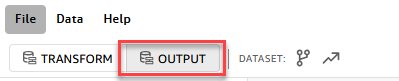
- 选择输出选项卡,为每一列添加描述、同义词和语义类型。
- 排除内部或不使用的字段,例如代理键、审计时间戳和提取、转换、加载(ETL)标志。
- 选择 保存并发布。
下表显示了 STORE_DIM 数据集的示例丰富内容。
| 列 | 描述 | 同义词 | 语义类型 |
|---|---|---|---|
| STORE_ID | 每个零售店的唯一标识符 | 商店编号、商店代码、店铺 ID | 标识符 |
| LOCATION | 商店所在的城市 | 城市、商店城市、城镇、区域 | 城市 |
| REGION | 商店运营所在的美国州份 | 州、领土、市场 | 州 |
| DAILY_TARGET | 以美元计的预期日销售营收目标 | 每日目标、每日配额 | 货币 |
| EMPLOYEE_COUNT | 商店的员工数量 | 人数、员工计数、团队规模 | 计数 |
| STORE_SIZE_SQFT | 零售楼面面积(平方英尺) | 平方英尺面积、楼面面积 | 度量 |
| OPENING_DATE | 商店首次开业的日期 | 启动日期、开始日期 | 日期 |
为每个数据集重复此过程。有关详细说明,请参阅《Amazon Quick Sight 用户指南》中的数据集丰富。
创建包含多个数据集的主题
在数据集得到丰富后,创建一个将它们组合成单一语义层的主题。
- 从 Quick 控制台的左侧窗格中,在 Quick Sight 下选择 数据。
- 导航到 主题 选项卡并选择 创建主题。
- 输入主题名称。
English / 原文
Amazon Quick is an AI-powered unified intelligence service that connects structured data and unstructured enterprise content so teams can explore, analyze, and act from one place. Amazon Quick Sight, the business intelligence (BI) capability within Amazon Quick, delivers interactive dashboards, natural language querying, pixel-perfect reports, machine learning (ML)-driven insights, and embedded analytics. Topics in Quick function as the semantic layer that business users can use to ask questions in natural language and get answers directly from their data.
Until now, organizations modeled their semantic layers by creating enriched datasets and associating them one-to-one with topics. Also, when Quick Sight authors build analysis, one visual could be sourced from only one dataset. Quick Sight represents a dataset as a single flattened table. If a customer’s data source contains multiple tables, Quick Sight required customers to define the dataset by joining the source tables into a single table in Quick Sight data preparation. This one big denormalized table approach was initially designed to provide better performance by avoiding run-time joins. It worked well for straightforward datasets, which made up the majority of use cases during the early stages of Quick Sight. Today, we’re evolving this model. With multi-dataset Topics (public preview) , you can now add up to 12 datasets to a single topic and define relationships between them. The Quick chat agent automatically traverses those relationships when answering questions. The AI engine interprets user intent, identifies which datasets contain the relevant columns, constructs the appropriate SQL joins based on your defined relationships, and returns a unified answer. Your data stays normalized, your governance stays centralized, and your business users get richer answers without understanding the underlying schema. The same multi-dataset topic can be used for building the analysis or answering questions using the chat agent.
In this post, we walk through how multi-dataset Topics work, explain how the chat agent uses defined relationships to generate cross-dataset queries, and demonstrate an end-to-end implementation using a retail analytics scenario in Quick Sight.
How multi-dataset Topics work
A Topic in Quick is the semantic layer between raw data and business users. It encapsulates the metadata, business rules, relationships, and context that the AI-powered natural language query (NLQ) engine uses to interpret natural language questions and translate them into precise analytical queries.
With multi-dataset Topics, this semantic layer now spans multiple datasets connected through explicitly defined relationships. The following diagram illustrates the end-to-end flow from data sources through to consumption.
Figure 1: Multi-dataset Topics architecture flow showing how data sources feed into enriched datasets, which are combined in a topic with relationships and custom instructions, then consumed through chat and analysis.
The architecture consists of four layers:
1. Data sources. Your normalized datasets connect to Quick Sight from supported sources. During private preview, multi-dataset Topics support SPICE (Super-fast, Parallel, In-memory Calculation Engine) datasets. Public preview expands support to Direct Query against Amazon Redshift, Amazon Athena, Amazon S3 Tables, Snowflake, and Databricks. You can’t combine SPICE and Direct Query datasets within a single topic as of today.
2. Dataset enrichment with or without catalogs. Each dataset is independently enriched with semantic metadata that improves NLQ accuracy. Enrichment includes column descriptions (explaining what each field represents), synonyms (alternative terms business users might use), semantic types (City, State, Currency, Date), calculated fields, and field exclusions. The NLQ engine uses this metadata to map natural language terms to the correct columns. You can now create enriched datasets in Quick or bring them in using catalogs from AWS Glue (AWS Glue Data Catalog) and Databricks Unity Catalog. For example, when a user asks about “headcount,” the engine matches a defined synonym to the appropriate column.
3. Multi-dataset topic. The topic serves as the unified container that brings datasets together. It holds:
- Datasets (up to 12 in preview). Each dataset maintains its own enrichment and connects to its own data source.
- Relationships. Join keys defined between dataset pairs tell the NLQ engine how tables relate. You upload a JSON file that maps columns between datasets (for example, a fact table’s foreign key joins to a dimension table’s primary key).
- Custom instructions. Persistent natural language rules that guide the AI in interpreting domain-specific terminology. These handle disambiguation, custom date logic (fiscal year boundaries), and business definitions.
- Permissions. Owners can modify the topic. Viewers can ask questions and use the topic in analysis but can’t change its configuration.
4. Consumption. Business users interact with the topic through multiple surfaces:
- Chat. Users ask natural language questions in the chat interface. The NLQ engine parses the question, identifies relevant columns across datasets, constructs SQL with appropriate joins, and returns the answer as a table or visualization.
- Analysis sheets. Authors build visuals using fields from multiple datasets within the topic. Calculated fields can reference columns spanning different datasets.
- Cross-dataset calculations. You can create calculated fields that combine measures and dimensions from different datasets, and the engine handles the underlying join logic.
How the chat processes cross-dataset questions
When a business user asks a natural language question that spans multiple datasets, the NLQ engine performs the following steps:
1. Intent parsing. The engine identifies which columns map to the user’s terms by matching against column names, descriptions, and synonyms from the enrichment metadata. It determines which datasets contain the relevant measures and dimensions.
2. Relationship traversal. Using the defined join keys, the engine determines the shortest join path between the identified datasets. It follows the relationship graph to connect fact tables to the necessary dimension tables.
3. SQL generation. The engine constructs a SQL query with the appropriate JOIN clauses, aggregation (SUM for “total”), and GROUP BY for the requested dimensions.
4. Result presentation. The answer is returned as a visualization or table, with the generated SQL available for inspection.
This process is transparent. Users can view the generated SQL to verify that the correct datasets and joins were used. The richer your enrichment metadata and custom instructions, the more accurately the engine interprets ambiguous questions.
Worked example: Show total sales by customer segment and store region
Consider the question: “Show total sales by customer segment and store region.”
Step 1 – Intent parsing. The engine maps:
- “total sales” →
SUM(SALES_FACT.SALE_AMOUNT). - “customer segment” →
CUSTOMER_DIM.SEGMENT(matched via synonym “segment”). - “store region” →
STORE_DIM.REGION(matched via synonym “region”).
Step 2 – Relationship traversal. The engine identifies that answering this question requires three datasets: SALES_FACT, CUSTOMER_DIM, and STORE_DIM. Using the defined relationships:
SALES_FACT.CUSTOMER_ID→CUSTOMER_DIM.CUSTOMER_ID.SALES_FACT.STORE_ID→STORE_DIM.STORE_ID.
It constructs a two-hop join path through SALES_FACT as the hub.
Step 3 – SQL generation. The engine produces:
SELECT c.SEGMENT AS customer_segment, s.REGION AS store_region, SUM(f.SALE_AMOUNT) AS total_sales
FROM SALES_FACT f
JOIN CUSTOMER_DIM c ON f.CUSTOMER_ID = c.CUSTOMER_ID
JOIN STORE_DIM s ON f.STORE_ID = s.STORE_ID
GROUP BY c.SEGMENT, s.REGION
ORDER BY total_sales DESC
Step 4 – Result presentation. The answer renders a visual or table with all details. The user can inspect the generated SQL using the Explanation feature.
Feature availability
Multi-dataset Topics are launching progressively. The following table summarizes feature availability for Quick Sight BI visual building. To use a Topic in Quick chat agent, no such limitations apply.
Legend: Yes = Available | No = Not Available | Planned = Planned for future release
Solution overview
For this walkthrough, we build a multi-dataset topic for a retail analytics scenario at AnyCompany. The scenario uses five datasets modeled in a star schema pattern.
The following diagram illustrates the star schema relationship pattern used in this implementation.
Figure 2: Star schema data model showing SALES_FACT as the central fact table, with dimension tables CUSTOMER_DIM, PRODUCT_DIM, STORE_DIM, and DATE_DIM connected via join keys.
The datasets include:
- SALES_FACT. Transaction-level sales data including amounts, quantities, dates, and foreign keys to dimension tables.
- RETURN_FACT. Product return records with quantities, reasons, and dates.
- CUSTOMER_DIM. Customer attributes including name, segment, loyalty tier, and geographic region.
- PRODUCT_DIM. Product catalog with category, brand, cost, and supplier information.
- STORE_DIM. Store locations with city, state, square footage, employee count, and revenue targets.
Prerequisites
To follow along with this post, confirm you have the following in place:
- An AWS account with Amazon Quick Enterprise Edition enabled.
- Author or Admin role in Amazon Quick.
- Datasets representing a star schema (fact tables and dimension tables), loaded into SPICE or accessible through a supported Direct Query source.
- Permissions to create topics and manage datasets.
- Familiarity with basic data modeling concepts (star schema, fact/dimension tables, join keys).
Create and enrich each dataset
Enrichment bridges the gap between technical column names and how business users actually talk about data. A column named TXN_DT means nothing to a marketing analyst who asks about ‘purchase date’ or ‘order date’. By adding descriptions, synonyms, and semantic types, you teach the NLQ engine your organization’s vocabulary. This investment pays off across every question users ask. It is the foundation that makes multi-dataset Topics accurate rather than only functional.
For each dataset, complete the following:
- From the Quick console’s left pane, under Quick Sight choose Data.
- Select a dataset and choose Edit.
- Select the output tab, and for each column, add descriptions, synonyms, and semantic types.
- Exclude internal or unused fields such as surrogate keys, audit timestamps, and extract, transform, and load (ETL) flags.
- Choose Save and publish.
The following table shows sample enrichment for the STORE_DIM dataset.
| Column | Description | Synonyms | Semantic Type |
|---|---|---|---|
| STORE_ID | Unique identifier for each retail store | Store Number, Store Code, Shop ID | Identifier |
| LOCATION | City where the store is located | City, Store City, Town, Area | City |
| REGION | US state where the store operates | State, Territory, Market | State |
| DAILY_TARGET | Expected daily sales revenue target in USD | Daily Goal, Daily Quota | Currency |
| EMPLOYEE_COUNT | Number of employees at the store | Headcount, Staff Count, Team Size | Count |
| STORE_SIZE_SQFT | Retail floor area in square feet | Square Footage, Floor Area | Measurement |
| OPENING_DATE | Date the store first opened | Launch Date, Start Date | Date |
Repeat this process for each dataset. For detailed instructions, refer to Dataset enrichment in the Amazon Quick Sight User Guide.
Create a topic with multiple datasets
With your datasets enriched, create a topic that combines them into a single semantic layer.
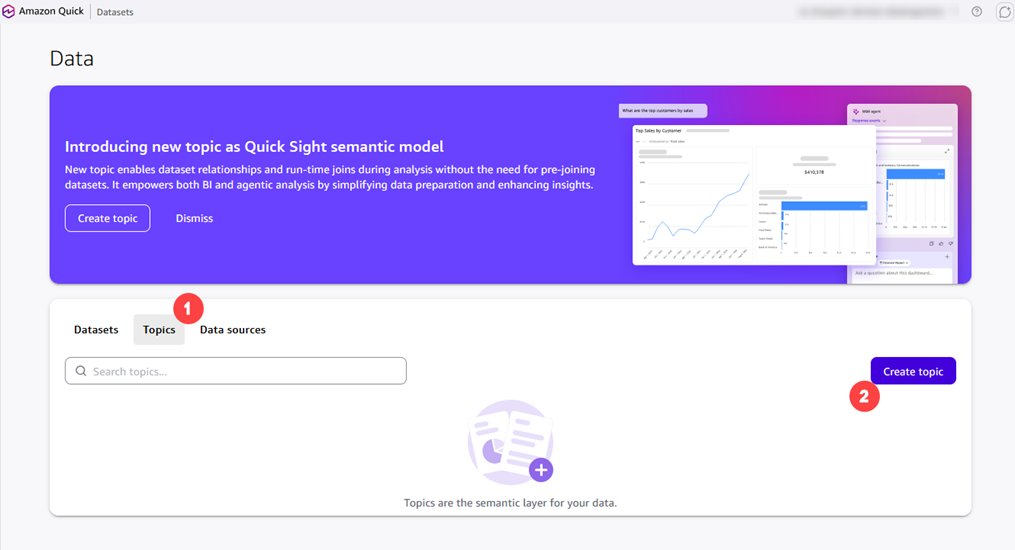
- From the Quick console’s left pane, under Quick Sight choose Data.
- Navigate to the Topics tab and choose Create topic.
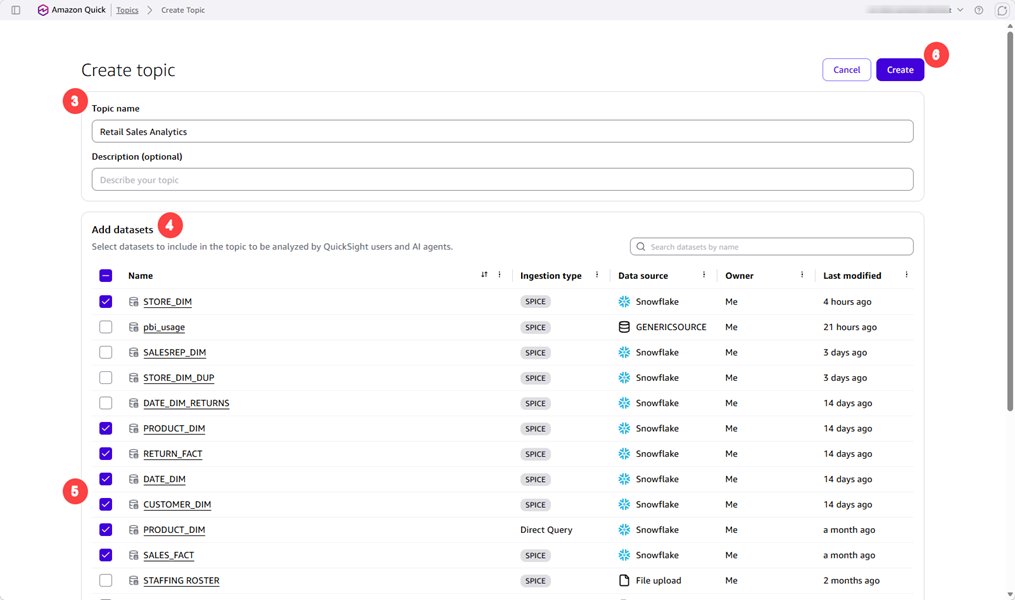
- Enter a topic name (for example, “Retail Sales Analytics”) and a description.
- Choose Add dataset.
- Select all relevant datasets (SALES_FACT, RETURN_FACT, CUSTOMER_DIM, PRODUCT_DIM, STORE_DIM).
- Choose Create.
Define relationships between datasets
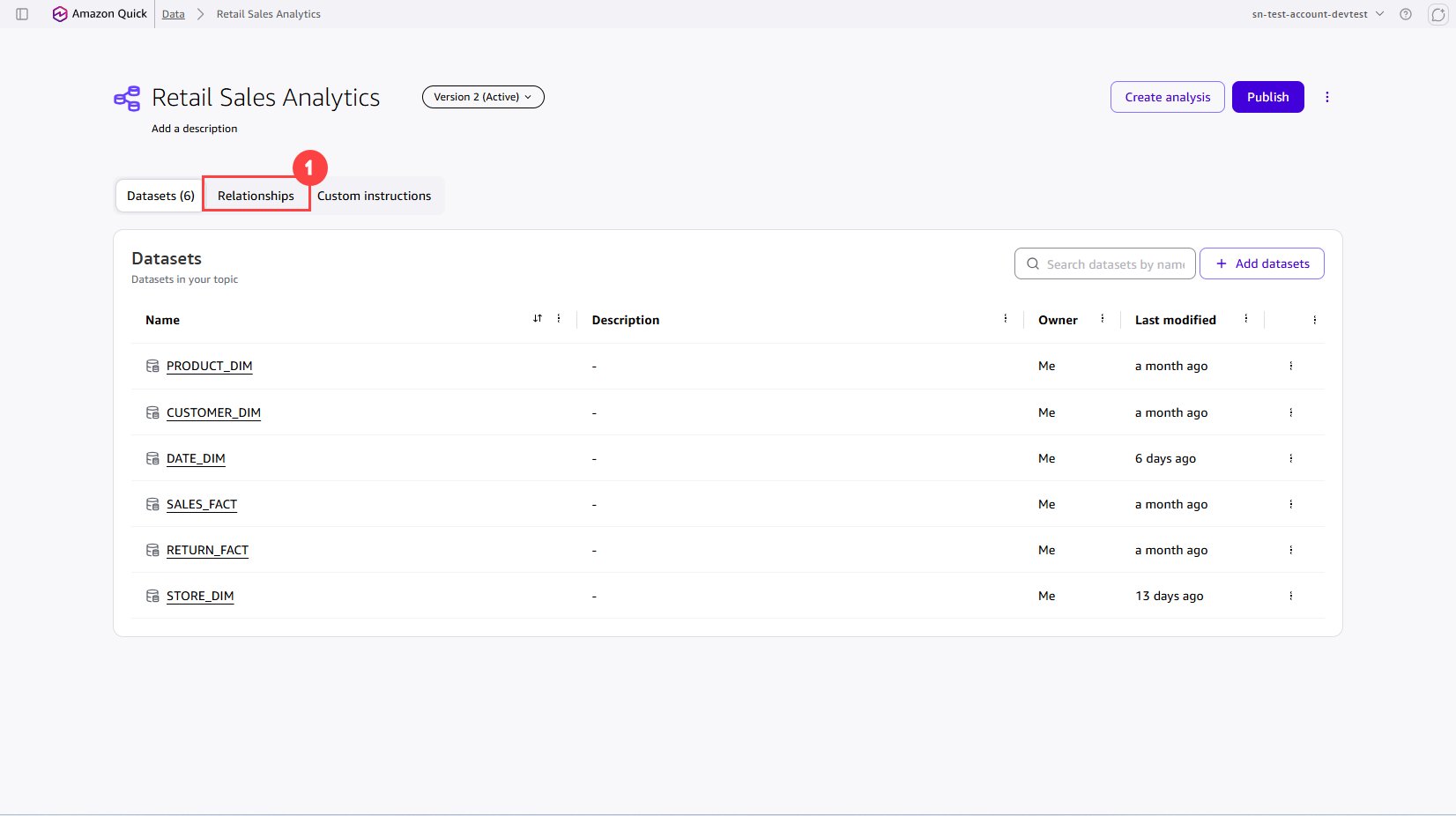
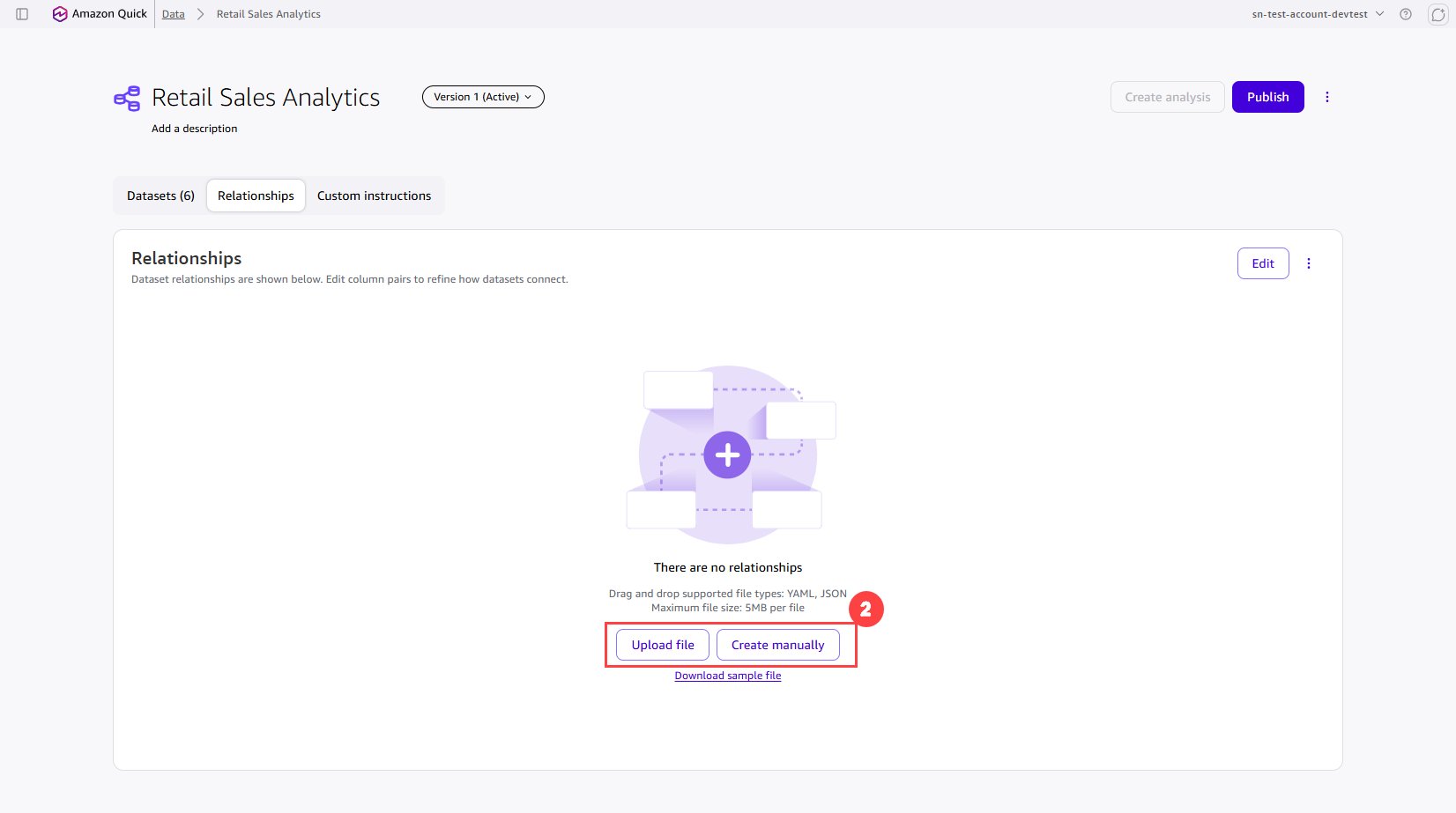
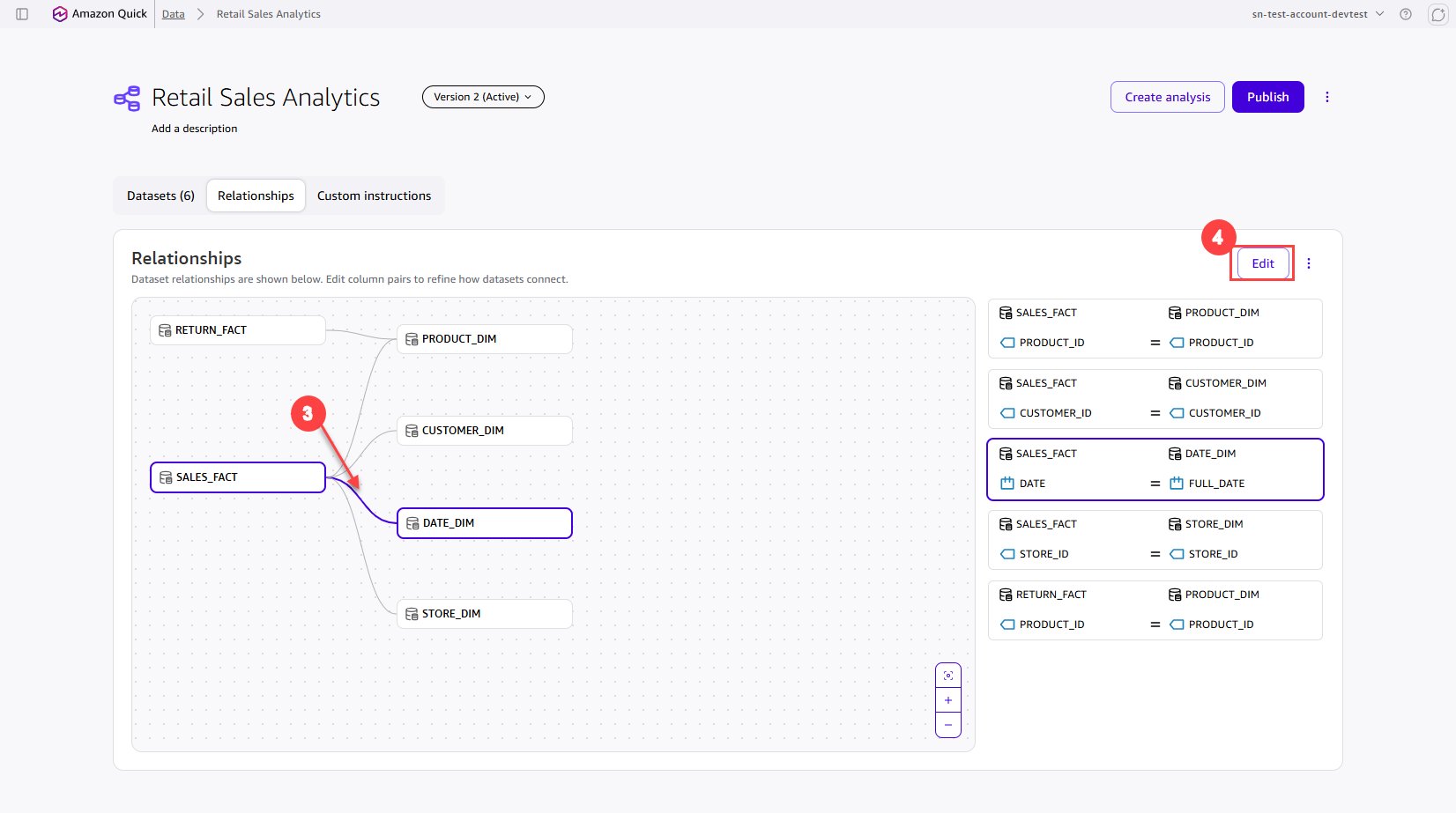
Relationships tell the NLQ engine how to join datasets when a question spans multiple tables. You define relationships using a JSON configuration file that specifies join keys between dataset pairs.
- In the topic editor, navigate to the Relationships tab.
- Choose Upload file.
- Upload a JSON file defining your relationships (refer to the following example).
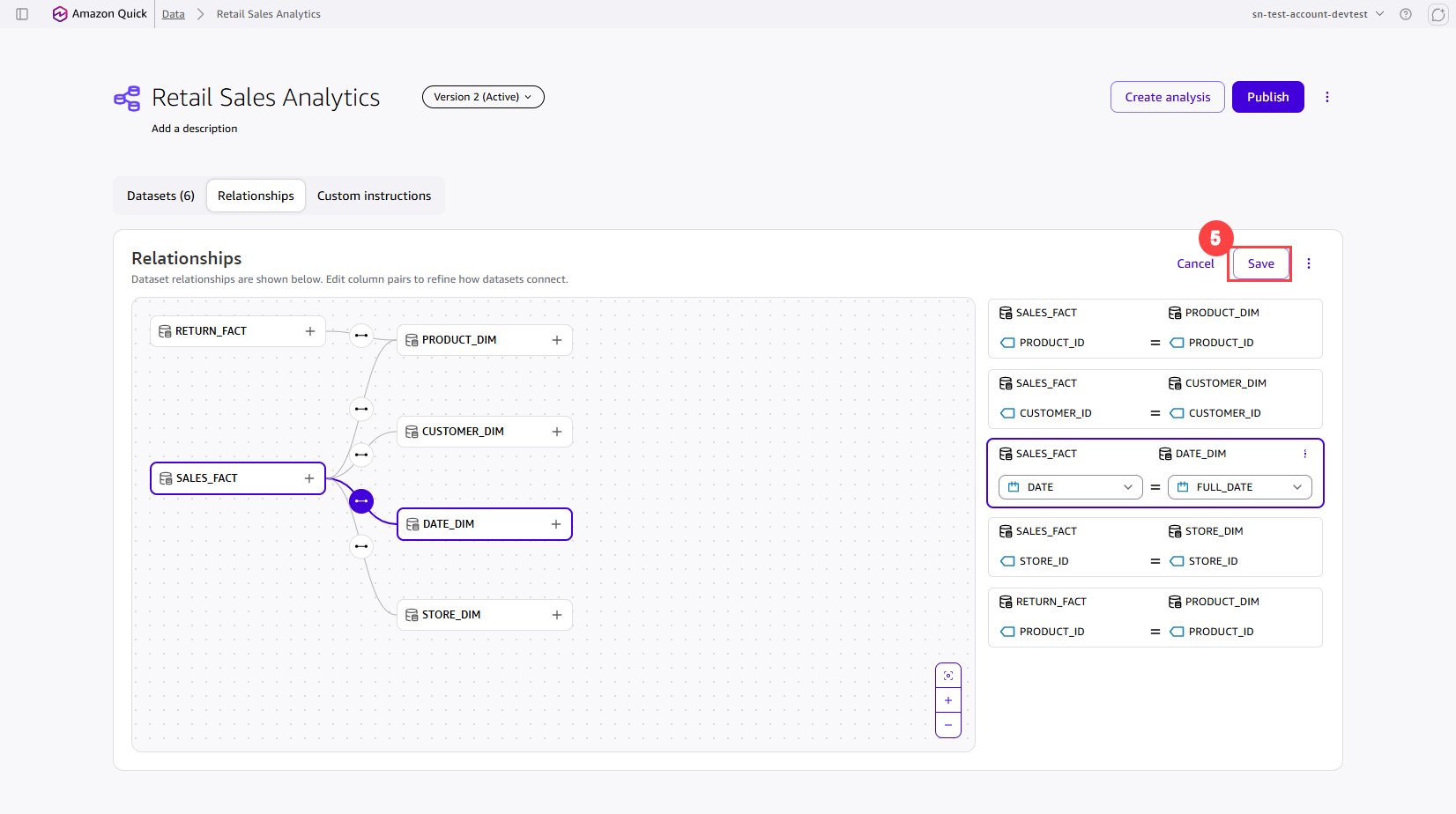
- After uploading, select a join to verify the relationship mapping.
- To edit, choose Edit , update join columns, and choose Save.
The following JSON shows a star schema configuration of the relationship file:
{
  "datasetPairs": [
    {
      "datasetLeft": { "datasetName": "SALES_FACT", "joinColumnNames": ["CUSTOMER_ID"] },
      "datasetRight": { "datasetName": "CUSTOMER_DIM", "joinColumnNames": ["CUSTOMER_ID"] }
    },
    {
      "datasetLeft": { "datasetName": "SALES_FACT", "joinColumnNames": ["PRODUCT_ID"] },
      "datasetRight": { "datasetName": "PRODUCT_DIM", "joinColumnNames": ["PRODUCT_ID"] }
    },
    {
      "datasetLeft": { "datasetName": "SALES_FACT", "joinColumnNames": ["STORE_ID"] },
      "datasetRight": { "datasetName": "STORE_DIM", "joinColumnNames": ["STORE_ID"] }
    },
    {
      "datasetLeft": { "datasetName": "RETURN_FACT", "joinColumnNames": ["PRODUCT_ID"] },
      "datasetRight": { "datasetName": "PRODUCT_DIM", "joinColumnNames": ["PRODUCT_ID"] }
    }
  ]
}
Best practice: Model your datasets in a star schema with one or more central fact tables joined to shared dimension tables. Avoid circular joins and many-to-many relationships.
Add custom instructions
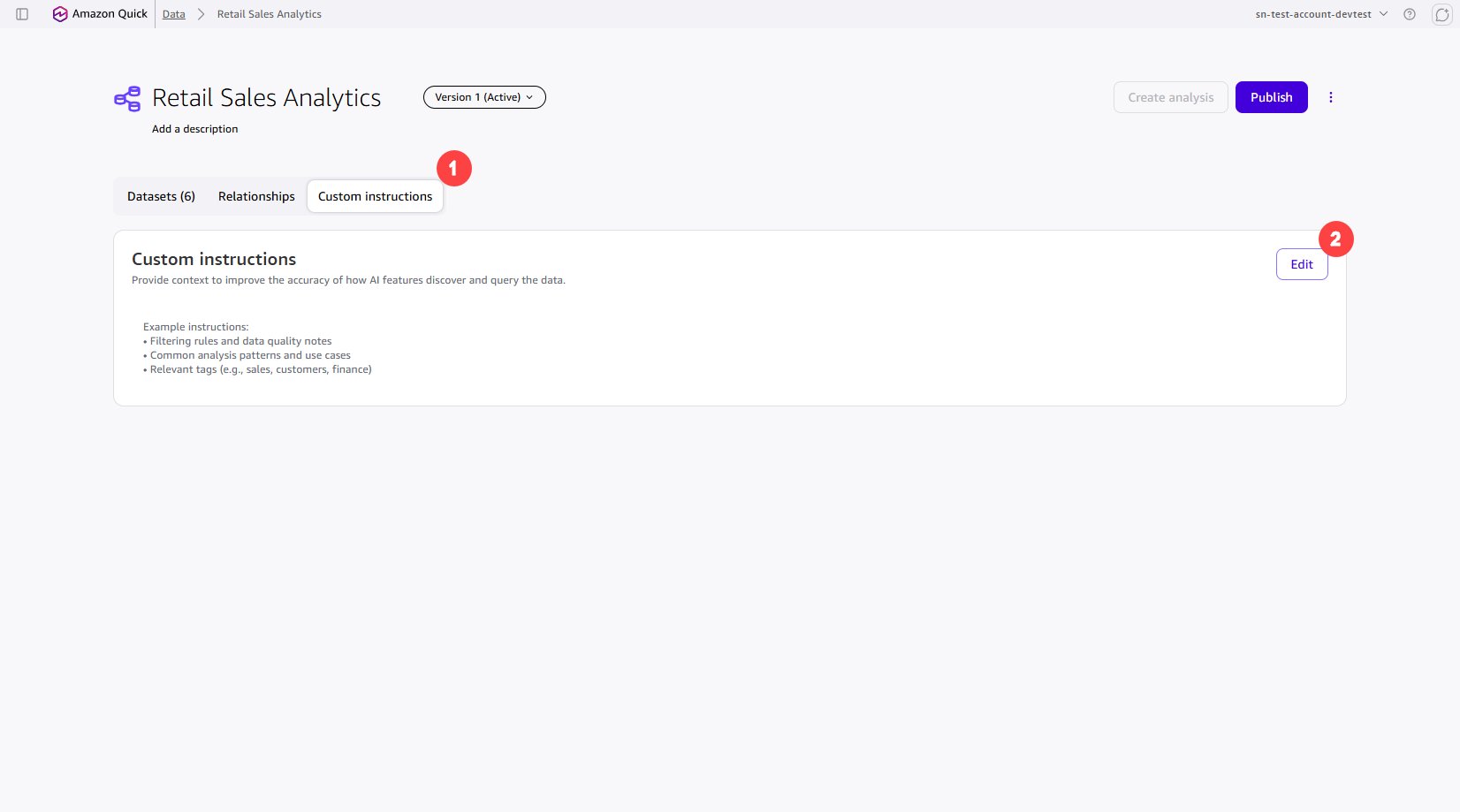
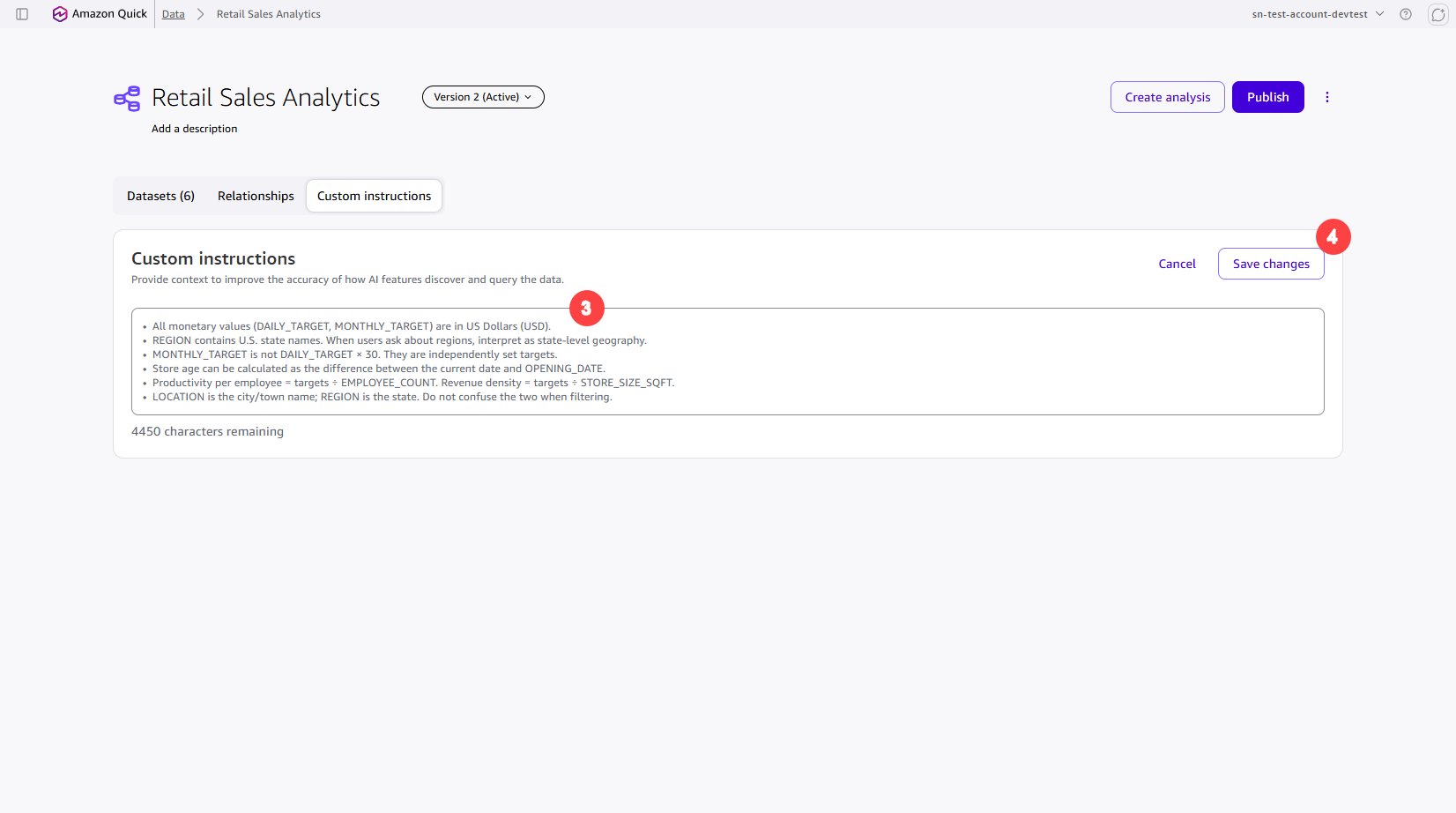
Custom instructions act as persistent business rules that the NLQ engine applies to every question. Without them, the engine interprets terms literally. For example, ‘this year’ defaults to the calendar year. However, if your organization runs on a fiscal year starting April 1, you need an instruction to override that default. Similarly, business-specific metrics like ‘return rate’ require explicit definitions so the engine calculates them consistently across all users.
- In the topic editor, navigate to the Custom instructions tab.
- Choose Edit.
- Add your instructions (the following examples).
- Choose Save changes.
Example custom instructions:
- “Fiscal year starts April 1. Interpret ‘this year’ using fiscal year boundaries.”
- “Active customers means customers with at least one purchase in the last 90 days.”
- “When ‘sales’ is mentioned without qualification, default to
net_sales_amount.” - “Return rate = count of returned items (RETURN_FACT) / total items sold (SALES_FACT), as a percentage.”
Publish and share the topic
After configuring your topic, share it with business users.
- From the topic page, choose Publish , then choose Publish again on the popup.
- From the topic page, select the ellipsis menu and choose Share.
- Search for and add specific users or groups.
- Set permission levels (Owner or Viewer) and choose Done.
| Permission Level | Can Ask Questions | Can Modify Topic | Can use in Analysis |
|---|---|---|---|
| Owner | Yes | Yes | Yes |
| Viewer | Yes | No | Yes |
Viewers can immediately start asking natural language questions. Quick Sight enforces row-level security (RLS) and column-level security (CLS) at the dataset level, so access controls are preserved through the topic’s semantic layer.
Use the topic in analysis and chat
Using in analysis sheets
- Navigate to the topic and choose Create analysis.
- Select Interactive sheet and choose Create.
- Select fields from multiple datasets and add them to a visual.
- Create calculated fields that reference columns from different datasets.
Using in chat (NLQ)
- Navigate to the topic and choose the chat icon.
- Your topic is automatically available as the context.
- Ask natural language questions that span multiple datasets:
- “Summarize topic?”
- “Return analysis”
- “Show return rate trend as % of quantity?”
- The chat agent uses your defined relationships, descriptions, synonyms, and custom instructions to generate accurate answers.
- Explore results and explanation. Notice how the SQL shows joins from multiple datasets.
The generated SQL demonstrates multi-dataset joins in action. For example, a question about “sales by region” produces SQL that joins SALES_FACT to STORE_DIM on STORE_ID and groups by the REGION column.
Clean up
To avoid incurring ongoing charges, delete the AWS resources, such as AWS Identity and Access Management (IAM) roles, Quick Sight data sources, and policies, that you created as part of this experimentation. For instructions, see the service documentation.
Conclusion
In this post, you learned how to use multi-dataset Topics in Amazon Quick Sight to build a unified semantic layer across multiple normalized datasets without pre-joining or duplicating data. By defining relationships through join keys, enriching each dataset with semantic metadata, and adding custom instructions, you give the NLQ engine the context it needs to answer cross-dataset natural language questions accurately.
This feature preserves your star schema design, reduces data duplication, and gives administrators a single governed surface to manage business definitions across all related datasets. Business users get richer, cross-domain answers through chat and analysis without understanding joins or SQL.
To get started, create a topic and add your related datasets today. For the full configuration reference, see Working with Amazon Quick Sight Topics in the documentation. For additional discussions and help getting answers to your questions, check out the Amazon Quick Community.
Refer to the Data Modeling Best Practices for Amazon Quick Sight Multi-Dataset Relationships blog post for a detailed look at different scenarios and how to model those using Quick Sight.
About the authors
Emily Zhu
Emily is a Senior Product Manager at Amazon Quick, responsible for the full structured data stack — spanning governed and enterprise-scale data architecture, high-performance analytical and conversational query engines, and the semantic and ontology layer that gives data real meaning at scale. She’s passionate about how a strong data strategy unlocks AI strategy and is on a mission to make the structured data stack the foundation for conversational and analytical experiences across Quick.
Ying Wang
Ying is a Senior Specialist Solutions Architect in the Generative AI organization at AWS, specializing in Amazon Quick Sight and Amazon Q to support large enterprise and ISV customers. She brings 16 years of experience in data analytics and data science, with a strong background as a data architect and software development engineering manager. As a data architect, Ying helped customers design and scale enterprise data architecture solutions in the cloud. In her role as an engineering manager, she enabled customers to make the most of their data through Quick Sight by delivering new features and driving product innovation from both engineering and product perspectives
Neeraj Kumar
Neeraj is a Senior Worldwide Solutions Architect at AWS, architecting enterprise-scale solutions that transform how organizations use data. With over two decades in data and analytics across automotive, manufacturing, and telecom sectors, he guides global customers to gain deeper insights using Amazon Quick and AI-powered analytics, helping them modernize their Unified AI/BI landscape and accelerate their data-driven initiatives.
Salim Khan
Salim is a Senior Worldwide Generative AI Solutions Architect for Amazon Quick at AWS. He has over 16 years of experience implementing enterprise business intelligence solutions. At AWS, Salim works with customers globally to design and implement AI-powered BI and generative AI capabilities on Amazon Quick. Prior to AWS, he worked as a BI consultant across industry verticals including Automotive, Healthcare, Entertainment, Consumer, Publishing, and Financial Services, delivering business intelligence, data warehousing, data integration, and master data management solutions.