借助 SageMaker AI 在 Amazon EKS 上运行交互式 IDE,为 AI 工作流提速
英文标题:Run interactive IDEs on Amazon EKS with SageMaker AI to power up your AI workflows
Amazon SageMaker AI Spaces add-on 可在机器学习团队现有的 Amazon EKS 集群上运行托管式 JupyterLab 和 Code Editor 环境,避免开发者在集群、独立 JupyterHub 和本地电脑之间切换。文章称,搭建具备 GPU、存储和认证能力的独立 JupyterHub 通常需要平台团队 3—5 天,而通过该附加组件,数据科学家约 5 分钟即可启动一个完成配置的 Space。该方案将交互式开发与训练工作负载集中到同一集群,可使 GPU 利用率相比专用 Notebook 集群最高提升 30%,并避免持续运行 GPU 环境带来的每月数千美元成本。文章还介绍了 TLS、KMS、SSM、Pod Identity、AWS Load Balancer Controller 的配置,以及通过浏览器预签名 URL 和 VS Code SSH-over-SSM 访问 Space 的方法。
 1.3 MB
 101.1 KB
 124.1 KB
 345.0 KB
 141.2 KB
 346.5 KB
 148.5 KB
 155.5 KB
 136.7 KB
 348.8 KB
 72.8 KB
 264.1 KB
 332.8 KB
 349.4 KB
 141.5 KB
 79.6 KB
 100.8 KB
 100.5 KB
 56.1 KB
 28.9 KB
中文
要在 Amazon Elastic Kubernetes Service (Amazon EKS) 上增强 AI 工作流,数据科学家需要 JupyterLab 和 Code Editor 等交互式 IDE。然而,运行这些 IDE 通常意味着离开承载其流水线的集群,转而使用独立部署的 JupyterHub 或本地笔记本电脑。这种切换使他们无法使用其流水线所依赖的 GPU 节点、共享存储和 AWS Identity and Access Management (IAM) 角色。Amazon SageMaker AI 的 Amazon EKS Spaces 附加组件弥合了这一缺口。它可在您已经运营的集群上运行托管式 JupyterLab 和 Code Editor 环境。搭建一个具备 GPU 访问、存储和身份验证能力的独立 JupyterHub 环境,通常需要平台团队 3—5 天;而借助该附加组件,数据科学家大约 5 分钟即可启动一个完成配置的 Space。
本文将在 Amazon EKS 集群上安装 SageMaker AI Spaces 附加组件。您将配置所需的配套附加组件和 IAM 角色,部署 AWS Load Balancer Controller,申请 TLS 证书,并创建 AWS Key Management System (AWS KMS) 加密密钥。随后,您将创建第一个 Space,并通过浏览器中的预签名 URL 以及经由 SSH-over-SSM 的 VS Code 访问它。最后,您将了解如何将团队迁移至使用 Amazon Cognito 的 OpenID Connect (OIDC) 登录方式。
解决方案概览
该解决方案在单个 EKS 集群上分三层运行:
将交互式工作负载和训练工作负载集中在同一集群上,可在任务间隙保持 GPU 节点处于忙碌状态。与专用 Notebook 集群相比,这最多可将 GPU 利用率提高 30%。它还避免了始终运行 GPU 环境的成本,这类成本每月可能高达数千美元。
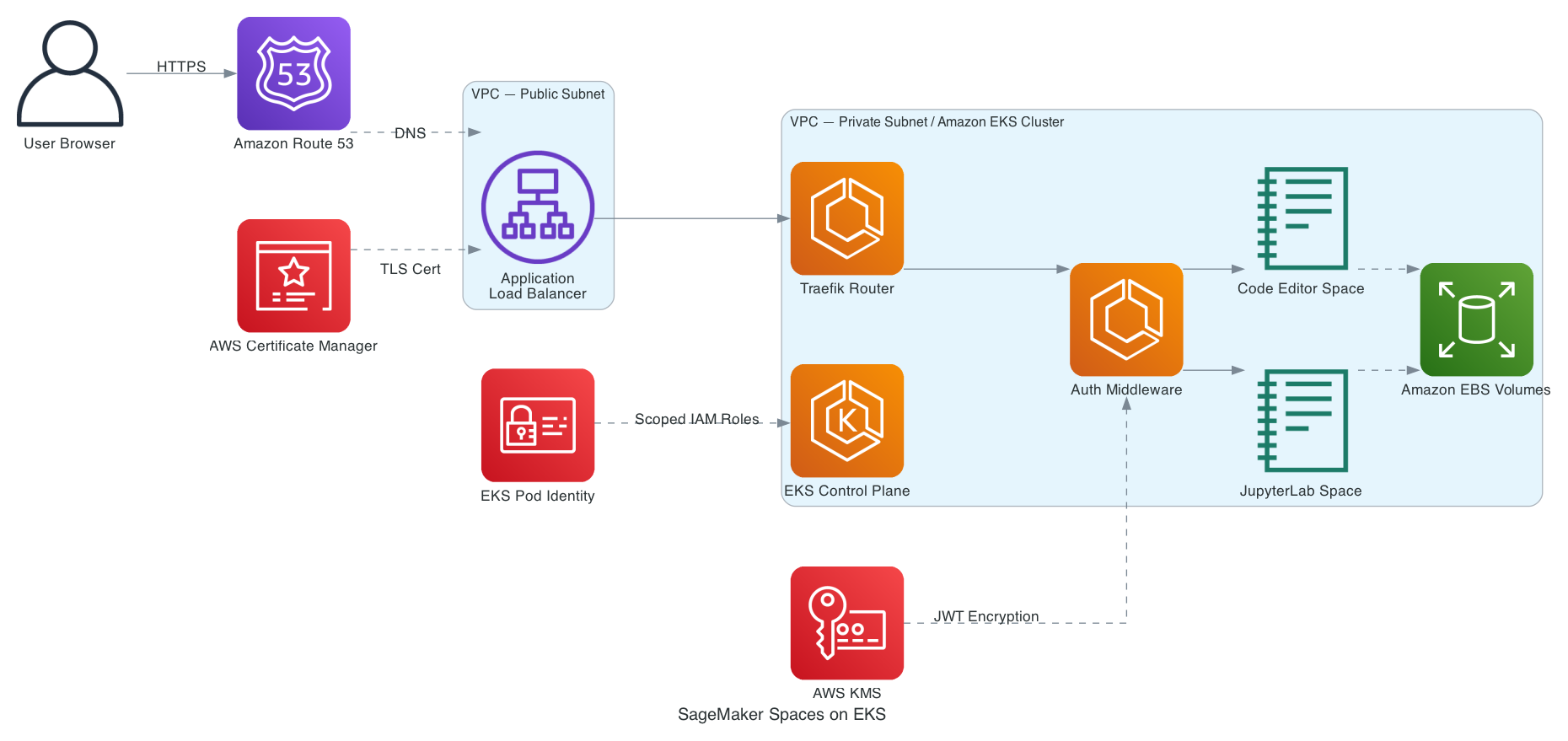
图 1:解决方案架构
前提条件
要跟随本文操作,您需要拥有一个 AWS 账户,并已为目标 AWS 区域配置 AWS Command Line Interface (AWS CLI) 2.x 或更高版本,以及 kubectl 1.30 或更高版本和 Helm v3。您还需要为自己拥有的域名配置一个 Route 53 公共托管区域,本文将以 <YOUR_DOMAIN> 指代该域名;此外,您还需要具备创建角色、策略、EKS 附加组件、访问条目、Pod Identity 关联、ACM 证书和 KMS 密钥的 IAM 权限。Spaces 附加组件必须为 0.1.4 或更高版本,因为早期版本仅支持 Amazon SageMaker HyperPod。
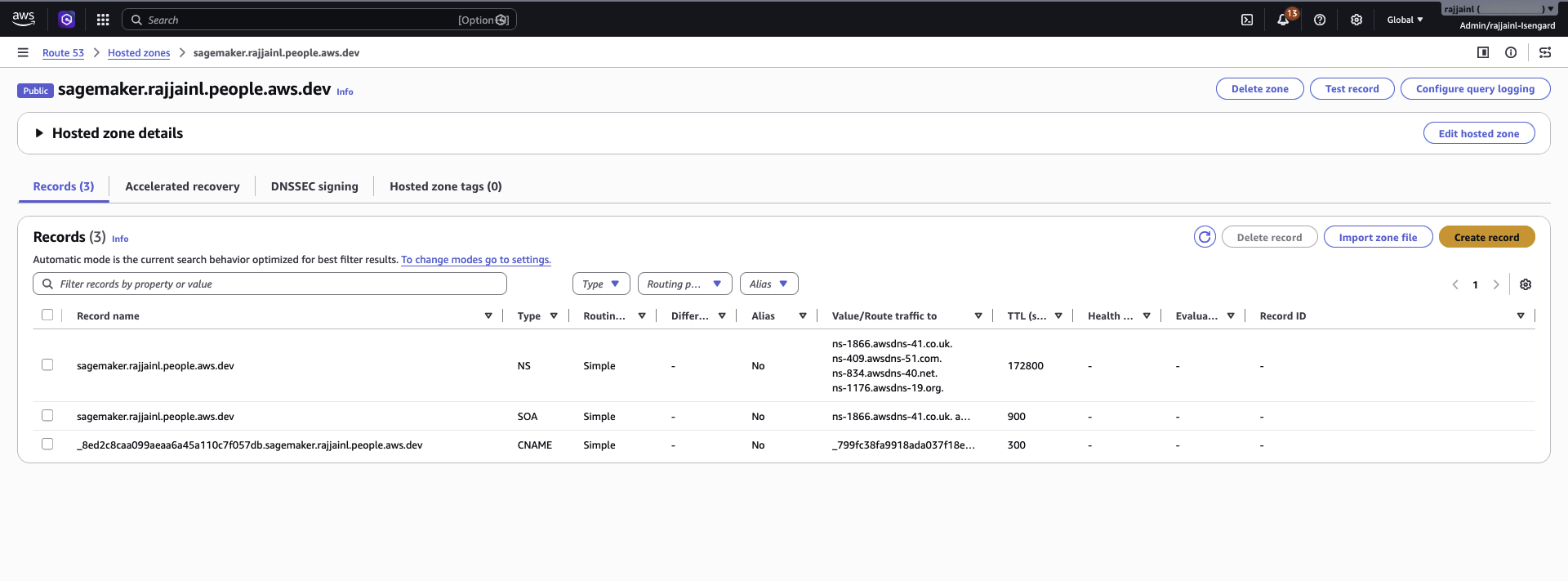
图 2:包含验证记录的 Route 53 托管区域
一次性设置以下变量。本文其余部分会重复使用这些变量。
export CLUSTER_NAME=<CLUSTER_NAME>
export REGION=<REGION>
export ACCOUNT_ID=$(aws sts get-caller-identity --query Account --output text)
本文中的每个 IAM 角色都由 Kubernetes 服务账户通过 EKS Pod Identity 代入,因此它们共用一项信任策略。将其保存一次以便重复使用:
cat > pod-identity-trust.json <<'EOF'
{
  "Version": "2012-10-17",
  "Statement": [{
    "Effect": "Allow",
    "Principal": { "Service": "pods.eks.amazonaws.com" },
    "Action": ["sts:AssumeRole", "sts:TagSession"]
  }]
}
EOF
**注意:**本演练会创建产生 AWS 费用的资源,包括面向互联网的 ALB、EBS 卷和 EKS 集群。SSM advanced-instances 层级会为每个 Space Pod 增加约 $0.00695/小时的费用。完成后请遵循“清理”部分的说明。
创建 EKS 集群
集群创建本身遵循标准的 EKS 入门指南。此处的关键在于满足四项 Spaces 专属要求。请保持 EKS Auto Mode 禁用,因为该附加组件要求在 Kubernetes 1.30 或更高版本上使用传统的、由 EC2 支持的节点。使用一个跨至少两个可用区、包含公有和私有子网的虚拟私有云 (VPC),使用 NAT 网关为私有子网提供服务,并将集群端点访问权限设置为 Public and private。创建期间,添加 EKS Pod Identity Agent、Amazon EBS CSI Driver、Cert manager 和 External DNS 附加组件,但暂时不要添加 Amazon SageMaker Spaces 和 AWS Load Balancer Controller,您将在后续安装它们。最后,在私有子网上创建一个托管节点组,使用 Amazon Linux 2023、m5.xlarge 或更大规格,以及 2 个节点。如果您已有符合这些条件的集群,可跳过本节。
有一个步骤经常被忽略。请为 VPC 中的每个子网添加标签,以便 AWS Load Balancer Controller 可以发现它们;并且要在安装 Spaces 附加组件之前添加这些标签。否则,控制器可能会将 ALB 放置在私有子网上,导致无法访问 Spaces。
export VPC_ID=$(aws eks describe-cluster \
  --name $CLUSTER_NAME --region $REGION \
  --query 'cluster.resourcesVpcConfig.vpcId' --output text)

ALL_SUBNETS=$(aws ec2 describe-subnets --region $REGION \
  --filters "Name=vpc-id,Values=${VPC_ID}" \
  --query 'Subnets[*].SubnetId' --output text)
aws ec2 create-tags --region $REGION --resources ${ALL_SUBNETS} \
  --tags Key=kubernetes.io/cluster/$CLUSTER_NAME,Value=shared

PUBLIC_SUBNETS=$(aws ec2 describe-subnets --region $REGION \
  --filters "Name=vpc-id,Values=${VPC_ID}" "Name=map-public-ip-on-launch,Values=true" \
  --query 'Subnets[*].SubnetId' --output text)
aws ec2 create-tags --region $REGION --resources ${PUBLIC_SUBNETS} \
  --tags Key=kubernetes.io/role/elb,Value=1

PRIVATE_SUBNETS=$(aws ec2 describe-subnets --region $REGION \
  --filters "Name=vpc-id,Values=${VPC_ID}" "Name=map-public-ip-on-launch,Values=false" \
  --query 'Subnets[*].SubnetId' --output text)
aws ec2 create-tags --region $REGION --resources ${PRIVATE_SUBNETS} \
  --tags Key=kubernetes.io/role/internal-elb,Value=1
设置基础环境
集群运行后,您需要将 kubectl 指向该集群,确认附加组件 Pod 健康,并为 External DNS 授予管理 DNS 记录所需的 Route 53 权限。
-
配置 kubectl:
aws eks update-kubeconfig --name $CLUSTER_NAME --region $REGION
kubectl get nodes
两个工作节点都会显示 Ready:
     NAME                        STATUS   ROLES    AGE   VERSION
     ip-10-0-1-42.ec2.internal   Ready    <none>   38m   v1.34.6-eks-bbe087e
     ip-10-0-2-96.ec2.internal   Ready    <none>   38m   v1.34.6-eks-bbe087e
-
使用
kubectl get pods -A确认各附加组件命名空间中的系统 Pod 均健康。继续之前,kube-system、cert-manager和external-dns中的每个 Pod 都应为Running。 -
External DNS 需要 Route 53 权限来管理记录。创建角色,附加最小权限策略,并通过 Pod Identity 进行绑定:
aws iam create-role --role-name ExternalDNSRole \
  --assume-role-policy-document file://pod-identity-trust.json

aws iam put-role-policy --role-name ExternalDNSRole \
  --policy-name ExternalDNSRoute53Policy \
  --policy-document '{
  "Version":"2012-10-17",
  "Statement":[
    {"Effect":"Allow","Action":["route53:ChangeResourceRecordSets"],
     "Resource":"arn:aws:route53:::hostedzone/*"},
    {"Effect":"Allow","Action":["route53:ListHostedZones","route53:ListResourceRecordSets","route53:ListTagsForResource"],
     "Resource":"*"}
  ]}'

aws eks create-pod-identity-association \
  --cluster-name $CLUSTER_NAME --region $REGION \
  --namespace external-dns --service-account external-dns \
  --role-arn arn:aws:iam::${ACCOUNT_ID}:role/ExternalDNSRole

kubectl rollout restart deployment -n external-dns external-dns
**安全提示:**将每个 Pod Identity 角色的操作和资源范围限制在最低限度。优先使用明确的资源 ARN,而非通配符;并确认只有预期的服务账户可以代入该角色。
安装 AWS Load Balancer Controller
AWS Load Balancer Controller 会预置位于 Spaces UI 前端的 ALB。使用 Helm 安装它。
-
定义控制器的 IAM 策略、角色和 Pod Identity 关联:
curl -sS -o /tmp/lbc-iam-policy.json \ <https://raw.githubusercontent.com/kubernetes-sigs/aws-load-balancer-controller/main/docs/install/iam_policy.json> aws iam create-policy --policy-name AWSLoadBalancerControllerIAMPolicy \ --policy-document file:///tmp/lbc-iam-policy.json aws iam create-role --role-name AWSLoadBalancerControllerRole \ --assume-role-policy-document file://pod-identity-trust.json aws iam attach-role-policy --role-name AWSLoadBalancerControllerRole \ --policy-arn arn:aws:iam::${ACCOUNT_ID}:policy/AWSLoadBalancerControllerIAMPolicy aws eks create-pod-identity-association \ --cluster-name $CLUSTER_NAME --region $REGION \ --namespace kube-system --service-account aws-load-balancer-controller \ --role-arn arn:aws:iam::${ACCOUNT_ID}:role/AWSLoadBalancerControllerRole -
安装 Helm Chart。显式传入
vpcId和region。在 Chart v3.2 及更高版本中,如果控制器通过 EC2 元数据自动检测 VPC,会因 EKS 阻止 Pod 访问该元数据而失败。helm repo add eks https://aws.github.io/eks-charts helm repo update eks helm install aws-load-balancer-controller eks/aws-load-balancer-controller \ -n kube-system \ --set clusterName=$CLUSTER_NAME \ --set serviceAccount.create=true \ --set serviceAccount.name=aws-load-balancer-controller \ --set region=$REGION \ --set vpcId=$VPC_ID kubectl rollout status deployment -n kube-system aws-load-balancer-controller --timeout=180s
两个控制器副本均会启动:
     NAME                           READY   UP-TO-DATE   AVAILABLE   AGE
     aws-load-balancer-controller   2/2     2            2           174m
创建证书、密钥和 SSM 配置
Spaces 附加组件需要 TLS 证书、用于 JWT 加密的 KMS 密钥,以及用于远程访问的 SSM 服务设置。
-
使用 DNS 验证申请覆盖您的域名及其通配符的 ACM 证书,然后读取 ACM 所要求的 CNAME 记录:
CERT_ARN=$(aws acm request-certificate \
  --domain-name "<YOUR_DOMAIN>" \
  --subject-alternative-names "*.<YOUR_DOMAIN>" \
  --validation-method DNS \
  --region $REGION \
  --query CertificateArn --output text)

# Read the CNAME records ACM expects, then add them to your Route 53
# hosted zone. The console's 'Create records in Route 53' button
# does this for you.
aws acm describe-certificate --certificate-arn "$CERT_ARN" \
  --region $REGION \
  --query 'Certificate.DomainValidationOptions[].ResourceRecord'
等待证书状态变为 Issued,然后复制 ARN。
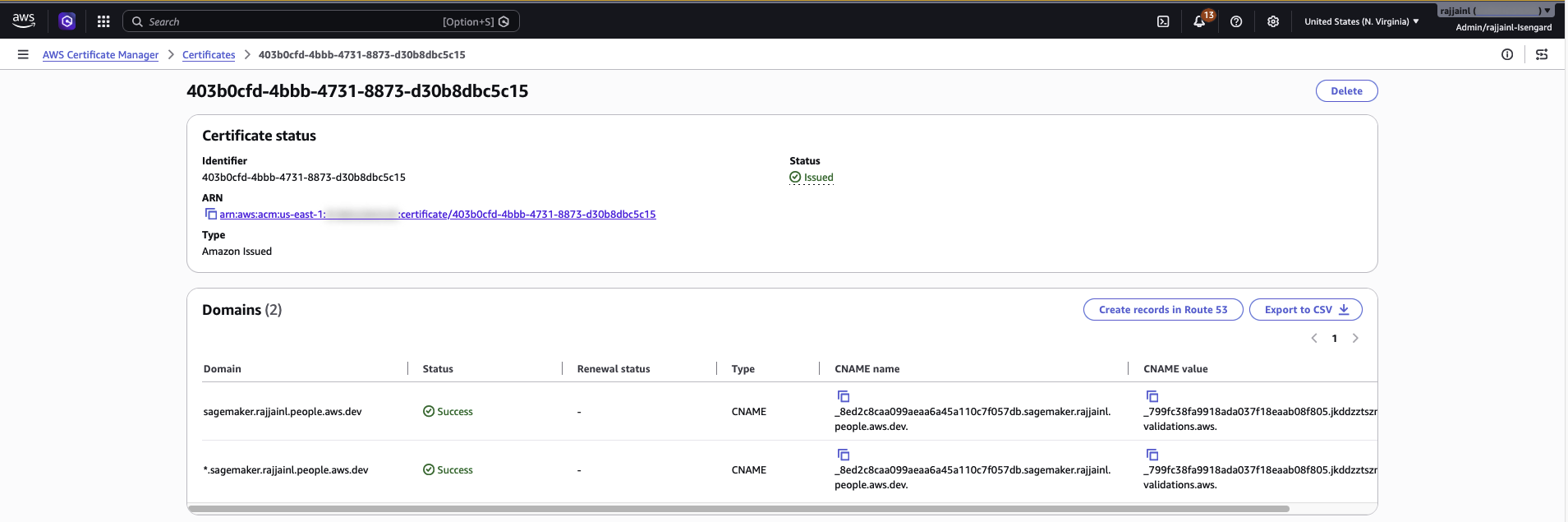
图 3:为该域名签发的证书
**安全提示:**DNS 验证可验证域名所有权,并触发 ACM 自动续订。请在 Route 53 中保留验证 CNAME 记录;删除这些记录会导致续订失败。
-
创建 KMS 加密密钥。身份验证中间件会为每个 JWT 调用
kms:GenerateDataKey,因此密钥必须是对称ENCRYPT_DECRYPT类型,这也是 CLI 的默认值:KMS_KEY_ARN=$(aws kms create-key --region $REGION \ --description "SageMaker Spaces JWT encryption" \ --query 'KeyMetadata.Arn' --output text) aws kms create-alias --region $REGION \ --alias-name alias/sagemaker-spaces-jwt \ --target-key-id "$KMS_KEY_ARN" -
启用 SSM advanced-instances 层级。Session Manager 会连接到混合托管实例的隧道,而 VS Code 远程访问所使用的正是这类实例,因此需要该层级(每个 Space Pod 约为 $0.00695/小时):
aws ssm update-service-setting --region $REGION \
  --setting-id arn:aws:ssm:$REGION:${ACCOUNT_ID}:servicesetting/ssm/managed-instance/activation-tier \
  --setting-value advanced
安装 Spaces 附加组件
您将为 Spaces 控制器和身份验证中间件创建 IAM 角色,然后安装该附加组件。
-
首先创建 SSM 托管实例角色,SSM 集群中的每个 Space Pod 都会使用该角色:
aws iam create-role --role-name SageMakerSpacesSSMManagedNodeRole \ --assume-role-policy-document '{ "Version":"2012-10-17", "Statement":[{"Effect":"Allow","Principal":{"Service":"ssm.amazonaws.com"},"Action":"sts:AssumeRole"}] }' aws iam attach-role-policy --role-name SageMakerSpacesSSMManagedNodeRole \ --policy-arn arn:aws:iam::aws:policy/AmazonSSMManagedInstanceCore -
接下来,创建 Spaces 控制器角色。它需要 SSM、PassRole 和 KMS 权限。将以下策略保存为
spaces-controller-policy.json,并将<REGION>、<ACCOUNT_ID>和<KMS_KEY_ARN>替换为您自己的值:{ "Version": "2012-10-17", "Statement": [ { "Sid": "SSMAcco
English / 原文
To power up AI workflows on Amazon Elastic Kubernetes Service (Amazon EKS), data scientists need interactive IDEs like JupyterLab and Code Editor. Yet running those IDEs usually means leaving the cluster that hosts their pipelines, moving to a standalone JupyterHub deployment or a local laptop. That switch leaves them without the GPU nodes, shared storage, and AWS Identity and Access Management (IAM) roles their pipelines depend on. The Amazon SageMaker AI Spaces add-on for Amazon EKS closes that gap. It runs managed JupyterLab and Code Editor environments on the cluster that you already operate. Standing up a standalone JupyterHub environment with GPU access, storage, and authentication typically takes a platform team 3–5 days. With the add-on, a data scientist launches a fully configured Space in about 5 minutes.
In this post, you install the SageMaker AI Spaces add-on on an Amazon EKS cluster. You set up the supporting add-ons and IAM roles, deploy the AWS Load Balancer Controller, request a TLS certificate, and create an AWS Key Management System (AWS KMS) encryption key. You then create your first Space and reach it through a presigned URL in the browser and from VS Code over SSH-over-SSM. Finally, you review how to move your team to OpenID Connect (OIDC) sign-in with Amazon Cognito.
Solution overview
The solution runs on a single EKS cluster in three layers:
Consolidating interactive and training workloads on one cluster keeps GPU nodes busy between jobs. This can lift GPU utilization by up to 30 percent compared with a dedicated notebook fleet. It also avoids the cost of an always-on GPU environment, which can run into thousands of dollars a month.
Figure 1: Solution architecture
Prerequisites
To follow along, you need an AWS account with the AWS Command Line Interface (AWS CLI) 2.x or later configured for your target AWS Region, plus kubectl 1.30 or later and Helm v3. You also need a Route 53 public hosted zone for a domain you own, referenced as <YOUR_DOMAIN> throughout this post, and IAM permissions to create roles, policies, EKS add-ons, access entries, Pod Identity associations, ACM certificates, and KMS keys. The Spaces add-on must be version 0.1.4 or later, because earlier versions supported Amazon SageMaker HyperPod only.
Figure 2: Route 53 hosted zone with validation records
Set these variables once. The rest of the post reuses them.
export CLUSTER_NAME=<CLUSTER_NAME>
export REGION=<REGION>
export ACCOUNT_ID=$(aws sts get-caller-identity --query Account --output text)
Every IAM role in this post is assumed by a Kubernetes service account through EKS Pod Identity, so they all share one trust policy. Save it once and reuse it:
cat > pod-identity-trust.json <<'EOF'
{
  "Version": "2012-10-17",
  "Statement": [{
    "Effect": "Allow",
    "Principal": { "Service": "pods.eks.amazonaws.com" },
    "Action": ["sts:AssumeRole", "sts:TagSession"]
  }]
}
EOF
Note: This walkthrough creates resources that incur AWS charges: an internet-facing ALB, EBS volumes, and an EKS cluster. SSM advanced-instances tier adds about $0.00695/hr per Space pod. Follow the Cleanup section when you finish.
Create the EKS cluster
Cluster creation itself follows the standard EKS getting started guide. What matters here is meeting four Spaces-specific requirements. Keep EKS Auto Mode disabled, because the add-on requires classic EC2-backed nodes on Kubernetes 1.30 or later. Use a virtual private cloud (VPC) with public and private subnets across at least two Availability Zones, with a NAT gateway serving the private subnets, and set cluster endpoint access to Public and private. During creation, add the EKS Pod Identity Agent , Amazon EBS CSI Driver , Cert manager , and External DNS add-ons, but hold off on Amazon SageMaker Spaces and the AWS Load Balancer Controller. You install those later. Finally, create a managed node group on your private subnets with Amazon Linux 2023, m5.xlarge or larger, and 2 nodes. Skip ahead if you already run a cluster that fits.
One step is often overlooked. Tag every subnet in the VPC so the AWS Load Balancer Controller can discover them, and tag them before you install the Spaces add-on. Otherwise, the controller can place the ALB on private subnets, making Spaces unreachable.
export VPC_ID=$(aws eks describe-cluster \
  --name $CLUSTER_NAME --region $REGION \
  --query 'cluster.resourcesVpcConfig.vpcId' --output text)

ALL_SUBNETS=$(aws ec2 describe-subnets --region $REGION \
  --filters "Name=vpc-id,Values=${VPC_ID}" \
  --query 'Subnets[*].SubnetId' --output text)
aws ec2 create-tags --region $REGION --resources ${ALL_SUBNETS} \
  --tags Key=kubernetes.io/cluster/$CLUSTER_NAME,Value=shared

PUBLIC_SUBNETS=$(aws ec2 describe-subnets --region $REGION \
  --filters "Name=vpc-id,Values=${VPC_ID}" "Name=map-public-ip-on-launch,Values=true" \
  --query 'Subnets[*].SubnetId' --output text)
aws ec2 create-tags --region $REGION --resources ${PUBLIC_SUBNETS} \
  --tags Key=kubernetes.io/role/elb,Value=1

PRIVATE_SUBNETS=$(aws ec2 describe-subnets --region $REGION \
  --filters "Name=vpc-id,Values=${VPC_ID}" "Name=map-public-ip-on-launch,Values=false" \
  --query 'Subnets[*].SubnetId' --output text)
aws ec2 create-tags --region $REGION --resources ${PRIVATE_SUBNETS} \
  --tags Key=kubernetes.io/role/internal-elb,Value=1
Set up the foundation
With the cluster running, you point kubectl at it, confirm the add-on pods are healthy, and give External DNS the Route 53 permissions that it needs to manage DNS records.
-
Configure kubectl:
aws eks update-kubeconfig --name $CLUSTER_NAME --region $REGION
kubectl get nodes
Both workers report Ready:
     NAME                        STATUS   ROLES    AGE   VERSION
     ip-10-0-1-42.ec2.internal   Ready    <none>   38m   v1.34.6-eks-bbe087e
     ip-10-0-2-96.ec2.internal   Ready    <none>   38m   v1.34.6-eks-bbe087e
-
Confirm the system pods are healthy across the add-on namespaces with
kubectl get pods -A. Every pod inkube-system,cert-manager, andexternal-dnsshould beRunningbefore you continue. -
External DNS needs Route 53 permissions to manage records. Create the role, attach a least-privilege policy, and bind it through Pod Identity:
aws iam create-role --role-name ExternalDNSRole \
  --assume-role-policy-document file://pod-identity-trust.json

aws iam put-role-policy --role-name ExternalDNSRole \
  --policy-name ExternalDNSRoute53Policy \
  --policy-document '{
  "Version":"2012-10-17",
  "Statement":[
    {"Effect":"Allow","Action":["route53:ChangeResourceRecordSets"],
     "Resource":"arn:aws:route53:::hostedzone/*"},
    {"Effect":"Allow","Action":["route53:ListHostedZones","route53:ListResourceRecordSets","route53:ListTagsForResource"],
     "Resource":"*"}
  ]}'

aws eks create-pod-identity-association \
  --cluster-name $CLUSTER_NAME --region $REGION \
  --namespace external-dns --service-account external-dns \
  --role-arn arn:aws:iam::${ACCOUNT_ID}:role/ExternalDNSRole

kubectl rollout restart deployment -n external-dns external-dns
Security note: Scope each Pod Identity role to minimum actions and resources. Prefer explicit resource ARNs over wildcards, and confirm only the intended service account can assume the role.
Install the AWS Load Balancer Controller
The AWS Load Balancer Controller provisions the ALB that fronts your Spaces UI. Install it with Helm.
-
Define the controller’s IAM policy, role, and Pod Identity association:
curl -sS -o /tmp/lbc-iam-policy.json \ <https://raw.githubusercontent.com/kubernetes-sigs/aws-load-balancer-controller/main/docs/install/iam_policy.json> aws iam create-policy --policy-name AWSLoadBalancerControllerIAMPolicy \ --policy-document file:///tmp/lbc-iam-policy.json aws iam create-role --role-name AWSLoadBalancerControllerRole \ --assume-role-policy-document file://pod-identity-trust.json aws iam attach-role-policy --role-name AWSLoadBalancerControllerRole \ --policy-arn arn:aws:iam::${ACCOUNT_ID}:policy/AWSLoadBalancerControllerIAMPolicy aws eks create-pod-identity-association \ --cluster-name $CLUSTER_NAME --region $REGION \ --namespace kube-system --service-account aws-load-balancer-controller \ --role-arn arn:aws:iam::${ACCOUNT_ID}:role/AWSLoadBalancerControllerRole -
Install the Helm chart. Pass
vpcIdandregionexplicitly. On chart v3.2+, the controller fails if it auto-detects the VPC through EC2 metadata, which EKS blocks for pods.helm repo add eks https://aws.github.io/eks-charts helm repo update eks helm install aws-load-balancer-controller eks/aws-load-balancer-controller \ -n kube-system \ --set clusterName=$CLUSTER_NAME \ --set serviceAccount.create=true \ --set serviceAccount.name=aws-load-balancer-controller \ --set region=$REGION \ --set vpcId=$VPC_ID kubectl rollout status deployment -n kube-system aws-load-balancer-controller --timeout=180s
Both controller replicas come up:
     NAME                           READY   UP-TO-DATE   AVAILABLE   AGE
     aws-load-balancer-controller   2/2     2            2           174m
Create the certificate, key, and SSM configuration
The Spaces add-on needs a TLS certificate, a KMS key for JWT encryption, and SSM service settings for remote access.
-
Request an ACM certificate covering your domain and a wildcard, using DNS validation, then read back the CNAME records ACM expects:
CERT_ARN=$(aws acm request-certificate \
  --domain-name "<YOUR_DOMAIN>" \
  --subject-alternative-names "*.<YOUR_DOMAIN>" \
  --validation-method DNS \
  --region $REGION \
  --query CertificateArn --output text)

# Read the CNAME records ACM expects, then add them to your Route 53
# hosted zone. The console's 'Create records in Route 53' button
# does this for you.
aws acm describe-certificate --certificate-arn "$CERT_ARN" \
  --region $REGION \
  --query 'Certificate.DomainValidationOptions[].ResourceRecord'
Wait for the certificate status to reach Issued , then copy the ARN.
Figure 3: Certificate issued for the domain
Security note: DNS validation verifies domain ownership and triggers ACM automatic renewal. Keep the validation CNAMEs in Route 53. Removing them breaks renewal.
-
Create a KMS encryption key. The auth middleware calls
kms:GenerateDataKeyper JWT, so the key must be symmetricENCRYPT_DECRYPT, which is the CLI default:KMS_KEY_ARN=$(aws kms create-key --region $REGION \ --description "SageMaker Spaces JWT encryption" \ --query 'KeyMetadata.Arn' --output text) aws kms create-alias --region $REGION \ --alias-name alias/sagemaker-spaces-jwt \ --target-key-id "$KMS_KEY_ARN" -
Turn on the SSM advanced-instances tier. Session Manager tunnels to hybrid managed instances, which is what VS Code remote uses, require this tier (about $0.00695/hr per Space pod):
aws ssm update-service-setting --region $REGION \
  --setting-id arn:aws:ssm:$REGION:${ACCOUNT_ID}:servicesetting/ssm/managed-instance/activation-tier \
  --setting-value advanced
Install the Spaces add-on
You create IAM roles for the Spaces controller and auth middleware, then install the add-on.
-
Start with the SSM managed-instance role that each Space pod uses in the SSM fleet:
aws iam create-role --role-name SageMakerSpacesSSMManagedNodeRole \ --assume-role-policy-document '{ "Version":"2012-10-17", "Statement":[{"Effect":"Allow","Principal":{"Service":"ssm.amazonaws.com"},"Action":"sts:AssumeRole"}] }' aws iam attach-role-policy --role-name SageMakerSpacesSSMManagedNodeRole \ --policy-arn arn:aws:iam::aws:policy/AmazonSSMManagedInstanceCore -
Next, create the Spaces controller role. It needs SSM, PassRole, and KMS permissions. Save the following policy as
spaces-controller-policy.json, replacing<REGION>,<ACCOUNT_ID>, and<KMS_KEY_ARN>with your own values:{ "Version": "2012-10-17", "Statement": [ { "Sid": "SSMAccountLevel", "Effect": "Allow", "Action": [ "ssm:CreateActivation", "ssm:DeleteActivation", "ssm:DescribeActivations", "ssm:DescribeInstanceInformation", "ssm:DeregisterManagedInstance", "ssm:ListTagsForResource", "ssm:AddTagsToResource", "ssm:ListDocuments", "ssm:DescribeSessions" ], "Resource": "*" }, { "Sid": "SSMDocumentMgmt", "Effect": "Allow", "Action": [ "ssm:CreateDocument", "ssm:DescribeDocument", "ssm:GetDocument", "ssm:UpdateDocument", "ssm:UpdateDocumentDefaultVersion", "ssm:DeleteDocument" ], "Resource": "arn:aws:ssm:<REGION>:<ACCOUNT_ID>:document/SageMaker-Space*" }, { "Sid": "SSMSessionMgmt", "Effect": "Allow", "Action": [ "ssm:StartSession", "ssm:TerminateSession", "ssm:ResumeSession", "ssm:GetConnectionStatus" ], "Resource": [ "arn:aws:ssm:<REGION>:<ACCOUNT_ID>:document/SageMaker-Space*", "arn:aws:ssm:<REGION>:<ACCOUNT_ID>:managed-instance/*", "arn:aws:ssm:<REGION>::document/AWS-StartSSHSession" ] }, { "Sid": "PassSSMManagedNodeRole", "Effect": "Allow", "Action": "iam:PassRole", "Resource": "arn:aws:iam::<ACCOUNT_ID>:role/SageMakerSpacesSSMManagedNodeRole", "Condition": { "StringEquals": { "iam:PassedToService": "ssm.amazonaws.com" } } }, { "Sid": "KMSForJWT", "Effect": "Allow", "Action": [ "kms:GenerateDataKey", "kms:Decrypt", "kms:Encrypt", "kms:DescribeKey" ], "Resource": "<KMS_KEY_ARN>" } ] }
Create the role and attach the policy:
     aws iam create-role --role-name SageMakerSpacesControllerRole \
       --assume-role-policy-document file://pod-identity-trust.json

     aws iam put-role-policy --role-name SageMakerSpacesControllerRole \
       --policy-name SageMakerSpacesControllerPolicy \
       --policy-document file://spaces-controller-policy.json
-
Bind controller and auth middleware service accounts to this role through Pod Identity:
for SA in jupyter-k8s-controller-manager jupyter-k8s-authmiddleware; do
  aws eks create-pod-identity-association \
    --cluster-name $CLUSTER_NAME --region $REGION \
    --namespace jupyter-k8s-system --service-account $SA \
    --role-arn arn:aws:iam::${ACCOUNT_ID}:role/SageMakerSpacesControllerRole
done
Security note: For tighter separation of duties, split this into two roles: one with SSM actions for the controller, and one with KMS encrypt and decrypt for the auth middleware.
-
Define
addon-config.yamlwith your domain, certificate ARN, key ARN, and managed-node role name:jupyter-k8s: # 'enable' (not 'enabled') is correct here, per the official AWS docs: # https://docs.aws.amazon.com/sagemaker/latest/dg/operator-install.html # The jupyter-k8s and jupyter-k8s-aws-hyperpod subcharts use different # schemas, so clusterWebUI below correctly uses 'enabled'. Not a typo. workspacePodWatching: enable: true jupyter-k8s-aws-hyperpod: clusterWebUI: enabled: true domain: "<YOUR_DOMAIN>" awsCertificateArn: "<ACM_CERT_ARN>" traefik: shouldInstall: true auth: kmsKeyId: "<KMS_KEY_ARN>" remoteAccess: enabled: true ssmManagedNodeRole: SageMakerSpacesSSMManagedNodeRole -
Install the add-on:
aws eks create-addon \ --cluster-name $CLUSTER_NAME --region $REGION \ --addon-name amazon-sagemaker-spaces \ --configuration-values file://addon-config.yaml \ --resolve-conflicts OVERWRITE -
Poll until the add-on reaches
ACTIVE(about three minutes):aws eks describe-addon \ --cluster-name $CLUSTER_NAME --region $REGION \ --addon-name amazon-sagemaker-spaces \ --query 'addon.{status:status,version:addonVersion,issues:health.issues}'
The add-on reports ACTIVE with an empty issues list:
     {
       "status": "ACTIVE",
       "version": "v0.1.4-eksbuild.1",
       "issues": []
     }
-
Confirm all Spaces pods are
Running:kubectl get pods -n jupyter-k8s-system
The controller, two auth middleware replicas, and two Traefik routers should all be Running:
     NAME                                          READY   STATUS    RESTARTS   AGE
     jupyter-k8s-controller-manager-65fcd4d67f-*   1/1     Running   0          3h13m
     workspace-auth-middleware-c7f7fbb6d-*         1/1     Running   0          3h13m
     workspace-auth-middleware-c7f7fbb6d-*         1/1     Running   0          3h13m
     workspace-traefik-router-755d494fbf-*         1/1     Running   0          3h13m
     workspace-traefik-router-755d494fbf-*         1/1     Running   0          3h13m
Grant user access and create a Space
With the add-on healthy, you grant a user access to the cluster and create the first JupyterLab Space. Access relies on an EKS access entry scoped to a single namespace, so users can’t reach resources outside it.
- Grant access through an EKS access entry. In the EKS console, navigate to your cluster’s Access tab and choose Create access entry. Choose your IAM user or role, then add
AmazonSagemakerHyperpodSpacePolicyfor thedefaultnamespace.
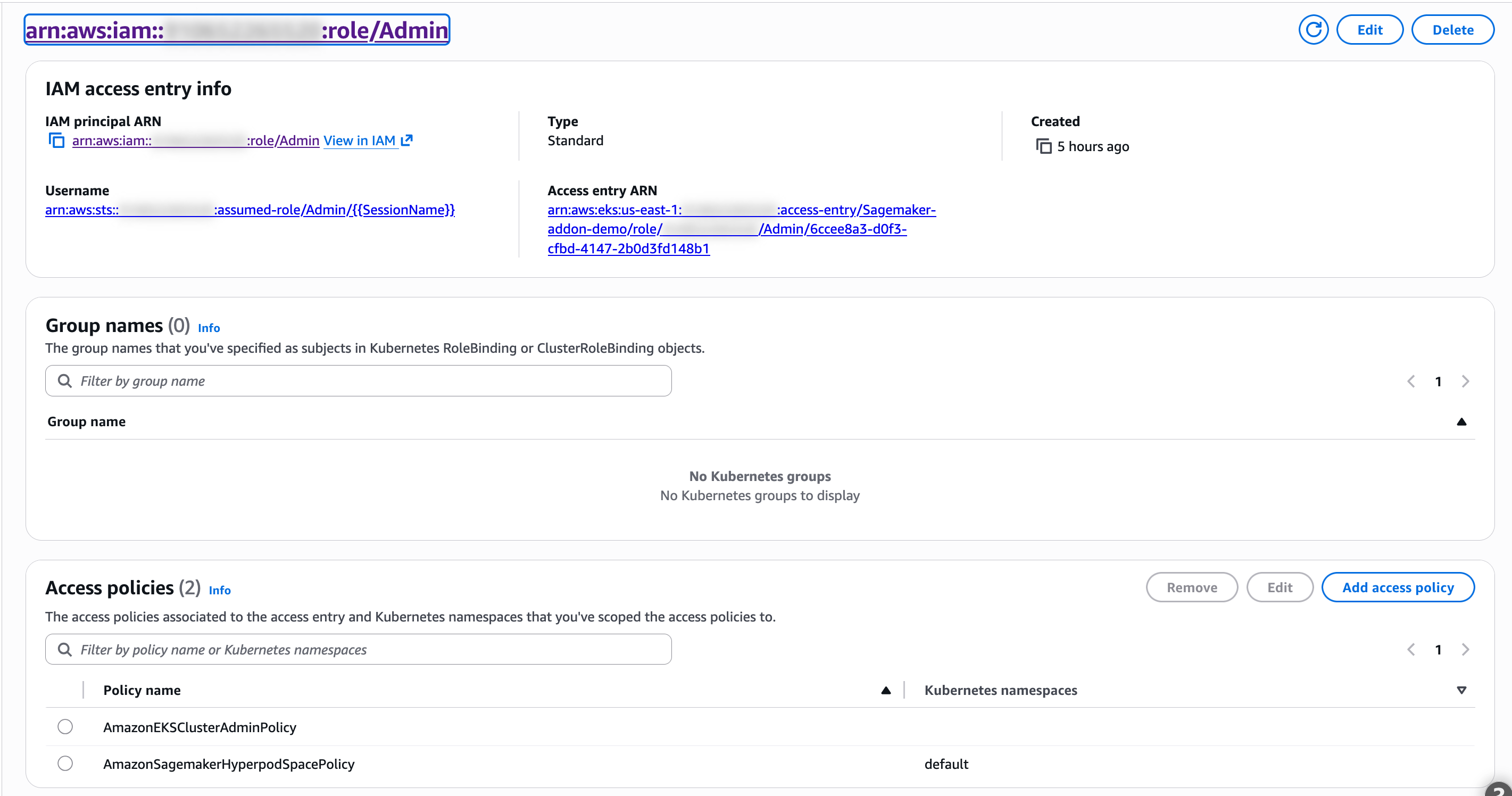
Figure 4: Access entry for namespace
Security note: Prefer namespace-scoped access over cluster-wide policies so users can’t modify resources outside their namespace.
-
List the pre-installed Workspace templates and access strategies:
kubectl get workspacetemplate -A
kubectl get workspaceaccessstrategies -A
You see sagemaker-jupyter-template, sagemaker-code-editor-template, and hyperpod-access-strategy in jupyter-k8s-system. Reference these in your Workspace rather than repeating configuration inline.
-
Define
workspace.yamlfor a JupyterLab Space:apiVersion: workspace.jupyter.org/v1alpha1 kind: Workspace metadata: name: my-space namespace: default spec: templateRef: name: sagemaker-jupyter-template namespace: jupyter-k8s-system appType: jupyterlab accessType: OwnerOnly accessStrategy: name: hyperpod-access-strategy namespace: jupyter-k8s-system image: public.ecr.aws/sagemaker/sagemaker-distribution:latest-cpu
accessType: OwnerOnly restricts browser access to the IAM principal that created the Space. Use Public for any namespace-authorized user.
-
Apply and wait for the Space to become Available:
kubectl apply -f workspace.yaml
kubectl get workspace -n default -w

workspace.workspace.jupyter.org/my-space created
First-time startup takes about five minutes. The cluster pulls the 4 GB SageMaker Distribution image and registers the pod with SSM.

Figure 5: Space running
Connect in the browser
The Spaces controller issues a short-lived, presigned URL that carries the user’s encrypted token. You generate one, then navigate to it in your browser.
-
Generate a short-lived presigned URL:
kubectl create -f - -o yaml <<EOF
apiVersion: connection.workspace.jupyter.org/v1alpha1
kind: WorkspaceConnection
metadata:
  namespace: default
  generateName: my-space-conn-
spec:
  workspaceName: my-space
  workspaceConnectionType: web-ui
EOF
Find status.workspaceConnectionUrl in the response and navigate to the URL in your browser:
     status:
       workspaceConnectionType: web-ui
       workspaceConnectionUrl: https://my-space-<id>.<YOUR_DOMAIN>/bearer-auth?token=eyJhbGciOiJIUzM4NCIsImVkayI6...
Security note: Presigned URLs carry the user’s KMS-encrypted JWT with a 5-minute expiry enforced by the
expclaim. This value isn’t configurable in the current add-on version. Don’t log or share presigned URLs over unencrypted channels. For durable access, use VS Code remote.
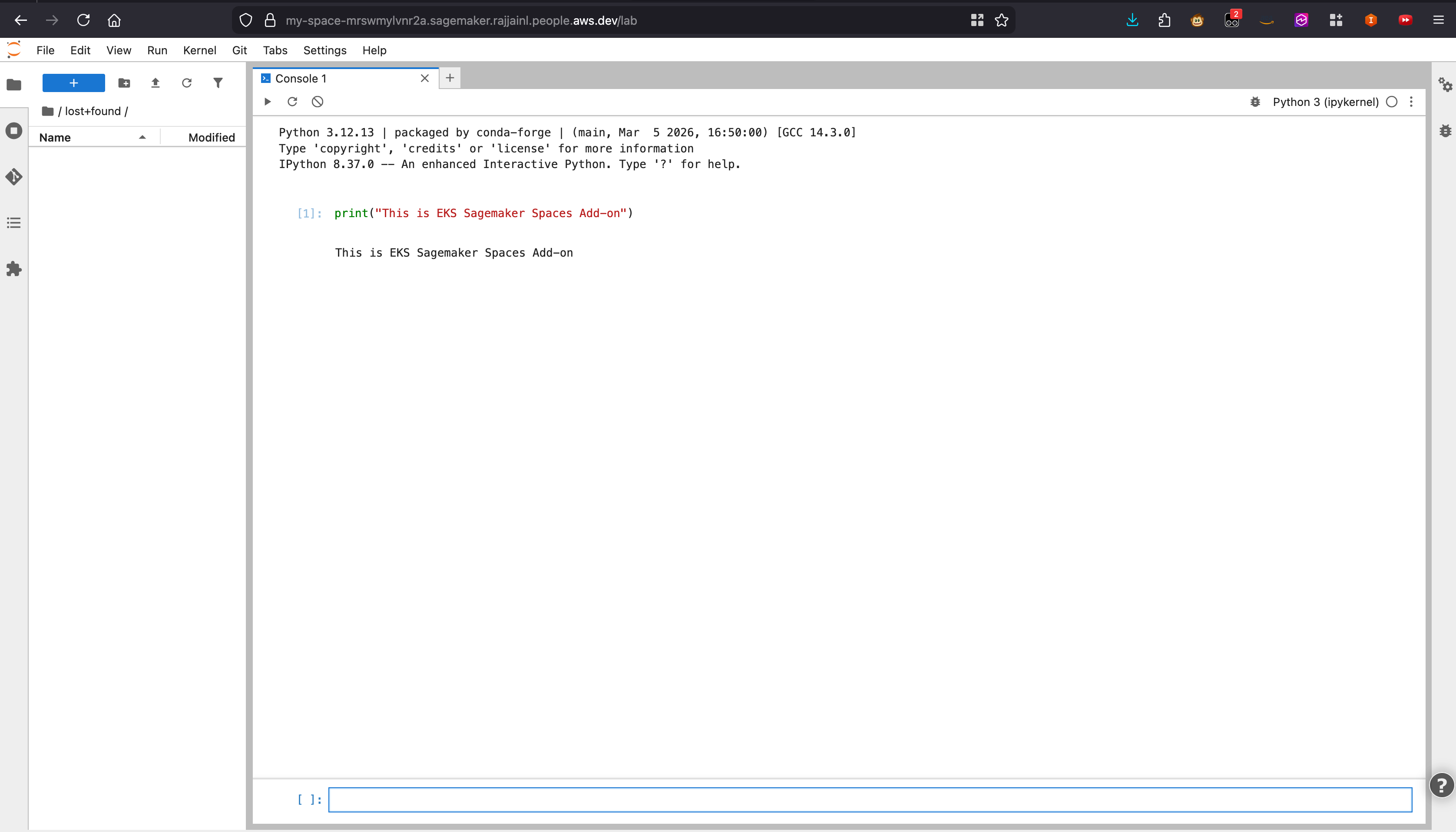
Figure 6: JupyterLab on the custom domain
Connect from VS Code
For a local IDE experience, VS Code connects to the Space pod through an SSM tunnel, with no browser, domain, or ALB required.
-
Install VS Code, the AWS Toolkit extension, and the Session Manager plugin locally.
-
Generate a VS Code connection URL by creating the same WorkspaceConnection resource as before, with
workspaceConnectionType: vscode-remoteinstead ofweb-ui. This time the response carries avscode://deep link instead of an HTTPS URL:status: workspaceConnectionType: vscode-remote workspaceConnectionUrl: vscode://amazonwebservices.aws-toolkit-vscode/connect/workspace?sessionId=eks-Sagemaker--jupyter-k8s-...&sessionToken=...&streamUrl=wss://ssmmessages.<REGION>.amazonaws.com/v1/data-channel/...&workspaceName=my-space&namespace=default&eksClusterArn=arn:aws:eks:<REGION>:<ACCOUNT_ID>:cluster/<CLUSTER_NAME> -
Paste the
vscode://URL into your browser. The browser prompts you to open the link in VS Code.
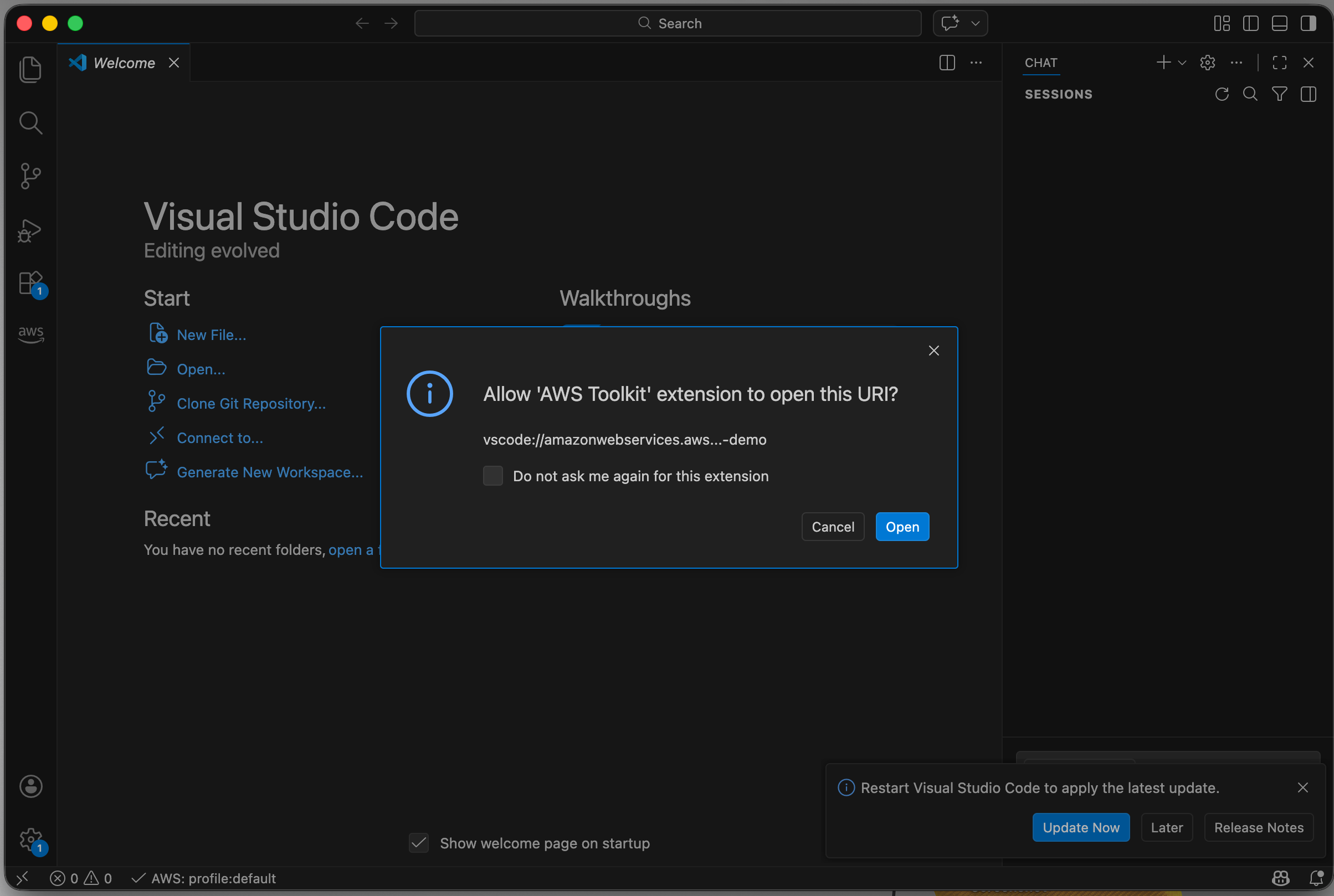
Figure 7: Browser opens VS Code
- Accept the prompt. AWS Toolkit establishes an SSH-over-SSM tunnel to the Space, and VS Code attaches to the remote filesystem.
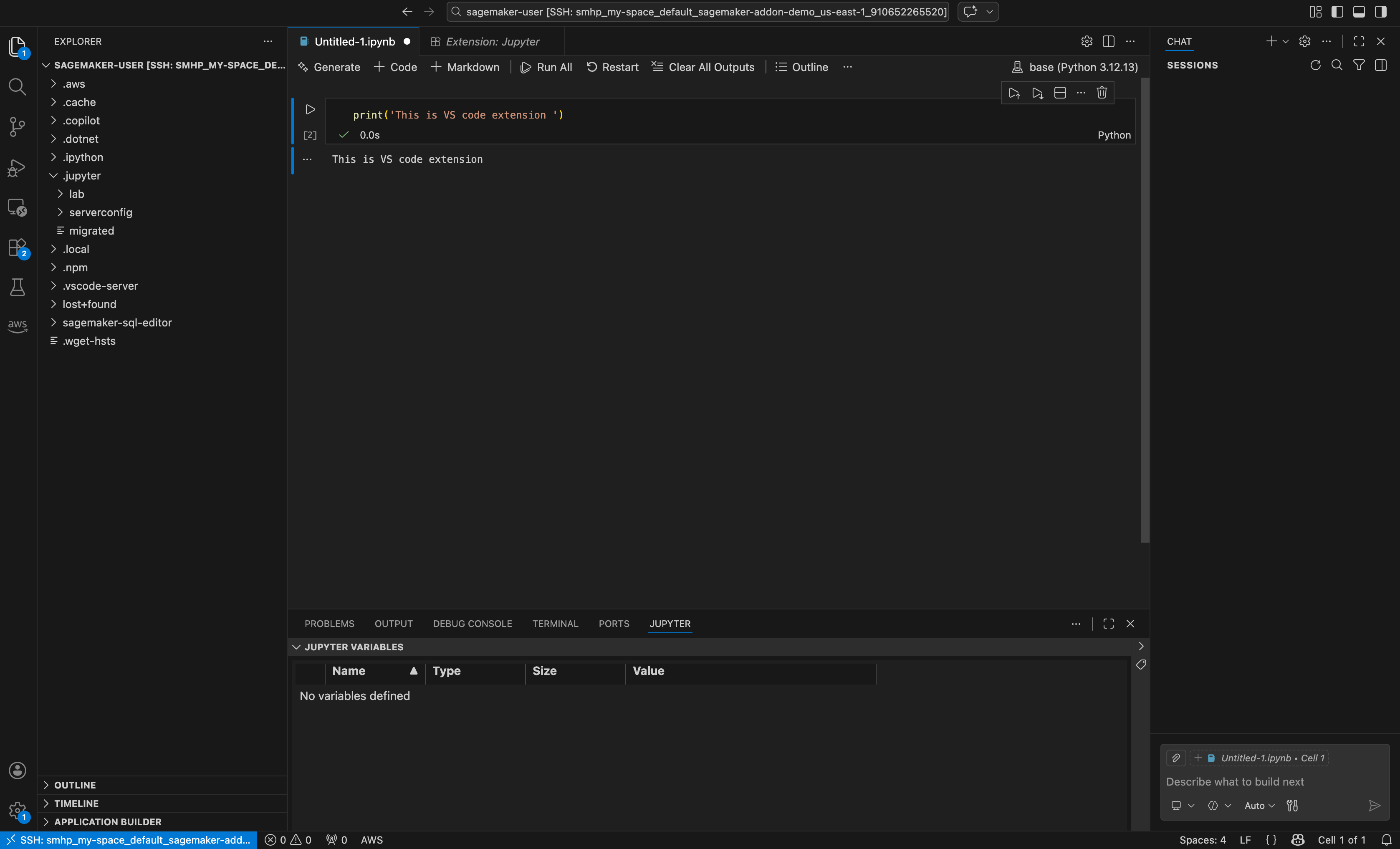
Figure 8: VS Code with remote kernel
For private-subnet configurations and SDK alternatives, see Remote access to SageMaker AI Spaces.
Sign in with corporate credentials using OIDC
Access so far relies on IAM users and roles. To let your team sign in with corporate credentials instead, register an OIDC provider with the cluster and bind Kubernetes role-based access control (RBAC) to identity provider groups. Kubernetes then authorizes people by group membership, with no IAM principal per user.
The open source jupyter-deploy project ships an aws-eks-oidc template that sets this up for you. Dex runs in the cluster as the OIDC provider, Amazon EKS trusts it as an identity provider, and a web console gives your team self-service workspace management. The template provisions its own VPC and cluster, so run it alongside the cluster from this post.
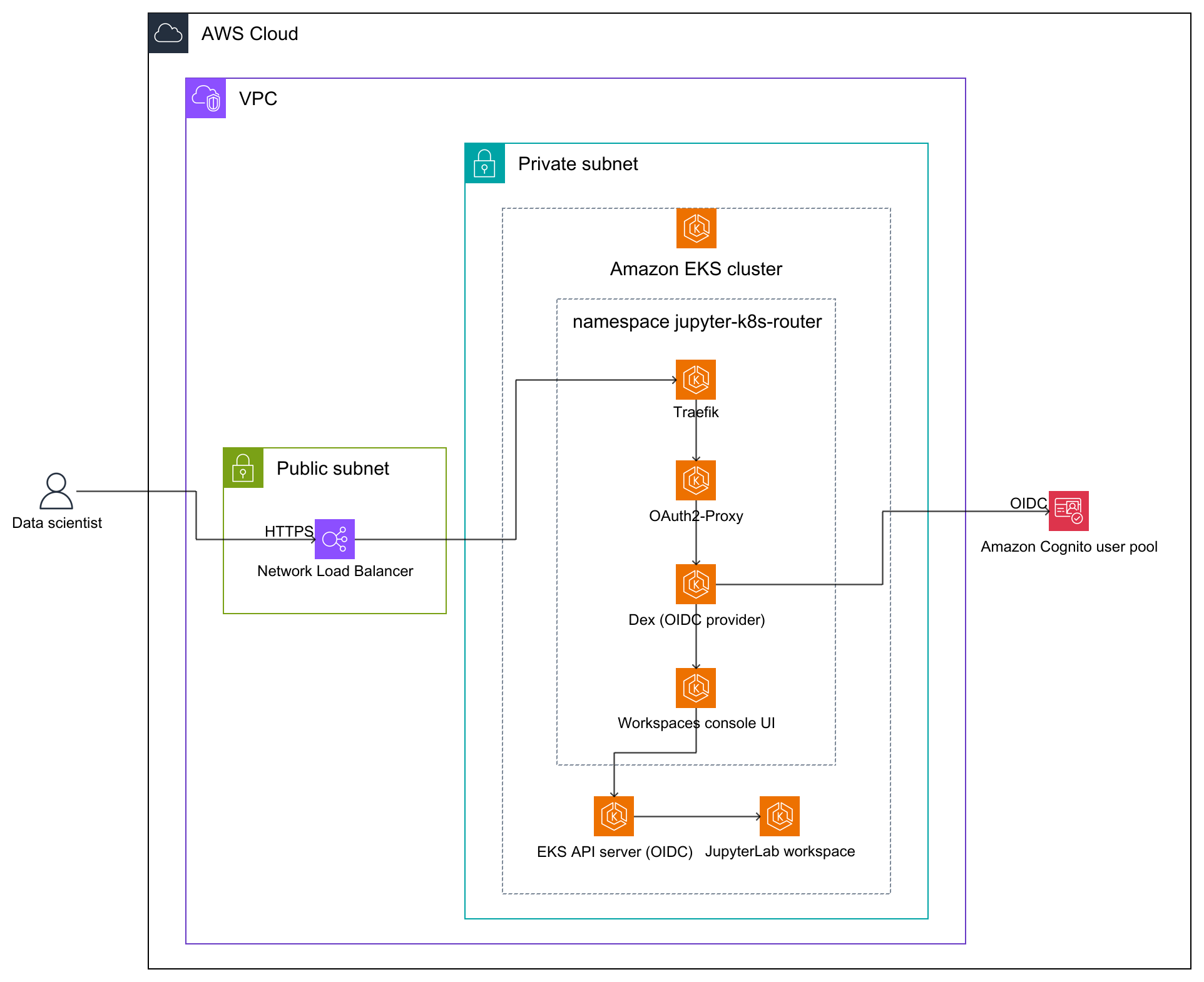
Figure 9: Self-managed OIDC with Amazon Cognito
The template ships a Dex connector for GitHub. Amazon Cognito works through the generic oidc connector in Dex instead, and needs two claim mappings that GitHub never requires. Amazon EKS reads the username from the preferred_username claim, which Cognito doesn’t issue, so map it from email. Cognito also publishes group membership as cognito:groups rather than groups. Miss the username mapping and requests reach the API server with no resolvable user, and the console reports an expired session rather than an authorization error. The template binds its RBAC role to a group named <org>:<team>, so create a Cognito group with that exact name and add your users to it.
Your team then signs in at the Cognito managed login page. With a single connector configured, Dex skips the provider chooser.
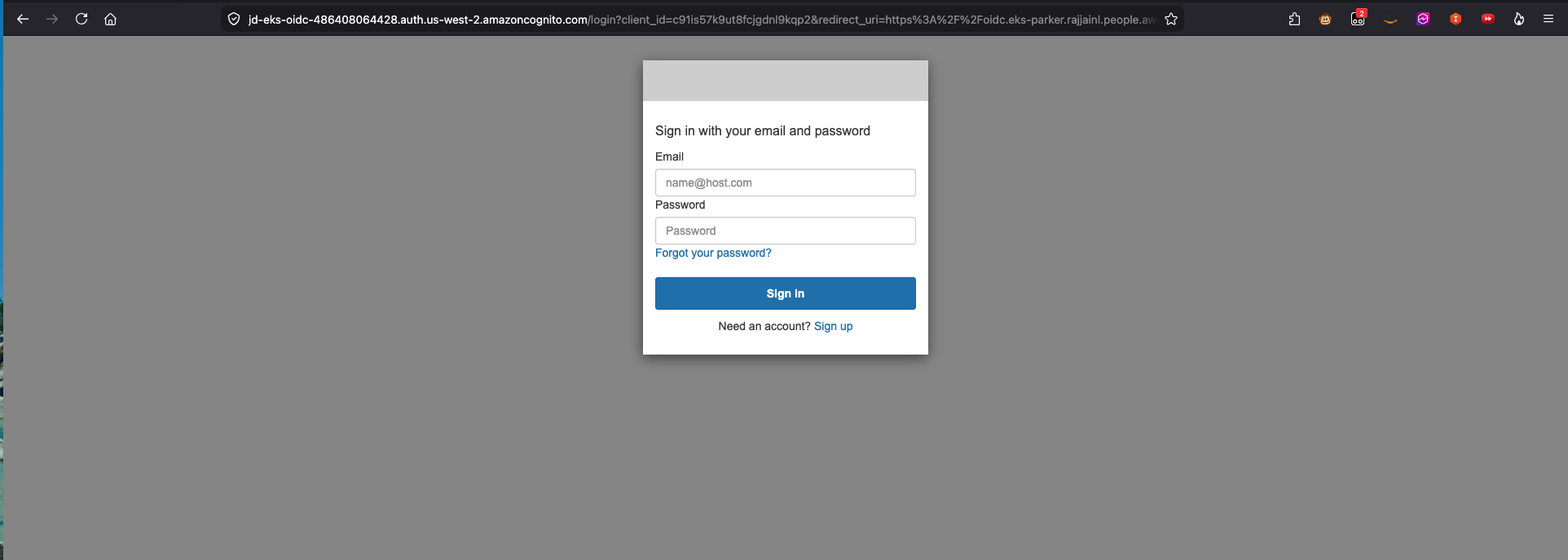
Figure 10: Cognito managed login
The console lists and creates workspaces under that identity.
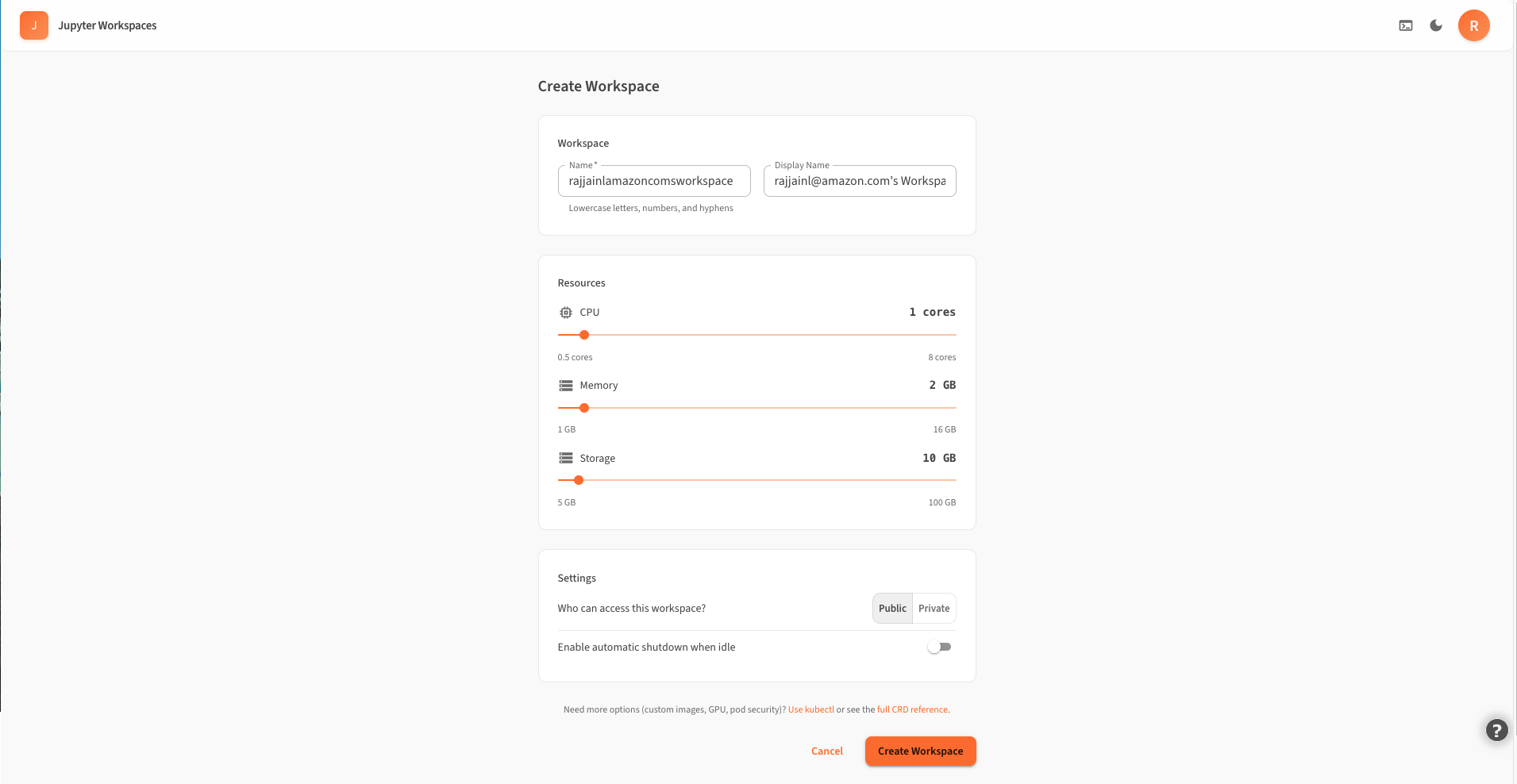
Figure 11: Self-service workspace management
Opening one launches JupyterLab, authorized as the Cognito user.
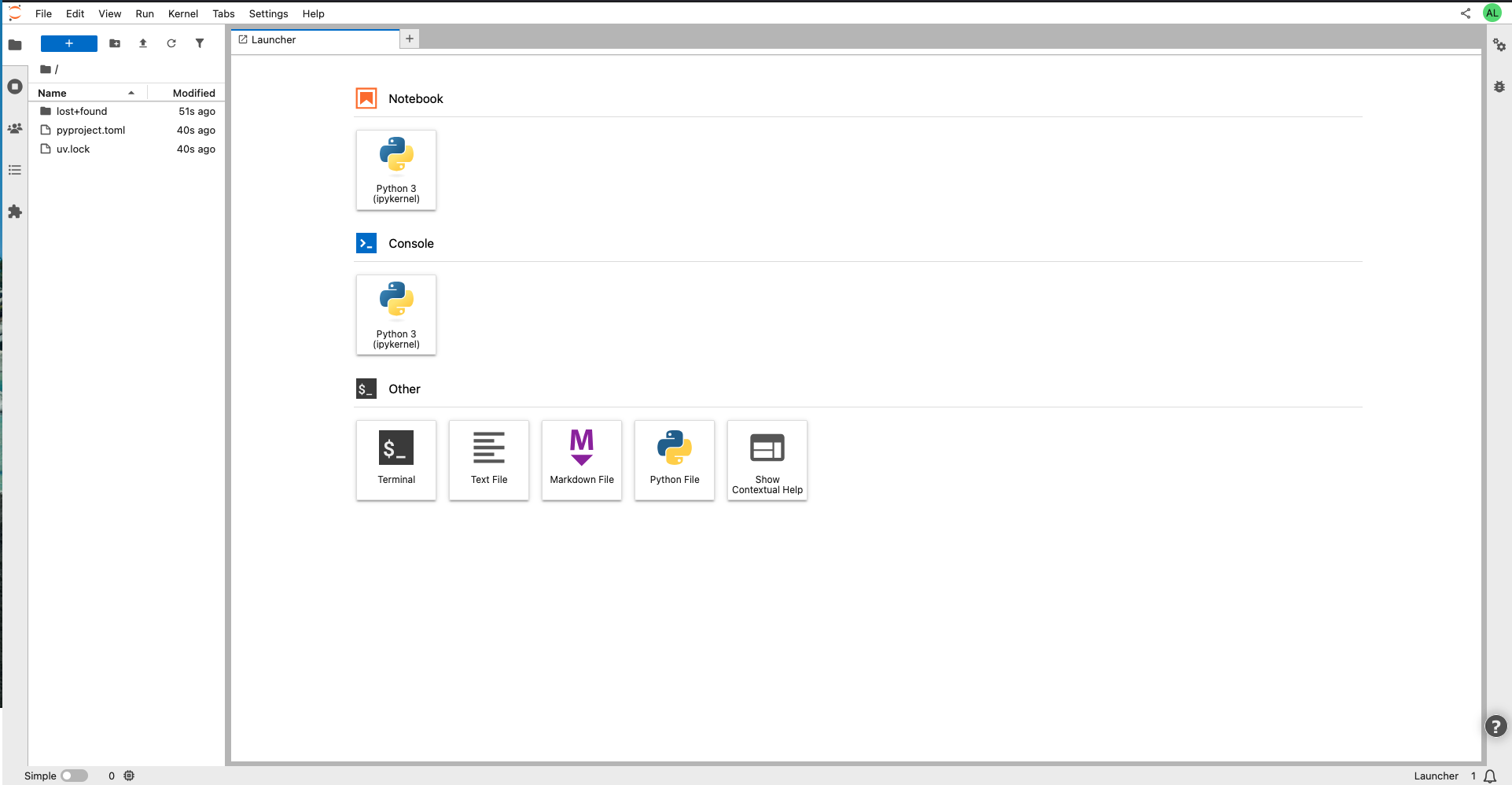
Figure 12: JupyterLab for the Cognito user
Cleanup
To avoid ongoing charges, delete resources in reverse order.
-
Delete the Space and the add-on:
kubectl delete workspace my-space -n default aws eks delete-addon --cluster-name $CLUSTER_NAME --region $REGION \ --addon-name amazon-sagemaker-spaces -
Uninstall the Load Balancer Controller and remaining add-ons:
helm uninstall aws-load-balancer-controller -n kube-system for a in aws-ebs-csi-driver external-dns cert-manager eks-pod-identity-agent kube-proxy; do aws eks delete-addon --cluster-name $CLUSTER_NAME --region $REGION --addon-name $a done -
Delete the IAM roles, policies, and Pod Identity associations you created (
ExternalDNSRole,AWSLoadBalancerControllerRole,AWSLoadBalancerControllerIAMPolicy,SageMakerSpacesControllerRole,SageMakerSpacesSSMManagedNodeRole). -
Delete the certificate, schedule the KMS key for deletion (7-day minimum), and remove the Route 53 records.
-
Revert the SSM advanced-instances tier to stop per-instance charges across the account:
aws ssm update-service-setting --region $REGION \ --setting-id arn:aws:ssm:$REGION:${ACCOUNT_ID}:servicesetting/ssm/managed-instance/activation-tier \ --setting-value standard -
Delete the node group and EKS cluster, and delete the VPC if you created it for this walkthrough.
Note: Skipping these steps continues to incur charges for the EKS cluster, node group, EBS volumes, ALB, and each registered hybrid instance on advanced tier.
Conclusion
In this post, you installed the SageMaker AI Spaces add-on on an Amazon EKS cluster and configured browser and VS Code access. You also saw how to move your team to OIDC sign-in with Amazon Cognito. By consolidating interactive IDEs onto the cluster you already run, you manage one environment instead of two and cut time-to-first-notebook from days to minutes.
To go further, attach AWS WAF, federate additional providers, split controller and auth middleware IAM roles, or set namespace-level resource quotas.
For related approaches, see:
About the authors
Rajat Jain
Rajat is a Technical Account Manager in Media and Entertainment at AWS with over 3 years at the company. He guides customers through operational best practices and helps them get the most out of AWS services.
Arkaprava De
Arkaprava is a Software Development Manager at AWS on the SageMaker AI team. He has been at Amazon for over 7 years and works on improving the Amazon SageMaker Studio IDE experience for machine learning developers.
Sri Aakash Mandavilli
Sri Aakash is a Software Engineer on the Amazon SageMaker Studio team, where he has been building innovative products since 2021. He specializes in developing various solutions across the Studio service to enhance the machine learning development experience. Outside of work, Sri Aakash enjoys staying active through hiking, biking, and taking long walks.
Andrew Smith
Andrew is a Sr. Cloud Support Engineer at AWS, based in Sydney, Australia. He specialises in helping customers with AI/ML workloads on AWS with expertise in Amazon SageMaker AI, Amazon Bedrock and LLM inference.
Jonathan Guinegagne
Jonathan is an Open Source Principal Engineer at AWS in the AI/ML organization. His focus spans generative AI inference, fine-tuning, and making it easier to run AI/ML workloads on Kubernetes. Jonathan holds a master’s from Columbia University, is originally from France, and now lives in New York City.