Amazon Quick for Microsoft 365:在办公场景中使用 Agentic AI
英文标题:Amazon Quick for Microsoft 365: Agentic AI where you work
Amazon Quick 现已可直接集成至 Microsoft Word、Excel、PowerPoint 和 Outlook,支持 Microsoft 365 桌面版与网页版。该扩展将 Quick Sight 仪表板、AWS 数据源以及 Salesforce、Jira、Slack、SharePoint 等企业数据连接引入日常办公软件,无需切换应用即可查询、分析和编辑内容。其 Agentic AI 不仅能回答问题,还能直接修改文档、处理表格、撰写邮件和创建演示文稿,并保留审计轨迹和会话上下文。Plus、Professional 和 Enterprise 套餐客户无需额外许可即可使用;服务覆盖七个 AWS 区域,并支持数据驻留控制。
 1.3 MB
 101.1 KB
 124.1 KB
 345.0 KB
 141.2 KB
 346.5 KB
 274.6 KB
 624.2 KB
 67.0 KB
 519.9 KB
 666.1 KB
 342.2 KB
 613.9 KB
 179.3 KB
 5.3 KB
 9.1 KB
 204.6 KB
中文
企业数据分布在数十个系统中,但实际工作往往发生在 Microsoft 365 里。Amazon Quick 作为一个基于企业数据构建的 AI 助手,弥合了这一鸿沟;现在,它已可直接在 Microsoft Word、Excel、PowerPoint 和 Outlook 中使用。
这些扩展不要求你采用新的应用程序,也不需要改变现有工作方式。相反,它们将 Amazon Quick 的已连接数据访问能力和 Agentic 文档编辑能力,直接带入团队每天都会打开的 Microsoft 365 应用中。现在,无需离开 Word、Excel、PowerPoint 或 Outlook,即可访问 Amazon Quick Sight 仪表板、Spaces、AWS 数据源和第三方集成。
本文将介绍安装与设置方式,以及可在各个应用中运行的工作流。
正式可用性与访问权限
Amazon Quick 客户现已可以使用新的 Microsoft 365 扩展。你可以在 Microsoft 365 的桌面版和网页版中安装四款扩展——Word、Excel、PowerPoint 和 Outlook。Plus、Professional 或 Enterprise 套餐客户无需额外许可。
为何重要:智能层
真正重要的是,如何将 AI 嵌入业务决策发生的工作流之中。
大多数组织还在使用 AWS 基础设施、Amazon Quick Sight 仪表板、Salesforce 销售管道、Jira 项目、Slack 对话和 SharePoint 存储库。Quick 将这些系统连接到日常生产力工具中。价值并不在于底层 Agentic 模型本身,而在于 Agent 能够为交互带来的广泛已连接数据。
以我自己的工作流为例:我现在只需数小时即可起草客户征求建议书(RFP)回复,并可调用内部知识库、过往提案和实时客户数据。过去,团队需要数周时间才能从分散来源中汇集这些信息。将结构化数据源与非结构化文档结合起来的定制化客户演示文稿,现在一小时即可完成,而不再需要一两天。节省下来的时间可直接用于打磨定位,并专注于每位客户真正关心的事项,而非仓促收集信息、赶在回复截止日期前完成工作。
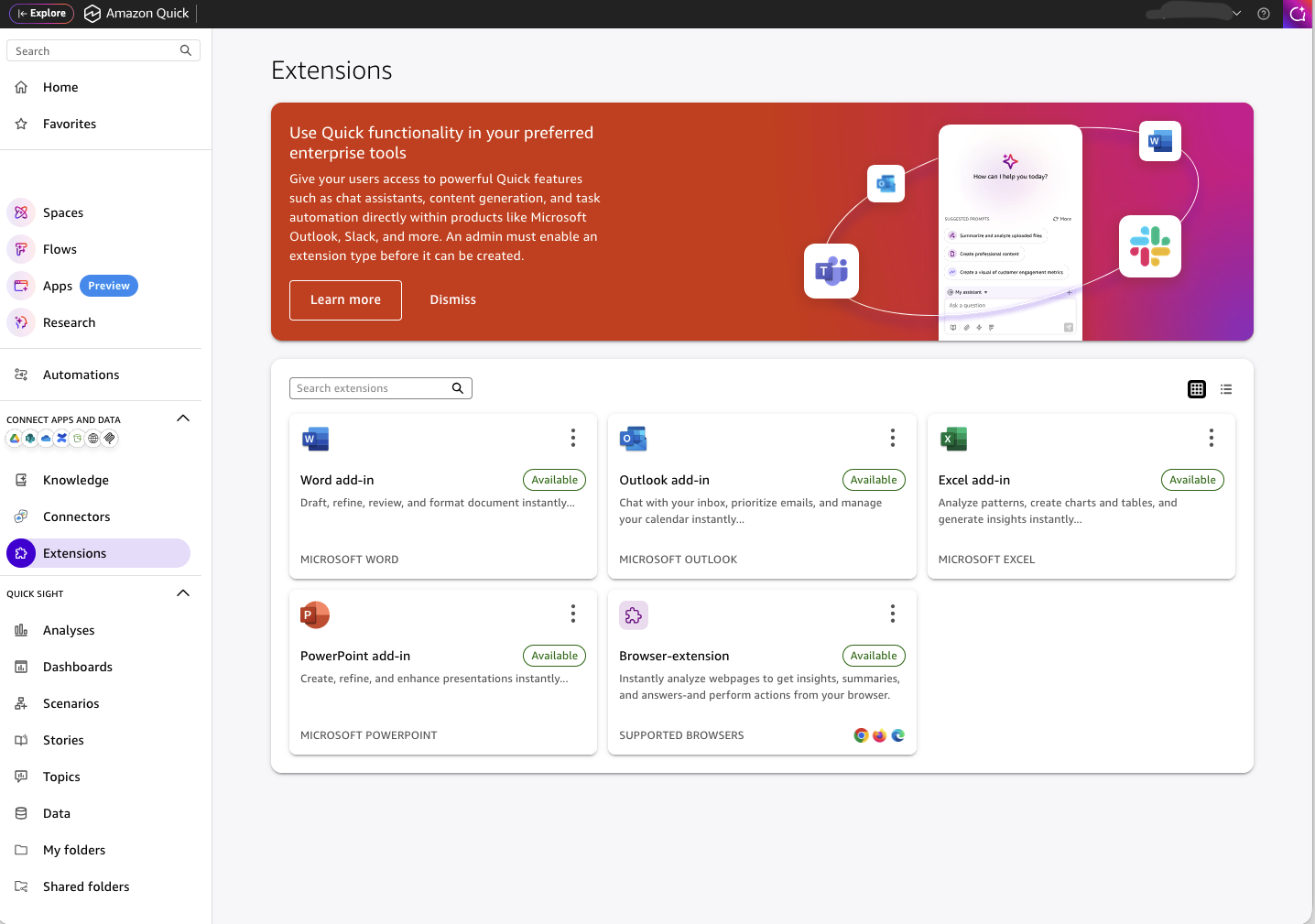
图 1:启用 Microsoft 365 扩展的 Amazon Quick 控制台,显示 Word、Excel、PowerPoint 和 Outlook 扩展已激活并可供部署
工作方式:不只是聊天,而是 Agentic
这些扩展并非简单地在 Office 中嵌入一个聊天机器人,也不是要求你转到其他地方工作的独立应用。它们具备 Agentic 能力:AI 助手不止回答问题,还会直接在文档、电子表格、演示文稿和电子邮件中采取操作。
Quick 以持久化侧边栏的形式存在于 Microsoft Word 中。你可从功能区打开它,提出问题或给出指令,Agent 会在应用程序上下文中完成工作。无需切换标签页,也不必在应用之间复制粘贴。Agent 能看见你的文档,并直接对其执行操作。
在 Word 中,Agent 可以查找和替换文本、插入章节以及重新格式化内容,随后会以可视化比较方式展示发生的更改。
文档中的每项 Agent 操作都会被追踪。在 Word 中,更改会显示为审计跟踪链接,或直接在聊天中以可视化比较方式呈现。审计跟踪中的每一项更改均包含可选中的引用,可返回至受影响内容。
关闭侧边栏后,对话也不会消失。扩展会跨会话保留历史记录。在 Microsoft Outlook 中,每个邮件线程都有各自持久保存的对话。切换不同邮件线程时,扩展会记住你在每个线程中讨论过的内容。
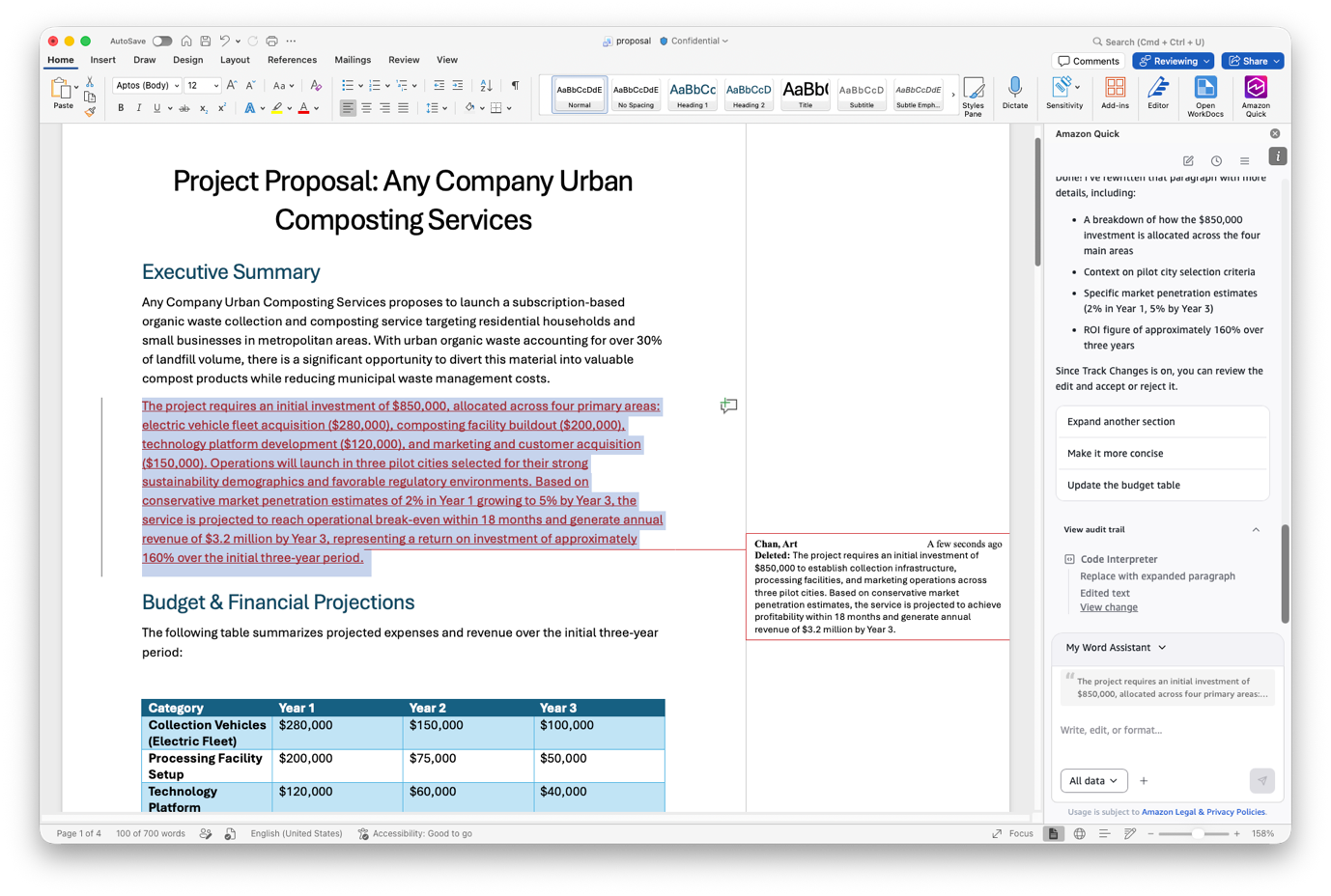
图 2:Word 中的 Amazon Quick 侧边栏展示 Agent 建议编辑的可视化比较,并跟踪更改前后内容。在本示例中,我要求它重写本文开头;更改同时显示在 Word 和可于 Agent 侧边栏中展示的审计跟踪中
安装与身份验证:更少的组件
这些扩展无需在客户端安装。它们完全在云端运行,因此无需部署到用户设备。管理员可以通过 Microsoft 365 管理中心,使用标准清单文件向目标用户和群组推送扩展。这也是任何 Microsoft 365 加载项所采用的相同机制。
或者,你也可以通过 Microsoft 加载项商店自行安装。搜索“Quick”,选择 添加,扩展便会出现在 Office 功能区中。无论采用哪种方式,后续更新都会自动推送。团队只需部署一次,每位用户都会获得最新版本,无需 IT 干预。
唯一的例外是 Outlook。由于大多数组织会限制 Graph API 权限,Outlook 扩展通常需要管理员批准才能获得完整功能。请为 Outlook 规划管理员部署。
身份验证模型采用 Quick 原生身份验证,不需要 Entra 应用。这意味着更少的组件、更快的设置速度,以及更少需要 IT 团队管理的依赖项,同时仍保持 Quick 所提供的安全框架。如果你使用 Free 或 Plus Quick 套餐,可以使用企业凭据或社交登录(Google、Apple)登录,无需设置单独的身份配置。
你可以通过 Office 清单或策略设置配置 Agent 设置和自定义品牌,无需额外基础设施。
你可以在七个 Quick AWS 区域使用这些扩展:美国东部(弗吉尼亚北部)、美国西部(俄勒冈)、欧洲(爱尔兰)、欧洲(伦敦)、欧洲(法兰克福)、亚太地区(悉尼)和亚太地区(东京)。数据将保留在所选区域内,后端基础设施完全隔离运行,且不会向公共网络出站传输。
入门需要一个处于活动状态的 Quick 应用。扩展会连接至你已配置的 Quick 环境,继承现有知识库、数据源和集成。它们是对你已在使用的 Quick 的扩展,而不是需要单独购买或配置的新产品。
安装扩展后,可在 Office 功能区中找到 Quick 图标。选择该图标即可打开扩展、登录并开始工作。由于始终在 Microsoft 365 应用内操作,界面已经非常熟悉。你现有的 Spaces、仪表板和集成——包括 Salesforce、Jira、Slack、SharePoint 等——无需额外配置即可立即使用。扩展会遵循你现有的权限和安全策略。
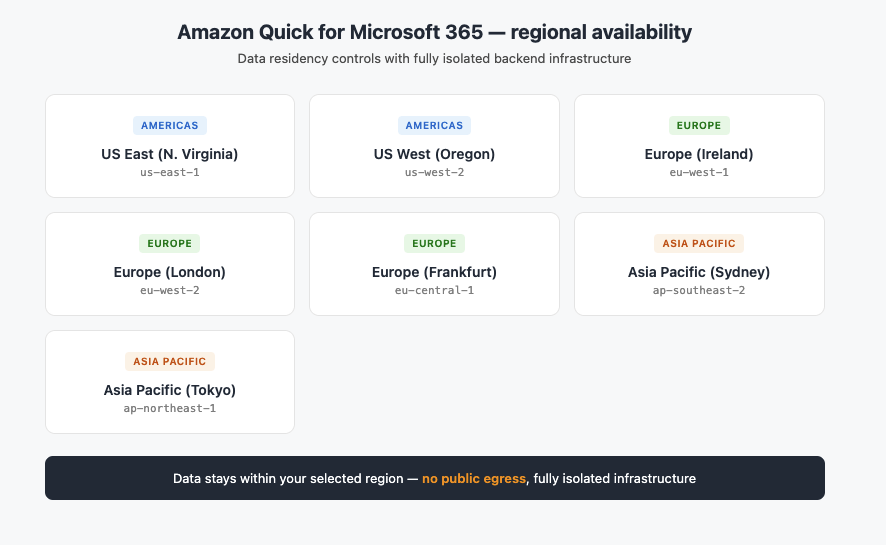
图 3:Amazon Quick 扩展已在七个 AWS 区域提供,并具备完整的数据驻留控制能力
Microsoft Excel:让数字转化为决策
Agent 在你当前处理的数据上下文中运行。
该扩展可在一个步骤中完成数据检索和格式化,因此你可以从提出问题直接获得答案,无需在不同系统之间切换。
这有助于你理解由他人构建的复杂电子表格,或快速追溯计算差异的来源。
当需要引入外部数据时,扩展可以从云存储、数据仓库、Quick Sight、Salesforce 或 SharePoint 中提取信息。随后,它会识别不一致之处、清理格式问题,并将所有内容转换为可供分析的格式。
然后,你可以根据存储在 Quick Sight 中的实际业务指标验证分析结果,确认模型是否符合现实情况。这种闭环工作流使电子表格在整个分析过程中始终保持与实时数据的连接。
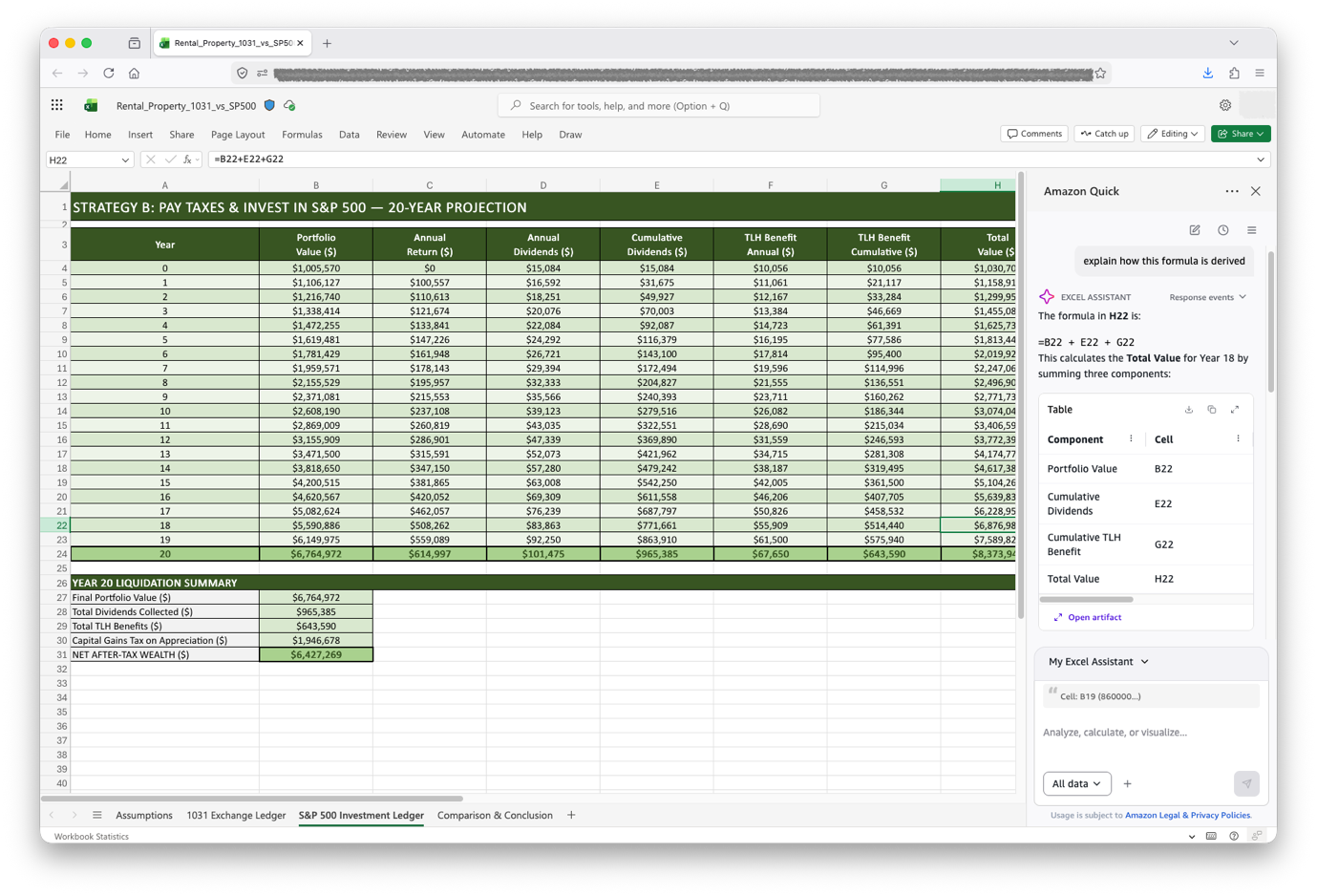
图 4:Quick 可直接在侧边栏中修改单元格并解释公式,同时突出显示跨工作表引用。在本示例中,选中了一个单元格,你可以与 Agent 交互以了解公式的推导方式。该示例基于 Excel 网页版运行
设想一个典型的 Excel 工作流:让 Agent 分析当前工作表,并标记环比变化超过 10% 的异常情况。然后,将 Quick Sight 仪表板中的第一季度区域收入提取到新标签页中。如果遇到复杂公式,可要求 Quick 对其进行解释并追踪其依赖关系。准备演示时,可让 Agent 创建一个比较实际值与预测值的图表。
Microsoft Word:结合企业上下文进行写作
Word 扩展充当协作编辑者,既能理解你的文档,也能理解已连接的数据源。它会遵循文档现有结构,包括字体、标题样式和组织模式。当它添加或修改某个章节时,输出会与已有内容保持一致。新扩展直接使用 Word 的原生格式模型,在整个文档中维持一致的样式。
扩展会将每次编辑记录为更改前后快照,并在聊天面板中将其呈现为可视化比较。每项更改都包含一个可选中的引用,可返回至受影响章节。你可以审查修改了什么、修改位置以及修改顺序。这为 Agent 的工作提供完整记录。在多人共同参与同一文档、且需要了解修改内容与原因的协作环境中,审计跟踪尤为重要。
生成可从 Quick Sight 仪表板提取数据的表格和可视化内容。构建引用 Salesforce 销售管道指标,或包含 Jira 项目状态更新的高管摘要。
与其将数字从一个系统复制并粘贴到文档中,不如让扩展将多个来源的量化数据编织进叙事性文档。最终形成的报告、提案和简报引用的是真实数字,而不是占位文本。
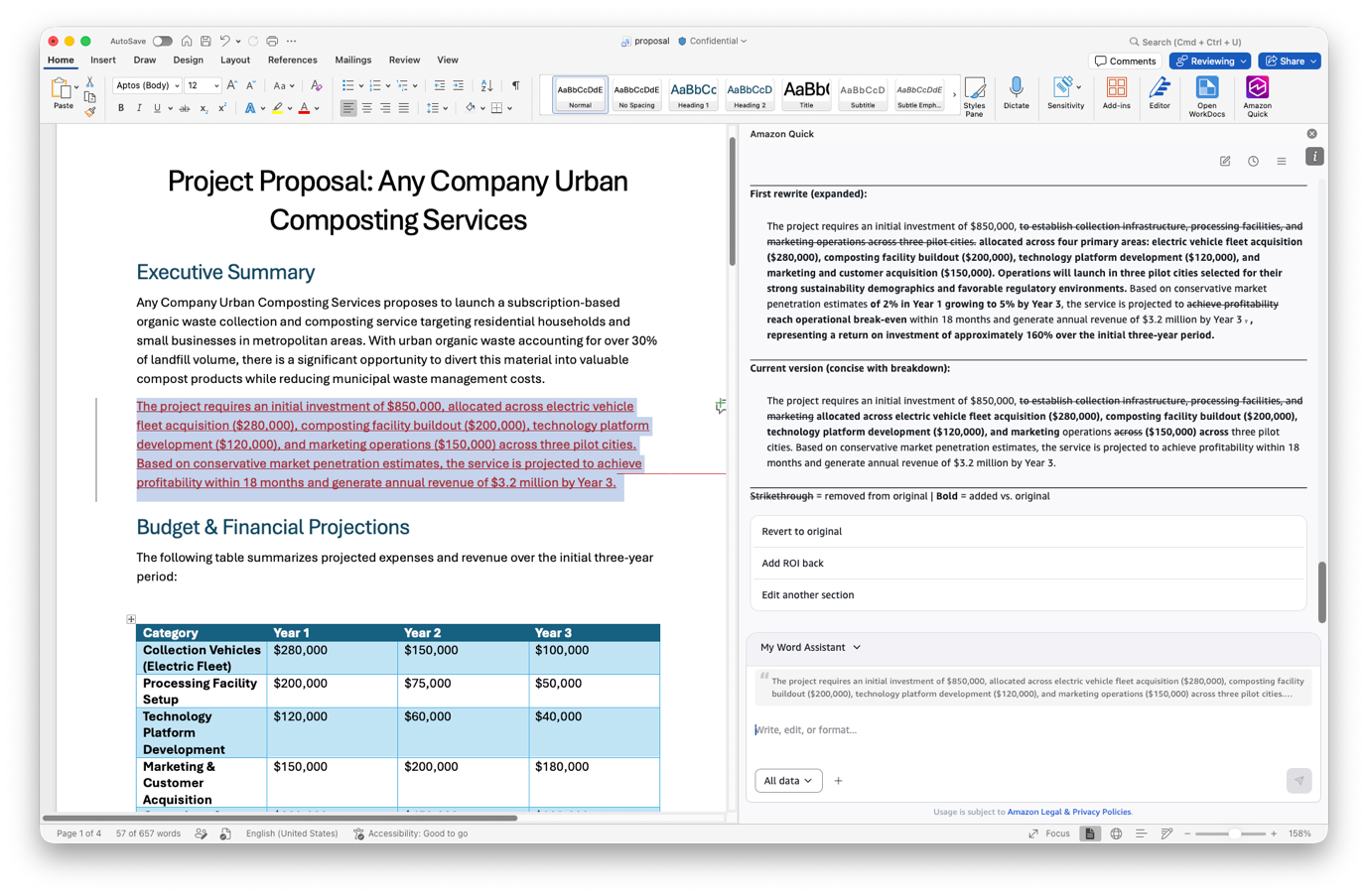
图 5:Agent 建议的编辑可在聊天窗格中以修改前后区块的形式展示
在实际使用中,你可以从一份长报告开始,要求 Quick 将其总结为一页纸的高管简报,并提炼关键要点。
需要面向非技术受众沟通?可以要求 Quick 重写某个特定章节,同时保留底层数据点。对于战略文件,可提示扩展添加结论章节,并引用上一季度的 Salesforce 销售管道指标。Agent 会在一个步骤中查询数据并撰写叙事内容。
Microsoft Outlook:由企业数据支撑的电子邮件
Outlook 扩展会自动理解正在查看的电子邮件或会议上下文。每次交互都会包含主题、发件人、收件人、线程历史记录和时间戳,因此 Agent 的回复始终与该上下文相关。无需解释正在查看什么,也不必粘贴背景信息。
邮件撰写变得更快,也更具信息依据。Agent 能够在充分理解邮件线程的基础上,起草回复、回复全部和新邮件。它能够理解 Outlook、Gmail 和 Apple Mail 等邮件客户端中的对话边界,并在回复中保持正确的线程结构。
可将收件人添加至“收件人”、抄送或密送字段,添加附件,并安排发送时间。侧边栏可在不离开收件箱的情况下处理这些任务。
除了撰写邮件,扩展还可帮助你掌控收件箱。你可以标记、分类和移动邮件;总结冗长线程并提取行动事项。该扩展将 Outlook 从通信工具转变为一个智能工作流界面,并连接到 Salesforce 客户账户、Quick Sight 指标和 Jira 工单。你可以在邮件回复中直接引用上述任一信息源,使每封邮件都建立在真实业务上下文之上。
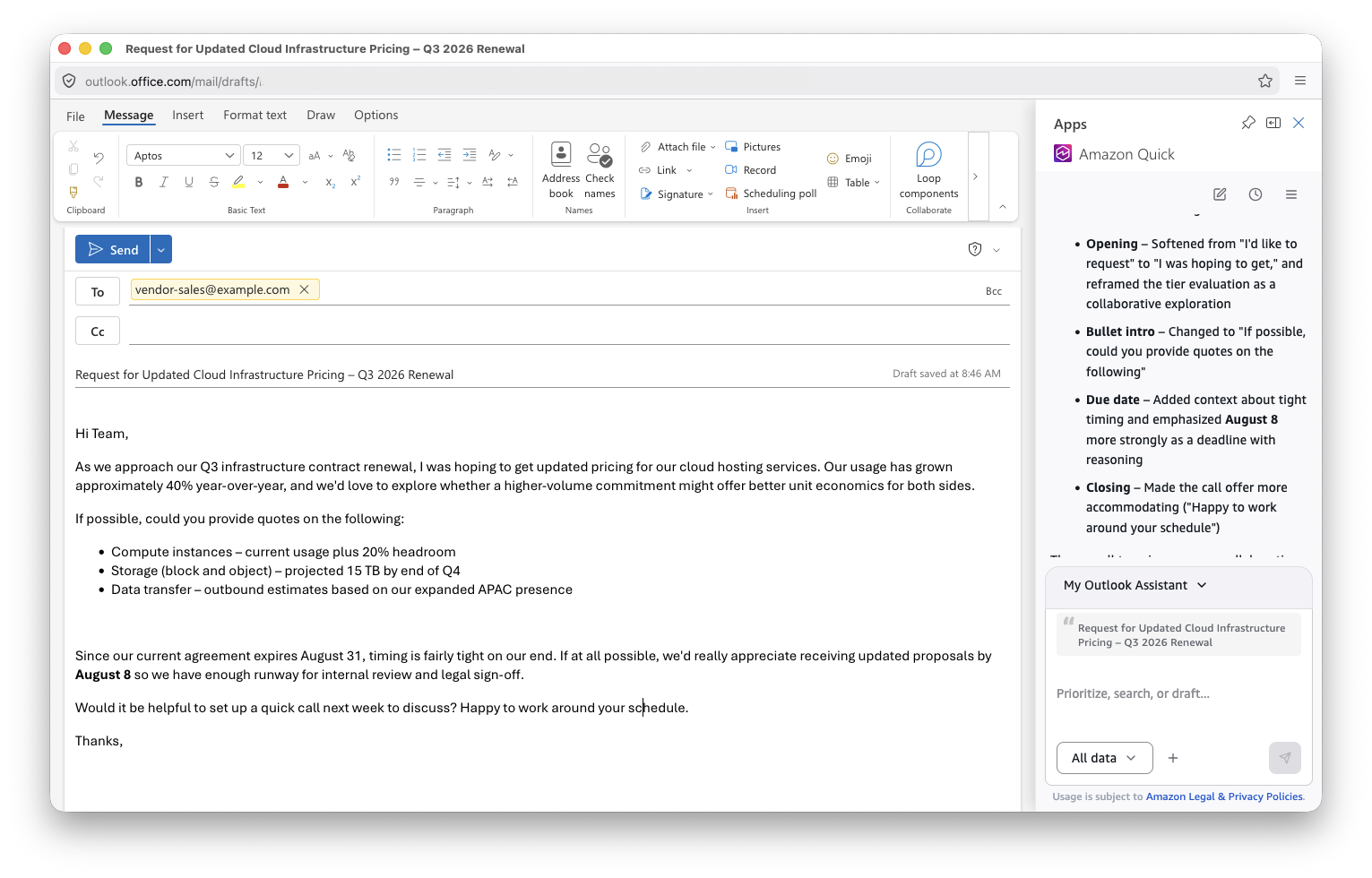
图 6:Quick 可利用 Quick 中的客户数据和邮件线程历史起草具有上下文的回复,无需离开收件箱
回复客户时,可以提示 Quick 从 Salesforce 提取最新的账户健康度指标,并将其融入回复中。最终得到的是一封基于真实账户数据的邮件。
对于长期没有进展的邮件线程,可要求生成摘要,明确列出对话内容、负责人和截止日期。或者,对于参与者众多且存在待办事项的线程,可提示 Quick 创建一个包含线程中所有人员的 30 分钟会议,以协调下一步行动。Agent 会自动生成参会者、标题和议程。
Microsoft PowerPoint:由真实数据支撑的演示文稿
PowerPoint 扩展能够以编程方式生成幻灯片,并支持远超单次提示生成的多步骤创意工作流。你可以通过与 Agent 的多轮交互,迭代构建演示文稿、完善设计和内容。
Quick 会使用你
English / 原文
Your enterprise data lives in dozens of systems, but often the work happens in Microsoft 365. Amazon Quick bridges that gap as an AI assistant grounded in your data, now available directly inside Microsoft Word, Excel, PowerPoint, and Outlook.
These extensions don’t require you to adopt a new application or change how you work. Instead, they bring Amazon Quick connected data access and agentic document editing directly into the Microsoft 365 apps your teams open every morning. Your Amazon Quick Sight dashboards, Spaces, AWS data sources, and third-party integrations are now accessible without leaving Word, Excel, PowerPoint, or Outlook.
In this post, we cover how installation and setup works, and workflows that you can run across each app.
General availability and access
Amazon Quick customers can access the new Microsoft 365 extensions now. You can install the four extensions (Word, Excel, PowerPoint, and Outlook) across both desktop and web versions of Microsoft 365. No additional licensing is required for customers on Plus, Professional, or Enterprise plans.
Why this matters: The intelligence layer
What really matters is how you embed AI into the workflows where business decisions happen.
Most organizations also use AWS infrastructure, Amazon Quick Sight dashboards, Salesforce pipelines, Jira projects, Slack conversations, and SharePoint repositories. Quick connects these to your daily productivity tools. The value isn’t in the underlying agentic model itself. It’s in the breadth of connected data that the agent brings to your interactions.
An example from my own workflow: I now draft customer request for proposal responses in hours, pulling from internal knowledge bases, past proposals, and live customer data. This used to take a team weeks to compile from scattered sources. Customized customer presentations that weave together structured data sources and unstructured documents come together in an hour rather than a day or two. The time I save goes straight into refining positioning and focusing on what matters to each customer, rather than scrambling to gather information and meet a response deadline.
Figure 1: The Amazon Quick console with Microsoft 365 extensions enabled, showing Word, Excel, PowerPoint, and Outlook extensions activated and ready for deployment
How it works: Agentic, not only chat
These extensions aren’t a chatbot bolted onto Office, and they aren’t a standalone application that asks you to work somewhere new. They are agentic: the AI assistant does more than answer questions. It takes action directly within your documents, spreadsheets, presentations, and email messages.
Quick lives inside Microsoft Word as a persistent side panel. You open it from the ribbon, ask a question or give an instruction, and the agent works within the application context. There’s no tab-switching and no copy-pasting between apps. The agent sees your document and acts on it.
In Word, the agent can find and replace text, insert sections, and reformat content. It then shows you a visual comparison of what changed.
Every agent action in a document is tracked. In Word, changes appear as an audit trail link, or as a visual comparison directly in the chat. Each change in the audit trail includes a selectable reference back to the affected content.
Conversations don’t vanish when you close the panel either. The extension preserves history across sessions. In Microsoft Outlook, each email thread gets its own persistent conversation. Switch between email threads, and the extension remembers what you discussed in each one.
Figure 2: The Amazon Quick side panel in Word displaying a visual comparison of agent-suggested edits with before-and-after change tracking. In this example I’ve asked it to rewrite the opening to this post, showing changes in both Word and the audit trail that can be displayed in the agent side panel
Installation and authentication: Fewer moving parts
The extensions require no client-side installation. They run entirely in the cloud, so there’s nothing to deploy to user machines. An administrator can push them to targeted users and groups through the Microsoft 365 admin center using a standard manifest. This is the same mechanism used for any Microsoft 365 add-in.
Alternatively, you can install it yourself through the Microsoft add-in store. Search for “Quick,” choose Add , and the extension appears on the Office ribbon. Either way, after it’s there, updates ship automatically. Your team deploys once, and every user gets the latest version without IT intervention.
The one exception is Outlook. Because most organizations restrict Graph API permissions, the Outlook extension typically requires admin approval for full functionality. Plan on admin deployment for Outlook.
The authentication model uses Quick native authentication and does not require an Entra app. The result is fewer moving parts, faster setup, and fewer dependencies for your IT team to manage, while maintaining the security framework that Quick provides. If you’re on the Free or Plus Quick plan, you can sign in with your enterprise credentials or through social login (Google, Apple), with no separate identity configuration to set up.
You can configure agent settings and custom branding through the Office manifest or policy settings, with no additional infrastructure required.
You can access the extensions across seven Quick AWS Regions: US East (N. Virginia), US West (Oregon), Europe (Ireland), Europe (London), Europe (Frankfurt), Asia Pacific (Sydney), and Asia Pacific (Tokyo). Data stays within your selected region, and the backend infrastructure runs fully isolated with no public egress.
Getting started requires an active Quick application. The extensions connect to your configured Quick environment, inheriting your existing knowledge bases, data sources, and integrations. They’re an expansion of the Quick you already use, not a separate product to purchase or provision.
After the extension is in place, you find the Quick icon on the Office ribbon. Select it to open, sign in, and start working. The interface is already familiar because you stay inside Microsoft 365 apps. Your existing Spaces, dashboards, and integrations (including Salesforce, Jira, Slack, SharePoint, and more) are available immediately without additional configuration. The extensions respect your existing permissions and security policies.
Figure 3: Amazon Quick extensions are available across seven AWS Regions with full data residency controls
Microsoft Excel: Where numbers become decisions
The agent operates within the context of the data you’re already working with.
The extension handles the data retrieval and formatting in a single step, so you go from question to answer without switching between systems.
This helps you decode complex spreadsheets built by others or quickly trace the source of calculation discrepancies.
When you need to bring in external data, the extension pulls from cloud storage, data warehouses, Quick Sight, Salesforce, or SharePoint. It then identifies inconsistencies, cleans formatting issues, and transforms everything into analysis-ready formats.
You can then validate your analysis against actual business metrics stored in Quick Sight to verify your models align with reality. This closed-loop workflow keeps your spreadsheets connected to live data throughout the analysis process.
Figure 4: Quick modifies cells and explains formulas directly in the side panel, with highlighted references across worksheets. In this example, a cell is selected and you can interact with the agent to understand how a formula is derived. This example is working against the web version of Excel
Consider a typical Excel workflow. Ask the agent to analyze your current sheet and flag month-over-month anomalies greater than 10 percent. Then pull Q1 revenue by Region from your Quick Sight dashboard into a new tab. If you encounter a complex formula, ask Quick to explain it and trace its dependencies. When you’re ready to present, have the agent create a chart that compares actual and forecast values.
Microsoft Word: Write with enterprise context
The Word extension acts as a co-editor that understands both your document and your connected data sources. It respects your document’s existing structure, including fonts, heading styles, and organizational patterns. When it adds or modifies a section, the output matches what’s already there. The new extension works directly with the native formatting model in Word, maintaining consistent styling throughout.
The extension captures every edit as a before-and-after snapshot and renders it as a visual comparison in the chat panel. Each change includes a selectable reference back to the affected section. You can review what was modified, where, and in what order. This gives you a complete record of the agent’s work. The audit trail is especially valuable in collaborative environments where multiple people contribute to the same document and need to understand what changed and why.
Generate tables and visualizations that pull from Quick Sight dashboards. Build executive summaries that reference Salesforce pipeline metrics or include project status updates from Jira.
Rather than copying numbers from one system and pasting them into a document, the extension weaves quantitative data from multiple sources into narrative documents. The result is reports, proposals, and briefs that cite real numbers rather than placeholder text.
Figure 5: Agent-suggested edits can be displayed as before and after blocks within the chat pane
In practice, you might start with a long report and ask Quick to summarize it into a one-page executive brief with key takeaways.
Need to reach a non-technical audience? Ask Quick to rewrite a specific section while preserving the underlying data points. For strategic documents, prompt the extension to add a conclusion section that references your Salesforce pipeline metrics from last quarter. The agent queries the data and writes the narrative in one step.
Microsoft Outlook: Email informed by your enterprise data
The Outlook extension automatically understands the context of the email or meeting you’re reviewing. Subject, sender, recipients, thread history, and timestamps are included with every interaction, so the agent’s responses stay relevant to that context. There’s no need to explain what you’re looking at or paste in background.
Composing messages becomes faster and more informed. The agent drafts replies, reply-all messages, and new email messages with full thread awareness. It understands conversation boundaries across email clients including Outlook, Gmail, and Apple Mail, and preserves the correct thread structure in its responses.
Add recipients to To, CC, or BCC fields, include attachments, and schedule sends. The side panel handles these tasks without leaving your inbox.
Beyond composition, the extension helps you stay on top of your inbox. Flag, categorize, and move messages. Summarize long threads and extract action items. The extension turns Outlook from a communication tool into an intelligent workflow surface connected to your Salesforce accounts, Quick Sight metrics, and Jira tickets. Reference any of these directly in your email responses, grounding every message in actual business context.
Figure 6: Quick can draft contextual replies using customer data in Quick and thread history, without leaving your inbox
When responding to a customer, prompt Quick to pull the latest account health metrics from Salesforce and weave them into your response. The result is a message grounded in real account data.
For long threads that have gone cold, ask for a digest that summarizes the conversation with owners and deadlines called out explicitly. Or, for threads with many participants and open items, prompt Quick to create a 30-minute meeting with everyone on the thread to align on next steps. The agent generates the attendees, title, and agenda automatically.
Microsoft PowerPoint: Presentations backed by real data
The PowerPoint extension generates slides programmatically and supports multi-step creative workflows that go well beyond single-prompt generation. You build presentations iteratively, refining design and content across multiple interactions with the agent.
Quick uses your slide masters, layouts, fonts, and color schemes, so generated slides match the design system your team already uses. You don’t need to choose between AI assistance and your company’s templates. The agent works within your brand guidelines from the start.
Define a theme or color palette in one step and apply it across slides in the next, building a narrative arc over several conversations.
The extension also connects your presentations to your data. Generate charts and executive summaries that reference Quick Sight dashboards or Salesforce metrics. When you’ve built an analysis in Excel, the PowerPoint extension can generate a board deck that understands what the analysis found and structures the narrative accordingly. Context flows from data to presentation because both extensions draw on the same connected data sources.
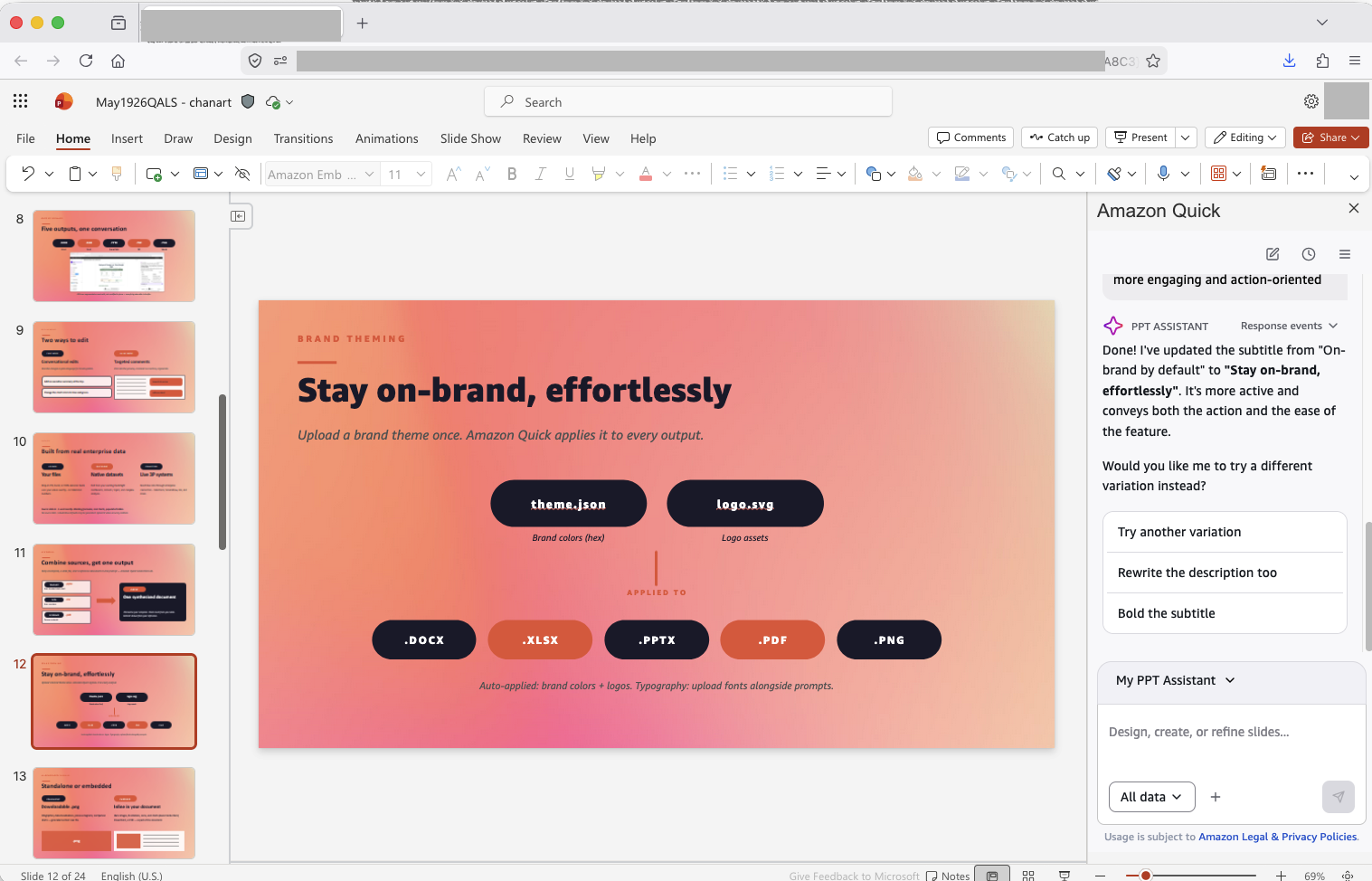
Figure 7: The PowerPoint extension generates branded slides with Quick data across a multi-step workflow. In this example we show the Quick Action feature, where you can choose a suggested action
To try this, create a five-slide executive summary using your company template, pulling Q1 metrics from your Quick Sight dashboard.
What’s next
This release brings Quick intelligence to Microsoft 365, including Excel and PowerPoint. Visit the Amazon Quick documentation for new capabilities and updates as they become available.
Get started
Amazon Quick extensions for Microsoft 365 are generally available. If you’re already a Quick user, you can install extensions from the Quick Download page. If you aren’t a Quick user, you can start a free trial, install the extensions, and start using Quick in Word, Excel, PowerPoint, and Outlook.
To learn more, visit the Amazon Quick documentation or sign in to the Quick console and choose the Microsoft 365 extensions from the Extensions menu.
About the authors
Art Chan
Art is a Senior Worldwide Specialist SA for Amazon Quick at AWS. He helps customers and field teams understand how AI-powered productivity tools can reshape the way organizations work. When he’s not on the clock, he’s either logging miles for his next marathon or getting his hands dirty on his farm.
Abhinand Sukumar
Abhinand is a Senior Product Manager at Amazon Web Services for Amazon Q Business, where he drives the product vision and roadmap for innovative generative AI solutions. Abhinand works closely with customers and engineering to deliver successful integrations, including the browser extension. His expertise spans generative AI experiences and AI/ML educational devices, with a deep passion for education, artificial intelligence, and design thinking. Prior to joining AWS, Abhinand worked as an embedded software engineer in the networking industry.
Leo Mentis Raj Selvaraj
Leo is a Sr. Specialist Solutions Architect – GenAI at AWS with 4.5 years of experience, currently guiding customers through their GenAI implementation journeys. Previously, he architected data platform and analytics solutions for strategic customers using a comprehensive range of AWS services including storage, compute, databases, serverless, analytics, and ML technologies. Leo also collaborates with internal AWS teams to drive product feature development based on customer feedback, contributing to the evolution of AWS offerings.