利用 Snowflake、Amazon SageMaker Canvas 和 Amazon Quick 构建无代码 ML 工作流(第 2 部分):使用 Amazon SageMaker Canvas 进行数据准备与模型构建
英文标题:Build a no-code ML workflow with Snowflake, Amazon SageMaker Canvas and Amazon Quick – Part 2: Data preparation and model building with Amazon SageMaker Canvas
本系列第 2 部分介绍如何在 Amazon SageMaker Canvas 中直接连接 Snowflake,完成欺诈检测数据集的准备、扩充、关联与转换,无需编写机器学习代码。流程利用 Data Wrangler 的可视化功能,基于信用卡和商户交易金额的均值加 3 倍总体标准差构建异常阈值,并生成相应的异常标记特征。随后,用户可移除卡号、商户名称等敏感字段,并通过数据质量分析识别目标泄漏、类别不平衡等常见问题。该流程为训练 XGBoost 欺诈检测模型以及后续构建交互式仪表板奠定基础,同时减少数据导出和移动需求。
 1.3 MB
 101.1 KB
 124.1 KB
 345.0 KB
 141.2 KB
 346.5 KB
 450.9 KB
 327.0 KB
 421.2 KB
 165.6 KB
 383.7 KB
 222.2 KB
 96.3 KB
 802.2 KB
 256.4 KB
 271.9 KB
 357.9 KB
 280.4 KB
 578.3 KB
 370.2 KB
中文
第 1 部分介绍了 Snowflake 数据库设置,并为这一无代码机器学习(ML)工作流建立了基础设施。
本博客系列的第 2 部分介绍使用 Amazon SageMaker Canvas 完成端到端数据准备和模型构建的工作流,演示如何直接连接 Snowflake 数据源、使用 Data Wrangler 的可视化转换功能对数据进行转换和准备,以及如何使用 XGBoost 算法构建欺诈检测模型。
Amazon SageMaker Canvas 是一项可视化、无代码的机器学习服务,使业务分析师和领域专家能够构建准确的 ML 模型并生成预测。Amazon SageMaker Canvas 为数据准备、模型训练和预测生成提供直观界面,在保持企业级安全性和治理能力的同时,推动机器学习在整个组织内的普及。
解决方案概述
本解决方案将指导您完成使用 Amazon SageMaker Canvas 准备数据并构建机器学习模型的完整工作流,并直接集成您的 Snowflake 数据仓库。
前提条件
在开始阅读本文之前,请先完成第 1 部分中的 Snowflake 环境设置。您需要使用第 1 部分中的 Snowflake 账户凭证和连接详情,才能完成本文的步骤。
Amazon SageMaker Canvas 设置
打开 AWS 管理控制台,搜索 Amazon SageMaker Canvas。从列表中选择它,或者按 Enter 键。
创建 Amazon SageMaker 域
域为您的 Amazon SageMaker 环境提供基础组织单元。它充当专用工作区,包含用户配置文件、存储配置和安全设置。每个域都提供隔离的资源和访问控制,用于管理团队协作和数据治理。
- 在左侧窗格中导航至环境配置,然后选择 Domains。
- 选择 Create domain。
- 选择为单个用户设置(快速设置),以自动创建域和用户配置文件。
启动 Amazon SageMaker Canvas
- 从左侧窗格中选择 Canvas。
- 选择您创建的域和用户配置文件。
- 选择 Open Canvas。
- 等待 3–5 分钟,让 Canvas 准备您的工作区。
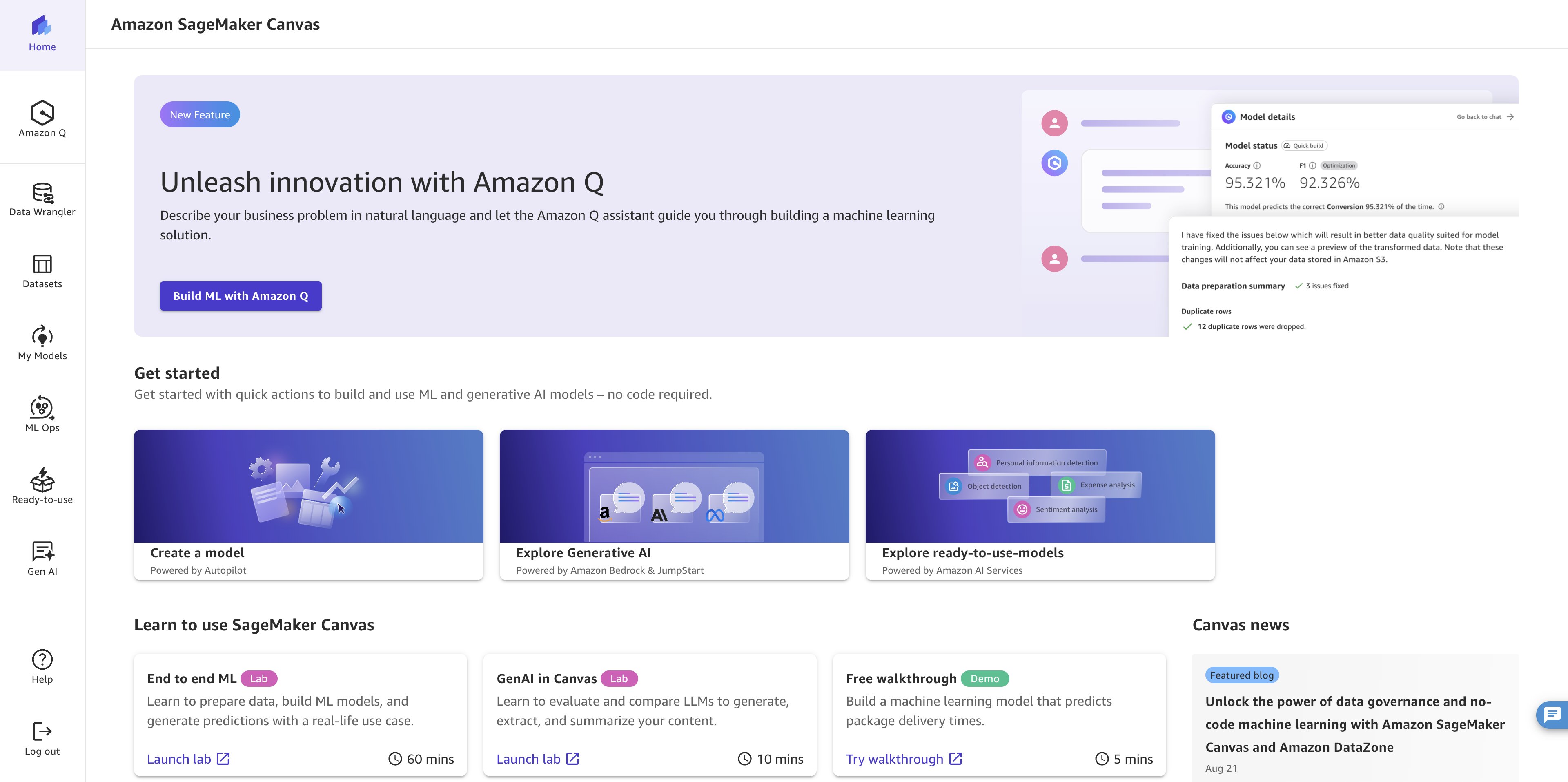
图 1:从域中打开后正在加载的 Amazon SageMaker Canvas 工作区
Data Wrangler:ML 数据准备
Amazon SageMaker Data Wrangler 简化了机器学习工作流中的数据准备工作。凭借内置转换功能和直观的可视化界面,Data Wrangler 可缩短传统上耗费在数据准备和分析上的时间。对于从金融服务到医疗保健的各类行业,这项能力可释放显著价值,使主题专家能够直接准备其数据以供分析。
与 Snowflake 的集成减少了数据移动方面的挑战,用户可以直接连接到 Snowflake 数据仓库,在 Canvas 内转换数据,然后直接进入模型构建环节。这个统一的无代码环境可加快洞察获取速度,同时保持数据治理和安全性。
A. 数据连接和初始设置
在本节中,您将 Amazon SageMaker Canvas 连接到 Snowflake 数据源。
- 导航至 Amazon SageMaker Canvas,并从左侧导航窗格中选择 Data Wrangler。选择 Import and prepare,然后选择 Tabular,以处理结构化数据集。
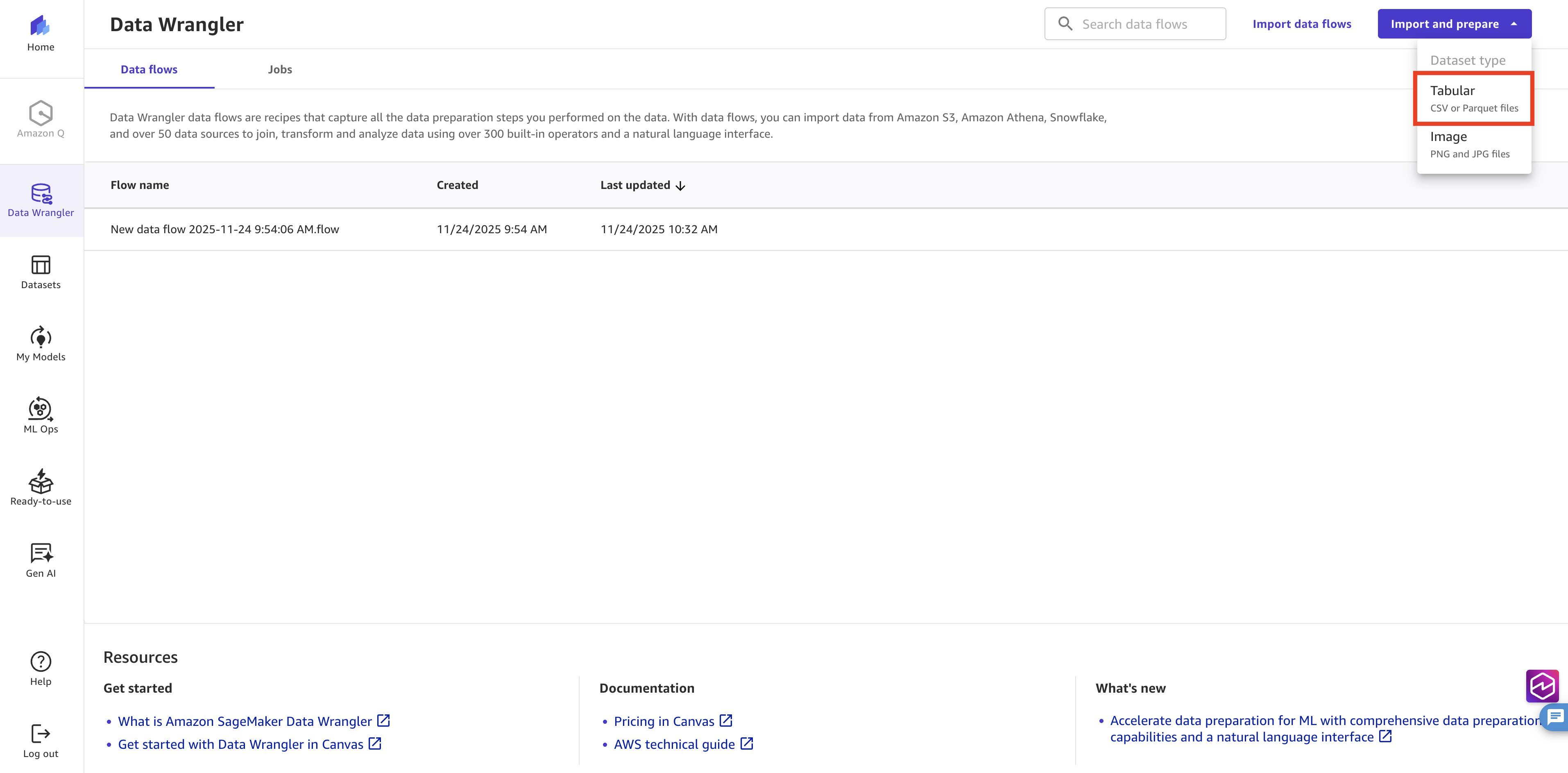
图 2:Amazon SageMaker Data Wrangler 的 Import and prepare 页面,其中已选择 Tabular
- 指定表格数据集的来源。在 data source menu 中,选择 Snowflake 作为连接类型。然后选择 Add Connection,以建立 Amazon SageMaker Canvas 与 Snowflake 环境之间的连接。通过此集成,您可以直接在 Canvas 中访问云数据仓库,无需手动导出数据,并确保始终使用 Snowflake 实例中的最新数据。
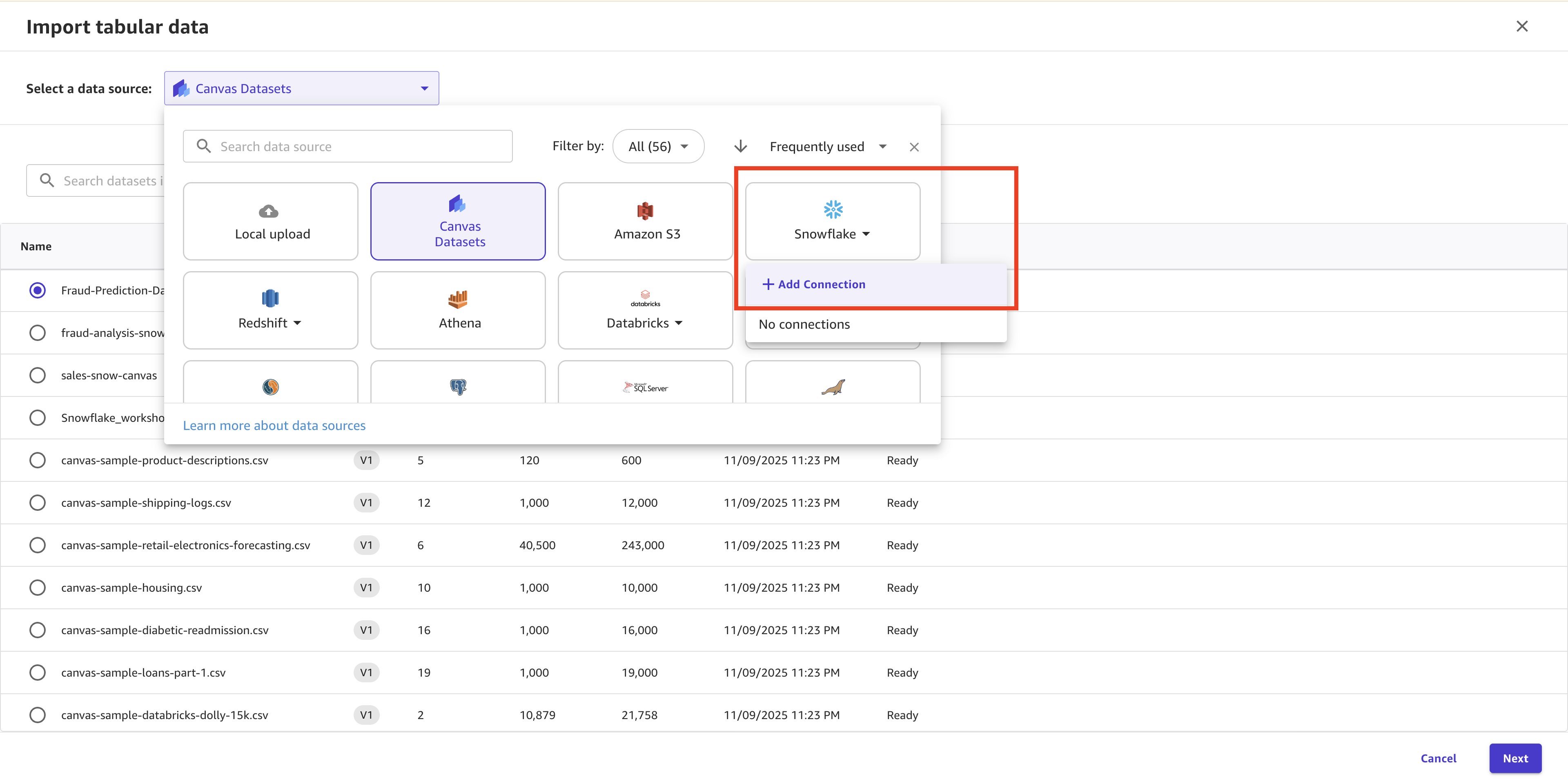
图 3:在 Data Wrangler 中选择 Snowflake 作为数据源并添加连接
- 在 Snowflake 连接弹出菜单中,提供以下信息:
- 连接名称。
- Account ID:设置为您的 Snowflake 组织值、连字符以及 Snowflake 账户 ID 的组合。
- 您此前设置的 Snowflake 账户用户名。
- 您此前设置的密码。
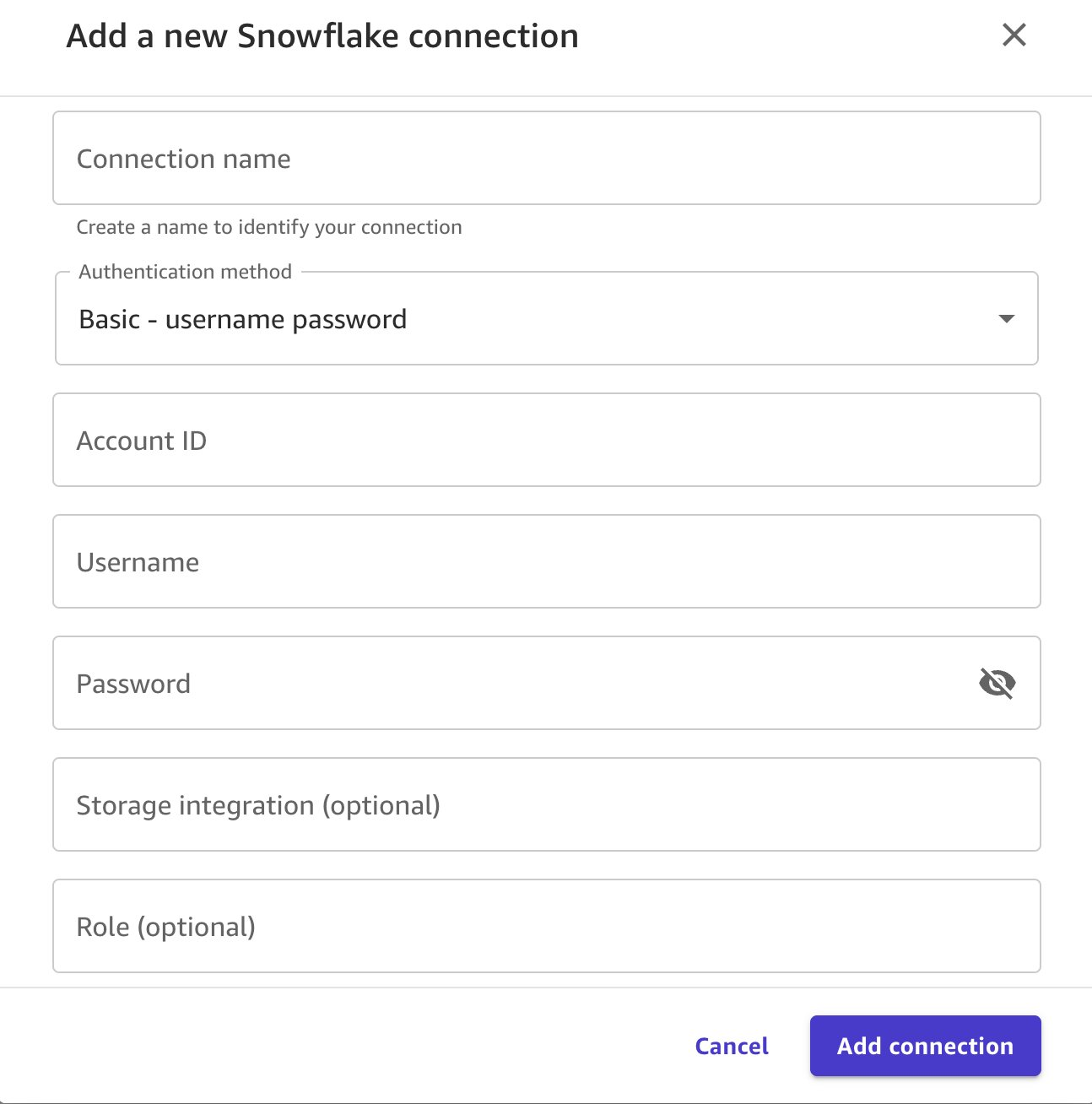
图 4:Snowflake 连接对话框,包含连接名称、账户 ID、用户名和密码字段
-
建立连接后,您将创建卡级异常值阈值,以识别每张信用卡与类别组合中的异常消费模式。这有助于模型检测交易金额何时显著偏离持卡人的典型行为。复制以下 SQL 查询以准备欺诈检测数据集。
select
CC_NUM,
CATEGORY,
avg(AMT) + (3* stddev_pop(AMT)) as amt_outlier,
case when sum(is_fraud)>1 then 1 else 0 end as fraud_history
from
FRAUD.PUBLIC.FRAUD_TABLE
where trans_date_trans_time<'2020-12-01'
group by
CC_NUM,
CATEGORY
-
运行查询:
- 选择右上角的 Edit in SQL,打开 SQL 编辑器。
- 将 SQL 查询粘贴到编辑器中。
- 选择 Run SQL,运行并预览结果。
- 选择 Import,将数据集导入 Canvas 工作区。
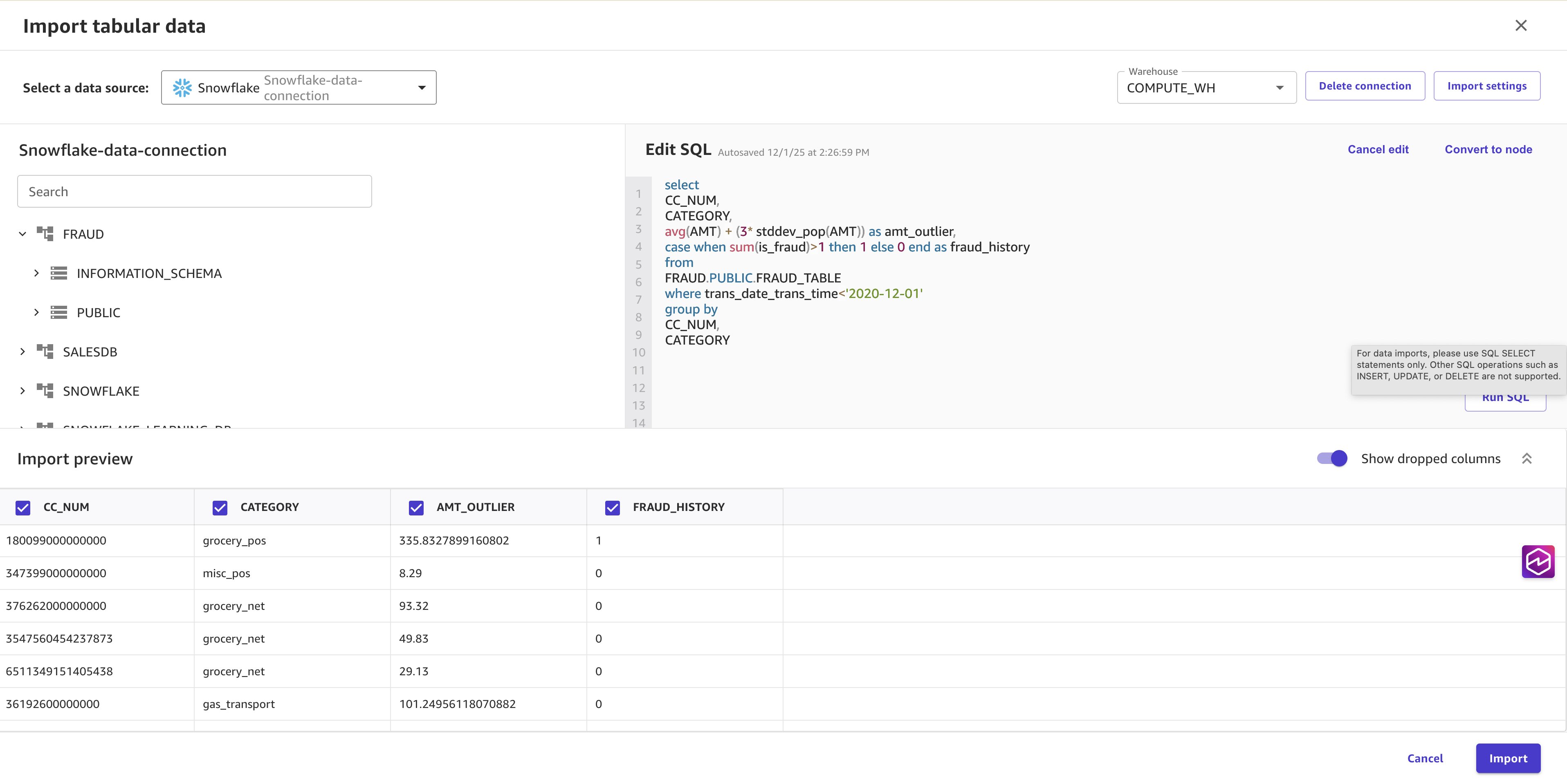
图 5:Data Wrangler 中的 SQL 编辑器,显示可供导入的异常阈值查询结果
B. 数据扩充
在以下步骤中,您将使用交易级特征和商户特定的欺诈指标扩充数据集。
- 选择 Data flow 以添加更多数据。在右上角选择 Add Data,然后选择 Tabular。
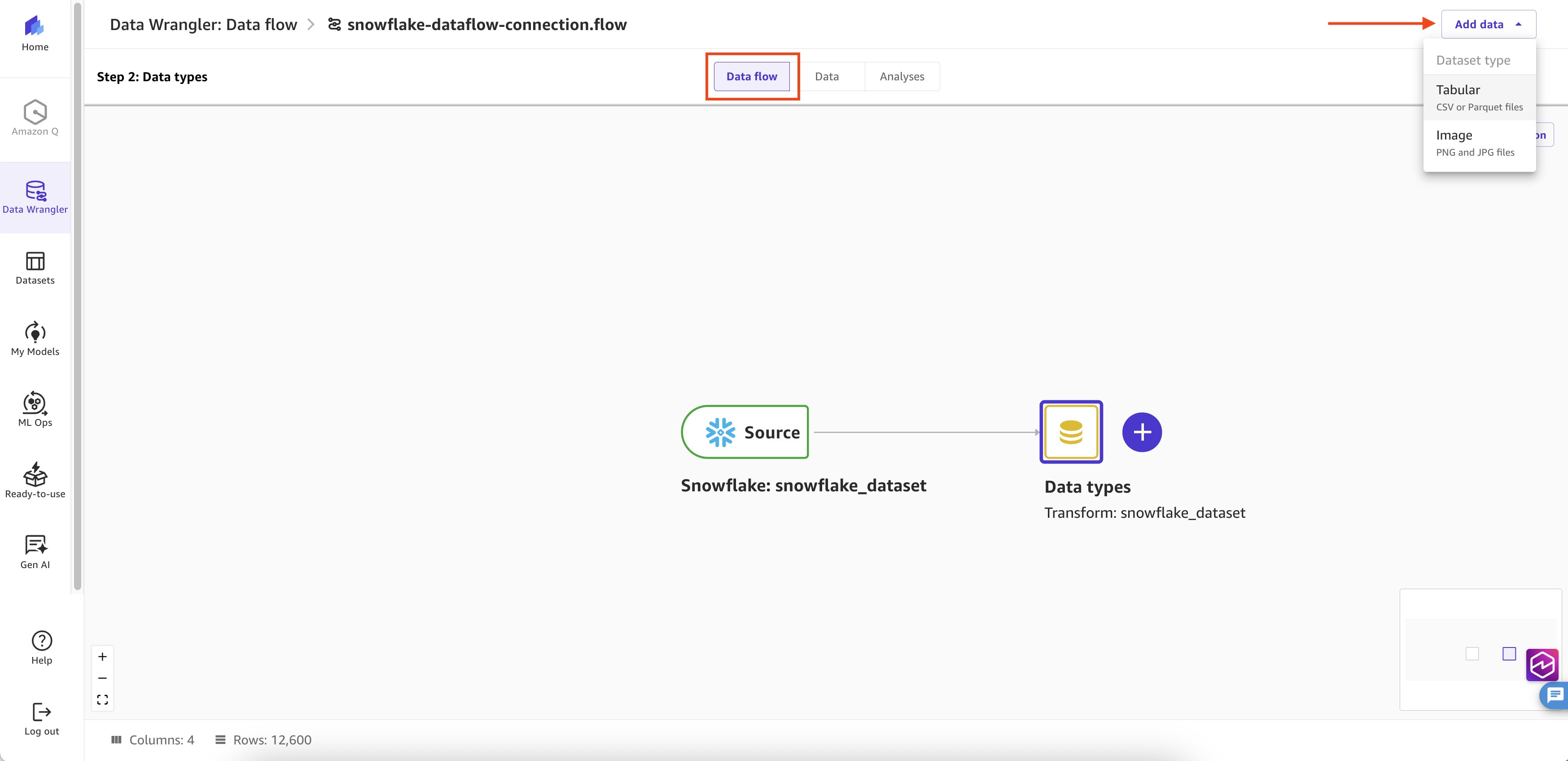
图 6:数据流画布,显示用于添加第二个数据源的 Add Data 和 Tabular 选项
- 选择 data source 为 Snowflake,并选择您此前创建的现有连接。
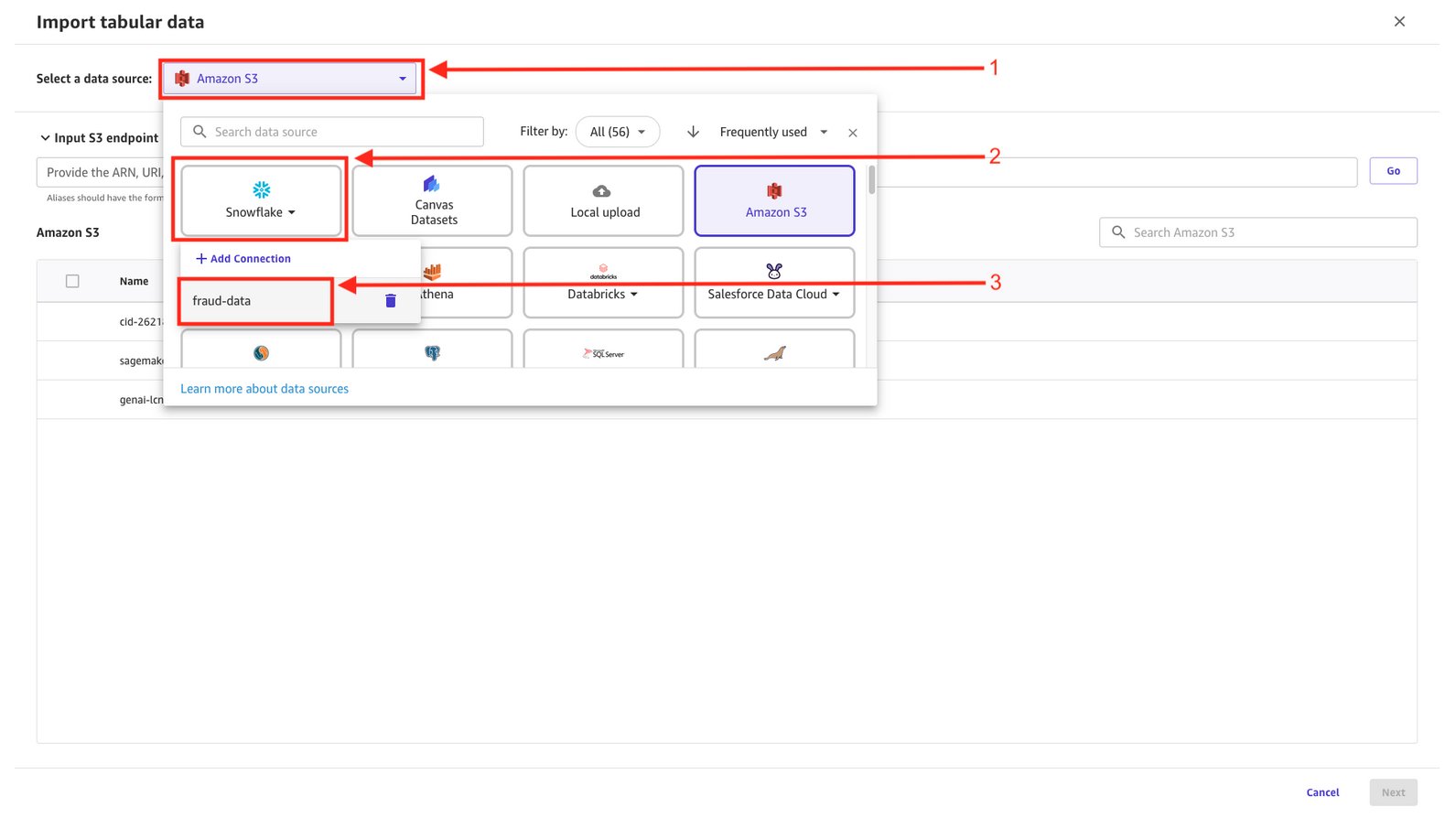
图 7:为第二个数据源选择现有 Snowflake 连接
-
在 Edit SQL 窗口中,粘贴 SQL 查询。该查询提供时间模式(一天中的小时、星期几)、人口统计信息(年龄类别)和商户级异常值阈值,这些都是欺诈检测的关键信号。选择 Run SQL,然后选择 Import。
select
    t.MERCHANT,
    t.CC_NUM,
    'H'||extract(hour from t.TRANS_DATE_TRANS_TIME) as TRANS_HOUR,
    'D'||extract(dow from t.TRANS_DATE_TRANS_TIME) as TRANS_DOW,
    t.state,
    t.gender,
    'A'||FLOOR(DATEDIFF(YEAR, DATEADD(DAY, 1, CAST(t.dob AS DATE)), CAST(t.TRANS_DATE_TRANS_TIME AS DATE)) / 5) * 5 AS age_category,
    t.CATEGORY,
    t.IS_FRAUD,
    t.AMT,
    m.merchant_amt_outlier,
    m.merchant_fraud_history
from
    FRAUD.PUBLIC.FRAUD_TABLE t
left join (
    select
        MERCHANT,
        avg(AMT) + (3* stddev_pop(AMT)) as merchant_amt_outlier,
        case when sum(is_fraud)>1 then 1 else 0 end as merchant_fraud_history
    from
        FRAUD.PUBLIC.FRAUD_TABLE
    where trans_date_trans_time<'2020-12-01'
    group by MERCHANT
) m on t.MERCHANT = m.MERCHANT
where t.trans_date_trans_time<'2020-12-01'
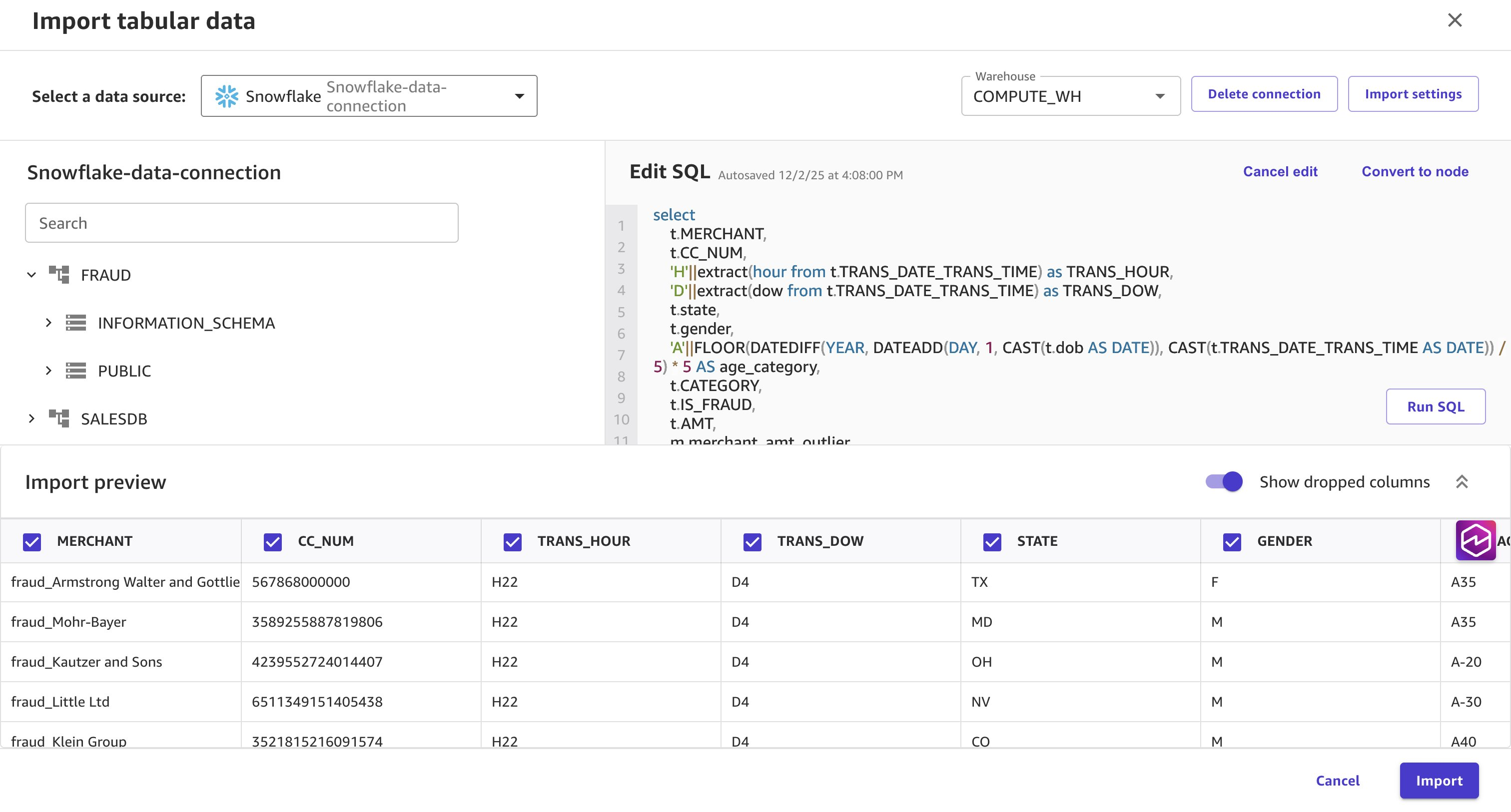
图 8:Data Wrangler 对扩充查询的预览,包含时间、人口统计和商户特征
C. 数据转换
在本节中,您将把数据关联起来。
- 在 Data flow 页面上,您可以看到从 Snowflake 导入的两个数据源。选择第一个 data type,然后选择其旁边的加号图标。选择 Combine data,然后选择 Join。右侧面板打开后,从数据流中选择第二个 data type 进行关联。
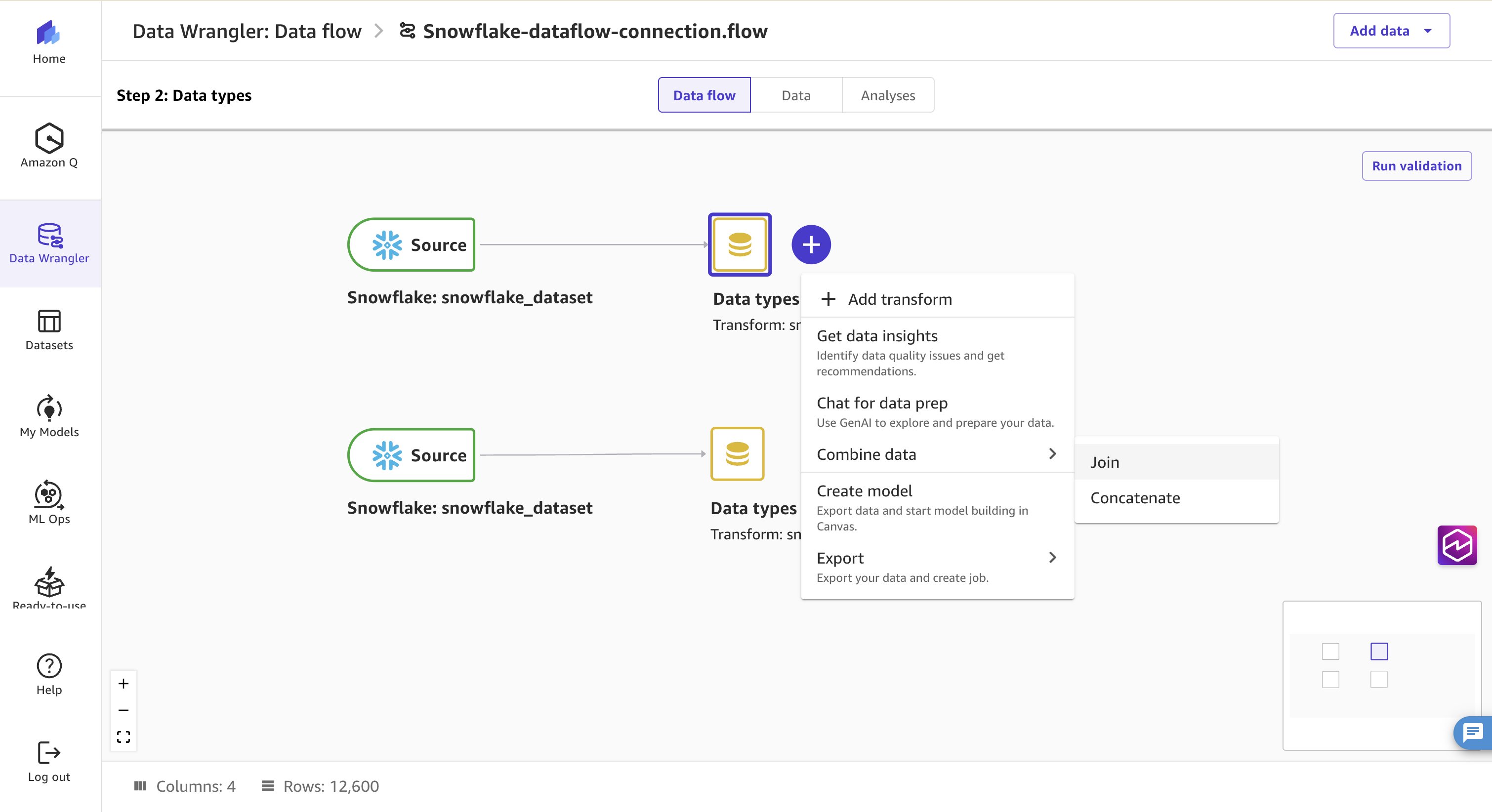
图 9:数据流显示两个 Snowflake 数据源之间的 Combine data 和 Join 选项
- 为 Join type 选择 Left outer join。添加 Join key,并在左右两侧的关联键中均选择 Category。
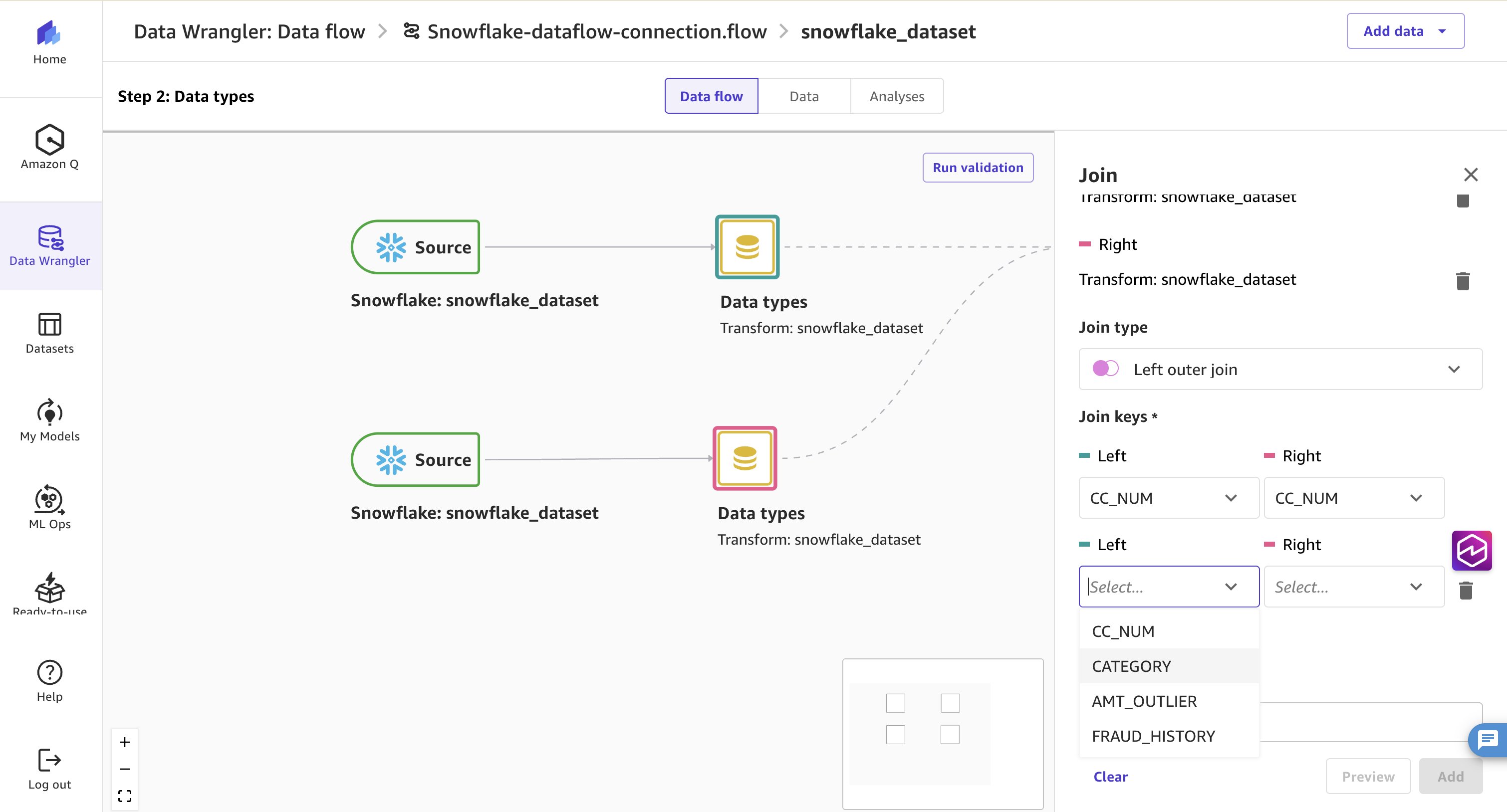
图 10:关联配置:使用 Left outer join 类型,并以 Category 作为关联键
- 选择 Preview 查看关联后的数据。选择 Add 继续。
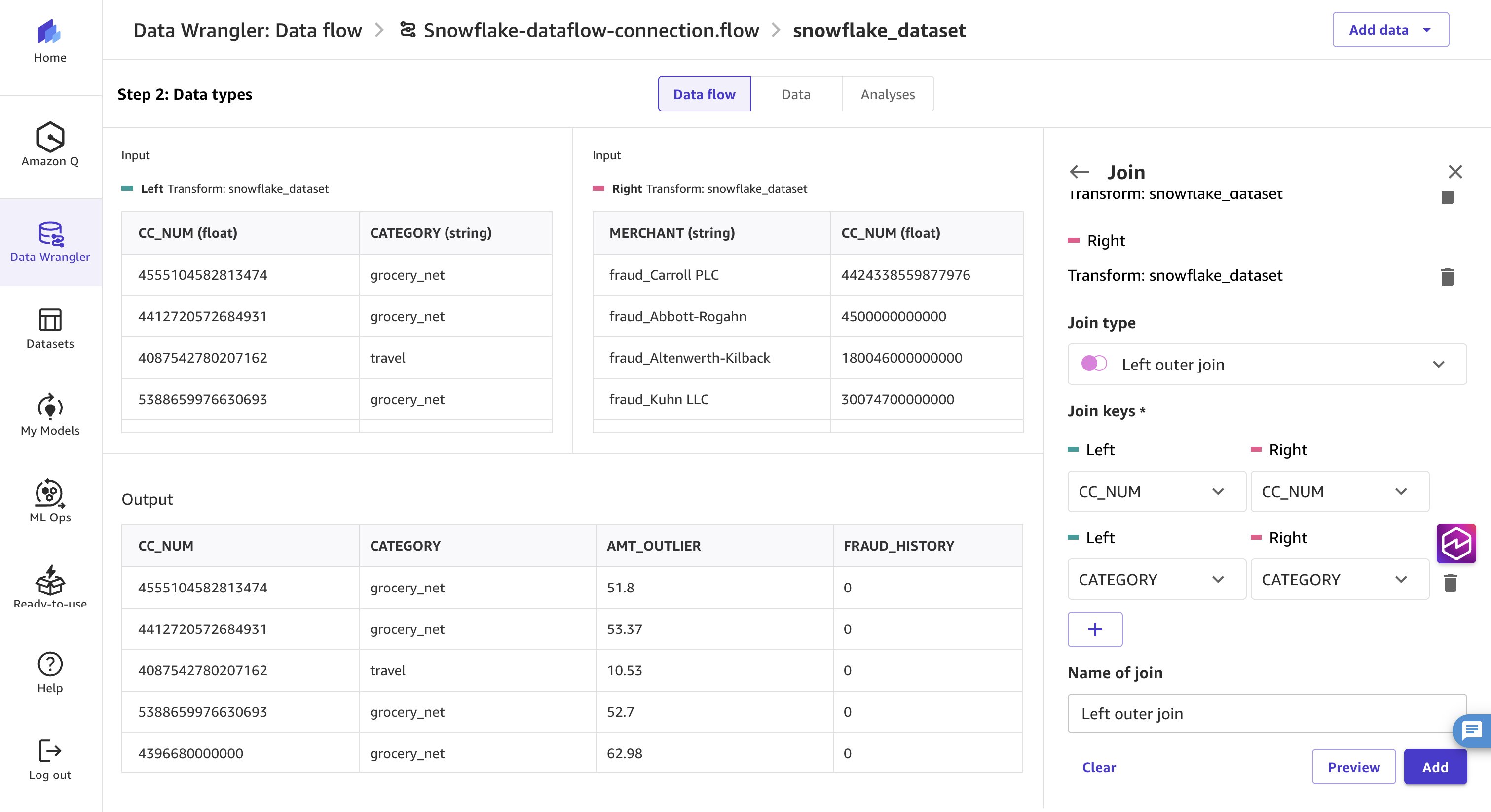
图 11:将关联后的数据集添加到数据流之前的预览
接下来,您将创建异常值特征并移除敏感列。
- 返回 Data flow 页面,选择关联节点,选择其旁边的加号(+),然后选择 Add transform。
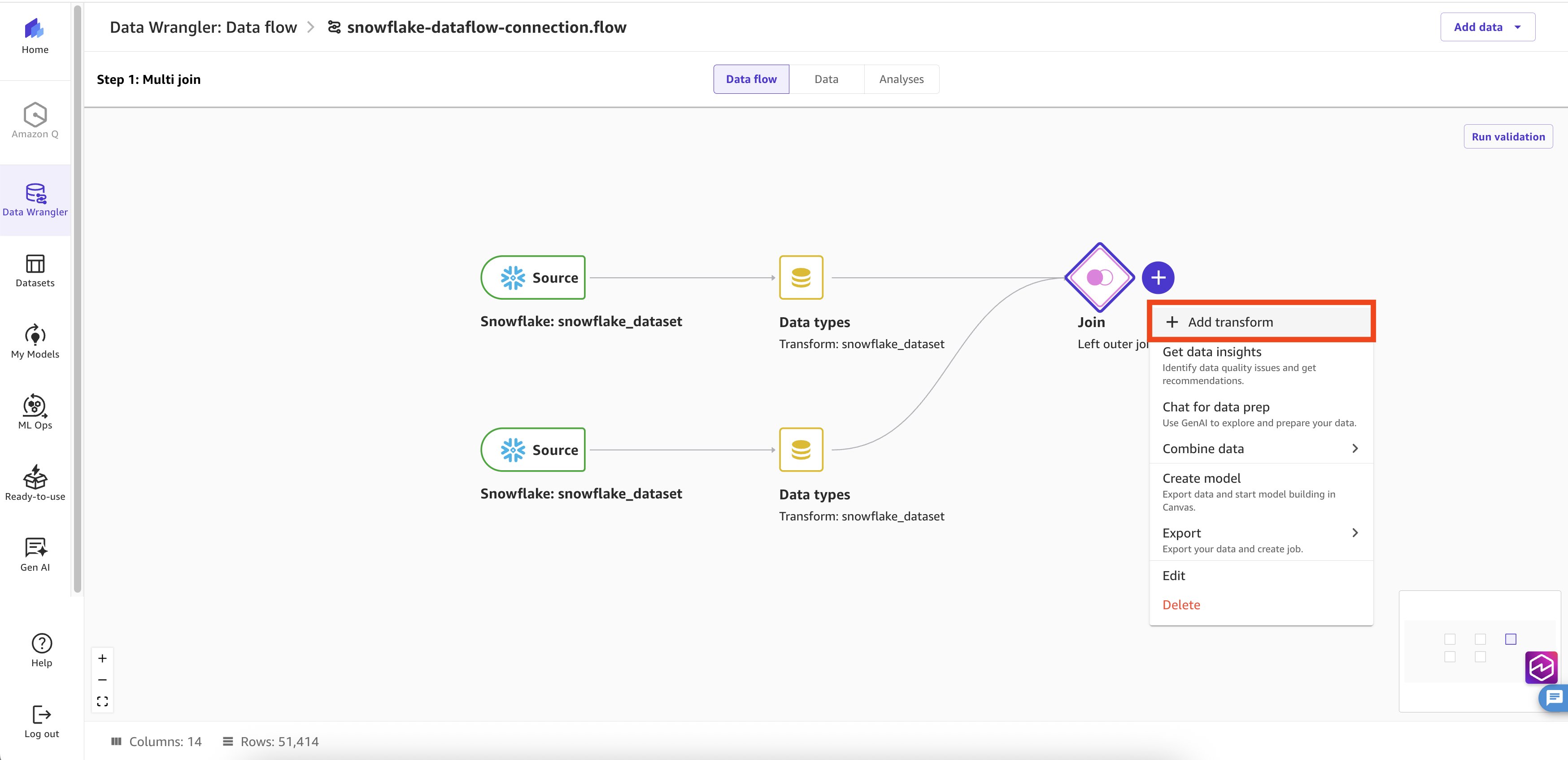
图 12:向数据流中的关联节点添加转换
- 界面打开后,在右侧面板中选择 Add transform,然后选择 Custom Formula。
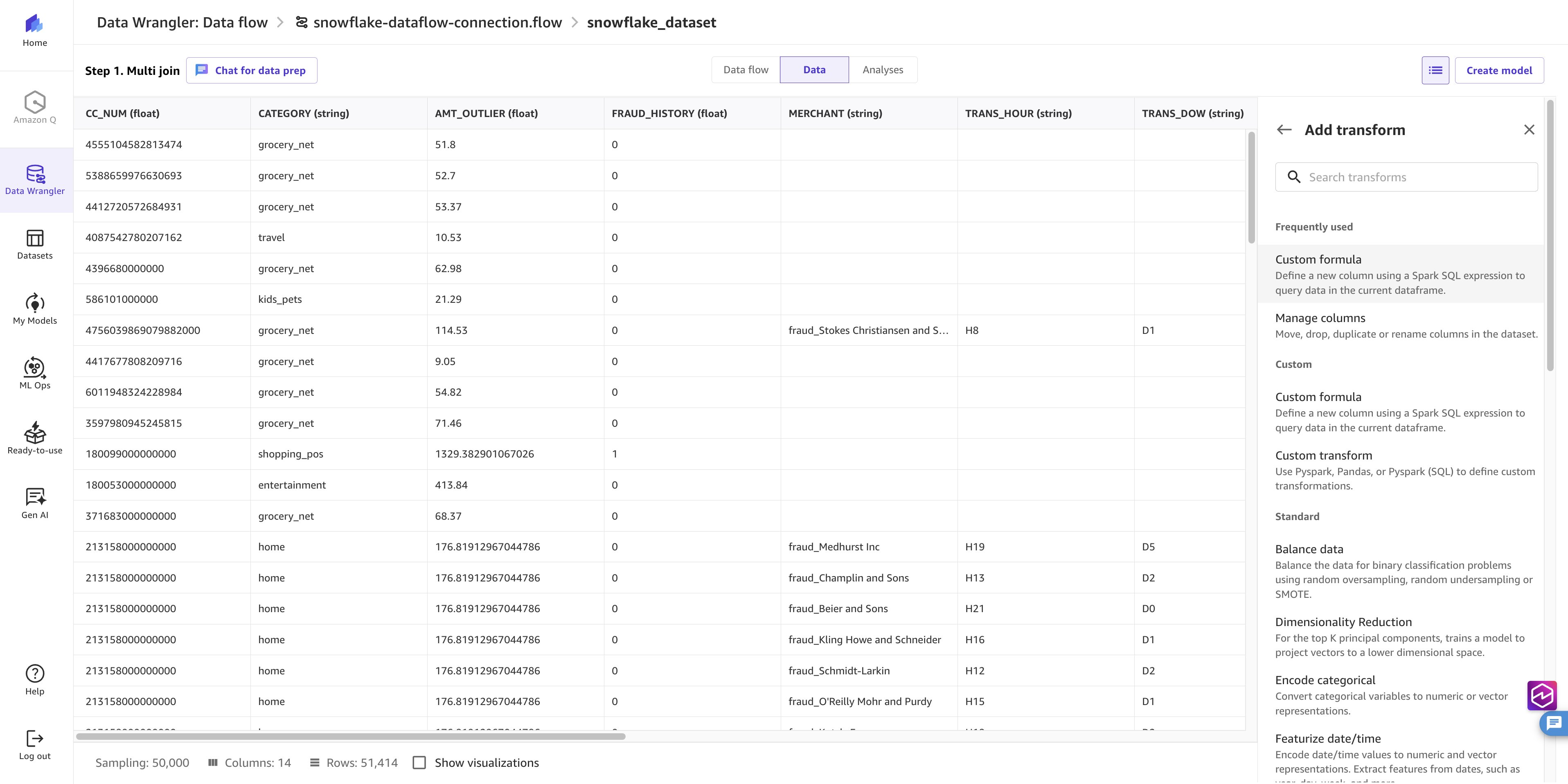
图 13:在 Add transform 面板中选择 Custom Formula
-
此选项使您能够使用 Spark SQL 表达式灵活地添加列。在 Home 选项卡中复制并粘贴以下 Formula。将输出列输入为
CC_FLAG,然后选择 Add。CASE WHEN AMT > AMT_OUTLIER THEN 1 ELSE 0 END
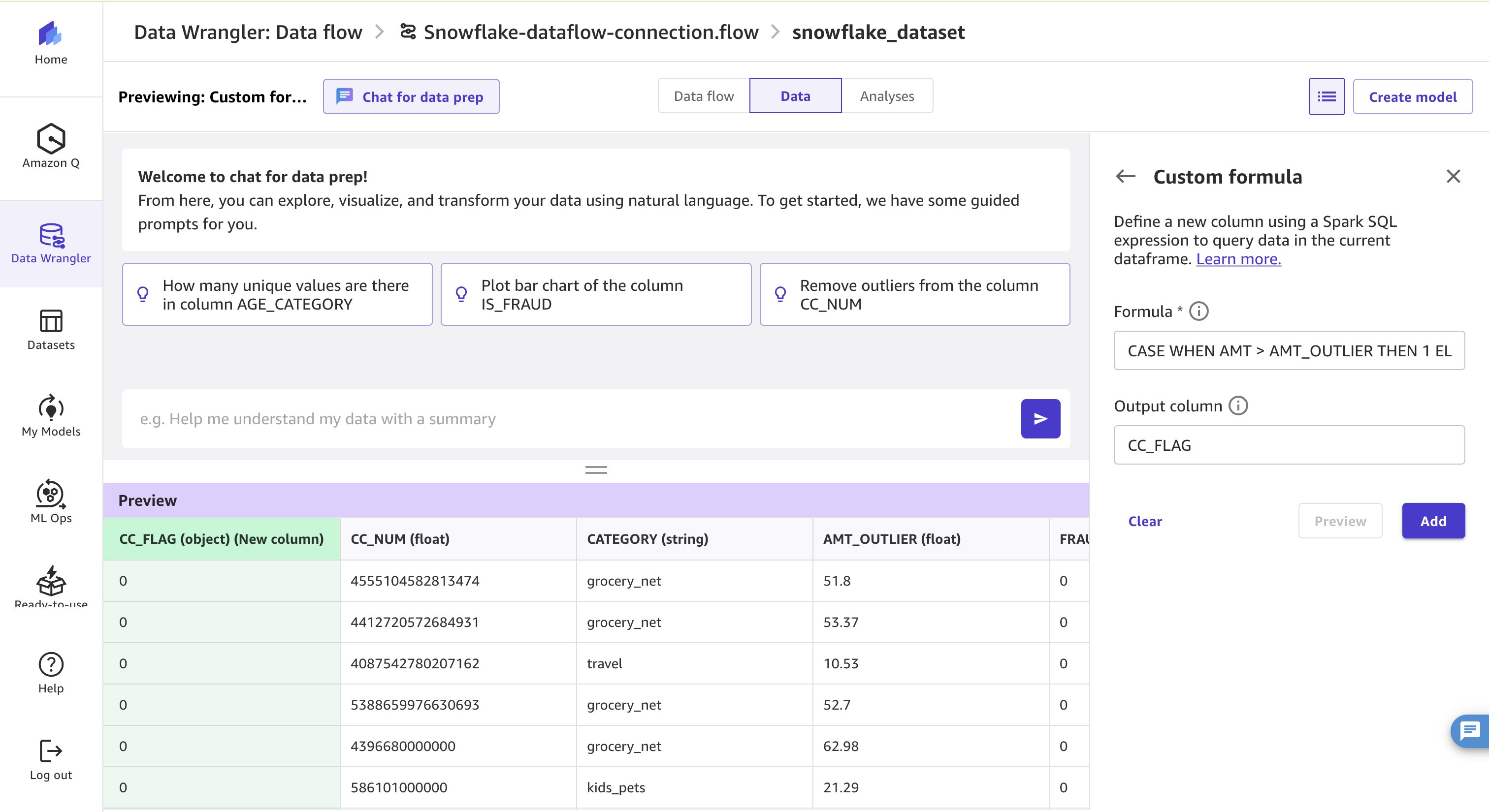
图 14:使用自定义公式根据卡级异常值阈值创建 CC_FLAG 列
-
要添加另一列,请重复相同步骤以输入自定义公式,然后复制并粘贴以下查询,并将输出列命名为
MERCHANT_AMT_FLAG。CASE WHEN AMT > MERCHANT_AMT_OUTLIER THEN 1 ELSE 0 END
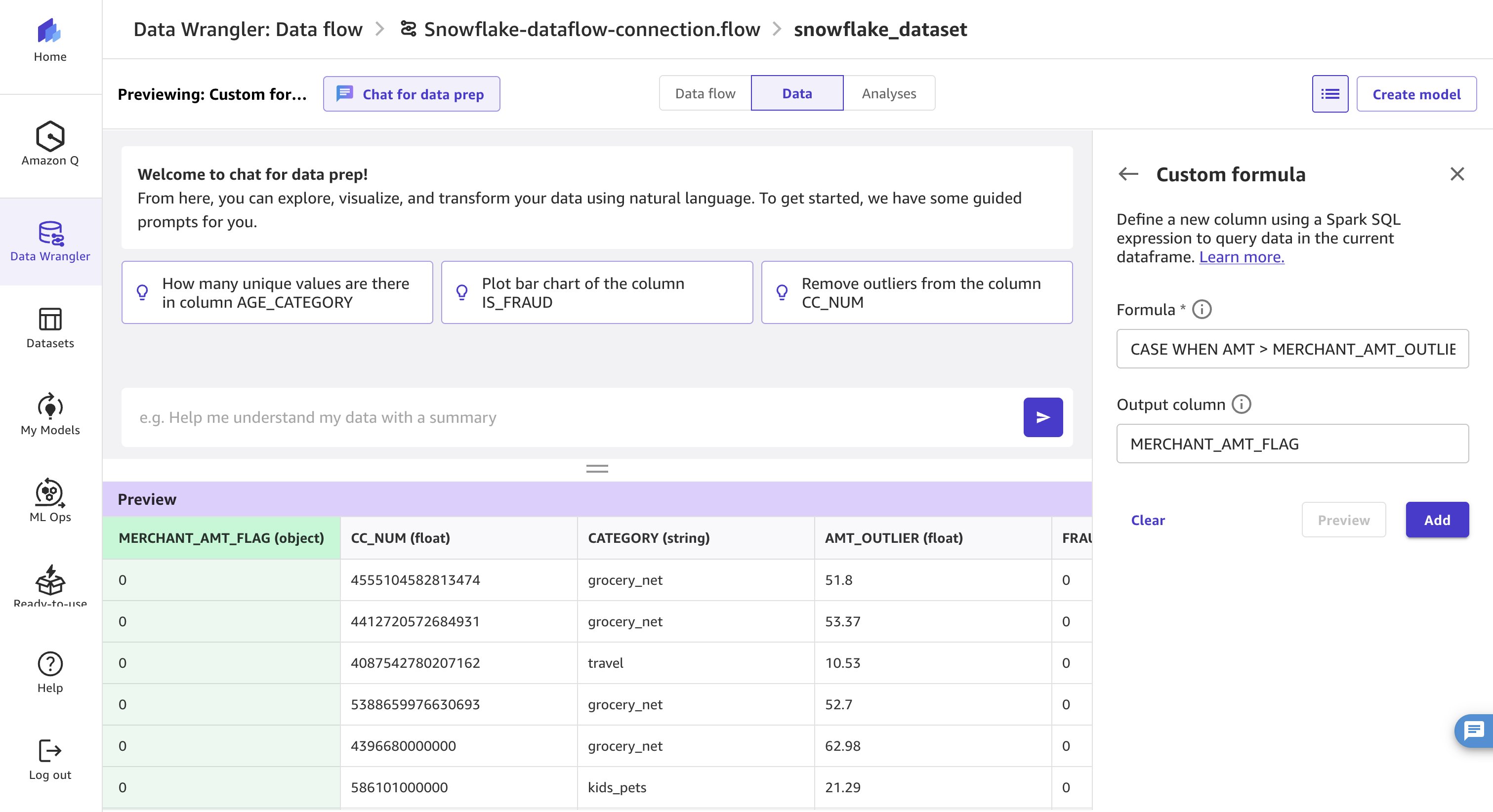
图 15:使用自定义公式根据商户异常值阈值创建 MERCHANT_AMT_FLAG 列
- 为确保模型不包含信用卡号码、商户名称以及与信用卡或商户相关的异常金额等敏感信息,请使用内置转换移除这些列。
- 选择 Add transform,然后选择 Manage Columns。
- 将 Transform 类型选择为 Drop column。
- 选择要从数据集中移除的列。
- 选择 Add 以应用转换。
CC_NUM。AMT_OUTLIER。MERCHANT。MERCHANT_AMT_OUTLIER。
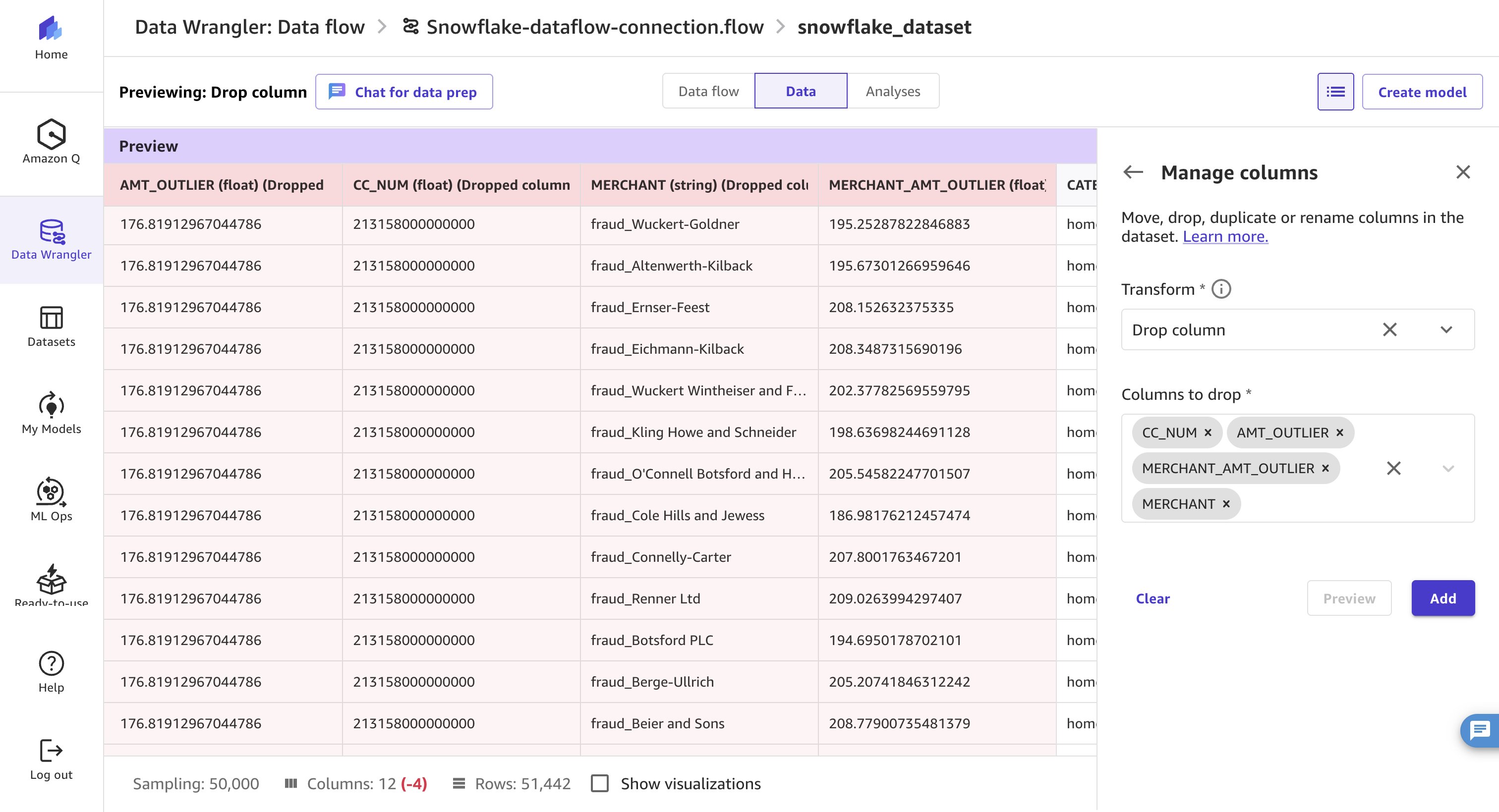
图 16:Manage Columns 转换从数据集中删除敏感列
D. 质量分析和模型导出
完成数据准备后,您将运行一份质量分析报告,以获取有关数据的洞察。该洞察报告会识别目标泄漏或类别不平衡等常见数据问题,帮助用户在工作流早期解决这些问题。
- 要启动分析,请选择 Analyses 选项卡。在右侧
English / 原文
Part 1 covered the Snowflake database setup and established the foundational infrastructure for this no-code machine learning (ML) workflow.
Part 2 of this blog series covers complete data preparation and model building workflow using Amazon SageMaker Canvas, demonstrating how to connect directly to Snowflake data sources, transform and prepare data using Data Wrangler’s visual transformations, and build a fraud detection model using the XGBoost algorithm.
Amazon SageMaker Canvas is a visual, no-code machine learning service that enables business analysts and domain experts to build accurate ML models and generate predictions. Amazon SageMaker Canvas provides an intuitive interface for data preparation, model training, and prediction generation democratizing access to machine learning across organizations while maintaining enterprise security and governance.
Solution overview
This solution guides you through the complete workflow of preparing data and building a machine learning model using Amazon SageMaker Canvas, with direct integration to your Snowflake data warehouse.
Prerequisites
Complete Part 1 setting up your Snowflake environment before starting this post. You need the Snowflake account credentials and connection details from Part 1 to complete the steps in this post.
Amazon SageMaker Canvas setup
Open the AWS Management Console and search for Amazon SageMaker Canvas. Select it from the list, or press Enter.
Create your Amazon SageMaker domain
A domain provides the foundational organizational unit for your Amazon SageMaker environment. It serves as a dedicated workspace that houses user profiles, storage configurations, and security settings. Each domain delivers isolated resources and access controls for managing team collaboration and data governance.
- Navigate to environment configurations in the left pane and choose Domains.
- Choose Create domain.
- Choose Set up for single user (Quick setup) to automatically create both your domain and user profile.
Launch Amazon SageMaker Canvas
- Select Canvas from the left-hand pane.
- Choose the domain and user profile you created.
- Choose Open Canvas.
- Wait 3–5 minutes while Canvas prepares your workspace.
Figure 1: Amazon SageMaker Canvas workspace loading after opening it from the domain
Data Wrangler: ML data preparation
Amazon SageMaker Data Wrangler simplifies data preparation for machine learning workflows. With built-in transformations and an intuitive visual interface, Data Wrangler reduces the time traditionally spent on data preparation and analysis. For industries ranging from financial services to healthcare, this capability unlocks significant value so subject matter experts can directly prepare their data for analysis.
The integration with Snowflake reduces data movement challenges, so users can connect directly to their Snowflake data warehouses, transform the data within Canvas, and proceed straight to model building. This unified, no-code environment accelerates time-to-insight while maintaining data governance and security.
A. Data connection and initial setup
In this section, you connect Amazon SageMaker Canvas to a Snowflake data source.
- Navigate to Amazon SageMaker Canvas and choose Data Wrangler from the left navigation pane. Choose Import and prepare , then choose Tabular to work with structured datasets.
Figure 2: Amazon SageMaker Data Wrangler Import and prepare screen with Tabular selected
- Specify the source of your tabular dataset. From the data source menu , choose Snowflake as your connection type. Then choose Add Connection to establish the link between Amazon SageMaker Canvas and your Snowflake environment. With this integration, you can access your cloud data warehouse directly within Canvas. It avoids manual data exports and makes sure you are always working with the most current data in your Snowflake instance.
Figure 3: Selecting Snowflake as the data source and adding a connection in Data Wrangler
- In the Snowflake connection pop-up menu, provide the following:
- A connection name.
- The Account ID , set to your Snowflake organization value, plus a hyphen, plus the Snowflake account ID.
- The username for the Snowflake account you set up earlier.
- The password that you set previously.
Figure 4: Snowflake connection dialog with connection name, account ID, username, and password fields
- After the connection is established, you will create card-level outlier thresholds to identify unusual spending patterns for each credit card and category combination. This helps the model detect when a transaction amount significantly deviates from a cardholder’s typical behavior. Copy the SQL query to prepare the fraud detection dataset.
select
CC_NUM,
CATEGORY,
avg(AMT) + (3* stddev_pop(AMT)) as amt_outlier,
case when sum(is_fraud)>1 then 1 else 0 end as fraud_history
from
FRAUD.PUBLIC.FRAUD_TABLE
where trans_date_trans_time<'2020-12-01'
group by
CC_NUM,
CATEGORY
- Run the query:
- Choose Edit in SQL in the top right corner to open the SQL editor.
- Paste the SQL query into the editor.
- Choose Run SQL to run and preview results.
- Choose Import to bring the dataset into your Canvas workspace.
Figure 5: SQL editor in Data Wrangler showing the outlier-threshold query results ready to import
B. Data enrichment
In the following steps, you will enrich the dataset with transaction-level features and merchant-specific fraud indicators.
- Choose Data flow to add more data. In the top right corner, choose Add Data , and then choose Tabular.
Figure 6: Data flow canvas with the Add Data and Tabular options for adding a second source
- Choose the data source as Snowflake and the existing connection you created before.
Figure 7: Selecting the existing Snowflake connection for the second data source
- In the Edit SQL window, paste the SQL query. This query provides temporal patterns (hour of day, day of week), demographic information (age categories), and merchant-level outlier thresholds, all critical signals for fraud detection. Choose Run SQL , then choose Import.
select
t.MERCHANT,
t.CC_NUM,
'H'||extract(hour from t.TRANS_DATE_TRANS_TIME) as TRANS_HOUR,
'D'||extract(dow from t.TRANS_DATE_TRANS_TIME) as TRANS_DOW,
t.state,
t.gender,
'A'||FLOOR(DATEDIFF(YEAR, DATEADD(DAY, 1, CAST(t.dob AS DATE)), CAST(t.TRANS_DATE_TRANS_TIME AS DATE)) / 5) * 5 AS age_category,
t.CATEGORY,
t.IS_FRAUD,
t.AMT,
m.merchant_amt_outlier,
m.merchant_fraud_history
from
FRAUD.PUBLIC.FRAUD_TABLE t
left join (
select
MERCHANT,
avg(AMT) + (3* stddev_pop(AMT)) as merchant_amt_outlier,
case when sum(is_fraud)>1 then 1 else 0 end as merchant_fraud_history
from
FRAUD.PUBLIC.FRAUD_TABLE
where trans_date_trans_time<'2020-12-01'
group by MERCHANT
) m on t.MERCHANT = m.MERCHANT
where t.trans_date_trans_time<'2020-12-01'
Figure 8: Data Wrangler preview of the enrichment query with temporal, demographic, and merchant features
C. Data transformation
In this section, you will join the data together.
- On the Data flow screen, you see the two data sources imported from Snowflake. Choose the first data type and choose the plus icon next to it. Choose Combine data , then Join. When the right panel opens, choose the second data type from the data flow to join.
Figure 9: Data flow showing the Combine data and Join options between the two Snowflake sources
- Choose Left outer join for the Join type. Add a Join key and choose Category as the left and right join key.
Figure 10: Join configuration with Left outer join type and Category as the join key
- Choose Preview to view the joined data. Choose Add to proceed.
Figure 11: Preview of the joined dataset before adding it to the data flow
Next, you will create outlier features and remove sensitive columns.
- Return to the Data flow screen, choose the join, choose the plus sign (+) next to it, and then choose Add transform.
Figure 12: Adding a transform to the join node in the data flow
- After the interface opens, choose Add transform in the right-hand panel, and then choose Custom Formula.
Figure 13: Choosing Custom Formula in the Add transform panel
- This option gives you the flexibility to add columns using a Spark SQL expression. Copy and paste the following Formula on the Home tab. Enter the output column as
CC_FLAGand choose Add.
CASE WHEN AMT > AMT_OUTLIER THEN 1 ELSE 0 END
Figure 14: Custom formula creating the CC_FLAG column from the card outlier threshold
- To add another column, repeat the same steps to enter a custom formula, then copy and paste this query and name the output column as
MERCHANT_AMT_FLAG.
CASE WHEN AMT > MERCHANT_AMT_OUTLIER THEN 1 ELSE 0 END
Figure 15: Custom formula creating the MERCHANT_AMT_FLAG column from the merchant outlier threshold
- To make sure the model remains free of sensitive information such as card numbers, merchant names, and outlier amounts tied to cards or merchants, remove these columns using built-in transformation.
- Select Add transform and choose Manage Columns
- Select the Transform type to Drop column
- Select the columns you want to remove from your dataset
- Choose Add to apply the transformation.
CC_NUM.AMT_OUTLIER.MERCHANT.MERCHANT_AMT_OUTLIER.
Figure 16: Manage Columns transform dropping sensitive columns from the dataset
D. Quality analysis and model export
With data preparation complete, you will run a quality analysis report to get insights into the data. The insights report identifies common data issues, such as target leakage or class imbalance, helping users address them early in the workflow.
- To initiate the analysis, choose the Analyses tab. In the right-hand panel, choose Data Quality and Insights Report from the Analysis type list.
- Choose
IS_FRAUDas the target column. This tells Canvas which variable you want to predict. Then choose the Classification option under Problem type. The Data size should remain as Sampled Dataset. Finally, choose Create to launch the analysis.
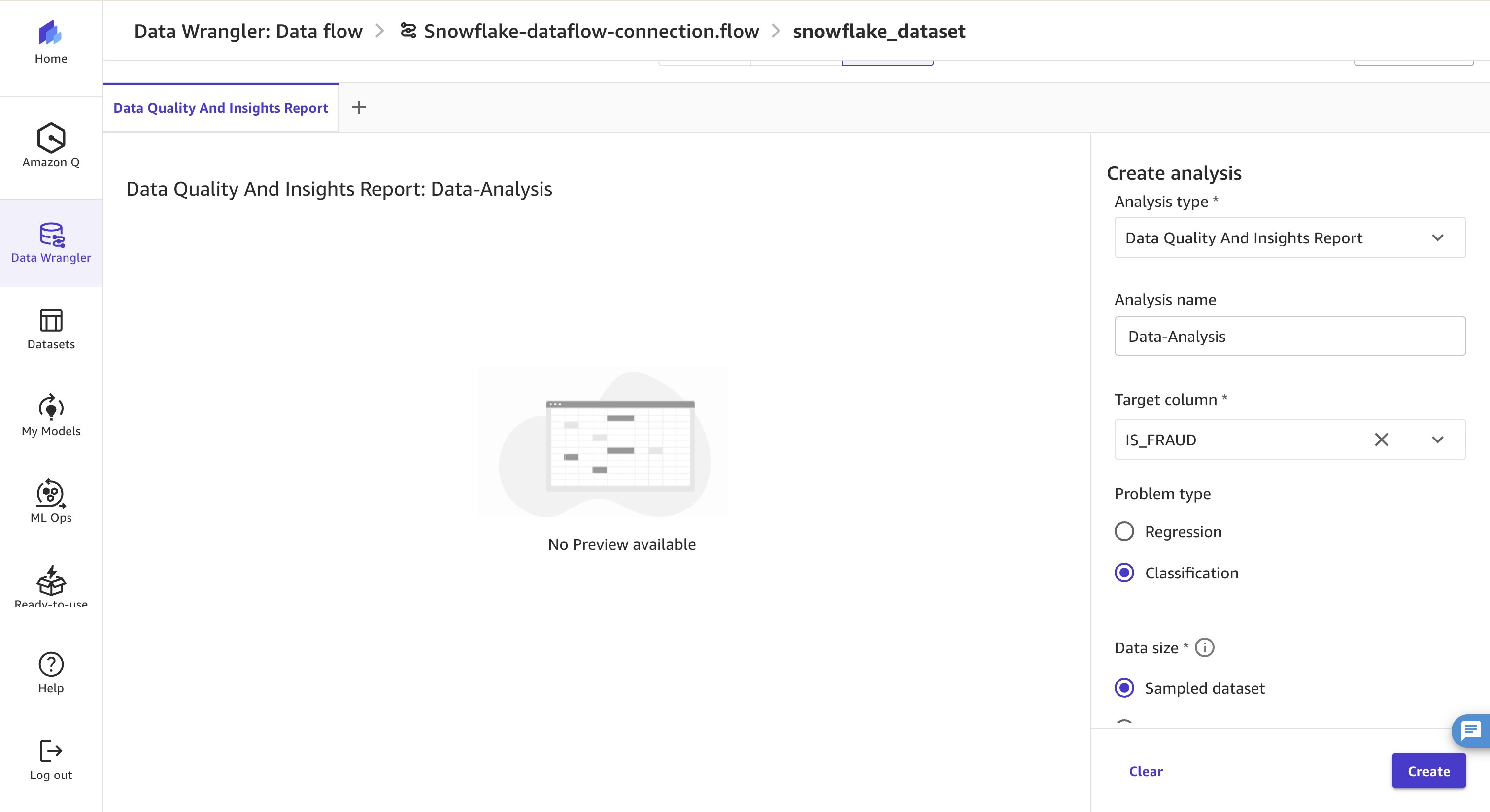
Figure 17: Data Quality and Insights Report configuration with IS_FRAUD target and Classification problem type
- Within a few minutes, a detailed analysis report will be created which includes a quick summary of the data, feature summary, duplicate rows, anomalous samples and much more. In the Quick model section, review the accuracy metrics in the training and validation datasets. A confusion matrix follows the accuracy statistics. The idea is to use this report after any data engineering to observe how it impacts model quality.
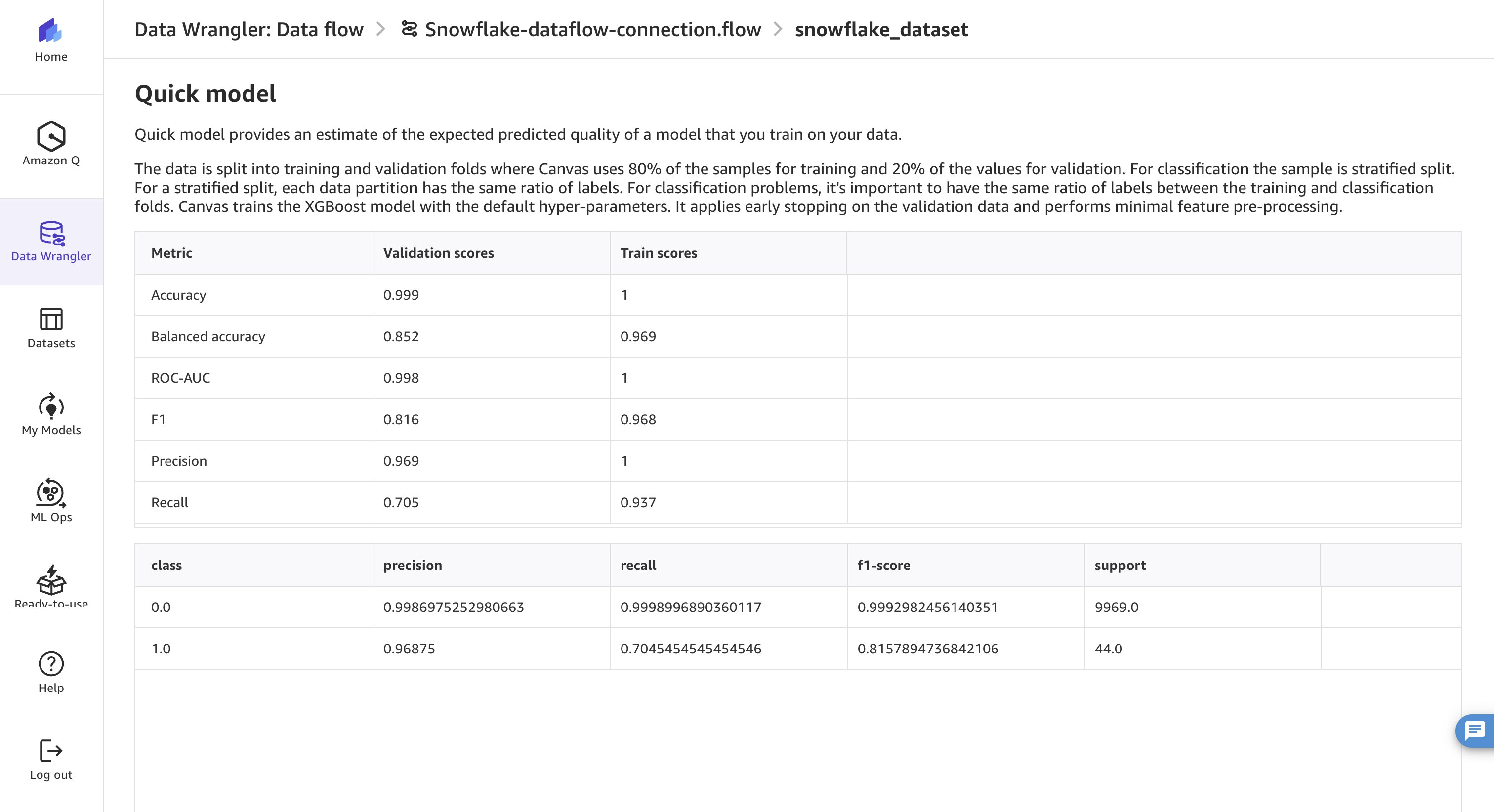
Figure 18: Data quality and insights report with Quick model accuracy metrics and confusion matrix
- The feature summary section shows feature importance. In practice, if there are features with low prediction power, you might choose to drop those features.
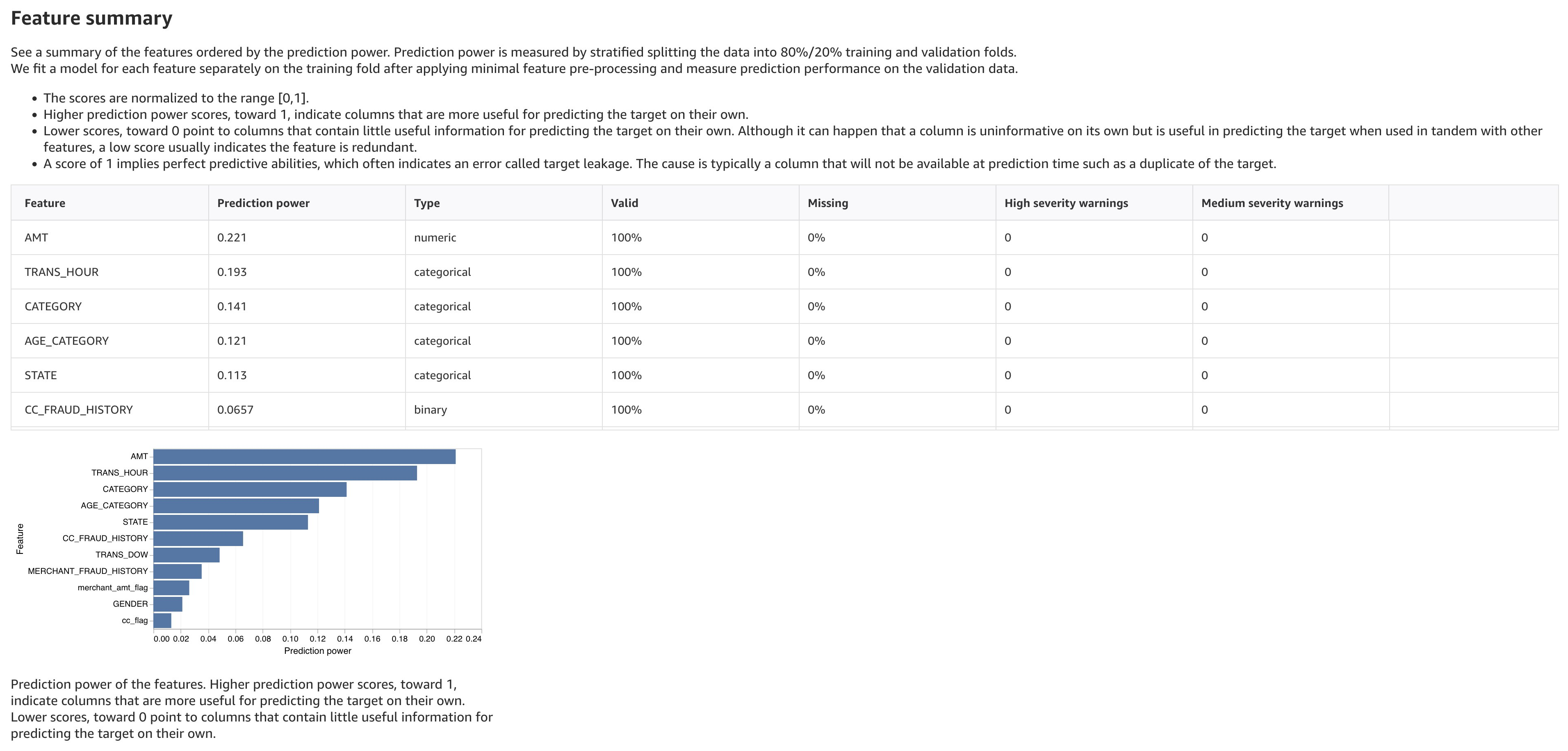
Figure 19: Feature summary section of the insights report showing feature importance
Export to model building
You’ve now combined two data sources, engineered new features, removed unnecessary ones, and previewed your model’s potential accuracy by running the analysis. With data preparation complete, it’s time to build your predictive model.
- To begin, return to the Data flow tab, choose the plus sign (+) next to your final transform, and then choose Create model.
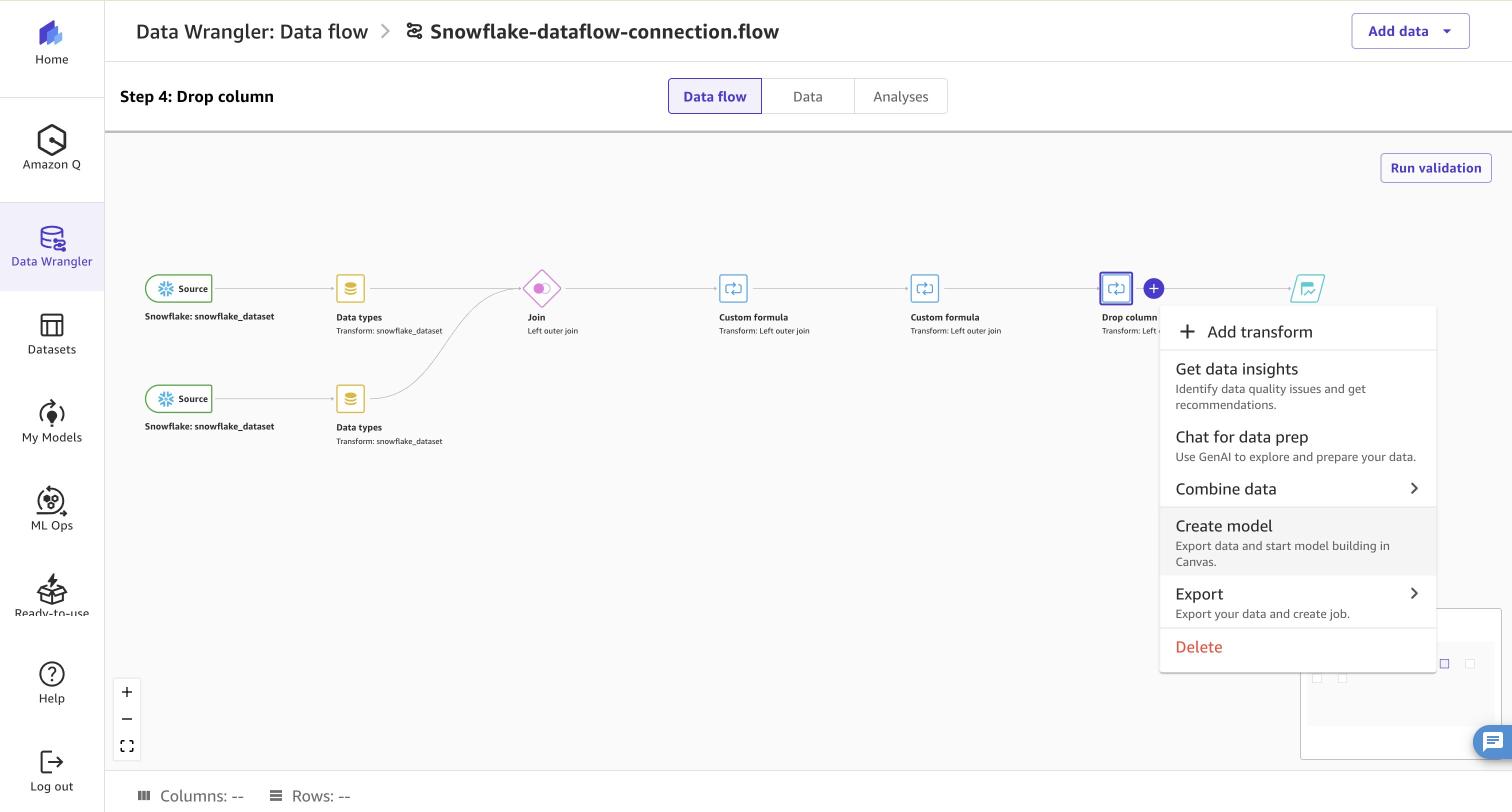
Figure 20: Creating a model from the final transform node in the data flow
- Choose a descriptive name under Model name , and then choose Export and create model. The export process may take a few minutes as Canvas processes your entire dataset in real time.
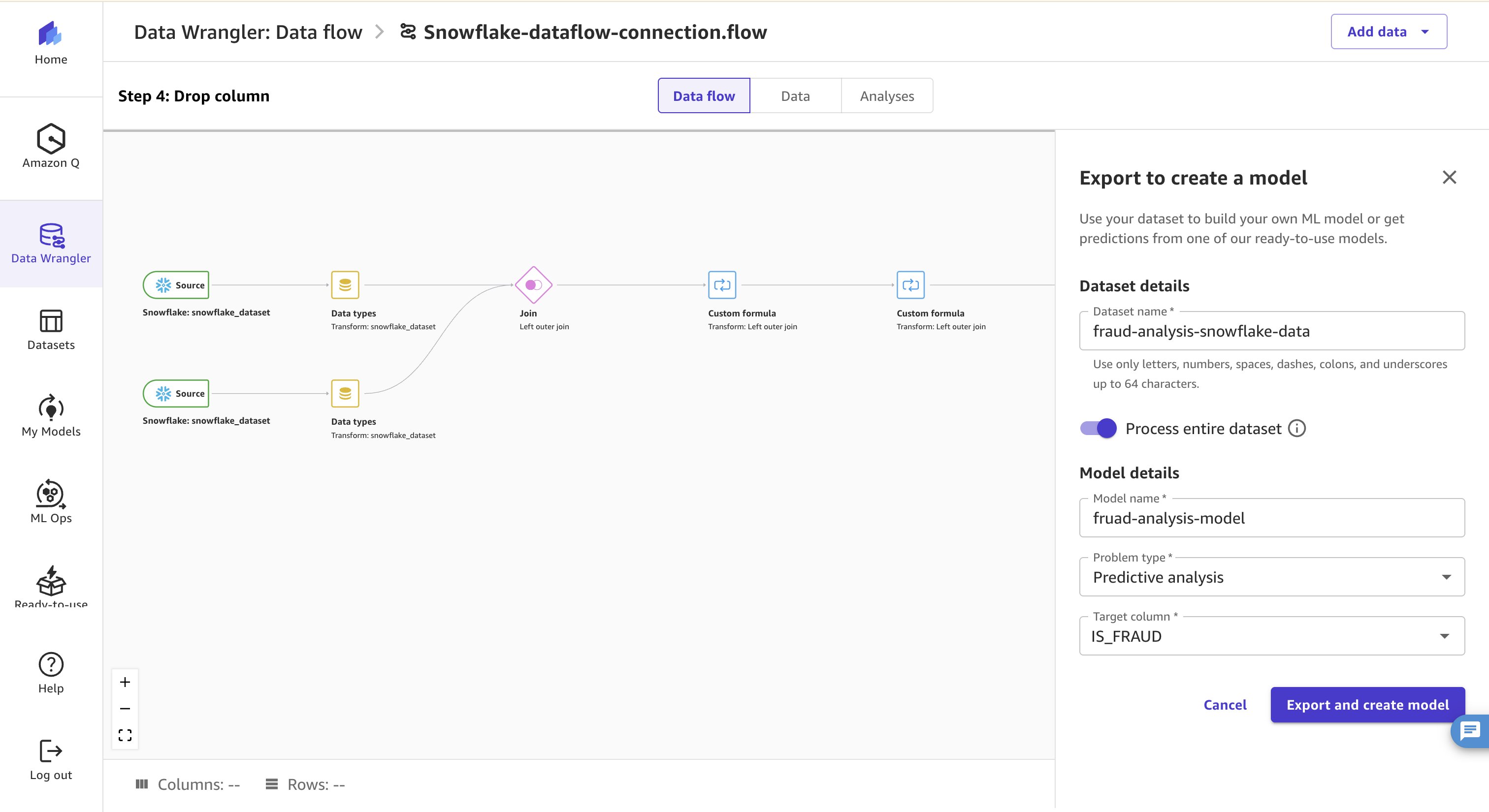
Figure 21: Model name entry and the Export and create model action in Canvas
After a few minutes, the Build screen opens up.
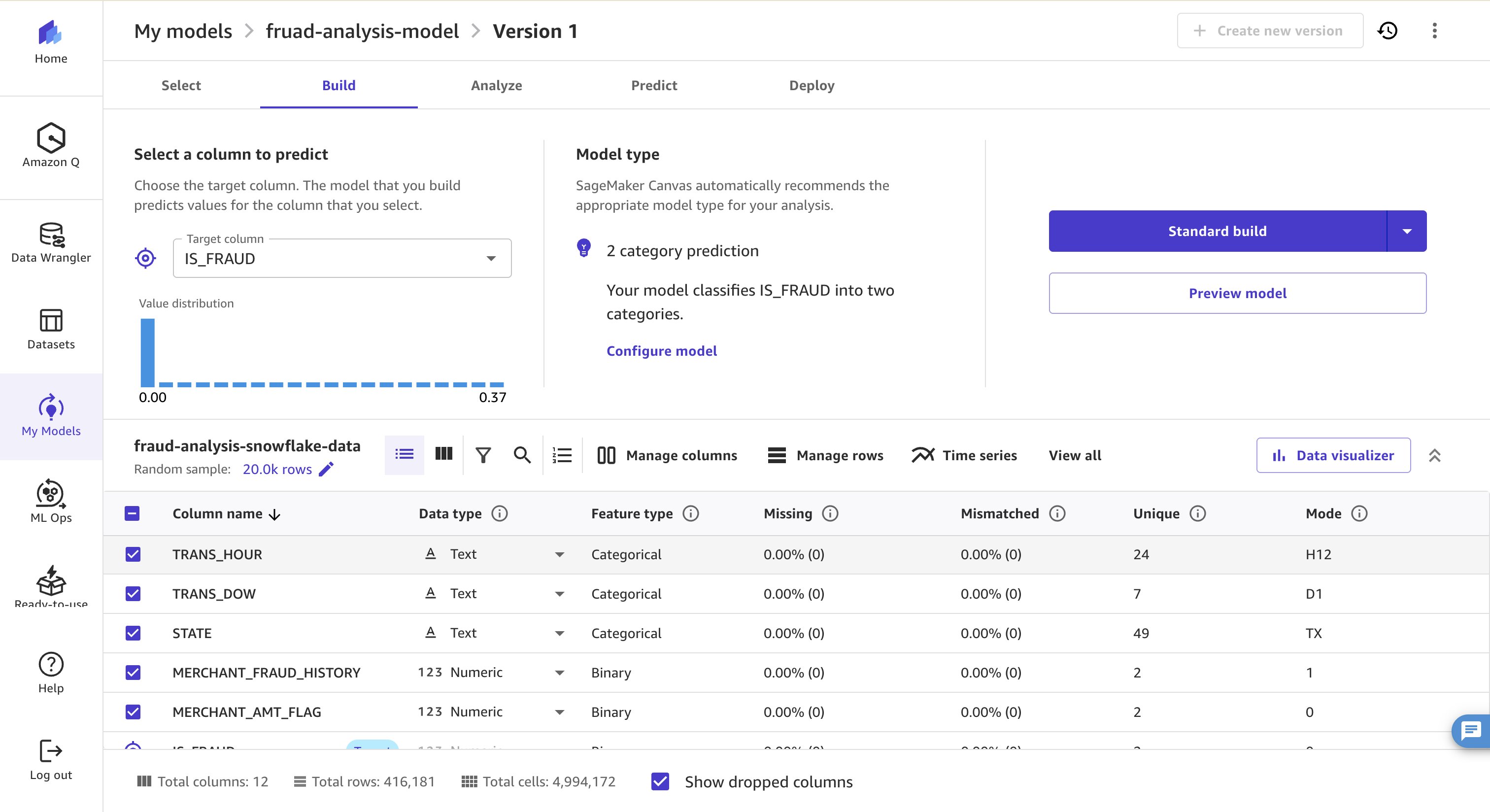
Figure 22: Canvas Build screen after exporting the prepared dataset
- Choose
IS_FRAUDas the Target Column. - Choose Configure model under Model type. Select 2-category model as model type.
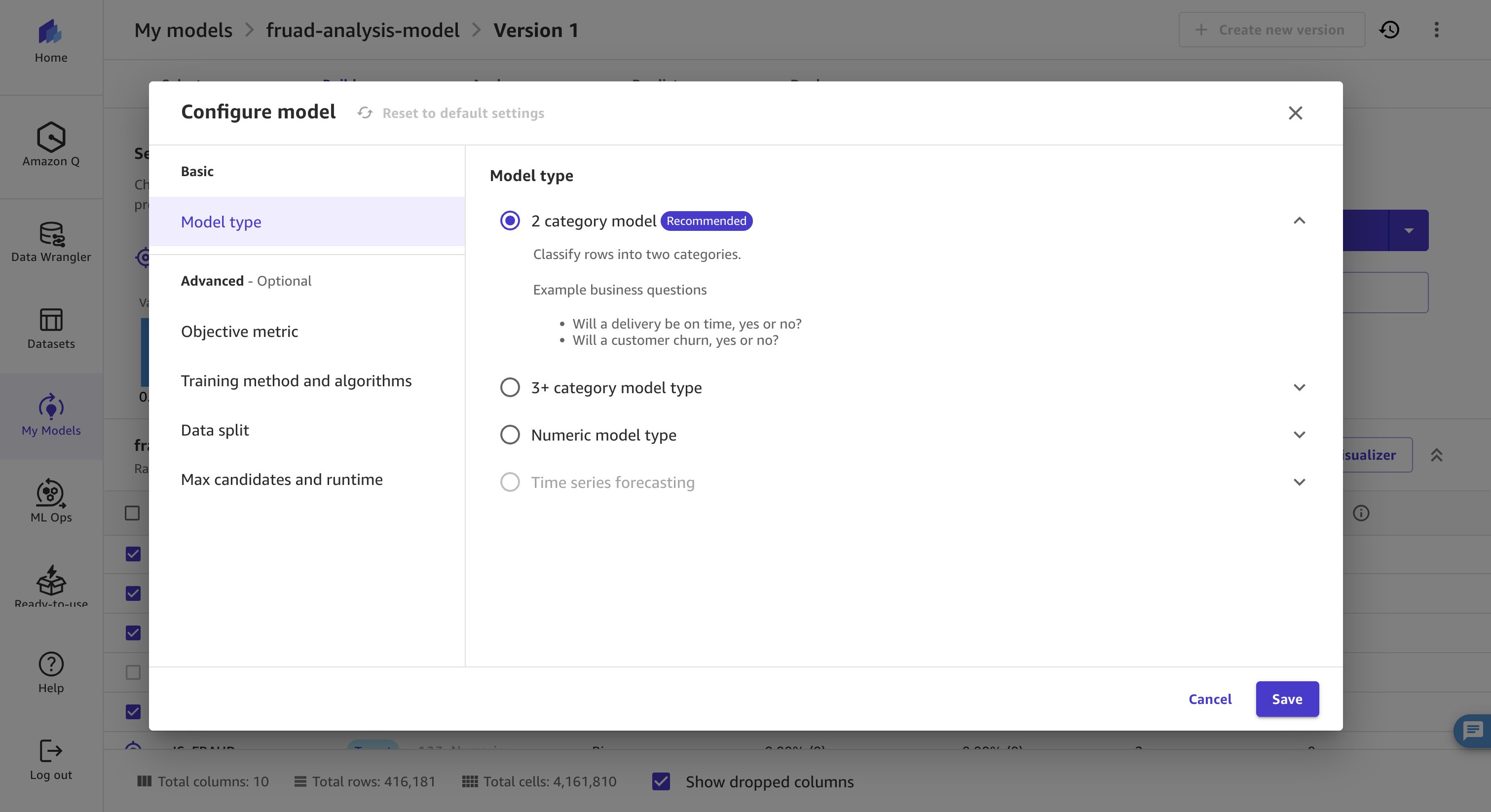
Figure 23: Configuring a 2-category model type in Canvas
- Next, select Ensemble as the training method with XGBoost as the algorithm, a strategic choice that balances accuracy with efficiency.
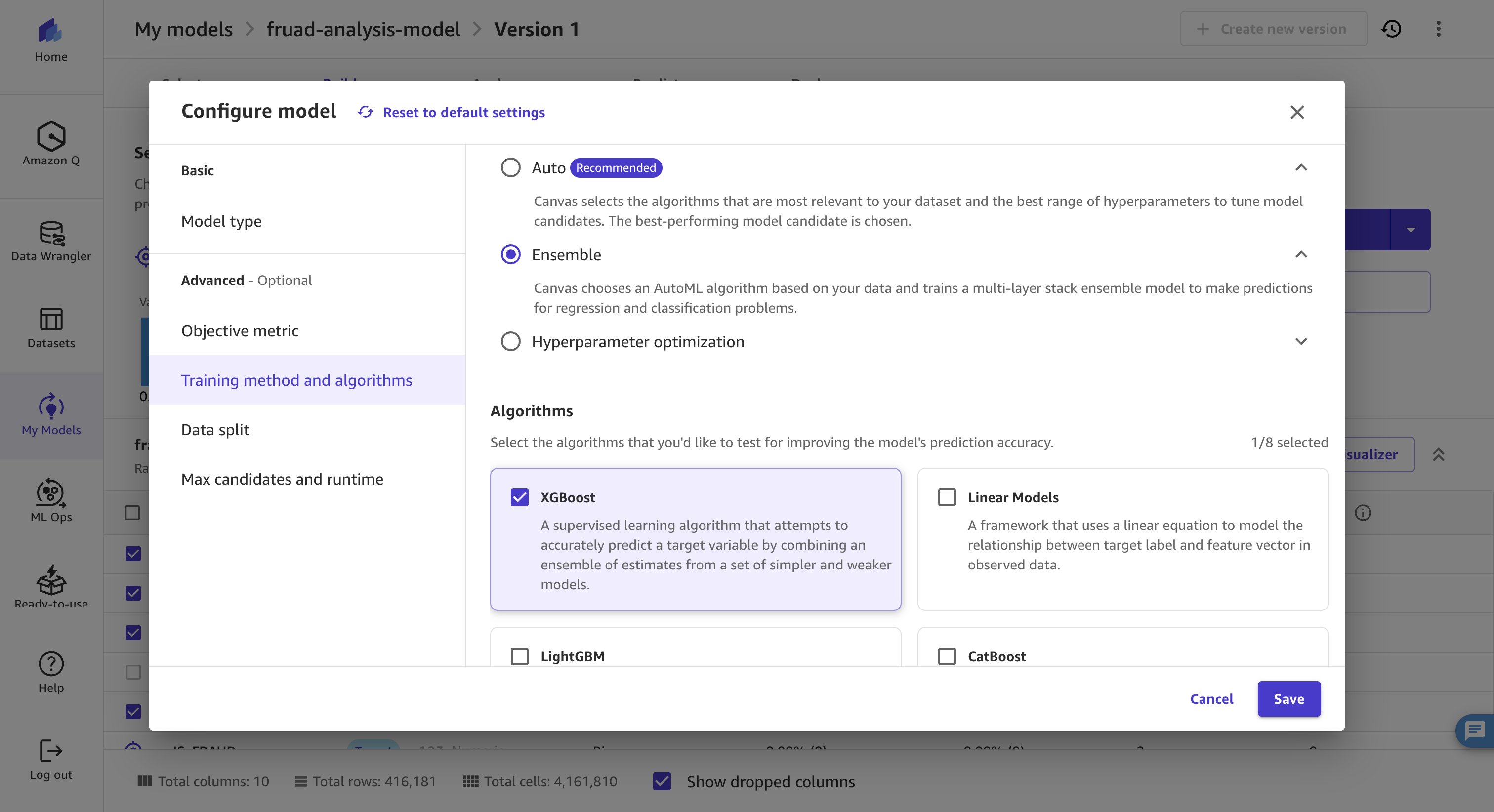
Figure 24: Selecting the Ensemble training method with the XGBoost algorithm
- Deselect the FRAUD_HISTORY and MERCHANT_FRAUD_HISTORY columns, then choose Standard build to start training. The model takes approximately 15–30 minutes to complete.
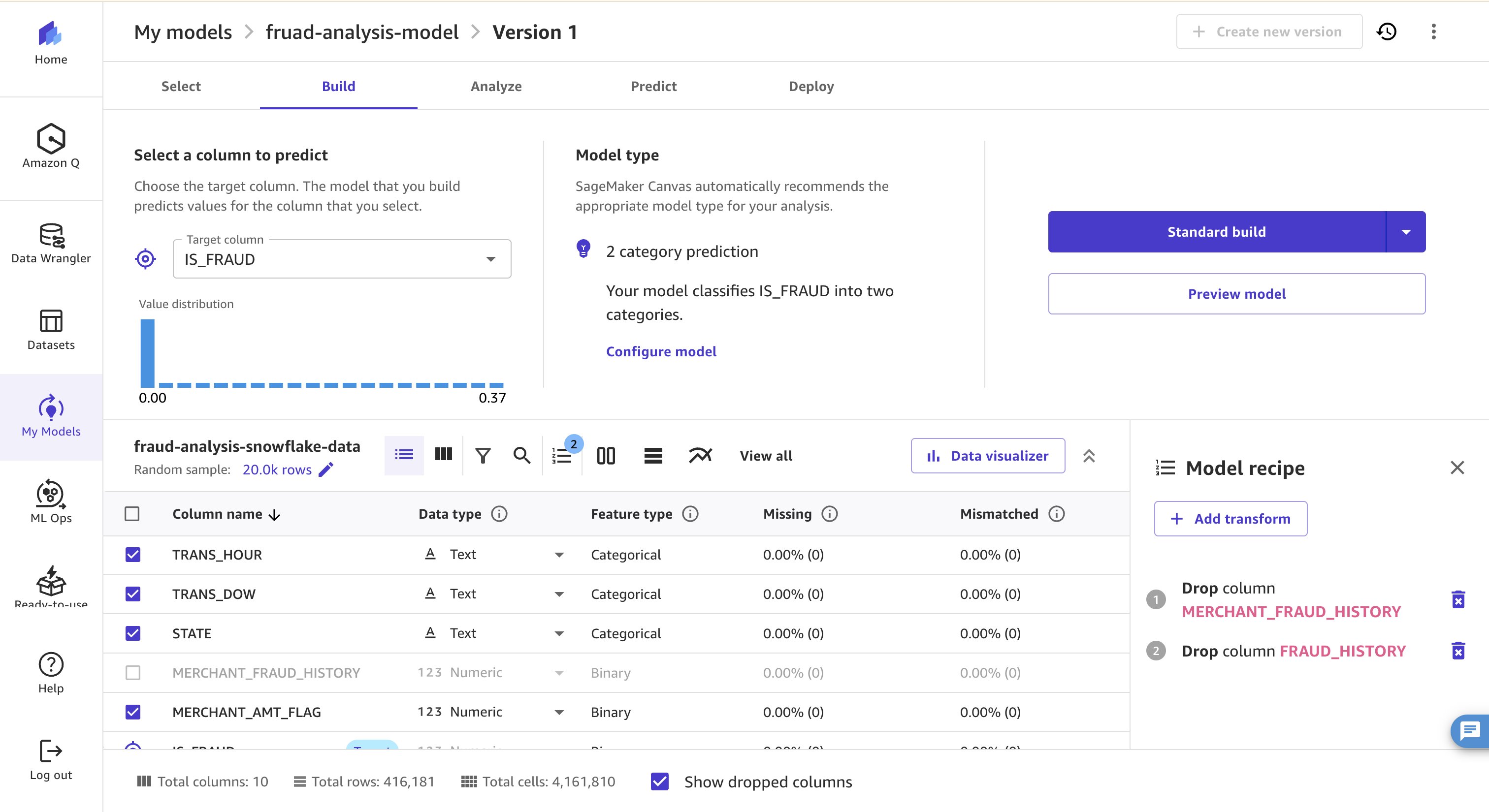
Figure 25: Deselecting history columns and starting a Standard build
- With the model training complete, navigate to the Analyze tab to review the results. Here, you can examine which features had the most impact on predictions and explore the scatterplot and charts to understand relationships between data values and fraud classification.
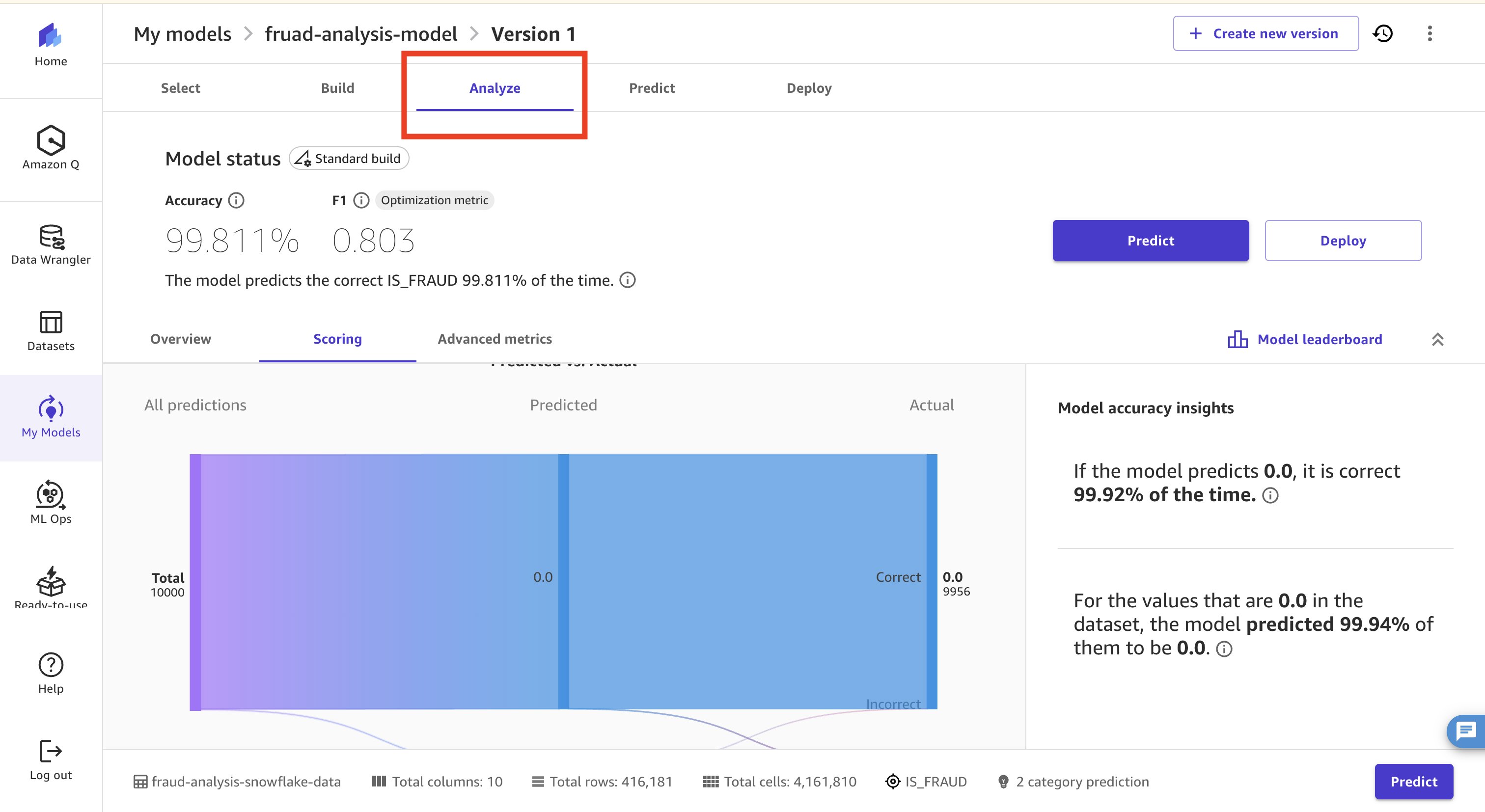
Figure 26: Canvas Analyze tab showing feature impact and fraud classification charts
- Choose Advanced Metrics to further understand model performance.
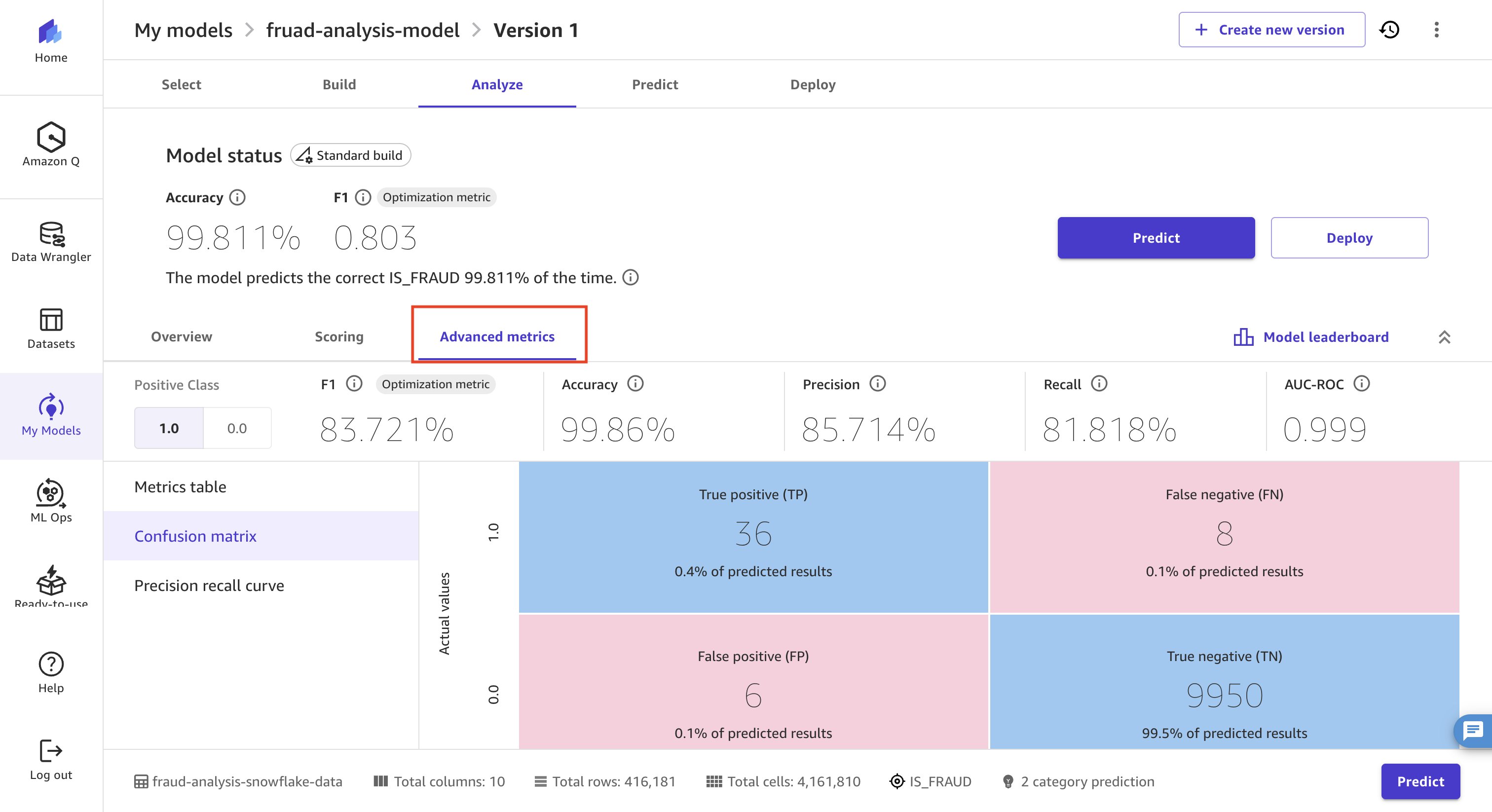
Figure 27: Advanced Metrics view of the trained fraud detection model
- Next, use the trained model to make predictions on an unseen dataset. Download the sample prediction CSV file. Navigate to the Predict tab. Choose Manual , and then choose Create Dataset.
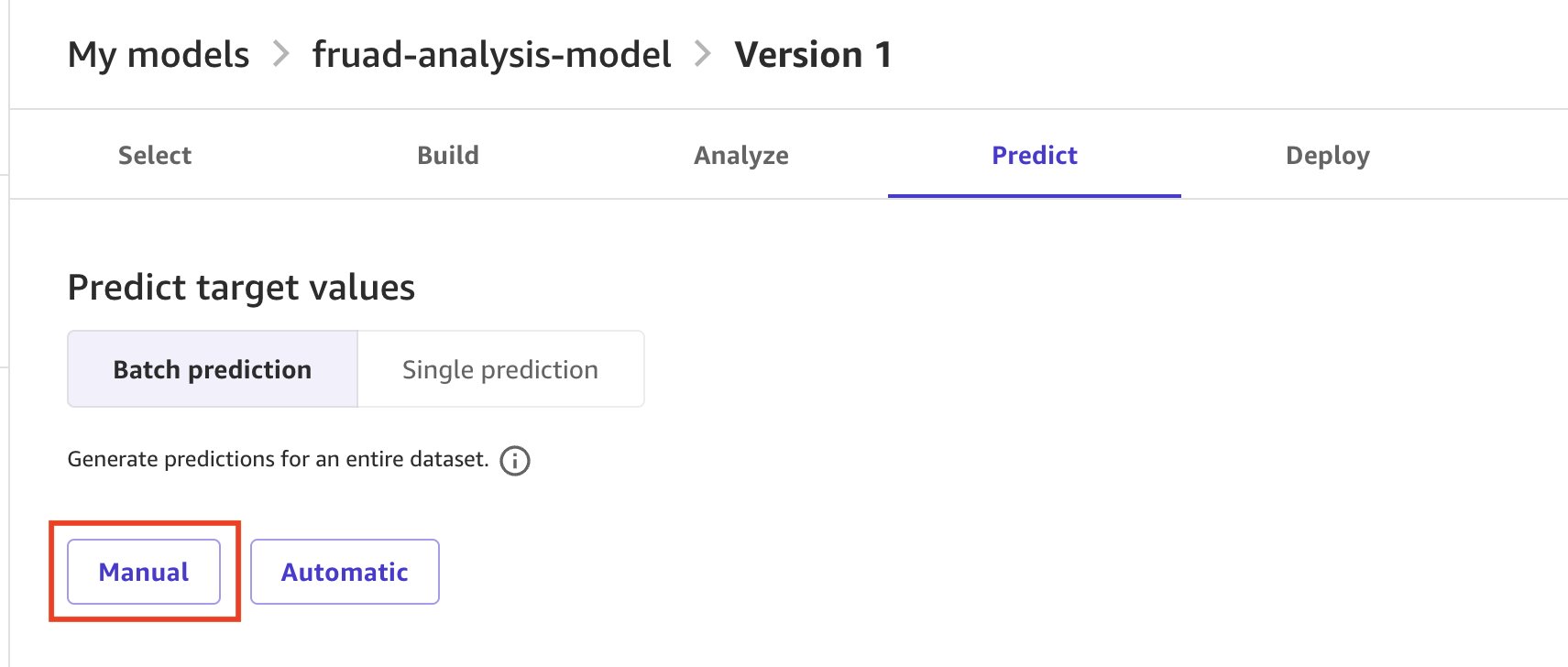
Figure 28: Predict tab with Manual dataset creation for generating predictions
- Upload the dataset, choose Preview dataset , and then choose Create dataset. After the dataset loads, choose the dataset and choose Generate Predictions. The model takes a few minutes to make the predictions. Wait until the status of the job changes to Ready.
- To analyze the results visually using Amazon Quick Sight, you must first verify the following prerequisites (detailed here): * Verify AWS Region alignment: Your Quick Sight account must be set up in the same AWS Region as your Amazon SageMaker Canvas domain. * Add Amazon Quick Sight permissions to your Amazon SageMaker execution role: The AWS Identity and Access Management (IAM) execution role attached to your Amazon SageMaker domain needs additional permissions to send predictions to Amazon Quick Sight. Navigate to the IAM console, find the execution role associated with your Amazon SageMaker domain (created during setting up Amazon SageMaker domain at the very beginning), and add the required inline policy as described here. * Grant Quick Sight access to the Amazon SageMaker S3 bucket: Navigate to Quick Sight, go to Manage Accounts , then choose AWS Resources from the left-hand navigation pane. Make sure Amazon Simple Storage Service (Amazon S3) is selected and choose the appropriate S3 bucket that has the predictions generated by Amazon SageMaker Canvas, named sagemaker-{region}-{account_id}. * Add Quick Sight users: Make sure the users you want to share predictions with have been added to your Quick Sight account with an Author or Admin role. Go to Manage Quick Sight and navigate to Manage users to invite new users or verify existing ones. For details, see Managing user access. You will enter their usernames when sending predictions.
- Next, select the Job name and choose Send to Amazon Quick Sight.
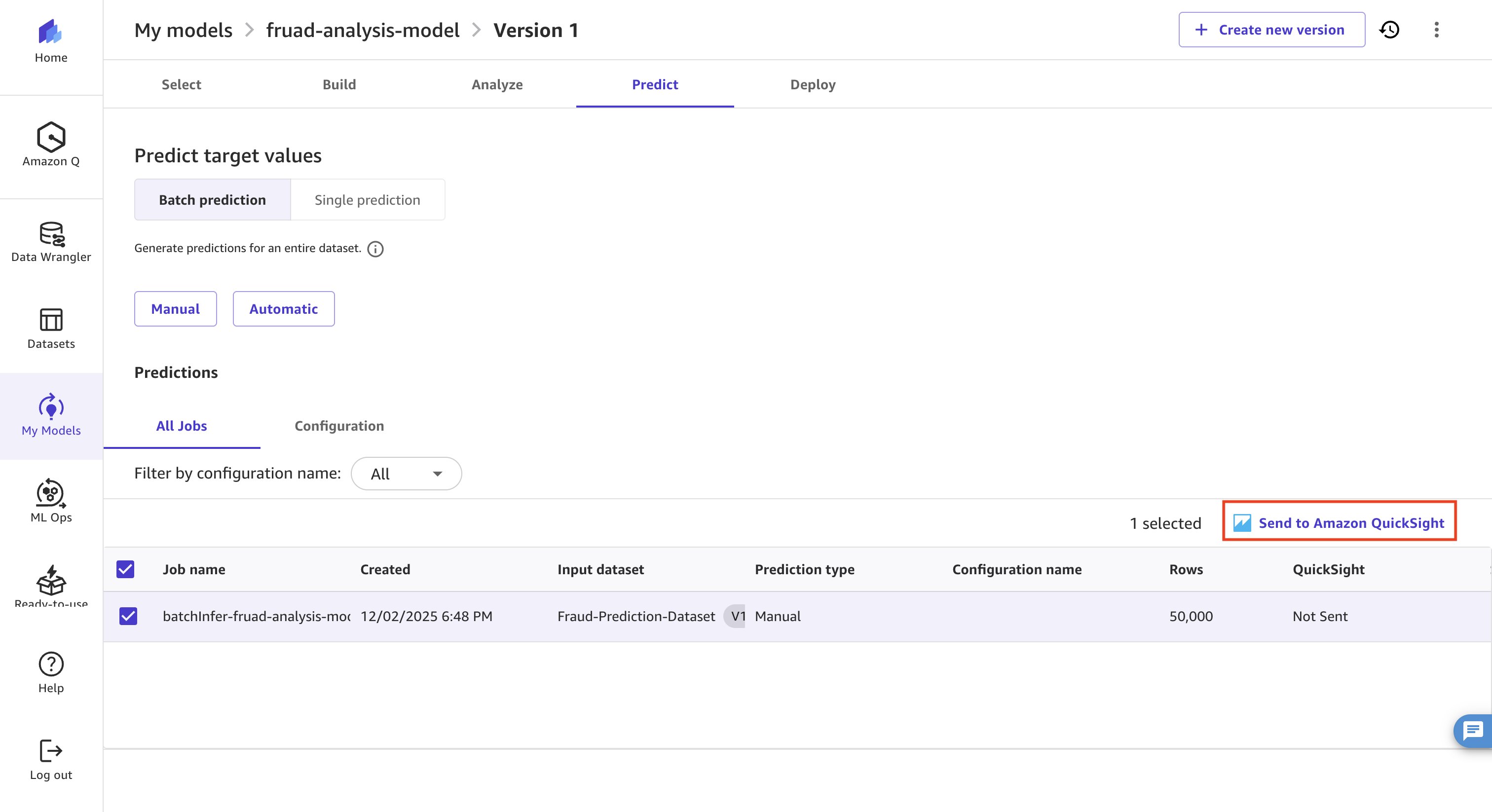
Figure 29: Selecting the prediction job and sending results to Amazon Quick Sight
- In the new window, add the users who were previously granted Amazon Quick Sight permissions as viewers of the dashboard, and then choose Send.
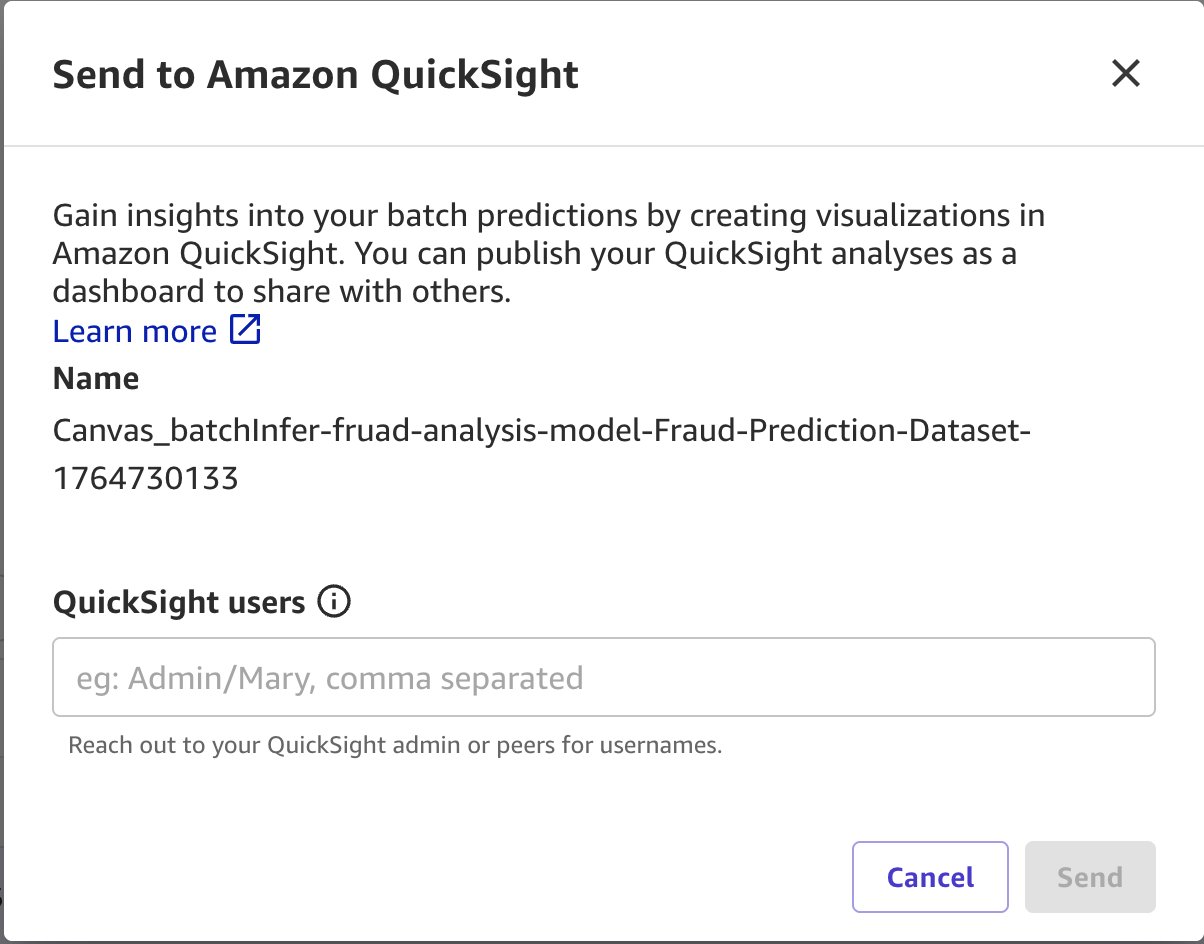
Figure 30: Adding dashboard viewers before sending predictions to Amazon Quick Sight
Conclusion
Part 2 covered the complete data preparation and model building workflow in Amazon SageMaker Canvas from connecting to Snowflake data sources and engineering features using Data Wrangler’s visual transformations, to joining multiple data sources, analyzing data quality, and training a fraud detection model all without requiring machine learning programming expertise. With the trained model now generating predictions on unseen data, the foundation is set for Part 3, where those ML-driven insights are brought to life through interactive dashboards in Amazon Quick Sight.
References
About the authors
Anu Kaggadasapura Nagaraja
Anu is a Healthcare and Life Sciences (HCLS) Solutions Architect II at AWS with more than six years of experience specializing in AI, generative AI, and machine learning. She helps organizations across multiple industries build scalable, cloud-driven solutions. Anu focuses on AI innovation through modern data platforms, agentic AI architectures, and emerging cloud technologies. Outside of work, Anu enjoys playing badminton and hiking.
Aysha Siddiqui
Aysha is a Solutions Architect at Amazon Web Services, where she partners with enterprise customers to design scalable, resilient cloud architectures. She is passionate about AI/ML and generative AI, and focuses on helping organizations move these workloads from experimentation to production. Outside of work, she enjoys traveling and perfecting her matcha-making skills.
Shruti Tambe
Shruti is a Solutions Architect at AWS, where she helps SMB customers to build and scale their products on cloud. She works with organizations on cloud architecture design, modernization, and AI adoption to drive meaningful business outcomes. In her free time, Shruti enjoys hiking and running.