借助 Amazon OpenSearch Service MCP Apps 实现 Agentic 可观测性
英文标题:Agentic observability with Amazon OpenSearch Service MCP Apps
Amazon OpenSearch Service 现已支持 MCP Apps,可在 AI Agent 的文本回复之外,直接在聊天窗口中返回交互式可视化内容。该能力通过本地运行的 MCP server,将告警、日志、Trace、服务拓扑等调查结果以双响应形式呈现,使工程师可在 IDE 内完成验证,无需切换到浏览器。可视化内容由 OpenSearch UI 基于实际数据源服务端生成,因此结果具有确定性,并与 OpenSearch 仪表板中的结果一致。对使用本地 Agentic 可观测性方案的开发团队而言,这降低了跨工具验证的操作成本,同时保留 AWS 账户、凭证和数据控制权。
 1.3 MB
 101.1 KB
 124.1 KB
 345.0 KB
 141.2 KB
 346.5 KB
 435.3 KB
 521.1 KB
 388.4 KB
 83.1 KB
 337.5 KB
 175.8 KB
 266.8 KB
中文
可观测性 Agent 的速度很快。它们可以查询告警、将日志与 Trace 关联,并在几分钟内给出根因假设。仍然耗时的部分是验证。你阅读 Agent 的文本摘要,在浏览器中打开可观测性工具,导航至 Trace 瀑布图,检查服务地图以界定影响范围,并将 Agent 告诉你的内容与你在屏幕上看到的内容交叉比对。Agent 为你节省了查询时间,却没有节省切换标签页、保持上下文和手动验证的时间。这些工作仍然需要你来完成。
Amazon OpenSearch Service MCP Apps 弥合了这一差距。MCP Apps 扩展了 Model Context Protocol,使每一次工具调用都能返回交互式可视化内容——Trace 瀑布图、服务拓扑、日志模式视图——并将其与文本响应一起直接渲染在 AI 助手的聊天窗口中。你要求 Agent 进行调查,Agent 查询 Amazon OpenSearch Service。响应同时包含文本说明和相关仪表板组件。你可以在提出问题的同一会话中完成验证,无需打开单独的浏览器标签页,也无需重新运行查询。
本文将说明 MCP Apps 如何改变你的可观测性工作流,并逐步介绍配置方法。
问题:验证仍然要求离开 Agent 工作循环
典型的调查循环如下。首先,工程师向 Agent 提问并获得基于文本的根因假设。接下来,他们离开 IDE,打开浏览器并登录独立的可观测性 UI。随后,他们需要在另一种工具中手动重新运行查询,以复现 Agent 的发现。在通过将 Agent 的文本输出与实际仪表板进行对比来完成可视化验证后,他们回到 Agent 并继续对话,但在调查过程中已失去原有位置。
Agent 可在数秒内生成响应,但你必须离开 Agent 所在的环境才能验证。这意味着需要登录独立的可观测性体验,并手动浏览仪表板。这个外部验证循环是瓶颈。它迫使你承担工具切换的角色,削弱了 Agentic 自动化的速度优势。
选择在本地运行 Agentic 可观测性的组织,是以易用性和成本效率为代价来换取控制权,而非采用供应商提供的 AI。但从历史上看,这一选择伴随着权衡:与将 AI 和自身服务紧密耦合的供应商托管解决方案相比,本地 Agentic 配置牺牲了易用性,有时也会牺牲 Agent 性能。对于这些团队而言,验证鸿沟是主要的运营负担。他们针对自主性进行了优化,但验证仍以人类速度在独立的可观测性工具中进行。
解决方案:MCP Apps 将可观测性 UI 带入你的 IDE
Amazon OpenSearch Service 现在支持 MCP Apps,这项能力通过一种 双响应 模式扩展了 MCP。
当你的 AI Agent 调用 MCP App 工具时,响应包含两部分。第一部分是带有简洁结构化数据的 文本摘要。第二部分是供你审阅、在同一会话线程中渲染的 交互式可视化内容。OpenSearch MCP App 通过针对为仪表板提供支持的相同数据源执行代码来生成可视化内容。因此,结果具有 确定性。你无需信任 AI 的解释,而是可以看到实际查询结果被渲染为交互式图表、Trace 瀑布图或服务地图。
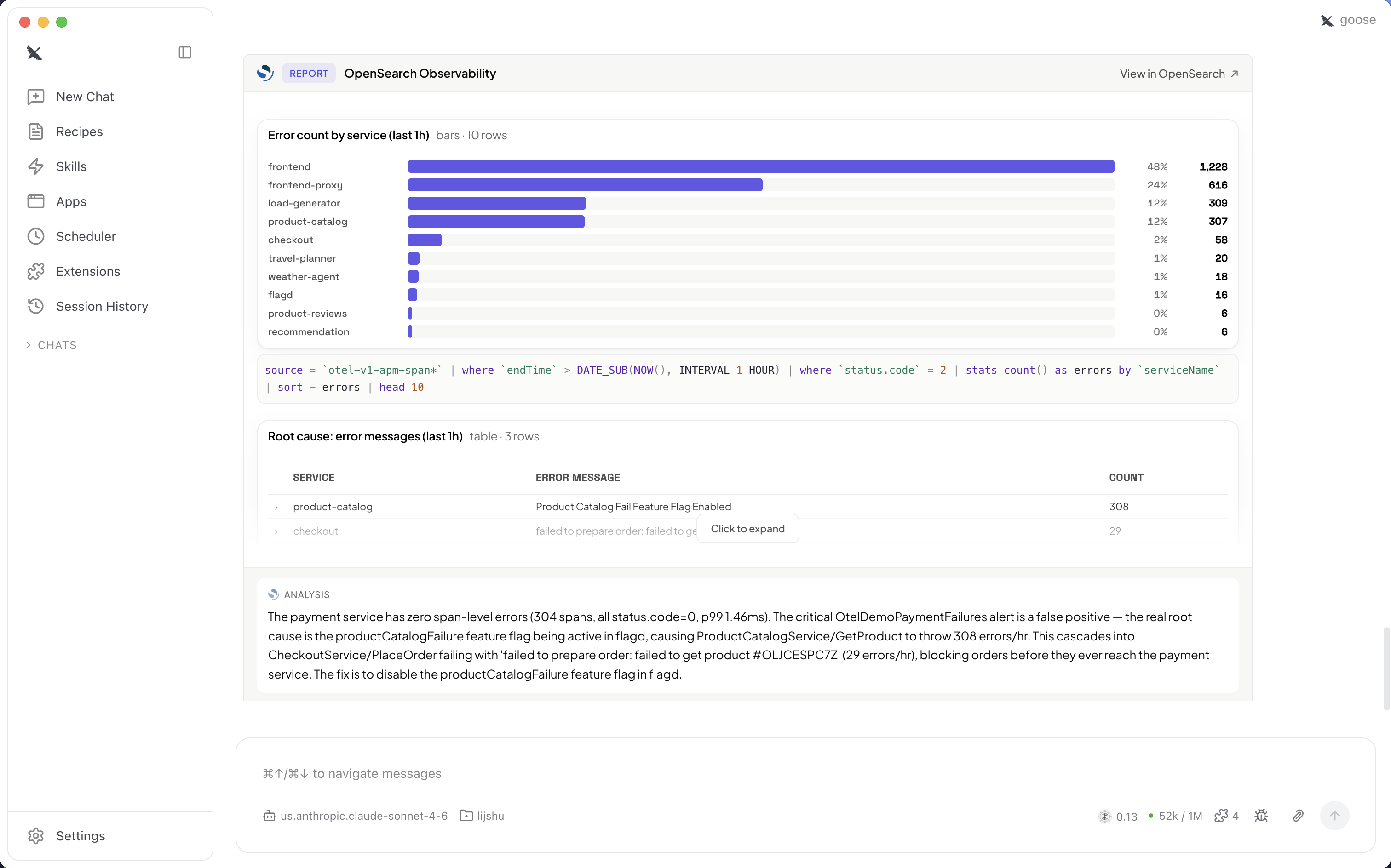
图 1:MCP App 在 Agentic IDE 内渲染可观测性报告,展示各服务的错误计数以及 AI 生成的根因分析
工作原理
MCP Apps 功能由本地 MCP server、你的 IDE 和 OpenSearch UI 应用程序协同构成。本节将说明架构、协议扩展机制,以及一次工具调用的端到端流程。
架构
一个 本地 MCP server 运行在你的机器上。它充当 Agentic IDE 与 OpenSearch UI 应用程序之间的安全桥梁。该 server 暴露可供 AI Agent 调用的可观测性工具。每次工具调用都会通过 MCP server 发送到你的 OpenSearch UI 端点,执行查询后,将双响应返回给 IDE。OpenSearch UI 是用于统一可观测性的无服务器界面,可与 OpenSearch 域、无服务器集合、CloudWatch 和 Amazon Managed Service for Prometheus 配合使用(了解有关 OpenSearch UI 的更多信息)。
下图展示了请求流程:
你的 IDE 或 AI 桌面客户端(Claude、VS Code、Cursor 等)
  ↓ 工具调用
本地 MCP server(运行在你的机器上)
  ↓ 经身份验证的查询
OpenSearch UI 应用程序(已连接你的数据源)
  ↓ 双响应
你的 IDE ← 文本摘要 + 交互式 MCP App 可视化内容
你始终拥有完全控制权。 MCP server 在本地运行。你的数据保留在 AWS 账户中。你的凭证、你的策略、你的域。
MCP Apps 如何扩展 MCP 协议
标准 MCP 工具调用只返回文本响应。Agent 发送一个指定工具名称和参数的 JSON-RPC 请求,server 返回文本结果,Agent 将其纳入推理过程。MCP Apps 通过增加第二条响应通道扩展了这种模式:IDE 将可视化载荷渲染为与文本并列的交互式组件。
当本地 MCP server 收到工具调用时,它会使用你配置的 AWS 凭证进行身份验证,并将请求作为 HTTP API 调用转发到 OpenSearch UI 应用程序端点。OpenSearch UI 会针对已连接的数据源执行查询,并返回结构化文本摘要和已渲染的可视化产物。支持的数据源包括 OpenSearch 域、无服务器集合和 Amazon Managed Service for Prometheus。MCP server 将这些内容打包为单个 MCP 响应,其中包含供 Agent 使用的文本内容,以及供 IDE 主机渲染的可视化内容。
IDE 主机会检测可视化载荷,并将其渲染为会话线程中的交互式组件。OpenSearch MCP App 在服务端通过针对你的实际数据执行代码来生成可视化内容。因此,渲染输出具有确定性,并与你在 OpenSearch 仪表板中看到的内容一致。
为了说明双响应模式在实际中的工作方式,可以考虑一次 Trace 调查。以下演示展示了当 Agent 调用 Trace 调查 MCP App 工具时会发生什么。
Agent 发送的内容。 你的 Agent 向 Trace 调查 MCP App 发起工具调用,并传递 Trace ID 等参数,或传递服务名称和时间范围等筛选条件。该调用会通过标准 MCP 协议从 IDE 发送到本地 MCP server。
Server 如何执行。 本地 MCP server 接收工具调用,使用 AWS 凭证进行身份验证,并将请求转发至 OpenSearch UI 应用程序端点。OpenSearch UI 针对已连接的数据源执行 Trace 查询,检索匹配的 Span,并组装响应。
双响应包含的内容。 MCP server 在单个响应中返回两类输出。文本部分包含结构化摘要,包括 Trace ID、总耗时、Span 数量、关键路径以及对故障起源位置的分析。可视化部分包含作为 IDE 内 MCP App 渲染的交互式 Trace 瀑布图,展示 Span 层级、时序和错误标注。
Agent 和人工用户如何分别使用它。 Agent 从文本摘要中提取下一步推理所需的上下文,例如将失败的 Span 与相关日志条目关联。与此同时,你会在同一会话线程中看到交互式 Trace 瀑布图。你可以展开单个 Span、检查属性,并直观确认根因,而无需打开单独的浏览器标签页。
可用的 MCP Apps
这些 MCP Apps 支持贯穿整个生命周期的可观测性调查,其工具可跨调查阶段串联使用。
一次典型调查始于分诊和响应工具:它们展示活跃告警、关联跨数据源的相关告警,并提供严重性细分,以便 Agent 对问题进行优先级排序。Agent 识别出受影响服务后,日志调查工具会搜索错误模式,并将相似日志条目聚类,以隔离故障特征。随后,Trace 调查工具会定位特定的分布式 Trace、显示 Span 层级与延迟细分,并指出故障的起源位置。
上下文与可视化工具
为量化影响,指标调查工具会执行 PromQL 查询并进行阈值分析,而服务性能工具则在服务层面提供 RED 指标(速率、错误、持续时间)。拓扑工具将服务地图渲染为依赖关系图。该图展示边之间的调用量和错误率,帮助你界定影响范围。在整个调查过程中,动态可视化工具会根据你指定的查询生成折线图、柱状图、面积图和指标图;数据集与关联工具则支持跨信号连接和数据摘要。
专用工具可满足新兴需求。AI 和 Agent 可观测性工具可跟踪大型语言模型(LLM)调用,并为构建自身 AI 工作流的团队渲染 Agent Trace 地图。堆栈健康工具报告集群状态和分片分配情况。埋点评分工具会检测遥测数据质量缺口,帮助团队改善其可观测性覆盖范围。
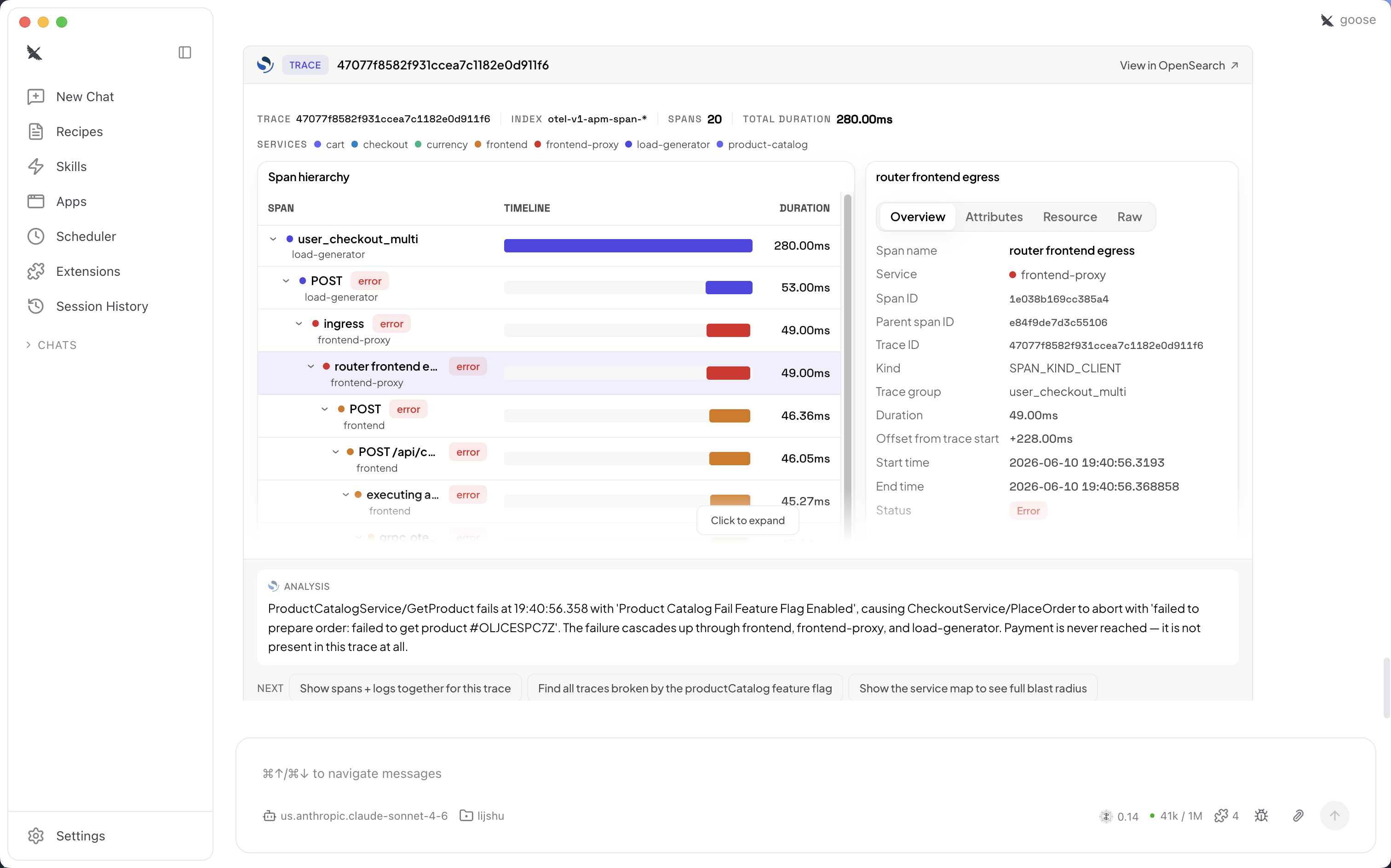
图 2:Trace 调查 MCP App 在 IDE 内展示 Span 层级、时间线和故障起源分析
重新审视值班场景
有了 MCP Apps,同样的值班调查现在如下进行。
工程师向 Agent 提问:“是什么导致了结账错误激增?”Agent 通过查询日志、关联 Trace 和检查服务地图进行调查。系统返回双响应,其中同时包含文本摘要和交互式可视化内容(告警视图、Trace 瀑布图和服务地图),并在同一线程中渲染。工程师通过滚动查看 MCP App 可视化内容并选择 Span 详情,在不离开 IDE 的情况下确认影响范围。最后,他们要求 Agent 起草问题摘要或触发修复操作。
工程师无需离开 IDE。调查、验证和解决均在单一会话线程中完成。对于值班工程师而言,这意味着更快的解决速度,以及与 AI Agent 协作时更直接的体验。
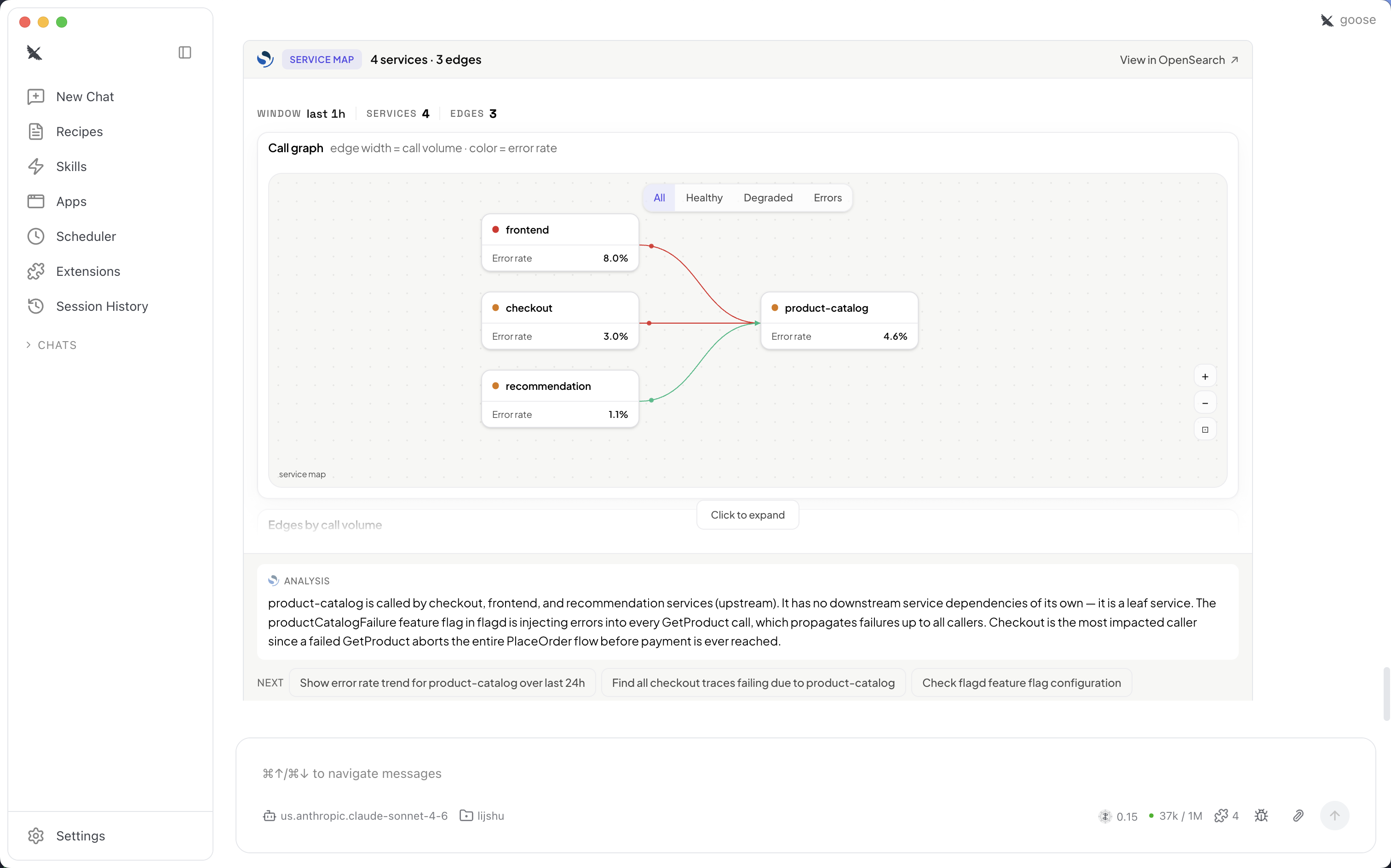
图 3:服务地图 MCP App 展示依赖关系图,其中以颜色编码表示错误率,以边宽表示调用量
开始使用:设置 MCP server
按照以下步骤,将你的 Agentic IDE 连接至 OpenSearch UI 应用程序。
前提条件
开始前,请确认具备以下条件:
- 一个 OpenSearch UI 应用程序,其中的 Observability 工作区已连接至少一个数据源(Amazon OpenSearch Service 域、无服务器集合或 Amazon Managed Service for Prometheus)。
- 兼容的 Agentic IDE(Claude Desktop、VS Code GitHub Copilot、Goose、ChatGPT 或 Cursor)。
- 本地已安装 Node.js 22 或更高版本。
- 已配置具有
es:ESHttpGet和es:ESHttpPost权限的 AWS 凭证。
分步设置
以下流程将指导你下载 server、配置 IDE 并验证连接。
步骤 1:下载并解压 MCP server
下载并准备 MCP server 软件包:
- 前往 OpenSearch 可观测性 MCP server 下载页面。
- 下载 MCP server
.zip文件。 - 解压归档文件。解压后的目录包含
server/server.js文件。记下该文件的完整路径。
步骤 2:将 MCP server 添加到 IDE
每个受支持的 IDE 都有 MCP 配置文件。以下列表说明了其位置:
- Claude Desktop:设置 → 开发者 → 编辑配置。
- VS Code GitHub Copilot:工作区中的
.vscode/mcp.json,或用户设置 → MCP Servers。 - Cursor:设置 → MCP → 添加 Server。
- Goose:
~/.config/goose/mcp.json(通过扩展)。 - ChatGPT:设置 → MCP Plugins → 添加。
打开 IDE 的配置,并添加以下内容:
{
  "mcpServers": {
    "opensearch-observability-stack-mcp": {
      "command": "node",
      "args": ["/path/to/opensearch-observability-stack-mcp/server/server.js"],
      "env": {
        "OS_UI_ENDPOINT": "application-foo-bar.us-west-2.opensearch.amazonaws.com",
        "AWS_REGION": "us-west-2",
        "AWS_PROFILE": "my-profile"
      }
    }
  }
}
请将占位符替换为你的 OpenSearch UI 端点、AWS Region 和 profile。
要查找 OpenSearch UI 端点:
- 打开 Amazon OpenSearch Service 控制台。
- 在导航窗格中,选择 Applications。
- 选择你的 OpenSearch UI 应用程序。
- 复制 Application URL(例如:
application-abc123.us-west-2.opensearch.amazonaws.com)。
步骤 3:验证连接
保存配置后,
English / 原文
Observability agents are fast. They query alerts, correlate logs with traces, and produce a root cause hypothesis in minutes. The part that still takes time is verification. You read the agent’s text summary, open your observability tools in a browser, navigate to the trace waterfall, check the service map to scope impact, and cross-reference what the agent told you against what you see on screen. The agent saved you the query time. It did not save you the tab-switching, context-carrying, manual-verification time. That is still your job.
Amazon OpenSearch Service MCP Apps close that gap. MCP Apps extend the Model Context Protocol so that each tool call responds with an interactive visualization — a trace waterfall, a service topology, a log pattern view — rendered directly in your AI assistant’s chat window alongside the text response. You ask the agent to investigate. The agent queries Amazon OpenSearch Service. The response arrives with both a text explanation and the relevant dashboard widget. You verify in the same thread where you asked the question, without opening a separate browser tab or re-running a query.
In this post, we explain how MCP Apps change your observability workflow and walk through setup step by step.
The problem: Verification still requires leaving the agent loop
The typical investigation loop proceeds as follows. First, the engineer asks the agent and gets a text-based root cause hypothesis. Next, they leave the IDE to open a browser and log in to a separate observability UI. They then re-run queries manually to reproduce what the agent found, in a different tool. After verifying visually by comparing the agent’s text output against actual dashboards, they return to the agent and resume the conversation, having lost their place in the investigation.
The agent generates a response in seconds, but you must leave the agent’s environment to verify. This means logging in to a separate observability experience and navigating dashboards manually. This external verification loop is the bottleneck. It forces you into a tool-switching role that undermines the speed advantage of agentic automation.
Organizations running agentic observability locally chose control and cost efficiency over vendor-provided AI. But this choice has historically come with a trade-off: local agentic setups sacrifice ease of use and sometimes agent performance compared to vendor-hosted solutions that tightly couple AI with their services. For these teams, the verification gap is the primary operational burden. They optimized for autonomy, yet verification still happens at human speed, in a separate observability tool.
The solution: MCP Apps bring an observability UI into your IDE
Amazon OpenSearch Service now supports MCP Apps, a capability that extends MCP with a dual response pattern.
When your AI agent calls an MCP App tool, the response contains two parts. The first is a text summary with concise, structured data. The second is an interactive visualization rendered in the same conversation thread for you to review. OpenSearch MCP App generates the visualization by executing code against the same data sources that power your dashboards. Because of this, the results are deterministic. You’re not trusting the AI’s interpretation. You’re seeing the actual query result rendered as an interactive chart, trace waterfall, or service map.
Figure 1: MCP App rendering an observability report inside the agentic IDE, showing error counts by service alongside AI-generated root cause analysis
How it works
The MCP Apps capability consists of a local MCP server, your IDE, and your OpenSearch UI application working together. This section explains the architecture, the protocol extension mechanism, and the end-to-end flow of a single tool call.
Architecture
A local MCP server runs on your machine. It acts as a secure bridge between your agentic IDE and your OpenSearch UI application. The server exposes observability tools that your AI agent can call. Each tool call goes through the MCP server to your OpenSearch UI endpoint, executes the query, and returns the dual response back to your IDE. OpenSearch UI is the serverless interface for unified observability that works with OpenSearch domains, serverless collections, CloudWatch, and Amazon Managed Service for Prometheus (learn more about OpenSearch UI).
The following diagram shows the request flow:
Your IDE or AI desktop client (Claude, VS Code, Cursor, etc.)
  ↓ tool call
Local MCP server (runs on your machine)
  ↓ authenticated query
OpenSearch UI application (connected with your data sources)
  ↓ dual response
Your IDE ← text summary + interactive MCP App visualization
You maintain full control. The MCP server runs locally. Your data stays in your AWS account. Your credentials, your policies, your domains.
How MCP Apps extend the MCP protocol
Standard MCP tool calls return text-only responses. The agent sends a JSON-RPC request specifying the tool name and parameters, and the server returns a text result that the agent incorporates into its reasoning. MCP Apps extend this pattern by adding a second response channel: a visualization payload that the IDE renders as an interactive widget alongside the text.
When the local MCP server receives a tool call, it authenticates using your configured AWS credentials and forwards the request to your OpenSearch UI application endpoint as an HTTP API call. OpenSearch UI executes the query against your connected data sources and returns both a structured text summary and a rendered visualization artifact. Supported data sources include OpenSearch domains, serverless collections, and Amazon Managed Service for Prometheus. The MCP server packages these into a single MCP response containing the text content for the agent and the visualization content for the IDE host to render.
The IDE host detects the visualization payload and renders it as an interactive widget in the conversation thread. OpenSearch MCP App generates the visualization server-side by executing code against your actual data. Therefore, the rendered output is deterministic and matches what you would see in your OpenSearch dashboards.
To illustrate the dual response pattern in practice, consider a trace investigation. The following walkthrough shows what happens when your agent calls the trace investigation MCP App tool.
What the agent sends. Your agent issues a tool call to the trace investigation MCP App, passing parameters such as the trace ID or a filter like service name and time range. This call travels from your IDE to the local MCP server over the standard MCP protocol.
How the server executes it. The local MCP server receives the tool call, authenticates against your AWS credentials, and forwards the request to your OpenSearch UI application endpoint. OpenSearch UI executes the trace query against your connected data sources, retrieves the matching spans, and assembles the response.
What the dual response contains. The MCP server returns two outputs in a single response. The text portion contains a structured summary. It includes the trace ID, total duration, span count, the critical path, and an analysis of where the failure originated. The visualization portion contains an interactive trace waterfall rendered as an MCP App inside your IDE, showing the span hierarchy, timing, and error annotations.
How the agent and human each consume it. From the text summary, your agent extracts context for its next reasoning step, for example correlating the failing span with related log entries. Meanwhile, you see the interactive trace waterfall in the same conversation thread. You can expand individual spans, inspect attributes, and confirm the root cause visually, without opening a separate browser tab.
Available MCP Apps
The MCP Apps support observability investigation across the lifecycle, with tools that chain together across investigation stages.
A typical investigation begins with triage and response tools, which surface active alerts, correlate related alerts across data sources, and present severity breakdowns so your agent can prioritize the issue. After the agent identifies the affected service, log investigation tools search for error patterns and cluster similar log entries to isolate the failure signature. From there, trace investigation tools locate the specific distributed trace, display the span hierarchy and latency breakdown, and pinpoint where the failure originated.
Context and visualization tools
To quantify the impact, metric investigation tools execute PromQL queries and perform threshold analysis, while service performance tools provide RED metrics (rate, errors, duration) at the service level. Topology tools render the service map as a dependency graph. The graph shows call volume and error rates across edges so you can scope the impact. Throughout the investigation, dynamic visualization tools generate line, bar, area, and metric charts from queries you specify, and datasets and correlations tools support cross-signal joins and data summaries.
Specialized tools address emerging needs. AI and agent observability tools trace large language model (LLM) calls and render agent trace maps for teams building their own AI workflows. Stack health tools report cluster status and shard allocation. Instrumentation scoring tools detect telemetry quality gaps so teams can improve their observability coverage.
Figure 2: Trace investigation MCP App showing span hierarchy, timeline, and failure origin analysis inside the IDE
Revisiting the on-call scenario
With MCP Apps, the same on-call investigation now looks like this.
The engineer asks the agent: “What’s causing the spike in checkout errors?” The agent investigates by querying logs, correlating with traces, and checking the service map. A dual response arrives containing both a text summary and interactive visualizations (alert view, trace waterfall, and service map) rendered in the same thread. The engineer reviews inline by scrolling through the MCP App visualizations and selecting span details to confirm the scope of impact, without leaving the IDE. Finally, they instruct the agent to draft the issue summary or trigger a remediation.
The engineer never leaves the IDE. Investigation, verification, and resolution happen in a single conversation thread. For on-call engineers, this means faster resolution and a more straightforward experience to collaborate with AI agents.
Figure 3: Service map MCP App showing dependency graph with error rate color coding and call volume edge widths
Getting started: Set up the MCP server
Follow these steps to connect your agentic IDE to your OpenSearch UI application.
Prerequisites
Before you begin, check that you have the following:
- An OpenSearch UI application with an Observability workspace connected to at least one data source (Amazon OpenSearch Service domains, serverless collections, or Amazon Managed Service for Prometheus).
- A compatible agentic IDE (Claude Desktop, VS Code GitHub Copilot, Goose, ChatGPT, or Cursor).
- Node.js 22 or later installed locally.
- AWS credentials configured with
es:ESHttpGetandes:ESHttpPostpermissions.
Step-by-step setup
The following procedure walks through downloading the server, configuring your IDE, and verifying the connection.
Step 1: Download and extract the MCP server
Download and prepare the MCP server package:
- Navigate to the OpenSearch observability MCP server download page.
- Download the MCP server .zip file.
- Extract the archive. The extracted directory contains a
server/server.jsfile. Note the full path to this file.
Step 2: Add the MCP server to your IDE
Each supported IDE has an MCP configuration file. The following list shows where to find it:
- Claude Desktop : Settings → Developer → Edit Config.
- VS Code GitHub Copilot :
.vscode/mcp.jsonin your workspace, or User Settings → MCP Servers. - Cursor : Settings → MCP → Add Server.
- Goose :
~/.config/goose/mcp.json(through extensions). - ChatGPT : Settings → MCP Plugins → Add.
Open the configuration for your IDE and add the following:
{
  "mcpServers": {
    "opensearch-observability-stack-mcp": {
      "command": "node",
      "args": ["/path/to/opensearch-observability-stack-mcp/server/server.js"],
      "env": {
        "OS_UI_ENDPOINT": "application-foo-bar.us-west-2.opensearch.amazonaws.com",
        "AWS_REGION": "us-west-2",
        "AWS_PROFILE": "my-profile"
      }
    }
  }
}
Replace the placeholder values with your OpenSearch UI endpoint, AWS Region, and profile.
To find your OpenSearch UI endpoint:
- Open the Amazon OpenSearch Service console.
- In the navigation pane, choose Applications.
- Select your OpenSearch UI application.
- Copy the Application URL (for example,
application-abc123.us-west-2.opensearch.amazonaws.com).
Step 3: Verify the connection
After saving the configuration, restart your IDE or reload the MCP server list. Then enter the following prompt in your IDE:
“List available observability data sources”
If the agent returns your connected data sources (Amazon OpenSearch Service domains, serverless collections, or Amazon Managed Service for Prometheus workspaces), the MCP server is configured correctly.
If you receive an error, check that your AWS credentials are active and that your AWS Identity and Access Management (IAM) policy includes the es:ESHttpGet and es:ESHttpPost actions for your OpenSearch UI application ARN.
Tip: To test without production data, deploy the OpenTelemetry Demo application to generate sample traces, logs, and metrics in your Amazon OpenSearch Service domain.
Clean up
To remove the MCP server configuration, open your IDE’s MCP settings and delete the opensearch-observability-stack-mcp entry. Then delete the extracted MCP server directory from your local machine. This setup provisions no cloud resources, so you don’t need AWS side cleanup.
Why this matters
The following table summarizes how MCP Apps change the on-call workflow:
| Without MCP Apps | With MCP Apps |
|---|---|
| Agent returns text → open browser → log in → navigate → verify manually | Agent returns text + interactive visualization → review inline |
| You cannot see the underlying data in AI output | MCP App results are deterministic (OpenSearch MCP App executes code) |
| Context-switching between IDE and dashboard tabs | Single conversation thread in your IDE |
| Agent reasons only on its own output | Agent reads MCP App results as additional structured context |
| Human verification takes minutes across external platforms | Verification compressed to seconds, inline with the agent |
Conclusion
With MCP Apps, Amazon OpenSearch Service closes the verification gap in agentic observability. Your AI agent investigates, and the interactive proof arrives in the same thread: no context-switching, no separate logins, no re-running queries. For on-call engineers, this can mean faster resolution. For organizations running agentic observability locally, this provides the operational simplicity you wanted without sacrificing accuracy.
Get started today: For setup instructions, see Agentic observability with MCP Apps in the Amazon OpenSearch Service Developer Guide.
About the authors
Arthur Hang Zuo
Arthur is a Senior Product Manager with Amazon OpenSearch Service. Arthur leads OpenSearch UI platform and agentic AI features to enable observability and search use cases. Arthur is interested in the topics of Agentic AI and data products.
Joshua Li
Joshua is a Senior Software Engineer at Amazon OpenSearch Service. Joshua focuses on Observability features, UI experiences, and agentic AI integrations in OpenSearch Dashboards and OpenSearch UI.
Shenoy Pratik Gurudatt
Pratik is a Senior Software Engineer at Amazon OpenSearch Service. Pratik focuses on the intersection of Observability, Search, and ML, and contributes to critical OpenSearch mechanisms including Data Prepper, Reporting, Query Workbench, and the Observability Stack.