自动化管理 Amazon Quick 的用户级自定义权限
英文标题:Automate user-level custom permissions for Amazon Quick
Amazon Quick 的自定义权限可按用户启用或禁用特定功能,以落实最小权限原则。本文介绍四种自动化模式:在 RegisterUser API 中直接指定权限、设置账户或角色默认权限、通过 Amazon EventBridge 和 AWS Lambda 实现事件驱动的组成员权限分配,以及对存量用户进行批量追溯更新。对于开发者和企业而言,账户或角色默认权限可先建立严格基线,事件驱动逻辑再根据 Quick 或 IAM Identity Center 组成员关系精细化授权,从而减少新用户创建与分组之间的权限空窗期。文章还提供了 CloudFormation 部署方式、IAM 策略示例和相关 API/CLI 命令。
 1.3 MB
 101.1 KB
 124.1 KB
 345.0 KB
 141.2 KB
 346.5 KB
 49.3 KB
 9.3 KB
 18.7 KB
 23.0 KB
 22.4 KB
 19.8 KB
 219.2 KB
中文
随着 Amazon Quick 环境规模不断扩大,新的 AI 驱动能力持续扩展用户可执行的操作范围,自动化管理用户级自定义权限对于维持最小权限原则变得至关重要。借助 Quick 中的自定义权限,您可以通过为单个用户启用或禁用特定功能,实施细粒度访问控制。例如,使用自定义权限,您可以控制财务分析师能够编写报告但不能导出原始数据,也可以让外部合作伙伴查看仪表板而不能访问共享控制功能。
虽然 Quick 提供了在账户、角色和用户级别应用自定义权限的多种选项,但在某些场景中,组织特定的权限需要动态应用。本文将介绍四种架构模式,用于在用户生命周期的关键阶段自动分配自定义权限。这些方法涵盖从单个 API 参数到事件驱动自动化的多种方式,适用于新用户、未来用户、基于组的逻辑以及追溯性批量更新。
我们将介绍的内容
我们将探讨四个用于处理用户生命周期关键阶段的场景:
- 预注册用户:如果您构建了自定义门户或脚本,我们将展示如何通过
RegisterUserAPI,在创建用户的准确时刻主动应用自定义权限。 - **默认账户或角色权限:**若要在账户或角色级别设置默认自定义权限,我们将介绍如何使用
UpdateAccountCustomPermission和UpdateRoleCustomPermissionAPI,为所有现有及未来用户强制实施默认配置文件,无需额外自动化。 - 事件驱动的自定义逻辑:当您需要超出原生默认设置的条件逻辑时(例如,基于组成员关系应用不同配置文件),我们将展示如何使用 Amazon EventBridge 和 AWS Lambda 自动检测新的组成员关系并动态应用权限。这同时支持原生 Quick 组和 AWS IAM Identity Center(IDC)组。
- 追溯性批量更新:对于在自动化部署前已完成预配的现有用户,我们提供了一个健壮的 Python 脚本,用于向指定 Quick 组中的所有用户追溯性地应用自定义权限。
场景 1:预注册用户(API 和 CLI)
如果您拥有一个使用 RegisterUser API 预配用户的自定义入职门户,则不需要复杂的自动化。您可以在创建 Quick 用户时,在调用中加入 --custom-permissions-name 参数来应用自定义权限。
何时使用此方法:您的组织通过自定义门户或脚本端到端地控制用户创建流程。这是最直接的路径,无需事件驱动基础设施。对于在客户账户中嵌入 Quick 的软件即服务(SaaS)公司而言,这种方式尤其常见。例如,可在每位用户完成预配时,根据客户定价层级自动限制分页报告和 GenBI 等高级功能。
以下示例将名为 Restricted-Author-Profile 的自定义权限配置文件应用于账户中的 Author,但同一 API 也可用于向任何角色应用权限配置文件(包括 Author Pro、Admin、Admin Pro、Reader 和 Reader Pro)。
aws quicksight register-user \
    --aws-account-id 123456789012 \
    --namespace default \
    --identity-type QUICKSIGHT \
    --user-role AUTHOR \
    --email user@example.com \
    --user-name user_name \
    --custom-permissions-name "Restricted-Author-Profile"
场景 2:默认账户或角色权限(API 和 CLI)
借助两个原生 API,您无需按用户实施自动化即可设置默认自定义权限配置文件。请注意,Quick 自定义权限遵循三级层级结构(账户、角色和用户):用户级设置会覆盖角色级设置,角色级设置会覆盖账户级设置,使管理员能够实施灵活的分层安全策略。
**何时使用此方法:**这些 API 能以最低的运维开销覆盖当前和未来的使用场景。在构建自定义自动化之前,应首先考虑使用这种方法。只有在需要账户或角色级默认设置无法支持的条件逻辑时,才转向场景 3。例如,一家拥有 50,000 名用户的企业,可能需要在安全团队完成 60–90 天审查之前,默认阻止所有新推出的 GenBI 功能和连接器。账户级默认设置可立即强制实施这一限制,不需要任何按用户自动化,也不存在预配缺口。
选项 A:账户级默认设置
UpdateAccountCustomPermission API 会设置一个后备自定义权限配置文件,Quick 会将其应用于任何未显式分配配置文件的用户,包括通过即时(Just-In-Time)预配创建的新用户。
aws quicksight update-account-custom-permission \
    --aws-account-id 123456789012 \
    --custom-permissions-name "Restricted-User-Profile"
选项 B:角色级默认设置
通过 UpdateRoleCustomPermission API,您可以按 Quick 角色(READER、AUTHOR、ADMIN 和 PRO 角色)设置默认自定义权限配置文件。
aws quicksight update-role-custom-permission \
    --aws-account-id 123456789012 \
    --role AUTHOR \
    --namespace default \
    --custom-permissions-name "Restricted-Author-Profile"
场景 3:事件驱动的自定义逻辑(Amazon EventBridge 和 Lambda)
此场景可满足更细粒度的需求:根据用户所属的 Quick 或 IAM Identity Center 组,为用户应用不同的自定义权限配置文件。例如,一家拥有 125,000 名员工的技术服务公司,需要在每个业务部门的 Author 被分配到组时,立即向其授予不同的权限配置文件。即使所有 Author 共享同一 Quick 角色,这也能防止跨部门资产共享,同时仅向获批人员授予高级用户访问权限。由于我们没有用于向组分配自定义权限的原生 API,因此需要一套能够检测用户何时被添加到应具有特定权限的组中的架构。
**注意:我们建议将此方法与场景 2 结合使用,以构建完整的分层权限策略。**场景 2 和场景 3 是互补关系,并非替代关系。当用户通过即时联合身份验证完成预配时,从账户创建到管理员将用户添加至合适组之间,存在不可避免的时间窗口。场景 3 仅会在组成员关系事件发生时触发。
为避免用户在任何时候处于不受限制的状态,应先将场景 2 作为基线:设置账户级或角色级默认设置,以实施可接受范围内限制最严格的配置文件。然后,在用户被分配到组后,使用场景 3 进一步细化权限。场景 3 中的用户级覆盖设置会优先于场景 2 的默认设置,因此两者不存在冲突,而是形成互补的控制层。
设想一家拥有超过 200,000 名用户的全球银行,用户通过单点登录(SSO)预配,并且必须在员工加入时立即阻止数据导出。场景 2 通过限制性的账户级默认设置立即消除这一缺口;在用户被分配到其合规组后,场景 3 再进一步细化权限。这可以防止员工在预配和分组之间的时间窗口内下载敏感的客户数据。
Quick 和 IAM Identity Center 会针对组成员关系变更发出不同的 AWS CloudTrail 事件。用户被添加时,Quick 会发出 CreateGroupMembership;用户被移除时,会发出 DeleteGroupMembership。用户被添加时,IAM Identity Center 会发出 AddMemberToGroup;用户被移除时,会发出 RemoveMemberFromGroup。以下架构可检测这些事件,以自动触发权限更新。
我们将使用 Amazon EventBridge(用于检测事件)和 AWS Lambda(用于应用修复)构建此方案。
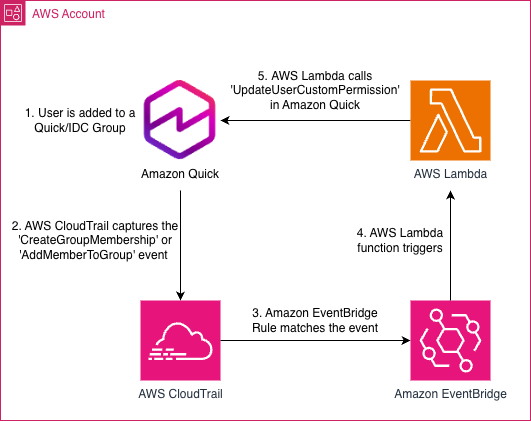
图 1:当用户被添加到 Quick 或 IAM Identity Center 组时,应用自定义权限配置文件的事件驱动架构
- 用户被添加到 Quick 或 Identity Center 组。
- **Amazon CloudTrail:**捕获
CreateGroupMembership或AddMemberToGroup事件。 - **Amazon EventBridge:**筛选这些日志,以识别用户何时成功被添加到组。
- **AWS Lambda:**提取用户详细信息,并使用
UpdateUserCustomPermissionAPI 应用正确的权限配置文件。
前提条件
在实施此解决方案前,请确认您具备以下条件:
- 拥有具备管理访问权限的 AWS 账户。
- 具备使用 AWS CloudFormation 创建和管理 AWS 资源所需的 AWS Identity and Access Management (IAM) 权限。
- 可访问以下 AWS 服务:
- AWS CloudFormation:以基础设施即代码的方式部署和管理基础设施堆栈。
- Amazon Quick:应用自定义权限的目标服务。
- AWS CloudTrail:必须在目标 AWS 区域中启用。它会捕获供 Amazon EventBridge 使用的 Quick 和 IDC API 事件。
- Amazon EventBridge:筛选 CloudTrail 事件,以检测组成员关系变更。
- AWS Lambda:执行调用
UpdateUserCustomPermissionAPI 的自动化逻辑。 - AWS IAM Identity Center:仅在使用基于 IDC 组的触发器时需要。
- 运行场景 4 中的批量更新脚本需要 Python 3.9+ 和 AWS Command Line Interface(AWS CLI)v2。
使用 CloudFormation 部署
您可以使用提供的 CloudFormation 模板部署完整流水线(IAM 角色、Lambda 函数和 Amazon EventBridge 规则)。CloudFormation 堆栈必须部署在与您的 Amazon Quick 订阅相同的 AWS 区域中,因为 Amazon EventBridge 规则只能捕获其所在区域内的事件。

该模板接受以下参数:
| 参数 | 说明 |
|---|---|
| UseIdentityCenter | 如果您的 Quick 账户使用 IAM Identity Center,请设为 true。 |
| TargetGroupName | 要应用自定义权限的组名称。对于 Quick 组,这是 Quick 组名。对于 IDC 组,这是 IDC 组的 DisplayName。重要提示:每次部署仅面向 Quick 组或 IDC 组之一,不能同时面向两者。若要监控两种组类型,请部署单独的堆栈。 |
| PermissionProfileName | 要应用于该组成员的 Quick 自定义权限配置文件名称。该配置文件必须在部署前已存在于您的 Quick 账户中。 |
| QuickNamespace | 用于用户管理的 Quick 命名空间。 |
| LambdaFunctionPrefixName | 用于 Lambda 函数名称的前缀。 |
如果您希望手动部署,请按照以下步骤操作:
第 1 步:为 Lambda 创建 IAM 角色
您的 Lambda 函数需要具备与 Quick 交互的权限。
- 前往 IAM Console → Policies → Create policy。
- 切换至 JSON 选项卡,并粘贴以下策略:
- 注意:仅当您的 Quick 账户与 IAM Identity Center 集成时,才需要 IdentityStore 权限。
{
    "Version": "2012-10-17",
    "Statement": [
        {
            "Effect": "Allow",
            "Action": [
                "logs:CreateLogGroup",
                "logs:CreateLogStream",
                "logs:PutLogEvents"
            ],
            "Resource": "arn:aws:logs:*:YOUR_ACCOUNT_ID:log-group:/aws/lambda/Auto-Assign-QS-Permissions:*"
        },
        {
            "Effect": "Allow",
            "Action": [
                "quicksight:UpdateUserCustomPermission",
                "quicksight:DeleteUserCustomPermission",
                "quicksight:UpdateUser",
                "quicksight:DescribeUser"
            ],
            "Resource": "arn:aws:quicksight:*:*:user/*"
        },
        {
            "Effect": "Allow",
            "Action": [
                "identitystore:DescribeUser",
                "identitystore:DescribeGroup"
            ],
            "Resource": "*"
        }
    ]
}
- 将策略命名为
Quick-Lambda-Policy,然后选择 Create policy。 - 前往 Roles → Create role。
- 选择 AWS Service,然后选择 Lambda。
- 选择 Next。
- 搜索并选择
Quick-Lambda-Policy。 - 选择 Next。
- 将角色命名为
Quick-Auto-Permissions-Role,然后选择 Create role。
第 2 步:部署 Lambda 函数
1
English / 原文
As Amazon Quick environments scale and new AI-powered capabilities expand what users can do, automating user-level custom permissions becomes critical to maintaining the principle of least privilege. To address this, with custom permissions in Quick, you can enforce fine-grained access control by toggling specific features on or off for individual users. For example, with custom permissions, you can control access so that financial analysts author reports without exporting raw data, and external partners view dashboards without accessing sharing controls.
While Quick provides various options to apply custom permissions at the account, role, and user level, there are scenarios where your organization’s specific permissions need to be applied dynamically. This post walks through four architectural patterns to automate custom permissions assignment at key stages of the user lifecycle. The approaches range from a single API parameter to an event-driven automation, covering new users, future users, group-based logic, and retroactive bulk updates.
What we will cover
We will explore four scenarios to handle key stages of the user lifecycle:
- Pre-registered users : If you build custom portals or scripts, we show how to apply custom permissions proactively at the exact moment of user creation using the
RegisterUserAPI. - Default account or role permissions: To set default custom permissions at the account or role level, we cover how to use the
UpdateAccountCustomPermissionandUpdateRoleCustomPermissionAPIs to enforce a default profile for all existing and future users, no additional automation required. - Event-driven custom logic : When you need conditional logic beyond native defaults (such as applying different profiles based on group membership) we show how to use Amazon EventBridge and AWS Lambda to automatically detect new group memberships and apply permissions dynamically. This supports both native Quick groups and AWS IAM Identity Center (IDC) groups.
- Retroactive batch updates : For existing users who were provisioned before automation was in place, we provide a robust Python script to retroactively apply custom permissions to all users in specified Quick groups.
Scenario 1: Pre-registered users (API and CLI)
If you have a custom onboarding portal that provisions users using the RegisterUser API, you don’t need complex automation. You can apply custom permissions during the creation of the Quick user by including the --custom-permissions-name parameter in your call.
When to use this approach : Your organization controls the user creation process end-to-end through a custom portal or script. This is the most direct path, no event-driven infrastructure required. This is especially common for software as a service (SaaS) companies embedding Quick across customer accounts. For instance, automatically restricting premium features like paginated reports and GenBI based on a customer’s pricing tier at the moment each user is provisioned.
The following example applies a custom permissions profile named Restricted-Author-Profile to Authors in the account, but the same API can be used to apply permissions profiles to any role (including Author Pros, Admins, Admin Pros, Readers, and Reader Pros).
aws quicksight register-user \
    --aws-account-id 123456789012 \
    --namespace default \
    --identity-type QUICKSIGHT \
    --user-role AUTHOR \
    --email user@example.com \
    --user-name user_name \
    --custom-permissions-name "Restricted-Author-Profile"
Scenario 2: Default account or role permissions (API and CLI)
With two native APIs, you can set default custom permission profiles without per-user automation. Note that Quick custom permissions follow a three-level hierarchy (account, role, and user) where user-level settings override role-level, which override account-level, allowing administrators to implement flexible, layered security policies.
When to use this approach: These APIs cover both current and future use cases with minimal operational overhead. Start here before building custom automation. Move to Scenario 3 only if you need conditional logic beyond what account or role-level defaults support. For example, a 50,000-user enterprise may need all newly launched GenBI features and connectors blocked by default until their security team completes a 60–90-day review. An account-level default enforces that restriction instantly, without requiring any per-user automation and with no provisioning gap.
Option A: Account-level default
The UpdateAccountCustomPermission API sets a fallback custom permission profile that Quick applies to any user who doesn’t have an explicit profile assigned, including new users created with Just-In-Time provisioning.
aws quicksight update-account-custom-permission \
    --aws-account-id 123456789012 \
    --custom-permissions-name "Restricted-User-Profile"
Option B: Role-level default
With the UpdateRoleCustomPermission API, you can set a default custom permission profile per Quick role (READER, AUTHOR, ADMIN, and PRO roles).
aws quicksight update-role-custom-permission \
    --aws-account-id 123456789012 \
    --role AUTHOR \
    --namespace default \
    --custom-permissions-name "Restricted-Author-Profile"
Scenario 3: Event-driven custom logic (Amazon EventBridge and Lambda)
This scenario addresses more granular requirements: applying different custom permissions profiles to users based on which Quick or IAM Identity Center group they belong to. For example, a 125,000-employee technology services company needs authors in each business unit to receive distinct permission profiles at the moment of group assignment. This prevents cross-unit asset sharing while granting power-user access only to approved individuals, even though all authors share the same Quick role. Because we don’t have a native API for assigning custom permissions to a Group, we will need an architecture that detects when a user is added to a group that should have specific permissions.
Note: We suggest combining this approach with Scenario 2 for a fully layered permissions strategy. Scenarios 2 and 3 are complementary, not alternatives. When a user is provisioned through Just-In-Time federation, there’s an unavoidable window between account creation and the moment an administrator adds them to the appropriate group. Scenario 3 only fires on the group membership event.
To keep users from ever being in an unrestricted state, apply Scenario 2 first as a baseline: set an account-level or role-level default that enforces your most restrictive acceptable profile. Then use Scenario 3 to refine permissions once the user is assigned to a group. The user-level override from Scenario 3 will take precedence over the Scenario 2 default, so there is no conflict, only complementary layers of control.
Consider a global bank with more than 200,000 users, provisioned through single sign-on (SSO), that must block data export the instant an employee joins. Scenario 2 closes that gap immediately with a restrictive account-level default, and Scenario 3 refines permissions once the user is assigned to their compliance group. This prevents employees from downloading sensitive client data during the window between provisioning and group assignment.
Quick and IAM Identity Center emit distinct AWS CloudTrail events for group membership changes. Quick emits CreateGroupMembership when a user is added and DeleteGroupMembership when removed. IAM Identity Center emits AddMemberToGroup when a user is added and RemoveMemberFromGroup when removed. The following architecture detects these events to trigger permission updates automatically.
We will build this using Amazon EventBridge (to detect the event) and AWS Lambda (to apply the fix).
Figure 1: Event-driven architecture that applies a custom permission profile when a user is added to a Quick or IAM Identity Center group
- A user is added to a Quick or Identity Center group.
- Amazon CloudTrail: Captures the
CreateGroupMembershiporAddMemberToGroupevents. - Amazon EventBridge: Filters these logs to identify when a user is successfully added to the group.
- AWS Lambda: Extracts the user details and applies the correct permission profile using the
UpdateUserCustomPermissionAPI.
Prerequisites
Before implementing this solution, confirm you have the following:
- An AWS account with administrative access.
- AWS Identity and Access Management (IAM) permissions to create and manage AWS resources using AWS CloudFormation.
- Access to the following AWS services:
- AWS CloudFormation: deploys and manages the infrastructure stack as code.
- Amazon Quick: the target service where custom permissions are applied.
- AWS CloudTrail: must be enabled in the target AWS Region. Captures Quick and IDC API events that Amazon EventBridge consumes.
- Amazon EventBridge: filters CloudTrail events to detect group membership changes.
- AWS Lambda: executes the automation logic that calls the
UpdateUserCustomPermissionAPI. - AWS IAM Identity Center: required only if using IDC group-based triggers.
- Python 3.9+ and AWS Command Line Interface (AWS CLI) v2 are required for running the batch update script in Scenario 4.
Deploy with CloudFormation
You can deploy the full pipeline (IAM role, Lambda function, and Amazon EventBridge rule) using the provided CloudFormation template. The CloudFormation stack must be deployed in the same AWS Region as your Amazon Quick subscription, since Amazon EventBridge rules only capture events within their own Region.
The template accepts the following parameters:
| Parameter | Description |
|---|---|
| UseIdentityCenter | Set to true if your Quick account uses IAM Identity Center |
| TargetGroupName | The name of the group to apply custom permissions to. For Quick groups, this is the Quick group name. For IDC groups, this is the IDC group DisplayName. Important: Each deployment targets either a Quick group or an IDC group, never both. To monitor both group types, deploy separate stacks. |
| PermissionProfileName | Name of the Quick custom permissions profile to apply to members of this group. This profile must already exist in your Quick account before deployment. |
| QuickNamespace | Quick namespace for user management. |
| LambdaFunctionPrefixName | Prefix used for the Lambda function name. |
If you prefer to deploy manually, follow these steps:
Step 1: Create the IAM role for Lambda
Your Lambda function needs permission to interact with Quick.
- Go to the IAM Console → Policies → Create policy.
- Switch to the JSON tab and paste this policy:
- Note : the permissions to IdentityStore are only needed if your Quick account is integrated with IAM Identity Center.
{
    "Version": "2012-10-17",
    "Statement": [
        {
            "Effect": "Allow",
            "Action": [
                "logs:CreateLogGroup",
                "logs:CreateLogStream",
                "logs:PutLogEvents"
            ],
            "Resource": "arn:aws:logs:*:YOUR_ACCOUNT_ID:log-group:/aws/lambda/Auto-Assign-QS-Permissions:*"
        },
        {
            "Effect": "Allow",
            "Action": [
                "quicksight:UpdateUserCustomPermission",
                "quicksight:DeleteUserCustomPermission",
                "quicksight:UpdateUser",
                "quicksight:DescribeUser"
            ],
            "Resource": "arn:aws:quicksight:*:*:user/*"
        },
        {
            "Effect": "Allow",
            "Action": [
                "identitystore:DescribeUser",
                "identitystore:DescribeGroup"
            ],
            "Resource": "*"
        }
    ]
}
- Name the policy
Quick-Lambda-Policyand choose Create policy. - Navigate to Roles → Create role.
- Select AWS Service and choose Lambda.
- Choose Next.
- Search for and select the
Quick-Lambda-Policy. - Choose Next.
- Name the Role
Quick-Auto-Permissions-Roleand select Create role.
Step 2: Deploy the Lambda function
- Go to the Lambda Console → Create function.
- Function name:
Auto-Assign-QS-Permissions. - Runtime: Python 3.14 (or latest available).
- Execution role: Use another role → Select
Quick-Auto-Permissions-Role. - Choose Create function.
- Under Configuration → General configuration , increase the timeout to 30 seconds.
- This should be sufficient for single-event processing. If you observe timeouts in Amazon CloudWatch Logs, increase this value accordingly.
- Set the following environment variables under Configuration → Environment Variables:.
| Variable Name | Description |
|---|---|
| PERMISSION_PROFILE | Exact name of the custom permissions profile created in Quick to apply |
| TARGET_GROUP_NAME | Name of the group to monitor (Quick group name or IDC group DisplayName) |
| NAMESPACE | Quick namespace (typically “default”) |
-
Navigate back to the Code Source editor and paste the following code:
import logging import os import time import boto3 logger = logging.getLogger() logger.setLevel(logging.INFO) quicksight = boto3.client("quicksight") identity_store = boto3.client("identitystore") def lambda_handler(event, context): detail = event.get("detail", {}) event_source = detail.get("eventSource", "") event_name = detail.get("eventName", "") permission_profile = os.environ["PERMISSION_PROFILE"] target_group = os.environ["TARGET_GROUP_NAME"] namespace = os.environ["NAMESPACE"] account_id = ( detail.get("userIdentity", {}).get("accountId") or detail.get("recipientAccountId") ) logger.info( "Event received: source=%s, name=%s", event_source, event_name ) try: if event_source == "sso-directory.amazonaws.com": return handle_idc_event(detail, account_id, namespace, permission_profile, target_group) elif event_source == "quicksight.amazonaws.com": return handle_quicksight_event(detail, account_id, namespace, permission_profile, target_group) else: logger.warning("Unknown event source: %s", event_source) return {"statusCode": 200, "body": "Unknown event source"} except Exception as e: logger.error("Error processing event: %s", str(e)) return {"statusCode": 500, "body": str(e)} def handle_idc_event(detail, account_id, namespace, permission_profile, target_group): """Handle AddMemberToGroup or RemoveMemberFromGroup from sso-directory.amazonaws.com.""" request_params = detail.get("requestParameters") or {} identity_store_id = request_params.get("identityStoreId") group_id = request_params.get("groupId") # AddMemberToGroup nests memberId under "member"; RemoveMemberFromGroup puts it at top level member_id = (request_params.get("memberId") or (request_params.get("member") or {}).get("memberId")) if not identity_store_id or not group_id or not member_id: logger.warning("Missing identityStoreId, groupId, or memberId.") return {"statusCode": 200, "body": "Missing IDC event info"} # Resolve group name from group ID group_resp = identity_store.describe_group( IdentityStoreId=identity_store_id, GroupId=group_id, ) group_name = group_resp.get("DisplayName", "") logger.info("IDC group resolved: '%s' (ID: %s)", group_name, group_id) if group_name != target_group: logger.info( "Group '%s' does not match target '%s'. Skipping.", group_name, target_group, ) return {"statusCode": 200, "body": f"Group {group_name} not targeted"} # Resolve user name from member ID idc_user = identity_store.describe_user( IdentityStoreId=identity_store_id, UserId=member_id, ) user_name = idc_user.get("UserName") if not user_name: logger.warning("No UserName found for IDC user %s", member_id) return {"statusCode": 200, "body": "No UserName in IDC"} logger.info("IDC user resolved: %s (ID: %s)", user_name, member_id) # Wait for Quick to sync the user qs_user = None for attempt in range(5): try: qs_user = quicksight.describe_user( AwsAccountId=account_id, Namespace=namespace, UserName=user_name, ) break except quicksight.exceptions.ResourceNotFoundException: logger.info( "User '%s' not yet in Quick (attempt %d/5). Waiting...", user_name, attempt + 1, ) time.sleep(3) if qs_user is None: logger.warning( "User '%s' not found in Quick after retries.", user_name, ) return {"statusCode": 200, "body": f"User {user_name} not in Quick"} event_name = detail.get("eventName", "") if event_name == "RemoveMemberFromGroup": return remove_permissions(account_id, namespace, user_name) else: return apply_permissions(account_id, namespace, user_name, permission_profile) def handle_quicksight_event(detail, account_id, namespace, permission_profile, target_group): """Handle CreateGroupMembership or DeleteGroupMembership from quicksight.amazonaws.com.""" request_params = detail.get("requestParameters") or {} group_name = request_params.get("groupName", "") member_name = request_params.get("memberName", "") if not group_name or not member_name: logger.warning("Missing groupName or memberName in event.") return {"statusCode": 200, "body": "Missing event info"} event_name = detail.get("eventName", "") action = "removed from" if event_name == "DeleteGroupMembership" else "added to" logger.info( "Quick group membership: user '%s' %s '%s'", member_name, action, group_name, ) if group_name != target_group: logger.info( "Group '%s' does not match target '%s'. Skipping.", group_name, target_group, ) return {"statusCode": 200, "body": f"Group {group_name} not targeted"} if event_name == "DeleteGroupMembership": return remove_permissions(account_id, namespace, member_name) else: return apply_permissions(account_id, namespace, member_name, permission_profile) def apply_permissions(account_id, namespace, user_name, permission_profile): """Apply the custom permission profile to a Quick user.""" quicksight.update_user_custom_permission( AwsAccountId=account_id, Namespace=namespace, UserName=user_name, CustomPermissionsName=permission_profile, ) logger.info( "Permission profile '%s' applied to user '%s'.", permission_profile, user_name, ) return { "statusCode": 200, "body": f"Permission applied for user: {user_name}", } def remove_permissions(account_id, namespace, user_name): """Remove custom permissions, reverting user to account/role-level default.""" try: quicksight.delete_user_custom_permission( AwsAccountId=account_id, Namespace=namespace, UserName=user_name, ) logger.info("Permission removed for user '%s'.", user_name) return { "statusCode": 200, "body": f"Permission removed for user: {user_name}", } except quicksight.exceptions.ResourceNotFoundException: logger.info("User '%s' had no custom permission to remove.", user_name) return {"statusCode": 200, "body": f"No permission to remove for: {user_name}"} -
Choose Deploy.
Step 3: Create the Amazon EventBridge rule
Now we must configure this function so that it runs only when a user is successfully added to a group.
-
Go to the Amazon EventBridge Console.
-
Select Rules → Create rule.
-
Opt out of the Visual rule builder.
-
Under Name enter
Quick-Group-Membership-Creation-Ruleand choose Next. -
Select Other under Event source.
-
Paste the following into the JSON editor for Event pattern:.When the Quick account is integrated with IDC, the source of this event will be the IDC identity store whereas the source will be Quick otherwise. Therefore, the Amazon EventBridge rule we will create will depend on the account authentication mechanism:Option A: IAM Identity Center
{
    "source": ["aws.sso-directory"],
    "detail-type": ["AWS API Call via CloudTrail"],
    "detail": {
        "eventSource": ["sso-directory.amazonaws.com"],
        "eventName": ["AddMemberToGroup", "RemoveMemberFromGroup"],
        "errorCode": [{ "exists": false }]
    }
}
Option B: Other Authentication (using Quick Groups)
     {
         "source": ["aws.quicksight"],
         "detail-type": ["AWS API Call via CloudTrail"],
         "detail": {
             "eventSource": ["quicksight.amazonaws.com"],
             "eventName": ["CreateGroupMembership", "DeleteGroupMembership"],
             "errorCode": [{ "exists": false }]
         }
     }
- Select AWS Service as the Target type.
- Select Lambda function as the target and choose
Auto-Assign-QS-Permissions(the function you built in Step 2). - Choose Next and Create rule.
Step 4: Add the Amazon EventBridge trigger
- Return to the
Auto-Assign-QS-PermissionsLambda function. - Navigate to Configuration → Triggers → Add trigger.
- Select Amazon EventBridge as the source.
- Choose Existing rules and select the
Quick-Group-Membership-Creation-Rulecreated in Step 3. - Choose Add.
Step 5: Verify the setup
To test this, add a user to a Group in Quick or IDC:
- Test: Manually add a new or existing user to the target Group.
- Monitor: Go to the CloudWatch Logs for your Lambda function.
- Confirm: You should see a log entry like: Permission profile ‘123’ applied to user ‘XYZ’.
- Result: When that user logs in, they will be restricted by the profile.
Design considerations
Group removal: This solution for Scenario 3 already handles removal events. When a user is removed from the target group, the Lambda calls DeleteUserCustomPermission, reverting them to the account or role-level default from Scenario 2. No additional configuration is needed.
Multi-group membership: Quick supports only one custom permissions profile per user at a time. If your organization assigns users to multiple groups with different profiles, you can extend the Lambda logic to list all groups the user belongs to, look up the profile mapped to each group, and apply the highest-priority profile (for example, the most restrictive profile). This multi-group conflict resolution isn’t included in the provided solution and must be implemented by your team based on your organization’s specific priority rules.
Scenario 4: Batch update for existing group members
You likely have existing groups (for example, “Finance-Readers” or “Marketing-Authors”) containing users who need specific restrictions applied retroactively. Because these users were created in the past, the Amazon EventBridge automation (Scenario 3) won’t catch them.
To fix this, we use a Python script to iterate through a specific Quick Group and apply the custom permission profile to every member.
Quick groups can contain thousands of users. The API ListGroupMemberships only returns 100 members at a time. If you write a script without pagination logic, it will stop after the first 100 users, leaving the rest unsecured. The following script handles this automatically using NextToken.
Copy the following code. You only need to edit the Configuration Section at the top.
import boto3
import sys
import time
import csv
from botocore.exceptions import ClientError

# =========================================================
# CONFIGURATION - Edit these values before running
# =========================================================

# 1. Your AWS Account ID
AWS_ACCOUNT_ID = '279938032093'

# 2. The Quick Group whose members you want to target
# (e.g., 'finance-users', 'marketing-group')
TARGET_GROUP_NAME = 'BlogTestGroup'

# 3. The name of the Custom Permission Profile you want to apply
# (Must already exist in Quick)
PERMISSION_PROFILE_NAME = 'TestBlog'

# 4. Namespace (almost always 'default')
NAMESPACE = 'default'

# =========================================================

# Initialize the Quick client
qs = boto3.client('quicksight')

def get_all_group_members(group_name):
    """
    Generator function that yields members one by one,
    handling pagination automatically.
    """
    print(f"Fetching members from group: '{group_name}'...")
    next_token = None
    while True:
        try:
            # Construct the API call arguments
            api_args = {
                'AwsAccountId': AWS_ACCOUNT_ID,
                'Namespace': NAMESPACE,
                'GroupName': group_name,
                'MaxResults': 100
            }
            if next_token:
                api_args['NextToken'] = next_token

            # Call API
            response = qs.list_group_memberships(**api_args)

            # Yield members from the current page
            for member in response.get('GroupMemberList', []):
                # We only need the MemberName (which corresponds to UserName)
                yield member.get('MemberName')

            # Check if there are more pages
            next_token = response.get('NextToken')
            if not next_token:
                break

        except qs.exceptions.ResourceNotFoundException:
            print(f"ERROR: The group '{group_name}' does not exist.")
            sys.exit(1)
        except ClientError as e:
            print(f"CRITICAL API ERROR: {e}")
            sys.exit(1)

def apply_permission(user_name):
    """
    Applies the custom permission profile to a single user.
    """
    try:
        qs.update_user_custom_permission(
            AwsAccountId=AWS_ACCOUNT_ID,
            UserName=user_name,
            Namespace=NAMESPACE,
            CustomPermissionsName=PERMISSION_PROFILE_NAME
        )
        return True, "Success"
    except qs.exceptions.ResourceNotFoundException as e:
        error_msg = str(e)
        if 'User' in error_msg or 'user' in error_msg:
            return False, "User not found (might have been deleted)"
        else:
            return False, f"Profile '{PERMISSION_PROFILE_NAME}' not found"
    except ClientError as e:
        return False, str(e)

def main():
    print("--------------------------------------------")
    print(f"STARTING BATCH UPDATE")
    print(f"Target Group: {TARGET_GROUP_NAME}")
    print(f"Applying Profile: {PERMISSION_PROFILE_NAME}")
    print("--------------------------------------------\n")

    success_count = 0
    fail_count = 0
    failed_users = []

    # Iterate through the generator
    for user_name in get_all_group_members(TARGET_GROUP_NAME):
        print(f"Processing: {user_name}...", end=" ")
        status, message = apply_permission(user_name)

        if status:
            print("OK")
            success_count += 1
        else:
            print(f"FAILED ({message})")
            fail_count += 1
            failed_users.append({'UserName': user_name, 'Error': message})

        # Rate Limiting: Sleep briefly to avoid hitting API limits
        time.sleep(0.1)

    print("\n--------------------------------------------")
    print("JOB COMPLETED")
    print(f"Total Success: {success_count}")
    print(f"Total Failed: {fail_count}")
    print("--------------------------------------------")

    # Export failed users to CSV for review/retry
    if failed_users:
        csv_filename = f"failed_users_{TARGET_GROUP_NAME}.csv"
        with open(csv_filename, 'w', newline='') as f:
            writer = csv.DictWriter(f, fieldnames=['UserName', 'Error'])
            writer.writeheader()
            writer.writerows(failed_users)
        print(f"\nFailed users written to: {csv_filename}")

if __name__ == "__main__":
    main()
Note: The default delay of 0.1 seconds between API calls (~10 requests/second) is suitable for most deployments. For large-scale groups (over 10,000 members), increase API_DELAY_SECONDS to avoid API throttling. Monitor for ThrottlingException errors in the output and adjust as needed for your environment.
Detailed execution steps
- Prepare your environment.You can run this locally or in AWS CloudShell directly in your browser, which comes pre-authenticated and has Boto3 installed.
- Sign in to the AWS Management Console.
- Choose the CloudShell icon (terminal icon) in the top navigation bar.
- Create the script file.In the CloudShell terminal, enter the following command to open a text editor:
nano update_permissions.py- Paste the preceding Python code into the editor.
- Edit the
AWS_ACCOUNT_IDandTARGET_GROUP_NAMEvariables at the top of the file to match your environment. - Press Ctrl+X, then Y, then Enter to save and exit.
- Run the script.Execute the script with Python:
python3 update_permissions.py - Verify results.
- The script will print “OK” next to every user it successfully updates.
- If any users fail, the script writes a
failed_users_{GROUP_NAME}.csvfile with the username and failure reason for each. Review this file to identify users that need manual follow-up. - If you see “Profile not found,” double-check that you created the Custom Permission Profile in the Amazon Quick console exactly as spelled in the script.
- Run
aws quicksight describe-user --aws-account-id <ACCOUNT_ID> --namespace <NAMESPACE> --user-name <USERNAME>and confirm that theCustomPermissionsNamefield in the response matches your expected profile.
Clean up
If you deployed using the CloudFormation template, delete the stack to remove all resources it created, including the Amazon EventBridge rule, Lambda function, and associated IAM role and policy.
If you deployed manually, delete the following resources:
- The Amazon EventBridge rule (
Quick-Group-Membership-Creation-Rule). - The Lambda function (
Auto-Assign-QS-Permissions). - The IAM role (
Quick-Auto-Permissions-Role) and policy (Quick-Lambda-Policy).
The batch update script (Scenario 4) does not deploy any infrastructure and requires no clean up.
Conclusion
Automating custom permissions in Amazon Quick is a foundational step toward a secure, scalable user governance strategy. As your Quick environment grows, the patterns in this post help verify that authentication and authorization scale together, not independently.
The following table summarizes the four scenarios and when to apply each:
| Scenario | Trigger | Best For |
|---|---|---|
| 1. Pre-registered users | RegisterUser API call |
Organizations with custom onboarding portals |
| 2. Account/role defaults | Native API, always on | Consistent restrictions across all users or by role |
| 3. Event-driven group logic | Group membership added | Custom permissions logic like profiles per group; IDC or Quick groups |
| 4. Retroactive batch | Manual script execution | Existing users provisioned before automation was in place |
One manual step remains in the Scenario 3 flow: an administrator must add each user to the appropriate group before the event-driven pipeline fires. You can remove this step entirely by extending the same Amazon EventBridge + Lambda architecture to listen for new user creation events.
When new users are provisioned through Just-In-Time federation, CloudTrail captures a CreateUser event (when Quick users are invited by admins, this produces a BatchCreateUser event). A Lambda function can intercept that event and apply custom logic to determine the correct group based on email domain, internal user mapping, or any available user attribute. It then calls CreateGroupMembership to assign the user to that group automatically.
Combined with Scenario 3, this approach can create a fully automated pipeline with no manual steps. A full implementation of this extension is beyond the scope of this post. However, the building blocks (CloudTrail event capture, Amazon EventBridge filtering, and Lambda-based Quick API calls) are identical to those described in Scenario 3.
Start with Scenario 2 to establish your baseline today. For more details, see Amazon Quick Custom Permissions in the Amazon Quick User Guide.
About the authors
Leona Li
Leona is a Specialist Solutions Architect for Amazon Quick Suite. She focuses on enabling data intelligence and helping enterprise customers become more data-driven by designing, building, and modernizing their solutions in the cloud.
Ashok Dasineni
Ashok is a Solutions Architect for Amazon Quick Suite. Before joining AWS, Ashok worked with clients and organizations in the banking and financial domain, focusing on fraud research and prevention. He designed and implemented innovative solutions to improve business process, reduce cost, and increase revenue, helping companies around the world achieve their highest potential through data.
Srikanth Baheti
Srikanth is a Senior Manager for Amazon QuickSight. He started his career as a consultant and worked for multiple private and government organizations. Later he worked for PerkinElmer Health and Sciences & eResearch Technology Inc, where he was responsible for designing and developing high traffic web applications and highly scalable and maintainable data pipelines for reporting platforms using AWS services and serverless computing.
Jackson Dowden
Jackson is a Gen AI Solutions Architect for Amazon Quick. He began at AWS as a Partner Solutions Architect and now focuses on helping ISV and healthcare & life sciences customers implement AI-driven analytics and embedded insights with Amazon Quick.