在 Amazon Quick 上为 MCP 工具实施纵深防御授权
英文标题:Implementing defense-in-depth authorization for MCP tools on Amazon Quick
本文介绍如何在 Amazon Quick 的 MCP 工具调用中实施多层纵深防御授权,将 Microsoft Entra ID 的 OIDC JWT 声明接入 Amazon Bedrock AgentCore Gateway 的 AWS Lambda 拦截器。该方案按顺序验证 MFA、国家/地区限制、组到角色映射以及工具级权限,以实现基于角色和属性的细粒度访问控制。任何未通过授权关卡的请求都会返回 403,且不会触达工具或底层数据;通过的变更操作会写入不可变审计记录。对于处理敏感数据的开发者和受监管行业而言,该模式可在 SSO 身份验证之外补足工具级和参数级授权能力,并提升合规审计能力。
 1.3 MB
 101.1 KB
 124.1 KB
 345.0 KB
 141.2 KB
 346.5 KB
 229.9 KB
 160.9 KB
 178.7 KB
 66.2 KB
 165.0 KB
 120.9 KB
 329.4 KB
 147.0 KB
 178.2 KB
 238.2 KB
 62.9 KB
 103.7 KB
 96.3 KB
 340.8 KB
中文
在 Amazon Quick 上,每一次模型上下文协议(Model Context Protocol,MCP)工具调用都是一次访问事件,可能需要在工具和参数级别实施纵深防御授权。这是在有效令牌之外额外需要实施的控制。若缺少细粒度控制,一项错误配置的权限就可能绕过组织为满足合规要求而设置的访问限制。本文将实现一种多关卡授权模式,按顺序评估 OpenID Connect(OIDC)JSON Web Token(JWT)声明。该模式会对每次调用实施基于角色和基于属性的访问控制。您可以根据合规要求配置要启用的授权控制,包括基于组的权限和参数级属性检查。本演练使用 Microsoft Entra ID 作为身份提供商(IdP)。
当您将 MCP 工具连接到 Amazon Quick 时,有效的单点登录(SSO)只能确认调用方是谁,无法确认其应被允许执行哪些操作。授权机制填补了这一缺口,将经过验证的身份转化为一套可强制执行的规则,用于决定每个调用方可以访问哪些资源。模型上下文协议(MCP)是一项开放协议,可将应用程序连接至内部工具、数据库和 API,从而减少对自定义集成的需求。但是,一旦这些工具能够访问敏感数据,有效的 SSO 令牌就不再足够。若没有分层的纵深防御授权,单个权限范围过大的令牌就可能访问超出调用方角色权限的工具和数据,从而造成数据暴露,并使合规审计更加复杂。
当组织通过 MCP 将敏感数据源连接至 Amazon Quick 后,“已认证”不再等同于“已授权”。授权决定调用方可以调用哪些工具、可从哪些位置调用,以及拥有什么权限级别。例如,某个受监管组织要求用户登录时进行多重身份验证(MFA),并限制来自未获批准国家/地区的访问。身份提供商负责执行第一项要求,授权层则负责执行第二项要求。标准 OAuth 2.0 身份验证并不强制控制调用方在工具和参数级别可以执行的操作。
本文说明多关卡授权模式的工作方式,并引导您配置驱动该模式的身份层。拦截器会通过四道关卡处理 OpenID Connect(OIDC)JSON Web Token(JWT)声明:MFA、地理位置限制、组到角色映射,以及工具级权限检查。在本演练中,您将配置这些关卡所依赖的 Microsoft Entra ID 应用程序、声明和策略。随后,您将 Amazon Quick 连接到现有的 Amazon Bedrock AgentCore Gateway,这是 Amazon Bedrock AgentCore 的一项功能。该网关在客户端与 MCP 工具之间提供 HTTP 端点和 JWT 验证层。您将以不同角色用户登录,验证允许路径和受限路径。本演练假设您已部署 AWS 组件,包括网关、拦截器 AWS Lambda 函数、工具 Lambda 函数和 Amazon DynamoDB 表。您将获得一个可审计、可组合的安全层,位于用户的自然语言请求与业务逻辑之间。
解决方案概述
本文使用一个虚构示例:AnyCompany Global Services,一家企业,其多租户风险登记册托管在 Amazon DynamoDB 上,并通过 Amazon Quick 中的 MCP 工具访问。该模式适用于可能因合规审计而需要细粒度访问控制的金融服务、医疗保健和政府机构。
AnyCompany 要求每次工具调用均来自已完成 MFA 的经过身份验证的调用方。来自未获批准国家/地区的调用方将被拒绝访问。基于角色的权限会强制执行严格的读写边界:读取者可以查询风险,但不能创建、更新或删除风险;管理员则可以绕过条件关卡,以获得运营灵活性。最后,每次变更操作都必须生成不可变审计记录,以满足合规和取证要求。
图 1 所示的多关卡授权用户流程解决了上述各项要求。您可以通过附加到 Amazon Bedrock AgentCore Gateway 的单个 AWS Lambda REQUEST 拦截器来实现它。该拦截器按固定顺序评估 JWT 声明,每道关卡独立运行。
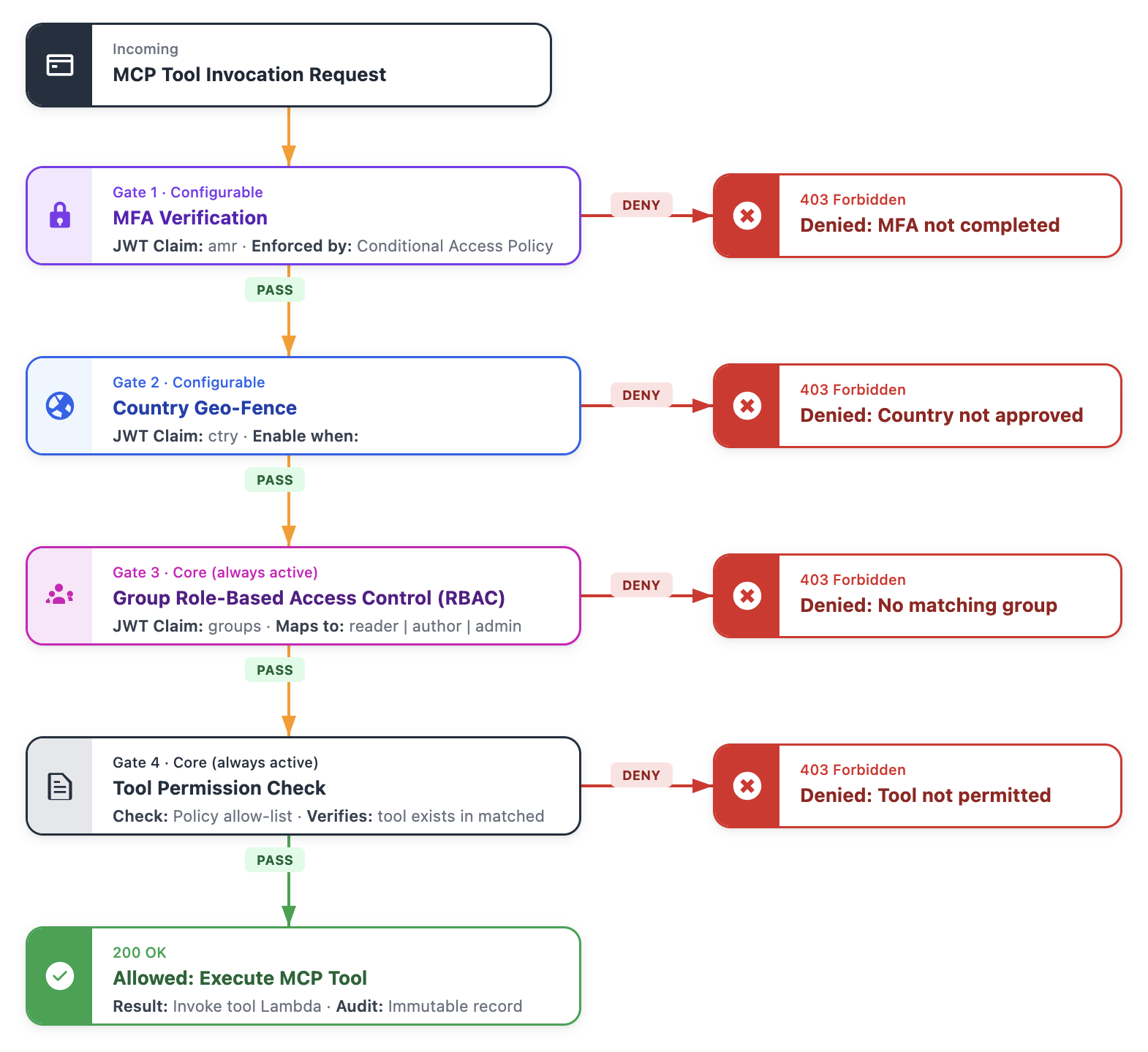
图 1:多关卡授权用户流程
授权关卡按以下顺序处理请求:
| 关卡 | 名称 | JWT 声明 | 用途 | 启用条件 |
|---|---|---|---|---|
| 1 | MFA 验证 | 由身份提供商(IdP)强制执行 | 在签发令牌前要求 MFA | 条件访问策略 |
| 2 | 国家/地区地理围栏 | ctry | 将访问限制在获批准的国家/地区 | REQUIRE_COUNTRY=true |
| 3 | 基于组的角色访问控制(RBAC) | groups | 将组成员资格映射至读取者、作者或管理员策略 | 始终启用(核心关卡) |
| 4 | 工具权限 | 策略允许列表 | 验证请求的工具是否存在于匹配策略中 | 始终启用(核心关卡) |
每道关卡都可通过环境变量独立配置。关卡 3 和关卡 4,即基于组的角色访问控制(RBAC)和工具权限,构成核心授权层,始终处于启用状态。其余两道关卡为条件性关卡,可以通过将环境变量设为 false 或完全省略变量来禁用。这意味着,仅需要 RBAC 和地理围栏的部署会启用三道关卡。需要更高粒度和控制能力的部署,则可启用全部四项检查。
关卡 1 是唯一在拦截器之外强制执行的关卡。Entra ID 会在签发令牌之前应用条件访问策略,因此到达网关的每个令牌都已经满足 MFA 要求。对于会在令牌中记录 MFA 证据的身份提供商,设置 REQUIRE_MFA 会在拦截器内额外启用对 amr 声明的检查。这两种机制协同工作:策略将未经验证的调用方阻挡在外,声明检查则在请求路径中确认令牌携带了相应证据。
拦截器会在业务逻辑运行之前评估全部四道授权关卡。未通过任一关卡的请求都会以 403 被拒绝,且不会到达工具或其数据。每一个通过验证的变更操作都会写入不可变审计记录,使您获得完整且可查询的“谁在何时执行了什么操作”的追踪记录。
部署解决方案之前,请先设置身份提供商。
先决条件
本演练假设您熟悉 AWS Lambda、OAuth 2.0 授权流程以及 Microsoft Entra 身份提供商配置。您还需要访问若干 AWS 服务和一个 OIDC 身份提供商,具体如下文各节所述。
AWS 服务访问权限
本演练假设该模式的 AWS 端已部署在您的账户中。该部分包括配置了 CUSTOM_JWT 授权器的 Amazon Bedrock AgentCore Gateway、AWS Lambda REQUEST 拦截器、工具 Lambda 函数及其使用的 Amazon DynamoDB 表。部署这些资源不在本文范围内;本文聚焦于身份和授权配置。
身份提供商设置
本演练使用 Microsoft Entra ID 作为身份提供商。该授权模式适用于支持 OIDC 的身份提供商。不过,具体配置步骤会因所选身份提供商而异。在您的 Entra ID 租户中,您需要具备全局管理员或应用程序管理员角色,才能创建应用注册、安全组和用于强制执行 MFA 的条件访问策略。条件访问策略需要 Microsoft Entra ID P1 或 P2 许可证。为进行验证,请准备至少三名具有不同组成员资格的测试用户。
部署 Entra ID 应用程序
以下各节将引导您注册两个应用程序、公开 API 并配置权限。您还将配置 AWS Lambda 拦截器读取的声明,以控制 MCP 工具的权限。在全文中,请将占位符标识符({TENANT_ID}、{RESOURCE_APP_ID}、{GATEWAY_URL} 等)替换为您自己租户中的值。
Amazon Quick 使用代码交换证明密钥(PKCE)和 RFC 8707 Resource Indicators,后者是一种将令牌绑定至特定 API 端点的标准。两者结合后,可将每个访问令牌的范围限定至特定 MCP 服务器。在令牌交换期间,Amazon Quick 会将 AgentCore Gateway URL 作为 resource 参数发送。当资源由 URL 标识时,Entra ID 要求客户端和资源分别由独立的应用注册来表示。
配置资源应用程序
步骤 1 至步骤 3 将注册资源应用程序、设置其应用程序 ID URI,并公开 Amazon Quick 请求的 API 范围。
步骤 1:注册资源应用程序(AnyCompany-MCP-Authorization)
资源应用程序代表受保护的 MCP API。其访问令牌即为 AgentCore Gateway 验证的令牌。
- 在 Microsoft Entra 管理中心中,依次进入 Entra ID > App registrations,然后选择 New registration。
- 对于 Name,输入
AnyCompany-MCP-Authorization。 - 在 Supported account types 下,选择 Accounts in this organizational directory only (single tenant)。
- 保持 Redirect URI 为空(资源应用程序不处理登录重定向)。选择 Register。
图 2 显示资源应用程序已完成的注册表单,其中已输入名称并选择单租户。
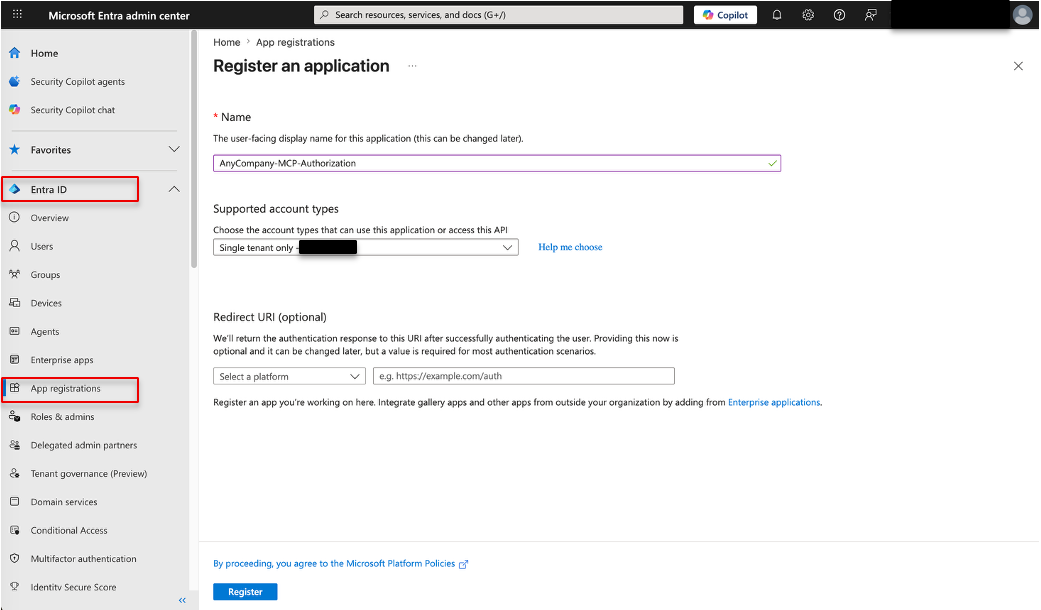
图 2:资源应用程序注册
- 在应用程序的 Overview 页面上,记下并复制 Application (client) ID、Object ID 和 Directory (tenant) ID。您将在后续步骤中使用这些值。
图 3 显示 Overview 页面,其中展示了资源应用程序的 Application (client) ID、Object ID 和 Directory (tenant) ID。
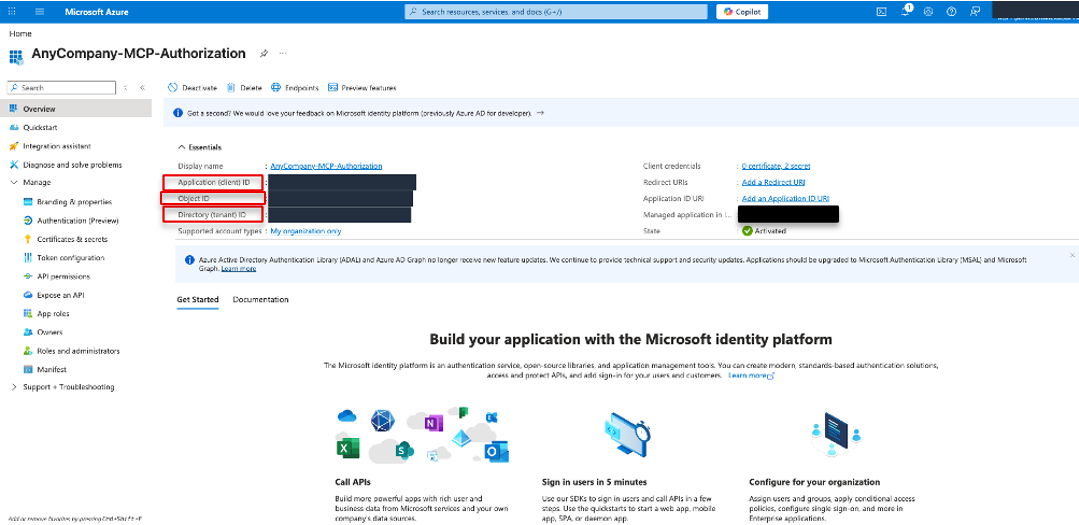
图 3:Microsoft Entra ID 中的资源应用程序概览
步骤 2:使用 Microsoft Graph API 设置应用程序 ID URI 和令牌版本
资源应用程序上的以下两项设置需通过 Microsoft Graph API 应用:
- Application ID URI:该标识符是完整 URL(即 AgentCore Gateway URL),因此您需要通过 Graph API 设置
identifierUris。 - Access token version:该模式要求使用 v2.0 访问令牌,因此您需要更新 Microsoft Graph
api属性下的api.requestedAccessTokenVersion。
您可以通过对应用程序对象执行单次 PATCH 同时应用这两项设置。请使用您在步骤 1 中记下的应用程序 Object ID(不同于客户端 ID)。
选项 A:Microsoft Graph Explorer
-
打开 Microsoft Graph Explorer,并以管理员身份登录。出现提示时,同意
Application.ReadWrite.All范围。 -
将方法设置为 PATCH,URL 设置为
https://graph.microsoft.com/v1.0/applications/{OBJECT_ID}。 -
将请求正文设置如下,并将 {GATEWAY_URL} 替换为您的网关 URL(例如
api://{RESOURCE_APP_ID}或完整网关端点,具体取决于您的租户策略):{ "identifierUris": ["{GATEWAY_URL}"], "api": { "requestedAccessTokenVersion": 2 } } -
选择 Run query。返回 204 No Content 响应表示操作成功。
图 4 显示 Microsoft Graph Explorer 中的 PATCH 请求,以及确认请求成功的 204 No Content 响应。
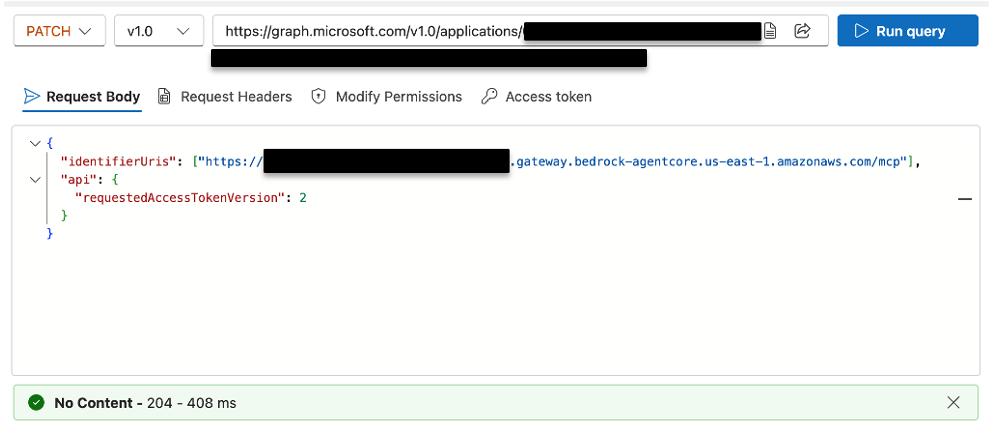
图 4:Microsoft Graph Explorer PATCH 请求
选项 B:Azure CLI
-
使用步骤 1 中的租户 ID 登录租户。
az login --tenant "{TENANT_ID}" --scope "https://graph.microsoft.com//.default" -
使用 Object ID,通过一次调用 PATCH
identifierUris和请求的访问令牌版本。az rest --method PATCH \ --uri "https://graph.microsoft.com/v1.0/applications/${OBJECT_ID}" \ --headers "Content-Type=application/json" \ --body '{ "identifierUris": ["{GATEWAY_URL}"], "api": { "requestedAccessTokenVersion": 2 } }' -
通过重新读取应用程序来确认更改。
az rest --method GET \ --uri "https://graph.microsoft.com/v1.0/applications/${OBJECT_ID}?\$select=identifierUris,api" \ -o json
响应中应列出您的 identifierUris,并显示 "requestedAccessTokenVersion": 2。
步骤 3:公开 API 范围
English / 原文
Each Model Context Protocol (MCP) tool invocation on Amazon Quick is an access event that can require defense-in-depth authorization at the tool and parameter level. This applies in addition to a valid token. Without granular controls, a single misconfigured permission can bypass the access requirements that organizations might need to fulfill for compliance purposes. In this blog post, you implement a multi-gate authorization pattern that evaluates OpenID Connect (OIDC) JSON Web Token (JWT) claims in sequence. The pattern enforces role-based and attribute-based access control on each invocation. You configure which authorization controls to activate based on your compliance requirements, from group-based permissions to parameter-level attribute checks. Microsoft Entra ID serves as the identity provider (IdP) for this walkthrough.
When you connect MCP tools to Amazon Quick, a valid single sign-on (SSO) confirms who the caller is but not what they should be allowed to do. Authorization closes that gap, turning a verified identity into a set of enforceable rules about what each caller can reach. Model Context Protocol (MCP) is an open protocol that connects applications to internal tools, databases, and APIs, reducing the need for custom integrations. However, the moment those tools reach sensitive data, a valid SSO token is no longer enough. Without layered, defense-in-depth authorization, a single over-broad token can reach tools and data beyond the caller’s role, which can expose data and complicate compliance audits.
When an organization connects sensitive data sources to Amazon Quick through MCP, “authenticated” no longer equals “authorized.” Authorization decides which tools a caller can invoke, from which locations, and at what privilege level. For example, a regulated organization requires multi-factor authentication (MFA) at sign-in and restricts access from unapproved countries. The identity provider enforces the first requirement, and the authorization layer enforces the second. Standard OAuth 2.0 identity verification doesn’t enforce what callers can do at the tool and parameter level.
This post explains how the multi-gate authorization pattern works and walks you through configuring the identity layer that drives it. The interceptor processes OpenID Connect (OIDC) JSON Web Token (JWT) claims through four gates: MFA, geographic restriction, group-to-role mapping, and tool-level permission checks. In this walkthrough you configure the Microsoft Entra ID applications, claims, and policies the gates rely on. You then connect Amazon Quick to an existing Amazon Bedrock AgentCore Gateway, a capability of Amazon Bedrock AgentCore. The gateway provides the HTTP endpoint and JWT validation layer between clients and MCP tools. You validate the allow and restricted paths by signing in as different personas. This walkthrough assumes you have already deployed the AWS components, including the gateway, the interceptor AWS Lambda function, the tool Lambda functions, and the Amazon DynamoDB tables. You get an auditable, composable security layer that sits between the user’s natural-language request and your business logic.
Solution overview
This blog post uses a fictional example: AnyCompany Global Services, an enterprise that maintains a multi-tenant risk register hosted on Amazon DynamoDB accessed through MCP tools on Amazon Quick. This pattern is relevant for financial services, healthcare, and government organizations that can require granular access controls for compliance audits.
AnyCompany requires that each tool invocation comes from an authenticated caller who has completed MFA. Callers connecting from unapproved countries are denied access. Role-based permissions enforce a strict read/write boundary: readers can query risks but can’t create, update, or delete them, while administrators can bypass conditional gates for operational flexibility. Finally, every mutation must produce an immutable audit record to satisfy compliance and forensic requirements.
The multi-gate authorization user flow shown in Figure 1 addresses each of the preceding requirements. You implement it through a single AWS Lambda REQUEST interceptor attached to Amazon Bedrock AgentCore Gateway. The interceptor evaluates JWT claims in a fixed sequence, and each gate operates independently.
Figure 1: Multi-gate authorization user flow
The authorization gates process requests in this order:
| Gate | Name | JWT Claim | Purpose | Active when |
|---|---|---|---|---|
| 1 | MFA verification | Enforced by Identity Provider (IdP) | Require MFA before token issuance | Conditional Access Policy |
| 2 | Country geo-fence | ctry | Restrict access to approved countries | REQUIRE_COUNTRY=true |
| 3 | Group role-based access control (RBAC) | groups | Map group membership to reader, author, or admin policies | Always (core gate) |
| 4 | Tool permission | Policy allowlists | Verify the requested tool exists in the matched policy | Always (core gate) |
Each gate is independently configured through environment variables. Gates 3 and 4, group role-based access control (RBAC) and tool permission, form the core authorization layer and are always active. The remaining two gates are conditional and can be disabled by setting the environment variables to false or by omitting them entirely. This means a deployment requiring only RBAC and geo-fencing activates three gates. A deployment requiring further granularity and control can activate each of the four checks.
Gate 1 is the only gate that is enforced outside the interceptor. Entra ID applies the Conditional Access Policy before it issues a token, so every token that reaches the gateway has already satisfied MFA. Setting REQUIRE_MFA turns on an additional check of the amr claim inside the interceptor, for identity providers that record MFA evidence in the token. The two mechanisms work together: the policy keeps unverified callers out, and the claim check confirms in the request path that the token carries the evidence.
The interceptor evaluates all four authorization gates before business logic runs. A request that fails a gate is denied with a 403 and doesn’t reach the tool or its data. Each mutation that passes writes an immutable audit record, giving you a complete, queryable trail of who did what.
Before deploying the solution, set up your identity provider.
Prerequisites
This walkthrough assumes familiarity with AWS Lambda, OAuth 2.0 authorization flows, and Microsoft Entra identity provider configuration. You also need access to a few AWS services and an OIDC identity provider, described in the following sections.
AWS services access
This walkthrough assumes the AWS side of the pattern is already deployed in your account. That side comprises an Amazon Bedrock AgentCore Gateway configured with a CUSTOM_JWT authorizer, the AWS Lambda REQUEST interceptor, the tool Lambda functions, and the Amazon DynamoDB tables they use. Deploying those resources is outside the scope of this post, which focuses on the identity and authorization configuration.
Identity provider setup
This walkthrough uses Microsoft Entra ID as the identity provider. The authorization pattern works with OIDC-eligible identity providers. However, the configuration steps vary based on the identity provider you choose. You need the following in your Entra ID tenant: a Global Administrator or Application Administrator role to create app registrations, security groups, and the Conditional Access Policy that enforces MFA. Conditional Access Policies need a Microsoft Entra ID P1 or P2 license. For validation, prepare at least three test users with different group memberships.
Deploy the Entra ID applications
The following sections walk you through registering the two app registrations, exposing the API, and wiring up permissions. You also configure the claims the AWS Lambda interceptor reads to control permissions on the MCP tools. Throughout, replace the placeholder identifiers ({TENANT_ID}, {RESOURCE_APP_ID}, {GATEWAY_URL}, and so on) with the values from your own tenant.
Amazon Quick uses Proof Key for Code Exchange (PKCE) and RFC 8707 Resource Indicators, a standard for binding tokens to specific API endpoints. Together they scope each access token to a specific MCP server. During the token exchange, Amazon Quick sends the AgentCore Gateway URL as the resource parameter. Entra ID requires the client and resource represented by separate app registrations when the resource is identified by a URL.
Configure the resource application
Steps 1 through 3 register the resource application, set its Application ID URI, and expose the API scopes that Amazon Quick requests.
Step 1: Register the resource application (AnyCompany-MCP-Authorization)
The resource application represents the protected MCP API. Its access token is the token that AgentCore Gateway validates.
- In the Microsoft Entra admin center, go to Entra ID > App registrations and choose New registration.
- For Name , enter
AnyCompany-MCP-Authorization. - Under Supported account types , select Accounts in this organizational directory only (single tenant).
- Keep Redirect URI empty (the resource app does not handle sign-in redirects). Choose Register.
Figure 2 shows the completed registration form for the resource application, with the name entered and single-tenant selected.
Figure 2: Resource application registration
- On the application Overview page, note and copy the Application (client) ID , Object ID , and the Directory (tenant) ID. You need these values later.
Figure 3 shows the Overview page, where the Application (client) ID, Object ID, and Directory (tenant) ID appear.
Figure 3: Resource application overview in Microsoft Entra ID
Step 2: Set the Application ID URI and token version using Microsoft Graph API
The next two settings on the resource application are applied through the Microsoft Graph API:
- Application ID URI : the identifier is a full URL (the AgentCore Gateway URL), so you set
identifierUristhrough the Graph API. - Access token version : the pattern requires a v2.0 access token, so you update the Microsoft Graph
apiattribute underapi.requestedAccessTokenVersion.
You can apply both in a single PATCH against the application object. Use the application’s Object ID (distinct from the client ID), which you noted in Step 1.
Option A: Microsoft Graph Explorer
-
Open Microsoft Graph Explorer and sign in as an administrator. Consent to the
Application.ReadWrite.Allscope when prompted. -
Set the method to PATCH and the URL to
https://graph.microsoft.com/v1.0/applications/{OBJECT_ID}. -
Set the request body to the following, replacing {GATEWAY_URL} with your gateway URL (for example, api://{RESOURCE_APP_ID} or the full gateway endpoint, depending on your tenant policy):
{ "identifierUris": ["{GATEWAY_URL}"], "api": { "requestedAccessTokenVersion": 2 } } -
Choose Run query. A 204 No Content response indicates success.
Figure 4 shows the PATCH request in Microsoft Graph Explorer and the 204 No Content response that confirms it succeeded.
Figure 4: Microsoft Graph Explorer PATCH request
Option B: Azure CLI
-
Sign in to the tenant with the Tenant ID from Step 1.
az login --tenant "{TENANT_ID}" --scope "https://graph.microsoft.com//.default" -
PATCH identifierUris and the requested access token version in one call using the Object ID.
az rest --method PATCH \ --uri "https://graph.microsoft.com/v1.0/applications/${OBJECT_ID}" \ --headers "Content-Type=application/json" \ --body '{ "identifierUris": ["{GATEWAY_URL}"], "api": { "requestedAccessTokenVersion": 2 } }' -
Confirm the change by reading the application back.
az rest --method GET \
  --uri "https://graph.microsoft.com/v1.0/applications/${OBJECT_ID}?\$select=identifierUris,api" \
  -o json
The response should list your identifierUris and show “requestedAccessTokenVersion”: 2.
Step 3: Expose the API scopes
With the Application ID URI set, add the delegated scopes the gateway and Amazon Quick request.
- In the resource application, go to Expose an API.
- Choose Add a scope. In the Add a scope panel, complete the form for the first scope:
- Scope name :
mcp. - Who can consent?: Select Admins and users (or Admins only if your tenant requires administrator consent for all scopes)
- Admin consent display name : A short label, for example Access MCP tools.
- Admin consent description : For example, Allows the app to invoke MCP tools on behalf of the signed-in user.
- User consent display name and User consent description : Optional. Provide user-facing equivalents if you allowed user consent.
- State : Leave set to Enabled.
- Repeat Add a scope for each of the remaining delegated scopes, using the same consent and state settings:
mcp:stream.stream.invoke.
- When done, the Scopes defined by this API list shows all four scopes, each with its full Application ID URI (for example,
api://<gateway-id>.../mcp) and an Enabled state.
If Add a scope reports that the Application ID URI isn’t set, confirm that Step 2 completed successfully because the portal reads identifierUris set through Graph.
Configure the client application
Steps 4 and 5 register the client application and grant it permission to call the resource API.
Step 4: Register the client application (AnyCompany-Quick-MCP-Client)
The client application is the OAuth client Amazon Quick authenticates as.
- In App registrations , choose New registration.
- For Name , enter
AnyCompany-Quick-MCP-Client. - Under Supported account types , select Accounts in this organizational directory only (single tenant).
- Under Redirect URI , select platform Web and enter https://us-east-1.quicksight.aws.amazon.com/sn/oauthcallback. Choose Register.
- Go to Certificates & secrets > Client secrets > New client secret. Add a description and expiry, choose Add , then copy the secret Value (it’s shown only once).
- On the Overview page, copy the Application (client) ID. You now have the Client ID and Client Secret Amazon Quick requires.
Step 5: Grant the client permission to the resource API
- In the client application (
AnyCompany-Quick-MCP-Client), go to API permissions > Add a permission. - Choose My APIs and select
AnyCompany-MCP-Authorization. - Select Delegated permissions , check the invoke scope, and choose Add permissions.
For this flow, the invoke delegated permission on the resource application is sufficient. Amazon Quick is the OAuth client and manages PKCE, refresh tokens, and the user session internally. You therefore don’t need to request
offline_accessor Microsoft Graphopenid/profilescopes on the resource app. The token the AgentCore Gateway validates is the resource app’s access token (audience = your resource app). The identity claims the interceptor reads (oid,sub,groups,ctry,amr) come from the claims you configure on that token in Steps 6 and 7.
- Select Grant admin consent for {your tenant} and confirm.
Figure 5 shows the client application API permissions after admin consent, with the invoke scope granted on the resource application.
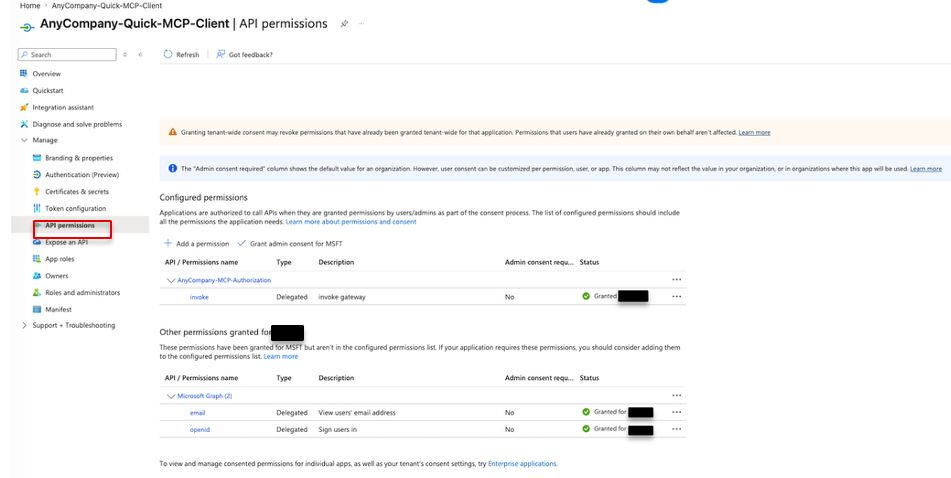
Figure 5: Client application API permissions showing the invoke scope on the resource application
Configure claims, groups, and MFA
Steps 6–9 add the claims the AWS Lambda interceptor reads, create the security groups that back the RBAC policies, and require MFA at sign-in.
Step 6: Configure the groups claim
- In the resource application (
AnyCompany-MCP-Authorization), go to Token configuration. - Choose Add groups claim.
- Select Security groups , and under ID for the Access token type, choose the Group ID format. Choose Add.
Figure 6 shows the Token configuration page with the groups claim added for the access token.
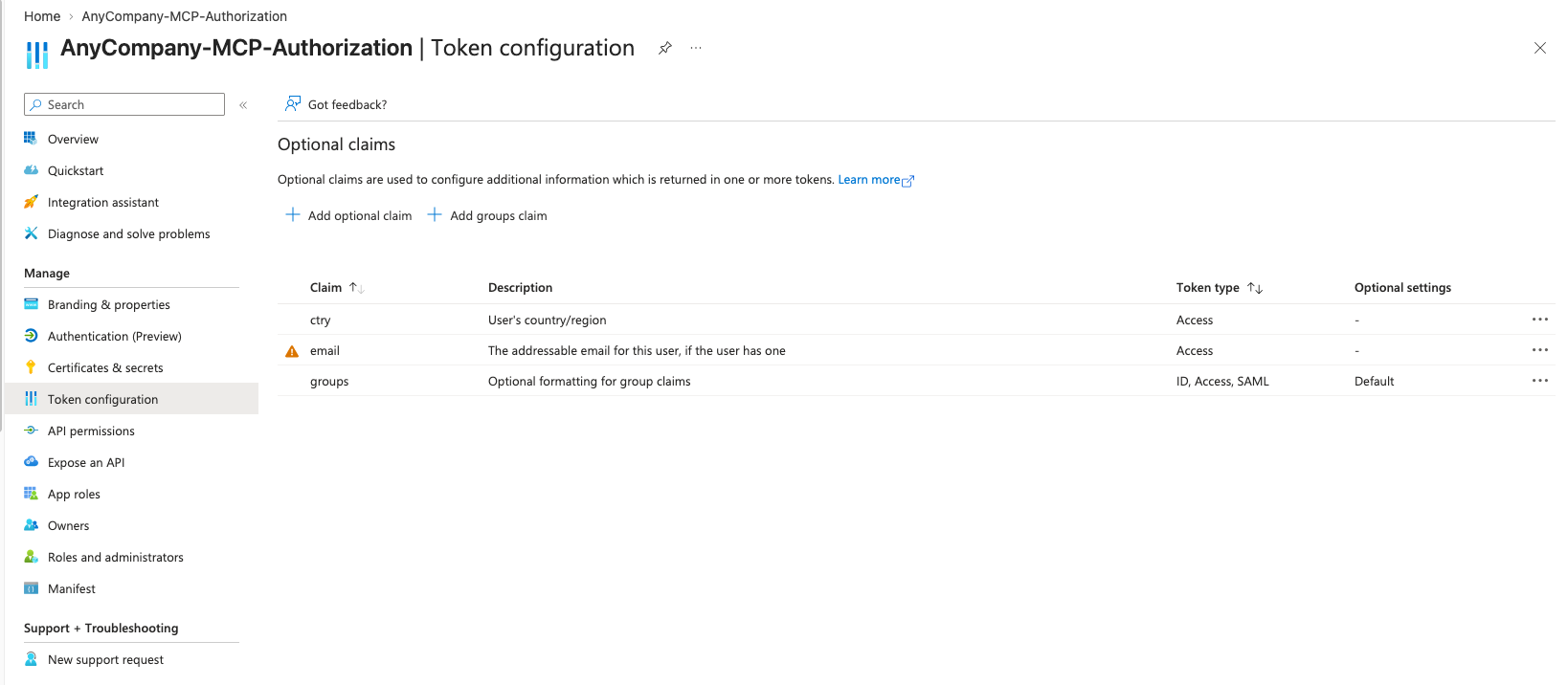
Figure 6: Token configuration for group and optional claims
Step 7: Add optional claims
- Staying on the Token configuration page of the resource application, choose Add optional claim.
- Set the token type to Access and add the ctry and email claims. Choose Add.
- If prompted to turn on the Microsoft Graph permissions the claims require, accept.
Figure 7 shows the Microsoft Graph API permissions with admin consent granted for the claims.
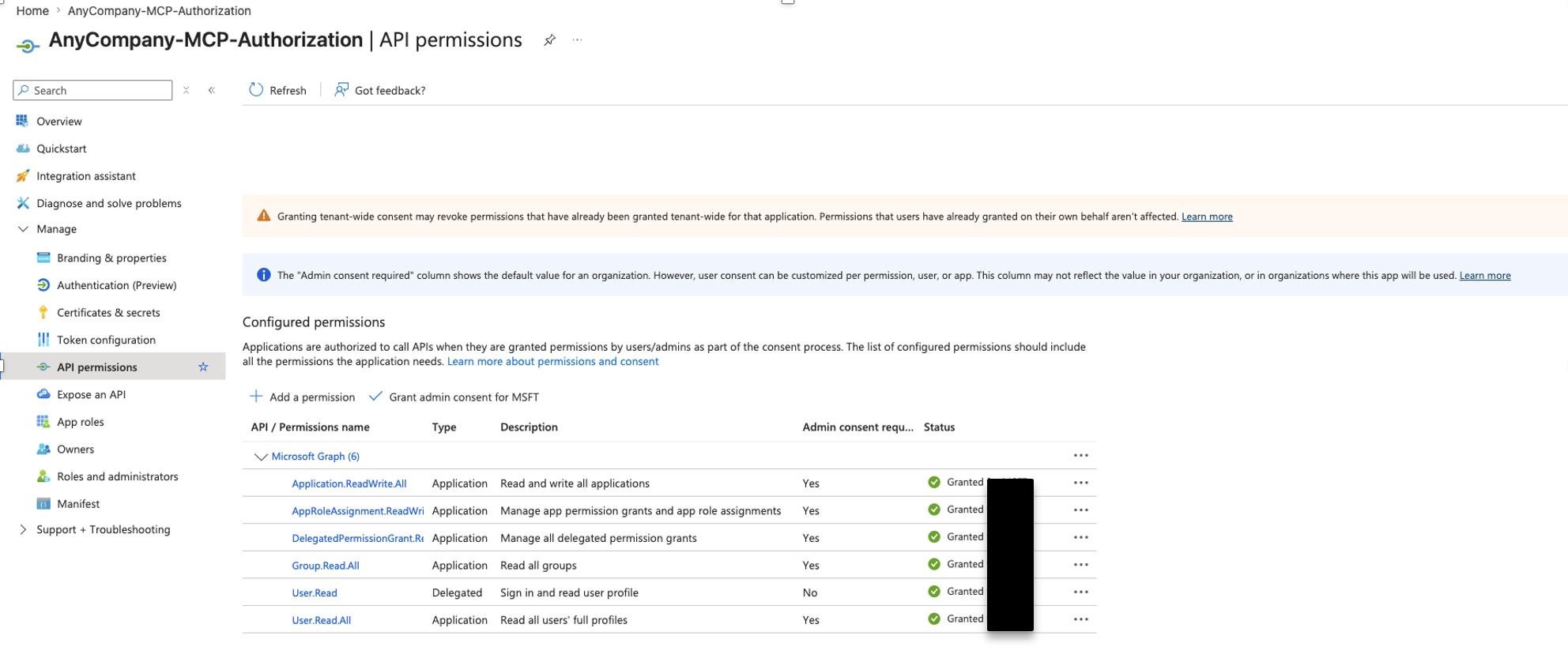
Figure 7: Microsoft Graph API permissions with admin consent granted
Step 8: Create the security groups
Create three security groups in Identity > Groups > All groups > New group (group type Security):
| Group name | Purpose | Members |
|---|---|---|
| Risk-Register-Readers | Read-only access to risk tools | Users who can query risks |
| Risk-Register-Authors | Read and write access to risk tools | Users who can create, update, and delete risks |
| Risk-Register-Admins | Super user access, bypasses conditional gates | Operational administrators |
Figure 8 shows the three security groups created in Microsoft Entra ID.
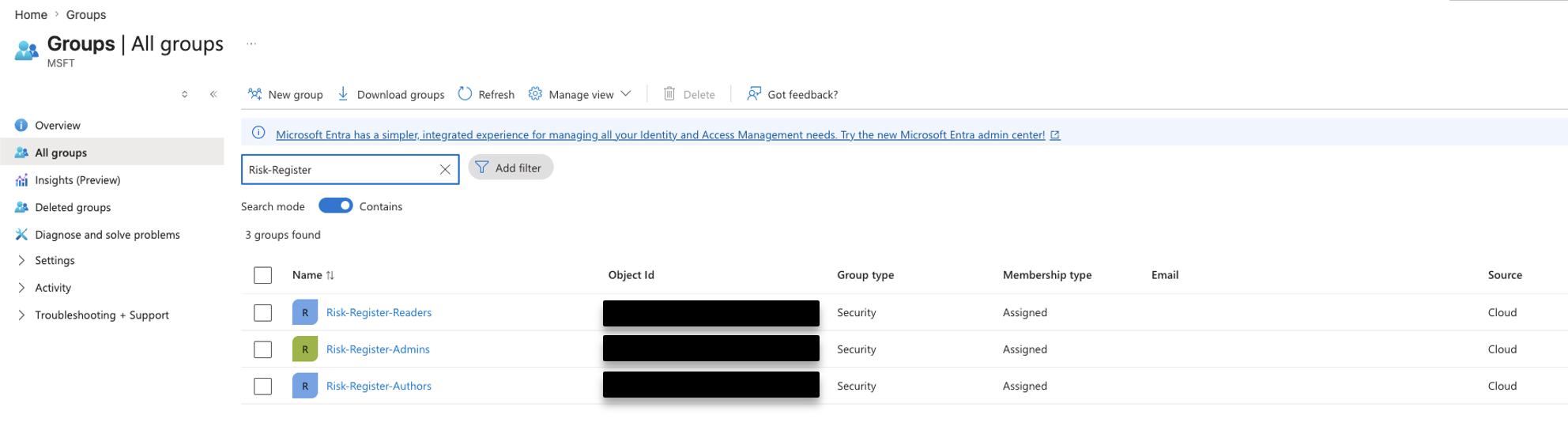
Figure 8: Security groups for RBAC in Microsoft Entra ID
After creating each group, open it and copy its Object ID from the Overview page, the interceptor maps these IDs to RBAC policies. Then assign your test users to the appropriate groups. When a user signs in to Amazon Quick, the resulting access token includes their group Object IDs using the groups claim. The interceptor reads these IDs from the token. It then maps them to the corresponding RBAC policy.
Step 9: Require MFA with a Conditional Access Policy
Gate 1 (MFA verification) is enforced by Entra ID before a token is ever issued.
- Go to Protection > Conditional Access > Policies > New policy.
- Name the policy (for example, Require MFA for MCP Authorization).
- Under Assignments > Users, select your test users or a group containing them.
- Under Target resources > Cloud apps, select the resource application (
AnyCompany-MCP-Authorization). - Under Access controls > Grant, choose Grant access and select Require multifactor authentication.
- Set Enable policy to On and choose Create.
From the preceding steps, collect the values the interceptor requires to enforce authorization. This is the tenant ID, the application client IDs, and the Object IDs of the three security groups you created. The interceptor reads these as environment variables, along with the toggle settings that activate each conditional gate.
| Variable | Purpose |
|---|---|
| READERS_GROUP_ID, AUTHORS_GROUP_ID, ADMINS_GROUP_ID | Object IDs of the three security groups, mapped to RBAC policies |
| REQUIRE_COUNTRY | Activate the country geo-fence (true/false) |
| ALLOWED_COUNTRIES | Comma-separated ISO country codes permitted when the geo-fence is active |
With the identity provider configured, the next section walks you through the architecture that connects these components.
Architecture design
The architecture follows a linear request flow from user authentication through authorization to tool execution and data storage.
Figure 9 shows the end-to-end architecture, from the user request in Amazon Quick through the gateway and interceptor to the tool functions and data store.
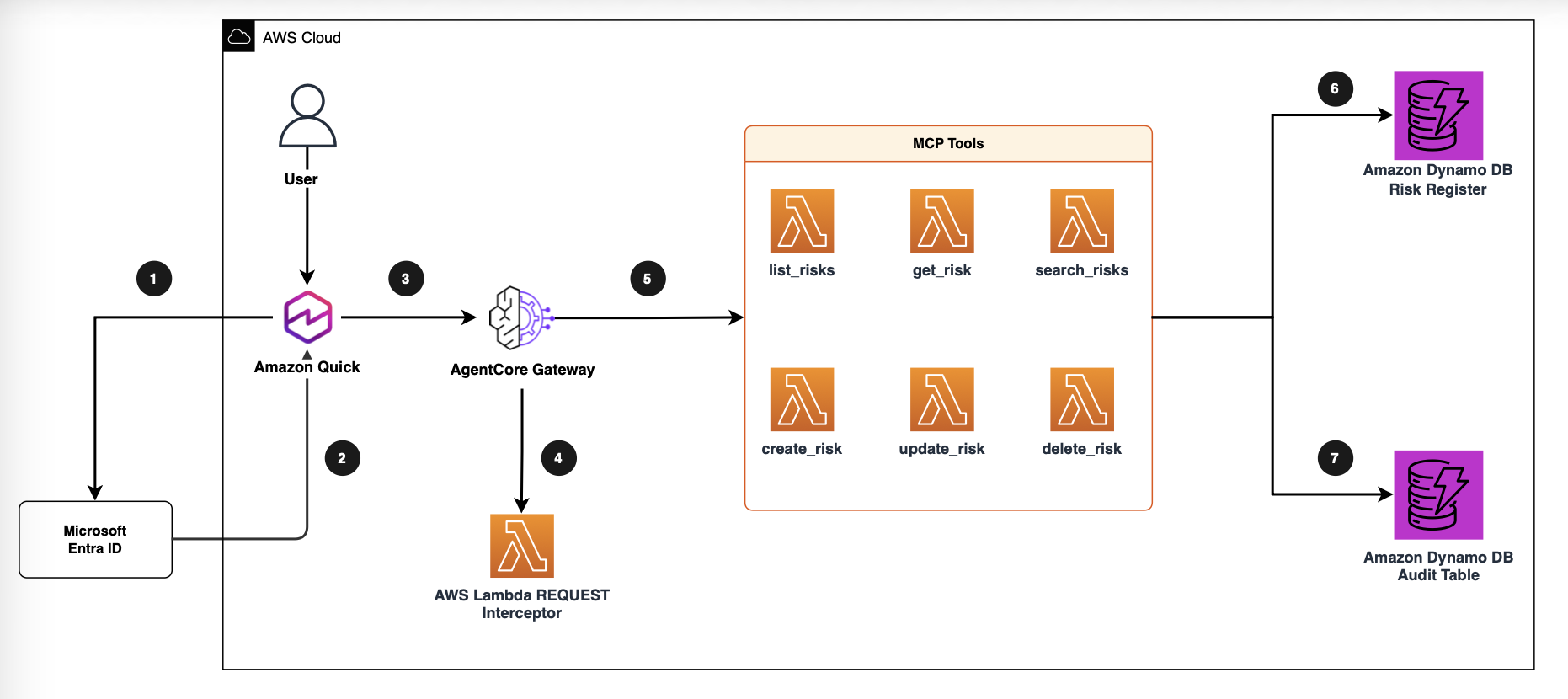
Figure 9: End-to-end architecture overview
The numbered steps in the architecture are:
- Amazon Quick authenticates with the client application (
AnyCompany-Quick-MCP-Client) in Entra ID. Entra ID redirects the caller to its authorization endpoint, where the caller authenticates and completes MFA as required by the Conditional Access Policy. - Entra ID issues a token scoped to the resource application (
AnyCompany-MCP-Authorization). Amazon Quick exchanges the authorization code at the token endpoint and includes the gateway URL as the resource parameter. The resulting JWT contains group memberships and country claims. - Amazon Quick attaches the JWT as a bearer token on each call to the Amazon Bedrock AgentCore Gateway endpoint.
- Amazon Bedrock AgentCore Gateway validates the JWT signature, issuer, audience, and expiry using the Entra ID JSON Web Key Set (JWKS) endpoint.
- AWS Lambda REQUEST interceptor receives the validated JWT claims and processes the active authorization gates in sequence.
- Tool AWS Lambda function executes the requested operation and writes risk data to the
fgac-riskstable in Amazon DynamoDB using tenant-scoped partition keys and conditional expressions. - Tool AWS Lambda function appends an immutable audit record to the audit table, capturing the actor identity, action, timestamp, and outcome.The response returns through Amazon Bedrock AgentCore Gateway to Amazon Quick. When you grant access, the authorization layers remain invisible. When you deny access, clear messages surface.
Amazon Bedrock AgentCore Gateway provides the HTTP endpoint and JWT validation layer that connects Amazon Quick to your MCP tools.
Entra ID configuration to AWS enforcement map
| Entra ID configuration | What it produces | Where enforced in AWS |
|---|---|---|
| App registration | client_id + tenant_id | Gateway JWT authorizer (audience + issuer) |
| Token config: groups claim | groups array of Object ID UUIDs | Interceptor maps UUIDs to RBAC policies |
| Security groups | Group Object IDs | Interceptor environment variables: READERS_GROUP_ID, AUTHORS_GROUP_ID, ADMINS_GROUP_ID |
| User group assignment | User membership | Determines tool access level |
| Conditional Access Policy | Enforces MFA before token issuance | Identity provider blocks unauthenticated requests before they reach the gateway |
| ctry claim | ctry string in JWT | Interceptor country geo-fence |
With the architecture mapped, you can examine how the authorization layer reads the claims.
Understand the authorization pattern
The Amazon Bedrock AgentCore Gateway uses a CUSTOM_JWT authorizer configured with three values from your Entra ID tenant, the issuer, the audience (your client ID), and the JWKS URI:
gateway:
  authentication:
    type: JWT
    jwt:
      issuer: "https://login.microsoftonline.com/{TENANT_ID}/v2.0"
      audience: "{CLIENT_ID}"
      jwks_uri: "https://login.microsoftonline.com/{TENANT_ID}/discovery/v2.0/keys"
The gateway validates the token signature, issuer, audience, and expiry before the interceptor runs. The interceptor then decodes the JWT payload and evaluates the active gates in order. A failed gate returns a 403 and the tool Lambda is not invoked:
- Gate 1: MFA verification. Enforced by the Conditional Access Policy before the token is issued, so tokens reaching the interceptor have already passed MFA. An optional
amrclaim check (REQUIRE_MFA) is available for IdPs that embed MFA evidence in the token. - Gate 2: Country geo-fence. When
REQUIRE_COUNTRY=true, reject the request if thectryclaim is not inALLOWED_COUNTRIES. - Gate 3: Group RBAC. Map each UUID in the
groupsclaim to areaders,authors, oradminspolicy. If none match, deny all access. - Gate 4: Tool permission. Confirm the requested tool name is in the matched policy allowlist.
The policy definitions and group-to-policy mapping provide a single source of truth, built from the security group Object IDs you collected in Step 8 and supplied as environment variables:
READ_TOOLS = {'list_risks', 'get_risk', 'search_risks'}
WRITE_TOOLS = {'create_risk', 'update_risk', 'delete_risk'}
POLICIES = {
    'readers': READ_TOOLS,
    'authors': READ_TOOLS | WRITE_TOOLS,
    'admins': READ_TOOLS | WRITE_TOOLS,
}
GROUP_TO_POLICY = {
    READERS_GROUP_ID: 'readers',
    AUTHORS_GROUP_ID: 'authors',
    ADMINS_GROUP_ID: 'admins',
}
MCP tool Lambdas. The pattern uses six tool Lambdas, one per MCP tool:
| Tool | Operation | Access level |
|---|---|---|
| list_risks | List all risks for a tenant | Readers, Authors, Admins |
| get_risk | Get a specific risk by ID | Readers, Authors, Admins |
| search_risks | Search risks by keyword | Readers, Authors, Admins |
| create_risk | Create a new risk | Authors, Admins |
| update_risk | Update an existing risk | Authors, Admins (owner check) |
| delete_risk | Delete a risk | Authors, Admins |
Each tool Lambda re-checks the caller’s permissions server-side, so authorization holds even if the interceptor is misconfigured or bypassed. Every mutation appends an immutable audit record with the actor, action, timestamp, tool name, and outcome to the Amazon DynamoDB audit table.
With the Entra application deployed and the pattern understood, connect the AgentCore Gateway to Amazon Quick and validate each gate.
Connect to Amazon Quick and validate
Before connecting the gateway, confirm your test users have access to the Amazon Quick instance. Provision users through AWS IAM Identity Center, either by Configuring SAML and SCIM automatic provisioning from Entra ID. Alternatively, you can manually assign users in the IAM Identity Center console to the Amazon Quick application. You can then connect Amazon Quick to remote MCP servers over HTTP using the built-in MCP client.
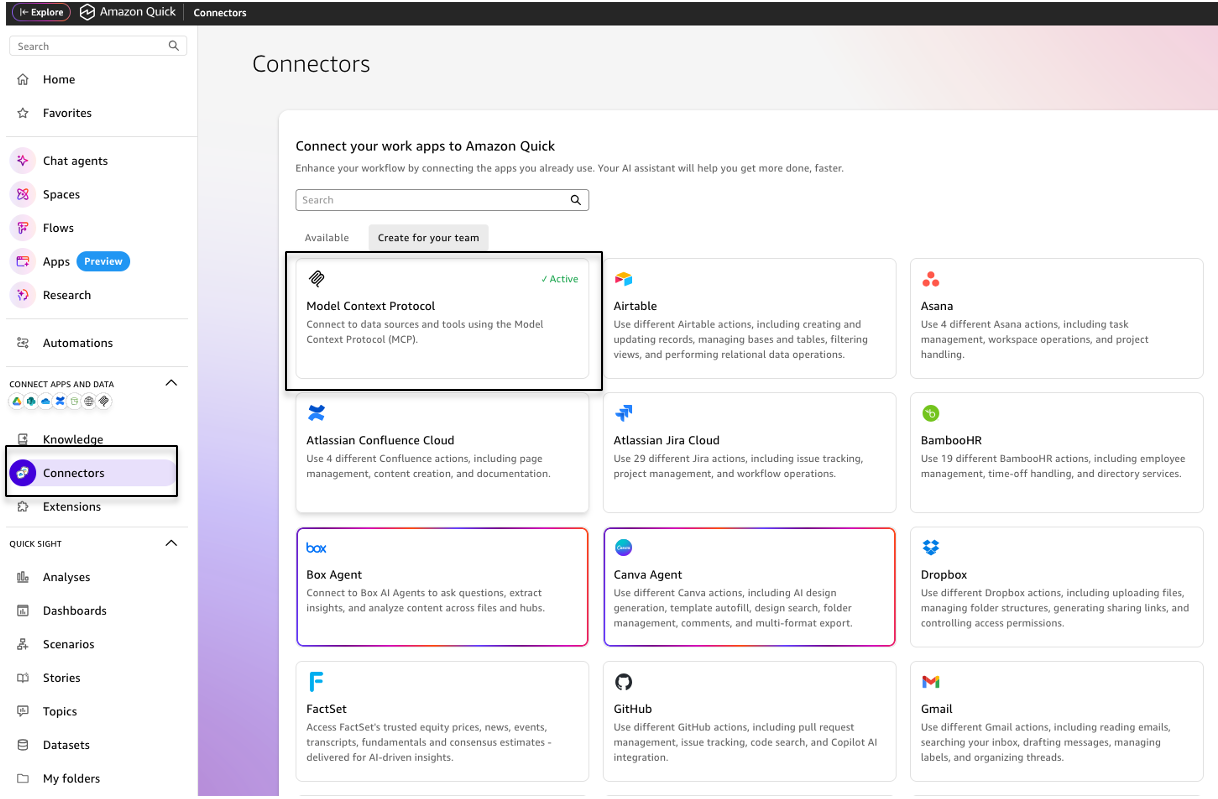
Figure 10: Connectors page in Amazon Quick
Connect Amazon Quick to the Amazon Bedrock AgentCore Gateway endpoint by providing four values for Service-to-Service Authentication. In Amazon Quick, navigate to Home > Connectors > Create for your team > MCP and add a new MCP server with the following configuration:
| Field | Value | Source |
|---|---|---|
| MCP Server URL | https://{gateway-id}.gateway.bedrock-agentcore.us-east-1.amazonaws.com/mcp | Gateway MCP endpoint |
| Client ID | Your Entra ID application (client) ID | Entra ID app registration (Step 4) |
| Client Secret | Your Entra ID client secret | Entra ID certificates & secrets (Step 4) |
| Token URL | https://login.microsoftonline.com/{tenant-id}/oauth2/token | Entra ID |
Figure 11 shows the MCP server connection configuration, where you enter the AgentCore Gateway endpoint.
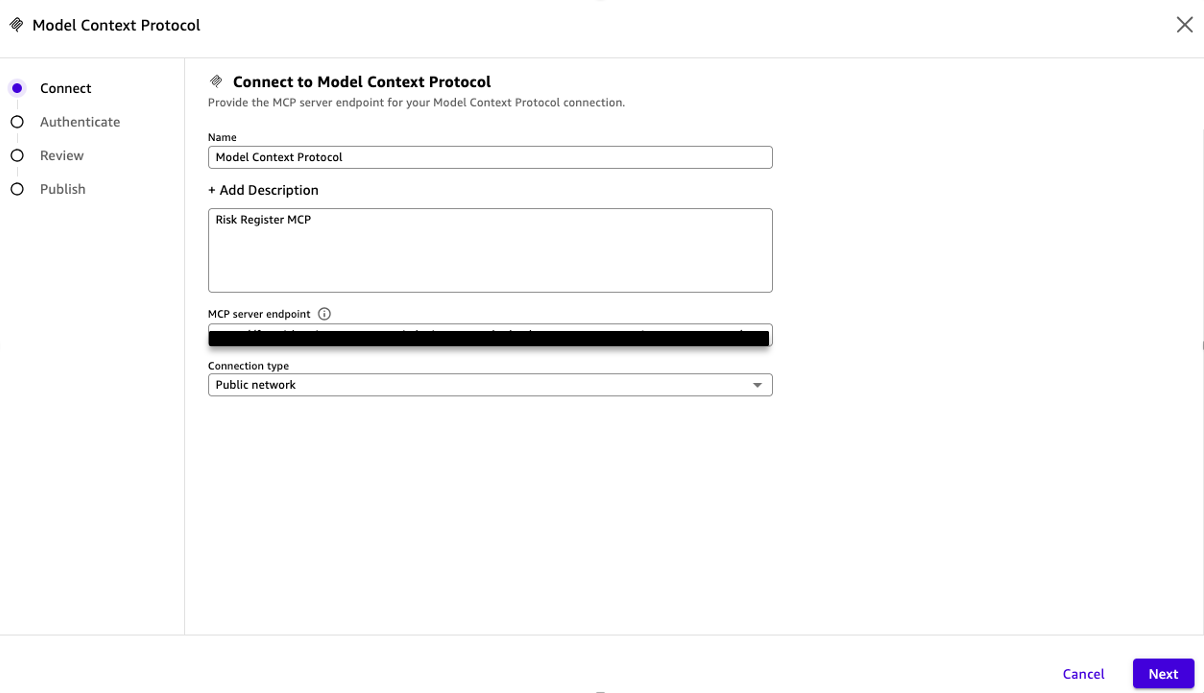
Figure 11: MCP server connection configuration
Figure 12 shows the service-to-service authentication settings for the connection.
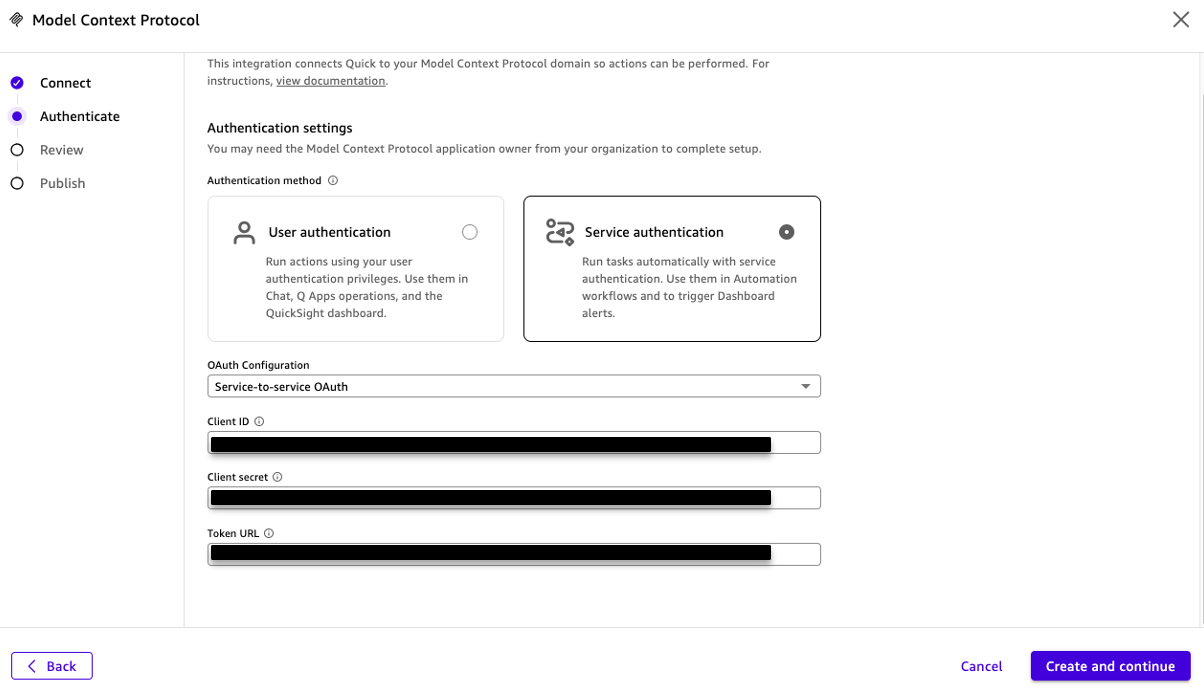
Figure 12: MCP service authentication configuration
In the next step, Amazon Quick validates the OAuth token and discovers the available tools from the gateway.
After connecting the MCP Connector, the six risk register tools appear in Amazon Quick as available actions. You can interact with them through natural language. When you grant access, the authorization layers remain invisible to the user. When you deny access, clear messages surface.
Figure 13 shows the connected MCP server with the six risk register tools listed as available actions.
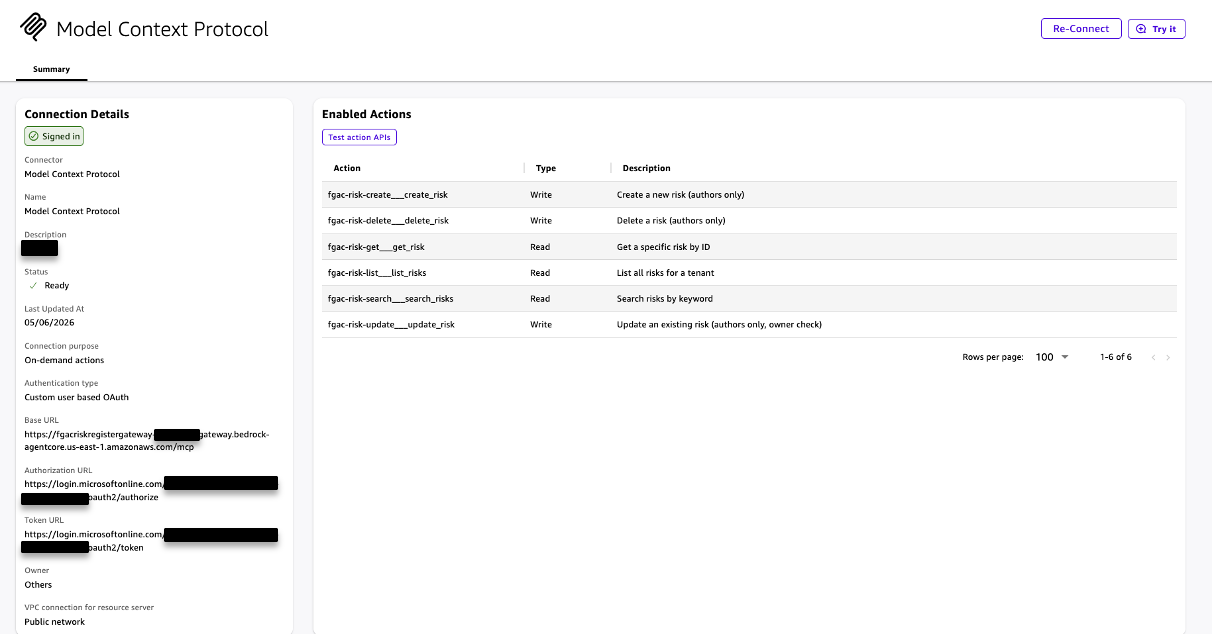
Figure 13: Connected MCP server displaying the risk register tools
Validate with test personas
Sign in to Amazon Quick as callers with different group memberships and attributes to test each authorization gate independently. Figure 14 illustrates the successful path. An Author invokes create_risk, and each of the four gates passes. The tool AWS Lambda function writes the risk and audit record to Amazon DynamoDB, and Amazon Quick receives a 200 OK.
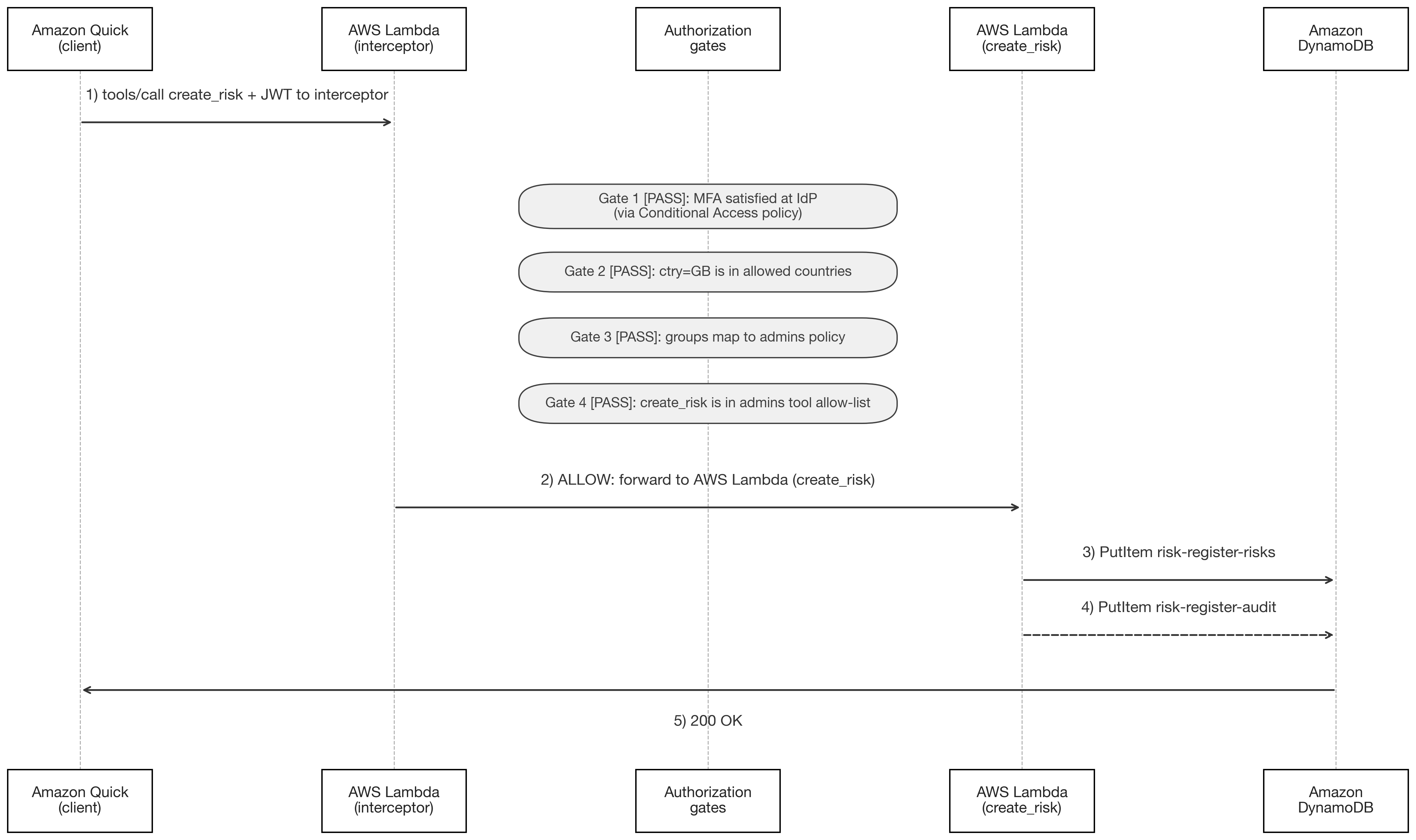
Figure 14: Author creates a risk, all gates pass, and a 200 OK is returned
Figure 15 shows the denial path. A Reader invokes create_risk, passes Gates 1 through 3, but is rejected at Gate 4 (tool permission) because the Readers policy lacks write tool permissions. The tool AWS Lambda function is not invoked.
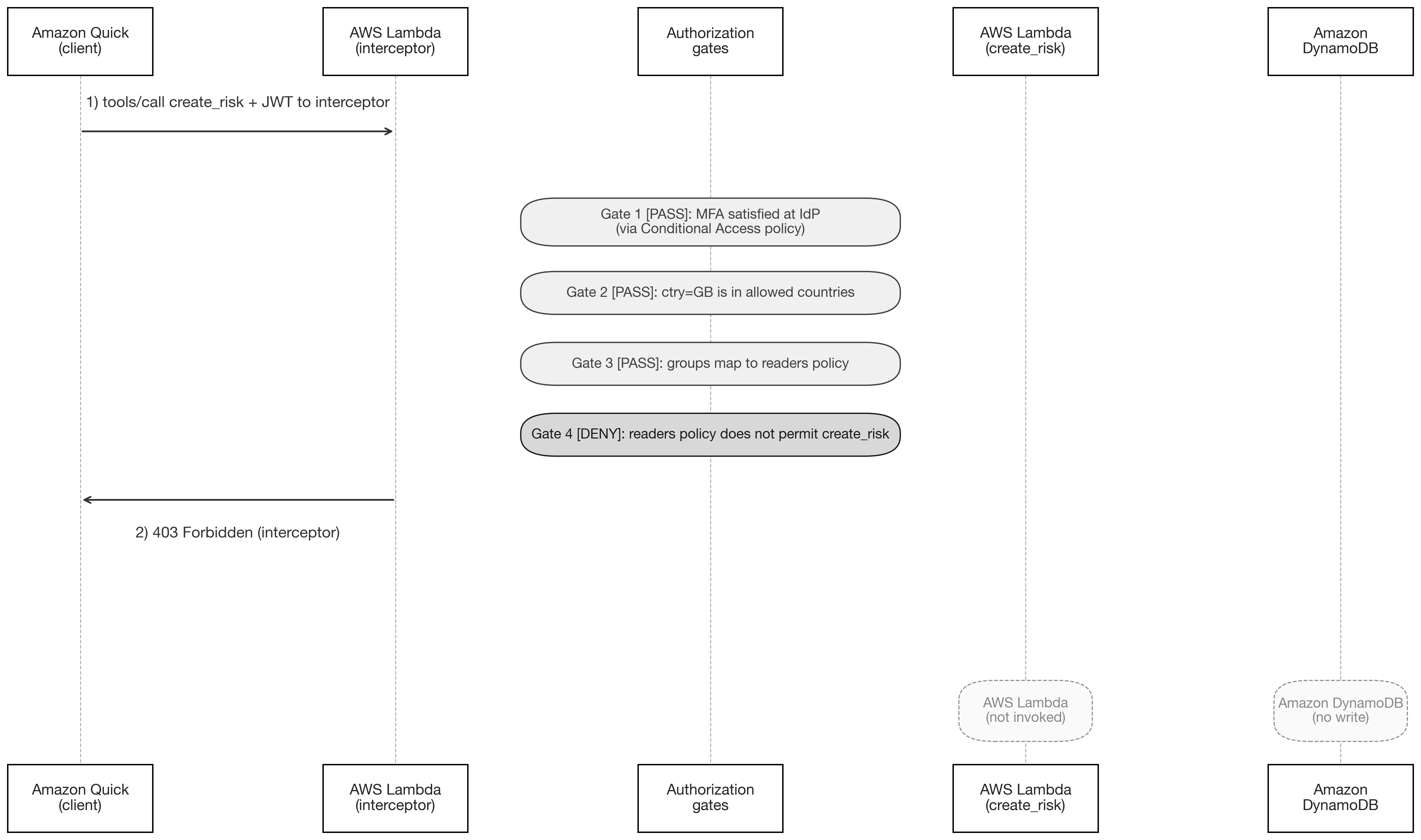
Figure 15: Reader attempts a write, denied at Gate 4, and the tool Lambda function is not invoked
The user receives a clear message on Amazon Quick for the failed action, which is tied to their access level.
Figure 16 shows the access denied response that Amazon Quick returns for an unauthorized tool invocation.
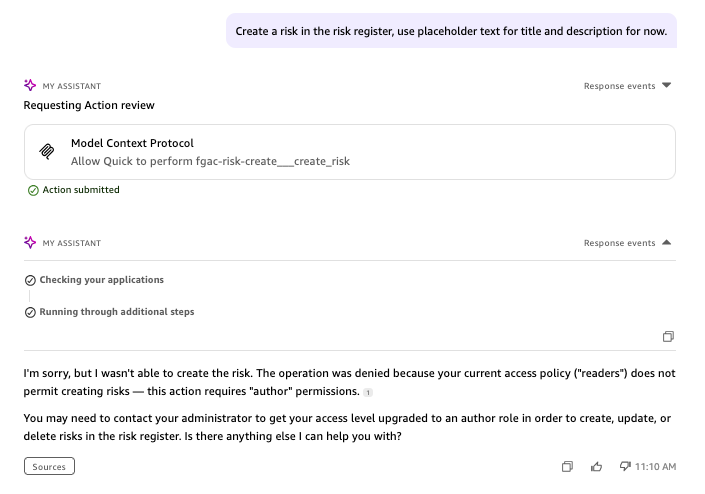
Figure 16: Access denied response for an unauthorized tool invocation
With each gate validated end to end, the pattern is enforcing authorization on each tool invocation. If a persona behaves unexpectedly, the following table maps common symptoms to their resolutions.
Troubleshooting
If a persona behaves unexpectedly during validation, the cause is usually a configuration mismatch between Entra ID and the interceptor. The following table maps the symptoms you are most likely to see to their typical cause and resolution.
| Symptom | Cause | Resolution |
|---|---|---|
| 401 Unauthorized on every request | JWT signature validation fails at the gateway | Verify the JWKS URI is correct and accessible. Confirm the issuer and audience match the identity provider’s token configuration |
| Can’t set Application ID URI in the portal | The portal UI rejects a full URL as the identifier | Set identifierUris through Microsoft Graph (see Step 2) |
| Tokens are v1.0 instead of v2.0 | requestedAccessTokenVersion not set on the resource app | PATCH api.requestedAccessTokenVersion to 2 through Microsoft Graph (see Step 2) |
| 403 for a user who should have access | Group Object ID mismatch between Entra ID and interceptor env vars | Copy the exact Object ID from Entra ID and update READERS_GROUP_ID, AUTHORS_GROUP_ID, or ADMINS_GROUP_ID |
| Callers can sign in without MFA | Conditional Access Policy not configured or not targeting the resource application | Create a Conditional Access Policy requiring MFA, targeting the resource application (not the client application). Verify the policy state is On |
| Country geo-fence denies approved country | ctry claim not present or using wrong code format | Add the ctry optional claim in Entra ID token configuration. Use two-letter ISO country codes |
| No logs visible for the interceptor | Lambda not invoked or log group permissions missing | Check Amazon CloudWatch Logs for the interceptor function. Verify the function’s execution role has logs:CreateLogGroup and logs:PutLogEvents permissions |
Cleanup
Remove the AWS resources you deployed for this pattern. This walkthrough does not cover provisioning the AWS resources. On the Amazon Quick console, you can delete the MCP connector if it is no longer required.
To complete the cleanup, delete the Entra ID resources manually. Remove the AnyCompany-MCP-Authorization and AnyCompany-Quick-MCP-Client app registrations, the Conditional Access Policy on the tenant, and the three security groups if they are no longer needed.
Conclusion
You can use the multi-gate authorization pattern to provide composable, defense-in-depth access control for MCP tools on Amazon Quick. By processing MFA verification, country geo-fencing, group-based RBAC, and tool-level permissions in sequence, the pattern enforces granular authorization without changing the end-user experience.
You can apply the interceptor pattern wherever MCP tools access sensitive resources. Point the gates at your own Entra ID tenant and replace the risk register with your own domain. Adjust the RBAC policies to match your organization’s requirements and activate the gates your compliance framework requires. The pattern scales to your needs. A basic configuration can rely on the single groups claim for RBAC alone, leaving the conditional MFA and country gates disabled. A regulated workload can activate every authorization gate.
For more information, see the following resources:
About the authors
Anneline Sibanda
Anneline is an AI Builder at AWS, specializing in the architecture and delivery of agentic and generative AI solutions. With 10+ years of experience delivering solutions for Healthcare, Higher Education and FSI customers, she is a key technical partner for enterprises bridging the gap between innovative concepts and production-ready applications.
Josh Demuth
Josh is a GenAI Solutions Architect with 20 years in the tech industry, with several years specializing in systems integration. He thrives on creating solutions that make disparate systems work together and discovering innovative approaches to business problems. The rapid evolution of AI and automation has him excited about the transformative solutions on the horizon.
David Perez Caparrós
David is a Principal AI Strategist at Amazon Web Services, where he helps customers and industry partners design, deploy, and operate generative AI solutions on AWS. With over 15 years of experience, David has become a trusted advisor to organizations navigating their AI transformation journeys.
Ramón Díez Lejarazu
Ramón is an AI Strategist and Builder at Amazon Web Services who builds AI-powered solutions grounded in real business needs. He leads projects with the firm conviction that technology must solve actual problems for people and organizations.
Nikhil Goyal
Nikhil is a Senior Strategist for Amazon Quick at AWS, part of the Generative AI Innovation & Delivery org. He works alongside leaders and executives at enterprise customers to help them figure out generative AI: where it fits, how to roll it out, and how to turn agentic AI, automation, and analytics into results that move the needle. Off the clock, Nikhil is a hands-on tinkerer: playing with LLMs and small language models, hosting models locally, and building his own agentic AI and automation projects.