扩展智能体工作流:Amazon Quick Automate 的原生案例管理实践
英文标题:Scaling agentic workflows with native case management in Amazon Quick Automate
本文展示如何将案例管理与智能体自动化功能结合在 Amazon Quick Automate 中。文章介绍了案例从创建、处理到解决的生命周期,包括单案例和多案例创建、自动状态跟踪、异常处理和人机协同(HITL)的集成。通过多银行对账单处理的真实用例,演示了案例创建器-处理器模式如何实现动态扩展和并行处理。这些实践为构建大规模、可跟踪、可审计的智能体工作流的开发者和架构师提供了重要参考。
 78.6 KB
 112.6 KB
 253.9 KB
 207.5 KB
 246.8 KB
 276.4 KB
 109.9 KB
 252.7 KB
 204.8 KB
 253.5 KB
 31.9 KB
 4.8 MB
 47.9 KB
中文
人工智能(AI)智能体可以在概念验证中处理发票、协助理赔裁定或分类支持工单。但在生产环境中跨数千乃至数百万个工作项运行这些智能体将引入一系列全新的挑战。在企业规模下,成功依赖于远不止智能体本身。组织需要跟踪每个工作项的状态,因为它在多个智能体和系统间流转,准确定位失败发生的位置及原因,允许人工在需要时介入,并根据需求动态扩展基础设施。Amazon Quick Automate 通过案例管理解决了这些运营挑战。每个工作项都被表示为一个在其整个生命周期中持续存在的案例,提供逐步的工作流状态可见性,支持需要人工判断的人机协同处理,并支持并行执行,使团队能够编排智能体以大规模自动化业务流程。
在本文中,我们展示如何在 Quick Automate 中将案例管理与智能体自动化功能相结合。我们将介绍案例管理,并探索在智能体工作流中从案例创建到处理再到解决的案例生命周期。我们将介绍如何创建和管理一个或多个案例,自动跟踪和更新状态,处理异常,以及在流程中加入人机协同(HITL)步骤。我们还将展示能够实现动态扩展的案例创建器-处理器模式。最后,我们将通过一个真实的用例,逐步介绍如何为企业流程构建案例管理,包括人机协同和案例跟踪。
Quick Automate 在 Amazon Quick 中结合了 AI 智能体和工作流编排功能,可跨应用程序、用户界面和 API 自动化复杂的端到端业务流程。通过将智能体自动化和确定性自动化能力与企业级工作流编排原生结合,Quick Automate 为智能体驱动的业务流程带来结构、可见性和控制力。它提供原生的案例管理,具有可跟踪的工作项,以及细粒度访问管理、活动记录、版本控制、异常处理和人机协同等控制。结果是,流程能够可靠地从启动推进到解决,适应企业规模。
Quick Automate 中的案例管理提供了几个关键优势。它随着工作流通过明确定义的阶段进行而提供了改进的可见性,并提供实时跟踪。流程负责人可以确切了解每个工作项的所处位置,管理者可以监控吞吐量,尽早发现瓶颈,并在延迟影响业务成果之前进行干预。并行处理允许多个案例同时执行,增加吞吐量并帮助组织满足业务服务级别协议。合规性、可审计性和治理得到增强,因为每个操作、决策和状态转换都作为案例历史的一部分被记录下来。利益相关者的参与度也通过实时状态更新得到提升,使运营人员、经理和业务利益相关者保持一致。沟通发生在每个案例的上下文中,用集中协作、清晰的所有权和更少的交接丢失取代了零散的电子邮件线程。
先决条件
在 Quick Automate 中实施案例管理工作流之前,请确认您有权访问 Amazon Quick,并且您正在组织所属的正确 AWS 区域 中工作,因为 Quick Automate 中的工作流是区域特定的。您的用户账户必须拥有企业许可证才能在 Quick Automate 中创建工作流。
案例生命周期与状态
Quick Automate 中的案例管理将复杂、长时间运行的工作流转化为离散的、可跟踪的工作单元,这些工作单元可以并行处理。每个案例作为一个离散的工作项,经过定义的生命周期阶段。一个案例包含一个案例类型,这是用户定义的容器,用于对相关工作进行分组,例如发票或理赔。它还包括一个作为唯一标识符用于跟踪的引用名称,以及以键值对形式存储的自定义数据字段,这些字段保存处理所需的业务信息。系统自动管理额外的元数据,包括案例在工作流中的状态、发生故障时的异常详情以及与该案例相关的执行日志。以下表格描述了案例可能具有的生命周期状态。
| 状态 | 描述 | 案例进入该状态的方式 | 下一步操作 |
|---|---|---|---|
| 就绪 | 工作流生成可供处理的新案例 | 工作流生成新案例 | 工作流消费该案例并开始执行 |
| 进行中 | 工作流正在积极处理该案例 | 工作流开始处理一个就绪案例 | 案例进入成功、失败或待解决状态 |
| 成功 | 案例的每一步都已完成且无错误 | “处理案例”中的每一步都没有引发异常 | 终止状态。不再进行进一步处理。 |
| 失败 | 案例因业务或系统异常而结束 | 处理过程中引发异常 | 终止状态 – 检查日志以获取详细信息。 |
| 待解决 | 案例已暂停,等待人工任务完成 | 任务中心中创建了一个任务。案例处理被挂起,同时系统继续处理下一个案例。 | 当任务中心中的任务完成时,案例会自动转换回就绪状态,并带有相关的人工输入。 |
案例管理自动化最佳实践
Quick Automate 中的案例管理被整合到标准自动化生命周期中。以下小节将逐步介绍每个阶段,从初始设计到生产环境中的监控。
设计自动化
在设计工作流时,首先要确定什么构成了您的自动化的一个案例。案例代表一个单一的工作单元,例如发票、索赔、工单或订单,它从启动到完成贯穿整个工作流。
接下来,决定如何创建案例。案例可以在事件发生时单独创建,也可以从文件、数据库或外部系统等来源批量生成。然后确定如何处理案例。案例可以顺序处理或并行处理。尽管单个自动化可以运行整个工作流,但团队通常将职责分开到两个自动化中,以实现并行处理和更清晰的所有权。案例创建器从 Excel 文件、数据库和 Web 应用程序等来源摄取数据,并将每个记录转换为代表一个离散工作项的案例。案例处理器消费案例并执行实际的工作流步骤,包括异常处理和人机协同任务。多个处理器可以并行运行以提高吞吐量。
最后,确定在何处以及何时需要人工干预,并将其作为工作流的一部分纳入。团队可以创建人工检查点,以暂停案例,向审核人员呈现相关数据和决策字段,并在任务完成后自动恢复处理。
编写自动化
Quick Automate 为构建者提供了两个用于摄取工作的操作。
第一个是创建新案例,当数据源是一个单独事件时使用,例如用户提交表单、到达一个 API 调用或提出一个支持工单。您提供一个唯一的引用名称(例如,Order-12345),选择一个将类似案例分组的案例类型(如 SalesOrders),并附加包含案例自定义数据的键值对。此操作仅创建一个案例并立即将其设置为就绪。
第二个是创建多个案例,当您的来源是电子表格、CSV 文件或记录表(如批量导入或计划数据加载)时使用。您指定案例类型、源表以及哪一列作为唯一标识符。该操作为每行创建一个单独的案例,自动将每一列映射到一个自定义数据字段。
案例数据通常需要随着工作流在不同阶段推进而修改。使用更新案例操作,您可以通过提供案例 ID 和键值对来添加或修改现有案例数据。使用此操作来记录处理结果、捕获审计时间戳、存储计算值或维护自定义状态。此操作仅适用于处于进行中状态的案例。在您的自动化中使用 updated_case["custom_data"]["key_name"] 访问更新后的信息。如果您需要动态检索或定位现有案例,请使用搜索案例操作。通过此操作,您可以根据案例类型、引用 ID、状态或其他属性等筛选条件查询案例。返回的结果可用于检查案例详情、触发额外处理或作为工作流的一部分更新案例。
对于人机协同(HITL)任务,构建者可以使用创建用户任务操作来暂停案例,并向人工审核人员呈现相关上下文和决策字段。在案例等待处于待解决状态时,其他案例继续处理。当审核人员在任务中心完成任务时,案例会自动转换回就绪状态并带有相关的人工输入,然后处理恢复。由于自动化是从头恢复的,它应检查 latest_task_resolution 属性以确定下一个执行分支。
部署自动化
编写自动化后,您将其发布并配置为生产执行。您可以发布工作流并安排它们按定义的时间间隔运行。在部署期间,您需要配置两个关键方面。首先,在配置触发器时,根据预期工作负载设置要并发运行的并行实例数量。案例处理器自动化可以并行运行多个实例以分布案例量。其次,对于人机协同任务,您需要指定能够在任务中心处理任务的用户或组。在部署期间,您添加个人或组以授予 Quick 用户完成任务权限。
监控自动化
Quick Automate 为每个案例在工作流中的移动提供实时可见性,允许用户从单一仪表板跟踪每个处理器实例的状态。监控视图显示关键指标,如成功率、业务异常(由逻辑或数据相关问题引起,如缺少必需字段)、系统异常(由技术故障引起)以及未完成的案例。这些指标帮助团队快速识别瓶颈并测量自动化性能。每个案例记录包括其状态、元数据和处理详情,用户可以深入案例查看完整日志、自定义数据字段、异常消息、时间戳以及可用的截图。
用例:使用案例管理自动化多银行对账单处理
此用例演示了 Quick Automate 如何使用案例管理实现并行处理,从而减少两个系统间的手动数据输入。我们将逐步介绍一个真实世界的资金合并场景,从解决方案架构到实施细节,展示前面部分介绍的每个概念如何应用于生产自动化。
在多家银行开户的企业面临一个反复出现的运营挑战。每个月,资金分析师从每个银行的门户网站下载对账单,并手动将数百笔交易录入公司中央资金管理系统。金额的单个数据输入错误可能演变为需要数小时才能追溯的调节问题,而萨班斯-奥克斯利法案(SOX)合规要求每笔录入都准确且可审计。手动流程缓慢、易出错,并延迟月末调节。
解决方案架构
以下图表展示了多银行对账单处理自动化的端到端解决方案架构。案例创建器和处理器自动化协同工作,实现并行处理并大规模减少周期时间。第一个自动化,案例创建器,检索最新的银行对账单,使用自定义 AI 智能体提取每笔交易,并将其加载为单个案例。第二个自动化,案例处理器,通过导航到银行门户网站、选择正确账户并录入交易来处理每个案例。多个处理器实例可以同时运行,每个实例都拾取并录入...
English / 原文
An artificial intelligence (AI) agent can process an invoice, help adjudicate a claim, or classify a support ticket in a proof of concept. But running these agents across thousands or even millions of work items in a production environment introduces an entirely different set of challenges. At enterprise scale, success depends on much more than the agent itself. Organizations need to track the state of each work item as it moves through multiple agents and systems, surface exactly where failures occur and why, allow a human to step in when needed, and scale the infrastructure dynamically based on demand. Amazon Quick Automate addresses these operational challenges through case management. Every work item is represented as a case that persists throughout its lifecycle, providing step-by-step visibility into workflow state, supporting human-in-the-loop processing where judgment is needed, and enabling parallel execution so teams can orchestrate agents to automate business processes at scale.
In this post, we show you how to combine case management with agentic automation capabilities in Quick Automate. We introduce case management and explore the lifecycle of cases in an agentic workflow from case creation through processing to resolution. We cover how to create and manage single or multiple cases, automatically track and update status, handle exceptions, and incorporate Human-in-the-loop (HITL) steps within workflows. We also show the case creator-processor pattern that enables dynamic scaling. Finally, we walk through how to structure case management for enterprise processes, including HITL and case tracking, through a real-life use case.
Quick Automate combines AI agents and workflow orchestration within Amazon Quick to automate complex, end-to-end business processes across applications, UIs, and APIs. By natively combining agentic and deterministic automation capabilities with enterprise workflow orchestration, Quick Automate brings structure, visibility, and control to agent-driven business processes. It provides native case management with trackable work items along with controls like granular access management, activity logging, version control, exception handling, and HITL capabilities. The result is that processes move reliably from initiation to resolution at enterprise scale.
Case management in Quick Automate delivers several key benefits. It provides improved visibility as workflows progress through clearly defined stages with real-time tracking. Process owners can see exactly where each work item stands, while managers can monitor throughput, surface bottlenecks early, and intervene before delays impact business outcomes. Parallel processing allows multiple cases to be executed concurrently, increasing throughput and helping organizations meet business service level agreements (SLAs). Compliance, auditability, and governance are enhanced because every action, decision, and state transition is recorded as part of the case history. Stakeholder engagement also increases through real-time status updates that keep operators, managers, and business stakeholders aligned. Communication happens within the context of each case, replacing fragmented email threads with centralized collaboration, clear ownership, and fewer lost handoffs.
Prerequisites
Before implementing case management workflows in Quick Automate, verify you have access to Amazon Quick and that you are working in the correct AWS Region for your organization, because workflows within Quick Automate are region-specific. Your user account must have an Enterprise license to author workflows in Quick Automate.
Case lifecycle and status
Case management in Quick Automate transforms complex, long-running workflows into discrete, trackable work units that can be processed in parallel. Each case functions as a discrete work item that progresses through defined lifecycle stages. A case contains a case type, which is a user-defined container for grouping related work such as invoices or claims. It also includes a reference name that serves as a unique ID for tracking, and custom data fields stored as key-value pairs that hold the business information needed for processing. The system automatically manages additional metadata including the status of the case in the workflow, exception details if a failure occurs, and execution logs pertaining to the case. The following table describes the lifecycle statuses a case can have.
| Status | Description | How case enters this Status | What happens next |
|---|---|---|---|
| Ready | Workflow generates new cases available for processing | Workflow generates a new case | Workflow consumes the case and begins execution |
| In Progress | Workflow actively processing the case | Workflow starts processing a Ready case | Case moves to Successful , Failed , or Pending Resolution |
| Successful | Case has completed each step without errors | Each step within Process case finished without exceptions | Terminal state. No further processing occurs. |
| Failed | Case finished with a business or system exception | An exception is raised during processing | Terminal state – check logs for details. |
| Pending Resolution | Case paused, waiting for human task completion | A task is created in the Task Center. Case processing is suspended while the system moves on to the next case. | When the task is completed in the Task Center, the case automatically transitions back to the Ready state with the associated human input. |
Case management automation best practices
Case management in Quick Automate is integrated into the standard automation lifecycle. The following subsections walk through each phase, from initial design through monitoring in production.
Designing an automation
When designing your workflow, start by identifying what constitutes a case for your automation. A case represents a single unit of work, such as an invoice, claim, ticket, or order, that moves through the workflow from initiation to resolution.
Next, decide how to create cases. Cases can be created individually as events occur or generated in batches from sources such as files, databases, or external systems. Then determine how to process cases. Cases can be processed sequentially or in parallel. Although a single automation can run the entire workflow, teams often separate responsibilities into two automations to enable parallel processing and clearer ownership. The Case Creator ingests data from sources such as Excel files, databases, and web applications, and transforms each record into a case representing a discrete work item. The Case Processor consumes cases and performs the actual workflow steps, including exception handling and HITL tasks. Multiple processors can run in parallel to increase throughput.
Finally, determine where and when human intervention is needed and incorporate it as part of the workflow. Teams can create human checkpoints that pause a case, present reviewers with relevant data and decision fields, and automatically resume processing after the task is completed.
Authoring an automation
Quick Automate provides builders with two actions for ingesting work.
The first is Create New Case, used when your data source is an individual event such as a user submitting a form, an API call arriving, or a support ticket being raised. You provide a unique reference name (for example, Order-12345), select a case type that groups similar cases (such as SalesOrders), and attach key-value pairs containing the case’s custom data. This action creates exactly one case and immediately sets it to Ready.
The second is Create Multiple Cases, used when your source is a spreadsheet, CSV file, or table of records such as bulk imports or scheduled data loads. You specify the case type, source table, and which column serves as the unique ID. The action creates a separate case for each row, automatically mapping each column to a custom data field.
Case data often needs modification as workflows progress through different stages. With the update cases action, you can add or modify existing case data by providing a case ID and key-value pairs. Use this action to record processing outcomes, capture audit timestamps, store calculated values, or maintain custom statuses. This action is only available for In Progress cases. Access updated information using updated_case["custom_data"]["key_name"] in your automation. If you need to retrieve or locate existing cases dynamically, use the Search Cases action. With this action, you can query cases based on filters such as case type, reference ID, status, or other attributes. The returned results can then be used to inspect case details, trigger additional processing, or update cases as part of the workflow.
For Human in the loop (HITL) tasks, builders can use the Create User Task action to pause a case and present a human reviewer with relevant context and decision fields. While the case waits in Pending Resolution status, other cases continue to process. When the reviewer completes the task in Task Center, the case automatically transitions back to Ready status with the associated human input, and processing resumes. Because the automation resumes from the beginning, it should check the latest_task_resolution attribute to determine the next branch of execution.
Deploying an automation
After an automation is authored, you publish and configure it for production execution. You can publish workflows and schedule them to run at defined intervals. During deployment, you configure two key aspects. First, you set the number of parallel instances to run concurrently when configuring the trigger, based on the expected workload. Case processor automations can run multiple instances in parallel to distribute the case volume. Second, for HITL tasks, you specify the users or groups who can resolve tasks in Task Center. During deployment, you add individuals or groups to grant Quick users access to complete tasks.
Monitoring an automation
Quick Automate provides real-time visibility into each case as it moves through a workflow, allowing users to track status across each processor instance from a single dashboard. The monitoring view shows key metrics such as successful completion rates, business exceptions (caused by logical or data-related issues such as missing required fields), system exceptions (caused by technical failure), and incomplete cases. These metrics help teams quickly identify bottlenecks and measure automation performance. Each case record includes its status, metadata, and processing details, and users can drill into cases to view full logs, custom data fields, exception messages, timestamps, and screenshots where available.
Use case: Automating multi-bank statement processing with case management
This use case demonstrates how Quick Automate reduces manual data entry across two systems using case management for parallel processing. We walk through a real-world treasury consolidation scenario, from solution architecture through implementation details, showing how each concept introduced in the previous sections applies to production automation.
Corporations banking with multiple institutions face a recurring operational challenge. Each month, treasury analysts download statements from each bank’s portal and manually key hundreds of transactions into the company’s central treasury management system. A single data entry error for amount can cascade into reconciliation issues that take hours to trace, and Sarbanes-Oxley (SOX) compliance requires every entry to be accurate and auditable. The manual process is slow, error-prone, and delays month-end reconciliation.
Solution architecture
The following diagram shows the end-to-end solution architecture for the multi-bank statement processing automation. The case creator and processor automations work together to enable parallel processing and reduce cycle times at scale. The first automation, case creator, retrieves the latest bank statement, extracts each transaction using a custom AI agent, and loads them as individual cases. The second automation, case processor, processes each case by navigating to the banking portal, selecting the correct account, and entering the transaction. Multiple processor instances can run simultaneously, each picking up and entering transactions independently. Payments over $200 are flagged for human review, where a treasury analyst verifies the payee, amount, and authorization before approving or discarding the transaction. Rejected transactions are captured as business exceptions with the analyst’s reason code and comments for the audit trail.
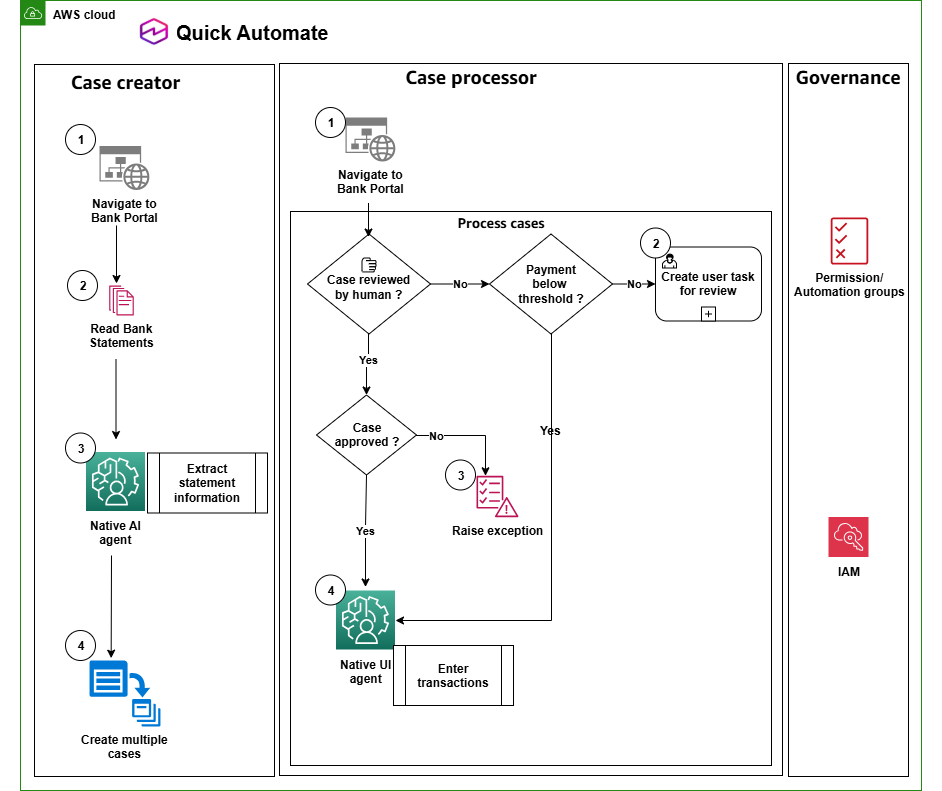
Figure 1: Solution architecture for multi-bank statement processing
Implementation: Creator-processor design
The case creator workflow (Treasury Bank Statement Gathering) performs three key activities. It navigates to the bank statement portal and generates the latest statement for download. It then uses a custom AI agent to parse the downloaded PDF and extract each transaction into structured data fields. Finally, it batch-creates cases with one case per extracted transaction, each set to Ready state for downstream processing. The following image shows the case creator workflow as authored in Quick Automate. The workflow contains two process steps. The first handles browser navigation to the bank portal and PDF download, and the second invokes the custom AI agent for extraction followed by batch case creation.
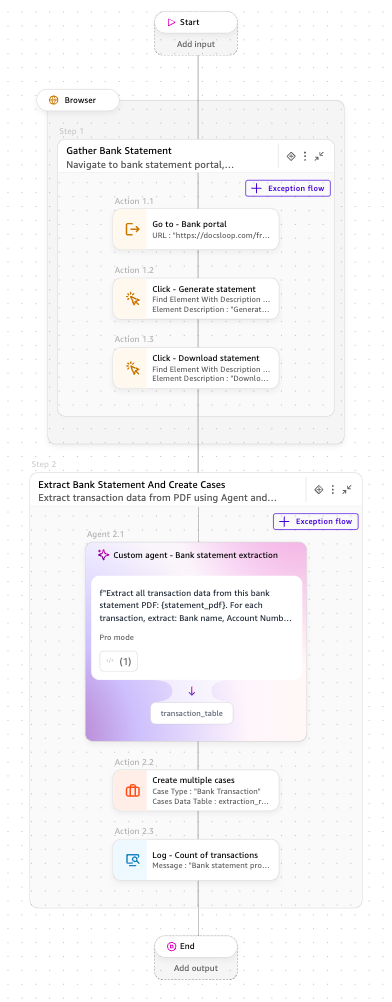
Figure 2: Case creator workflow in Quick Automate
The Custom agent, which is a specialized task agent configured with actions and instructions, is used natively within the workflow. It receives the downloaded PDF and uses a Python code tool to extract transaction line items into a structured table. The agent’s output schema defines the fields needed for each case. The following image shows the agent configuration with its instruction and output schema.
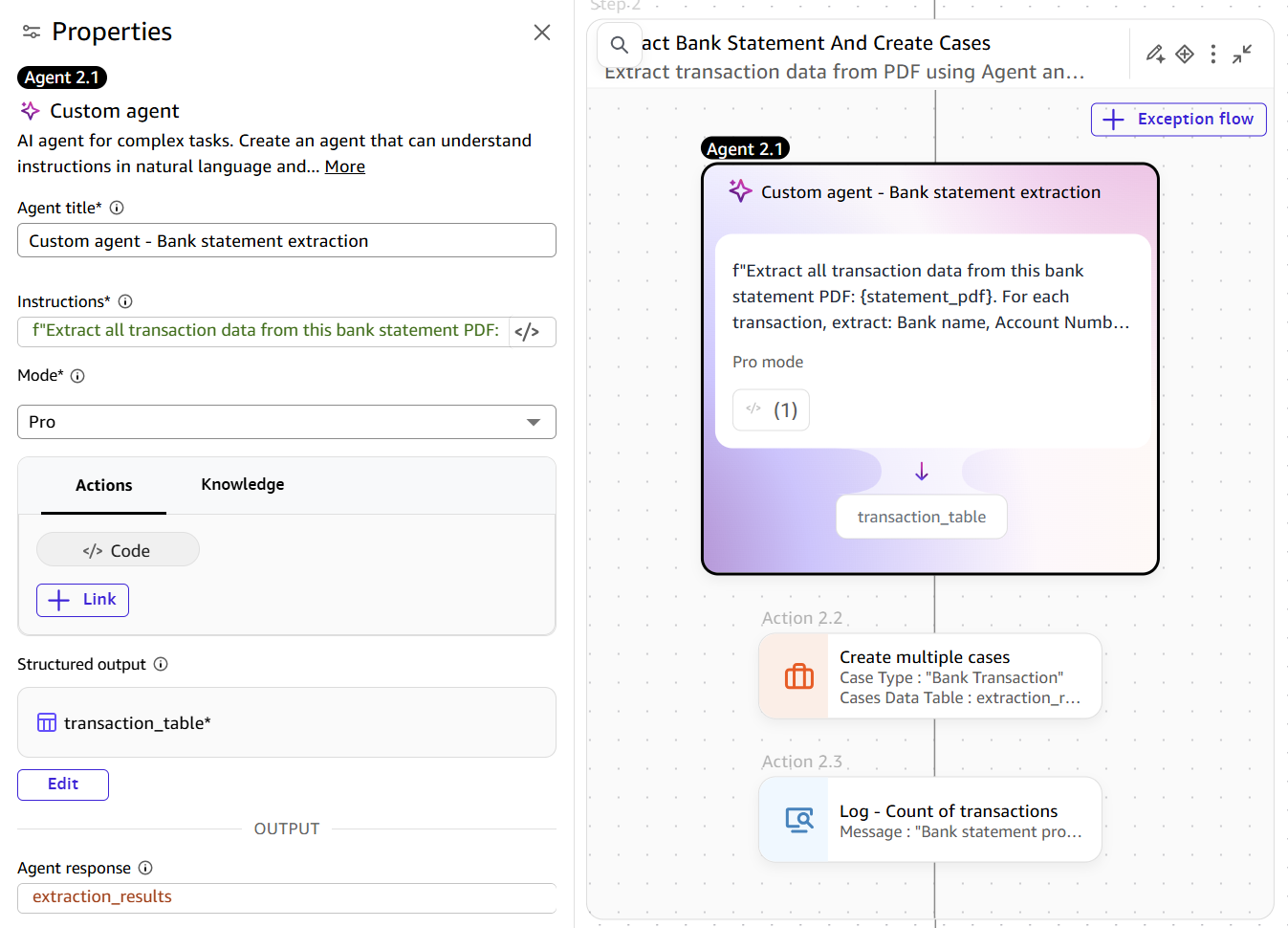
Figure 3: Custom AI agent configuration
After the agent extracts all transactions, the automation uses the Create Multiple Cases action to batch-create cases. It specifies “Bank Transaction” as the case type, maps the agent’s output table as the custom data source, and designates the Reference column as the unique ID for each case. The following image shows the batch case creation configuration within the workflow.
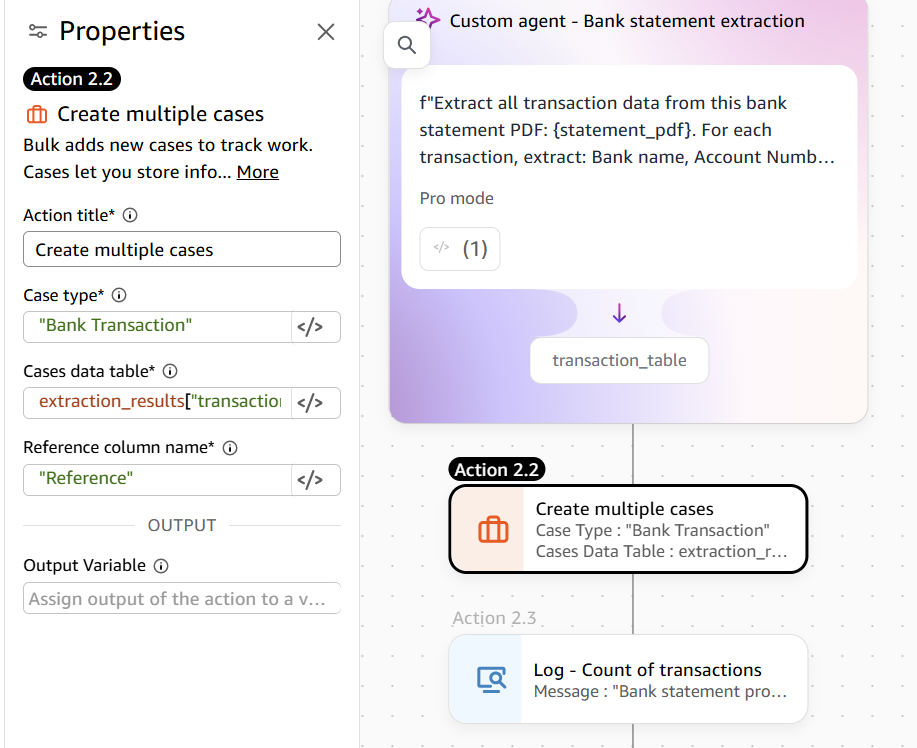
Figure 4: Create multiple cases
After it is created, each case contains the full transaction data as custom attributes. A case record includes the case status (Ready), its reference name, the case type (Bank Transaction), and custom data fields containing the bank name, account number, transaction date, description, type, and amount. The following image shows the Monitor dashboard with the case table and its key components.
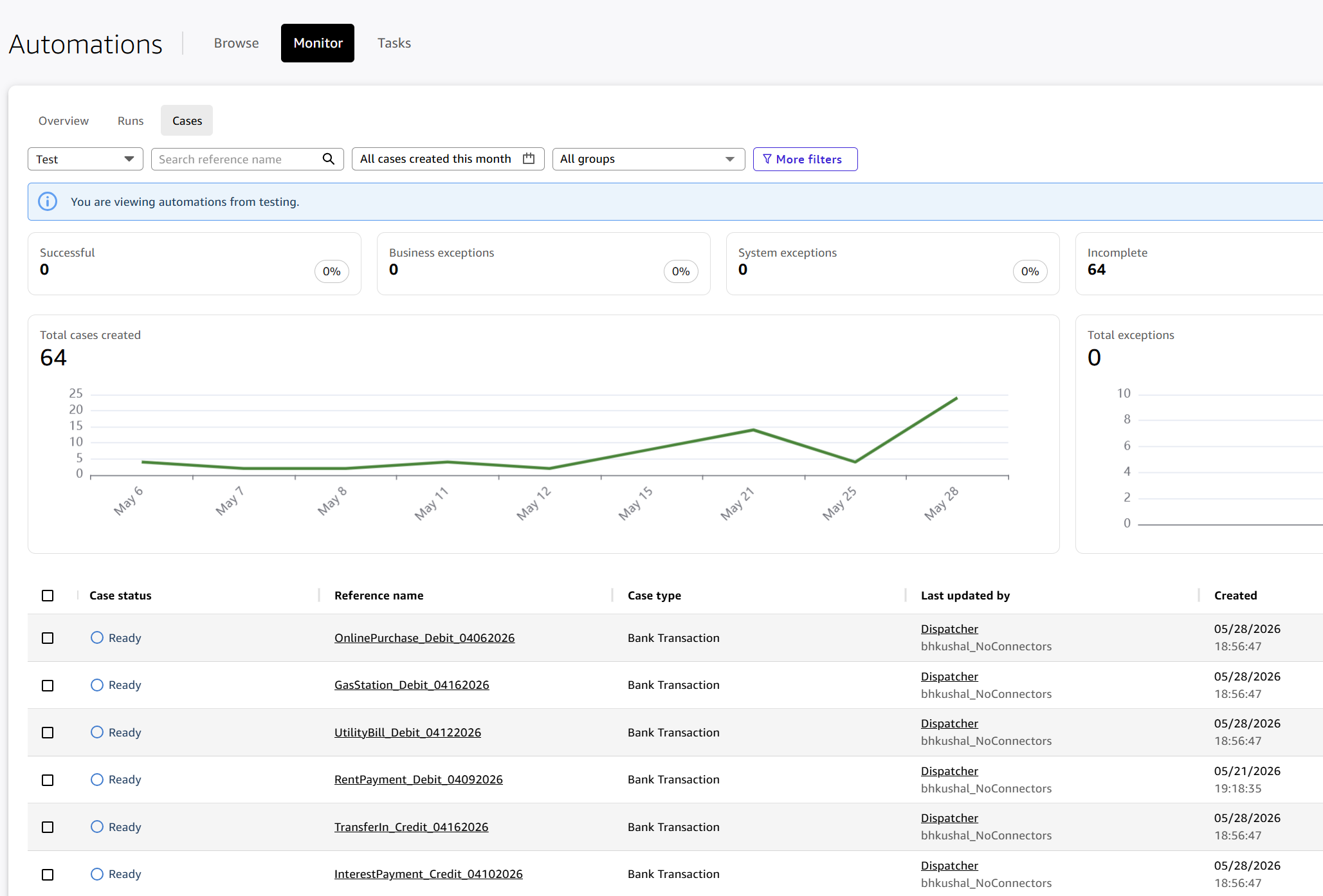
Figure 5: Monitor dashboard with created cases
The case processor workflow (Treasury Bank Transaction Entry) retrieves cases in Ready status and processes each transaction independently. It first opens the banking portal and authenticates as an administrator. It then enters a processing loop that retrieves cases of type “Bank Transaction” and handles them one at a time. Because Quick Automate supports multiple concurrent processor instances, you can scale this automation horizontally to match transaction volume.
For each case, the processor first checks whether the case has already been through human review. If the case was previously routed to a treasury analyst and has returned with a resolution, the processor checks the authorization outcome. Approved cases proceed directly to transaction entry. Rejected cases are raised as business exceptions with the analyst’s reason code and comments, creating a complete audit record without entering the transaction into the portal.
For cases that have not yet been reviewed, the processor evaluates the payment threshold. If the transaction is a payment (Credit type) and the amount is $200 or more, the case is routed to a treasury analyst for dual-authorization review through the Task Center. The HITL task includes transaction details, an authorization drop-down list with Approved and Rejected options, a reason code drop-down list for rejections, and a free-text comments field. The case enters Pending Resolution status while awaiting the analyst’s decision, and the processor moves on to the next available case without waiting.
The following image shows the case processor workflow as authored in Quick Automate, including the conditional logic for human review handling, payment threshold evaluation, HITL task creation, and transaction entry.
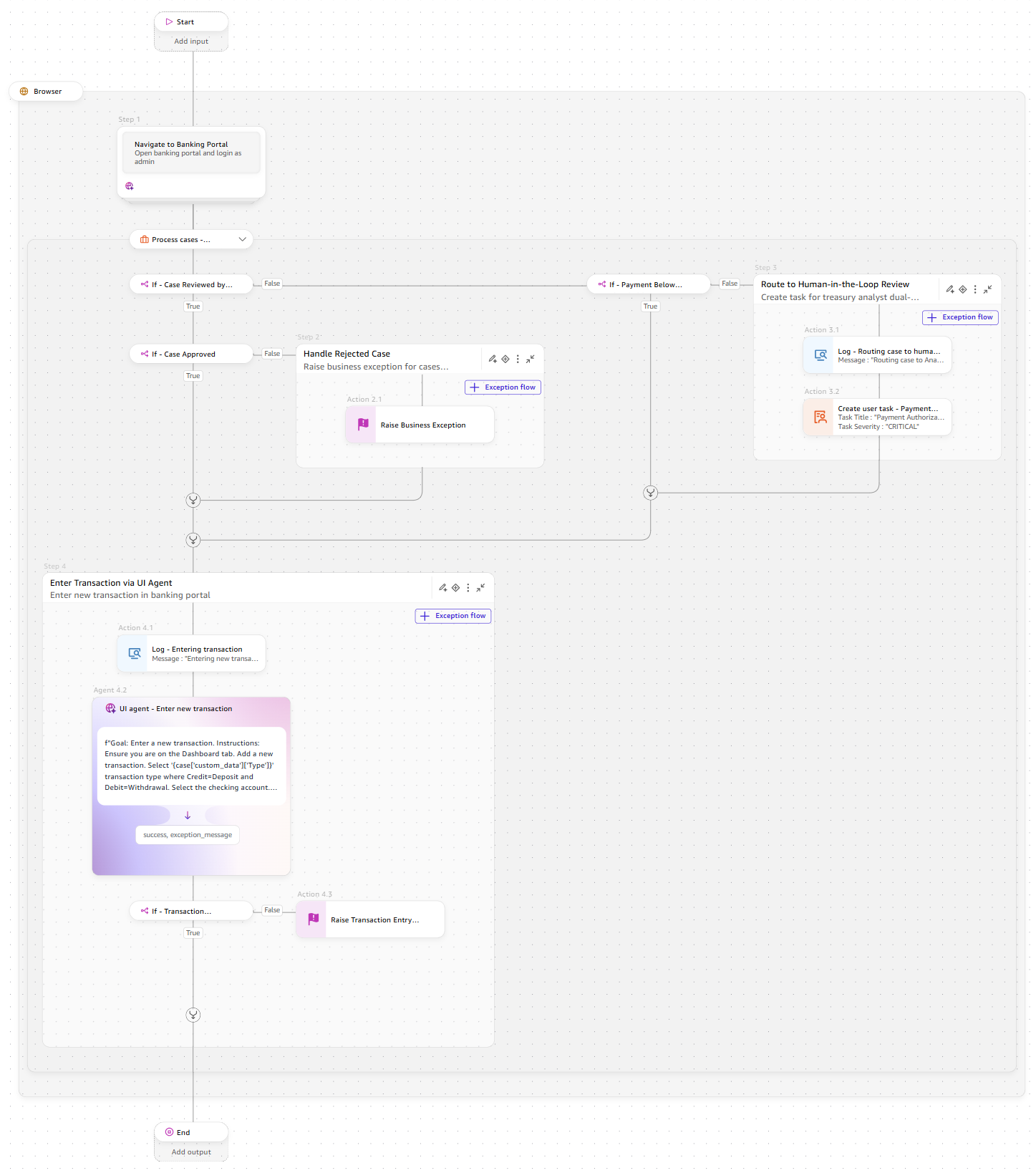
Figure 6: Case processor workflow in Quick Automate
For transactions that do not require human review, or that have been approved by an analyst, the processor uses a UI agent to enter the transaction into the banking portal. The agent navigates to the dashboard, adds a new transaction, selects the appropriate type and amount along with other details, and submits the form. The agent also validates that the transaction entry succeeded. The following image shows the UI agent configuration with its natural language instruction for transaction entry and validation.
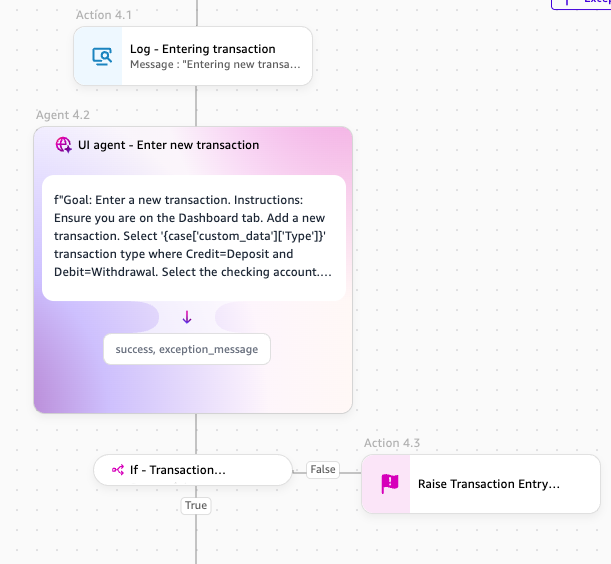
Figure 7: Native UI agent and instruction
Monitoring case details and status
The Monitor dashboard provides real-time visibility into case processing performance for the treasury consolidation automation. From this view, operators can track how many cases have been created, how many are currently in progress, and how many have succeeded, failed, or are pending human resolution. The dashboard includes charts showing case creation trends and exception patterns over time, supporting both operational monitoring and compliance audit needs.
The following image shows the Cases tab in the Monitor dashboard, displaying case statuses, processing times, and exception details across all processor instances.
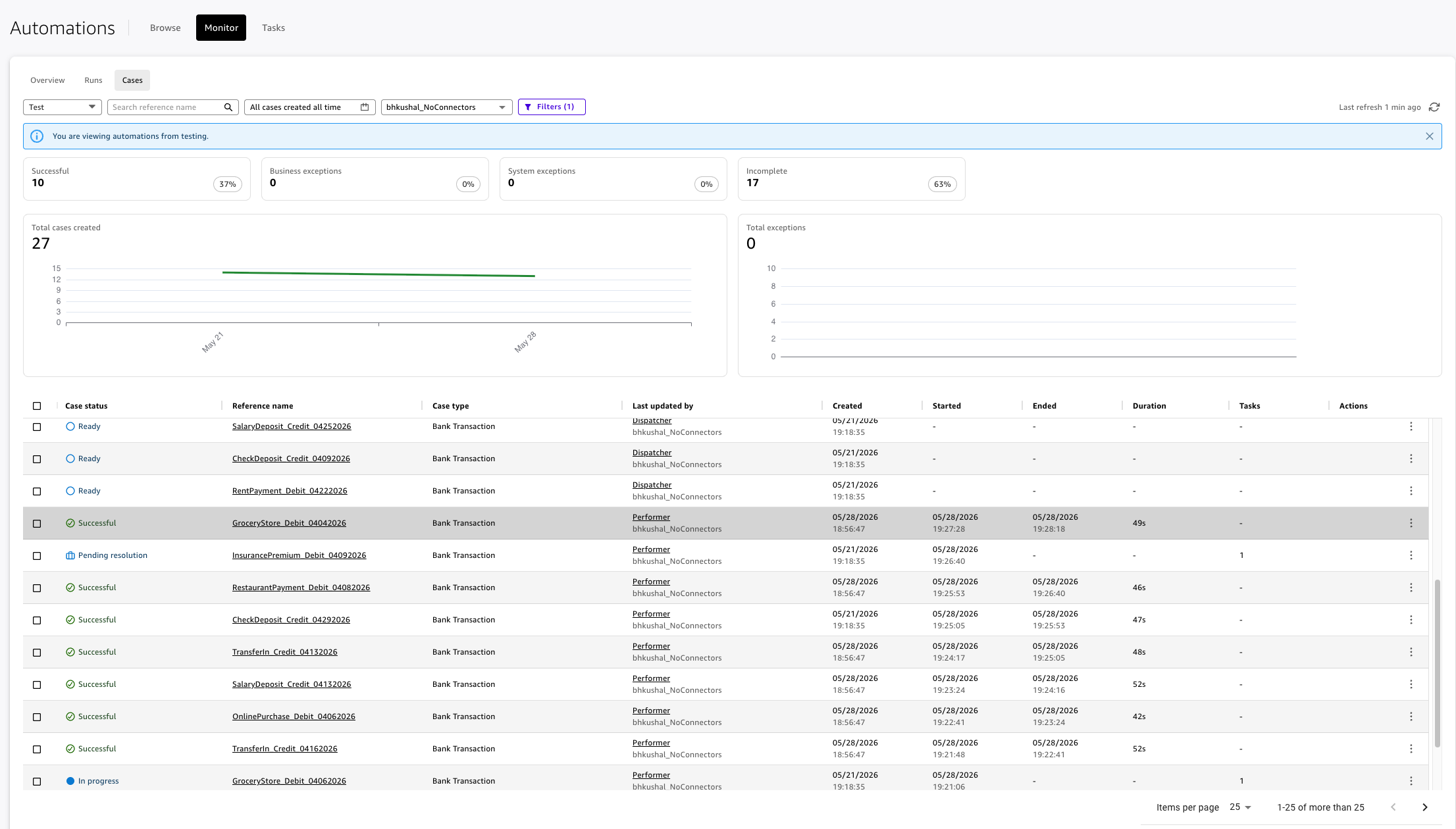
Figure 8: Cases
Operators can also access HITL tasks through the Tasks tab to view which transactions are awaiting analyst review, track SLA adherence, and see the resolution history including approval decisions and rejection reasons. The following image shows the HITL task as it appears in the Task Center. The treasury analyst sees the full transaction context along with the authorization form fields for their review decision.
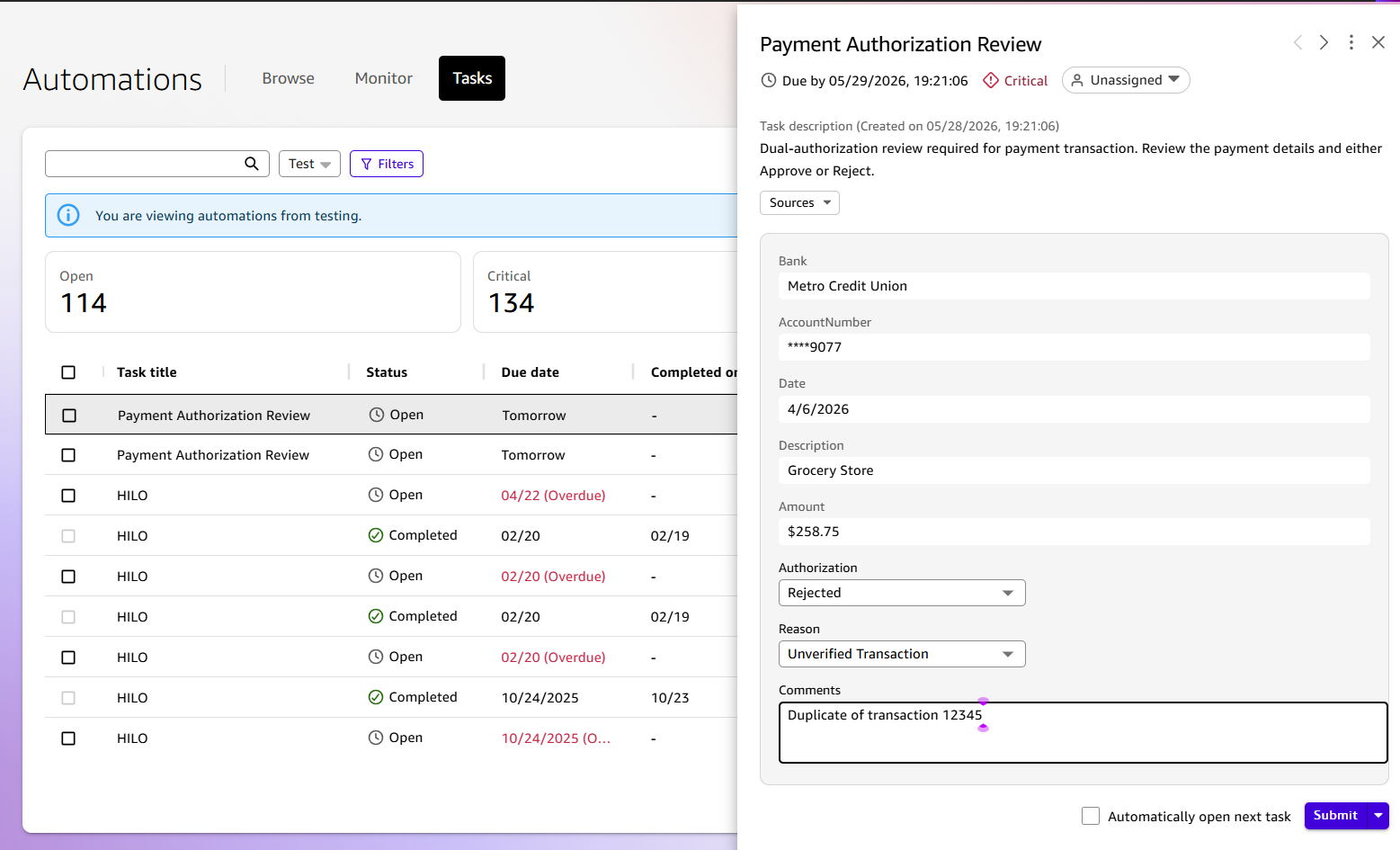
Figure 9: Tasks
Conclusion
Case management in Quick Automate empowers you to handle high-volume, complex automations at scale. By converting your work into discrete, trackable cases with defined lifecycles, you gain complete operational visibility into workflows. This approach reduces cycle times through parallel processing, improves decision quality by routing critical cases to human reviewers, and builds operational confidence through real-time monitoring that surfaces exceptions before they impact outcomes.
Next steps
Start implementing case management in your workflows by reviewing the orchestration documentation for Quick Automate and trying the automations as pre-built samples as described in this post. Open Quick Automate, navigate to your project, choose Start building, and search for “Treasury Bank Statement Gathering” (case creator) and “Treasury Bank Transaction Entry” (case processor) in the sample automation library. After you open both samples, you can run the case creator first to generate transaction cases, then configure and run the case processor to begin entering transactions in parallel.
You can adapt this pattern to other automations like invoice processing or claims adjudication by modifying the case creation logic and processor routing rules while maintaining the same core orchestration structure. For additional resources, see the public documentation for Quick Automate.
About the authors
Sumit Wasuja
Sumit is a product leader whose work has helped shape the evolution of automation from rule-based process orchestration to intelligent, agentic workflows. As the founding product leader for Amazon Quick Automate at AWS, he leads the development of agentic AI systems that enable organizations to automate complex end-to-end business processes, from natural language descriptions to production-ready workflows that reason, act, and adapt autonomously. Over nearly two decades, Sumit has advised and led transformations for some of the world’s largest enterprises across financial services, healthcare, energy, and technology, helping them reimagine how work gets done through the progressive application of automation, AI, and human-machine collaboration.
Kushal Bhattacharya
Kushal is on the Amazon Quick Automate product team at AWS, where he works on building agentic AI products that allow organizations to transform complex business processes into autonomous, self-adapting workflows. Over the past decade, he has led intelligent automation and AI transformations for large enterprises across financial services, insurance, healthcare, energy, and technology, architecting solutions that connect emerging AI capabilities to real operational challenges. His work spans the full arc from solution design to product strategy, helping teams adopt and scale AI-powered automations from proof of concept to production.
Srikanth Bharadwaz Samudrala
Srikanth is a Sr. Quick Builder in the ProServe organization at AWS. He works directly with large enterprise customers across financial services, healthcare, pharma, and entertainment to design and deliver generative AI solutions using Amazon Quick. He starts by understanding their most complex workflows and identifying where agentic AI can make a material difference. From there, he takes those ideas from use-case discovery and solution architecture through building POCs and MVPs that prove out the value before scaling toward production. His focus throughout is making sure the right security controls are in place, the solution fits within the customer’s existing environment, and measurable ROI is delivered at every stage.